The Tool Desk
Outbyte PC Repair FREERepair Windows errors before they cause bigger problemsFix Now →Outbyte Driver Updater FREEFix the driver behind crashes, sound loss and screen glitchesFind Drivers →The fastest way to reduce Minecraft server lag is to identify whether the delay is on the server, on a player’s device, or on the network, then profile the active incident before changing settings. On Java servers, use Spark while the lag is happening, lower view-distance or simulation-distance in small steps, reduce entity and redstone workloads, and check garbage collection and host limits before buying hardware. On Bedrock, simulation distance and ticking areas are usually more important than render distance.
Godlike.Host offers hosted Minecraft Java servers with its own game panel, SFTP access and free DDoS protection, if you would rather not host it yourself.
First, identify what kind of lag you have
Minecraft separates responsibilities between the server and each player’s client. The server processes game rules, entity AI, redstone, block updates and world simulation. The client renders frames, effects and the nearby world. A server can show healthy frame rates on a player’s computer while still taking too long to process ticks, and a powerful server cannot fix a client that renders frames slowly.
As an Amazon Associate I earn from qualifying purchases.
Server tick lag
Server-side lag appears as delayed block breaking, mobs that move or attack late, inventories that open slowly, rubber-banding, delayed redstone and a falling TPS or rising tick time. Everyone in the affected area may see the same delay. Paper’s healthy tick target is 0.05 seconds per tick; sustained work beyond that lowers the server’s ability to maintain the normal tick cadence.
Client frame-rate lag
Client lag looks like stuttering or a low frame rate while the server continues to respond normally. It is affected by the player’s graphics settings, render distance, shaders, resource packs, particles and hardware. Lowering the server’s simulation distance will not repair a client that cannot render its chosen settings.
#1 Best Overall

- Disclaimer: Maximum Speed requires overclocking/PC BIOS adjustments. Maximum speed and performance depend on system components, including motherboard and CPU
- Hand-sorted memory chips ensure high performance with generous overclocking headroom
- VENGEANCE LPX is optimized for wide compatibility with the latest Intel and AMD DDR4 motherboards
- A low-profile height of just 34mm ensures that VENGEANCE LPX even fits in most small-form-factor builds
- A solid aluminum heatspreader efficiently dissipates heat from each module so that they consistently run at high clock speeds
Network delay
High latency or packet loss causes players to appear to teleport, actions to arrive late or connections to time out. Record latency separately from tick time. Do not treat a network problem as proof that the server needs more RAM.
| What players notice | Most likely category | First check |
|---|---|---|
| Everyone breaks blocks late or mobs freeze | Server tick lag | Tick time, TPS and a Spark profile during the incident |
| Only one player sees a low frame rate | Client rendering | That player’s render distance, effects, resource packs and hardware |
| Players teleport or actions arrive in bursts | Network or server overload | Ping and packet loss alongside tick time |
| Lag starts when players explore new terrain | Chunk generation or loading | Profile chunk work and storage latency |
Establish a safe baseline before changing settings
Optimization is only useful when you can compare the same workload before and after a change. Reproduce the problem, record what was happening, and preserve a rollback copy.
Recommended Free Tools
- Reproduce the incident. Note the player count, dimensions, coordinates or farms involved, whether anyone was generating new terrain, and the exact time the lag began.
- Classify the symptom. Ask whether the delay affects all players, one area, one dimension, or only one client. Record tick time or TPS, latency, memory use, garbage-collection pauses and any console warnings.
- Stop the server cleanly. Make a full shutdown before editing configuration. Paper warns that changing server files while the process is running can corrupt them; only a complete stop protects the files being edited.
- Back up the world and configuration. Keep a dated copy of the world, server.properties, Paper configuration, plugin or add-on files and startup arguments. A rollback is essential when a farm, redstone circuit or plugin behaves differently after a change.
- Change one variable at a time. Keep the same players and activity for the next test whenever possible. Otherwise you cannot tell whether a setting helped or the workload simply changed.
Profile the active problem with Spark
A profile taken after the server has recovered often misses the cause. Paper’s documentation states that profiling is effective only while the issue is actively occurring. Paper 1.21 and later bundles Spark and identifies it as the preferred profiler.
Standard ten-minute profile
- When the lag is visible, run
/spark profiler start --timeout 600from the console or as an administrator. - Allow the profile to run through the lag rather than restarting the server immediately.
- Open and save the report URL Spark returns. Record the player count and activity at the same time so the report has context.
Shorter profiles and spike capture
For a shorter investigation, run /spark profiler start --timeout 300. If the problem is a burst of very slow ticks, use /spark profiler start --only-ticks-over 100 --timeout 300; this focuses on ticks exceeding 100 milliseconds during the five-minute window.
How to read the result
Look for the largest contributors to tick time rather than a single alarming line. Common categories include entity ticking, chunk generation or loading, plugin tasks, redstone and other block entities, garbage collection and disk stalls. A plugin appearing in a profile is not automatically defective; confirm by reproducing the same workload after changing or disabling only the suspected component.
Adjust the distance settings deliberately
Distance settings are usually the highest-impact, lowest-risk changes because they limit how much world and simulation work the server performs. Edit them only while the server is stopped, then restart and test the same scenario.
What’s actually slowing this PC down?
Pick the symptom - the matching free tool is one click away.
| Setting | What it controls | Documented values | Performance trade-off |
|---|---|---|---|
view-distance |
Server-side radius, in chunks, of world data sent to clients | Default 10; allowed range 3–32 | Lower values reduce chunk sending and client work, but players see less distant terrain |
simulation-distance |
Radius, in chunks, where living entities and game simulation are updated | Default 10; allowed range 3–32 | Lower values reduce entity and mechanics work, but farms, mob behavior and crop activity can change |
entity-broadcast-range-percentage |
How far entities are sent to clients relative to the configured range | Paper documents the setting; a universal best value is not stated | Reducing it can lower client traffic and rendering work; entities disappear at shorter distances |
use-native-transport |
Native network transport on supported systems | true is documented as a performance boost for Linux servers |
Platform-specific; verify the effect with a profile instead of assuming a gain |
Choosing test values
Do not jump straight to the minimum. Reduce one distance by a small amount, restart, and test the farm or exploration route that caused the incident. For example, a server using the documented default of 10 could test a lower view distance first, then lower simulation distance only if entity or mechanics work remains the dominant cost. Keep the value that meets the server’s gameplay needs and produces a measurable reduction in tick time.
View distance primarily changes what clients receive and render. Simulation distance changes what the server updates, so it generally has the larger effect on entity-heavy worlds. A very low simulation distance can make a farm appear broken simply because its entities are outside the active radius.
Rank #2

- Simple design to perfectly protect the cooling module with high thermal conductive adhesive
- Supports Intel & AMD motherboards
- Selected high-quality IC
- Supports XMP2.0
- Energy saving with ultra-low working voltage
Remove the workloads that consume tick time
Entities and hidden entities
Large numbers of mobs, dropped items, minecarts and other entities consume AI, pathfinding and collision time. Hidden entities are still expensive: a mob behind a wall can continue pathfinding even when no player can see it. Count and remove unnecessary entities in loaded chunks, especially around farms and collection systems. Entity rendering also increases client work, so reducing entity-broadcast range can help players with weak hardware.
Redstone and block entities
Clocks, hopper networks, constantly updating pistons, villagers and other block entities can generate work every tick. Use Spark to determine whether these systems are present in the slowest ticks. Replace always-on clocks with event-driven designs, disable machines when nobody needs them, and separate dense farms so one loaded area does not contain every contraption.
Do these 3 things before closing this tab:
1Clear out junk files and repair common Windows errors2Fix the driver behind crashes, sound loss and screen glitches3Repair Windows errors before they cause bigger problemsChunk generation and loading
Exploring new terrain can trigger generation, lighting, structure placement and storage writes. If profiles show chunk work or disk stalls, pregenerate the intended play area during a controlled maintenance window, limit simultaneous exploration, or move the world to faster storage. Pregeneration itself can overload a live server, so run it with players offline or at a deliberately reduced workload.
Commands, scripts and plugins
Per-tick commands and scripts become expensive when their work scales with player count or loaded chunks. Microsoft recommends limiting commands and scripts executed each tick and splitting long operations across intervals. For plugins, inspect scheduled tasks in Spark, then test a configuration change or temporary removal in a copy of the server. Do not apply a large optimization preset without checking compatibility; Paper cautions that copied presets can cause strange farm, entity or redstone behavior.
Particles and sounds
Excessive particles and sounds increase client rendering and network traffic. Reduce decorative effects in busy areas, avoid broadcasting effects to every player when only nearby players need them, and test resource packs that add heavy visual effects.
Bedrock add-ons and packs
On Bedrock, keep add-on file counts and pack sizes reasonable. Complex behavior packs, scripts and large numbers of simultaneous effects can increase both simulation and client costs. Disable one pack at a time in a test copy to identify the expensive component rather than removing every add-on at once.
Windows Errors? Fix Them Before They Spread
Repair common Windows errors and clear accumulated junk for a smoother, more stable PC - no reinstall needed.Free scan · no reinstallOutdated Drivers Are Slowing You Down
One free scan finds every outdated or missing driver and matches the right update for your exact hardware.Free scan · exact hardware matchBedrock: treat simulation distance differently from render distance
Microsoft explains that simulation distance controls entity behavior, mob spawning, plant growth and fluid movement. It costs more than render distance because it affects both the server and the client. Lowering render distance mainly limits what a player draws; lowering simulation distance limits active game mechanics.
Keep ticking areas small
Bedrock ticking areas remain active without a nearby player, so they can keep farms, commands and fluid systems running around the clock. Microsoft’s current guidance allows up to 10 ticking areas per world and up to 100 chunks per area, but those are limits, not targets. Remove unused areas and keep each one only as large as the mechanism requires.
Rank #3
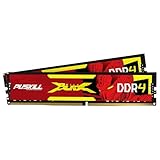
- The Sweet Spot for Performance & Value: Get the ideal balance of speed and responsiveness with 3200MHz frequency and tight CL16-18-18-42 timings. This DDR4 RAM delivers a significant boost in gaming frame rates and application speed over standard 2666MHz memory, making it the perfect upgrade for any modern PC.
- Easy Intel XMP 2.0 Overclocking: Achieve the full 3200MHz speed instantly. The pre-configured Intel XMP 2.0 profile allows you to automatically overclock your memory to its rated speed with a single click in your BIOS. No technical expertise required—just enable and enjoy.
- Wide Motherboard Compatibility: Built for universal compatibility. Works flawlessly with a vast range of Intel Core i9/i7/i5/i3 (e.g., 10th, 11th Gen) and AMD Ryzen (e.g., 3000, 5000 series) platforms. An essential, reliable upgrade for your desktop computer.
- Effective Heat Spreader for Stability: The sleek, anodized aluminum heat spreader efficiently dissipates heat, preventing thermal throttling during long gaming sessions or intensive tasks. This ensures consistent performance and enhances the longevity of your memory modules.
- Plug-and-Play Reliability: Experience a hassle-free installation. Our memory kit is rigorously tested for stability and reliability right out of the box. Whether you're building a new PC or upgrading an existing one, you can count on PUSKILL for seamless performance.
Test farms after every distance change
A farm outside the active simulation radius may stop producing while appearing visually intact. After changing the setting, test mob spawning, crop growth, villagers, redstone and fluids at the distances your players actually use. Document the minimum radius that preserves the intended mechanics.
Interpret memory, garbage collection and watchdog messages correctly
What Can’t keep up means
Paper describes a Can’t keep up warning as evidence that the server is taking 10 or more seconds to finish the current tick. It is a severe-lag warning, not proof of a crash by itself, but repeated messages can eventually lead to a crash. Look at the profile and tick duration to find the work that caused the delay.
Watchdog threshold
The server-properties reference documents max-tick-time=60000 by default: a single tick lasting 60,000 milliseconds is treated as crashed by the watchdog. Raising or disabling the watchdog does not make the tick faster; it only changes how long the server can remain stuck before termination.
A full heap is not automatically a leak
Paper explains that Java’s heap commonly grows toward -Xmx and that garbage collection rarely returns reserved memory to the operating system. A memory meter that looks nearly full can therefore be normal. Investigate out-of-memory crashes, unusually long garbage-collection pauses and container limits instead of treating the display alone as evidence of a leak.
When a panel limit conflicts with Xmx
If a hosting panel’s memory limit is close to the Java -Xmx value, the process may be killed before Java can operate safely. Paper gives reducing -Xmx by 1–2 GB as an initial rule of thumb, or increasing or disabling the panel limit where the host permits it. Recheck actual GC behavior and crash logs after the change; assigning less memory is not a universal performance improvement.
Choose software and JVM changes based on evidence
Paper and Spark
Paper provides the configuration and profiling tools used in this workflow. On Paper 1.21 and newer, Spark is bundled, so installing a second copy is unnecessary unless a specific supported setup requires it. Keep Paper, Java and plugins on compatible versions, and repeat a profile after upgrades because task timings can change.
JVM flags
Paper’s how-to index identifies Aikar’s flags as JVM options designed for Paper performance. Apply them only after checking compatibility with the installed Java and Paper versions, the hosting panel’s startup format and the available memory. Validate with Spark under the same workload. Flags that improve one heap or CPU layout can be neutral or harmful on another.
Do not copy an optimization preset blindly
Preset files often change entity activation, redstone behavior, hopper timing or despawn rules together. Those changes may reduce measured work by altering gameplay. Keep a clean backup, apply only the setting you understand, and revert immediately if farms, entities or redstone no longer behave as intended.
Rank #4

- VALUE & PERFORMANCE MINI PC - GMKtec Nucbox M6 Ultra Series is equipped with the powerful AMD Ryzen 5 7640HS processor. This CPU is an upper mid-range processor (APU) of the Phoenix product family. It has 6 SMT-enabled Zen 4 cores (12 threads) running at 4.3 GHz base speed to turbo boost 5.0 GHz.With a TDP Boost of 45W-60W, the Ryzen 7640HS CPU is more energy efficient and delivers a 30% Performance increase over previous AMD Ryzen 7 6800H, 6600U.
- 32GB DDR5 RAM & 1TB PCIe SSD - Installed with DDR5 32GB RAM SO-DIMM Dual Channel (2x16GB), the Nucbox M6 Ultra mini pc support expansion to 128GB RAM. Featured with 1TB M.2 2280 PCIe 3.0 SSD, support dual slot expansion to PCIe 4.0 8TB SSD. (Upgrades not included)
- GAMING PC - The Radeon 760M iGPU has 8 CUs (512 shaders) running at up to 2,600 MHz. This desktop computer can play moderate gaming at a steady FPS, it also HW-encodes and HW-decodes the most widely used video codecs such as AV1, HEVC and AVC.
- DUAL NIC LAN 2.5G RJ45 - Fast Network Speeds: Enjoy up to 2500Mbps data transmission speed without worrying about lagging. Ideal for working, gaming, and surfing the internet. Great for Untangle, Pfsense or as a server office PC.
- TRIPLE 4K DISPLAY - Unlock unparalleled productivity with support for three simultaneous displays, including a stunning 8K@60Hz via USB4, plus 4K@60Hz through both HDMI 2.0 and DisplayPort, transforming your workspace into a command center for multitasking and immersive entertainment.
Know when hardware is the bottleneck
Upgrade hardware only when the profile and system metrics show a sustained limitation. There is no universal CPU, RAM or storage specification that guarantees a particular TPS or player count.
Free tools Windows power users keep installed
One-click scans. No signup required.
| Observed bottleneck | Hardware or service change that may help | What it will not fix |
|---|---|---|
| Sustained tick work on one busy thread | A faster single-thread CPU | Expensive plugins, entities or redstone that should be removed first |
| Out-of-memory crashes or container pressure | More available RAM or a correctly sized panel limit | Slow ticks caused by CPU, chunk generation or network delay |
| Chunk generation, loading or save stalls | Faster storage and adequate I/O capacity | Client frame-rate problems or a plugin that blocks the main thread |
| Packet delay or loss | Better network path, bandwidth or host location | Server tick work that is already over budget |
More RAM helps only when the process is genuinely constrained. Faster storage mainly helps generation, loading and saves. A faster single-thread processor is more relevant to tick-bound workloads than simply adding additional cores.
A repeatable optimization procedure
- Capture the baseline. Record player count, dimensions, activity, tick time or TPS, latency, memory, GC pauses and disk behavior.
- Profile during the incident. On Paper 1.21 or later, use Spark’s ten-minute command or the shorter spike-focused command and save the report URL.
- Identify the dominant category. Decide whether entities, chunks, plugin tasks, redstone, garbage collection, storage or networking consumes the time.
- Back up and stop. Shut down fully before editing server files or changing startup flags.
- Make one targeted change. Lower a distance, remove a group of entities, spread a command over intervals, disable one plugin task or address the measured resource limit.
- Reproduce the same workload. Use the same farm, exploration route, player count and duration as the baseline test.
- Keep or roll back. Retain the change only if the profile and player experience improve without unacceptable gameplay changes.
- Repeat the profile. A second report confirms whether the original hotspot actually became smaller and reveals the next constraint.
Troubleshooting by symptom
Lag appears only near one farm
Profile while the farm is active. Check entity counts, villagers, hoppers, redstone clocks and block entities in that area. Reduce or stagger the machinery, then verify output and tick time with the same number of players nearby.
Lag appears during exploration
Check chunk-generation and storage entries in Spark. Limit simultaneous exploration or pregenerate the play area during maintenance. If storage is saturated, moving the world to faster storage can help; adding RAM alone will not remove a disk stall.
The server improves after a restart, then degrades
Look for accumulating entities, scheduled tasks, memory pressure or increasingly long garbage-collection pauses. Capture a profile before restarting so the evidence is not lost, then compare the post-restart workload with the degraded state.
Players report lag but the profile is clean
Check whether the complaint is client FPS or network latency rather than server ticks. Ask the affected player to test lower client render distance, particles and resource-pack effects, and compare latency from more than one location.
A setting fixed lag but broke gameplay
Restore the backup, identify which distance or preset change altered the behavior, and retest with a smaller adjustment. Simulation distance and broad optimization presets can change farms, mob AI and redstone even when the server appears faster.
You cannot access the server files
If a hosting panel does not expose configuration, logs or Spark reports, ask the host for documented CPU, memory, storage and network limits and for support with a Spark-compatible Paper setup. Without those measurements, a plan upgrade is guesswork.
Use these measures when comparing hosting or hardware
Compare services under an equivalent workload rather than by advertised RAM alone. Ask for evidence covering:
- Tick time or TPS with the same player count and activity.
- Player count and chunk-generation rate used for the test.
- View distance and simulation distance.
- Entity, plugin, mod or add-on workload.
- Memory allocation, garbage-collection behavior and panel limits.
- Storage latency during generation and saves.
- Network latency and packet-loss characteristics for your players.
- Gameplay compatibility, administrative access and the ability to run Spark profiles.
- Recurring cost and any resource limits that apply after a promotion ends.
A host that cannot provide its limits or let you collect diagnostics makes future troubleshooting harder, regardless of the advertised specification.
Quick Recap
Final checklist
- Classify the problem as server ticks, client frames or network delay.
- Reproduce it and record players, dimensions, activity and timing.
- Stop the server and back up files before editing.
- Run Spark while the lag is active and save the report.
- Test view-distance and simulation-distance changes within the documented 3–32 range, preserving required gameplay.
- Control entities, hidden mobs, redstone, chunk generation, per-tick commands, particles and add-ons.
- Check garbage collection,
-Xmx, panel limits, storage and network evidence before purchasing hardware. - Use compatible Paper and JVM changes, then verify the result with a repeat profile.
- Rollback any change that causes incorrect farm, entity or redstone behavior.
Product prices and availability are accurate as of the date/time indicated and are subject to change. Any price and availability information displayed on Amazon at the time of purchase will apply.

