Do these 3 things before closing this tab:
1Repair Windows errors before they cause bigger problems2Fix the driver behind crashes, sound loss and screen glitches3Clear out junk files and repair common Windows errorsThe fastest way to improve a Steam game on a Mac is to diagnose the problem in the right order: confirm that the specific game supports your macOS and hardware, determine whether the symptom is low frame rate or network latency, reduce local graphics and background load, update macOS, and check ventilation during long sessions. These changes are reversible and avoid applying Windows-only advice to a Mac.
Start with the game’s macOS support and requirements
Before changing graphics settings, open the game’s Steam Store page and read its macOS listing and complete system requirements. Check the requirements against your Mac’s processor, memory, graphics hardware and macOS version. A game appearing in your Steam library does not prove that it supports your current operating system. If Steam displays “Game is not available on your current platform,” the title does not support that operating system.
As an Amazon Associate I earn from qualifying purchases.
Even when a game lists macOS support, a Mac that is close to the minimum requirement may only deliver basic playability. Minimum specifications are not a promise of high frame rates, high visual quality or smooth performance in every scene. Treat the recommended requirement as the more useful target when choosing resolution and quality settings.
Check your Mac’s specifications
- Choose the Apple menu and open About This Mac. On newer macOS versions, the same information is available under System Settings > General > About.
- Note the processor or chip, installed memory and macOS version.
- Compare those details with every macOS, processor, memory and graphics requirement on the game’s Store page. Do not substitute the requirements of another title; each game can have a different Mac build and graphics workload.
Know the macOS compatibility cutoffs
| Mac software situation | What it means for Steam games |
|---|---|
| macOS 10.13 High Sierra or 10.14 Mojave | Steam ended support for these versions on February 15, 2024. The client and games may encounter compatibility or support limitations on an unupdated Mac. |
| macOS 10.15 Catalina | Apple dropped 32-bit application support in 10.15. Older games that are 32-bit-only cannot run on Catalina or later. |
| macOS 11 Big Sur | Steam’s official client support ended on October 15, 2025. Steam says users must update to a newer macOS to continue running the client. |
| A newer supported macOS release | Check the individual game’s listed macOS version and hardware requirements; compatibility still varies by title. |
These dates describe Steam client support, not a guarantee that every game will stop launching on the same day. A 32-bit-only game remains a separate compatibility problem even on a Mac that can run a current Steam client.
#1 Best Overall
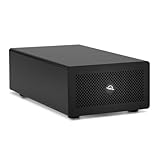
- Expands Small Machines: Use video capture, high-speed fiber/Ethernet, NVMe RAID, audio I/O, and other cards to unlock the potential of MacBooks, Mac Studio, Mac mini, and other space-constrained computers lacking a PCIe slot
- Internal Class Speed: Over 6000MB/s bandwidth available for simultaneous read/write
- Pro Level Card Ready: (1) PCIe 4.0 x4 (x16 mechanical slot) for half-length, full-height, single or double-width cards
- Expanded Connectivity: Three Thunderbolt 5 (USB-C) 80Gb/s ports each with 15W power delivery for more device, display, and drive possibilities
- 3 Year OWC Limited Warranty
Identify what “lag” actually means
“Lag” is used for several different problems. Steam’s dedicated lag guidance uses the term for high network latency, while a low frame rate is a local rendering problem. Separating them prevents you from lowering graphics settings when the real issue is an online server connection.
| What you observe | Most likely category | First check |
|---|---|---|
| The picture is consistently jerky, especially in busy scenes | Low FPS from graphics load or hardware limits | Lower resolution and demanding visual settings in the game. |
| Play starts smoothly but slows or stutters after a long session | Heat, blocked airflow or sustained system load | Move the MacBook to a hard surface and clear its vents. |
| Characters teleport, actions arrive late or the game shows a high-ping warning | Network latency or an unsuitable server region | Check the game’s server latency and selected region. |
| The game crashes, refuses to start or reports an unsupported platform | Compatibility, damaged files or an incompatible game build | Recheck the Store page, update macOS and verify the game files. |
| Loading takes much longer than expected while gameplay is otherwise smooth | Game-specific files, storage pressure or background activity | Close unnecessary apps, verify files and consult the developer if only this title is affected. |
For an online game, test local performance first by observing whether the frame rate is poor in menus or an offline practice mode. If the image is smooth but network actions arrive late, focus on latency and server region rather than GPU settings.
Follow this low-risk troubleshooting sequence
1. Establish a baseline
Launch the game with your normal settings and note exactly when the problem occurs: immediately, only in graphically busy scenes, after several minutes, or only in online matches. Record whether the issue is a crash, stutter, low FPS, long loading or delayed network response. Make one change at a time afterward. A baseline prevents several simultaneous changes from hiding which adjustment helped.
2. Close unnecessary applications and startup items
Background software competes with the game for processor time, memory and graphics resources. Steam recommends removing unnecessary startup programs and manually stopping unnecessary applications. On macOS, press Command-Option-Escape to open Force Quit, select a nonessential application and choose Force Quit. Save work first; do not terminate a process you do not recognize merely because it appears in the list.
Rank #2

- 【Universal Connectivity & AI Ready】Compatible with NUCs, laptops, and handhelds via Thunderbolt 4/3 or USB4. Optimized for DeepSeek-R1 and AI deployment. Note: Non-Thunderbolt/USB4 Type-C ports are not supported.
- 【Supports Next-Gen RTX 50 Series】Fully compatible with NVIDIA/AMD GPUs, including RTX 5090 D, 5080, 5070 Ti, 5070, and RX 7000 series. Supports Windows 10/11, Linux, and select macOS models.
- 【Certified Performance】Features officially certified JHL7540/7440 controllers and PCIe 4.0 x16 mode. 32Gbps high-speed bandwidth with a premium Immersion Gold (ENIG) PCB for rock-solid stability.
- 【85W PD Fast Charging】Dual Thunderbolt ports + DP interface. The 85W PD port triggers ROG Ally X 30W Turbo Mode, enabling charging and external GPU connection via a single cable.
- 【Premium Open-Frame Design】Crafted from durable, anodized aluminum alloy. The rust-proof, lightweight open-frame structure imposes no limit on graphics card length and ensures maximum airflow.
For programs that launch every time you sign in, review System Settings > General > Login Items and disable only items you do not need while gaming. This is a reversible change. Quit browser windows, video editors, virtual machines, large file transfers and overlays when they are not required. Do not assume that quitting Steam itself will improve a Steam game; the client is needed to launch and authenticate many titles.
3. Lower the game’s own graphics settings
Open the title’s in-game Options, Settings or Video/Graphics menu. Steam identifies resolution and settings above a system’s recommended configuration as common causes of reduced FPS. Change one setting, play the same demanding section for a few minutes and compare it with your baseline.
| Setting to test | Why it can help | Trade-off |
|---|---|---|
| Display resolution or render scale | Fewer pixels require less graphics processing. | The image becomes less sharp, especially on a Retina display. |
| Overall quality preset | Reduces several demanding effects together, which is useful for a quick diagnostic. | Visual detail and effects are reduced; the preset may change more than you intended. |
| Shadows, lighting and reflections | These effects can be expensive in scenes with many objects or light sources. | Less depth, contrast or visual realism. |
| Anti-aliasing and post-processing | Reducing image-processing work can improve consistency in GPU-limited scenes. | Edges may look more jagged and effects less polished. |
| Texture quality | Lower settings can reduce memory pressure on hardware with limited graphics memory. | Surfaces look less detailed. This may not improve FPS if the processor, rather than graphics memory, is the bottleneck. |
Start with resolution or the overall preset, then tune individual options if you want to recover visual quality. Do not promise yourself a fixed FPS increase: the result depends on the game, scene, Mac model and current bottleneck, and no universal gain applies to every Steam title.
The Tool Desk
Outbyte Driver Updater FREEFix the driver behind crashes, sound loss and screen glitchesFind Drivers →Outbyte PC Repair FREEClear out junk files and repair common Windows errorsFree Scan →4. Update macOS instead of searching for a separate graphics driver
On a Mac, graphics drivers are delivered with macOS. Steam’s support guidance states: “For Mac: drivers cannot be updated separately; only the operating system can be updated.” Do not download a Windows graphics-driver installer or look for a standalone Mac driver package.
Rank #3
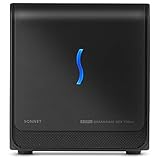
- Boosts Graphics Performance - Connects a high-performance GPU card to your computer with Thunderbolt 3 ports. Mac & Windows Compatible. **M1 Macs are NOT compatible with GPUs.
- Cuts Application Task Times - Enables GPU acceleration to significantly improve editing, rendering, color grading, animation, and special effects performance.
- 750W Power Supply - Support the power requirements of the latest compatible GPU cards; future-proof design handles higher power requirements of cards to come.
- Supports Many of the Latest GPU Cards - Includes AMD Radeon VII, RX, RX Vega, Pro W and Pro WX models; and NVIDIA GeForce RTX series, TITAN, and Quadro models.
- 750ex Model: Additional Connectivity Adds four 5Gb/s USB Type A ports to connect peripherals, plus an RJ45 Gigabit Ethernet port for a wired network connectivity.
- Back up important work and connect the Mac to power if it is a laptop.
- Open System Settings > General > Software Update.
- Install an available update that your Mac supports, then restart when prompted.
- Recheck the game’s macOS requirement after updating. A newer operating system does not restore support to a 32-bit-only game.
If the Mac cannot install a newer supported release, the practical options are to use a game build compatible with the installed system, choose a different supported title or obtain qualified advice about the device. Do not force an unsupported operating-system upgrade solely to run one game.
5. Verify the game’s files
A damaged or incomplete installation can cause crashes, failed launches, missing assets or unusually long loads. Steam’s Mac troubleshooting recommends verifying game files.
- Open Steam and select Library.
- Control-click or right-click the affected game and choose Properties.
- Select Installed Files.
- Choose Verify integrity of game files and allow Steam to complete the check and replace files when necessary.
- Restart the game and test the same scenario used for your baseline.
Verification addresses the installation; it cannot make unsupported hardware meet a demanding requirement. If only one game remains broken after verification and a macOS update, use that game developer’s support page through its Steam library entry.
6. Keep the MacBook’s airflow clear
If performance deteriorates during a longer session, heat and sustained load are plausible contributors. Steam’s ventilation guidance is explicit: “Laptops should be placed on a hard surface.” Use a desk or table rather than a bed, blanket, sofa or other fabric that can cover the underside or restrict cooling air. Keep vents clear of dust and objects, and avoid placing the Mac inside a confined compartment while playing.
Rank #4

- Wide support for NVIDIA RTX (up to 50 series) & AMD Radeon RX (up to 9000). Compatible with GTX, Quadro, Tesla, Pro, and VII series. Future-proof your setup for desktop-level gaming and professional rendering.
- Ideal for laptops, handhelds and NUCs with Thunderbolt 3/4 or USB4. Specially optimized for ROG Ally X, enabling 30W Turbo Mode via 85W PD pass-through charging for ultimate portable performance.
- Features official Intel JHL7440/7450 controller for stable data transfer. Built with high-grade ENIG (Electroless Nickel Immersion Gold) PCB to ensure superior conductivity and long-term oxidation resistance.
- Equipped with dual Thunderbolt ports (15W & 85W PD) and one DisplayPort. Single-cable solution: charge your laptop at 85W while utilizing the external GPU, keeping your workspace clean and efficient.
- Our specialized team offers fast, hassle-free assistance for connectivity and driver issues between laptops and eGPU docks. Enjoy peace of mind with our prompt response and professional technical guidance.
These steps preserve the cooling path; they are not a guaranteed FPS upgrade. A stand can be useful if it keeps the underside unobstructed, but Steam’s guidance does not establish that a particular stand or cooling accessory increases game performance. If the Mac repeatedly becomes extremely hot, shuts down, shows system-wide slowdowns or exhibits problems outside the game, stop the session and seek qualified device support.
7. Use launch options only when the game supports them
Steam documents the -autoconfig and -safe launch options for Valve/Source games. In a supported title, these can reset or minimize graphics settings; -safe includes windowed mode and low resolution. They are not universal Mac fixes, and Steam explicitly cautions that they do not affect other Steam games.
- In Steam Library, open the game’s Properties.
- Stay on the General tab and locate Launch Options.
- Enter the documented option only if the game is a Valve/Source title for which Steam lists it.
- Launch and adjust the game’s normal graphics settings after it starts.
- Remove the option when it is no longer needed, or if it has no effect.
Do not copy launch flags from a Windows guide or apply an option simply because it worked for another game. Unsupported flags may do nothing or create a new configuration problem.
Crashes, No Sound, or Screen Glitches?
Random freezes, missing sound and display glitches usually trace back to one bad driver. Find and replace yours safely.Free scan · under a minuteWindows Errors? Fix Them Before They Spread
Repair common Windows errors and clear accumulated junk for a smoother, more stable PC - no reinstall needed.Free scan · no reinstallFix the common Mac scenarios
The game will not launch
- Read the Store page’s macOS requirement and compare it with your installed version.
- Look for the “not available on your current platform” message; it indicates that the title does not support the current operating system.
- Consider the 32-bit break in macOS 10.15 if the game is old or was built only for 32-bit macOS.
- Install available macOS updates, restart and verify the game files.
- Quit nonessential applications and try again.
- If the problem affects only this title, follow the developer’s support process rather than changing unrelated system settings.
FPS is low from the first minute
- Confirm that the Mac is not merely meeting the minimum requirement while you are expecting recommended-quality performance.
- Lower resolution or render scale first, then test the quality preset and individual demanding effects.
- Close background applications and login items that are not needed.
- Update macOS, since separate graphics-driver installation is not available on Mac.
Performance gets worse over time
- Check whether the slowdown appears after a repeatable period of sustained play.
- Move a laptop to a hard, unobstructed surface and make sure vents are clear.
- Quit other demanding applications before restarting the game.
- If the Mac slows down across the entire system or repeatedly shuts down, treat it as a device-support issue rather than an in-game graphics setting.
Online play feels delayed while the picture is smooth
- Check the game’s displayed server latency or ping and the region selected for matchmaking.
- Try the region closest to the players or server location appropriate for your connection, when the game provides that choice.
- Do not expect lower resolution or texture quality to fix a network-latency problem; those settings affect local rendering, not the route to the server.
Only one game has a problem
A title-specific bug, damaged asset or unsupported game build is more likely when other Steam games run normally on the same Mac. Verify that game’s files, review its macOS requirements and use the developer’s support page. Avoid broad system changes until you have ruled out the individual installation.
Best Value

- Flip-Open Tool-Free Design: Open the cover, insert your NVMe SSD, lock it in place, and close—no screws or tools required. Fast and simple for upgrades, cloning, troubleshooting, and portable tech work.
- Cooler 10Gbps Performance: The aluminum enclosure presses the thermal pad directly against your SSD for better heat transfer and more stable 10Gbps speeds than slide-in enclosures. Ideal for long transfers and heavy workloads.
- NVMe Only for Maximum Speed: Supports M.2 NVMe SSDs in sizes 2230, 2242, 2260, and 2280 up to at least 8TB. Not compatible with M.2 SATA SSDs.
- USB C Plug-and-Play: Connect with USB C for up to 10Gbps using USB 3.2 Gen 2. No drivers or external power needed. Works with laptops, desktops, gaming handhelds, and USB C devices.
- Portable and Durable Aluminum Build: Reinforced ABS frame with an aluminum alloy top keeps your SSD protected and cool. Slim, lightweight, and perfect for creators, gamers, and anyone needing fast portable storage.
Choose changes by reversibility and symptom
| Option | Best use | Risk or limitation |
|---|---|---|
| Check the Store page and Mac specifications | Any launch, compatibility or performance question | It identifies a limit but cannot raise hardware capability. |
| Close apps and review login items | Intermittent stutter or memory and processor pressure | Closing an app can discard unsaved work; change only nonessential items. |
| Lower in-game resolution and quality | Consistently low FPS or graphics-bound scenes | Image quality declines; gains vary by title and bottleneck. |
| Update macOS | Client compatibility, platform support and bundled graphics-driver updates | The Mac must support the release, and 32-bit games remain incompatible with Catalina and later. |
| Verify files | Crashes, failed launches or missing content in one title | It repairs installation files but does not solve unsupported hardware. |
| Improve ventilation | Slowdown or stutter that appears under sustained load | It preserves airflow; no specific accessory or FPS increase is guaranteed. |
| Valve/Source launch flags | Resetting graphics in a supported Valve/Source game | They do not affect other Steam games. |
What not to do
- Do not install Windows graphics drivers. Mac graphics drivers cannot be updated separately from macOS.
- Do not infer support from library ownership. A purchased or visible game can still lack a Mac build or require a newer macOS.
- Do not treat every delay as low FPS. High network latency requires checking the server and region.
- Do not apply launch flags universally. The documented
-autoconfigand-safeoptions are for Valve/Source games and may have no effect elsewhere. - Do not block the underside of a laptop. Fabric surfaces can restrict the cooling air path during sustained play.
- Do not expect a fixed performance percentage. Steam provides no universal FPS improvement figure; results depend on the game, Mac hardware, software version and scene.
When software troubleshooting is finished
Escalate to the game developer when the problem is isolated to one title after checking compatibility, updating macOS, verifying files and closing nonessential applications. Include the Mac model or chip, macOS version, the game version, the exact symptom and when it occurs.
Seek qualified device support when heat-related slowdowns persist across games, the entire system becomes unstable, the Mac shuts down unexpectedly or ventilation appears physically obstructed or damaged. Generic Steam settings cannot correct a failing cooling system or a hardware fault.
The practical order is therefore: confirm the game’s requirements, classify the symptom, reduce reversible local load, update macOS, verify files, protect airflow and use game-specific support when the problem remains. That sequence distinguishes a title your Mac cannot support from one that simply needs lighter settings or a cleaner, cooler session.
Quick Recap
Product prices and availability are accurate as of the date/time indicated and are subject to change. Any price and availability information displayed on Amazon at the time of purchase will apply.

