What’s actually slowing this PC down?
Pick the symptom - the matching free tool is one click away.
Speech recognition improves most when you improve the sound reaching the microphone before asking software to clean it up. Move to the quietest practical location, put the microphone close to the speaker’s mouth, keep it away from fans and other noise sources, then verify mute and input level. Only after those basics should you try beamforming, echo cancellation, automatic gain control, dereverberation or noise suppression.
Why noisy rooms defeat speech recognition
Speech-recognition software does not hear the room the way a person does. It receives an electrical audio signal containing speech plus everything else captured by the microphone: ventilation, computer fans, keyboard clicks, loudspeakers, room reflections and nearby conversations. Recognition quality depends on how clearly the speech signal stands out from that mixture.
As an Amazon Associate I earn from qualifying purchases.
Microsoft’s Speech Recognition documentation identifies background noise, microphone quality and location as factors that affect input quality. A quiet-sounding recording is not automatically a good recognition signal, either. Microsoft’s device guidance distinguishes perceptual voice quality from recognition performance: audio that sounds pleasant to a person may still be difficult for a recognizer to transcribe.
Outdated Drivers Are Slowing You Down
One free scan finds every outdated or missing driver and matches the right update for your exact hardware.Free scan · exact hardware matchWindows Errors? Fix Them Before They Spread
Repair common Windows errors and clear accumulated junk for a smoother, more stable PC - no reinstall needed.Free scan · no reinstallThe practical rule is simple: improve the signal at the microphone first. Software processing can help with a usable signal, but it cannot reliably reconstruct words that were masked, clipped, echoed or never captured clearly.
#1 Best Overall

- Digital Stereo Sound: Fine-tuned drivers provide enhanced digital audio for music, calls, meetings and more
- Rotating Noise Canceling Mic: Minimizes unwanted background noise for clear conversations; the rotating boom arm can be tucked out of the way when you’re not using it
- Handy In-line Controls: Simple in-line controls on the headset cable let you adjust the volume or mute calls without disruption
- Plug-and-Play USB Computer Headset: Simply plug the USB-A connector into your computer and you’re ready to talk or listen without the need to install software
- Padded Comfort: Comfortable headphones with adjustable headband features swivel-mounted, leatherette ear cushions for hours of comfort and is easy to clean
Start with microphone position and the room
Move away from the noise source
Identify the loudest continuous or intermittent sound near the microphone. Common examples include a desk fan, air conditioner, laptop exhaust, refrigerator, television, monitor speakers, a mechanical keyboard or another person’s workstation. Move the microphone so those sources are farther away, or move yourself to a quieter part of the room.
Microsoft’s Windows hardware audio guidance recommends maximizing the distance from noise sources while minimizing the distance to the speaker. This geometry often helps more than changing a setting. Doubling the distance between the microphone and a fan reduces the fan’s direct contribution at the capsule, while moving the microphone closer to your mouth increases the speech level without requiring you to shout.
Put the microphone close to your mouth
A microphone should be close enough to capture your normal voice clearly, but not so close that breath blasts, clothing contact or plosive sounds dominate. For a headset, position the boom beside the corner of your mouth rather than directly in front of your lips. For a desk microphone, bring it toward you instead of leaving it at the far edge of the desk. Keep the capsule aimed according to the microphone’s design and avoid covering it with a hand, scarf or case.
Distance is especially important in reverberant rooms. Every extra distance lets more reflected room sound reach the microphone along with the direct voice. Curtains, rugs, bookshelves and upholstered furniture can reduce reflections, but they are secondary to placing the microphone near the speaker.
Control what the microphone can hear
- Turn down or move loudspeakers so the microphone does not receive the recognition system’s own output.
- Close a nearby window or door if outside traffic or hallway noise is intermittent.
- Move hard, reflective objects away from the immediate speaking area when practical.
- Keep the microphone cable and stand from touching vibrating fans, desks or laptop chassis.
- Ask other people in the room to avoid side conversations during dictation or commands.
Check connection, mute and input level
Before changing speech models or installing filters, verify that the application is listening to the microphone you think it is using. A computer may have a built-in microphone, a monitor microphone, a webcam and a headset connected at the same time. Selecting the wrong input can make a carefully positioned microphone irrelevant.
Microsoft’s audio-input troubleshooting guidance groups common problems into no signal, audio that is too quiet and audio that is too loud. Its speech-audio categories also include excessive noise and speaking too fast or too slowly. Use those categories as a diagnostic checklist rather than assuming every error is a recognition-engine problem.
Rank #2
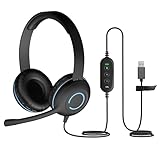
- USB Stereo Headset with Microphone for PC: The Cyber Acoustics AC-5008A USB headset with microphone delivers clear stereo sound for calls, lessons, and everyday computer use. A unidirectional noise-canceling microphone reduces background distractions, making this computer headset with microphone for PC ideal for K-12 classrooms, remote learning, and home use.
- Adjustable Headset with Mic for Universal Fit: The Cyber Acoustics AC-5008A headset with mic features an adjustable headband, flexible microphone boom, and soft leatherette earpads for a comfortable fit. Designed for versatility, this wired USB headset can be worn with the microphone boom on either the left or right side.Adjustable Headset with Mic for Universal Fit: The Cyber Acoustics AC-5008A headset with mic features an adjustable headband, flexible microphone boom, and soft leatherette earpads for a comfortable fit. Designed for versatility, this wired USB headset can be worn with the microphone boom on either the left or right side.
- Durable Wired Headphones Built to Last: Designed for daily use, the Cyber Acoustics AC-5008A wired headset includes easy-to-clean leatherette ear cushions and a durable braided TuffCord cable that resists tangling and wear. These wired headphones with microphone are perfect for classroomsand home workspaces.
- Plug-and-Play USB Headset for PC and Mac: The Cyber Acoustics AC-5008A computer headset with microphone connects instantly with a simple USB plug-and-play connection, requiring no drivers or software installation. This USB headset with mic works easily with PCs, Macs, and Chromebooks for quick and reliable setup.
- Complete Cyber Acoustics Headset Package: Includes the Cyber Acoustics AC-5008A USB Stereo Headset and User Guide, backed by a 1-year warranty. Designed for classrooms, offices, and home learning, this Cyber Acoustics computer headset delivers dependable audio and long-lasting performance.
- Select the intended device. In the operating system and in the recognition application, choose the connected microphone or headset you are actually using.
- Confirm the physical connection. Reseat a USB plug, check a headset’s inline control and make sure a wireless headset has connected to the computer rather than a nearby phone.
- Check mute in every layer. Inspect the microphone’s hardware mute switch, the operating-system control and the application’s own mute button.
- Watch the input meter. Speak at your normal volume. No movement indicates a connection, selection or permission problem. A barely moving meter indicates an overly quiet signal; a meter that repeatedly hits its maximum indicates clipping or excessive gain.
- Make a short recording. Listen for silence, distortion, crackling, fan rumble, keyboard clicks and delayed echo. The recording reveals whether the problem occurs before recognition software receives the audio.
Do not compensate for a distant microphone by turning the input gain to its maximum. Gain raises speech and background noise together, and an overdriven signal can clip consonants that the recognizer needs.
Free tools Windows power users keep installed
One-click scans. No signup required.
Speak in a way the recognizer can use
Once the microphone is positioned correctly, use a measured, consistent pace. Rushing can merge word boundaries and cause omissions; speaking unnaturally slowly can also reduce accuracy. Microsoft’s Windows audio problem categories explicitly include speech that is too fast and speech that is too slow.
- Use your ordinary conversational volume rather than whispering or shouting.
- Keep a steady distance from the microphone while speaking.
- Pause briefly between commands or phrases when the application needs boundaries.
- Pronounce endings and numbers clearly, especially in names, addresses and technical terms.
- Avoid turning your head away from a directional microphone while dictating.
These changes do not remove room noise, but they make the desired signal more consistent. Consistency also makes it easier to judge whether a room or equipment change helped.
Use speech-focused audio processing carefully
Some devices and applications can pass microphone audio through a speech-oriented digital signal-processing path. Microsoft describes the Microsoft Audio Stack DSP pipeline in its Speech SDK documentation. Available functions can include beamforming, dereverberation, acoustic echo cancellation, automatic gain control and noise suppression.
What each processing function is for
- Beamforming: combines signals from multiple microphone elements to emphasize sound arriving from the intended direction. It requires an appropriate microphone array and array processing; enabling a switch cannot turn a single microphone into an array.
- Dereverberation: reduces the character of reflected sound in a room. It can help when walls and hard surfaces create a long, “boxy” tail after speech, but aggressive settings may make speech sound unnatural.
- Acoustic echo cancellation: reduces loudspeaker audio that has fed back into the microphone. It is useful for calls and interactive systems where the device plays audio while someone speaks.
- Automatic gain control: adjusts level as the speaker gets louder or quieter. It can keep a usable level across a session, but it does not improve the underlying signal-to-noise ratio and may raise background noise during quiet speech.
- Noise suppression: reduces the level of background noise. Microsoft defines the feature in its documentation as “Noise suppression – Reduce the level of background noise.”
Why noise suppression is not a substitute for placement
Microsoft notes that noise suppression has minimal effect with one microphone or with low-signal-to-noise-ratio audio. It works best when a microphone array and suitable processing can distinguish the speaker from competing sound. If the voice is already buried beneath a fan, music or several people speaking, suppression may remove some noise while also damaging speech details.
Quick wins for a faster PC:
Clear out junk files and repair common Windows errorsFree Scan →Fix the driver behind crashes, sound loss and screen glitchesFind Drivers →Enable processing only when the application and device support it, and compare the result with processing disabled. A filter that makes the recording sound quieter to you may reduce recognition accuracy if it introduces musical artifacts, cuts word endings or distorts consonants. Avoid stacking multiple noise suppressors in the operating system, headset utility and application unless you can verify the result; cascaded processing can over-process the same signal.
Rank #3

- NUBWO PC Headset with Mic, 3.5mm/USB Computer Headset with Detachable surround sound Vol./Mute USB Control, On-Ear Wire VoIP Headsets for casual gaming, e-learning and music
- Enhanced Audio, With the enhanced Digital Signal sound card in the control box, NUBWO computer headset provides clear, natural, and rich audio; Whether you’re on a video call or listening to music in the busiest open workspaces, you can hear clearly
- Crystal-Clear Conversation,Featuring an adjustable boom microphone for clear and natural calls on major platforms like MS Teams, Skype, Zoom, etc. The simple and lightweight design, weighing only 60 grams, is perfect for all-day use, long conference calls, and multimedia listening
- Ntuitive Inline Controls, Keep focus on the conversations with simple call control buttons; and adjust volume, mute the microphone and the speaker easily; The indicator lights let you know whether it's mute or not
- Wide Compatibility, Using the 3.5 mm connection to plug directly into a smartphone or tablet. And the detachable USB inline controls let you silent, mute, and control the volume of PC/MAC calls with ease
A repeatable troubleshooting sequence
Change one variable at a time. Use the same sentence, speaker, microphone and room condition after each change. This is more informative than trying a new filter, moving the microphone and changing the input level simultaneously.
- Choose the quietest practical location. Move away from fans, speakers, keyboards and other continuous noise. If you cannot relocate, reduce or switch off the nearest source during recognition.
- Position the microphone. Place it close to the speaker’s mouth and keep it farther from noise sources. Stabilize the boom or stand so it does not rub against clothing or the desk.
- Select and connect the correct input. Confirm the device in both the operating system and the recognition application.
- Clear every mute state. Check hardware, operating-system and application controls.
- Set a clean input level. Raise a very quiet signal carefully; reduce gain if the meter clips or the recording distorts. Do not use maximum gain as a noise-removal strategy.
- Record and inspect a sample. Listen for fan rumble, echo, clicks, crackle, silence or clipping before testing recognition.
- Adopt a measured speaking pace. Repeat the same phrase at a normal, steady volume and distance.
- Enable supported speech processing. Try beamforming, dereverberation, acoustic echo cancellation, automatic gain control or noise suppression only if the device and application expose those functions.
- Compare with the previous sample. Keep the setting that produces clearer words, not merely a more pleasant or quieter recording.
- Retest in the real workload. Use the phrases, accents, distances and simultaneous playback that matter to you. A setting that helps a short command may not help a long dictation.
When a headset or microphone array is worth considering
Headset with a boom microphone
A headset boom is a practical hardware change when the existing microphone is far from your mouth, moves as you turn, or sits next to a noisy laptop. Its main benefit is placement: it keeps the capsule close to the speaker during a session. A USB headset with boom microphone can also provide a consistent connection and a microphone that is less dependent on the computer’s built-in location.
Do not treat every headset as a guaranteed noise filter. Recognition results depend on the microphone’s design, fit, connection, application compatibility and the room. Comfort matters for long sessions because a headset that is constantly adjusted will change microphone distance and orientation.
Microphone array
An array uses multiple microphone elements and processing to estimate direction and separate a desired voice from some competing sound. Microsoft’s microphone-array recommendations describe arrays in the context of speech systems, but the correct component choice and geometry depend on the installation.
An array is most appropriate for a fixed or purpose-built setup in which the number and spacing of microphones, the speaker’s position and the processing pipeline can be designed together. It is not automatically better than a nearby boom microphone. A poorly placed array can still capture reverberation, loudspeakers and unrelated speakers.
Hardware selection checklist
- Distance: Can the microphone remain close to the speaker’s mouth or speaking position?
- Pickup design: Is it a single microphone or an array with processing intended for speech?
- Application compatibility: Can the recognition software select and use it, including any supported DSP path?
- Connection: Does the USB, wired or wireless connection remain stable throughout the session?
- Fit and comfort: Can you wear or position it for the full intended session without moving it?
- Room geometry: For an array, are the microphone spacing and orientation appropriate for the fixed installation?
Understanding Microsoft’s published accuracy targets
Microsoft’s Windows hardware guidance publishes recognition test targets under specified acoustic conditions. These are device-test targets, not a promise for an individual consumer device, application or room.
Rank #4

- ✅【Outstanding Noise cancelling Microphone】 The headphones with unidirectional boom 270°microphone that only picks up your voice and block out unwanted background noises. Also, you can wear it on the left or right ear as you like.
- ✅【All-Day Comfort for All Head Shape】 Eaglend always designed for all-day comfort using, there will be no restraint pressure, with the adjustable headbend fit adult and kids easily.The soft protein memory foam earpads is made of high-level breathable materials,ROHS certified materials prevent your ears from heat and sweat.
- ✅【Enhanced sound performance & 40mm audio driver】:Corded phone headset with built-in audio sound card, Eaglend sound lab tested thousands of times for your daily conversation/music/movie/gaming, bringing you extra clear and bass for pleasant experience.
- ✅【USB/3.5mm Connection】 The headphone is designed for multiple use, 3.5mm audio cable with USB In-line audio volume control (cord length 5+4 feet),with mic mute &indicators /speaker mute.Compatible with PC/Tablet/Mac/iOS/laptop /Android phone and other devices."
- ✅【Global warranty &multi-purpose】24 months warranty by eaglend. Great ideal for online courses, Skype chat, call center, Webinars Presentations, Office, Business, Rosetta Stone, Dragon Speaking, Conference Calls and more.
| Test condition | Ambient or echo requirement | Recognition target |
|---|---|---|
| Quiet | Ambient noise floor at or below 35 dBA SPL | 95% speech-recognition accuracy |
| Ambient noise | Ambient noise at the device under test at or above 57 dBA SPL | 90% speech-recognition accuracy |
| Echo noise | Echo noise at the listener reference point at or above 70 dBA SPL | 90% speech-recognition accuracy |
The targets appear in Microsoft’s Windows hardware recognition test guidance. They describe controlled device testing; they do not tell you that moving your microphone will produce a specific percentage improvement in your room. No generalizable consumer improvement rate should be inferred from these figures.
Diagnose by symptom
There is no transcription at all
- Check that the intended microphone is selected in the application.
- Confirm the microphone is connected and not muted physically or in software.
- Verify that the operating system permits the application to access the microphone.
- Watch the input meter or make a recording to distinguish a recognition problem from a missing signal.
Words are missing because speech is too quiet
- Move the microphone closer instead of immediately applying more gain.
- Speak at a normal, steady volume and keep a consistent distance.
- Raise input level gradually while checking for clipping and added room noise.
- Replace a distant built-in microphone with a correctly positioned boom microphone if the setup cannot be moved.
The transcript contains random words or sounds
- Listen for keyboard clicks, television audio, fan bursts and side conversations in a recording.
- Move or silence the nearest noise source.
- Disable loudspeaker playback during dictation, or use acoustic echo cancellation when supported.
- Try speech-focused processing, but compare it against the unprocessed signal because low-SNR audio can be harmed by aggressive filtering.
The recording sounds distorted
- Reduce input gain if the level meter reaches its maximum.
- Move the microphone slightly away from the lips if plosives or breath blasts dominate.
- Check for damaged cables, loose USB connections or conflicting audio effects.
- Make a fresh recording with processing bypassed to identify whether the distortion is physical or introduced by software.
Recognition works at a desk but fails across the room
This is primarily a geometry problem. A microphone across the room receives less direct speech and more reflected sound. Move the microphone toward the speaker, use a boom microphone, or design a suitable array for a fixed installation. Software cannot reliably recover detail that was never captured at a useful level.
How to measure whether a change helped
Use a small, repeatable test rather than relying on memory. Choose a phrase containing the words, numbers or commands you normally use. Record it several times in the same location, at the same speaking distance and with the same background activity. Change one item—position, input level, mute state or processing—then repeat the phrase.
Evaluate both the recording and the transcript. Note substitutions, omissions, punctuation, delayed starts and false words caused by background sounds. Also note whether the change makes you speak unnaturally loudly or slowly; a setting that works only with unusual delivery may not be suitable for daily use.
Keep a short log of the microphone position, selected input, gain setting and processing state. If performance changes later, the log lets you restore the last known-good arrangement instead of guessing.
The Tool Desk
Outbyte Driver Updater FREEScan for outdated or missing drivers - takes under a minuteDriver Scan →Outbyte PC Repair FREERepair Windows errors before they cause bigger problemsFix Now →What not to expect from software
Noise suppression, automatic gain control and echo cancellation are useful tools, not guarantees. Their effectiveness depends on the microphone configuration, signal-to-noise ratio, room acoustics and the application’s implementation. Microsoft specifically reports minimal noise-suppression effect with one microphone or low-SNR audio.
Do not convert a manufacturer’s controlled recognition target into a promise about your own room. Do not assume that a pleasant-sounding microphone will improve machine transcription. And do not buy an array solely because it has more microphone elements: placement, geometry and compatible processing determine whether those elements provide a useful directional signal.
A practical decision path
- If the room can be quieted: reduce fans, speakers and nearby conversations, then retest with the current microphone.
- If the microphone is far away: reposition it or use a headset boom so the capsule stays near your mouth.
- If the signal is missing, muted or distorted: fix selection, connection, mute and input level before evaluating recognition.
- If echo is the problem: stop loudspeaker feedback or enable compatible acoustic echo cancellation.
- If reflections dominate: reduce the speaking distance and try supported dereverberation; avoid expecting it to replace room control.
- If several microphones are needed in a fixed setup: consider a compatible microphone array and plan its geometry and processing as one system.
- If a filter makes speech less intelligible: disable it and keep the clearer signal, even if the unprocessed recording contains some audible background noise.
The highest-value improvement is usually physical: a quieter location and a microphone close to the speaker. Settings and DSP can refine that signal, but they work best after the room, placement, connection and speaking pace are under control.
Quick Recap
Product prices and availability are accurate as of the date/time indicated and are subject to change. Any price and availability information displayed on Amazon at the time of purchase will apply.
Do these 3 things before closing this tab:
1Clear out junk files and repair common Windows errors2Scan for outdated or missing drivers - takes under a minute3Repair Windows errors before they cause bigger problems
