To improve Battlefield 6 performance on PC, first identify whether you have a low frame rate, frame-time stutter, a graphics error, or network lag. Then change the game’s reversible graphics options, check display synchronization, verify that your hardware meets EA’s requirements, and use the error-specific or network diagnostics that match the symptom. No single preset or GPU upgrade fixes every kind of hitch.
Start with the in-game settings below and change one group at a time. Record your CPU, GPU, installed memory, resolution, refresh rate, driver version, and whether the problem looks like visual hitching or delayed, teleporting multiplayer action. Those details determine whether the limiting factor is rendering, the CPU, memory, the game installation, or the connection.
As an Amazon Associate I earn from qualifying purchases.
Identify what kind of problem you are seeing
“Low FPS” and “stuttering” describe different problems. A steady but low frame rate usually points to a sustained rendering or hardware limit. A game that is normally smooth but pauses briefly has frame-time spikes, which can come from a graphics setting, driver, background process, shader or asset work, an error condition, or a game-file problem. A character that warps, hit markers arrive late, or the scoreboard shows a poor connection points toward network lag instead of the GPU.
Outdated Drivers Are Slowing You Down
One free scan finds every outdated or missing driver and matches the right update for your exact hardware.Free scan · exact hardware matchWindows Errors? Fix Them Before They Spread
Repair common Windows errors and clear accumulated junk for a smoother, more stable PC - no reinstall needed.Free scan · no reinstallSteady low frame rate
If motion is consistently slow, lower the graphics workload and test the result in the same resolution and refresh-rate mode. A settings change that helps throughout a match is more likely to address rendering load than a one-off hitch.
#1 Best Overall

- 8GB GDDR6 256-bit Memory
- 7680 x 4320 Maximum Resolution
- PCIe 4.0
- Full Height, Dual Slot
- DisplayPort 1.4a, HDMI 2.1
Sudden visual hitching
If the image freezes for a moment while audio or input also pauses, compare the timing of the hitch with graphics changes, errors, updates, or background applications. Do not assume that buying a faster graphics card will solve it; a CPU, driver, file, or software interruption can produce the same symptom.
Delayed or warping multiplayer play
If your view feels responsive but other players jump, shots register late, or movement rubber-bands, check the network indicators before lowering every graphics option. A connection problem can make a game feel unresponsive while the local renderer is maintaining its normal frame rate.
Crashes and GPU or DirectX errors
Messages containing DXGI_ERROR_ or DEVICE_HUNG, and AMD driver error codes, need the error-specific steps in a later section. Treat an error as a stability problem rather than simply a request for more FPS.
Recommended Free Tools
Apply EA’s reversible graphics changes first
Open Settings, choose Graphics, and select Modify. EA’s PC settings guide says, “Turning down graphics settings helps your PC maintain a good frames-per-second (FPS).” It specifically recommends setting the following less-noticeable options to Low:
| Graphics option | First test | What you trade away |
|---|---|---|
| Undergrowth Quality | Low | Less detail in vegetation and ground cover |
| Effects Quality | Low | Reduced complexity in explosions and other effects |
| Volumetric Quality | Low | Less detail in volumetric lighting, fog, or atmosphere |
| Lighting Quality | Low | Lower lighting detail |
| Local Light & Shadow Quality | Low | Less detail from nearby lights and shadows |
| Sun Shadow Quality | Low | Lower detail in sunlight shadows |
| Post Process Quality | Low | Reduced post-processing detail |
Play the same type of scene after changing this group. If the frame rate is still below your target, EA says you can try setting everything to Low. That is a diagnostic baseline, not a permanent recommendation: once performance is stable, raise options individually until you find the visual-quality and responsiveness balance your PC can sustain.
Use a controlled settings test
- Write down your current resolution, refresh rate, graphics preset, and the seven option values above.
- Change the seven named options to Low, apply the settings, and repeat a similar in-game scenario.
- If the hitch or low rate remains unchanged, restore one setting at a time or continue to the display, error, network, and hardware checks rather than assuming more quality reductions will help.
- If Low improves performance, raise one option at a time and keep the last combination that remains smooth in the situations where you normally play.
This process avoids a one-size-fits-all preset. A setting that is expensive on one system may have little effect on another, and a lower average frame rate is not the same as a frame-time spike.
Check fullscreen resolution, refresh rate, and V-Sync
In the same graphics area, make sure Fullscreen Resolution and Refresh Rate match the resolution and refresh rate configured for your PC display. A mismatch can produce an unexpected presentation mode or make it harder to judge whether a change helped.
EA suggests toggling Vertical Sync off to avoid lag. Treat that as a test rather than a guaranteed stutter cure: V-Sync can affect latency and presentation differently depending on the display and frame rate. Change it, play the same scenario, and keep the setting that gives you the better combination of responsiveness and image stability.
Choose an upscaler or frame-generation mode deliberately
Battlefield 6 supports Intel XeSS and AMD FSR. EA also describes support for NVIDIA DLSS 4 Multi Frame Generation, DLSS Frame Generation, DLSS Super Resolution, DLAA, and Reflex. EA’s FAQ identifies DLSS 4, XeSS 2, and FSR 4 for PC. Names and available versions can change with a game patch or graphics-driver release, so use the options that the current game and your installed hardware actually expose.
Rank #2

- The NVIDIA GeForce RTX 3060 Ti Chipset & Ampere architecture, 2nd Gen Ray Tracing Cores, 3rd Gen Tensor Cores
- Integrated with High Speed 8GB GDDR6 256-bit memory interface.
- PCI-E X16 4.0 with 1410MHz gpu core clock and 1665MHz boost clock speeds to help meet the needs of demanding games.
- DPx3/HDMI 2.1 four digital I/O interfaces, support 8K resolution output, multi monitors to enjoy wider audio and video entertainment.
| Rendering choice | Purpose | Decision to make |
|---|---|---|
| Native rendering | Renders at the selected output resolution without an upscaling step | Use it when image detail is your priority and the PC can maintain the desired rate |
| Super Resolution or upscaling | Renders internally at a lower resolution and reconstructs the output | Try it when the GPU is the rendering limit and you accept a possible change in fine detail |
| Frame Generation | Creates additional displayed frames from rendered frames | Use only when the supported hardware, game mode, and your latency tolerance make it worthwhile; displayed FPS is not identical to input responsiveness |
| DLAA | Uses the supported anti-aliasing path without the same performance goal as Super Resolution | Consider it for image quality when the GPU has headroom, not as a universal FPS setting |
| Reflex | Supported latency-reduction feature on compatible NVIDIA configurations | Enable only if it is available in the live game and reducing latency is more important than another visual trade-off |
There is no neutral evidence here that one upscaler is best for every GPU, display, or latency-sensitive player. Compare the modes on the same map and resolution, look for distracting reconstruction artifacts, and judge mouse or controller response separately from the FPS counter.
How to interpret NVIDIA’s published figures
NVIDIA reports an average frame-rate multiplier of 3.8× at 4K Ultra using DLSS 4 Multi Frame Generation and DLSS Super Resolution on GeForce RTX 50 Series hardware. The same vendor material reports average multipliers of 3× at 2560×1440 Ultra and 2.9× at 1920×1080 Ultra under its stated test framing. These are NVIDIA’s own results, tied to RTX 50 Series cards and the listed settings; they are not independent benchmarks and do not promise the same result on another GPU generation, vendor, game scene, or configuration.
Do these 3 things before closing this tab:
1Scan for outdated or missing drivers - takes under a minute2Clear out junk files and repair common Windows errors3Fix the driver behind crashes, sound loss and screen glitchesLocal rendering versus cloud play
NVIDIA also mentions GeForce NOW as a way to stream the game for players without the latest local hardware. Cloud streaming changes the entire play path: image delivery and input travel over the network, and it does not repair a damaged local installation or prove that a local stutter is fixed. Consider it a separate way to play, not a troubleshooting step for the PC copy.
Check requirements before planning an upgrade
EA publishes minimum and recommended PC component baselines. They are requirement tiers, not FPS benchmarks: meeting the recommended list does not guarantee a particular frame rate, and being above one component tier does not identify the bottleneck in every system.
| Tier | Processor | Memory | Graphics processor |
|---|---|---|---|
| Minimum | Intel Core i5-8400 or AMD Ryzen 5 2600 | 16 GB RAM | NVIDIA RTX 2060, AMD RX 5600 XT 6GB, or Intel Arc A380 |
| Recommended | Intel Core i7-10700 or AMD Ryzen 7 3700X | 16 GB RAM | NVIDIA RTX 3060 Ti, AMD Radeon RX 6700 XT, or Intel Arc B580 |
Compare your actual CPU, GPU, and memory with both rows before changing hardware. A PC below the minimum graphics tier may need a graphics upgrade for a sustained low rate, but an upgrade is justified only after you verify that the GPU is the limiting component. The named GeForce RTX 3060 Ti is part of EA’s recommended baseline; it is not a guaranteed stutter fix or a claim that it is the best current-value purchase.
When an upgrade is unlikely to solve the symptom
- A network graph shows connection events while local rendering remains steady.
- The problem began after an error, update, or corrupted-file warning.
- Only a background application or a particular map produces the hitch.
- The GPU is not consistently the constrained component while the CPU or memory is overloaded.
CPU and memory are equally part of EA’s requirements. Do not buy a component from a generic shopping list without matching it to the measured bottleneck and the resolution and refresh rate you use.
What’s actually slowing this PC down?
Pick the symptom - the matching free tool is one click away.
Fix GPU, DirectX, driver, and game-file errors
Use the message on screen to choose the branch below. Random registry edits and unverified driver-cleaner utilities can create a second problem and are not EA’s recommended path.
DXGI_ERROR_ or DEVICE_HUNG
- Fully restart the PC rather than only relaunching the game.
- Close or stop the background application that may be stuck, then launch Battlefield 6 again.
- Confirm that the PC meets at least the minimum requirements in the table above.
- Check for pending game updates and corrupted files. If the problem is one of the issues covered by EA’s repair guidance, use the Repair option in the EA app.
A restart can clear a hung process, but it does not prove that the underlying cause is gone. If the message returns, note when it appears and whether it follows a particular setting, map, or background program.
AMD driver error codes
EA advises installing the latest graphics drivers and removing old drivers when AMD driver error codes appear. Use the current driver package for your GPU and follow its supported installation process. Do not treat a driver update as a guaranteed FPS increase; in this branch it is a stability step tied to the error.
Rank #3
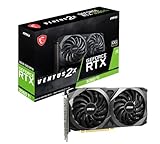
- This Renewed product is tested and certified to look and work like new, with limited to no signs of wear. The refurbishing process includes functionality testing, inspection, and repackaging. The product comes with 90-day warranty
- Memory Speed: 14 Gbps. Digital Max Resolution:7680 x 4320
- NVIDIA Ampere Streaming Multiprocessors: The building blocks for the world’s fastest, most efficient GPU, the all-new Ampere SM brings 2X the FP32 throughput and improved power efficiency.
- 2nd Generation RT Cores: Experience 2X the throughput of 1st Gen RT Cores, plus concurrent RT and shading for a whole new level of ray tracing performance.
- 3rd Generation Tensor Cores: Get up to 2X the throughput with structural sparsity and advanced AI algorithms such as DLSS. Now with support for up to 8K resolution, these cores deliver a massive boost in game performance and all-new AI capabilities.
Pending updates or corrupted files
Check both the game and the launcher for updates. For relevant problems, repair the installation in the EA app after the update check. A repair addresses damaged or missing game data; it does not replace a network diagnosis or compensate for hardware below the minimum tier.
Free tools Windows power users keep installed
One-click scans. No signup required.
Tell network lag apart from low FPS
EA provides an in-game network view. Pause the game, open Options, choose System, and enable Scoreboard Ping under Network. Alternatively, open Network Graph and choose Modify to show network performance and event diagnostics.
EA explains that the display can help you understand whether the network is having issues that could be causing lag. Use it while the symptom is happening:
- If the network indicators worsen at the same time as warping, delayed hits, or players jumping positions, investigate the connection first.
- If the indicators remain normal while the picture visibly freezes or hitches, continue with graphics, driver, file, and hardware checks.
- If both change, fix the connection and the local rendering issue separately; one does not diagnose the other.
EA also recommends checking server status and using a wired connection if possible while troubleshooting connection lag. A wired connection can remove one source of local wireless variability, but it cannot correct an unavailable game service or every internet-route problem.
A practical order for testing changes
Changing many variables at once makes it impossible to know what helped. Use this sequence and keep a short record of the result after each branch.
Quick wins for a faster PC:
Scan for outdated or missing drivers - takes under a minuteDriver Scan →Clear out junk files and repair common Windows errorsFree Scan →Fix the driver behind crashes, sound loss and screen glitchesFind Drivers →- Record CPU, GPU, RAM, resolution, refresh rate, driver version, and the exact symptom.
- Open Settings > Graphics > Modify and set EA’s seven named quality options to Low.
- Check that fullscreen resolution and refresh rate match the PC display settings, then test V-Sync Off.
- Compare native rendering with a supported XeSS, FSR, or DLSS option only if the current hardware exposes it.
- If an error appears, follow the restart, driver, update, file-check, or EA app repair branch for that error instead of repeatedly changing quality settings.
- If the symptom looks like delayed or warped multiplayer action, enable Scoreboard Ping or Network Graph and check server status and the connection.
- Compare your components with EA’s minimum and recommended tiers before considering an upgrade.
After a change, test in a comparable scenario and note both smoothness and image quality. Restore a setting if it harms visibility or responsiveness without solving the original symptom. Current patches, feature labels, and drivers can alter behavior, so recheck the live game menus after updates.
If you play on console
The same diagnosis still matters on console: a network problem is not fixed by a graphics mode, and EA’s mode figures are targets stated by EA rather than observed guarantees. EA lists these maximum targets:
| Console | Mode | EA-stated target |
|---|---|---|
| Xbox Series S | Listed mode | Up to 1080p at 60 FPS |
| Xbox Series X | Fidelity | Up to 1440p at 60 FPS |
| Xbox Series X | Performance | Up to 1280p at 80+ FPS |
| PlayStation 5 | Fidelity | Up to 1440p at 60 FPS |
| PlayStation 5 | Performance | Up to 1280p at 80+ FPS |
| PlayStation 5 Pro | Fidelity | Up to 2160p at 60 FPS |
| PlayStation 5 Pro | Performance | Up to 1620p at 80+ FPS |
Choose the mode that matches your display and preference, then use the network indicators when the symptom is lag rather than rendering slowdown.
Quick Recap
Product prices and availability are accurate as of the date/time indicated and are subject to change. Any price and availability information displayed on Amazon at the time of purchase will apply.

