The biggest quality improvement available in Apple Music on Apple TV 4K is enabling Lossless, then letting Apple TV negotiate the best audio format with your receiver or speakers. Open Settings > Apps > Music > Audio Quality, choose Lossless, and keep Settings > Video and Audio > Audio Format set to Auto unless your equipment requires another mode. For compatible songs and a compatible audio system, set Dolby Atmos to Automatic.
These settings do not create detail that is absent from a song or unsupported by your equipment. Apple TV 4K supports Apple Music Lossless in ALAC up to 24-bit/48 kHz; Apple says it does not support Hi-Res Lossless above 48 kHz. The audible result also depends on the track, network, HDMI path, receiver, speakers and room.
As an Amazon Associate I earn from qualifying purchases.
What Apple TV 4K can actually play
Apple Music offers two relevant quality choices on Apple TV 4K: the standard High Quality stream, encoded as AAC, and Lossless, delivered as Apple Lossless Audio Codec (ALAC). Apple’s Music settings guide describes the Apple TV 4K Lossless option as supporting files up to 24-bit/48 kHz. Apple’s current lossless support page explicitly says that Apple TV 4K does not support Hi-Res Lossless at sample rates greater than 48 kHz. In other words, selecting Lossless does not turn this device into a 24-bit/96 kHz or 24-bit/192 kHz player.
The Tool Desk
Outbyte Driver Updater FREEFix the driver behind crashes, sound loss and screen glitchesFind Drivers →Outbyte PC Repair FREEClear out junk files and repair common Windows errorsFree Scan →Lossless is a transmission format, not a volume boost or an automatic mastering upgrade. A track must have a Lossless version in Apple Music, your network must deliver it reliably, and the playback chain must be capable of reproducing it. Apple summarizes that dependency this way: “Support for lossless files depends on song availability, network conditions and speaker capability.” You can read the complete setting descriptions in Apple’s Apple TV 4K Music settings guide.
#1 Best Overall

- Simplified 5.1ch Dolby Atmos Setup: Enjoy immersive 4D sound with real Dolby Atmos and 5.1-channel audio. Five built-in speakers, including two side-firing drivers, create wide surround without rear speakers. Precision DSP ensures <0.5 ms latency for smooth, theater-like sound. Setup takes less than 1 minute.
- Voice Clarity Enhancement: VoiceMX technology uses advanced DSP algorithms to isolate and enhance vocal frequencies in real time. Dialogue remains crisp and easy to follow by separating speech from background effects and music, even at low volumes or during intense scenes.
- 300W Output with 6-Driver System: Featuring five precision-tuned full-range drivers and a dedicated wired wooden subwoofer, the system delivers up to 300W of peak power for bold, room-filling sound. With a frequency response of 45 Hz–18 kHz and a maximum SPL of 99 dB, it reproduces everything from subtle nuances to explosive cinematic effects.
- 18 mm High-Excursion Driver: Powered by BassMX technology, the wired wooden subwoofer features a 18 mm high-excursion driver, a 5.3L tuned cabinet, and a high-density magnetic circuit. This design delivers deeper, tighter bass with greater air displacement and enhanced low-frequency performance—bringing more realism to every scene.
- HDMI eARC for True Dolby Atmos: HDMI eARC supports up to 37 Mbps of bandwidth, unlocking the full potential of lossless Dolby Atmos 5.1-channel audio. Compared to standard ARC, eARC delivers richer surround effects and greater detail. CEC integration allows the TV and soundbar to work together with unified control.
| Option or mode | What it does | Best use | Important limitation |
|---|---|---|---|
| High Quality (AAC) | Uses Apple Music’s standard compressed stream. | When bandwidth, storage or equipment compatibility matters more than lossless delivery. | It is not the Lossless stream. |
| Lossless (ALAC) | Delivers Apple Music’s lossless version when one is available. | A wired HDMI connection to a capable receiver or other suitable audio system. | Apple TV 4K is limited to 24-bit/48 kHz and does not provide Hi-Res Lossless above 48 kHz. |
| Audio Format: Auto | Chooses the best format supported by the connected equipment and sends uncompressed audio. | Most televisions, soundbars and AV-receiver installations. | The actual result is constrained by the weakest compatible component in the chain. |
| Audio Format: Stereo Only | Sends uncompressed two-channel PCM. | A two-channel stereo amplifier, DAC or pair of speakers. | It is not a surround or Dolby Atmos output mode. |
| Audio Format: Convert to Dolby Digital 5.1 | Re-encodes audio as compressed Dolby Digital 5.1. | Older equipment that cannot accept Dolby Atmos or multichannel PCM. | It is a compatibility fallback, not a universal fidelity improvement. |
| Dolby Atmos: Automatic | Plays supported songs in Dolby Atmos when the connected HomePod, receiver or speakers support it. | A compatible multichannel or spatial-audio system. | Atmos depends on both the individual song and the complete audio chain. |
| Sound Check | Adjusts playback levels so songs play at roughly the same loudness. | Reducing jumps in volume between tracks or albums. | It changes level matching, not the underlying audio fidelity. |
Check the hardware path before changing settings
Apple’s Lossless instructions for Apple TV 4K call for current tvOS and an HDMI connection to an AV receiver. That requirement is about carrying the signal correctly; it does not mean that every listener needs to buy a receiver. If your existing television, soundbar or stereo system already accepts the formats you want, use that equipment first.
- Apple TV 4K: Confirm the model is an Apple TV 4K and update it through the system software controls before judging the available Music options.
- HDMI route: Map the path from Apple TV to the television, receiver, soundbar or switch. Every device in that path can affect which formats Apple TV offers.
- Speakers: Identify whether you are listening through TV speakers, a stereo pair, HomePod speakers, a soundbar or an AV receiver with separate speakers. A setting cannot add surround capability to a two-channel system.
- Network: Lossless playback needs a stable connection. Congestion can cause buffering or make the higher-quality stream unavailable at a given moment.
- Content: Check the specific album or song. Not every item in the Apple Music catalog has the same Lossless or Dolby Atmos version.
Do not use a new cable as an audio “upgrade” when an existing, compatible cable is working normally. Replace or change the connection only when it is faulty, incompatible with the HDMI standard your system needs, or involved in a handshake problem.
Enable Lossless on Apple TV 4K
Use this sequence for Apple TV 4K. The labels can vary slightly with tvOS revisions, but the relevant path is the Music app’s Audio Quality page.
Free tools Windows power users keep installed
One-click scans. No signup required.
- Update tvOS. Install the latest version available for your Apple TV 4K. Apple’s documented Lossless setup assumes current software.
- Connect the audio system. For Apple’s stated setup, run an HDMI cable from Apple TV 4K to an AV receiver. If your receiver then feeds the television, use the receiver’s supported HDMI input and output.
- Open Music settings. From the Apple TV Home Screen, open Settings > Apps > Music > Audio Quality.
- Select Lossless. Choose Lossless rather than High Quality. This permits Apple Music to use the available ALAC version of a song.
- Play a known title. Start an album or song that is identified in Apple Music as Lossless. Allow playback to continue long enough to rule out a short network interruption.
- Verify the complete chain. Confirm that the receiver or audio system is receiving the intended input and is not applying an unexpected downmix, virtualizer or low-quality source mode.
The Lossless toggle does not guarantee that every play session will use Lossless. Apple lists song availability, network conditions and speaker capability as determining factors. Treat the setting as permission to use Lossless, not as proof that every track is being delivered that way.
Leave Audio Format on Auto in most systems
Apple TV’s output-format control is separate from the Music app’s Lossless control. Open Settings > Video and Audio > Audio Format. Apple recommends Auto because it selects the best format supported by the connected equipment and sends uncompressed audio.
When Auto is the right choice
Use Auto when your television, receiver, soundbar or speakers are correctly identified and sound is working. It lets Apple TV negotiate capabilities rather than forcing a format that a particular component cannot decode. Some choices appear only when the television or receiver reports support for them.
Rank #2

- HEAR YOUR TV BETTER: Designed with simplicity in mind, the Bose TV Speaker is an all-in-one soundbar that clarifies speech and is a simple fix for better TV sound
- WIDE, NATURAL SOUND: 2 angled full-range drivers deliver a more realistic, spatial audio experience for overall better TV sound from a small soundbar
- ENHANCED DIALOGUE: This sound bar for smart tv is designed to specifically focus on clarifying and elevating vocals and pronunciation
- BLUETOOTH TV SPEAKER: Pair your device to this Bluetooth soundbar to wirelessly stream your favorite music and podcasts. Connect up to 3 devices through the inputs (HDMI, Optical in, and AUX in); the first powered on device will automatically connect
- SIMPLE SETUP: A single connection from this compact soundbar to the TV via an optical audio cable (included) or an HDMI cable (sold separately) has you up and running in minutes
When to choose Stereo Only
Select Stereo Only when the installation is genuinely two-channel: for example, a stereo amplifier, two powered speakers or a two-channel DAC. The mode sends uncompressed two-channel PCM and avoids asking a stereo-only device to process a multichannel signal.
When Convert to Dolby Digital 5.1 is justified
Convert to Dolby Digital 5.1 is intended for equipment that cannot accept Dolby Atmos or multichannel PCM. Because it re-encodes the signal as compressed Dolby Digital 5.1, it should be treated as a compatibility solution. Do not select it merely because “5.1” looks more advanced than Auto; on a capable modern receiver, forcing the conversion can add an unnecessary processing step.
Apple documents these choices and their compatibility behavior in Change audio settings on Apple TV 4K.
Set Dolby Atmos to Automatic when the system supports it
In the Apple TV Music app settings, set Dolby Atmos to Automatic if you use compatible HomePod speakers, an Atmos-capable receiver or speakers that explicitly support the format. Apple Music can then select the Dolby Atmos presentation for songs that have one.
Atmos is a different presentation, not a guaranteed improvement over stereo or Lossless. A song must have a Dolby Atmos mix, and the receiver and speakers must carry and render it. If any part of the chain is stereo-only or configured to downmix, the Atmos version may not be reproduced as intended. Listener preference also matters: some mixes may sound more spacious, while another listener may prefer the conventional stereo master.
Quick wins for a faster PC:
Scan for outdated or missing drivers - takes under a minuteDriver Scan →Clear out junk files and repair common Windows errorsFree Scan →Fix the driver behind crashes, sound loss and screen glitchesFind Drivers →Apple’s Music guide explains the Automatic setting and compatible equipment at Adjust Music app settings on Apple TV 4K. The same guide notes that feature availability can vary with the song and hardware.
Rank #3
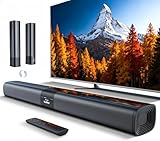
- 𝐂𝐨𝐦𝐩𝐚𝐜𝐭 𝐘𝐞𝐭 𝐏𝐨𝐰𝐞𝐫𝐟𝐮𝐥 - Two 3.9" x 2.1" oval full-range drivers provide a larger diaphragm surface than traditional circular units of the same height. Combined with extended excursion, they deliver balanced, clear, and powerful audio from this compact soundbar.
- 𝟐 𝐢𝐧 𝟏 𝐃𝐞𝐭𝐚𝐜𝐡𝐚𝐛𝐥𝐞 - Attach the included base to transform sound bar into tower speakers, widening the soundstage for a more immersive experience.
- 𝐑𝐨𝐨𝐦-𝐅𝐢𝐥𝐥𝐢𝐧𝐠 𝐀𝐮𝐝𝐢𝐨 - Soundbar reaches up to 98dB, easily filling every corner of your living room with rich, powerful sound.
- 𝐈𝐧𝐬𝐭𝐚𝐧𝐭 𝐒𝐞𝐭𝐮𝐩 𝐟𝐨𝐫 𝐘𝐨𝐮𝐫 𝐓𝐕 - Simply plug the included optical cable into the TV's optical/SPDIF port to instantly enjoy clear and stable audio.(HDMI cable is not included
- 𝐖𝐢𝐫𝐞𝐥𝐞𝐬𝐬 𝐁𝐥𝐮𝐞𝐭𝐨𝐨𝐭𝐡 𝟓.𝟑 𝐒𝐭𝐫𝐞𝐚𝐦𝐢𝐧𝐠 - Stream music wirelessly to soundbar from your phone or tablet. Also compatible with Amazon Echo via Bluetooth.
Use Sound Check only for volume consistency
Sound Check is useful when one track is much louder or quieter than the next. It automatically adjusts playback levels so songs play at roughly the same loudness. Turn it on in the Apple TV Music settings if that is your goal.
Sound Check is not a resolution, codec or speaker-quality setting. It does not convert AAC to Lossless, create Dolby Atmos, or repair a distorted signal. If you are evaluating differences between formats, make sure volume matching is not making one version seem better simply because it plays louder.
Match the setting to your listening setup
| Your equipment | Recommended starting point | Reason | What to verify |
|---|---|---|---|
| TV speakers | Lossless enabled if available; Audio Format Auto; Atmos Automatic only if the television supports it. | Auto avoids forcing a multichannel format that the television cannot decode. | Whether the TV is downmixing or applying its own sound mode. |
| Two-channel stereo speakers | Lossless enabled; Audio Format Stereo Only if the amplifier or DAC is stereo-only. | Two-channel PCM is the direct match for this system. | Correct HDMI input and the amplifier’s selected source. |
| HomePod speakers | Lossless enabled; Dolby Atmos Automatic where supported. | The speakers may support Apple’s compatible spatial-audio path. | That the HomePod model and current software support the desired feature. |
| Soundbar | Lossless enabled; Audio Format Auto; Atmos Automatic only for an Atmos-capable bar. | Auto allows the bar to advertise and receive its supported format. | Whether the bar is connected directly, through a switch, or through the TV. |
| AV receiver with surround speakers | Lossless enabled; Audio Format Auto; Atmos Automatic when the receiver and speaker layout support it. | The receiver can negotiate multichannel PCM or Atmos without forced conversion. | Receiver firmware, HDMI input assignment and speaker configuration. |
Equipment capability is not the same as marketing terminology. A soundbar may accept an Atmos signal but use a limited number of drivers; a receiver may decode multichannel PCM but be configured for a stereo zone. Check the actual input, speaker layout and processing mode before changing Apple TV’s output format.
Troubleshoot missing sound or an unstable HDMI signal
If changing a setting leaves you with silence, intermittent audio or a picture with no sound, treat the issue as a signal-path problem first. Do not assume that Lossless itself damaged the system.
- Check the selected input. Make sure the TV, receiver or soundbar is listening to the HDMI input used by Apple TV. Confirm that its volume is raised and that mute is off.
- Reseat the HDMI cable. Disconnect and reconnect both ends. Inspect for a loose connector or visible damage.
- Try another compatible HDMI cable. Apple’s troubleshooting guidance identifies a Premium High Speed cable for HDMI 2.0 requirements and an Ultra High Speed cable for HDMI 2.1 requirements. Use the cable class required by your equipment; do not buy a higher-priced cable on the assumption that it will sound better when the existing one already works.
- Bypass an intermediary. If Apple TV runs through an HDMI switch or receiver, connect it directly to the television temporarily. If sound returns, reconnect components one at a time to find the device or setting causing the handshake failure.
- Return Audio Format to Auto. A forced Stereo Only or Dolby Digital setting can be incompatible with the current route. Restore Auto and test again.
- Check Continuous Audio and related audio controls. Apple’s troubleshooting page lists changing audio format or Continuous Audio settings as possible diagnostic steps when sound is absent. These are tests for a fault, not general sound enhancements.
- Test Audio Mode at 16 bit if Apple’s troubleshooting case applies. Apple includes setting Audio Mode to 16 bit as a diagnostic step for certain no-sound situations. If it changes the result, investigate the TV or receiver’s processing and compatibility rather than leaving a lower mode enabled without understanding why.
- Inspect processing in the TV or receiver. Disable unusual input restrictions, mute states or incompatible audio-processing modes, then retest with a normal stereo track.
- Reconnect the original route. Once sound works directly, add the receiver or switch back into the chain and test each connection. This identifies whether the problem is the cable, the intermediary or a format negotiation issue.
Apple’s full fault-isolation sequence is available in If your Apple TV has no sound. The page is aimed at restoring a signal, so its diagnostic settings should not be presented as permanent quality upgrades.
Independent reader supportYour contribution helps us test, update, and keep practical guides available for everyone.Common mistakes that make Apple Music sound worse
Expecting Hi-Res Lossless on Apple TV 4K
Apple TV 4K’s supported Lossless setting stops at 48 kHz. If you need a higher sample-rate version, this device is not the platform on which Apple says it is available. Do not infer Hi-Res support from an album label or from another Apple device’s capabilities.
Rank #4

- Wireless Subwoofer, Place It Anywhere: The wireless subwoofer connects to the soundbar without audio cables, giving you the freedom to place it anywhere in your room for flexible setup.
- Mica-Reinforced Drivers for Greater Accuracy: Mica-reinforced diaphragms increase driver rigidity by up to 30%, helping suppress cone breakup and unwanted resonance. The enhanced stability helps reduce distortion by up to 20%, delivering cleaner, more accurate sound with improved clarity and detail.
- VoiceMX Technology for Clear Dialogue: VoiceMX technology uses advanced DSP algorithms to isolate and enhance vocal frequencies in real time. By dynamically boosting the 120 Hz–6 kHz vocal range with adaptive EQ and gain control, dialogue stays clear and easy to follow in any scene.
- BassMX Deep Bass Technology: With an 18 mm high-excursion driver, 6.5 L tuned cabinet, and high-density magnetic circuit, the wireless subwoofer produces strong low-frequency output. BassMX optimizes 45–150 Hz bass for deeper, tighter, and more realistic sound at any volume.
- 240W Peak Output with 2.1 Channel System: Featuring a precision-tuned soundbar and a dedicated wireless subwoofer, the system delivers up to 240W of peak power for room-filling sound. With a frequency response of 45 Hz–18 kHz and a maximum SPL of 95 dB, it reproduces clear dialogue, detailed mids, and impactful bass for movies, music, and gaming.
Forcing Dolby Digital 5.1 on a modern receiver
The Convert to Dolby Digital 5.1 option exists for older or otherwise incompatible equipment. Re-encoding everything to compressed Dolby Digital can be counterproductive when Auto already permits uncompressed output.
What’s actually slowing this PC down?
Pick the symptom - the matching free tool is one click away.
Turning on Atmos without checking the speakers
Atmos requires a supported song and compatible audio chain. If your receiver or speakers cannot render it, the setting will not create a spatial mix and may complicate troubleshooting.
Judging a format by loudness
A louder signal often seems more detailed in a quick comparison. Use Sound Check only when you want consistent levels, and compare versions at matched volume when deciding which presentation you prefer.
Replacing a working HDMI cable for “better sound”
Digital audio either reaches the device in a supported form or it does not; a premium cable does not add musical detail to a stable, compatible connection. Change the cable to meet the required HDMI class or to resolve an actual fault.
A practical configuration checklist
- Apple TV 4K is running the latest available tvOS.
- Settings > Apps > Music > Audio Quality > Lossless is selected.
- Settings > Video and Audio > Audio Format > Auto is selected unless the system is deliberately stereo-only or requires Dolby Digital 5.1.
- Dolby Atmos is set to Automatic only when the song and audio equipment support it.
- The HDMI cable and every intermediary device meet the requirements of the chosen setup.
- The receiver, soundbar or TV is on the correct input and has not muted or downmixed the signal unexpectedly.
- The song actually offers the desired Lossless or Dolby Atmos version.
- Sound Check is enabled only if reducing track-to-track volume swings is more important than evaluating untouched level differences.
- If sound disappears, restore Auto, test a direct HDMI connection, and follow Apple’s no-sound diagnostics before buying new equipment.
When additional equipment is necessary
Most readers should first use the hardware they already own. An AV receiver or compatible speaker system becomes a reasonable purchase only when the current television or audio device cannot accept the desired signal, has no suitable HDMI path, or cannot reproduce the intended channel layout. A replacement HDMI cable is justified when the installed cable is damaged or does not meet the HDMI class required by the Apple TV, receiver and television combination.
Recommended Free Tools
Buying equipment cannot guarantee an audible difference from Lossless. The sources establish format support and compatibility requirements, not a universal listening improvement. Your best upgrade may be correcting a bad HDMI handshake, replacing a failing component or configuring the speakers correctly rather than spending money on a new codec, cable or receiver.
Bottom line
For Apple TV 4K, enable Lossless in the Music app, keep Audio Format on Auto, and use Dolby Atmos: Automatic only with compatible songs and equipment. Lossless is limited to 24-bit/48 kHz on this device, and neither Lossless nor Atmos can overcome missing catalog versions, network problems or an incompatible audio chain. Start with the settings and HDMI path you have, then troubleshoot the signal before considering new hardware.
Quick Recap
Product prices and availability are accurate as of the date/time indicated and are subject to change. Any price and availability information displayed on Amazon at the time of purchase will apply.

