Free tools Windows power users keep installed
One-click scans. No signup required.
The most reliable one-time transfer is iCloud.com → Windows Contacts → CSV → Outlook. Export every contact from iCloud as a vCard file, convert that VCF through the Windows 10 Contacts folder, then import the resulting UTF-8 CSV into the Outlook edition you use. For contacts that must stay synchronized, configure iCloud for Windows with Outlook instead.
Choose the right transfer method
Your best route depends on whether you are moving contacts once or keeping Apple and Outlook data aligned over time.
As an Amazon Associate I earn from qualifying purchases.
| Route | Best for | Files or connection | Ongoing synchronization | Most important check |
|---|---|---|---|---|
| iCloud.com → Windows Contacts → Outlook | A one-time bulk migration | VCF converted to CSV | No | Select the complete iCloud contact set and preserve UTF-8 encoding |
| iCloud for Windows → Outlook | Keeping Apple and Outlook contacts current | Account integration rather than a manual file conversion | Yes | Use the correct Apple account and enable the Contacts integration |
| iTunes for Windows | Older device and address-book setups | Device synchronization | Historically possible | Confirm that the legacy software and destination address book are supported |
The VCF-to-CSV route is usually the safest when you need a portable backup and a clear audit trail. It leaves the original Apple export untouched and gives you a CSV that Outlook can read. iCloud for Windows is more convenient for an ongoing relationship between services, but its behavior depends on the installed iCloud and Outlook combination and on your account configuration.
The Tool Desk
Outbyte PC Repair FREEClear out junk files and repair common Windows errorsFree Scan →Outbyte Driver Updater FREEFix the driver behind crashes, sound loss and screen glitchesFind Drivers →Prepare Windows 10 and protect the originals
Before changing anything, make sure you can sign in to the Apple account that contains the contacts and that you have access to the Windows 10 PC where the contacts will be converted. Install or update the Outlook edition you intend to use before importing so that you can identify its matching menu path.
#1 Best Overall
![iPhone Charger [Apple MFi Certified] 6FT iPhone Charger Cord Fast Charging USB to Lightning Cable Braided USB Phone Cable Cord Compatible with iPhone 14 13 12 11 Pro Max XR XS X 8 7 6 Plus SE, iPad](https://m.media-amazon.com/images/I/319EV+VWKCL._SL160_.jpg)
- 【iPhone Fast Charging Cable】: the newly upgraded original connector. Aioneus iPhone Charger Cord output power up to 5V 3A, which is ensured by high-speed safe charging, and supports data transfer speed can reach 40~60MB/S (480Mbps).This is faster than most standard cable.
- 【MFi Certified Lightning Cable】: MFi certified Lightning Cable is guaranteed not to pop up warning messages, ensuring your Lightning devices load and charge safely and quickly at the fastest possible speed. Aioneus iPhone Charger Cord has passed MFi certification to ensure 100% compatibility with iPhone, iPad, iPod.Built with iphone's original terminal and smart chip. Enjoy fast data transfer, syncing and charging.
- 【iPhone Perfect Compatibility】 : Aioneus Long iPhone Charger for iphone 14 /14 Pro/ 14 Pro Max/13 /13 Pro/ 13 Pro Max/ 13 Mini/12 /12 Pro/ 12 Pro Max/ 12 Mini/ 11/ 11 Pro/11 Pro Pax/XR / XS / XS Max / X /10/ 8 / 8 Plus /7 / 7 Plus/6s Plus / 6s / 6 Plus / 6/5s / 5c / 5 / SE/ SE 2020, iPad Pro 10.5-inch / iPad Pro 12.9-inch / Pro 9.7-inch/Pro 2020/Pro 11/Air / Air 2/mini/mini 2 /mini 3 /mini 4/mini 5/ ipad 7th/ 6th, compatible with all iOS10, iOS11, iOS12, iOS13,iOS14,iOS15,iOS16 new devices
- 【6FT iPhone Charger Cord】: With the 2m length, you can lie on the sofa and use your devices while you are charging at the same time. Allow you to be use freely in bedroom, office and even in the backseat of your car.
- 【Nylon Braided iPhone Cable】: Aioneus usb a to lightning cable features an ultra-durable construction, Tangle-free Nylon Braided Design, make the iPhone Charging Cable more sturdier than others. Each cable has been tested with 30000+ times bend lifespan and strong bearing capacity. The durability is three times as long as that of ordinary charging cables.
- Use a desktop browser for iCloud Contacts; the complete export workflow is designed for the web interface rather than the iPhone Contacts app.
- Create a working folder for the exported
.vcfand later.csvfiles. Keep both files until you have checked the destination. - If Outlook already contains contacts, make a backup or export of that destination first. An import can create duplicates, and the official instructions do not promise automatic duplicate detection.
- Have enough time to inspect representative records, including international names, multiple telephone numbers, notes, companies and birthdays.
There is no published universal contact-count limit or guaranteed field-loss percentage for this workflow. The practical constraint is how each format represents a field and how Outlook maps it during import.
One-time migration: iCloud to Windows 10 and Outlook
1. Export every contact from iCloud.com
- Open iCloud Contacts in a desktop browser and sign in with the Apple account that stores the contacts.
- Select the complete contact set. On Windows, hold Control while clicking to select multiple contacts; do not leave the list with only one record selected.
- Open the contacts action menu and choose the command to export a vCard. Save the resulting file in your working folder. The file normally has a
.vcfextension. - Check the export before proceeding. Confirm that the file exists, note its size and, if practical, open it in a text editor to verify that it contains more than one
BEGIN:VCARDblock. Do not edit the file manually unless you know the vCard format.
Apple documents vCard import and export in iCloud Contacts. The key operational detail is selection: exporting with just one contact selected produces a valid one-contact file, which can look like a successful migration even though most records were omitted.
2. Import the VCF into Windows Contacts
- Open File Explorer and enter
C:Users<username>Contactsin the address bar, replacing<username>with your Windows account name. - In the Contacts folder, choose Import.
- Select vCard (VCF file) as the source format, browse to the iCloud export and open it.
- When Windows presents the contacts, confirm each contact as prompted. The imported records are now in the Windows Contacts address book.
Microsoft’s documented conversion method is to import the VCF into Windows and then export those Windows Contacts as a CSV. This intermediate step is necessary because Outlook’s standard bulk import expects a CSV rather than a multi-contact vCard in this workflow.
3. Export Windows Contacts as a CSV
- Remain in the same Contacts folder and choose Export.
- Select CSV file as the export type.
- Choose the contact fields you want in the spreadsheet. Include every field you expect to use in Outlook, not just names and email addresses.
- Choose a destination and finish the export. Keep this CSV beside the original VCF, using clear filenames such as
icloud-contacts-original.vcfandwindows-contacts-converted.csv.
The field-selection screen determines what reaches Outlook. If a field is not selected here, it will not be available in the CSV for Outlook to import.
Rank #2

- APPLE MFi CERTIFIED: Ensures complete compatibility with iPhone 14/13/12/11/X/XR/XS/8/7/6/6s/5/5s/5c, iPhone Pro 14/13/12/11, IPhone Pro Max 14/13/12/11/XS, iPhone Plus 14/8/7/6/6s, iPhone SE 1st Gen/2nd Gen/3rd Gen, iPhone mini 13/12, iPad Pro 10.5 in/9.7 in, iPad Air 3/2/1, iPad mini 5/4/3/2/1, iPad 9th Gen and older, iPod Touch 5th Gen and older, iPod nano 7th Gen and Beats Pill+
- IN THE BOX: Amazon Basics Lightning to USB-A Cable for charging and syncing devices. Comes with Apple's original C89 smart chip
- FAST CHARGING: Wide-diameter wires and reduced cord resistance maximize charging speed (supports up to 2.4 amps charging current)
- HIGH SPEED DATA TRANSFER: Up to 480Mbps for transferring music, movies, and more in seconds
- DURABLE DESIGN: An additional layer of protection has been added to the Lightning and USB ends to improve durability and reduce fraying
4. Import the CSV into the Outlook edition you use
Outlook has different navigation labels across its Windows, classic desktop and web versions. Use only the path that matches your interface.
| Outlook version | Import path | What to verify |
|---|---|---|
| New Outlook for Windows | Open People, then choose Import contacts. | Select the converted CSV and confirm the target account before starting. |
| Classic Outlook for Windows | Use the Import/Export wizard and choose the option to import from a file. | Choose the CSV format, select the destination Contacts folder and review field handling if offered. |
| Outlook on the web | Open People → Manage contacts → Import contacts. | Upload the converted CSV to the intended Microsoft account. |
Microsoft recommends UTF-8 encoding for Outlook contact CSV files. UTF-8 is especially important for accented characters, non-Latin scripts and names that contain symbols. If your spreadsheet program offers an encoding choice, save the CSV as UTF-8 rather than a legacy local code page.
5. Verify the destination instead of assuming success
- Open several contacts from different parts of the original list.
- Compare full names, every phone number, email addresses, company names, notes and birthdays.
- Check a contact with accented or non-Latin characters to confirm that UTF-8 was preserved.
- Search Outlook for a few distinctive names and verify that they landed in the intended account and Contacts folder.
- Look for duplicate records if the Outlook account already had some of the same people.
Keep both source files until these checks are complete. They are your rollback material if you need to remove the imported set and repeat the conversion with different fields.
Keep Apple and Outlook contacts synchronized
If the goal is not a one-time move but an address book that remains current, Apple documents configuring iCloud for Windows and enabling Contacts with Outlook. This avoids repeating the VCF and CSV exports whenever a contact changes.
Rank #3

- Use the Lightning to USB Cable to charge and sync your iPhone, iPad, or iPod with Lightning connector to your Mac or Windows PC.
- This USB 2.0 cable connects your iPhone, iPad, or iPod with Lightning connector to your computer’s USB port for syncing and charging. Or you can connect to the Apple USB Power Adapter for convenient charging from a wall outlet.
- USB power adapters sold separately.
- Cable Length: 1 meter or 3 feet
- Install iCloud for Windows on the Windows PC and sign in with the Apple account that owns the contacts.
- Open the iCloud for Windows settings and enable the Contacts option associated with Outlook.
- Apply the change, then open Outlook and allow the integration to finish its initial setup.
- Test with a small, non-critical contact change and confirm where it appears before relying on the connection for the full address book.
The exact controls and behavior depend on the installed iCloud and Outlook combination, account configuration and whether you are using new or classic Outlook. Treat synchronization as a separate setup from the one-time file migration: do not import the same VCF and also enable sync without checking for duplicates first.
What about iTunes for Windows?
Apple’s older documentation describes iTunes for Windows syncing contacts from an iPhone, iPad or iPod to the Windows address book or Outlook Express. That is a legacy path. It can be relevant to an older computer already configured around device synchronization, but it is not the practical first choice for a current Windows 10 transfer.
Use the iCloud.com export route when you need a controlled bulk file, or iCloud for Windows when you need continuing integration. Choose the iTunes route only after confirming that the legacy software, device connection and intended address-book destination are all still supported in your setup.
Understand field mapping and possible differences
A vCard and an Outlook contact are not identical schemas. Basic names, phone numbers and email addresses usually have obvious destinations, but less common properties can be represented differently or may not map one-to-one.
Rank #4

- USB-IF Certified, connects any USB-C to any standard USB-A enabled devices. For power transfer/charging smartphones, power banks, wall/car chargers, and low-power devices. Suitable for data transfer between smartphones, tablets, laptops, hard drives and more
- In the box: 1 cable, 6 foot 15W USB-A to USB-C cable (USB 2.0) for charging and powering devices, transferring data, photos, and music
- Fast Charge and Data Transfer: Supports fast charging up to 15W (5V/3A) and data transfer speeds up to 480 Mbps. Do not exceed recommended load (15W, 5V/3A). Limited charging speed for PD enabled devices
- Backed by an Amazon Basics 1-Year Limited Warranty
| Contact information | How to handle it |
|---|---|
| Name and organization | Compare the displayed name and company after import; check whether a compound name was split as you expect. |
| Telephone numbers | Open contacts with multiple numbers and confirm that each number and its label survived. |
| Email addresses | Check contacts with more than one address and verify that each is attached to the correct person. |
| Notes | Inspect long or multiline notes because formatting and line breaks can differ between formats. |
| Birthdays | Open several records with birthdays and confirm both the date and its calendar display. |
| Relationships and custom labels | Spot-check these explicitly; the official instructions do not guarantee identical mapping for every uncommon field. |
When a field matters to your work, test it with a small sample before importing the complete list. You can then change the Windows export field selection or clean the source data without repeatedly modifying the Outlook destination.
Independent reader supportYour contribution helps us test, update, and keep practical guides available for everyone.Troubleshoot common failures
Only one contact appeared in Outlook
The most common cause is exporting one selected iCloud contact instead of the complete set. Return to iCloud Contacts, select all required records (using Control-click for multiple selections on Windows), export a new VCF and repeat the Windows import and CSV export. Confirm the VCF contains multiple contact entries before uploading it to Outlook.
Names contain strange symbols or boxes
Recreate the CSV with UTF-8 encoding. Microsoft warns that Outlook may not recognize or display all text correctly when the file is saved in another encoding. Check a multilingual contact in the CSV before importing again.
Outdated Drivers Are Slowing You Down
One free scan finds every outdated or missing driver and matches the right update for your exact hardware.Free scan · exact hardware matchWindows Errors? Fix Them Before They Spread
Repair common Windows errors and clear accumulated junk for a smoother, more stable PC - no reinstall needed.Free scan · no reinstallThe instructions do not match your Outlook menus
Identify whether you are in new Outlook for Windows, classic Outlook or Outlook on the web. New Outlook uses People → Import contacts; the web version uses People → Manage contacts → Import contacts; classic Outlook uses the Import/Export wizard. Do not follow a menu path from a different edition.
Best Value
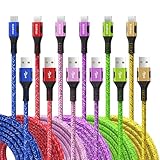
- Multiple Colors and Sizes: Different colors and sizes can be used according to different preferences and scenes.
- Fast Sync & Charging: Supports 3A fast charging and 480Mbps fast data transfer.
- Excellent Cable Lifespan: The stress relief design significantly improves the lifespan of the cable.
- Very Flexible: When this USB C cable is wrapped around a power bank or charger block, it becomes as tight as curly hair. After unfolding, it will naturally stretch without tangling.
- What You Get: Braided USB to USB C cable × 6 pcs, 12 month carefree warranty, and our friendly customer service.
Duplicates appeared
Duplicates can result when Outlook already contains some of the Apple records or when a manual import is combined with synchronization. Stop and make a backup of the current destination before deleting anything. Compare names, addresses and timestamps, retain the most complete record and remove only confirmed duplicates. The documented workflow does not provide an automatic duplicate-detection guarantee.
Notes, relationships or birthdays are missing
Review the field choices made during Windows Contacts’ CSV export and compare the original VCF with the converted CSV. If a property is present in the VCF but absent from the CSV, repeat the export with the relevant field selected. If it is present in the CSV but not displayed in Outlook, the two schemas may not have an equivalent destination; preserve the VCF as the authoritative backup.
Synchronization does not update Outlook
Verify that iCloud for Windows is signed in to the same Apple account that contains the contacts, that the Contacts-with-Outlook option is enabled, and that you are checking the Outlook profile connected to that integration. Test with one controlled change before assuming that the entire address book is synchronized.
Recommended Free Tools
Quick Recap
A safe repeatable checklist
- Back up the existing Outlook contacts.
- Export the complete iCloud contact set as a VCF.
- Keep the original VCF unchanged.
- Import the VCF through
C:Users<username>Contacts. - Export Windows Contacts to a UTF-8 CSV with the needed fields.
- Import the CSV using the menu for your Outlook edition.
- Inspect names, phones, email addresses, companies, notes and birthdays.
- Only after verification, decide whether to archive the files or configure iCloud for Windows for ongoing synchronization.
Product prices and availability are accurate as of the date/time indicated and are subject to change. Any price and availability information displayed on Amazon at the time of purchase will apply.

