The Tool Desk
Outbyte PC Repair FREEClear out junk files and repair common Windows errorsFree Scan →Outbyte Driver Updater FREEFix the driver behind crashes, sound loss and screen glitchesFind Drivers →On Windows Server 2016, error 0x80070422 means the Windows Update service is disabled or not running. The primary fix is to open services.msc, set Windows Update to Automatic, start it, restart the server, and check for updates again. If the service is already running, reset the update cache, run the available troubleshooter, then repair the component store and system files with DISM and SFC.
Choose the repair path from the symptom
Do not begin by changing registry values or manually removing update packages. First identify which layer is failing. The table below maps the evidence you can collect to the least invasive next step.
As an Amazon Associate I earn from qualifying purchases.
| What you observe | Likely layer | Best next action | Evidence to retain |
|---|---|---|---|
| Windows Update is stopped or its startup type is Disabled | Service configuration | Enable and start Windows Update in services.msc |
Startup type and current status |
| The service runs, but the same update fails repeatedly | Downloaded update cache | Clear the contents of C:WindowsSoftwareDistribution, restart the service, and retry |
Update history and the date of the retry |
| DISM or SFC reports corruption | Component store or protected system files | Run DISM first, then sfc /scannow |
Complete command output |
| DISM cannot obtain repair files from Microsoft Update | Repair-source or connectivity limitation | Use a same-version server as an alternate source with /LimitAccess |
Source server version and command output |
CBS.log names a package, manifest, MUM file, payload, or policy |
Package-specific servicing failure | Investigate the identified KB or component using the matching Server servicing procedure | The relevant CBS.log entries and build details |
What Windows Server 2016 error 0x80070422 means
Microsoft Support defines 0x80070422 as a Windows Update service that is disabled or stopped. Microsoft Learn gives the underlying symbolic message as ERROR_SERVICE_DISABLED. In practical terms, the update client cannot perform its work because the service it depends on is not allowed to start or is not currently running.
The code does not, by itself, prove that the operating-system component store is damaged, that an update package is corrupt, or that malware is present. Those are separate possibilities that require their own evidence. Start with the service state, because it is the documented remedy for this specific code.
#1 Best Overall

- Enhance security and reduce risk with multiple layers of protection, built into the operating system.
- Save money and gain flexibility with software-defined compute, storage, and networking technologies, inspired by Microsoft Azure.
- Use improved technologies, such as Windows containers and Nano Server, for another ways to deploy and run on-premises and cloud-based apps.
- License - 16 cores - OEM - DVD - 64-bit - English
“Ensure that the Windows Update service is enabled.”
Microsoft Support
Prepare the server before changing anything
- Sign in with administrative rights. The Services console and elevated repair commands require an account that can change service configuration and repair protected files.
- Record the current state. Note the exact code, the update or KB that failed, the last successful update shown in update history, and whether Windows Update is listed as Running, Stopped, or Disabled.
- Schedule an appropriate maintenance window. The documented sequence includes a server restart. Confirm that applications and clustered roles can tolerate the restart before proceeding.
- Preserve useful evidence. Keep copies or screenshots of service properties, update history, DISM and SFC output, and any relevant entries from
%windir%LogsCBSCBS.log. This prevents a later escalation from losing the original failure context. - Consider the update source. If the server is isolated or cannot reach Microsoft Update, DISM may need a same-version alternate source. Do not assume that an arbitrary Windows image is suitable.
Primary fix: enable Windows Update in Services
These are Microsoft’s documented steps for 0x80070422 on Server 2016.
- Press
Win+R, typeservices.msc, and press Enter. - In the Services list, locate Windows Update. You can select the list and type the service name to jump to it.
- Right-click Windows Update and choose Properties.
- On the General tab, open Startup type and select Automatic.
- Look at Service status. If it says Stopped, select Start.
- Select Apply, then OK. If Windows reports an error while starting the service, record that message rather than repeatedly clicking Start.
- Restart the server. After sign-in, run Windows Update again and check whether the original update proceeds.
If the startup type was already Automatic and the service was Running, the code may have been produced by a transient stop or by damaged downloaded update data. Continue with the cache and repair paths below instead of changing unrelated services.
Crashes, No Sound, or Screen Glitches?
Random freezes, missing sound and display glitches usually trace back to one bad driver. Find and replace yours safely.Free scan · under a minuteWindows Errors? Fix Them Before They Spread
Repair common Windows errors and clear accumulated junk for a smoother, more stable PC - no reinstall needed.Free scan · no reinstallRank #2

- Dell PowerEdge T110 II 4-Bay 3.5" HDD Tower Server, a mini server made for small businesses and remote offices!
- Intel Xeon E3-1220 Quad-Core 3.1GHz 8MB Cache CPU, Turbo Up To 3.4GHz
- 32GB DDR3 PC3-10600 1333MHz ECC Memory; 8TB (4 x 2TB) 7200 RPM SATA Hard Drives for High Capacity Storage
- Microsoft Windows Server 2016 Operating System Included
If Windows Update is running but 0x80070422 remains
Restart and retry once
After confirming the service is enabled, restart the server and check for updates again. Microsoft specifically recommends restarting and running Windows Update after corrective changes. A clean restart establishes whether the service starts correctly during boot rather than only after a manual click.
Reset the Windows Update download cache
A service can be healthy while files previously downloaded for an update are incomplete or corrupt. Resetting the cache removes those downloaded files so Windows Update can obtain them again; it does not repair the operating-system component store.
- Open
services.mscwith administrative rights. - Open Windows Update and select Stop. Wait until the status is no longer Running.
- In File Explorer, enter
C:WindowsSoftwareDistributionin the address bar. If Windows asks for elevation, approve it. - Delete the files and folders inside
SoftwareDistribution. Leave the parent folder itself in place. If a file is locked, confirm that Windows Update has actually stopped before trying again. - Return to Services, open Windows Update, select Start, then select Apply and OK.
- Run Windows Update again. The service will recreate the required cache content as it downloads the update.
This procedure targets cached update data only. It should not be described as a replacement for DISM, because it does not rebuild a damaged component store or replace missing system files.
Rank #3
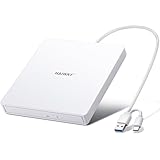
- True Plug and Play Simplicity: Haiway External DVD Drive offers true plug-and-play functionality. Designed for simplicity, this usb cd/dvd external drive draws power directly from your computer's USB port, eliminating the need for an external power supply. No drivers to install. (For Mac users, the drive icon will appear once a readable disc is inserted.)
- Say Goodbye to Short Cables: Our external cd drive for laptop pc features a 12.8-inch cable. At 3 inches longer than most embedded cable design, eliminates the hassle and constraint of short cables, ensuring a stable connection and a much more comfortable user experience in any setting.
- High-Speed USB 3.0 & Type-C Connectivity: This cd burner equipped with USB 3.0 and Type-C interface ensures broad compatibility with both new and legacy devices. Max DVD read speed 8x; Max CD read speed 24x and max CD burn speed 8x. Bringing you faster data transmission speed (Up to 5Gbps), enjoy smooth playback and efficient burning!
- All-in-One Reading & Burning Capability: This versatile external cd/dvd drive for laptop supports a wide range of formats including CD-R, CD-RW, DVD±R, and DVD±RW. It's your perfect solution for burning home videos, creating music CDs, installing software/games, backing up important data, or simply enjoying your favorite movies.
- Wide Compatibility with Windows & Mac: This external CD/DVD drive offers extensive compatibility. It is fully compatible with modern systems like Windows 11/10 and the latest macOS, as well as older systems including Windows XP/Vista and various Linux distributions, ensuring it works with virtually any computer you own.
Use the Windows Update troubleshooter when it is available
Open the Windows Update troubleshooter provided by the server’s installed tools, allow it to inspect the update configuration, and apply only the changes it reports. Availability and the exact entry point vary by installation. Restart or rerun Windows Update after the troubleshooter completes, and keep its result with your other evidence.
Repair the component store and protected system files
Microsoft’s Server guidance applies this method to Windows Server 2016 and later. Use an elevated Command Prompt, not a normal user prompt. Run DISM before SFC because SFC uses the component store as its repair source.
Run DISM with Microsoft Update as the source
- Open Command Prompt with Run as administrator.
- Run:
DISM.exe /Online /Cleanup-image /RestorehealthWait for DISM to finish. The command normally obtains the files it needs from Microsoft Update. Do not close the window while it is working, even if the progress percentage appears unchanged for a period of time.
Rank #4

- Processors: Intel Xeon E-2124 Quad-Core 3.3GHz 8MB CPU, Up To 4.3GHz Turbo
- Memory: 64GB (4 x 16GB) DDR4 PC4-21300 2666MHz Unbuffered Memory
- Solid State Drives: 2TB (4 x 500GB) 6Gb/s SATA III SSDs in RAID
- Hard Drives: 16TB (4 x 4TB) 6Gb/s SATA 7200 3.5" Hard Drives in RAID
- Dual Power Supplies, Windows Server 2016 Standard Operating System
Run System File Checker after DISM
When DISM has completed, run:
sfc /scannowAllow the scan to reach 100 percent. Then restart the server and run Windows Update again. Keep the complete output from both commands; a message that files were repaired, could not be repaired, or that no integrity violations were found changes the appropriate next step.
Use a same-version alternate repair source
If the server cannot reach Microsoft Update, DISM may fail because it cannot download repair content. Microsoft documents a same-version server share as an alternate source:
DISM.exe /Online /Cleanup-Image /RestoreHealth /Source:\<servername>c$windows /LimitAccessReplace <servername> with a computer that runs the same Windows operating-system version as the affected Server 2016 installation. The source must contain compatible repair files; a different release or build can produce another servicing failure. The /LimitAccess switch prevents DISM from trying Microsoft Update and makes the source requirement explicit.
Best Value

- Plug and Play: Equipped with both USB 3.0 and USB-C ports, this external CD/DVD drive requires no external drivers or power supplies. Automatically detected by laptops and desktops. Warming: It serves as the perfect companion for devices lacking a built-in DVD drive. NOTE: The integrated cable is non-detachable to prevent loss.
- Reliable Design & High Speed Quiet: Made of high-quality materials, shockproof, low noise, and strong fault tolerance. Ensures smooth and fast reading and writing of CDs/DVDs without stuttering or noise. Offers max 8x DVD rewrite/read speed and max 24x CD write/read speed. Supports data transmission up to 5Gbps. Ultra-thin design with a subtle machine size, easily fits into travel bags. Perfect for business and travel use.
- Wide Compatibility: Works with Windows XP/2003/Vista/7/8/10, Linux OS, and all Mac OS versions. Plays movies, burns/rips CDs, installs software, and backs up data. NOTE: Not suitable for cars, TVs, mobile phones, Blu-ray discs. You can use this external CD/DVD player to play movie DVDs, burn/rip CDs, install software/system, DVD games, back up data to CD/DVD,and more. (Not support TV, car player, Chromebook, Surface Pro, Ubuntu.)
- Technical Support & Usage Tips: If the device is not recognized, try restarting your computer or testing with a different disc. Requires 3V-5V (1.3A-2A) output from your computer’s USB port. Keep the external CD/DVD drive away from magnetic objects. Ensure your laptop has sufficient power—low power may cause recognition failure. Our dedicated customer service team is always available to assist with any compatibility or connectivity issues to ensure satisfied experience.
- Troubleshooting & Solutions: Common Causes of Freezing - 1. Insufficient power supply through USB; 2. Damaged or dirty disc; 3. Compatibility issues with certain software programs. [Check Your Drive: 1. Make sure the disc is clean and not scratched; 2. Try a different disc to see if the problem persists; 3. Ensure the drive's lens is clean.] --- Quick Fixes: 1. Try a different USB port - Use a USB 3.0 port (usually blue); 2. Connect directly to your computer - Avoid using USB hubs, as they may not provide enough power; 3. Restart your computer with the drive disconnected, then reconnect it; 4. Check the disc - Try a different CD/DVD to see if the issue is with the specific disc.
After this DISM run completes, run sfc /scannow again, restart the server, and retry Windows Update. If the alternate-source command fails, record the exact error and verify the source version and access permissions before changing anything else.
Use CBS.log to identify package-level failures
When the service is enabled, the cache has been reset, and DISM or SFC still reports a problem, inspect %windir%LogsCBSCBS.log. Microsoft says this log records issues that were found or fixed during servicing. Relevant entries can identify missing MUM files, corrupt manifests, payload corruption, and package or build details.
- After DISM and SFC finish, make a copy of
%windir%LogsCBSCBS.logso later repairs do not obscure the original entries. - Open the copy in a text editor with sufficient permission and search around the timestamp of the failed DISM or update attempt.
- Record the package identity, KB number, build information, or component name that appears with the failure.
- Use that specific identity to select a Microsoft Server servicing procedure. Do not guess at a package name from the 0x80070422 code alone.
Server 2016 has additional servicing failure modes. Microsoft’s error table includes TrustedInstaller startup-policy problems and corrupted cumulative packages. Those conditions require different handling from a disabled Windows Update service. Changing unrelated registry values before reading CBS.log can make the diagnosis less reliable and can create a second configuration problem.
Free tools Windows power users keep installed
One-click scans. No signup required.
Common mistakes to avoid
- Changing the wrong service. The documented target for 0x80070422 is Windows Update. Do not alter TrustedInstaller or other services unless the log or a specific Microsoft procedure identifies them.
- Deleting the wrong directory. The cache reset removes the contents of
C:WindowsSoftwareDistribution. It does not call for deleting the Windows directory, the component store, or the parent folder itself. - Running SFC before repairing its source. Run DISM first, then SFC, so protected-file repair has the best available component-store source.
- Using an incompatible DISM source. The alternate computer must run the same operating-system version. A generic Windows image or a different release is not automatically valid.
- Assuming one command guarantees a fix. Microsoft’s procedures address the documented service, cache, and servicing conditions, but they do not promise that every 0x80070422 case has the same cause or will be solved by one command.
- Discarding logs after a failed attempt. Save service state, command output, update history, and CBS.log before escalating. Those records let an administrator move to a package-specific repair instead of repeating generic steps.
How to verify the repair
Verification should test both the configuration and the original outcome:
- Open
services.mscand confirm that Windows Update has Startup type: Automatic and a running status after a restart. - Run Windows Update and confirm that the affected update moves past the previous failure rather than merely disappearing from the screen.
- Review update history for the affected KB and note whether installation succeeded, failed with a new code, or remains pending.
- If DISM or SFC reported corruption, retain their final messages and the post-repair CBS.log entries.
- If the same error returns, compare the new service state and log timestamps with the original evidence. A recurring stop points back to service policy or a dependency; a package name in CBS.log points to servicing escalation.
When to escalate
Escalate to a package-specific Server 2016 servicing procedure when the service is enabled, the cache reset has been completed, DISM and SFC have been run in the documented order, and CBS.log identifies a concrete package, manifest, MUM file, payload, TrustedInstaller policy, or cumulative-package problem. Provide the administrator or support team with the server build, failed KB, service properties, update history, command output, and the relevant CBS.log section.
A 0x80070422 result is a useful starting signal, not a complete diagnosis. The reliable sequence is to correct the Windows Update service first, then isolate cached data, component-store and system-file integrity, repair-source availability, and finally any package-specific failure shown by CBS.log.
Quick Recap
As an optional shortcut after the manual steps, Outbyte PC Repair can address more than 100 common Windows issues where possible, including broken system elements, invalid redirects, shared DLL files, settings that increase CPU, RAM or disk load, temporary and cache files, and app-crash logging. It complements an antivirus rather than replacing one; results vary and no tool repairs every crash. It runs on Windows 11, 10, 8 and 7 and offers a category-based free trial of at least two days before a paid subscription.
Quick wins for a faster PC:
Clear out junk files and repair common Windows errorsFree Scan →Scan for outdated or missing drivers - takes under a minuteDriver Scan →Repair Windows errors before they cause bigger problemsFix Now →Product prices and availability are accurate as of the date/time indicated and are subject to change. Any price and availability information displayed on Amazon at the time of purchase will apply.

