Windows Errors? Fix Them Before They Spread
Repair common Windows errors and clear accumulated junk for a smoother, more stable PC - no reinstall needed.Free scan · no reinstallOutdated Drivers Are Slowing You Down
One free scan finds every outdated or missing driver and matches the right update for your exact hardware.Free scan · exact hardware matchStart by isolating the failure. Test another device on the same Wi‑Fi, try a second Bluetooth accessory if available, and check whether mobile data has signal. If only one router, accessory, or carrier service fails, troubleshoot that equipment or provider. If the problem follows your Galaxy A57 across networks and accessories, restart the phone, install any available software update, then work through the relevant connection-specific steps below.
Samsung’s published troubleshooting pages are general Galaxy guidance, not procedures verified specifically for every Galaxy A57 5G (SM‑A576B/DS) running One UI 9.0. One UI availability and menu wording can differ by region, model variant, and software build. Use the labels that actually appear on your phone. Samsung’s UK mobile-data guide was updated 5 October 2026, and its India Wi‑Fi guide was updated 21 May 2025; those dates identify the guidance pages, not a guarantee that every A57 has the same software.
As an Amazon Associate I earn from qualifying purchases.
First, identify what is actually failing
Connectivity symptoms can look alike but have different causes. A phone that cannot see a Wi‑Fi network needs a different check from one that joins Wi‑Fi but cannot reach the internet. Bluetooth pairing failures may belong to the accessory rather than the phone, while mobile-data failures can require carrier action even when the handset settings are correct.
| What you observe | Best first comparison | Likely place to troubleshoot |
|---|---|---|
| No Wi‑Fi networks appear, or one network will not join | Try the same network on another device | Router range, password, router service, or phone Wi‑Fi settings |
| Wi‑Fi says connected but apps have no internet | Check whether another device has internet through that router | Internet provider or router if every device fails; phone if only the A57 fails |
| One Bluetooth accessory will not pair | Try another accessory, or pair the accessory with another compatible device | Accessory availability, companion app, or accessory maker |
| Mobile data shows no service or no usable connection | Check signal and whether another phone on the same carrier works | Phone settings, coverage, SIM/account provisioning, or carrier |
| Wi‑Fi, Bluetooth, and mobile data all fail | Restart, update software, then consider a network-settings reset | Phone network configuration or software; escalate to Samsung if it persists |
Write down the exact symptom before changing settings: network missing, password rejected, connected without internet, accessory undiscoverable, pairing rejected, or mobile data without service. That description helps support distinguish a local device problem from an outage or incompatible accessory.
#1 Best Overall

- ELEVATED DESIGN. EVERYDAY EASE: Galaxy A57 5G features the best of A Series design that’s lighter, slimmer¹ and made to fit with your outfit
- A VIVID VIEWING EXPERIENCE: Dive deeper into your content with the Super AMOLED Plus display² on Galaxy A57 5G that features slimmer bezels for a more immersive viewing experience
- SNAP IT. LOVE IT. SHARE IT: The triple-lens camera on Galaxy A57 5G lets you capture everything from low-light videos with Nightography Video to landscapes in awesome detail
- BIG-TIME BATTERY LIFE: The 5,000mAh battery in Galaxy A57 5G lets you do what you want without worrying about running out of power and the 45W Super Fast Charging 2.0³ recharges your phone faster
- AWESOMELY FAST PERFORMANCE: Galaxy A57 5G⁴ keeps you connected with faster speeds so you can enjoy every online experience with ease. Stream videos, share photos, video call or simply surf your favorite sites without interruption
Use a controlled retest
After every change, retry the same connection that failed. For Wi‑Fi, use the same network and, if possible, the same location. For Bluetooth, use the same accessory and put it back into pairing mode. For mobile data, check a webpage or another data-dependent app after the phone has restarted. Changing several settings at once can make the symptom appear to move and makes it harder to tell whether the router, accessory, carrier, or phone was responsible.
Checks to perform before resetting anything
Restart the phone normally
Open the power menu and restart the Galaxy A57, then test the failing connection again. If the phone is frozen, Samsung also documents a button-based restart in its Wi‑Fi troubleshooting guidance; use the hardware-button procedure shown for your model rather than guessing a combination.
Install an available software update
Open Settings > Software update and install an update if one is offered. Samsung recommends checking software currency while troubleshooting Wi‑Fi. If you download the update over mobile data, Samsung cautions that your carrier may charge for the data used.
The Tool Desk
Outbyte Driver Updater FREEScan for outdated or missing drivers - takes under a minuteDriver Scan →Outbyte PC Repair FREERepair Windows errors before they cause bigger problemsFix Now →Separate a phone fault from a service fault
- For Wi‑Fi, check another device on the same network. If it also cannot get online, the internet service or router is the stronger suspect.
- For Bluetooth, test a second accessory when possible. A failure limited to one headset, watch, speaker, or car system points toward that accessory.
- For mobile data, verify that the phone has usable signal and that service is active with your carrier.
Do not treat a successful connection on one network as proof that every connection is healthy. A phone can work on a home router but fail on a workplace network, or pair with earbuds but not with a car system. Keep the comparison narrow: one phone against one router or accessory, then repeat with a known-good alternative.
Fix Wi‑Fi that cannot be found, joined, or used
When the network does not appear or the password is rejected
- Confirm Wi‑Fi is enabled in Quick settings or Settings, and move the phone within normal range of the router.
- Check the network name and enter the password exactly. Samsung notes that Wi‑Fi passwords are case-sensitive; a locked network requires the correct password.
- Check that the router is powered and that its internet connection is active. Restart the Galaxy A57, then restart the router and modem according to the equipment maker’s normal procedure.
- Try connecting another device to the same Wi‑Fi. If other devices also cannot get online, Samsung’s guidance is to contact the internet provider because the network service may be faulty.
If the network is visible but the A57 repeatedly refuses to join while other devices work, reconnect to the saved network and continue with the phone-focused checks below. Avoid assuming that a visible network automatically has working internet; the router can accept a connection while its upstream service is down.
When Wi‑Fi says connected but there is no internet
Use the other-device test before changing advanced settings. If every device connected to that router is offline, contact the internet provider. If only the A57 lacks internet, restart both phone and router, verify the password and range, and check whether a recently installed third-party app could be interfering.
Samsung suggests testing Wi‑Fi in Safe mode when a downloaded app may be responsible. If Wi‑Fi works in Safe mode but fails during normal startup, remove or review recently installed apps rather than immediately erasing the phone. Follow the Safe mode entry and exit instructions displayed for your exact A57 software build, because button and menu behavior can vary.
Quick wins for a faster PC:
Repair Windows errors before they cause bigger problemsFix Now →Scan for outdated or missing drivers - takes under a minuteDriver Scan →Rank #2
- ELEVATED DESIGN. EVERYDAY EASE: Galaxy A57 5G features the best of A Series design that’s lighter, slimmer¹ and made to fit with your outfit
- A VIVID VIEWING EXPERIENCE: Dive deeper into your content with the Super AMOLED Plus display² on Galaxy A57 5G that features slimmer bezels for a more immersive viewing experience
- SNAP IT. LOVE IT. SHARE IT: The triple-lens camera on Galaxy A57 5G lets you capture everything from low-light videos with Nightography Video to landscapes in awesome detail
- BIG-TIME BATTERY LIFE: The 5,000mAh battery in Galaxy A57 5G lets you do what you want without worrying about running out of power and the 45W Super Fast Charging 2.0³ recharges your phone faster
- AWESOMELY FAST PERFORMANCE: Galaxy A57 5G⁴ keeps you connected with faster speeds so you can enjoy every online experience with ease. Stream videos, share photos, video call or simply surf your favorite sites without interruption
When reporting the fault, say whether the phone obtained a Wi‑Fi connection but could not open any site, or whether it never completed the join. Also mention whether other devices on that router work. Those two details direct the provider toward an internet-service check and Samsung toward a phone-settings check instead of repeating the same steps.
Reset Wi‑Fi and Bluetooth or network settings
Use a network reset only after the basic checks. Depending on the build, the option may be labelled Reset Wi‑Fi and Bluetooth settings or Reset network settings. A common location is Settings > General management > Reset, but Samsung warns that menu names and screens vary by model and software version.
This reset removes saved network connection settings. Afterward, you must enter Wi‑Fi passwords again and pair Bluetooth accessories again. It is not a factory reset: it targets connection configuration rather than deleting your photos, messages, and apps, but record any network details you will need before confirming.
Because the reset affects more than the network currently under test, schedule it when you can reconnect to Wi‑Fi and accessories. If you rely on a saved network for an update or support call, make sure you know its password first. Read the confirmation screen; the wording shown on your A57 is the best indication of exactly which connection settings will be removed.
Factory reset is a last resort
Samsung places factory reset after other Wi‑Fi troubleshooting and support options. It is irreversible and deletes device data, so back up important information first. Do not use it as an early response to one router or one accessory problem. If Wi‑Fi still fails across multiple known-good networks after a network reset and update, contact Samsung Support before erasing the phone.
Fix Bluetooth that will not pair or stay connected
Make the accessory ready to pair
- Turn Bluetooth on and put the accessory into its discoverable or pairing mode as described by its maker.
- In the Galaxy A57 Bluetooth settings, remove or forget the saved entry for the affected accessory.
- Restart the phone and accessory, then search again and pair from the beginning.
Forgetting an entry matters when the phone retained an old pairing record. Pairing again creates a fresh connection instead of repeatedly trying a stale one. If the accessory is already connected to another phone or tablet, disconnect it there first; use the maker’s instructions for putting it back into pairing mode rather than repeatedly tapping the old entry on the A57.
Check for a required companion app
Some accessories need their manufacturer’s support application before they can complete setup or expose all functions. Samsung gives Galaxy Wearable as an example for compatible earbuds and watches. Install and use the app only when the accessory’s own instructions require it, and follow the app’s pairing flow rather than adding the device twice from separate screens.
Rank #3
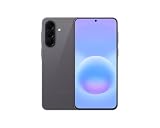
- International Model – Global Connectivity – Plug & Play with an active SIM on AT&T, Verizon, T-Mobile, and most U.S. carriers. New activations are supported on T-Mobile and Its MVNO's in the U.S., as some carriers may not recognize International IMEI's as Compatible. (No U.S. manufacturer warranty; Seller Return policy applies.)
- This model is Dual SIM with eSIM capability however the configuration is either SIM+SIM or eSIM+SIM 6.7” Super AMOLED Display (120Hz). Enjoy ultra-smooth scrolling and vibrant colors with a large Full HD+ screen, perfect for streaming, gaming, and browsing.
- Powerful Performance Equipped with an advanced Exynos processor and 8GB RAM, delivering fast multitasking and efficient performance for apps and games. 256GB Storage Store your photos, videos, apps, and files without worrying about space.
- Triple Camera System (50MP Main) Capture sharp, detailed photos with optical image stabilization, plus ultra-wide and macro lenses for versatile shooting.
- Long-lasting 5,000mAh Battery Stay powered all day with fast charging support, keeping you connected longer. Premium Build & Durability Sleek gray finish with water and dust resistance (IP68 rating) for added durability.
Decide whether the accessory or phone is at fault
If another Bluetooth accessory pairs normally, the original device, its firmware, or its pairing mode is the likely cause. Samsung advises consulting the third-party accessory manufacturer when that device still will not connect. This is especially important for car systems and specialized equipment whose compatibility settings are controlled outside the phone.
Free tools Windows power users keep installed
One-click scans. No signup required.
If several known-good accessories fail with the A57, try the Wi‑Fi/Bluetooth or network-settings reset described above. The reset also removes saved Wi‑Fi connections, so plan to reconnect both types of device afterward. Do not promise an exact One UI 9.0 label: the path and wording can differ on the SM‑A576B/DS variant and by region.
A Bluetooth failure limited to one accessory is not evidence that the A57’s radio is defective. Check the accessory’s charge, pairing mode, companion app requirement, and maker support first. Conversely, if multiple accessories fail while each works with another compatible device, give Samsung that comparison when requesting help.
Fix mobile data that is unavailable
Check the switch and signal first
- Open Quick settings and confirm Mobile data is enabled.
- Look at the status area for usable cellular signal. Weak or absent coverage can prevent data even when the setting is on.
- Restart the phone and test mobile data again after the restart.
Samsung’s mobile-data guidance recommends testing after each step, so change one thing at a time. This makes it clear which action restored service and avoids stacking several uncertain changes.
Reset network settings if data still fails
If mobile data remains unavailable, use the network-settings reset under the Reset section of Settings. The exact label varies, but Samsung’s instructions treat this as a step that resets Wi‑Fi, Bluetooth, and other network settings as well as cellular connection configuration.
Because the reset is broader than a mobile-data toggle, prepare to reconnect saved Wi‑Fi networks and Bluetooth accessories. Restart the phone after the reset if the on-screen instructions request it, then test mobile data before restoring all other connections.
When the carrier must intervene
Contact the carrier if service still fails after the restart and network reset, particularly when coverage is weak or you recently moved a SIM or phone to a different carrier. Samsung notes that a carrier may need to reset or provision the device on its network. The carrier can also confirm account status, local outages, and whether the phone is supported in the area; these are not problems a Wi‑Fi/Bluetooth reset can solve.
Rank #4

- International Model – Global Connectivity – Plug & Play with an active SIM on AT&T, Verizon, T-Mobile, and most U.S. carriers. New activations are supported on T-Mobile and Its MVNO's in the U.S., as some carriers may not recognize International IMEI's as Compatible. (No U.S. manufacturer warranty; Seller Return policy applies.)
- This model is Dual SIM with eSIM capability however the configuration is either SIM+SIM or eSIM+SIM. 6.7” Super AMOLED Display (120Hz). Enjoy ultra-smooth scrolling and vibrant colors with a large Full HD+ screen, perfect for streaming, gaming, and browsing.
- Powerful Performance Equipped with an advanced Exynos processor and 8GB RAM, delivering fast multitasking and efficient performance for apps and games. 256GB Storage Store your photos, videos, apps, and files without worrying about space.
- Triple Camera System (50MP Main) Capture sharp, detailed photos with optical image stabilization, plus ultra-wide and macro lenses for versatile shooting.
- Long-lasting 5,000mAh Battery Stay powered all day with fast charging support, keeping you connected longer. Premium Build & Durability Sleek gray finish with water and dust resistance (IP68 rating) for added durability.
When you call, report the location of the failure, the signal shown by the phone, whether another phone on the same carrier works, and whether the handset or SIM was recently changed. Ask the carrier to check provisioning and any local service issue before assuming the A57 needs a factory reset.
What each reset changes
| Action | What it addresses | What you should expect afterward |
|---|---|---|
| Restart | Temporary software or connection state | Phone reboots; saved settings remain |
| Reset Wi‑Fi and Bluetooth or network settings | Corrupted or incorrect connection configuration | Saved Wi‑Fi networks and Bluetooth pairings are removed; reconnect them |
| Factory reset | Last-resort software recovery after other troubleshooting | Device data is deleted and the action cannot be reversed; back up first |
Samsung’s pages do not provide a quantified success rate for these steps, and no repair percentage should be assumed. Their purpose is to narrow the fault safely, from temporary state to settings, then to router, accessory, carrier, or hardware support.
When to stop troubleshooting and ask for help
- Ask the internet provider for help when multiple devices cannot access the same Wi‑Fi service after the router and modem have been restarted.
- Ask the accessory maker when one third-party device will not pair, especially if it requires a companion app or special pairing mode.
- Ask the carrier when mobile service remains unavailable, coverage is inadequate, or a recently changed carrier may need to reprovision the phone.
- Contact Samsung Support when the A57 fails across several known-good networks and accessories after restart, software update, and network reset.
Samsung’s mobile-data guide states: “If you followed the steps listed above but the issue persists, please contact Samsung Support.” Samsung’s Wi‑Fi guidance similarly directs users to their internet provider when other devices also cannot get online. These escalation points prevent a factory reset from masking an outage or accessory defect.
Why One UI 9.0 wording may not match your screen
The Galaxy A57 5G support listing identifies model SM‑A576B/DS and includes a One UI 9.0 lockscreen-policy topic, but the available support material does not establish that every regional A57 is running One UI 9.0 or provide A57-specific connectivity screenshots. Samsung explicitly warns that menu names and screen layouts vary by device model and software version.
Therefore, treat paths such as Settings > General management > Reset as a location to look, not a guarantee of identical wording. If your phone shows a slightly different label, choose the option that clearly describes Wi‑Fi, Bluetooth, or network settings and read the confirmation screen to understand what will be removed.
Independent reader supportYour contribution helps us test, update, and keep practical guides available for everyone.A safe order of operations
- Record whether one connection type or all three fail, and note the exact symptom.
- Restart the Galaxy A57; use the documented button restart only if it is frozen.
- Install an available update from Settings > Software update, remembering that mobile-data charges may apply.
- For Wi‑Fi, verify range, password, router power, and another-device access.
- For Bluetooth, forget the accessory, re-enter pairing mode, and check its required support app.
- For mobile data, enable the toggle, check signal, and test after restarting.
- Use the Wi‑Fi/Bluetooth or network-settings reset only after those checks, and plan to reconnect saved networks and accessories.
- Escalate to the internet provider, accessory maker, carrier, or Samsung according to which comparison test failed.
- Back up your information and consider a factory reset only after Samsung support recommends it or all less-destructive options are exhausted.
Do you need to buy new equipment?
Not as a first response. Samsung’s guidance focuses on checking and restarting the router you already have, reconnecting the existing accessory, changing phone settings, resetting network settings, and contacting the appropriate provider or manufacturer. A new router, Bluetooth adapter, SIM tool, or USB‑C Ethernet adapter is not shown to solve the range of faults covered here. Establish which device or service is failing before spending money on replacement hardware.
What’s actually slowing this PC down?
Pick the symptom - the matching free tool is one click away.
Frequently Asked Questions
Why does my Galaxy A57 say it is connected to Wi‑Fi but have no internet?
Test another device on the same router. If every device is offline, restart the router and modem and contact the internet provider; Samsung says the network service may be faulty. If only the A57 is offline, restart the phone and router, confirm range and password, and check whether a recently installed app could be interfering. Safe mode can help identify an app-related problem.
Best Value
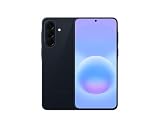
- International Model – Global Connectivity – Plug & Play with an active SIM on AT&T, Verizon, T-Mobile, and most U.S. carriers. New activations are supported on T-Mobile and Its MVNO's in the U.S., as some carriers may not recognize International IMEI's as Compatible. (No U.S. manufacturer warranty; Seller Return policy applies.)
- This model is Dual SIM with eSIM capability however the configuration is either SIM+SIM or eSIM+SIM 6.7” Super AMOLED Display (120Hz). Enjoy ultra-smooth scrolling and vibrant colors with a large Full HD+ screen, perfect for streaming, gaming, and browsing.
- Powerful Performance Equipped with an advanced Exynos processor and 8GB RAM, delivering fast multitasking and efficient performance for apps and games. 256GB Storage Store your photos, videos, apps, and files without worrying about space.
- Triple Camera System (50MP Main) Capture sharp, detailed photos with optical image stabilization, plus ultra-wide and macro lenses for versatile shooting.
- Long-lasting 5,000mAh Battery Stay powered all day with fast charging support, keeping you connected longer. Premium Build & Durability Sleek gray finish with water and dust resistance (IP68 rating) for added durability.
What should I do when the A57 cannot find my Wi‑Fi network?
Make sure Wi‑Fi is enabled, move within normal router range, and check that the router is powered and online. Try the same network on another device. If the network is locked, enter the case-sensitive password exactly. A failure on every device points to the router or internet provider rather than the phone.
Will resetting network settings delete my photos and apps?
No. A Wi‑Fi/Bluetooth or network-settings reset targets saved connection configuration, not your personal files and apps. It does remove saved Wi‑Fi networks and Bluetooth pairings, so you will need passwords and must pair accessories again. The exact label and menu path can differ by One UI build.
Why will one Bluetooth headset not pair while other accessories work?
Forget the saved headset entry, put the headset back into pairing mode, restart both devices, and pair again. Check whether its maker requires a companion app. If other accessories pair normally, consult the headset manufacturer; the fault may be accessory firmware, pairing mode, or compatibility rather than the A57.
What if mobile data is enabled but still does not work?
Check for usable cellular signal, restart the phone, and test after each step. If it remains unavailable, reset network settings, remembering that Wi‑Fi and Bluetooth connections will also be removed. Contact the carrier if service still fails, especially after a carrier change or SIM move, because the device may need network provisioning.
Can I follow the same reset path shown for another Galaxy phone?
Use it as a guide, not a guarantee. Samsung says menu names and screens vary by model and software version, and the surfaced A57 support material does not provide model-specific connectivity screenshots for every region. Look for the option that clearly describes Wi‑Fi, Bluetooth, or network settings and read its confirmation screen.
Should I factory-reset the A57 to fix connectivity immediately?
No. Samsung places factory reset after ordinary checks and support options. It is irreversible and deletes device data. Back up first, try restart, update, comparison tests, and the network-settings reset, then contact Samsung Support before using a factory reset.
Who should I contact when troubleshooting does not help?
Contact the internet provider when multiple devices cannot use the same Wi‑Fi, the accessory maker when one third-party device will not pair, and the carrier when mobile service or coverage remains unavailable. Contact Samsung when the A57 fails across several known-good networks and accessories after restart, update, and network reset.
Recommended Free Tools
The Bottom Line
Test the scope first, then restart and update the Galaxy A57. Check the router and another device for Wi‑Fi, forget and re-pair Bluetooth accessories, and verify mobile-data signal and carrier service. Use a network-settings reset only after those checks, because it removes saved Wi‑Fi and Bluetooth connections. Treat factory reset as irreversible last resort, and escalate to the provider, accessory maker, carrier, or Samsung according to the comparison that failed.
Quick Recap
Product prices and availability are accurate as of the date/time indicated and are subject to change. Any price and availability information displayed on Amazon at the time of purchase will apply.

