Do these 3 things before closing this tab:
1Clear out junk files and repair common Windows errors2Fix the driver behind crashes, sound loss and screen glitches3Repair Windows errors before they cause bigger problemsMost WH-CH720N connection problems can be resolved without replacing the headphones: put the headset and source within 1 m, stop any connection to another device, remove the old Bluetooth entry, and pair again. If repeated dropouts continue, reduce interference and check two-device (multipoint) behavior. Use initialization only after those steps because it restores factory settings and erases every saved pairing.
Pairing and connecting are different problems
Pairing is the one-time exchange that saves the WH-CH720N in a phone, tablet, or computer’s Bluetooth list. Connecting is what happens when that saved device is selected and an active Bluetooth link is established. A headset can be paired but not currently connected, and it can also be connected to a different source than the one you are trying to use.
As an Amazon Associate I earn from qualifying purchases.
This distinction explains many apparently random failures. If the headphones are already connected to another phone, tablet, or computer, the intended source may not be able to take over. Cancel the connection on the first source, or turn Bluetooth off there, before trying the second source. Deleting a saved entry also does not repair the headset by itself; it simply removes the old record, so the devices must be paired again.
Use this least-disruptive troubleshooting order
| Step | What it targets | What changes |
|---|---|---|
| Check the connection context | Power, Bluetooth state, distance, another active source, or wrong computer audio endpoint | Nothing is erased |
| Enter pairing mode and forget the old record | Stale or damaged source-side Bluetooth information | The source must pair with the headset again |
| Reduce interference and review two-device use | Dropouts caused by radio congestion or competing connections | Playback and connection settings may change |
| Restart or reset | Temporary software state or abnormal operation | Depends on the reset used; follow the model Help Guide |
| Initialize | Persistent abnormal operation after simpler measures | Factory settings are restored and all pairing information is deleted |
| Contact Sony | Failure that remains across fresh pairings and sources | Support can diagnose the unit and explain repair options |
Work through the rows in order. The early checks solve source-selection and stale-record problems without erasing settings, while initialization is intentionally last.
#1 Best Overall
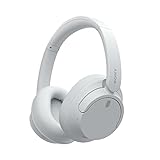
- SONY’S LIGHTEST WIRELESS NOISE CANCELING HEADBAND EVER: Weighing just 192g, our lightest overhead wireless headphones with Noise Canceling yet, for incredible comfort without compromising on technology.
- DUAL NOISE SENSOR TECHNOLOGY: Take noise canceling to the next level with Sony’s Integrated Processor V1, so you can fully immerse yourself in the music.
- ALL DAY COMFORT: Super comfortable and lightweight design.
- SMART FEATURES: Adjustable Ambient Sound mode and Adaptive Sound control features tailors sound to suit the environment around you.
- LONG BATTERY LIFE: Up to 35-hour battery life with quick charging (3 min charge for up to 1 hour of playback).(USB Type-C Cable included)
1. Check the connection context before changing settings
Confirm power and Bluetooth
- Turn on the WH-CH720N and make sure the intended phone or computer has Bluetooth enabled.
- Keep the headset and source within 1 m (about 3.2 ft) while pairing. This is Sony’s troubleshooting distance, not a guaranteed maximum operating range.
- Temporarily move away from other active wireless sources and crowded radio environments while you test.
If the headset does not appear at all, do not repeatedly tap an old entry. First make sure the headphones are on and that the source is scanning for nearby Bluetooth devices.
Cancel a connection on another phone, tablet, or computer
Think about every device that has used the headphones recently. On each unused source, disconnect the WH-CH720N or switch Bluetooth off for the test. Sony explains that the headset cannot connect to another source while it is already connected to one. Once the old connection is canceled, select the WH-CH720N on the device you actually want to use.
If the headset connects briefly and then returns to the previous device, repeat this check with that previous device powered down or its Bluetooth disabled. This isolates source competition before you erase any pairing records.
Check the selected audio endpoint on a computer
A computer can show a successful Bluetooth connection while sending sound to its speakers, a monitor, or a different headset. Open the operating system’s sound output controls and select the WH-CH720N Bluetooth headset/audio endpoint for playback. Menu names differ among Windows, macOS, ChromeOS, and Linux, so use the current labels on your system rather than assuming that a connected status means the correct output is active.
Test with a short audio clip after selecting the endpoint. If the headphones stay connected but no sound comes through, this routing check is more relevant than repeating the pairing process.
2. Re-enter pairing mode and remove the stale Bluetooth record
Put a second or later device into pairing mode
For a device that has already been paired before, hold the WH-CH720N power button for about five seconds to enter pairing mode. Keep the headphones close to the source during this operation. The source should then show the headset as an available Bluetooth device.
Do not confuse a normal power-on with pairing mode. If the headset is only turning on and reconnecting to a familiar device, the new phone or computer may never receive a pairing request. Holding the power button for the longer interval is the model-specific way Sony describes for pairing another device.
What’s actually slowing this PC down?
Pick the symptom - the matching free tool is one click away.
Forget WH-CH720N on the source
- Open the source device’s Bluetooth settings.
- Find the saved WH-CH720N entry.
- Choose the control labeled Forget, Remove, Unpair, or the equivalent option for that operating system.
- Restart the phone or computer.
- With the headphones within 1 m, hold the power button for about five seconds to enter pairing mode, then select WH-CH720N when it appears.
Sony specifically advises deleting the old source-side entry when pairing again after initialization or repair. It is also a sensible next step when a previously working connection suddenly refuses to pair. Forgetting the entry removes the stored relationship; it does not preserve an automatic connection, so complete the new pairing immediately afterward.
If the headset does not appear after the old entry is removed
- Turn Bluetooth off and on again on the source, then scan once more.
- Verify that the headset is actually in pairing mode rather than merely powered on.
- Move the source closer than 1 m and temporarily turn Bluetooth off on nearby devices that have used the headset.
- Restart the source device again before trying another pairing attempt.
Repeatedly selecting a stale list item is not a substitute for a fresh scan. The goal is to make the source discover the headset while the headset is deliberately in pairing mode.
3. Reduce dropouts and investigate two-device behavior
Test close to the source in a less crowded location
For disconnecting headphones, begin with a controlled test: sit close to the phone or computer, keep the headset on the same side of your body as the source, and move away from dense clusters of wireless equipment. Sony’s troubleshooting material identifies crowded places and nearby wireless sources as situations in which Bluetooth interference can occur. If the link is stable in the controlled test but fails in one particular room, vehicle, or desk area, the environment is an important clue.
Do not treat a temporary improvement as proof that the hardware is permanently fixed. Use the close-range test to separate a radio-environment problem from a failure that occurs everywhere.
Free tools Windows power users keep installed
One-click scans. No signup required.
Check which device currently owns the connection
The WH-CH720N can be used with two devices simultaneously, but two-device use can make a second source appear broken. If audio is playing or an application remains active on the first source, that source may keep the active audio path. Stop playback and close the relevant media application on the first device before starting playback on the second. If necessary, disconnect the first source completely and test the second source alone.
Rank #2

- SONY’S LIGHTEST WIRELESS NOISE CANCELING HEADBAND EVER: Weighing just 192g, our lightest overhead wireless headphones with Noise Canceling yet, for incredible comfort without compromising on technology.
- DUAL NOISE SENSOR TECHNOLOGY: Take noise canceling to the next level with Sony’s Integrated Processor V1, so you can fully immerse yourself in the music.
- ALL DAY COMFORT: Super comfortable and lightweight design.
- SMART FEATURES: Adjustable Ambient Sound mode and Adaptive Sound control features tailors sound to suit the environment around you.
- LONG BATTERY LIFE: Up to 35-hour battery life with quick charging (3 min charge for up to 1 hour of playback).(USB Type-C Cable included
When a dropout occurs, look at both devices rather than only the one you are listening to. Identify which device still shows the headset as connected, stop its playback, and then reconnect or select the intended source. This avoids erasing pairings for what is actually a source-priority issue.
Review the Sound Connect connection-quality setting
Sony’s Sound Connect app includes a connection-quality setting intended to favor a stable connection. Open the app and review that setting if you use it with the WH-CH720N. Treat it as an option to test, not a guarantee: a setting change cannot correct every environmental, source, or hardware problem.
App labels and availability can vary by region and operating-system version. If the app does not show the headset, fix Bluetooth pairing first; an app cannot manage a headset that the phone has not connected.
4. Check software listings without assuming an update is the cure
Sony’s US model support page listed WH-CH720N firmware version 1.1.4 with a release date of December 9, 2025. The same US listing showed Sony | Sound Connect dated September 30, 2026 when checked on October 13, 2026. Those are support-page listings, not a promise that updating will resolve a particular connection fault, and availability can differ by country or region.
Use the support page for your own region and model to see the current firmware and app listings. Verify the model name before installing anything. If an update is offered, follow Sony’s on-screen instructions and keep the headset sufficiently charged during the process. Do not interrupt an update because a connection symptom is inconvenient; complete the official procedure, then test a fresh connection.
If the firmware and app are already current, return to the pairing and source checks. An up-to-date listing does not rule out a stale Bluetooth record, a competing connected device, incorrect computer audio routing, or radio interference.
5. Restart or reset before factory initialization
Use the least destructive restart first
Power the headset off, wait briefly, and turn it on again. Also restart the phone or computer that is failing to connect. This clears a temporary state without deleting saved pairings. After both devices restart, retry pairing or connection while they are within 1 m.
Sony’s WH-CH720N Help Guide distinguishes initialization from an ordinary reset and places initialization after resetting when abnormal operation remains. If the guide presents a reset procedure for your situation, follow that model-specific procedure exactly. Do not substitute a button combination from another Sony headset; controls differ between models.
6. Initialize the WH-CH720N only when the simpler steps fail
Initialization is a factory restore, not just another restart. It removes the headset’s pairing information, so every phone, tablet, and computer will need to pair again. Save this step for a problem that persists after source checks, forgetting the old entry, a restart, and interference testing.
WH-CH720N initialization procedure
- Turn the headset off.
- Disconnect the USB-C cable. The cable must not remain connected during initialization.
- Press and hold the power button and the play/call button together for about 10 seconds or longer.
- Release the buttons when the indicator flashes blue four times. The four blue flashes indicate that initialization has completed.
The model-specific combination is power plus play/call. Do not use a generic noise-canceling-button combination copied from instructions for a different Sony model.
Pair again after initialization
- On each phone or computer that previously knew the headset, remove the old WH-CH720N Bluetooth entry. Initialization deleted the headset’s side of the record, while the source may still retain its old entry.
- Restart the source device.
- Keep the headset and source within 1 m.
- Hold the headset power button for about five seconds to enter pairing mode.
- Select WH-CH720N in the source’s Bluetooth list and complete pairing.
- On a computer, select the WH-CH720N audio endpoint as the output and play a short test.
Pair one source first and test it before adding a second. That creates a clean baseline. If the first source works but a second source causes drops, investigate multipoint and source priority rather than initializing again.
The Tool Desk
Outbyte PC Repair FREERepair Windows errors before they cause bigger problemsFix Now →Outbyte Driver Updater FREEScan for outdated or missing drivers - takes under a minuteDriver Scan →7. Use a source-by-source test to decide whether to escalate
After a fresh pairing, test the headset with the phone or computer that matters most. Then, if available, test a different source. Record the result in practical terms:
Rank #3
- This Certified Refurbished product is manufacturer refurbished, shows limited or no wear, and includes all original accessories plus a 90-day limited hardware warranty.
- Dual Noise Sensor Technology and an Integrated Processor V1 takes noise cancelling to the next level. Now you can fully immerse yourself in the music.
- Featuring a slimmer, lightweight headband, these headphones have been re-structured to create more space and comfort for the ears.
- Adjustable Ambient Sound mode offers 20 level settings. You’ll be able to listen to your music with incredible sound quality while still hearing sounds like traffic noise, café conversations, and transport announcements.
- Keep your music playing all day with a battery life that delivers up to 35 hours of power.
- Works on one source only: focus on the failing source’s Bluetooth stack, saved entry, driver, or audio-output selection.
- Pairs but drops only in one location: investigate nearby wireless equipment and the radio environment.
- Works alone but not with two devices: check which source is connected and stop playback on the first source before using the second.
- Will not pair or stay connected with multiple fresh sources after initialization: stop repeating the same button sequence and contact Sony.
This comparison does not prove a failed component. It simply tells you whether the symptom follows one source or follows the headset across sources, which is useful information for support.
Common mistakes that make the problem look worse
Leaving the old source connected
Starting pairing on a second phone while the first phone still has an active Bluetooth link can make the second phone appear incompatible. Disconnect the first source or disable its Bluetooth before retrying.
Pairing without deleting the old record
A source can retain outdated information after a repair or initialization. Remove the saved WH-CH720N entry, restart the source, and perform a new pairing instead of repeatedly selecting the same stale record.
Quick wins for a faster PC:
Repair Windows errors before they cause bigger problemsFix Now →Scan for outdated or missing drivers - takes under a minuteDriver Scan →Confusing a connected computer with an active audio output
Bluetooth status and audio routing are separate. Select WH-CH720N in the computer’s sound-output control and test playback before concluding that the headphones have failed.
Initializing while USB-C is connected
The WH-CH720N initialization procedure requires the USB-C cable to be removed. Leaving it attached means you are not following the model’s specified sequence.
Using another model’s reset combination
Sony button combinations are not universal. For this model, initialization uses power plus play/call, held for about 10 seconds or longer, with four blue flashes indicating completion.
Assuming a firmware listing guarantees a fix
Firmware and app updates are worth checking on the regional support page, but their existence does not establish that they will cure every dropout. Continue to check pairing records, competing sources, interference, and computer audio routing.
Recommended Free Tools
When to contact Sony
If the WH-CH720N still will not operate correctly after initialization and fresh pairing, Sony’s model guidance says to consult a Sony dealer. Sony’s US support materials also provide repair information and contact support. Have the model name, the sources you tested, whether initialization completed with four blue flashes, and the exact symptom ready for the support agent.
A persistent failure after clean pairings on more than one source warrants professional diagnosis. It is not enough evidence to declare that the Bluetooth chip failed or to predict a warranty result; those conclusions require inspection and your purchase and regional support details.
Decision checklist
- Headset and intended source are powered on, Bluetooth is enabled, and both are within 1 m during pairing.
- Other phones, tablets, and computers are disconnected or have Bluetooth disabled.
- The computer’s WH-CH720N audio endpoint is selected when a computer is involved.
- The old WH-CH720N entry has been forgotten before a new pairing attempt.
- The source device has been restarted and the headset has been placed in pairing mode by holding power for about five seconds.
- Dropout testing has been performed close to the source and away from crowded wireless environments.
- Two-device playback has been stopped on the first source when testing the second.
- The regional Sony support page has been checked for current firmware and Sound Connect listings.
- Initialization has been reserved for persistent problems, performed with USB-C disconnected, and confirmed by four blue flashes.
- After initialization, old source entries have been removed and every device has been paired again.
“If the headset does not operate correctly even after resetting, initialize the headset.”
The practical outcome
Start with connection ownership and distance, then clear the source’s saved WH-CH720N entry and pair again. For disconnections, test close to the source, reduce wireless congestion, and check whether a second device is holding the active connection. Restart or reset before using the model-specific initialization, because initialization erases pairing data. If a fresh pairing still fails across sources, use Sony support or repair rather than guessing at a hardware diagnosis.
Crashes, No Sound, or Screen Glitches?
Random freezes, missing sound and display glitches usually trace back to one bad driver. Find and replace yours safely.Free scan · under a minutePC Slower Than It Used to Be?
A free scan shows the junk files, broken settings and background clutter dragging Windows down - then fixes them in one click.Free scan · Windows 10 & 11Quick Recap
Product prices and availability are accurate as of the date/time indicated and are subject to change. Any price and availability information displayed on Amazon at the time of purchase will apply.

