Blurry or shaky DJI Pocket footage usually has one of three different causes: the subject is out of focus, movement has been smeared by a slow shutter, or the gimbal is moving, skewed, or overloaded. Identify which symptom you have before changing settings. Focus problems are solved with distance, light, firmware, and lens checks; low-light smear needs more light, steadier handling, or a faster shutter; gimbal problems require a range and obstruction check, controlled calibration, or service if the camera was damaged.
Do not assume that every soft-looking clip needs a new camera, a filter, or a stronger stabilization accessory. Make one controlled test at a time: use a stationary, well-lit subject, remove accessories, keep the camera still while it starts, and compare the result with the original clip. This separates an exposure or handling limitation from a hardware fault.
As an Amazon Associate I earn from qualifying purchases.
First identify what “blurry” means
Play the original clip and watch both the subject and the frame edges. A uniformly soft subject that never becomes crisp points to focus. A sharp subject with streaks or a translucent double image during movement points to motion blur or ghosting. A horizon that tilts, a frame that pulses, or a camera head that visibly jitters points to the gimbal.
Free tools Windows power users keep installed
One-click scans. No signup required.
| What you see | Most likely issue | Best first check |
|---|---|---|
| The subject is soft even when it is still; focus hunts back and forth. | Focus distance, lighting, firmware, or lens film | Move farther away, test in brighter light, update firmware, and remove protective film. |
| Details are sharp between movements but smear when you or the subject moves, especially at night. | Motion blur or ghosting from a slow shutter | Add light, reduce movement, or select a faster shutter in manual exposure. |
| The horizon leans, the camera head shakes, or movement looks mechanically uneven. | Gimbal range limit, overload, debris, startup movement, skew, or impact damage | Power off, inspect the axis arms, remove accessories, keep the camera still at startup, then calibrate if appropriate. |
A gimbal stabilizes the camera’s orientation; it cannot freeze a moving subject or cancel every vertical movement from walking. Treat focus, exposure, and mechanical stabilization as separate systems. If only moving parts are blurred, do not keep recalibrating the gimbal: calibration cannot change the shutter speed.
#1 Best Overall
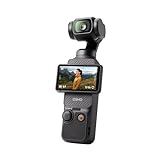
- Capture Stunning Footage - Osmo Pocket 3 vlogging camera features a 1-inch CMOS sensor and records in 4K resolution at an impressive 120fps. Capture breathtaking night views and sunsets with enhanced clarity.
- Effortlessly Frame Your Shots - Get the ideal composition with Osmo Pocket 3's expansive 2-inch touch screen that rotates for both horizontal and vertical shooting.
- Ultra-Steady Footage - Say goodbye to shaky videos! Osmo Pocket 3's advanced 3-axis mechanical stabilization delivers superb stability. Enjoy smooth footage while dancing, chasing pets, or hiking.
- Create Captivating Vlogs With ActiveTrack 6.0 - Stay effortlessly in focus as you record on the go. Set Osmo Pocket 3 up on a tripod and jump, dance, or spin, but remain center-frame.
- Fast and Accurate Focusing - Osmo Pocket 3 digital camera locks onto your subject for sharp, clear footage. Whether filming action-packed scenes or still shots, it ensures every detail is captured.
A quick controlled test
- Choose a textured, stationary subject with a clear edge, such as printed text, in good light.
- Place it more than 20 cm from the lens for a video test on the covered Osmo Pocket series.
- Remove a case, filter, lens film, or other third-party attachment.
- Power on the camera without moving it, record a short clip, and inspect the subject and horizon separately.
- Repeat the same test in dim light or while walking only after the basic clip is sharp and level.
Fix a DJI Pocket camera that will not focus
These distance and troubleshooting recommendations come from DJI’s Osmo Pocket-series support guidance. They should not be applied automatically to a different DJI camera model.
1. Test focus distance first
For video on the covered Osmo Pocket series, DJI recommends keeping the subject at least 20 cm from the lens. For photos, the recommendation is 10 cm. Move the camera back rather than relying on a close-up subject to become sharp. If the subject becomes clear as you increase the distance, the camera is behaving as expected for its focus range. A close subject can look acceptable on the preview yet remain soft in the recorded file, so judge the original clip rather than a small screen thumbnail.
2. Add light and repeat the test
Autofocus has less information to work with in a dark, low-contrast scene. Test the same subject in brighter surroundings and include an edge or textured detail for the autofocus system to lock onto. DJI also advises testing indoors if the camera is operating at an unusually low temperature; the cited support guidance lists an operating range of 0°C to 40°C. Let a cold camera reach a normal indoor temperature, then repeat the test instead of concluding that the lens has failed.
The Tool Desk
Outbyte PC Repair FREERepair Windows errors before they cause bigger problemsFix Now →Outbyte Driver Updater FREEScan for outdated or missing drivers - takes under a minuteDriver Scan →3. Update the camera firmware
Install the latest firmware offered for your specific Pocket model through DJI’s official update process, then restart the camera and repeat the focus test. Firmware changes can address camera-control faults, but an update cannot repair a physically damaged lens or gimbal. Note the model and firmware version before contacting support so you can report exactly what was tested.
4. Remove lens film and inspect the optical path
Check whether a factory or third-party protective film is still covering the lens. Peel it off completely and wipe away visible fingerprints or residue with appropriate lens-safe material. Do not use a sharp object, press hard on the gimbal head, or disassemble the camera. If removing film changes the result, do not add another layer while diagnosing focus; even a thin obstruction can reduce contrast.
5. Decide whether the failure is persistent
Record a short clip of a stationary, well-lit subject from farther than the recommended video distance. If the image remains soft, focus repeatedly hunts, or the camera cannot lock after the distance, light, firmware, and film checks, DJI says to contact support. Save the sample clip and note the model, firmware version, temperature, and shooting distance so support can reproduce the symptom. Include whether the problem affects photos, video, or both, and whether it began after a drop.
Stop motion blur and ghosting in dim light
Motion blur is an exposure problem, not necessarily a stabilization failure. DJI explains that Auto mode may slow the shutter to keep a dark scene bright. A slower shutter records more movement during each frame, producing streaks, trails, or ghost-like duplicates even when the gimbal holds the camera level.
Confirm that the shutter is the cause
Look at a clip with a still background and a moving person or vehicle. If the background stays reasonably sharp while the moving subject leaves a trail, focus and gimbal alignment are probably not the primary problem. Compare a brighter location or a test with the subject briefly standing still. If the blur disappears when there is more light, the camera was likely using a slower shutter in the darker scene.
Add light before changing everything else
- Move toward available ambient light or illuminate the subject from a safe direction.
- Reduce your own hand movement and ask a person being filmed to pause during the critical shot.
- Keep the camera supported without touching or squeezing the moving gimbal head.
- Shorten the shot or reframe so the most important action occurs in the brightest part of the scene.
More light lets the camera use a faster shutter at a lower ISO, generally preserving cleaner detail while reducing movement trails. Raising brightness in editing cannot restore detail that was smeared during capture.
Rank #2

- Capture Stunning Footage - Osmo Pocket 3 vlogging camera features a 1-inch CMOS sensor and records in 4K resolution at an impressive 120fps. Capture breathtaking night views and sunsets with enhanced clarity.
- Effortlessly Frame Your Shots - Get the ideal composition with Osmo Pocket 3's expansive 2-inch touch screen that rotates for both horizontal and vertical shooting.
- Ultra-Steady Footage - Say goodbye to shaky videos! Osmo Pocket 3's advanced 3-axis mechanical stabilization delivers superb stability. Enjoy smooth footage while dancing, chasing pets, or hiking.
- Create Captivating Vlogs With ActiveTrack 6.0 - Stay effortlessly in focus as you record on the go. Set Osmo Pocket 3 up on a tripod and jump, dance, or spin, but remain center-frame.
- Fast and Accurate Focusing - Osmo Pocket 3 digital camera locks onto your subject for sharp, clear footage. Whether filming action-packed scenes or still shots, it ensures every detail is captured.
Use Low-Light Video on Pocket 3 when it fits the scene
DJI lists a Low-Light Video mode in the Osmo Pocket 3 shooting-mode menu. Select it when the scene is genuinely dim and you prefer the camera’s assisted low-light processing. The exact menu wording and available modes can vary by firmware, so follow the on-screen options shown by your Pocket 3. Record a short test before an important shot; a mode designed for low light does not guarantee that a fast-moving subject will be free of trails.
Choose a faster shutter manually
In manual exposure, DJI gives 1/200, 1/400, and 1/500 second as examples of faster shutter settings for reducing blur. They are examples, not universal prescriptions. Faster shutters need more light; if the scene does not provide it, the camera may need a higher ISO and the resulting image can become noisier or darker. The appropriate value depends on subject motion, available light, frame rate, and the look you want.
What’s actually slowing this PC down?
Pick the symptom - the matching free tool is one click away.
- Switch to manual exposure if your Pocket model and current shooting mode provide that control.
- Raise the shutter speed from the value selected by Auto. Try a moderate increase first, then move toward 1/200, 1/400, or 1/500 second when subject motion demands it.
- Check the live preview for brightness. Add light or accept a higher ISO rather than forcing an unusably dark image.
- Record a short moving test and inspect the subject’s edges. Stop increasing shutter speed when motion is acceptably crisp for your frame rate and intended look.
A faster shutter can make handheld camera movement look more staccato, so use the slowest value that stops the specific smear you are trying to remove. Stabilization and shutter speed solve different parts of the problem. Do not judge a setting from a paused preview alone: scrub through the original clip at normal speed.
Understand what Pocket 3 stabilization can and cannot do
The Osmo Pocket 3 uses three-axis mechanical stabilization. DJI states that it does not stabilize vertical or Z-axis movement. In its support guidance, DJI writes: “Osmo Pocket 4P, Osmo Pocket 4, and Osmo Pocket 3 only support 3-axis stabilization. Vertical/Z-axis stabilization is not supported.” See DJI’s gimbal-shaking guidance.
That limitation is most visible as walking bounce: your body rises and falls even while the camera’s pan, roll, and tilt axes stay controlled. DJI suggests slightly tilting the handle forward so the tilt axis can improve the appearance of walking movement. This does not create true Z-axis stabilization and will not remove blur caused by a slow shutter.
Use a smooth heel-to-toe walk, shorten your steps, and avoid gripping the moving head. These handling changes reduce the movement entering the camera, but they are not a repair for a gimbal that jitters while sitting still. A stationary test on a level surface is the quickest way to separate normal walking bounce from a mechanical fault.
Quick wins for a faster PC:
Clear out junk files and repair common Windows errorsFree Scan →Scan for outdated or missing drivers - takes under a minuteDriver Scan →Repair Windows errors before they cause bigger problemsFix Now →Fix gimbal shaking, skew, drift, or an overload warning
Check the mechanical range and load
Stop recording and inspect whether the camera head is being pushed against its travel limit or obstructed by an accessory, film, cable, or case. A motor that cannot move freely can vibrate or trigger an overload warning. Remove third-party accessories while testing so they cannot press on the gimbal or change its balance. Test the bare camera through a normal pan and tilt movement; do not deliberately drive an axis into its stop.
Power off before clearing debris
Turn the camera completely off before inspecting the axis arms and gaps. Look for dust, grit, hair, or other debris that could restrict movement. Clear only what you can remove gently without forcing an axis. Never bend an arm, hold the motor against resistance, or insert a tool into the mechanism. If debris cannot be removed without contact with the motor or arm, stop and use support instead of risking additional damage.
Keep the camera still during startup
Place the Pocket on a stable surface and do not move the handle while it powers on. DJI’s skew and drift guidance says that movement during startup can require calibration before use. Restart with the camera stationary and see whether the horizon returns to normal. Avoid picking it up, rotating it, or pressing controls while the self-check is running.
Rank #3

- Capture Stunning Footage - Osmo Pocket 3 vlogging camera features a 1-inch CMOS sensor and records in 4K resolution at an impressive 120fps. Capture breathtaking night views and sunsets with enhanced clarity.
- Effortlessly Frame Your Shots - Get the ideal composition with Osmo Pocket 3's expansive 2-inch touch screen that rotates for both horizontal and vertical shooting.
- Ultra-Steady Footage - Say goodbye to shaky videos! Osmo Pocket 3's advanced 3-axis mechanical stabilization delivers superb stability. Enjoy smooth footage while dancing, chasing pets, or hiking.
- Create Captivating Vlogs With ActiveTrack 6.0 - Stay effortlessly in focus as you record on the go. Set Osmo Pocket 3 up on a tripod and jump, dance, or spin, but remain center-frame.
- Fast and Accurate Focusing - Osmo Pocket 3 digital camera locks onto your subject for sharp, clear footage. Whether filming action-packed scenes or still shots, it ensures every detail is captured.
Remove accessories and update firmware for skew or drift
For a tilted horizon or gradual drift, remove any third-party accessory or film attached to the gimbal or camera body, then update firmware for the exact model. Test the bare camera on a level surface. If the problem disappears, add accessories back one at a time to identify which item is interfering. A calibration should not be used to compensate for an attachment that physically limits the range.
Calibrate only under controlled conditions
Use DJI’s Handheld Series Product Gimbal Calibration Guide for the controls shown by your model. As Pocket-series guidance:
- Power off and remove anything that could obstruct or load the gimbal.
- Place the camera on a steady, level or otherwise flat surface where it will not be bumped.
- Start the gimbal-calibration command from the camera’s available settings or on-screen prompt.
- Do not touch, lift, rotate, or hold the camera while calibration runs.
- After completion, restart if the camera requests it and record a short level-horizon test.
DJI recommends calibration when an overload warning appears and for certain skew or drift symptoms. Calibration cannot correct a bent arm, cracked housing, or motor damaged by an impact. If the camera reports an error during calibration, or the same severe vibration returns immediately, stop repeating the process and document the behavior for support.
Use the right path for each combination of symptom and condition
Soft subject in a close indoor clip
Move beyond 20 cm for video, add light, remove lens film, and retest after a firmware update. If the same stationary subject remains soft, stop repeating calibration; this is a focus-support issue.
Sharp daylight footage but trails at night
The lens may be focusing correctly. Add light, hold the camera more steadily, try Pocket 3 Low-Light Video, or raise the manual shutter speed. Do not expect a gimbal to eliminate trails created during a long exposure.
Outdated Drivers Are Slowing You Down
One free scan finds every outdated or missing driver and matches the right update for your exact hardware.Free scan · exact hardware matchPC Slower Than It Used to Be?
A free scan shows the junk files, broken settings and background clutter dragging Windows down - then fixes them in one click.Free scan · Windows 10 & 11Level horizon becomes tilted after attaching an accessory
Power off, remove the accessory, restart without moving the camera, and test again. If the bare camera works, the accessory is interfering with the gimbal’s range or balance.
Jitter begins after a drop or collision
Do not force the axes or keep recalibrating in the hope that a bent mechanism will realign. Inspect for structural damage and move to the repair section below.
Walking footage bounces vertically but the horizon is otherwise stable
This is consistent with the Pocket 3’s unsupported vertical/Z-axis stabilization. Shorter steps, slower walking, a slightly forward-tilted handle, and more deliberate body movement can reduce the visible bounce; no setting can make the three-axis gimbal provide a fourth stabilization axis.
When troubleshooting has reached its limit
Use DJI’s support and repair channels when focus still fails after the documented checks, when the gimbal vibrates sharply or cannot complete its self-check, or when footage stays persistently blurry after a collision or drop. DJI’s Osmo Pocket Series Camera Out of Focus guidance directs owners to support for unresolved focus failure. For impact-related problems, see DJI’s collision and dropping damage guidance.
Rank #4

- Capture Stunning Footage - Osmo Pocket 3 vlogging camera features a 1-inch CMOS sensor and records in 4K resolution at an impressive 120fps. Capture breathtaking night views and sunsets with enhanced clarity.
- Effortlessly Frame Your Shots - Get the ideal composition with Osmo Pocket 3's expansive 2-inch touch screen that rotates for both horizontal and vertical shooting.
- Ultra-Steady Footage - Say goodbye to shaky videos! Osmo Pocket 3's advanced 3-axis mechanical stabilization delivers superb stability. Enjoy smooth footage while dancing, chasing pets, or hiking.
- Create Captivating Vlogs With ActiveTrack 6.0 - Stay effortlessly in focus as you record on the go. Set Osmo Pocket 3 up on a tripod and jump, dance, or spin, but remain center-frame.
- Fast and Accurate Focusing - Osmo Pocket 3 digital camera locks onto your subject for sharp, clear footage. Whether filming action-packed scenes or still shots, it ensures every detail is captured.
Before submitting a repair request, document the behavior with a short original clip, write down whether it occurs in bright and dim conditions, record the firmware version, and list any accessories attached when the fault appeared. That information helps distinguish a settings issue from a damaged optical or gimbal assembly. If the camera is visibly cracked, bent, or loose, do not keep operating it just to collect more tests.
A replacement camera is not the normal first step. Consider replacement only after DJI or another qualified service route confirms damage or an uneconomical repair. Buying a tripod, filter, cleaning kit, or software is not established as a fix for these symptoms; solve the diagnosed cause first.
A compact pre-shoot checklist
- Keep video subjects at least 20 cm away on the covered Osmo Pocket series.
- Remove protective lens film and keep the optical path clean.
- Use adequate light; do not rely on stabilization to stop exposure-based blur.
- For Pocket 3 night scenes, consider Low-Light Video or a faster manual shutter such as DJI’s 1/200, 1/400, or 1/500-second examples.
- Expect some vertical walking bounce because Pocket 3 lacks Z-axis stabilization.
- Start the camera on a steady surface and keep it still during startup.
- Power off before checking for debris, and calibrate only on a level, steady surface without touching the camera.
- Escalate persistent focus failure, sharp vibration, self-check failure, or impact damage to DJI support instead of forcing the gimbal.
Frequently asked questions
Why is my DJI Pocket footage blurry even though the camera is stabilized?
Stabilization controls camera orientation, not focus or the shutter’s recording time. A close subject may be outside the recommended focus distance, while a moving subject in dim light may be smeared by a slow shutter. Check distance and light separately before diagnosing the gimbal.
How far should a subject be from a DJI Pocket camera?
For video on the covered Osmo Pocket series, DJI recommends at least 20 cm. For photos, the recommendation is 10 cm. These figures are model-family guidance and should not automatically be applied to another DJI camera.
Recommended Free Tools
How do I stop a Pocket 3 from shaking while walking?
Some vertical bounce is expected because Pocket 3 does not stabilize the vertical/Z axis. Walk with shorter, smoother steps and slightly tilt the handle forward, as DJI suggests. If the camera jitters while stationary, inspect for obstruction, overload, debris, startup movement, or damage instead.
What shutter speed stops ghosting at night?
DJI gives 1/200, 1/400, and 1/500 second as examples in manual exposure. The correct choice depends on motion, light, frame rate, and the desired look. A faster shutter may require more light or higher ISO, so test rather than treating one number as universal.
Should I calibrate the gimbal whenever footage is blurry?
No. Calibrate for appropriate gimbal symptoms such as an overload warning, skew, or drift, not for a uniformly soft subject or exposure-based trails. Calibration cannot fix missed focus, a slow shutter, a bent arm, or impact damage.
Can an accessory cause a tilted horizon?
Yes. A case, film, cable, or other attachment can obstruct the mechanical range or alter the load. Power off, remove all third-party attachments, restart without moving the camera, and test the bare unit before calibrating.
Do these 3 things before closing this tab:
1Repair Windows errors before they cause bigger problems2Fix the driver behind crashes, sound loss and screen glitches3Clear out junk files and repair common Windows errorsWhat should I do if calibration does not fix severe vibration?
Stop forcing or repeatedly recalibrating the mechanism. Check for visible damage and contact DJI support or request repair, especially if the vibration began after a drop or collision or the camera cannot complete its self-check.
Best Value

- DJI Osmo Pocket 3- 3-Axis Gimbal Mechanical Stabilizer, 1" CMOS Sensor, Full-Pixel Fast Focusing, Up to 4K120 Resolution, 2" Rotatable Screen, Smart Horizontal/Vertical Shooting, D-Log M & 10-Bit Support, Active Track 6.0, Stereo Recording, Up to 166 Minutes of Battery Life, USB-C PD Cable Included, Wi-Fi & Bluetooth Support
- DJI Battery Handle for Osmo Pocket 3- For DJI Osmo Pocket 3, Built-In 950mAh Battery, Increases Operating Time by 62%, 1/4"-20 Mounting Thread, Supports Hot Swapping, Weighs Only 2.2 oz, USB-C Port for External Audio Devices, DJI Osmo Mini Tripod- Mini Tripod with Non-Slip Design, + Transport or store your DJI Osmo Pocket 3 and select accessories in this Carrying Bag from DJI. The sleek zippered bag also accommodates the full DJI Creator Combo.
- Quick Capture for Vlogging Anywhere, Anytime-Built for travel, the Pocket 3 is compact and always ready to capture any special moment. Single-handed operation allows you to begin shooting in one second to capture photos and videos at the speed of life and in your preferred vertical or horizontal aspect ratio.
- Pocket Sized with 2" Rotatable Screen-Pocket-sized and extremely portable, the DJI Osmo Pocket 3 is a tiny camera that lets you single-handedly record memorable moments. Equipped to stabilize movement and take sharp photos and smooth videos, it gives you the freedom to create magic at hand.
- Dual Microphone Wireless Lavalier Microphone- The wireless lapel lavalier microphone can be clipped on the collar to free your hands for audio and video recording. Note: You need to take off the receiver to be able to hear the audio playback. Omnidirectional wireless lavalier microphone is built with professional-grade intelligent noise reduction chips, providing effective identification of the original sound and clear recording in noisy environment
Does Low-Light Video guarantee sharp moving footage?
No. Pocket 3 includes Low-Light Video as an option for dim scenes, but movement can still require a faster shutter and steadier handling. Record a short test and inspect motion at normal playback speed.
Official guidance
- DJI Support: Osmo Pocket Series Camera Out of Focus
- DJI Support: Osmo Mobile/Osmo Pocket Series Product Gimbal Shaking
- DJI Osmo Pocket 3 product page
- DJI Support: Handheld Series Product Gimbal Calibration Guide
- DJI Support: Osmo Pocket series gimbal skew and drift guidance
- DJI Support: Handheld Series Product Damage Due to Collision or Dropping
Frequently Asked Questions
Why is my DJI Pocket footage blurry even though the camera is stabilized?
Stabilization controls camera orientation, not focus or shutter speed. Check the subject distance and lighting separately from gimbal behavior.
How far should a subject be from a DJI Pocket camera?
DJI recommends at least 20 cm for video and 10 cm for photos on the covered Osmo Pocket series.
How do I stop a Pocket 3 from shaking while walking?
Some vertical bounce is expected because Pocket 3 does not stabilize the Z axis. Use shorter, smoother steps and slightly tilt the handle forward. Stationary jitter requires mechanical troubleshooting.
What shutter speed stops ghosting at night?
DJI lists 1/200, 1/400, and 1/500 second as manual-exposure examples. Choose based on motion, light, frame rate, and the desired look.
Should I calibrate the gimbal whenever footage is blurry?
No. Calibrate for overload, skew, or drift symptoms—not for missed focus or motion blur.
Can an accessory cause a tilted horizon?
Yes. Remove cases, films, cables, and other attachments, then test the bare camera before calibrating.
What if calibration does not fix severe vibration?
Stop forcing the mechanism and contact DJI support or request repair, particularly after a drop or collision.
Does Low-Light Video guarantee sharp moving footage?
No. It helps with dim scenes, but moving subjects may still need a faster shutter and steadier handling.
The Bottom Line
Separate focus softness, low-light motion blur, and gimbal movement before changing settings. For focus, use the correct distance, more light, current firmware, and a clear lens. For ghosting, add light or use an appropriate faster shutter. For gimbal faults, remove obstructions, keep the camera still at startup, calibrate only on a steady level surface, and seek DJI service for persistent vibration, failed self-checks, or impact damage.
Quick Recap
Product prices and availability are accurate as of the date/time indicated and are subject to change. Any price and availability information displayed on Amazon at the time of purchase will apply.

