ScanSnap error 0x80004005 is an unspecified failure, not a scanner-specific diagnosis. In ScanSnap Home, it usually means the application cannot correctly recognize the USB connection or one of its program components is not working. Start by confirming your scanner model and Windows version, then test a direct USB connection, verify ScanSnap services, install the software made for that model, and only then try the reported Windows Image Acquisition (WIA) workaround. The exact ScanSnap message and whether Windows detects the scanner determine which branch applies.
What ScanSnap error 0x80004005 means
PFU/Ricoh’s ScanSnap FAQ describes this condition as the possibility that “ScanSnap Home is not correctly recognizing the USB cable, or part of the program is not operating correctly.” That wording points to two broad areas: the physical connection and the ScanSnap software environment.
As an Amazon Associate I earn from qualifying purchases.
The hexadecimal value itself does not identify a failed part. Microsoft uses 0x80004005 as a generic E_FAIL or unspecified error in a Windows Update context. The same number can therefore appear with different causes in different applications. For ScanSnap, the surrounding message, scanner model, Windows build, software version and connection method are more useful than the number alone.
Free tools Windows power users keep installed
One-click scans. No signup required.
This guide applies to Windows installations of ScanSnap Home and, where applicable, legacy ScanSnap Manager. Current ScanSnap Home releases support specific Windows 10 and Windows 11 versions for listed scanner models. Older scanners may require ScanSnap Manager instead. Do not assume that the newest download is correct for every ScanSnap device.
#1 Best Overall

- OUR MOST ADVANCED SCANSNAP. Large touchscreen, fast 45ppm double-sided scanning, 100-sheet document feeder, Wi-Fi and USB connectivity, automatic optimizations, and support for cloud services. Upgraded replacement for the discontinued iX1600
- CUSTOMIZABLE. SHARABLE. Select personalized profiles from the touchscreen. Send to PC, Mac, mobile devices, and clouds. QUICK MENU lets you quickly scan-drag-drop to your favorite computer apps
- STABLE WIRELESS OR USB CONNECTION. Built-in Wi-Fi 6 for the fastest and most secure scanning. Connect to smart devices or cloud services without a computer. USB-C connection also available
- PHOTO AND DOCUMENT ORGANIZATION MADE EFFORTLESS. Easily manage, edit, and use scanned data from documents, receipts, photos, and business cards. Automatically optimize, name, and sort files
- AVOIDS PAPER JAMS AND DAMAGE. Features a brake roller system to feed paper smoothly, a multi-feed sensor that detects pages stuck together, and skew detection to prevent paper damage and data loss
Before changing anything, record your setup
Write down the information below. It prevents you from installing software for the wrong model and gives support a usable history if the fault remains.
| Item | Where to check | Why it matters |
|---|---|---|
| Scanner model | Read the label on the scanner or its original documentation. | Software and cable compatibility vary by model; legacy units may need ScanSnap Manager. |
| Windows edition and build | Open Settings > System > About and note Windows edition and OS build. | ScanSnap Home downloads list supported Windows versions, and an update can change compatibility. |
| ScanSnap software and version | Open ScanSnap Home or ScanSnap Manager and check its About information. | Support needs to know which application produced the message. |
| Connection arrangement | Note whether the scanner is connected directly to the computer, through a USB hub, or through another adapter. | A hub or adapter adds another possible point of failure. |
| Exact message and timing | Copy the complete text and note whether it started after a Windows or ScanSnap update. | The code is generic; the complete message and timing provide the useful clues. |
Save this information before uninstalling, reinstalling or changing a service. If the scanner works on another compatible computer, that comparison also helps separate a scanner or cable problem from a Windows installation problem.
Fix the USB connection first
Power-cycle the scanner
- Close ScanSnap Home or ScanSnap Manager.
- Turn off the scanner using its power control.
- Unplug the USB cable from both the computer and the scanner.
- Wait a few seconds, reconnect the cable firmly at both ends, and power the scanner on.
- Open the ScanSnap application and test detection again.
This resets a connection that may have been left in an invalid state after sleep, a restart or an update. It does not repair a damaged cable or an incompatible port.
Crashes, No Sound, or Screen Glitches?
Random freezes, missing sound and display glitches usually trace back to one bad driver. Find and replace yours safely.Free scan · under a minutePC Slower Than It Used to Be?
A free scan shows the junk files, broken settings and background clutter dragging Windows down - then fixes them in one click.Free scan · Windows 10 & 11Rank #2

- SIMPLE, FAST ONE-TOUCH SCANNING. Press one button and documents are scanned, cleaned up, and organized at incredible speeds up to 45 pages per minute, with a 100 sheet feeder capacity. QUICK MENU lets you quickly scan-drag-drop to your favorite computer apps
- GET ALL YOUR PAPER UNDER CONTROL. Business cards, receipts, photos, and even envelopes are no problem for the iX2400
- RELIABLE OPERATION. Like its predecessor, the iX1400, the next generation iX2400 features stable wired USB connection for consistent performance
- CLEAN IMAGES WITHOUT FUSS. Automatically detects document size and color depth, removes streaks and blank pages, de-skews, and rotates
- PHOTO AND DOCUMENT ORGANIZATION MADE EFFORTLESS. ScanSnap Home all-in-one software brings together all your favorite functions. Easily manage, edit, and use scanned data from documents, receipts, business cards, photos, and more
Bypass hubs and test another port
Connect the scanner directly to a USB port on the computer. Do not use a hub, docking station, monitor port or unverified adapter for this test. If the error disappears on a direct port, the intermediate device or its power management is implicated rather than ScanSnap Home itself.
Try a second direct USB port. Desktop users should prefer a port connected directly to the computer rather than a front-panel extension when possible. Laptop users should test another built-in port, keeping the scanner and computer on stable power while testing.
Check the cable before buying a replacement
Inspect both connectors for looseness, bent parts or visible damage. While the scanner is connected, gently moving the cable should not make Windows repeatedly connect and disconnect the device. Intermittent recognition is a strong reason to test a known-good cable.
Rank #3

- OUR MOST ADVANCED SCANSNAP. Large touchscreen, fast 45ppm double-sided scanning, 100-sheet document feeder, Wi-Fi and USB connectivity, automatic optimizations, and support for cloud services. Upgraded replacement for the discontinued iX1600
- CUSTOMIZABLE. SHARABLE. Select personalized profiles from the touchscreen. Send to PC, Mac, mobile devices, and clouds. QUICK MENU lets you quickly scan-drag-drop to your favorite computer apps
- STABLE WIRELESS OR USB CONNECTION. Built-in Wi-Fi 6 for the fastest and most secure scanning. Connect to smart devices or cloud services without a computer. USB-C connection also available
- PHOTO AND DOCUMENT ORGANIZATION MADE EFFORTLESS. Easily manage, edit, and use scanned data from documents, receipts, photos, and business cards. Automatically optimize, name, and sort files
- AVOIDS PAPER JAMS AND DAMAGE. Features a brake roller system to feed paper smoothly, a multi-feed sensor that detects pages stuck together, and skew detection to prevent paper damage and data loss
Use a replacement that matches the scanner’s connector and is compatible with the exact model. Do not order solely by appearance: verify the model documentation and connector type first. A new cable cannot correct a software-version mismatch, and a cable that fits physically may still be unsuitable for the scanner.
The Tool Desk
Outbyte PC Repair FREEClear out junk files and repair common Windows errorsFree Scan →Outbyte Driver Updater FREEFix the driver behind crashes, sound loss and screen glitchesFind Drivers →Check ScanSnap-related Windows services
PFU/Ricoh’s troubleshooting sequence directs users to Windows Computer Management and its Services section. The purpose is to confirm that ScanSnap-related services are present and able to run; it is not a reason to alter unrelated Windows services.
- Right-click the Start button and open Computer Management.
- Expand Services and Applications, then select Services.
- Review the list for services installed by ScanSnap. The exact names can differ by scanner generation and software package.
- For a ScanSnap service that is stopped, open its properties, confirm that it is not disabled, and use Start if Windows allows it.
- Close Computer Management, restart Windows, and test the scanner again.
Do not change startup settings for services you cannot identify. If a ScanSnap service is missing rather than stopped, that points toward an incomplete or incorrect installation; proceed to the software-compatibility section instead of copying service settings from another computer.
Rank #4
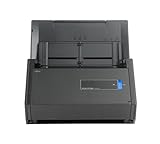
- One button searchable PDF creation
- Fast color, grayscale and monochrome scan speeds of up to 25 double-sided pages per minute
- Advanced paper feeding system with 50-page automatic document feeder (ADF)
- Scan wirelessly to Mac, PC, iOS or Android or via USB to Mac or PC
- Scan to cloud without a Computer or mobile device
Install the software that matches the scanner and Windows
Choose ScanSnap Home or ScanSnap Manager by model
| Software | Use it when | Important limitation |
|---|---|---|
| ScanSnap Home | Your model appears in the current ScanSnap Home compatibility list and your Windows version is listed as supported. | Support is model- and operating-system-specific; a current release is not automatically right for older hardware. |
| ScanSnap Manager | Your scanner is a legacy model whose documentation or support page specifies the older application. | Do not replace it with ScanSnap Home unless the model’s compatibility information says to do so. |
Download the installer from the official ScanSnap support/download page for your region. Select the scanner model first, then select the operating system. Read any notes about Windows 10 or Windows 11 editions and required software versions before starting the installation.
Reinstall carefully when components appear damaged
- Close every ScanSnap window and disconnect the scanner.
- In Settings > Apps > Installed apps (or Apps & features on an older Windows 10 interface), locate the installed ScanSnap software.
- If the support instructions for your model call for removal, uninstall the existing ScanSnap package and restart Windows.
- Install the model-matched ScanSnap Home or ScanSnap Manager package you downloaded from the official page.
- Restart Windows again before reconnecting the scanner.
- Connect the scanner directly by USB and open the newly installed application.
Uninstalling is not a universal requirement. Follow the model’s support instructions, especially when the scanner uses a legacy package or when other ScanSnap components are installed. Removing the wrong package can leave an older scanner without the software it needs.
If the scanner is still missing, inspect Windows Image Acquisition
Windows Image Acquisition (WIA) is a Windows service used by imaging hardware. A Super User report for the same 0x80004005 symptom says the user changed WIA to run as Local System, enabled Allow service to interact with desktop, and restarted Windows. This is a community-reported diagnostic lead, not an official universal ScanSnap fix. The setting may be inappropriate for another Windows configuration, so record the original values before changing them.
Best Value

- FITS SMALL SPACES AND STAYS OUT OF THE WAY. Innovative space-saving design to free up desk space, even when it's being used
- SCAN DOCUMENTS, PHOTOS, CARDS, AND MORE. Handles most document types, including thick items and plastic cards. Exclusive QUICK MENU lets you quickly scan-drag-drop to your favorite computer apps
- GREAT IMAGES EVERY TIME, NO EXPERIENCE REQUIRED. A single touch starts fast, up to 30ppm duplex scanning with automatic de-skew, color optimization, and blank page removal for outstanding results without driver setup
- SCAN WHERE YOU WANT, WHEN YOU WANT. Connect with USB or Wi-Fi. Send to Mac, PC, mobile devices, and cloud services. Scan to Chromebook using the mobile app. Can be used without a computer
- PHOTO AND DOCUMENT ORGANIZATION MADE EFFORTLESS. ScanSnap Home all-in-one software brings together all your favorite functions. Easily manage, edit, and use scanned data from documents, receipts, business cards, photos, and more
How to test the reported WIA settings
- Press Windows key + R, type
services.msc, and press Enter. - Find Windows Image Acquisition (WIA) in the service list and open Properties.
- On the Log On tab, note the existing account and settings.
- If you are deliberately testing the reported workaround, select Local System account and enable Allow service to interact with desktop, if that option is available in your Windows build.
- Apply the change, restart Windows, connect the scanner directly, and test ScanSnap.
If the option is unavailable, Windows rejects the change, or the behavior becomes worse, restore the recorded settings and restart. Do not treat a successful result on one computer as proof that the setting is required for every ScanSnap installation.
Independent reader supportYour contribution helps us test, update, and keep practical guides available for everyone.When the problem started after an update
Note whether the first failure followed a Windows update, a ScanSnap update, a driver change or a restart. Then check the current ScanSnap FAQ and troubleshooting notices for your exact model before rolling software back. Model-specific notices can explain why a previously working installation is no longer detected.
Do not install an older package simply because its name looks familiar. Confirm that the version supports your scanner and Windows build. If the official notice recommends a particular release or procedure, follow that model-specific instruction rather than combining files from different ScanSnap generations.
What’s actually slowing this PC down?
Pick the symptom - the matching free tool is one click away.
Use the symptoms to choose the next branch
| What you observe | Most useful next action |
|---|---|
| The scanner is not powered or Windows never reacts to the connection. | Check power, reconnect both ends, try another direct USB port, and test a compatible known-good cable. |
| Windows reacts, but ScanSnap reports 0x80004005. | Verify ScanSnap services, then confirm that the installed application matches the model and Windows version. |
| The error appears only through a hub or dock. | Keep using a direct USB connection while troubleshooting; test or replace the hub separately. |
| The scanner worked until a Windows or ScanSnap update. | Review the current model-specific FAQ and compatibility notes before changing versions. |
| Reinstalling the correct software changes nothing. | Test WIA only as the documented community lead, then collect details for regional support. |
| The scanner works on another compatible computer. | Focus on the affected Windows installation, its services, software version and USB ports. |
| The scanner fails on multiple computers with different cables. | Escalate with the model and connection history; hardware service may be required. |
What not to do
- Do not interpret 0x80004005 as proof of malware, a failed scanner component or a Windows license problem. It is an unspecified error code.
- Do not install a package for a different ScanSnap model because it is newer or easier to find.
- Do not keep testing through a hub while trying to determine whether the scanner itself is recognized.
- Do not change unrelated Windows services or registry settings based on a generic error number.
- Do not buy a cable without checking the scanner model and connector.
- Do not roll back Windows or ScanSnap software before checking the current model-specific support notice.
When to contact PFU, Ricoh or Fujitsu support
Escalate when the scanner remains undetected after a direct-port test, a compatible cable check, model-correct software installation and the applicable service checks. Contact the regional support channel for the scanner’s market and provide:
- Exact scanner model and serial information requested by support.
- Windows edition, version and OS build.
- ScanSnap Home or ScanSnap Manager version.
- The complete 0x80004005 message, including any wording about the program’s operating environment.
- Whether the connection is direct USB, through a hub, or through another adapter.
- Whether another direct USB port or known-good compatible cable changed the result.
- Whether the issue began after a Windows or ScanSnap update.
- Every step already attempted and the result of each test.
This information lets support distinguish a connection problem from a missing service, an unsupported software combination or a model-specific update issue without asking you to repeat the same checks.
Quick Recap
As an optional shortcut after the manual checks, Outbyte PC Repair can look for more than 100 common Windows issues, including broken system elements and shared DLL problems, and includes an app-crash log; it runs on Windows 11, 10, 8 and 7. Its free trial is offered by category for at least two days before a subscription, results vary, and it complements antivirus software rather than replacing it or guaranteeing a ScanSnap repair.
Quick checklist
- Identify the exact scanner model, Windows build and ScanSnap application version.
- Power-cycle the scanner and reconnect both ends of the USB cable.
- Test a different direct USB port without a hub or dock.
- Use a known-good cable that is compatible with the scanner model.
- Check ScanSnap-related services in Computer Management > Services.
- Install the model- and Windows-matched ScanSnap Home or legacy ScanSnap Manager package.
- Review current model-specific notices if the problem followed an update.
- Treat WIA changes as a community-reported test, record original settings, and revert if they do not help.
- Give regional PFU/Ricoh/Fujitsu support the full setup and troubleshooting history.
Product prices and availability are accurate as of the date/time indicated and are subject to change. Any price and availability information displayed on Amazon at the time of purchase will apply.

