Recommended Free Tools
Jellyfin Live TV failures usually come from one of three places: the tuner or stream source, a playback conversion that the server cannot sustain, or the network path between server and client. The fastest fix is to capture logs while the channel fails, identify the active playback mode, and compare a local-network test with a remote one. Work through the branches below rather than changing several settings at once.
1. Capture evidence while the channel is failing
Start with the web client console and the server logs. Jellyfin’s troubleshooting guidance describes the logs as the easiest way to check for issues; the web client console is available from the browser’s developer tools, while the server writes logs in its log directory.
As an Amazon Associate I earn from qualifying purchases.
- Open the affected channel and reproduce the buffering, skipped segments, or stoppage.
- At the same time, note the exact time, channel, client device, and whether the test is local or remote.
- Check the Jellyfin server log for entries at that time.
- If the session is transcoding or fails during conversion, open that session’s FFmpeg log. FFmpeg output often identifies an unsupported codec, an unreadable input, a failed connection, or an encoder error.
Keep the test controlled. Use the same channel and client for each comparison, and change one setting at a time. A timestamped note makes it much easier to match a player failure with a tuner disconnect, FFmpeg exit, proxy timeout, or network event.
Free tools Windows power users keep installed
One-click scans. No signup required.
If normal logging does not show enough detail, temporarily enable debug logging, reproduce the problem once, then disable it. Jellyfin warns that debug output grows quickly and should not remain enabled on a productive server. Save only the relevant section around the failure; leaving debug mode on can make later incidents harder to read.
#1 Best Overall

- NextGen TV certified - watch live TV on multiple devices simultaneously throughout your home with our Multi room Multi user network tuner solution
- Full whole-home DVR by connecting a USB hard drive - no subscription required (paid TV guide available for advanced auto-record features)
- ATSC 1.0 content is compatible with Android, FireTV, AppleTV, Roku, Sony, XBox, iPhone, iPad, Win10/11, Mac
- ATSC 3.0 DRM-free content is compatible with Android, FireTV, AppleTV, Roku Ultra 4800X and newer, iPhone, iPad, Win 10/11, Mac. Not compatible with DRM protected channels
- 4 tuners (2 ATSC 3.0, all 4 ATSC 1.0)
What to record
- Whether every channel fails or only channels from one tuner, playlist, or provider.
- Whether the same channel works on another client.
- Whether the dashboard shows Direct Play, remux, Direct Stream, or Transcode.
- CPU/GPU load and network activity at the moment playback stops.
- Whether the failure occurs only outside your home network.
- Whether the stop happens at a repeatable timestamp or after an apparently fixed amount of time.
- Whether subtitles were enabled and whether disabling them changes the playback mode.
2. Rule out the tuner or stream source
Before tuning codecs or proxies, verify that Jellyfin is receiving a healthy live stream. Jellyfin supports HDHomeRun tuners and M3U sources through its Live TV configuration; plugins can add other tuner types. A problem that affects only one source should not be treated as a general server-performance problem.
Failures limited to one source
If channels from one tuner, playlist, or provider fail while others play, treat the source as the primary suspect. In Dashboard → Live TV, inspect tuner status and use the manual refresh action. A refresh can reveal an expired playlist, a temporarily unavailable tuner, or a changed channel lineup. Record whether the failure follows the tuner or follows a particular channel: that distinction separates device or connection problems from a bad channel entry.
If all sources fail in the same client but the server logs show healthy input, continue to the playback and network checks instead of repeatedly refreshing the tuner. Conversely, if one tuner disappears or multiple channels from it stop together, keep the investigation at the source layer until its status is stable.
HDHomeRun in Docker
For an HDHomeRun connected to a Jellyfin container, check the container’s network mode. Jellyfin’s documentation calls for host networking because the server must connect to a changing UDP port. A bridged container network can therefore discover the device yet fail when the tuner changes ports for a stream.
- Confirm the tuner is reachable from the host.
- Use host network mode for the Jellyfin container when required by the tuner setup.
- After changing networking, restart the container and refresh tuner data in Jellyfin.
- Retest more than one channel so that a single good feed does not hide a tuner-wide problem.
Do not infer that discovery alone proves streaming works. The relevant test is whether Jellyfin can maintain the live session after the tuner allocates its stream and UDP port.
M3U playlists and internet streams
For an M3U source, verify the playlist URL or local file, credentials if the provider requires them, and any custom user-agent value. Check the simultaneous-stream limit: a provider may allow fewer concurrent streams than the number of Jellyfin users attempting to watch. A channel that works alone but fails when another viewer connects is consistent with a provider-side limit, so note how many sessions were active during the test.
Rank #2
- Watch live TV on multiple devices simultaneously throughout your home with our Multi room Multi user network tuner solution
- Full whole-home DVR by connecting a USB hard drive - no subscription required (paid TV guide available for advanced auto-record features)
- Compatible with Android, FireTV, AppleTV, Roku, Sony, XBox, iPhone, iPad, Win10/11, Mac
- 2 tuners (ATSC 1.0)
Confirm that the playlist still contains the channel and that its address has not changed. If the provider supplies separate guide and stream addresses, validate the stream entry used by Live TV rather than assuming a working guide proves the stream is reachable.
Jellyfin also exposes an Auto-loop live streams option; enable it only when a source’s streams are otherwise not playing correctly, because looping does not repair an unreachable or failing provider. Test the option with one affected stream and compare the resulting logs before leaving it enabled for a wider audience.
Source-level symptoms
- Channel never starts: inspect tuner discovery, playlist validity, authentication, and provider availability.
- All channels from one tuner stop together: check tuner connectivity, UDP handling, and stream limits.
- Only one channel breaks: the channel entry or upstream feed may be malformed or unavailable.
- Playback stops at the same point repeatedly: inspect the source and FFmpeg log for a discontinuity or decode error at that timestamp.
- Playback works until another viewer joins: check the M3U provider’s simultaneous-stream allowance and the tuner’s available capacity.
3. Find out whether Jellyfin is converting the stream
The active playback mode determines how much work the server must perform. Use the dashboard or session details while the channel is playing, not after the session has already ended. The mode can change when you switch clients, enable subtitles, or alter quality settings.
| Mode | What Jellyfin changes | Typical server load | Why it matters |
|---|---|---|---|
| Direct Play | Sends the media without modification. | Almost no additional load. | If this fails, focus first on the source, client, or network path. |
| Remux | Changes the container while leaving audio and video untouched. | Low. | Container compatibility is the likely reason for the change. |
| Direct Stream | Transcodes audio while leaving video untouched. | More than remux, usually less than video transcoding. | Inspect audio codec support and FFmpeg messages. |
| Transcode | Converts the video stream, and may also convert audio or subtitles. | Highest of these modes. | CPU/GPU capacity, encoder support, and subtitle handling become critical. |
This order is useful diagnostically: Direct Play adds almost no extra server load; remux changes only the container; Direct Stream changes audio; and video Transcode changes the video stream and therefore normally requires the most processing. A buffering symptom alone does not tell you which mode is active.
Client compatibility can trigger conversion
A client may not support the channel’s video codec, audio codec, container, or subtitle format. Jellyfin then converts the stream to something the client can decode. Subtitles are a frequent trigger: when they must be burned into the picture, the server has to transcode the video even if the video codec itself would otherwise play.
What’s actually slowing this PC down?
Pick the symptom - the matching free tool is one click away.
- Test the channel with subtitles disabled, if the client allows it.
- Compare the session’s reported reason for transcoding with the channel’s codecs and container.
- Try the same channel in another Jellyfin client. If one client Direct Plays and another transcodes, the difference is client capability or client configuration.
- Watch FFmpeg output and server load during the failure.
- Repeat the test with the same quality and subtitle settings so that the comparison is meaningful.
If a client changes from Direct Play to Transcode after a subtitle selection, that change is evidence of a compatibility requirement rather than proof that the tuner became unreliable. Likewise, a remux or audio-only conversion points to a different bottleneck than a full video conversion.
Rank #3
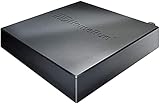
- Watch live TV on multiple devices simultaneously throughout your home with our Multi room Multi user network tuner solution
- Full whole-home DVR by connecting a USB hard drive - no subscription required (paid TV guide available for advanced auto-record features)
- Compatible with Android, FireTV, AppleTV, Roku, Sony, XBox, iPhone, iPad, Win10/11, Mac
- 4 tuners (ATSC 1.0)
Interpret load-related failures
- CPU reaches its limit and playback buffers: the transcode is slower than real time. Reduce conversion requirements or configure supported hardware acceleration.
- FFmpeg exits with an encoder or decoder error: treat the message as the primary clue; changing network settings will not fix a failed conversion.
- Playback works with Direct Play but not Transcode: concentrate on the codec, subtitle, encoder, and hardware-acceleration path.
- Direct Stream works but video Transcode fails: investigate video decoding, scaling, encoding, or subtitle burn-in rather than the audio path.
- All modes fail for one source: return to the tuner or provider checks and compare the input visible in the FFmpeg log.
4. Configure hardware acceleration carefully
Hardware acceleration can reduce transcoding work, but only when the GPU, operating system, driver, Jellyfin-FFmpeg build, and required pipeline stages are supported and correctly configured. It is not a universal remedy for Live TV buffering.
Check the transcode settings for your installed Jellyfin version, then verify the actual session. A partially accelerated pipeline can still leave some stages on the CPU, producing high CPU use and slower-than-real-time output. Confirm that decoding, scaling, subtitle processing, and encoding stages needed by this channel are supported; the fact that one stage uses a GPU does not prove the complete session does.
Use the FFmpeg log to see whether the expected hardware path was selected and whether a later stage fell back to software. If the log shows an unsupported format or encoder, treat that as a configuration or compatibility issue. Do not promise that a particular GPU will solve the problem without checking the operating system, driver, Jellyfin-FFmpeg, and the exact channel session.
Do these 3 things before closing this tab:
1Repair Windows errors before they cause bigger problems2Scan for outdated or missing drivers - takes under a minute3Clear out junk files and repair common Windows errorsSafe validation sequence
- Record a failing session’s playback mode and FFmpeg log before changing settings.
- Enable only the acceleration method supported by your operating system, driver, and hardware.
- Restart Jellyfin if the configuration requires it.
- Replay the same channel and compare mode, FFmpeg messages, CPU/GPU utilization, and buffering behavior.
- If errors appear or performance worsens, revert the change and use the log to isolate the unsupported stage.
5. Compare local and remote playback
Play the same channel on the local network and from outside it, if remote access is part of your setup. The comparison sharply narrows the fault domain. Use the same client where possible, then try a second remote network only if the first test points to an external-route problem.
| Result | Most likely area | Next checks |
|---|---|---|
| Fails locally and remotely | Source, transcoding, or server configuration. | Review tuner status, playback mode, FFmpeg, and server load. |
| Works locally, fails remotely | Router, addressing, firewall, bandwidth, or reverse proxy. | Verify the external address, port forwarding, reachability, and proxy streaming settings. |
| Fails only on one remote network | That network’s bandwidth, filtering, or routing. | Test another remote connection and inspect traffic reaching the server. |
| Works direct but fails through a proxy | Proxy buffering, timeout, forwarding, or headers. | Compare proxy and Jellyfin logs for the same timestamp and test the proxy directives. |
If the logs show no request arriving when a remote client tries to connect, the server may not have been reached. Check the address the client uses, router port forwarding, firewall rules, and Jellyfin’s local-versus-external access configuration. A successful local test does not prove that the external route is correct.
When traffic does reach Jellyfin but the remote session still buffers, compare the session’s playback mode and server load with the local session. A remote-only failure can still involve a larger required bitrate or a proxy that changes how the stream is delivered; do not assume it is automatically a tuner fault.
Rank #4
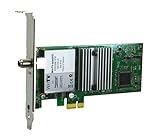
- Watch, pause or record UP TO FOUR DIFFERENT UNENCRYPTED ATSC or clear QAM TV channels live, simultaneously via antenna or cable TV. Note: clear QAM cable TV is not available on all cable networks. Please contact your cable operator for availability of clear QAM.
- INCLUDES HAUPPAUGE WINTV V10. WinTV v10 shows live TV on the Windows desktop in a window or in full screen. With four-channel picture-in-picture. Timer function and electronic program guide for programming daily, weekly or one-off TV recordings.
- INCLUDES HAUPPAUGE remote control with an IR sensor cable
- FOR WINDOWS 11 and 10. Also works on Windows 8 and 7.
6. Check a reverse proxy without treating it as a universal fix
A reverse proxy can introduce buffering, timeout, header, or upgrade issues even when Jellyfin itself is healthy. First reproduce the channel through a direct local connection, then through the proxy. If only the proxied route fails, compare proxy logs with Jellyfin logs and inspect the proxy’s streaming directives.
Quick wins for a faster PC:
Clear out junk files and repair common Windows errorsFree Scan →Fix the driver behind crashes, sound loss and screen glitchesFind Drivers →For Nginx, Jellyfin’s documentation gives proxy_buffering off; as an optional setting in the context of a resource-heavy proxy during streaming. Apply that directive only in the relevant Nginx location and test again; it is not a blanket fix for every network symptom and does not repair a bad tuner feed or failed FFmpeg transcode.
Proxy troubleshooting checks
- Confirm the proxy forwards the request to the correct Jellyfin host and port.
- Check proxy and Jellyfin timestamps for the same playback attempt.
- Look for upstream timeouts or prematurely closed connections.
- Compare direct and proxied playback with the same client and channel.
- Change one proxy setting at a time and retest.
- After changing buffering behavior, verify that the request reaches Jellyfin and that the session remains in the expected playback mode.
7. A decision path for common symptoms
Buffering begins immediately
- Check whether the tuner or playlist can deliver the stream at all.
- Look at the session mode. If it is Transcode, compare FFmpeg speed with real time and inspect CPU/GPU load.
- If local playback is fine but remote playback buffers, measure the remote route and inspect router/proxy configuration.
- If only one client buffers while another Direct Plays, compare codec, container, audio, and subtitle support between the clients.
Playback skips every few seconds
- Check the FFmpeg log for repeated decode, timestamp, or connection errors.
- Test with subtitles disabled to rule out burn-in conversion.
- Try another client to distinguish source problems from client codec limitations.
- Compare CPU/GPU use with the transcode speed; repeated stalls can occur when conversion cannot keep up.
Playback stops after working for a while
- Note whether the stop occurs at a repeatable timestamp or after a fixed duration.
- Check source stream limits, tuner stability, and playlist/provider behavior.
- Compare the time of the stop with FFmpeg termination, proxy timeout, and network disconnect entries.
- Repeat the test locally and remotely to determine whether the route changes the result.
Only one client has the problem
- Play the same channel in another client without changing the source.
- Compare Direct Play, remux, Direct Stream, or Transcode status.
- Check that subtitles and the selected audio track are not forcing conversion on the failing client.
8. Changes that commonly waste time
- Do not assume every buffering problem is caused by internet bandwidth; Direct Play, transcoding, tuner delivery, and proxying have different evidence.
- Do not leave debug logging enabled indefinitely; its output can become very large.
- Do not enable hardware acceleration solely because a GPU is present. Validate the complete pipeline and the resulting session.
- Do not use Auto-loop as a substitute for repairing an unavailable stream.
- Do not change tuner, codec, proxy, and network settings simultaneously; you will lose the evidence showing which change mattered.
- Do not treat a successful tuner refresh as proof that every channel stream is healthy.
- Do not use an Nginx directive as a remedy for an FFmpeg encoder error or an unreachable provider.
9. Minimal verification checklist
- Client console and server logs captured at the failure time.
- FFmpeg log reviewed whenever transcoding is involved.
- Tuner status refreshed and source-specific failures identified.
- HDHomeRun Docker deployments checked for the required network mode.
- M3U URL/file, user agent, credentials, and stream limit verified.
- Playback mode and transcoding reason recorded.
- Subtitle behavior tested.
- Hardware acceleration validated against the actual session, not just enabled in settings.
- Local and remote playback compared.
- Reverse-proxy logs and streaming configuration checked when a proxy is present.
- Debug logging disabled after evidence is collected.
Frequently Asked Questions
Where should I look first when Jellyfin Live TV stops?
Capture the web client console and server log at the moment of failure. If the session is transcoding, inspect that session’s FFmpeg log as well. The messages usually show whether the input, conversion, or connection failed.
How can I tell whether the tuner or Jellyfin playback is the problem?
Compare affected channels by tuner, playlist, or provider. Failures limited to one source point toward tuner or stream delivery; failures that follow one client or one playback mode point toward codec, subtitle, transcoding, or network compatibility.
Why does Jellyfin need host networking for an HDHomeRun in Docker?
Jellyfin must connect to a changing UDP port used by the tuner. The documented Docker setup therefore calls for host networking; a bridged network can discover the device but fail when the streaming port changes.
What does Auto-loop live streams actually fix?
It is an option to try when a live stream is otherwise not playing correctly. It does not repair an unreachable provider, invalid playlist entry, authentication failure, tuner disconnect, or failed FFmpeg conversion.
Best Value

- WATCH, PAUSE, RECORD, & REPLAY LIVE TV: Enjoy live TV from major networks, including ABC, CBS, FOX, and NBC(3), as well as a curated selection of free live streaming TV (FAST) channels. Channels and Content are subject to availability in their area. TV antenna range may vary based on topography, obstructions, and other variables.
- WHOLE-HOME ACCESS : 1 DVR and the included 35-mile range TV antenna(1) let you watch TV on multiple devices at once, including smartphones, tablets, as well as smart TVs & streaming players from Roku, Amazon Fire TV, Android TV, Chromecast w/ Google TV, Apple TV, Samsung TV, LG TV. For a full list of all compatible devices, view the product carousel image or download the User Guide (PDF) from Product guides and documents section. Tablo is not compatible with non-smart TVs, specific TV models, computers (PCs) and Apple TV Voice over. Please check compatibility before making the purchase.
- EASY SETUP: Connect the Tablo DVR to the indoor TV antenna with the included 6' coaxial cable; connect Tablo to your home network via Wi-Fi or using the included Ethernet cable; download the Tablo app on your mobile device and follow the setup instructions (4). Scan the QR code on the included Quick Start Guide (Installation Manual) that will guide you through the entire product setup. Tablo devices do not come with HDMI cable.
- NO SUBSCRIPTIONS OR HIDDEN FEES: Pay once for the Tablo device and TV antenna to enjoy live, local TV, record your favorite shows, along with free streaming TV channels without contracts or ongoing fees (4). Tablo OTA DVRs are designed for homes with Wi-Fi-enabled routers and a consistent high-speed connection to the internet.
- RECORD MULTIPLE SHOWS: 4 ATSC 1.0 tuners within the device allow you to record one live TV channel while watching another for viewing flexibility.
Can hardware acceleration stop Live TV buffering?
Only if the required decoding, scaling, subtitle, and encoding stages are supported by the GPU, operating system, driver, and Jellyfin-FFmpeg configuration. Partial acceleration can leave CPU-heavy stages in place, so verify the actual session and FFmpeg output.
Why does Live TV work locally but not remotely?
That result points toward the external address, router port forwarding, firewall, bandwidth, or reverse proxy. Check whether the remote request reaches Jellyfin, then compare direct and proxied playback and inspect the relevant logs.
Should I enable Nginx proxy_buffering off for every buffering problem?
No. Jellyfin documents it as an optional Nginx streaming setting for a resource-heavy proxy. Test it only when the proxied route differs from direct playback; it cannot fix a bad source or a failed transcode.
The Tool Desk
Outbyte PC Repair FREEClear out junk files and repair common Windows errorsFree Scan →Outbyte Driver Updater FREEScan for outdated or missing drivers - takes under a minuteDriver Scan →Why does turning subtitles off sometimes fix a channel?
A client may require subtitles to be burned into the video. That can force video transcoding, increasing CPU/GPU work and exposing encoder or acceleration problems. Compare the session mode with subtitles on and off.
The Bottom Line
Fix Jellyfin Live TV by isolating the failing layer: source, conversion, or network. Logs and the active playback mode tell you which branch to follow; local-versus-remote testing then separates server problems from routing and proxy problems.
Quick Recap
Product prices and availability are accurate as of the date/time indicated and are subject to change. Any price and availability information displayed on Amazon at the time of purchase will apply.

