The code 0x800707E is ambiguous: HP’s documented printer cases use the closely related codes 0x8007007e, 0x8007070e and 0x80070709. Read the complete hexadecimal value from Windows before choosing a fix. In most cases, power-resetting the printer, confirming that it can make a standalone copy, repairing the HP software path and recreating a damaged Windows queue resolves the problem. Windows 11 Pro 24H2 users must also check the Protected Print case, which can leave older non-IPP queues disconnected or defunct.
What the HP configuration error means
HP describes the message as Your printer has experienced an unexpected configuration problem.
It is a Windows-to-printer communication failure, not a diagnosis of one particular failed component. A stale queue, an incorrect or damaged driver, firmware, network configuration or a Windows configuration problem can all produce similar wording.
As an Amazon Associate I earn from qualifying purchases.
The digits matter because the remedies are not identical. The title’s shortened form, 0x800707E, does not match an authoritative HP code exactly, so do not assume that a guide for one variant applies to another.
Do these 3 things before closing this tab:
1Scan for outdated or missing drivers - takes under a minute2Repair Windows errors before they cause bigger problems3Fix the driver behind crashes, sound loss and screen glitches| Code shown in Windows | What is established | Most relevant checks |
|---|---|---|
| 0x8007007e | Documented by HP in persistent printer-configuration cases. | Power reset, copy test, HP Print and Scan Doctor, driver removal and reinstall, firmware update. |
| 0x8007070e | A related HP printer configuration code with different documented circumstances. | Power reset, copy test, HP diagnostic workflow and model-specific firmware or network instructions. |
| 0x80070709 | Can appear when Windows 11 Pro 24H2 Protected Print leaves an older non-IPP queue unusable. | Remove the old queue and add the printer again through a supported IPP or current HP setup path. |
| 0x800707E | Not an exact code in the HP material used for this guide. | Recheck every digit, including zeroes, and then follow the branch matching the complete code. |
Record the exact setup before changing anything
Write down the full message and collect these details. They determine which branch is safest:
#1 Best Overall
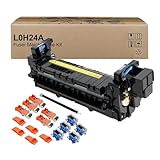
- Item Model: L0H24A L0H24A-67903 L0H24-67901 Printer Maintenance Kit (100V-120V)
- Page Yield: about 225000 pages
- Printer Compatibility: For HP M607 M608 M609 M610 M611 M612 M631 M632 M633 M634 M635 M636 E62555dn serise printer
- Product Advantages: Our L0H24A printer maintenance kit uses high quality raw materials to ensure an efficient and clear printing experience, and no longer need to worry about long printing times. You will enjoy the whole printing process
- Customer support: All products have undergone strict quality inspection before leaving the factory. If you have any questions, please feel free to tell us, we will reply you in 12 hours
- The complete hexadecimal code, including every zero and the final character.
- The HP printer model and, if shown, its firmware version.
- Your Windows edition and version, especially whether the computer is running Windows 11 Pro 24H2.
- Whether the printer is connected by USB, Wi-Fi or another network path.
- Whether printing fails from every Windows application or only one.
- Whether the printer can copy a page without the computer.
If a phone or another computer can print while this Windows computer cannot, the printer’s basic hardware and network connection are less likely to be the immediate cause. That observation does not prove the printer is healthy, but it makes the Windows queue or driver the better first target.
Fix the error in the order HP’s workflow supports
1. Perform a complete power reset
- Leave the printer switched on.
- Disconnect the power cord from the rear of the printer, not just from the wall.
- Wait at least 60 seconds.
- Reconnect the cord directly to a wall outlet for this test rather than to a surge strip or extension.
- Wait until the printer finishes starting and shows an idle or ready state.
- Try the same print job again.
This clears a printer state that a normal off-and-on cycle can leave behind. It does not remove a Windows queue or driver, so continue if the message returns.
2. Make a standalone copy
- Place a page on the scanner glass or in the document feeder.
- Use the printer’s control panel to make a copy without sending anything from Windows.
- Note whether the copy completes, jams, shows a hardware error or never starts.
A successful copy points attention toward Windows drivers, the print queue or the connection path. A failed copy means the printer itself needs model-specific hardware support before repeated Windows reinstalls are likely to help. Copying is a diagnostic split, not a guarantee that every hardware function is sound.
Rank #2

- Item Model: B5L35A Fuser Maintenance Kit (100V-120V)
- OEM Number: B5L35-67901 B5L35-67902
- Page Yield: About 150000 pages
- Printer Compatibility: For MFP M552dn M553dh M553dn M553n M553x M553dnm M553xm M554dn M555dn M555x M577c M577z M577dn M577cm M577f M577dnm M578dn M578f M578c M578z Printer
- This is Fuser Maintenance Kit
3. Confirm the connection path
For USB, reconnect the cable directly to the computer and make sure Windows sees the same printer instance rather than a duplicate queue. For Wi-Fi or another network connection, confirm that the printer and computer are on the network you intend to use and that the printer is not showing an offline state. Avoid changing several network settings at once; record the original setting so it can be restored.
If the printer works from a phone but not from Windows, do not start by buying a cable or replacing the printer. Continue with the Windows software steps below.
4. Run HP Print and Scan Doctor
- Open HP Print and Scan Doctor from the HP software already installed on the computer, or obtain the utility through HP’s official support channel for your model.
- Select the affected printer when the utility lists available devices.
- Run its printing-fix workflow and accept a repair it identifies for the queue, port or driver.
- Print a test page from the utility or from Windows.
Use the result as evidence. If the utility reports that the queue is fixed, test the application that originally failed. If it cannot find the printer, return to the connection check and then recreate the queue rather than repeatedly running the same scan.
Rank #3

- Item Model: L0H24A L0H24A-67903 L0H24-67901 fuser unit (100V-120V)
- Page Yield: about 225000 pages
- Printer Compatibility: For HP M607 M608 M609 M610 M611 M612 M631 M632 M633 M634 M635 M636 E62555dn serise printer
- Product Advantages: Our L0H24A printer maintenance kit uses high quality raw materials to ensure an efficient and clear printing experience, and no longer need to worry about long printing times. You will enjoy the whole printing process
- Tips: No accessories, only L0H24A fuser unit
5. Remove the printer and reinstall the correct driver
A persistent 0x8007007e case can require removal of both the printer entry and its driver package. Disconnect the USB cable temporarily during removal if Windows keeps rediscovering the old instance.
Recommended Free Tools
- In Windows 11, open Settings > Bluetooth & devices > Printers & scanners. In Windows 10, open Settings > Devices > Printers & scanners.
- Select the HP printer, choose Remove or Remove device, and confirm.
- Open Device Manager, expand Printers and Print queues, and remove only entries that clearly belong to the affected HP device. If Windows offers to remove the driver package, select that option when you are certain it is the HP package you intend to replace.
- Restart Windows.
- Download the driver and setup package for the exact HP model and your Windows edition from HP’s official support channel. Do not substitute a similarly named model.
- Run the installer, allowing it to create a new queue and choose the requested USB or network connection.
- Print a Windows test page, then retry the application that displayed the code.
Removing the wrong queue can interrupt another printer, so check the model name and connection before confirming. If the installer creates a second copy of the printer, remove the stale duplicate and set the newly installed queue as the default for testing.
6. Update printer firmware when HP provides an update
HP recommends checking firmware for the 0x8007007e family. Use the firmware package or update method listed for the exact model, keep the printer powered during the update and wait for it to return to an idle state before printing. Firmware procedures differ by model and connection type; do not interrupt power or apply a package intended for another series.
Rank #4

- 【High Quality and Durable】The RM2-1256 fuser kit uses high-quality, high-temperature-resistant components to provide excellent image printing quality, allowing your printer to always maintain a stable and solid fixing effect. Each RM2-1256 repair kit is perfectly tested before leaving the factory, so you can choose with confidence.
- 【Compatible Models】The RM2-1256 fuser maintenance kit is compatible with laser printer models HP LaserJet Enterprise M607dn M607n M608dn M608n M608x M609dh M609dn M609x M631dn M631h M631z M632fht M632h M632z M633fh M633z.
- 【Product specifications】RM2-1256 fuser kit mainly consists of heating system, pressure system, temperature control system, paper feeding system, and cleaning system. Replacement part number: RM2-1256-000,RM2-6778-000, L0H24A, L0H24-67901, working voltage: 110/120V; Number of printed pages: about 220,000 pages.
- 【Functional Features】The RM2-1256 fuser maintenance kit can perfectly replace the faulty fuser, making your printing results stable and clear. It is suitable for long-term continuous printing and ensures the best printer performance.
- 【Customer Support】 If you have any dissatisfaction with the product, we will sincerely seek the most satisfactory solution for you.
Firmware is separate from the Windows driver. Updating one does not automatically update the other, which is why the driver reinstall remains relevant when the queue is damaged.
7. Treat IPv6 changes as a conditional network step
One HP procedure for affected networked models suggests disabling IPv6 and rebooting. This is not a universal fix. Use it only when HP’s instructions for your model and network point to that step:
Outdated Drivers Are Slowing You Down
One free scan finds every outdated or missing driver and matches the right update for your exact hardware.Free scan · exact hardware matchPC Slower Than It Used to Be?
A free scan shows the junk files, broken settings and background clutter dragging Windows down - then fixes them in one click.Free scan · Windows 10 & 11- Open the network adapter’s properties in Windows.
- Clear the Internet Protocol Version 6 (TCP/IPv6) option only if the model-specific HP procedure calls for it.
- Save the change, restart Windows and the printer, and test the queue.
- Re-enable IPv6 if the procedure does not apply or if other network services require it.
Changing IPv6 can affect other devices and services on the network, so record the original state and avoid treating this setting as a general-purpose printer repair.
Best Value

- 【Printhead Nozzles Cleaner 100mL for All Inkjet Printers】Absonic Inkjet Printer Cleaning Solution for Epson Inkjet Printer, Printer Nozzle Cleaning Kit Solution for HP Inkjet Printer, Printer Printhead Cleaning Kit for Canon Inkjet Printer, Printer Head Cleaning Kit for Brother Inkjet Printer, Printhead Cleaner Kit for Samsung Printer, Print Head Cleaner Kit for Lexmark Printer, Printer Head Cleaner Kit for DTF Printer (If you don't find your inkjet printer model, you can always contact us)
- 【Printer Cleaner Solution for All Inkjet Printers】Absonic Inkjet Printhead Cleaner Kit is suitable for Epson EcoTank/Epson WorkForce/Epson Expression/Epson Stylus Inkjet Printers, such as ET 2720 2750 2760 3760 2760 2800 4800 4850; WF 7710 7720 3820 3823 4820 4830; XP 4205 7100 970, Printer Head Cleaning Solution for Canon MegaTank/Maxify/Office and Business Inkjet Printers, such as MX492 MX922 MG2520 MG2522 MG2525 MG3620 GX5020 IP110 G3260 G3270 G6020 TS702a TS3520 TS5120 TS5320 TS6320
- 【Print Head Nozzles Cleaner with All Inkjet Printers】Print Head Cleaning Solution for Brother MFC Inkjet Printers, such as J825DW J1010DW J1205W J1170DW J4335DW J4535DW J4620DW J5340DW; Printer Printhead Cleaning for HP Officejet/HP Deskjet/HP Envy/HP Smart Tank Inkjet Printers, such as HP OfficeJet 3830 4650 7740 8015 8020 8035 8210 8600 6978 Pro 9015 9025 9018, HP Envy 4520 5055 6055e 6455e 7955e, HP DeskJet 2640 2700 2723e 2742e 2755e 3755e 4155 4158, HP Smart Tank 5101 6001 7001 7301 7602
- 【Ink Cleaner for Inkjet Printer】Ink Cartridge Cleaner Ink Jet Head Cleaner Ink Jet Printer Cleaner Kit Cleaner for Ink, Inkjet Printhead Cleaning Solution Print Head Cleaner for Sublimation Ink Printhead Nozzles Cleaner Kit Print Head Cleaner Set Inkjet Cleaning Solution Cleaning Printer Head Cleaning Printer, Ink Head Cleaning Kit Inkjet Cleaning Kit Inkjet Cleaning Solution Kit Inkjet Head Cleaner Ink Head Cleaner Kit Ink Cartridge Head Cleaner Kit
- 【Printhead Cleaning Solution for Inkjet Printer Easy to Operate】The Printer Printhead Nozzle Cleaning Kit includes 100mL Inkjet Print Head Cleaning Fluid, syringe, white nozzle, yellow nozzle, L-shaped tubes, silicone tubing, gloves, and instructions. Inkjet Printhead Cleaning Kit comes with different sizes of nozzles to fit different ink-filling ports. The yellow nozzle is for Epson and Brother Inkjet Printers; The white nozzle is for HP and Canon Inkjet Printers
8. Check Windows 11 Pro 24H2 Protected Print
On Windows 11 Pro 24H2, Protected Print can leave older, non-IPP HP queues not connected, not configured or defunct. The associated message can include 0x80070709. If your symptoms match that description, repairing the old queue is less useful than replacing it.
- Open Settings > Bluetooth & devices > Printers & scanners.
- Select the affected HP queue and choose Remove.
- Restart Windows if the queue remains listed or the removal does not complete.
- Choose Add device and use the supported IPP path or the current HP setup method for the printer.
- Complete setup, print a test page and remove any visibly defunct duplicate queue.
Protected Print is a Windows security and compatibility condition, not proof that the printer has failed. If your computer is not Windows 11 Pro 24H2, use the ordinary driver and queue procedure instead of assuming this branch applies.
9. Use Windows repair tools only after printer-specific checks
Microsoft’s general troubleshooting guidance includes the Windows printer troubleshooter and System File Checker (SFC) when configuration or update corruption is suspected. These are escalation steps, not HP-specific guarantees.
Free tools Windows power users keep installed
One-click scans. No signup required.
- Open Settings > System > Troubleshoot > Other troubleshooters and run the printer troubleshooter if it is available in your Windows build.
- Open Terminal or Command Prompt as an administrator.
- Run
sfc /scannowand wait for verification to finish. - Restart Windows and test the printer again.
SFC repairs protected Windows system files when it finds corruption; it does not install an HP driver, update printer firmware or recreate a Protected Print queue. If it reports that it could not repair files, save that result for Microsoft or your organization’s support team rather than repeatedly deleting printer entries.
Independent reader supportYour contribution helps us test, update, and keep practical guides available for everyone.Choose the next fix from the evidence
| Observation | Best next action | Why |
|---|---|---|
| The exact code is unclear. | Read the full message again and record the model, Windows version and connection. | 0x8007007e, 0x8007070e and 0x80070709 are related-looking but distinct cases. |
| Standalone copying fails. | Stop Windows troubleshooting and use model-specific HP hardware support. | The printer has a problem independent of the Windows print path. |
| Copying works but Windows printing fails. | Run HP Print and Scan Doctor, then remove and reinstall the queue and driver. | The software path is more likely than a basic print-engine failure. |
| Only Windows 11 Pro 24H2 shows 0x80070709 and the queue is defunct. | Remove the queue and add it again through IPP or the current HP setup path. | Protected Print can strand older non-IPP queues. |
| Networked model remains unreachable after reinstall. | Follow the model-specific firmware and, only when instructed, IPv6 procedure. | Network and firmware remedies vary by model. |
| Printer-specific work is complete but Windows behaves inconsistently. | Run the printer troubleshooter and SFC. | These address possible Windows configuration corruption. |
When to stop troubleshooting yourself
- The printer cannot make a standalone copy after the power reset.
- The display reports a mechanical, scanner, cartridge or persistent hardware fault.
- The correct model driver and firmware are installed, but every computer shows the same failure.
- Your organization manages Protected Print, drivers or network policy and blocks queue changes.
- SFC reports unrepaired Windows corruption or the computer has broader printing failures with multiple printers.
Give support the exact hexadecimal code, the printer model, Windows edition and version, connection type, copy-test result, firmware version and the steps already attempted. That information is more useful than reporting only that an HP printer “does not print.”
Quick Recap
As an optional shortcut after the manual checks, Outbyte Driver Updater can scan more than 100 devices for outdated, corrupted or missing drivers, install official drivers, show current and recommended versions, create driver backups and restores, and schedule scans. It supports Windows 11, 10, 8 and 7 and offers a 2-day free trial without a credit card before subscription; results vary, and no utility repairs every printer configuration problem.
Final checklist
- Confirm whether the code is 0x8007007e, 0x8007070e, 0x80070709 or another value.
- Power-reset the printer from its rear power connection for at least 60 seconds and use a wall outlet.
- Run a standalone copy.
- Run HP Print and Scan Doctor.
- Remove the stale printer and driver, restart, and install the exact model package.
- Update firmware when HP lists an update.
- Use the IPv6 step only for a model-specific HP network procedure.
- On Windows 11 Pro 24H2, replace an affected non-IPP queue through a supported IPP or current HP setup path.
- Use the Windows troubleshooter and
sfc /scannowonly as broader escalation steps.
Product prices and availability are accurate as of the date/time indicated and are subject to change. Any price and availability information displayed on Amazon at the time of purchase will apply.
What’s actually slowing this PC down?
Pick the symptom - the matching free tool is one click away.

