Start by identifying whether your HP EliteBook X G2i is discharging unusually fast, losing charge during sleep, failing to charge, or failing to detect its battery. Those symptoms have different causes. Check Windows battery usage, run the available HP battery diagnostic, verify the USB-C adapter and cable, and reduce avoidable workload before buying a replacement.
The X G2i was specified with either a 56 Wh three-cell or a 68 Wh six-cell internal battery, so no single runtime or capacity applies to every unit. Actual capacity and endurance also change with age, temperature, display and processor configuration, applications, wireless connections, peripherals, and power settings. Treat replacement as the last step unless diagnostics and capacity records show a hardware problem.
As an Amazon Associate I earn from qualifying purchases.
Identify the symptom before changing settings
Write down what happens and when. A percentage that falls quickly while you are working is different from a notebook that loses charge in a bag, shows “plugged in, not charging,” or cannot see a battery at all. Use the symptom to choose the first check.
Crashes, No Sound, or Screen Glitches?
Random freezes, missing sound and display glitches usually trace back to one bad driver. Find and replace yours safely.Free scan · under a minuteWindows Errors? Fix Them Before They Spread
Repair common Windows errors and clear accumulated junk for a smoother, more stable PC - no reinstall needed.Free scan · no reinstall| Observed symptom | Start with | What it can indicate |
|---|---|---|
| Charge falls rapidly during normal unplugged use | Windows battery usage and HP battery health testing | High background or foreground load, unsuitable power settings, heat, or reduced full-charge capacity |
| Large loss while sleeping or the lid is closed | Recent activity, sleep settings, connected devices, and wake behavior | The system is not entering the expected low-power state or a device is waking it |
| Percentage falls even while connected to power | Adapter wattage, cable, charging port, and workload | Insufficient or faulty power delivery, or a load that exceeds available charging power |
| Battery is not detected in Windows | Restart, firmware and driver updates, then HP hardware diagnostics | Software, firmware, connector, or battery hardware fault |
| Chassis or touchpad is lifting, or the pack looks swollen | Stop routine troubleshooting and arrange HP or qualified service | Potential battery safety failure |
HP’s EliteBook X G2i troubleshooting index treats charging, battery detection, battery health, testing and calibration, adapter use, and performance as separate support topics. That separation is useful: do not assume every short-runtime complaint means the cells have failed.
#1 Best Overall

- USB C Laptop charger:Watt: 65W 45W Input :100-240V 1.5A 50-60Hz Output:5V-3A or 9V-3A or 15V-3A or 20V -3.25A,Connector:USB Type-C; VJYUIJAY Laptop Charger Fast charging Compatible with More USB C laptops,For use with compatible devices only,Do not exceed the rated power,Use certified cables,and Avoid placing in enclosed, high-temperature areas
- VJYUIJAY Computer Charger Type C Compatible with ThinkPad L390 L480 L490 L580 L590 E480 E580 E585 E490 E590 P51s P52s P43s P53s ,T470 T470s T480 T480s T490 T495 T590, X270 X380 X390 X395 X1 Carbon 5th 6th 7th Generation;Yoga S730 720 730 910 920 720-12IKB 720S-13IKB 730-13IKB 910-13IKB 920-13IKB, X270 X280 X380 X390 X395 Yoga, X1 Tablet 2nd 3rd;Flex 11 chromebook ,13 Chromebook 2nd Generation;100e 300e 500e C330 C340 S330 S340 C930 C940 C740 Yoga
- VJYUIJAY Laptop Charger Type C Compatible with Chromebook X360 11 12 14 15;14a-na0020nr 14a-na0010nr 14b-ca0013dx 14b-ca0010nr 14b-ca0015cl 14b-ca0023dx 14b-ca0025cl 14b-ca0036nr 14c-ca0000 14-ca0053dx 14-ca0043cl 14-ca003cl 14-ca0065nr 14-ca061dx 11-ae051wm 11-ae001tu 11-ae027nr 11-ae001nr 11-ae002nr 11-ae010nr 11-ae020nr 11-ae027nr;Spectre X2 X360/Elite X2/Pavilion X2/Elite x2 1012 G1 1012 G2 210 /Envy X2
- VJYUIJAY Chromebook Charger Type C Compatible With Chromebook 3100 3300 3380 3400 3500 5190 5300 5400 7200 7300,Latitude 5420 5520 5320 7410 7310 2-in-1 P28T P29T P30T P86F;XPS 12 9250 XPS 13 9300 9310 9350 9360 9370 9380 XPS 15 9550;3310 2-in-1 3390 2-in-1 5175 2-in-1 7200 2-in-1 7210 2-in-1
- VJYUIJAY 65W USB C Laptop Charger Compatible with Spin 11 13 R13 15 311 315 CP311 CP713 C933 CB5-312T R751T SF713 SP714 CB311 CB314 CB314 CB514 CB515 CB714 CB715 CP5-471 CP311 CP315 CP511 CP713 R721 R751 R752T R851
Know which X G2i battery and adapter you have
HP’s US specification for the HP EliteBook X G2i 14 inch Notebook Next Gen AI PC lists two battery configurations. The specification page, accessed October 13, 2026, does not assign a publication year to these figures.
| Configuration listed by HP | Rated energy | How to use the figure |
|---|---|---|
| HP Long Life three-cell lithium-ion polymer | 56 Wh | Use it to identify the installed configuration and compare capacity records; it is not a guaranteed runtime. |
| HP Long Life six-cell lithium-ion polymer | 68 Wh | Use it to identify the installed configuration and replacement compatibility; runtime does not scale directly with watt-hours. |
HP explicitly notes that actual watt-hours vary from design capacity and decline naturally with shelf life, time, use, environment, temperature, system configuration, applications, features, wireless use, and power-management settings. A six-cell pack is not automatically interchangeable with a three-cell pack, and a larger rated capacity does not guarantee proportionally longer use if the notebook has a different display, processor, workload, or battery condition.
The same specification lists 65 W and 100 W USB Type-C AC adapter options, including GaN variants. Availability can vary by country or region. Match the adapter to the exact notebook configuration and use the adapter supplied with the computer when checking a charging complaint; a USB-C connector alone does not prove that an adapter can provide the required power.
Do these 3 things before closing this tab:
1Repair Windows errors before they cause bigger problems2Fix the driver behind crashes, sound loss and screen glitches3Clear out junk files and repair common Windows errorsWhat HP’s fast-charge statement actually means
HP describes Fast Charge as recharging up to 50% within 30 minutes when the notebook is off or in standby and connected to the power adapter supplied with it. Charging returns to normal speed after 50%, and HP says the result can vary by about 10% because of system tolerance. This is a conditional manufacturer claim, not a promise for every third-party charger, cable, workload, temperature, or operating state.
Run a baseline check before making changes
- Record the starting state. Note the battery percentage, whether the adapter is connected, the Windows power mode, brightness level, wireless connections, and the applications you are running. Record the date and whether the notebook is warm.
- Observe a repeatable interval. For example, use the same type of work for 30 to 60 minutes and note the percentage change. Do not compare a video call with an idle desktop or a sleep period with active rendering.
- Check Windows battery usage. Open Settings > System > Power & battery > Battery usage. Review the time range and sort by applications to find programs using an unusual share of energy. Expand an application where Windows offers foreground and background figures.
- Capture a battery report. Open Terminal or Command Prompt as an administrator and run
powercfg /batteryreport /output "%USERPROFILE%Desktopbattery-report.html". Open the resulting file and record the design capacity, most recent full-charge capacity, recent usage and the report date. The report is evidence about capacity and behavior; it cannot predict an exact number of hours for every workload. - Run HP’s battery test. Use HP PC Hardware Diagnostics for Windows or UEFI if it is available on the notebook, select the battery check, and follow the displayed instructions. Menu labels differ between versions. Save the result, any failure code, and the date rather than relying on memory.
Capacity is best understood as a trend. Compare full-charge capacity with design capacity in successive reports and combine that information with HP’s diagnostic result and your observed workload. There is no evidence in the supplied HP material for a universal percentage at which every X G2i battery should be replaced, so do not treat one number as an automatic failure verdict.
Rank #2

- 【65W USB C Laptop Charger】Input:100-240V~1.2A 50/60Hz, Output:5V-3A 9V-3A 15V-3A 20V-3.25A; Power: 15W/27W/45W/65W; Connector: USB-C TYPE-C;Compatible with USB Type C Laptop
- 【Compatibility】YZAESHAY 65W USB C Charger Compatible with Spectre X2 X360/Elite X2/Pavilion X2/Elite x2 1012 G1 1012 G2 210 /Envy X2; 11-ae051wm 11-ae001tu 11-ae027nr 11-ae001nr 11-ae002nr 11-ae044cl 11-ae051wm 11-ae091wm 11-ae110nr 11-ae010nr 11-ae020nr 11-ae027nr 11-ae030nr 11-ze040nr 11-ae120nr 11-ae131nr 13-v111dx 13-ae013dx 13-ac023dx 13-v011dx 13-w023dx 13-w013dx 14-ca061dx 14-ca052wm 14-ca051wm 14-ca020nr 14-ca060nr 14-ca043cl 15-de0010nr 15-de0043dx 15-de0517 15-de0010br 15-de0021cl 15-de0035cl and more
- 【Compatibility】YZAESHAY 65W USB C Charger Compatible with Latitude 5440 5400 5550 5540 5430 5420 5410 5510 5500 5350 5340 5330 5320 2-in-1 5310 5300 5590 5190 7650 7520 7450 7440 7640 7530 7430 7320 7310 7350 7370
- 【Compatibility】YZAESHAY 65W USB C Charger Compatible with 100e 300e 500e C330 C340 S330 S345 C630 C630-13 C630-13Q50 C340-11 C340-15 S340-14 c740 s940 14w 14e S345-14AST
Reduce avoidable power use
Display and keyboard lighting
Lower brightness to the lowest comfortable level, especially on a bright high-resolution panel. Turn off keyboard backlighting when it is not needed. Display brightness and backlight duration are among the fastest reversible changes because they apply continuously during active use.
Background applications
In Battery usage, investigate browsers with many tabs, synchronization tools, launchers, update services, and applications that remain active after you close their window. Close work you are not using, prevent unnecessary applications from running in the background where Windows provides that control, and restart after removing a runaway process. Do not disable security or management software blindly on a business notebook; confirm the policy with your administrator.
Wireless connections and peripherals
Turn off Bluetooth or Wi-Fi when you genuinely do not need them, but do not disable a connection required for work. Disconnect USB storage, phones, cameras, and other accessories that draw power while the notebook is idle. A wireless mouse receiver or dock can also keep devices active. Test once with only the required accessories so you can separate the notebook’s consumption from peripheral drain.
Workload and thermal conditions
Video conferencing, high-resolution playback, compilation, virtual machines, games, artificial-intelligence workloads, and sustained processor or graphics use can consume much more energy than document editing. Pause intensive work when battery life is the priority, or connect the supplied adapter. Keep vents clear and avoid using the notebook on soft surfaces or in a hot car. Temperature affects both immediate runtime and long-term battery aging.
Use an appropriate Windows power mode
Open Settings > System > Power & battery and select a mode that fits the task. A more efficient mode can reduce processor boost and background activity; a performance-oriented mode can increase consumption. Configure the screen and sleep timers separately for battery and plugged-in use so the notebook does not remain awake unnecessarily.
Rank #3

- Power Source:Get fast and efficient charging with the 65w Laptop Charger USB C, featuring an input voltage of Input:AC 100-240V~1.5A 50-60Hz. Output: 5V~3A or 9V~3A or 12V~5A or 15V~4.33A or 20V~3.25A 65W/45W Compatible with USB Type C Laptop
- Compatibility:Compatible with Chromebook All USB C Laptop,Please check the connector and model number
- 65W USB C Latpop Charger Compatible with Chromebook 100e 300e 500e C330 S330 c340 s340 s345 c340-11 s340-14 c340-15 s345 s540 c740 c940 s940 14w 14e S345-14AST For Yoga A485 T490S T590 C930 C940 C740 S730 720 730 730-13IKB 730S 910 920 720-12IKB 720S-13IKB 730-13IKB 910-13IKB 920-13IKB C930-13IKB S730-13IWL,Compatible with ThinkPad X1 Carbon T480 T480s T580 T580s X390 P52S,A275 A285 A475 A485 T470s T480s T580 T490 E480 E580 E485 E585 E490 E590 L480 X380 L380 L390 L480 L490 L580 L590
- 65W USB C Laptop Charger Compatible with Chromebook X360 11 Series 11-ae051wm 11-ae001tu 11-ae027nr 11-ae001nr 11-ae002nr 11-ae010nr 11-ae020nr 11-ae027nr 11-ae030nr 11-ze040nr 11-ae044cl 11-ae051wm 11-ae091wm 11-ae110nr 11-ae120nr 11-ae131nr 13-v111dx 13-v011dx 13-w023dx 13-w013dx 13-ae013dx 13-ac023dx 14-ca061dx 14-ca020nr 14-ca060nr 14-ca043cl 14-ca052wm 14-ca051wm 15-de0010nr 15-de0010br 15-de0021cl 15-de0035cl 15-de0043dx 15-de0517wm X360 11 G1 EE 11 G2 EE 11 G8 EE 11A G8 EE 11 G7 EE 11 G6 EE 11A G6 EE 13 G1 14 G1,14 G5 14A G5 14 G6
- 65W USB C Laptop Charger Compatible with Spin CB311 CB314 CB314 CB514 CB515 CB714 CB715 CP5-471 CP311 CP315 CP511 CP713 R721 R751 R752T R851 Compatible with Spin 11 13 R13 15 311 315 CP311 CP713 C933 CB5-312T R751T SF713 SP714
Check charging when the percentage will not rise
Verify the adapter and cable
- Use the HP-supplied USB-C adapter first. Confirm that its wattage is suitable for your configuration; HP lists 65 W and 100 W options.
- Inspect the adapter, cable, and USB-C plug for cuts, bent parts, looseness, discoloration, or heat damage. Do not continue using visibly damaged equipment.
- Connect the cable firmly to the notebook’s charging-capable USB-C port and to a known-good wall outlet. If your configuration has more than one port, use the port identified in its documentation rather than assuming every USB-C port accepts power.
- Check the Windows battery icon and charging status. Leave the notebook idle for several minutes, then check whether the percentage increases.
- Repeat the test with the supplied adapter while the notebook is off or in standby. This removes much of the active workload and provides the fairest check of the manufacturer’s fast-charge conditions.
If charging works when the notebook is off but stops or reverses during heavy use, the issue may be available adapter power versus system load rather than a failed battery. If it fails in every state with a suitable adapter and cable, continue with HP diagnostics and service checks.
Do not choose a charger by connector shape alone
A generic USB-C charger can have the right plug but the wrong power profile, cable rating, or compatibility. Compare its wattage and supported USB-C power delivery with the exact X G2i configuration. An adapter can correct inadequate charging or power delivery; it cannot reduce battery consumption caused by applications, brightness, wireless activity, or a degraded battery.
Investigate drain during sleep or when the lid is closed
First test whether the notebook is actually sleeping. Close the lid, leave it for a known period, and record the starting and ending percentages. Then repeat with the notebook fully shut down. A large loss only in the sleep test points toward sleep-state behavior, wake events, connected accessories, or background maintenance rather than ordinary active-use consumption.
- In Settings > System > Power & battery > Screen, sleep, & hibernate timeouts, review the battery timeout and choose hibernation or shutdown for long storage periods if that better fits your workflow.
- Disconnect docks, USB devices, and external displays during the test.
- Install pending Windows and HP updates, then retest after a restart.
- Check whether a network connection or scheduled application is keeping the system active. Do not change enterprise sleep policies without approval on a managed computer.
Do not infer a failed battery from one overnight result until you have repeated the test under controlled conditions. A machine that is warm, connected to accessories, or performing maintenance can consume more than one that is fully shut down.
Install updates without assuming a particular BIOS fix
Apply supported Windows updates and the HP firmware, driver, and system updates offered for your exact product number. Updates can correct power-management compatibility problems, but HP’s available material does not establish that a particular BIOS release fixes every X G2i battery-drain complaint. Read the release notes for your version and keep a record of what changed.
Quick wins for a faster PC:
Repair Windows errors before they cause bigger problemsFix Now →Scan for outdated or missing drivers - takes under a minuteDriver Scan →Rank #4
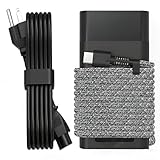
- Compatible with hp 65w laptop charger usb c. Input:100-240V~1.5A,50-60Hz; Output: USB-C Adapters with up to 65W Power.Compatible with 65W HP Laptop Charger USB C, 45W HP Computer Charger USB C ; Connector Tip:USBC / Type C / USB-C.Perfect replacement for your hp laptop charger usb c.
- QIOUZW Slim 65W USB-C Laptop Charger is a multi-series hp usb-c laptop charger, Compatible with HP OmniBook Ultra, OmniBook X Flip Next Gen AI PC,OmniBook 3, OmniBook 5 16‑inch, OmniBook 7 17.3‑inch; HP EliteBook, EliteBook x360 series; HP Envy X360 X2 series; HP Spectre X360 13 series; HP ZBook x2, ZBook Firefly G9 G10 G11, ProBook, Pro x2 and Pro Tablet series. A reliable hp omnibook charger, hp spectre x360 charger, hp elitebook charger and hp envy x360 charger for your daily replacement.
- QIOUZW 65W USBC Laptop Charger Compatible with HP Envy X360 X2: 12‑E000 13‑G000 12‑e011nr 12‑e068ms 12‑e091ms 12‑g018nr; HP Elite Book 735 G6/735 G5/755 G5/840 G6/840r G4/850 G6 /850 G5; HP elitebook x360 1020 G2/1030 G2/1030 G3/1030 G4/1030 G5/1030 G6/1030 G7/1030 G8/1040 G4/1040 G5/1040 G6/1040 G7/1040 G8; HP Elite x2 1012 G1 G2, 1013 G3; HP ZBook x2 G4 // X2 210 G2; HP Probook 640 G4 G5; Pro x2 612 G2;HP OmniBook 14 t‑fh000 14‑fd0087nr; Omnibook Ultra Flip 2 in 1 14t‑fh000; OmniBook X 14‑fe0087nr fe0097nr fe0058nr fe0057nr fe0000na; HP Spectre X2 X360 13 Series: 12‑a001cy 12‑a001dx 12‑a008nr 12‑a009nr 12‑ab010nr 12‑c012dx 12‑c052nr 12‑c053nr 13‑ac023dx 13‑ac033dx 13‑ac013dx 13‑ac063dx.
- QIOUZW 65 Watt USB C Laptop Charger Compatible with HP Laptop Charger Type C P/N: TPN-LA12 TPN-LA22 TPN-AA03 TPN-CA01 TPN-CA06 TPN-DA04 TPN-DA07 TPN-DA08 TPN-LA01 TPN-CA08 L32392-001 L32390-001 L43407-001 L04650-850 L42206-004 L42206-003 L42206-001 L42206-002 792619-001 814838-002 815033-850 860066-003 860209-850 844205-850 828769-001 828622-003 860066-001 860210-850 815049-001 815049-003 918338-003 904082-003 904144-850 918170-002 918170-004 920068-850 925740-002 934739-850 935444-002 918337-001.
- This 65W laptop charger has a usb-c port,directly produced by our factory and provides high-quality. There are 10 built-in protection measures (against overcharging, short circuit, overheating and other issues) to protect your connected devices.It can be used at home, in the office, at school, or a travel.If you have any questions, please contact our 24-hour online customer service for help.
Before a firmware update, connect the supplied AC adapter, close unnecessary applications, and follow HP’s instructions. Do not interrupt the process. If the drain began immediately after an update, document the version and date, check for a newer supported release, and contact HP if the behavior persists rather than installing an unrelated firmware image.
Use calibration only to correct the gauge
Calibration can help the percentage estimate match the battery’s usable range; it cannot restore chemical capacity or turn a worn pack into a new one. If HP PC Hardware Diagnostics offers a battery calibration procedure, follow the on-screen procedure for that notebook and leave the supplied adapter connected when instructed.
Avoid repeatedly forcing the notebook to zero percent. Deep discharges add stress and are not a cure for rapid drain. If the displayed percentage jumps, the notebook shuts down unexpectedly, or a battery test reports a fault after calibration, treat that as diagnostic evidence and move to warranty or service evaluation.
Independent reader supportYour contribution helps us test, update, and keep practical guides available for everyone.Decide whether replacement is justified
Replacement is reasonable when the battery report shows a sustained and substantial reduction in full-charge capacity, HP’s battery test reports a failure, the notebook shuts down unexpectedly at a displayed charge, or normal use remains markedly shorter after workload, settings, charging, and update checks. A single short session is not enough evidence because the X G2i has multiple battery configurations and workloads vary widely.
The Tool Desk
Outbyte PC Repair FREEClear out junk files and repair common Windows errorsFree Scan →Outbyte Driver Updater FREEScan for outdated or missing drivers - takes under a minuteDriver Scan →Confirm the exact part before ordering
The battery is internal. HP’s service guide says: “To reduce potential safety issues, use only the user-replaceable battery provided with the computer, a replacement battery provided by HP, or a compatible battery purchased from HP.” The exact spare-part number for a particular configuration was not established here. Give HP your product number or serial number and confirm the battery part, cell configuration, and regional availability before purchase.
Best Value

- DJW 65W USB C Laptop Charger Input:100-240V~1.5A,50-60Hz; Output:5V 3A /9V 3A /12V 5A /15V 4.33A /20V 3.25A, MAX Power 65W,Connector Tip: USB-C/Type C,Compatible with HP 65W 45W Computer Charger USB C
- DJW 65W USB C Laptop Charger Compatible with HP EliteBook x360 735 G5, 745 G5, 755 G5, 830 G5, 840 G5, 850 G5, 1020 G2, 1030 G2, 1030 G3, 1040 G4, 1040 G5; EliteBook Folio G1;Elite x2 1012 G1 G2, 1013 G3; ZBook x2 G4 // X2 210 G2; Probook 640 G4 G5; Pro x2 612 G2; Pro Tablet 608 G1 Series
- DJW Laptop Charger USB C Compatible with HP Envy X360 X2: 12-E000 13-G000 12-e011nr 12-e068ms 12-e091ms 12-g018nr;OmniBook Ultra OmniBook X Flip Next Gen AI 14 OmniBook 5 16 inch OmniBook 7 17.3 inch NGAI Laptop 14 t-fh000 14-fd0087nr, Chromebook X360 14 11 12 Series, and more
- DJW 65W Type C fast charging Compatible with HP Spectre X2 X360 13 Series: 12-a001cy 12-a001dx 12-a008nr 12-a009nr 12-ab010nr 12-c012dx 12-c052nr 12-c053nr 13-ac023dx 13-ac033dx 13-ac013dx 13-ac063dx 13-ae010ca 13-ae011dx 13-ae012dx 13-ae013dx 13-ae014dx 13-ae015dx 13-aw0003dx 13-ap0013dx Series
- Compatible with Laptop P/N : TPN-LA12 TPN-LA22 TPN-AA03 TPN-CA01 TPN-CA06 TPN-DA04 TPN-DA07 TPN-DA08 TPN-LA01 TPN-CA08 L32392-001 L32390-001 L43407-001 L04650-850 L42206-004 L42206-003 L42206-001 L42206-002 792619-001 814838-002 815033-850 860066-003 860209-850 844205-850 828769-001 828622-003 860066-001 860210-850 815049-001 815049-003 918338-003 904082-003 904144-850 918170-002 918170-004 920068-850 925740-002 934739-850 935444-002 918337-001
Do not assume that a 56 Wh three-cell pack can be replaced by a 68 Wh six-cell pack simply because both are listed for the product family. Physical fit, connector, firmware recognition, mounting hardware, and system configuration all matter.
Service precautions
- Check warranty status before opening the notebook. Warranty or authorized service may be preferable to owner repair.
- Back up work and save or shut down Windows before disconnecting the battery. HP warns that removing the sole power source can cause loss of information.
- Use the maintenance and service guide for the exact X G2i model and follow its electrostatic-discharge and screw-handling instructions.
- Replace only with the approved battery confirmed for the product number or serial number.
- After reassembly, charge and run the available HP battery check. Record the new full-charge capacity and date so future changes can be distinguished from the old pack.
If you are not equipped to work safely inside a notebook, use HP or a qualified technician. An internal battery is not a reason to improvise with an unverified pack.
Stop troubleshooting if the battery is swollen
Stop routine charging and performance experiments if the chassis, palm rest, or touchpad is lifting, a seam is opening, or the battery appears deformed. HP’s X G2i support index includes a separate swelling or deformation topic. Arrange HP or authorized service and describe the physical symptom; do not keep pressing the chassis flat or continue normal use while waiting.
Recommended Free Tools
A practical decision path for owners
- Rapid active-use drain: record battery usage, brightness, wireless connections, workload, and temperature; then run the battery report and HP test.
- Sleep drain: repeat with accessories removed, compare sleep with shutdown, and review sleep or hibernate timeouts.
- Plugged-in decline: test the supplied 65 W or 100 W option appropriate to the configuration, inspect the cable and port, and repeat while idle.
- Battery not detected: restart, apply supported updates, and run HP diagnostics. Escalate if the battery remains absent.
- Evidence of poor health: confirm the exact replacement part and warranty status before opening the notebook.
- Swelling or deformation: stop and arrange service rather than continuing the checklist.
For IT administrators managing several X G2i notebooks
Collect the product number, serial number, installed battery configuration, Windows version, BIOS version, adapter wattage, and battery-report date for each unit. A simple record prevents a 56 Wh system from being compared with a 68 Wh system or a 65 W adapter from being mistaken for a universal standard.
- Use the same workload window and power mode when comparing devices.
- Capture design capacity and full-charge capacity rather than relying only on the percentage shown in the taskbar.
- Record HP diagnostic results and failure codes with the date.
- Separate charging complaints from consumption complaints before dispatching replacement batteries.
- Keep warranty and service decisions tied to the device’s product number and serial number.
- Do not apply a BIOS or driver package intended for a different configuration merely because the model name appears similar.
This approach produces a defensible service history and avoids replacing batteries that are healthy but being drained by software, peripherals, heat, or an unsuitable adapter.
What a successful fix looks like
After each change, repeat the same observation rather than making several changes at once. A successful result is a stable charge while idle on the correct adapter, a reproducible reduction in sleep loss, lower background usage in Windows, or a diagnostic result that explains the behavior. If the result does not change after controlled tests and the battery’s full-charge capacity is materially reduced, service is more productive than further brightness or power-mode adjustments.
There is no universal X G2i runtime to use as a pass or fail target. HP’s two capacities and the many variables it lists mean that the right comparison is your notebook against its own earlier reports under the same workload, with the correct adapter and a known battery condition.
Quick Recap
Product prices and availability are accurate as of the date/time indicated and are subject to change. Any price and availability information displayed on Amazon at the time of purchase will apply.

