Start with Google’s full Google Earth Pro installer, not the small web installer. On the Google Earth Pro update page, choose the 7.3.7 32-bit or 64-bit Windows build that matches your system, restart Windows, and run the installer again. This is the most direct remedy reported for error 0x80070057, although that report is anecdotal rather than a guaranteed fix.
If the program is already installed and opens, use Help > Launch Repair Tool. If the direct installer still fails, troubleshoot Windows itself: Microsoft describes 0x80070057 broadly as a symptom associated with corrupted files, permission problems or incorrect system configuration, not as a diagnosis unique to Google Earth.
As an Amazon Associate I earn from qualifying purchases.
What error 0x80070057 means in Google Earth Pro
Error 0x80070057 is a hexadecimal Windows error code. During a Google Earth Pro installation, it means that the setup process could not complete, but the code does not identify one specific failed component. Google’s public Earth documentation explains how to bypass installer problems and repair an installed copy; it does not assign one confirmed root cause to this exact code.
Microsoft’s Windows troubleshooting table associates 0x80070057 with three broad categories:
#1 Best Overall

- Go beyond countries and their capitals using this enhanced globe with a 2.8" video screen that explores cultures, animals, habitats and more through hours of BBC videos
- Educational: This world globe with stand and stylus lets you hear thousands of facts, interact with unique games, and trigger videos to visually experience Earth
- The 2.8" screen displays video and animations with playful characters that guide children through games and activities
- Interactive Map For Kids: Race around the world, discover new places, and solve mysteries by answering quiz questions in three entertaining & interactive games
- Intended for ages 5+ years; requires 4 AA batteries; batteries included for demo purposes only; new batteries recommended for regular use
- Corrupted files.
- Permission or access problems.
- Incorrect system configuration.
That distinction matters. The code does not prove that your hard drive is damaged, that the registry is broken, that an antivirus product blocked setup, or that a graphics driver caused the installation to fail. Those can be possibilities in an individual case, but they are not established explanations for every 0x80070057 report.
Choose the remedy that matches the failure stage
| What you see | Start here | Risk to saved Google Earth data |
|---|---|---|
| The installer stops or rolls back before Google Earth Pro is usable | Use the direct 7.3.7 installer, then check permissions, free space and Windows health | Normally none; the application is not yet running |
| Google Earth Pro opens but crashes or displays incorrectly | Open Help > Launch Repair Tool | Cache clearing is low impact; deleting My Places changes saved-location state but creates a backup |
| The installer succeeds but graphics are wrong | Use the Repair Tool to switch between OpenGL and DirectX, then update the graphics driver if necessary | Your places remain unless you explicitly delete them |
Before reinstalling: confirm the basics
Check your Windows architecture
The direct download offers separate 32-bit and 64-bit builds. Installing the wrong architecture can prevent setup from completing or leave you with an unsuitable package.
- On Windows 11 or Windows 10, open Settings > System > About.
- Find System type. It will identify a 64-bit or 32-bit operating system.
- On Windows 7 or Windows 8, open Control Panel > System and read System type.
- Record the result before downloading. Do not choose a 64-bit package simply because the computer has a 64-bit processor; the installed Windows edition is what determines the installer choice.
Check the supported version line
Google’s current Earth Pro update page lists version 7.3.7 installers. Google also says versions 7.1.7 and earlier are no longer supported. If an old installer is saved in your Downloads folder, replace it with the current direct package instead of repeatedly retrying the obsolete file.
What’s actually slowing this PC down?
Pick the symptom - the matching free tool is one click away.
Protect anything you have already saved
If Google Earth Pro has been used on this computer, your saved places may be stored in a My Places file. Do not delete user data as a first step. The Repair Tool can create a recoverable file named myplaces.repairtoolbackup.kml when My Places is deleted; keep that backup in a known folder until you have confirmed that the repaired installation contains the locations you need.
Step-by-step fix for an installer that will not complete
1. Close setup-related programs and restart Windows
Close Google Earth Pro if it is open. Also close browser download windows, Windows Installer dialogs and other setup programs. A restart clears a setup process that may still be holding a file or installer service.
- Save open documents.
- Choose Start > Power > Restart.
- After Windows returns to the desktop, open the folder containing the Google Earth Pro installer.
- Run the installer once, rather than launching several copies at the same time.
If Windows reports that another installation is in progress, restart again and allow that process to finish before trying Google Earth Pro.
2. Download Google’s full direct installer
Use the Google Earth Pro update page and select the 7.3.7 package that matches the architecture you recorded. A direct, complete installer avoids the additional download stage used by a web installer. A Google Earth Community report describes this approach resolving 0x80070057, but it is an anecdotal report, not a promise that every system will respond the same way.
Do not use a third-party mirror to obtain the installer. A mirror can provide an old build, a package for the wrong architecture or a file whose origin you cannot verify. If the browser warns that the download was interrupted, delete the incomplete file and download it again before troubleshooting Windows.
3. Make sure the account can install software
Microsoft lists permissions as one possible 0x80070057 category. A standard Windows account may be unable to write to protected folders or create required system entries.
Rank #2

- Explore with Juvale: Discover the world with Juvale's 8-inch globe for children, an educational globe designed to ignite curiosity in young minds. Ideal for classrooms, it enhances learning with detailed depictions of countries, continents, and oceans
- Educational Decor Piece: This decorative globe offers a sophisticated touch to any space, making it perfect for a classroom globe or a desk globe for office settings. Its elegant design complements various decor styles while serving as an informative resource
- Durable and Reliable: Constructed from high-quality plastic, this globe for classroom use is built to endure frequent handling and spinning. Its robust design ensures longevity, making it a dependable educational tool for children and adults alike
- Compact and Portable: With a convenient 8-inch diameter, this world globe with stand is easy to transport and store. Perfect for desktops or small spaces, it offers ample opportunity to explore world maps without overwhelming your environment
- Interactive Learning Tool: This rotating globe encourages hands-on exploration, allowing children to engage with geography actively. From earth globes to world maps, it provides a dynamic learning experience that fosters a love for discovery
- Sign in with an account that has administrator rights, or have an administrator enter credentials when Windows requests them.
- Right-click the downloaded installer and choose Run as administrator.
- Approve the User Account Control prompt only if the file is the Google installer you intentionally downloaded.
- Let setup finish without switching accounts or closing the installer window.
If the administrator prompt never appears, verify that User Account Control has not been disabled by an organization policy. On a managed computer, an administrator may need to install the application for you.
4. Check free space on the system drive
Setup needs room for the downloaded package, temporary extraction files and the installed program. Open File Explorer > This PC and check the free-space indicator for the drive containing Windows, normally C:. If it is nearly full, remove or move files you recognize, empty the Recycle Bin, and retry after Windows reports adequate space. Do not delete random files from Windows, Program Files or hidden system folders merely to create space.
Quick wins for a faster PC:
Scan for outdated or missing drivers - takes under a minuteDriver Scan →Repair Windows errors before they cause bigger problemsFix Now →5. Look for wider Windows problems
If other applications also fail to install, Windows Update repeatedly errors, or Windows reports file corruption, treat Google Earth as a symptom of a broader configuration problem. Microsoft recommends starting with the Windows Update troubleshooter and then using its system-file and image-repair guidance where appropriate.
On current Windows 11 builds, the Windows Update troubleshooter is usually at Settings > System > Troubleshoot > Other troubleshooters > Windows Update > Run. On Windows 10, use Settings > Update & Security > Troubleshoot > Additional troubleshooters > Windows Update. Labels can vary by edition and update level.
For system-file checks, open Windows Terminal (Admin), PowerShell (Admin) or Command Prompt (Admin). Run the image repair command first, wait for it to complete, and then run System File Checker:
DISM.exe /Online /Cleanup-Image /RestoreHealth
sfc /scannow
These commands can take time and may appear to pause at a percentage. Do not close the window while a command is running. Restart Windows after both commands finish, then run the Google Earth Pro direct installer again. If either command reports that it could not complete, record the exact message and follow Microsoft’s recovery guidance for that message instead of repeatedly launching the Earth installer.
Recommended Free Tools
6. Remove only a demonstrably partial installation
If Google Earth Pro appears in Settings > Apps > Installed apps (Windows 11), Settings > Apps > Apps & features (Windows 10), or Control Panel > Programs and Features (older Windows), the failed attempt may have left a partial application entry. If you decide to uninstall it, close Earth first and preserve any My Places data. Restart Windows after the uninstall and then use the current direct installer.
Do not use registry cleaners or manually delete unrelated folders to “force” a reinstall. The 0x80070057 code alone does not establish that the registry is the cause, and indiscriminate deletion can create a larger Windows problem.
Use Google Earth Pro’s Repair Tool after the app opens
The Repair Tool is for an installed copy that starts, crashes, fails to load saved data or renders the globe incorrectly. Google’s help page describes it this way: “To more easily do things like clear your cache or fix startup issues, use the Google Earth Repair Tool.”
Rank #3
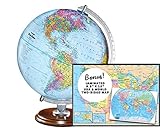
- START EXPLORING TODAY — A Must-Have for Any Teacher or Student, Ideal for any Learning Desk, Office, Kids Room, Bookshelf and Classroom
- ADDITIONAL EDUCATIONAL FEATURES — Accurately Tilted Axis, Time Dial, Population Centers, US states separated by different colors, raised relief showing mountain peeks.
- VERIFIED CARTOGRAPHY All Replogle manufactured maps comply with US State Department’s recommended guidelines.
- In order to transform flat map to a spherical shape, there are pre-planned trimming lines on the map that will be shown once globe ball has been formed. These are the trademarks of a traditional globe
- Raised relief embossing provides a 3D-like texture that both captivates and educates.
- Open Google Earth Pro.
- Choose Help > Launch Repair Tool.
- When the tool opens, close the Google Earth Pro window but leave the Repair Tool open.
- Apply one repair option at a time, restart Google Earth Pro, and check whether the symptom changed before trying the next option.
Clear disk cache
Choose Clear disk cache when Earth is slow to load imagery, repeatedly shows stale data or behaves as though cached files are damaged. Clearing the cache removes temporary downloaded map data; it does not intentionally remove your saved places. The first launch afterward may take longer while the cache is rebuilt.
Free tools Windows power users keep installed
One-click scans. No signup required.
Turn on Safe Mode
Choose Turn on Safe Mode when Earth crashes during startup or you suspect a display setting is preventing the window from rendering. Safe Mode starts Earth with conservative settings so you can determine whether the normal configuration is involved. If Safe Mode works, return to the Repair Tool and change one setting at a time rather than immediately restoring everything.
Restore default settings
Restore default settings returns Google Earth Pro’s configurable behavior to its defaults. Use it when the application opens only after unusual configuration changes or when several unrelated settings appear broken. Export or otherwise preserve any custom information you need before resetting settings.
Delete My Places only when necessary
Corrupted saved-location data can prevent a profile from loading, but deleting My Places changes the saved-location state. Select Delete My Places only after trying lower-impact options, and confirm that the Repair Tool creates myplaces.repairtoolbackup.kml. Keep that file. It is the recovery copy Google identifies for the deleted places, and you should not remove it until you have verified the repaired installation.
Switch between OpenGL and DirectX
On Windows, the Repair Tool includes Switch between OpenGL and DirectX. Use this when the program opens but the globe is blank, flickers, shows corrupted textures or displays a black window. Close Google Earth before applying the change, then reopen it and test the same view. If the display remains wrong after switching APIs, Google advises updating the graphics-card driver.
Do these 3 things before closing this tab:
1Clear out junk files and repair common Windows errors2Scan for outdated or missing drivers - takes under a minute3Repair Windows errors before they cause bigger problemsUpdate the graphics driver when rendering remains broken
A graphics-driver update is relevant to rendering symptoms, not as a universal explanation for the installation code. Obtain the driver from the graphics-card or computer manufacturer’s official support channel, select the driver for your exact Windows edition and hardware, install it, restart Windows and test Earth again. If the installer itself still fails before Earth can launch, return to the direct-installer and Windows-health steps rather than changing graphics settings repeatedly.
Independent reader supportYour contribution helps us test, update, and keep practical guides available for everyone.How to tell whether the repair worked
Test the stage that originally failed, not just the fact that an installer window appeared.
- Installation test: Google Earth Pro appears in the Start menu and opens without immediately closing.
- Profile test: Your expected saved places load, or you can restore them from
myplaces.repairtoolbackup.kmlif you deliberately removed My Places. - Graphics test: The globe, navigation controls and imagery render normally after any OpenGL/DirectX change.
- Windows test: Other installers and Windows Update no longer show the same broad failure symptoms.
If the direct 7.3.7 installer fails while other software installs normally, note the exact point of failure and any text shown by setup. If several unrelated installers fail, continue diagnosing Windows permissions, corrupted files or configuration rather than assuming Google Earth is uniquely defective.
Version and availability limits
Google’s update information identifies 7.3.7 as the current direct-installer line shown for Google Earth Pro in the cited documentation. Versions 7.1.7 and earlier are marked unsupported, so an old archived installer is not an appropriate baseline for troubleshooting.
Google also states that Google Earth Pro for desktop will no longer be available for download after June 25, 2027. That is an availability statement, not an indication that installations already present will all stop working on that date. Until then, use the supported direct-installer line shown by Google rather than relying on third-party archives.
Quick Recap
Common mistakes to avoid
- Retrying the web installer indefinitely: switch to the complete direct package and verify its architecture.
- Installing an unsupported old build: use the 7.3.7 line listed by Google; 7.1.7 and earlier are unsupported.
- Assuming the code proves malware or disk failure: 0x80070057 is a broad Windows symptom.
- Deleting My Places without a backup: let the Repair Tool create
myplaces.repairtoolbackup.kmland keep it. - Changing graphics APIs before the app launches: OpenGL/DirectX switching belongs to the Repair Tool workflow for an installed copy.
- Using registry cleaners or random download mirrors: they are not documented fixes and can add new risks.
- Running several installers at once: restart Windows, then launch one verified installer with appropriate permissions.
As an optional shortcut after the manual checks, Outbyte PC Repair can look for more than 100 common Windows issues where possible, including broken system elements, invalid redirects and shared DLL problems, while offering settings, cleanup and vulnerability-check features. It runs on Windows 11, 10, 8 and 7; a free trial lasts at least two days before a paid subscription, results vary, and it complements rather than replaces antivirus software or a full diagnosis.
Product prices and availability are accurate as of the date/time indicated and are subject to change. Any price and availability information displayed on Amazon at the time of purchase will apply.

