Error 0x8007045D is Windows’ ERROR_IO_DEVICE: “The request could not be performed because of an I/O device error.” It means Windows could not reliably read from or write to a device. The failing part may be the source drive, destination drive, USB cable, port, card reader, optical disc, burner, storage controller, installation media, or the file system itself.
Protect any files that still open, then isolate the physical connection before running repair commands. The sequence below covers file-copy failures, backups and updates, and Windows 10 installation errors without assuming that Windows itself is the cause.
As an Amazon Associate I earn from qualifying purchases.
What error 0x8007045D means
The hexadecimal code is a status code, not a complete diagnosis. Windows reports it when a read or write request reaches an I/O failure. You may see it while copying files, restoring a backup, applying an update, opening data on removable media, or running Windows Setup. Microsoft support guidance associates the code with incompatible or defective discs, a malfunctioning burner, damaged USB or external drives, and other failures in the read/write path.
Free tools Windows power users keep installed
One-click scans. No signup required.
The message does not by itself prove that the operating system is corrupted, that a disk is permanently dead, or that a security threat is present. A loose cable and a failing internal drive can produce the same code, so the first useful question is whether the error follows a particular piece of media or remains with the computer.
#1 Best Overall

- 【Dual-Drive Simultaneous Use & Wide Compatibility】This hard drive adapter supports connecting one IDE drive and one SATA drive at the same time. It works with 2.5"/3.5" IDE HDDs, 2.5"/3.5" SATA HDDs and SSDs, as well as optical drives like CD-ROM, DVD-ROM, and DVD-RW. The dual-head IDE connector (40-pin and 44-pin) and a SATA III port give you maximum flexibility for data migration, backup, or drive recovery.
- 【High-Speed Transfer with USB 3.0 & SATA III】Experience data transfer rates up to 6Gbps through the SATA III interface, with USB 3.0 connectivity (backward compatible with USB 2.0/1.1). Please ensure your computer has a USB-A port, as this hard drive reader uses a USB-A connection only.
- 【Stable Power Supply for Reliable Operation】The included 12V/2A power adapter is essential for stable performance—please always connect it when using this IDE to USB adapter, especially when accessing two drives simultaneously. The 4-pin power cable is designed specifically for 3.5" IDE drives (not required for SATA drives).
- 【Plug-and-Play with User-Friendly Design】No driver installation required. Supports hot-swapping for quick drive changes, and features an On/Off switch to protect your hard drives from unnecessary wear. The LED indicator clearly shows power and activity status.
- 【What's Included & Support】You'll receive the USB 3.0 to IDE+SATA adapter, a USB 3.0 data cable, a 4-pin power cable, a 12V/2A power adapter, and our 24/7 dedicated email support.
Do this before troubleshooting
Save recoverable data first
If the affected drive still opens, copy irreplaceable documents, photos and other data to a known-good destination before repeated scans or repair attempts. Copy the most important files in small batches; stop if the drive repeatedly disconnects, makes unusual mechanical noises or becomes extremely slow. Avoid repeatedly writing to a suspect drive, because additional writes can worsen a failing device and complicate later recovery.
Record the exact failure
- Note whether the operation was reading from the device, writing to it, or both.
- Write down the source and destination drive letters or device names.
- Record whether the failure occurs with one file, one folder, all files, or only during Windows Setup.
- Keep the complete message and code; a shortened entry such as
08007045dis usually the same code written without the0xprefix.
Isolate the hardware path
Physical checks are low-risk and often distinguish a bad accessory from a Windows problem. Shut down or safely eject the device when appropriate before changing connections.
- Disconnect and reconnect the affected drive, card, reader or optical drive firmly.
- Try a different USB port. If the computer has both front and rear ports, test a rear motherboard-connected port as well.
- Replace the USB or data cable with a known-good cable of the correct type.
- For an SD card, test the card in another reader. For an external drive, test it on another computer.
- For a DVD, try a different disc from a reliable brand. If you are burning a disc, use a slower speed supported by the drive and media.
- Disconnect unnecessary external devices and retry the operation so that another device or controller cannot interfere.
Interpret the result rather than changing several variables at once:
Outdated Drivers Are Slowing You Down
One free scan finds every outdated or missing driver and matches the right update for your exact hardware.Free scan · exact hardware matchPC Slower Than It Used to Be?
A free scan shows the junk files, broken settings and background clutter dragging Windows down - then fixes them in one click.Free scan · Windows 10 & 11Rank #2

- The PBN-TEC Digital Investigation Kit is a comprehensive eight-tool investigation system trusted by law enforcement agencies, private investigators, IT security professionals, legal teams, and even concerned parents. One kit covers mobile device extraction, computer investigations, evidence collection, illicit content detection, audio monitoring, and secure file deletion — no additional software purchases required.
- The iRecovery Stick extracts and investigates data from iPhone and iPad devices, the Phone Recovery Stick handles Android phones and tablets, and the SIM Card Seizure analyzes data from virtually any GSM SIM card. Together these three tools provide complete mobile device investigation coverage from a single kit, including contacts, messages, call logs, and photos.
- The Data Recovery Stick recovers deleted files from any Windows OS, the Voice Logger installs an audio monitoring application onto any Windows computer, and the Data Shredder Stick securely deletes files and wipes storage when the investigation is complete. All three tools work on Windows XP or newer with no additional software required.
- The Capturra Action Drive 1TB automatically collects targeted file types from virtually any device, serving as both an evidence storage drive and a targeted file collection tool for focused investigations. The XXX Detection Stick then scans the collected evidence for illicit content, categorizing results into Low Suspect, Suspect, and Highly Suspect for review.
- The Digital Investigation Kit includes everything needed to begin an investigation immediately — a Data Cable Kit with iPhone, USB-C, and Micro USB cables, a universal SIM Card Adapter compatible with all SIM card sizes, and a Softshell Compartmentalized Protection Case to organize and transport all eight tools securely.
| Test result | Most likely scope | Next action |
|---|---|---|
| The same device fails on two computers, readers or ports | Media, drive, reader or cable | Prioritize data recovery and replace the component that follows the error. |
| A different cable or port makes the operation work | Cable or port connection | Retire the unreliable cable or port and repeat the transfer to verify stability. |
| Several devices fail only on one computer | Computer-side port, controller, Windows component or software conflict | Continue with Device Manager checks and the Windows repair steps below. |
| Only one disc or card fails while others work | Defective or incompatible media | Copy what is readable, then replace the media. |
| Setup media fails on multiple machines | Incorrectly created or corrupt installer media | Recreate the installer on fresh, verified media. |
Run CHKDSK on the affected volume
CHKDSK checks the file system and, with the appropriate switches, attempts repairs. It cannot make a physically failing drive reliable, so complete the data-protection step first.
- Open the Start menu and type Command Prompt.
- Right-click Command Prompt and choose Run as administrator. Approve the User Account Control prompt.
- Run
chkdsk C: /f, replacingC:with the drive letter of the affected volume. - Read the result. If the volume is in use, Windows may ask to schedule the check for the next restart; type
Yand restart when you can leave the computer uninterrupted.
The /f option repairs logical file-system errors. Microsoft documents /r as an expanded operation that locates bad sectors and attempts to recover readable data, for example chkdsk E: /r. It can take substantially longer, especially on a large or damaged disk, and should not be the first action on a drive whose data has not been backed up. Do not interrupt a running check unless the computer is genuinely unresponsive and you accept the risk of an incomplete operation.
Repair Windows components and protected files
If the error remains with the computer rather than one removable device, corrupted Windows components or protected system files may be involved. Microsoft’s sequence is DISM first, then System File Checker, because DISM supplies the repair source used by SFC.
Rank #3

- Universal Hard Drive Adapter: SATA IDE to USB adapter allows connect your SATA / IDE device to computer as an external hard drive via USB 3.0. Compatible with 2.5"/3.5" IDE/SATA hard drives. This is a tool to duplicate, copy, backup, or transfer large amounts of data from one drive to another
- Transfer Rate up to 5Gbps: SATA to USB 3.0 adapter supports super speed USB 3.0 enables data transfer rates of up to 5Gbps, backward compatible with USB 2.0(high-speed 480 Mbps) / USB 1.1(full-speed 12 Mbps) standards, The actual transmission speed subjects to the setting of the device connected
- Wide Compatibility: Hard drive to USB adapter support Operate Systems: Support Windows XP/Vista/7/ 8/8.1/10, Mac OS 10 or higher, Linux. Compact body design, Support Plug, and play & hot swap, On/Off power Switch for Hard drives protection
- Support Hard Drives Capacity up to 6TB: Hard drive adapter has a SATA III connector and two IDE connectors (40pin and 44pin). we Provide a 4pin power cable for a 3.5" IDE drive, Tips: Some IDE hard drive is old, you need to set a jumper to turn on the disk, set the master disk and the slave disk
- Included 12V 2A Power Supply: USB 3.0 to IDE SATA adapter included 12V2A AC power supply, for power up the 5V/12V IDE devices usage, ensures SATA HDD can be connected well. 4pin power cable is designed for a 3.5’’ IDE drive; LED light shows power and activity status
- Open an elevated Command Prompt again by selecting Run as administrator.
- Run
DISM.exe /Online /Cleanup-image /Restorehealthand wait for it to finish. Progress can pause for a long time; do not close the window merely because the percentage is not changing. - After DISM completes, run
sfc /scannow. - Wait until verification reaches 100 percent and read the final result. Restart Windows, then retry the original copy, backup or update.
These commands address Windows component and protected-file corruption. They do not repair a damaged USB cable, failing disk electronics, unreadable optical media or a bad card reader. If the same device still fails after the commands, return to the hardware-isolation tests.
Check for conflicts in Device Manager and installed software
Open Device Manager from the Start menu and inspect the categories related to the failing path, such as Disk drives, Universal Serial Bus controllers, Storage controllers or the optical drive category. A warning icon identifies a device that Windows is reporting as problematic. Note the device name and status before making changes.
Disconnect nonessential peripherals and retry. If the error occurs while upgrading Windows rather than during ordinary file access, Microsoft guidance also recommends temporarily removing incompatible third-party security software, provided you can reinstall it afterward. Do not leave the computer without your normal protection longer than necessary, and restore the software once the upgrade test is complete.
Rank #4
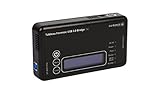
- Backlit Interface - Device status, device information, logical unit (LUN) select, and bridge information are easily accessible
- Supports USB 1.0/2.0/3.0, Flash Drives, Mass Storage Drives, and any "bulk storage" drive
- Kit Includes - TP2 Power Supply with US-Style power cord, TC-USB3 USB 3.0 (A to B) cable, 6 foot length, Soft-Sided bag and Quick Start Guide
- Hardware-Based USB 3.0 Write Blocker
Fixes specific to copying files
When the source is an external drive, USB stick or SD card
Copy a small, representative file first. If it succeeds, continue in batches and watch for disconnects. A failure on the same file every time can indicate an unreadable sector or damaged file; failures at random points, disappearing drive letters or repeated reconnect sounds point more strongly to a connection or device problem. Test the source on another computer and use another cable or reader before deciding that the destination PC needs repair.
When the destination is the problem
Try a different known-good destination with enough free space. If the source copies successfully elsewhere but fails only to one destination, inspect that destination’s cable, port and file system. Run CHKDSK against the destination volume after protecting any data already stored there.
When an optical disc is involved
Unreadable discs can trigger the same code even when the computer is working normally. Clean handling and a different disc can separate media defects from a burner problem. If burning, select a slower supported speed and avoid using the computer for heavy work during the burn. A different brand of disc is a useful comparison because compatibility varies by drive and media.
Best Value
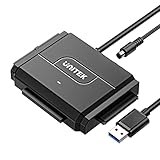
- 【Dual-Drive Simultaneous Access & Broad Compatibility】Connect and operate one SATA drive and one IDE drive at the same time. Works with 2.5"/3.5" SATA HDDs/SSDs (up to 24TB), 2.5"/3.5" IDE HDDs, and optical drives like CD/DVD-ROM and DVD-RW. The dual-head IDE connector (40-pin/44-pin) and SATA port allow easy connection.
- 【Fast USB 3.0 Speeds up to 6Gbps】Transfer files at up to 6Gbps for SATA drives and up to 5Gbps for IDE drives over USB 3.0. Backward compatible with USB 2.0/1.1 for reliable connectivity with older computers.
- 【Stable Power for Reliable Operation】Includes a 12V/2A power adapter to ensure stable power delivery. The dedicated 4-pin power cable is required only for 3.5" IDE drives (not needed for SATA drives).
- 【User-Friendly Features Built-In】No driver installation required — true plug-and-play. Supports hot-swapping, an On/Off switch for HDD protection, LED indicators for power and activity, and automatic sleep mode after 30 minutes of inactivity.
- 【Complete Kit & 24/7 Support】Package includes the SATA/IDE to USB 3.0 adapter, 12V/2A power adapter, 4-pin power cable, and 24/7 email customer support. Everything you need to start transferring data immediately.
Fixes specific to Windows 10 installation
Recreate the installer
Corrupt or incorrectly created bootable media can produce 0x8007045D during Setup. Recreate the Windows installer on a fresh, verified USB drive or DVD using Microsoft’s current installation-media process. If you have another suitable USB drive, use it rather than repeatedly reusing media that has already failed. Test the newly created media before starting the installation again.
Remove variables from the installation
- Disconnect external drives, memory-card readers, printers and other devices that Setup does not require.
- Reconnect only the installer and the intended target storage, using a different port or cable if either was involved in the original failure.
- Retry Setup. If the same installer works on another computer but fails on this one, investigate the target disk, its connection and the computer’s storage path rather than recreating the media repeatedly.
A fresh installer can correct corrupt setup media; it cannot cure a failing internal disk. If Setup reports the code after you have changed the media and connection, stop repeated installation attempts and protect any data on the target disk.
Recognize a failing physical device
Replacement is the appropriate fix when the error follows one drive, card, disc, reader, cable or port across independent tests. CHKDSK can repair logical file-system structures, but it cannot restore reliable electronics, worn flash cells, damaged heads or a failing controller. If the device contains valuable data, minimize use and seek a data-recovery service before experimenting with destructive formatting or repeated writes.
Do these 3 things before closing this tab:
1Repair Windows errors before they cause bigger problems2Scan for outdated or missing drivers - takes under a minute3Clear out junk files and repair common Windows errors- Replace the cable or port when changing it consistently removes the error.
- Replace the removable media when the same card or disc fails in multiple readers or computers.
- Replace or service the drive when it fails across cables, ports and computers, especially if it disconnects or produces mechanical symptoms.
- Investigate the computer when many known-good devices fail only on that computer.
Choose the least risky fix first
| Approach | Addresses | Data-loss risk | Typical time | Use it when |
|---|---|---|---|---|
| Reconnect, change port or cable, test another computer | Physical connection and path | Low | Minutes | The device is removable or the failure began after moving equipment. |
| Fresh USB/DVD installer | Corrupt or incorrectly created setup media | Low to moderate | Media-creation time plus installation time | Windows Setup fails before or during reading the installer. |
chkdsk /f |
Logical file-system errors | Moderate on a damaged drive | Minutes to hours | Connections are sound and the volume itself reports errors. |
chkdsk /r |
Bad-sector location and readable-data recovery | Moderate to high on failing hardware | Often substantially longer than /f |
You have protected important data and need a deeper disk check. |
| DISM followed by SFC | Windows component and protected-file corruption | Low | Minutes to potentially longer | Multiple devices fail on one Windows installation. |
| Hardware replacement or professional recovery | Persistent physical failure | Lowest chance of further damage when use is minimized | Depends on part or service | The error follows one component across independent tests. |
Windows 10 support status
Microsoft ended free support for Windows 10 on October 14, 2025. Repairing 0x8007045D can restore a working installation, but it does not extend that support lifecycle. After the immediate problem is resolved, plan whether the computer can move to a supported Windows release or whether another supported-platform option is appropriate for your hardware and software.
When the error is resolved
Repeat the original operation with a small test first, then verify the resulting files open correctly. Reconnect other peripherals one at a time so a returning failure identifies the trigger. Keep a current backup of important data and retire any cable, media or drive that repeatedly caused the code; a successful one-time transfer is not proof that suspect hardware is reliable.
If you want an optional shortcut after trying the manual steps, Outbyte PC Repair can address more than 100 common Windows issues, tune settings that affect CPU, RAM and disk load, clean temporary and cache files, provide privacy and vulnerability checks, and add tools such as real-time boost, file shredding and crash logging. It runs on Windows 11, 10, 8 and 7; a free trial is available by category for at least two days before a paid subscription. It complements an antivirus and does not replace one, results vary, and no tool repairs every crash.
The practical answer
Start by saving data and changing the physical path, because removable media, cables, ports, readers and external drives are common points of failure. Use a fresh verified installer for Setup errors, CHKDSK for file-system problems, and DISM followed by SFC for Windows component corruption. If the code follows one device across tests, replace that device or prioritize professional data recovery rather than repeatedly repairing Windows.
Quick wins for a faster PC:
Scan for outdated or missing drivers - takes under a minuteDriver Scan →Clear out junk files and repair common Windows errorsFree Scan →Quick Recap
Product prices and availability are accurate as of the date/time indicated and are subject to change. Any price and availability information displayed on Amazon at the time of purchase will apply.

