Do these 3 things before closing this tab:
1Repair Windows errors before they cause bigger problems2Fix the driver behind crashes, sound loss and screen glitches3Clear out junk files and repair common Windows errorsFind which part of the audio chain is adding the buzz before you change settings or buy equipment. First distinguish steady electrical hum from crackle, feedback, clipping, or digital glitches; then compare local monitoring and a recording with the stream, and isolate the microphone, cable, interface, computer, and streaming software one at a time.
Identify the sound before troubleshooting
“Buzz” can describe several different faults. The distinction matters: a cable or ground issue will not usually be fixed by changing a software buffer, while a routing problem may exist only in the stream.
| What you hear | What it may indicate | First check |
|---|---|---|
| Low, steady hum or buzz | Possible electrical interference or a ground-path issue | Whether it changes when you disconnect or move a device or cable |
| Intermittent crackle | A loose connector or ground is one possibility | Reseat connectors and inspect the cable and jack |
| Sustained ringing tone | Acoustic feedback: loudspeaker sound re-enters a microphone and is amplified again | Reduce the speaker-to-microphone path or mute the relevant speaker |
| Harsh, distorted peaks | Possible clipping or excessive signal level | Check the input level and whether the signal is already distorted before it reaches the streaming software |
| Clicks, stutters, or glitches | Possible interface, USB, driver, or computer-performance issue | Check the interface connection, drivers, and system-specific audio settings |
Shure’s troubleshooting guide says a low steady buzz or intermittent crackle usually indicates an electrical problem, with a loose ground near a connector among the possible causes. That is a useful clue, not a diagnosis of every setup. Shure’s Noise Identifier includes a 60-cycle hum example associated with AC interference; hearing something similar does not prove the cause in your room or establish your local mains frequency.
Feedback is different from electrical hum. Shure describes it as a sustained ringing tone created when sound from a loudspeaker enters a microphone and is amplified again. See its older overview, “What’s That Noise? And How to Fix It!”, for that distinction.
Recommended Free Tools
#1 Best Overall
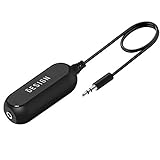
- Ground loop filter noise isolator, eliminating the hiss, buzz and interference caused by ground loops which happens when the audio source and the speaker use the same power source in some car speakers / home stereo systems when using the Bluetooth receiver.
- You can enjoy the clean and clear music/audio by eliminating the current noise in some car speakers / home stereo systems.
- Works with any device that has a 3.5mm jack including smartphones, tablets, mp3 player, speakers, when grounding issues persist. You could also use with a Bluetooth Receiver/Bluetooth Hands-free Car Kit in your Car Audio System/Home Stereo.
- Being so mini, portable and light, plug and play, no battery need or button, all you need to do is to plug in the ground loop isolator
- Portable, light-weight and plug and play without any complicated setup. Package Contents: Besign Ground Loop noise Isolator with 3.5mm Audio Cable, User Manual.
Trace the buzz through your audio chain
- Compare listening points. Listen through direct headphone monitoring if available, make a local recording, and compare both with the live stream. If the local signal is clean but the stream is noisy, investigate software sources and routing first. This comparison is a practical way to narrow the fault, not a guarantee that every setup exposes the noise at the same point.
- Isolate one element at a time. Mute or disconnect nonessential sources and devices individually, checking whether the buzz changes after each step. Include the microphone or instrument, cable, interface or mixer, computer, and monitoring speakers. Note which change affects the sound instead of changing several things at once.
- Try another computer or location if the noise persists. If possible, compare the same audio setup with another computer or in a different location. Focusrite recommends this as a way to investigate whether the computer or building electrical environment is contributing to hum.
- Check connectors and cable placement. Reseat plugs and inspect connectors and cables. Keep unbalanced audio cables away from lights, dimmers, mains-power wiring, and loudspeaker cables. If your source and equipment support a balanced connection, try a known-good balanced microphone cable.
- Check the source-to-interface path. If an unbalanced instrument or other suitable source is producing hum, a DI box with a ground-lift switch may be worth trying. A ground-loop isolator may help on a compatible connection. Match the device to the connectors and signal path; neither accessory is a universal noise filter.
- Check the interface’s USB connection and power. Try a sound, specification-compatible USB cable and verify the computer’s power supply. If the interface is bus-powered and computer bus power appears to be involved, a mains-powered USB hub is one troubleshooting option described by Focusrite, not a guaranteed fix.
- Check drivers and performance. Confirm that the interface is compatible with your operating system and install or reinstall the current interface software and drivers. If the symptom is Windows audio glitching rather than a steady electrical hum, Focusrite suggests trying a buffer size of 1024. A larger buffer targets glitches and dropouts; it does not repair a ground loop.
- Verify the stream’s audio input. In OBS, add an Audio Input Capture source and select the intended interface input. For one microphone connected to a mono input, configure the source as mono. Check that OBS is not also capturing the same audio through an unintended or duplicated source.
Choose a fix that matches the cause
For hum that changes with cable placement
Reroute the cable away from lighting, dimmers, power, and loudspeaker cables. Unbalanced cable runs are more susceptible to induced interference in these conditions. Where the connected equipment supports it, a balanced microphone cable is the targeted, durable remedy for this specific cable-pickup problem. Shure’s guidance that balanced cable is the permanent solution applies to hum picked up by unbalanced cables near those sources—not to every kind of buzz.
For hum tied to connected devices or power
A ground loop involves multiple ground paths between connected equipment and can produce constant low-frequency hum or buzz. Simplify the setup and reconnect devices one by one to see which connection changes the noise. Comparing another computer or location can help narrow whether the computer or building electrical environment is involved. A compatible ground-loop isolator may help, but first confirm that the symptom follows a ground path and that the isolator suits the connection.
Rank #2

- 👍 Fully Isolated Design ▶️ The HS02 has a fully isolated design, which does not introduce new interference when the auxiliary power supply is used while the audio signal is isolated from ground loop interference. Say goodbye to the ground loop and hum.
- 👍 Switching between two interfaces ▶️ The HS02 has two input interfaces (including a USB-B and a Type-C) and two output interfaces (including a USB-A and a Type-C), either of which can be selected by an input switch or an output switch. Note: Input is used to connect to the computer, output is used to connect to USB devices.
- 👍 High speed is also highly compatible ▶️ HS02 supports automatic identification of USB2.0 transmission at low speed, full speed, and high speed. The powerful transmission capability is compatible with high resolution audio such as PCM32bit/768kHz and DSD512 Native.
- 👍 Ultra Low Latency ▶️ The Latency is only 0.073us, which fully meets hifi and professional applications' needs.
- 👍 Effectively eliminate the noise introduced by the ground loop ▶️ The noise can be reduced by up to 50dB in real world measurement.
Never remove or defeat protective mains earth to silence a buzz. If you suspect an electrical safety fault, stop using the affected equipment and consult a qualified professional.
For hum from an unbalanced instrument or source
A DI box converts a suitable unbalanced source to a balanced signal path; its ground-lift switch may help with hum in a compatible setup. It is not a substitute for checking cables, connectors, or the rest of the chain. Confirm the source and interface connections before choosing one.
Rank #3

- [USB 2.0 480Mbps BANDWIDTH] Supports USB 2.0 High-Speed (480Mbps) transmission. Compatible with high-resolution audio formats up to PCM 768kHz and DSD512. Designed for professional audio interfaces to ensure zero-latency audio synchronization.
- [ADuM3165 CHIPSET] Powered by the Analog Devices ADuM3165 isolation chip. Engineered for signal integrity and low jitter in high-end USB DACs and studio recording setups.
- [SILENCE FOR STREAMERS ] Provides 1500VDC galvanic isolation to eliminate ground loop hum, hiss, and electrical noise caused by PCs or GPUs. Includes a 120W USB-C to USB-A adapter for connection to MacBook, iPad Pro, and iPhone 16/15 series.
- [ISOLATED POWER & 120W PD PASS-THROUGH] Features an integrated DC-DC isolated power module delivering 5V/400mA directly to the device without external power adapters. Supports up to 120W PD fast charging pass-through to prevent battery drain on mobile sources.
- [SYSTEM COMPATIBILITY & DIMENSIONS] Driver-free for Windows, Mac, Linux, and Android. Protects hardware (including RME, Scarlett, Apollo interfaces) against power surges and static (ESD). Dimensions: 2.56 x 0.9 x 0.45 inches (L x W x H)—form factor prevents blocking adjacent USB ports.
For clicks or dropouts rather than steady hum
Focusrite notes that some glitches can coincide with mouse movement or hard-disk activity. For USB-interface problems, check compatibility, cable, power, and current drivers. On Windows, its troubleshooting guidance suggests a 1024 buffer setting for glitchy audio. Treat that as a system-specific performance adjustment, not an electrical-noise remedy.
Independent reader supportYour contribution helps us test, update, and keep practical guides available for everyone.Fix OBS input and channel selection
If the buzz appears in the stream but not in direct monitoring or a local recording, review the software path before replacing audio gear. Focusrite’s OBS instructions are for its interface ecosystem, but the underlying checks—select the correct device and channel, then avoid duplicate capture—are relevant when tracing an input-routing problem.
Rank #4

- 【Digital Audio Signal Isolation 】The AP10 works as a USB Audio Isolator using the ADI ADuM4165 high-speed isolation chipset to provide true Digital Audio Isolation. It effectively reduces ground loop noise and hum, acting as a Ground Loop Noise Eliminator and USB Noise Filter, delivering a cleaner signal to DACs and headphone amplifiers. Enjoy lower noise, improved clarity, and a darker, more natural background.
- 【Power Supply Isolation for Cleaner System Performance】 Equipped with a fully isolated B0505XT-2WR3 power module, the AP10 reduces power ripple, electrical interference, and ground noise. It functions as a stable power conditioning layer for desktop audio systems, helping improve overall system stability and maintaining clean power delivery for DAC and audio devices.
- 【Independent Type-C Power Supply for High-Load Devices】 A dedicated Type-C power input provides stable and sufficient power for USB DACs, headphone amplifiers, external storage, and other high-power devices. Prevents power drops, throttling, or disconnection, ensuring reliable operation and consistent audio performance.
- 【Dedicated Audio & Data Interface Design】 Features a dedicated USB audio input (Type-C), USB audio output (USB-A), Type-C power input, USB-A and USB-C data ports, and an SD card slot. Designed as a flexible USB Audio Hub, it supports simultaneous connection of multiple audio and data devices with stable performance.
- 【USB 3.2 Gen 1 High-Speed Expansion Hub】USB-A and USB-C data ports support USB 3.2 Gen 1 with up to 5Gbps transfer speed—10× faster than USB 2.0. Ideal for large music libraries, external drives, and high-speed desktop workflows, combining USB 3.2 Hub functionality with audio isolation in one device.
- In OBS, add an Audio Input Capture source to the relevant scene.
- Select the interface input that actually receives the microphone or instrument.
- If a single microphone is connected to a mono input, configure the source as mono rather than relying on an unintended channel arrangement.
- Check the mixer and other scene sources for a second capture of the same input or an unintended microphone source; mute one source at a time to identify which path carries the noise.
- Monitor or record a short test and compare it with the stream path before changing other equipment.
Troubleshoot by symptom
| Symptom | Likely area to investigate | Next action |
|---|---|---|
| Buzz disappears when a cable is moved | Cable routing or interference pickup | Move it away from power, lights, dimmers, and speaker cables; test a balanced cable if the chain supports one |
| Buzz appears when a device is connected | Ground path or device power | Disconnect other nonessential devices, then reconnect one at a time; compare another computer or location if possible |
| Crackle changes when a plug is touched | Connector, jack, or cable | Reseat the connector and inspect or substitute a known-good compatible cable |
| Instrument hum persists on an unbalanced path | Source-to-interface connection | Check compatibility and consider a DI box with ground lift |
| Clicks or dropouts occur during computer activity | USB, drivers, or computer audio performance | Check interface compatibility, USB cable, power, and drivers; for Windows glitches, consider the Focusrite-suggested 1024 buffer setting |
| Only the stream contains the noise | Streaming-software routing or selected input | Check the OBS input device, channel, and duplicate or unintended sources |
| A ringing tone rises when speakers are on | Acoustic feedback | Reduce the sound path from speakers to microphone; do not treat it as ground hum |
Or let it run in the cloud
If your issue is that a computer must stay on to keep a prerecorded YouTube stream running, that is separate from fixing a buzzing microphone signal. StreamNeo runs uploaded videos as a 24/7 YouTube stream: upload a recording or build a playlist, add your YouTube stream key, and go live. It does not stream from a camera.
- Nothing has to stay on at home: the stream runs in the cloud.
- Videos stream as uploaded, up to 4K 60fps, at one flat price per slot with no re-encode or quality tiers.
- Automatic recovery if YouTube drops the stream.
- The first day is free with no card, one free day per account.
- Monthly: $9.99 per month.
Each slot includes one always-on stream, 10 GB storage per slot pooled across active slots, looping and playlists, and StreamNeo team support. The service streams to YouTube only. Visit StreamNeo or start the free day.
Frequently Asked Questions
Can a USB noise filter fix every microphone buzz?
No. The cause may be cable pickup, a ground path, a connector, interface performance, or software routing; identify where the noise enters before choosing a fix.
Should I remove the computer’s earth pin to stop hum?
No. Do not defeat protective mains grounding. Stop using equipment if you suspect an electrical safety fault and consult a qualified professional.
Quick Recap
Product prices and availability are accurate as of the date/time indicated and are subject to change. Any price and availability information displayed on Amazon at the time of purchase will apply.



