Odoo’s “Access Denied” message usually has one of four causes: the user’s role or groups do not grant the required operation, a model access right is missing, a record rule excludes the row, or the user is working in the wrong company context. Capture the exact operation first, then inspect permissions in that order. Make the smallest change that solves the specific read, write, create, or delete request, and test it with the affected user.
What Odoo’s “Access Denied” message actually means
Odoo separates permission to use a model from permission to see particular records. A model is the technical object behind an app screen, such as a contact, sales order, project task, or invoice.
As an Amazon Associate I earn from qualifying purchases.
Model access rights control the operation
Access rights specify whether a user may read, write, create, or delete records of a model. These rights are assigned through groups. A user’s permissions accumulate across every group assigned to that user, including inherited groups, so one group can grant an operation that another group does not show.
Record rules control which rows are allowed
Record rules apply a domain condition to the records a user is trying to access. A rule can allow a salesperson to work only with their own opportunities, or limit a user to records belonging to an allowed company. The user may have model-level read or write access and still be blocked from one particular row because the row does not satisfy the rule’s domain.
#1 Best Overall

- Ultra-Compact FIDO2 Security Key - Plug-and-stay or carry on a keychain. This USB-A hardware security key offers portable, always-on protection for desktop and mobile use. (Item Size: 0.75 X 0.74 IN x 0.25 IN)
- USB-A Hardware Key for All Devices - Works with USB-A ports on PC, Mac, Android, and other laptop/notebook device. Enables secure, cross-platform login with FIDO2.0 passkey support.
- FIDO Certified Security Key - Meets FIDO and FIDO2 standards. Works with Google, Microsoft, GitHub, Dropbox, and more. Please check service compatibility before purchase.
- Passwordless Login with Passkey - Supports passkey login via WebAuthn and CTAP2. Enjoy password-free sign-ins where supported. Not all websites or services currently support passkeys.
- Advanced Multi-Factor Authentication - Offers 200 FIDO2 passkey slots and 50 OATH-TOTP slots. Strong, flexible 2FA/MFA support across various apps and authentication platforms.
Record rules refine or overwrite the effect of a group’s access rights. When access rights grant an operation and no applicable rule blocks it, Odoo’s record-rule behavior is generally default-allow; an applicable domain can narrow that access.
Start by capturing the exact failure
Do not change permissions while guessing. Write down the details below while reproducing the error:
- User: the exact Odoo user account that receives the message.
- Model or screen: for example, a contact form, a project task, or a sales order.
- Operation: whether the failure occurs while opening (read), editing (write), saving a new item (create), or removing an item (delete).
- Database and company: note the database and the active company shown in the Odoo interface.
- Scope: whether every record fails or only one record, company, customer, project, or document.
This distinction determines the next check. A failure on every record points more strongly to a missing model access right. A failure on one record usually points to a record-rule domain or company restriction.
Check the user’s role and groups
Review the user profile
An administrator should open Settings → Manage Users, select the affected user, and review the Access Rights tab. Confirm that the user has the intended application permissions rather than a portal or public profile that cannot perform internal operations.
In Odoo 19, the main role choices include Administrator, User, Portal, and Public. Application permissions are selected from the user profile. Labels and available applications can differ by edition, installed apps, and configuration, so use the labels displayed by your database.
Rank #2

- USB-C or tap via NFC for easy authentication on any compatible device. No drivers needed; optional Kensington software available for advanced management features.
- Works across Windows, macOS, iOS, Android, ChromeOS, and supports Passkeys and Apple ID.
- Slim, keychain-ready form for easy carry and on-the-go authentication
- IP68-rated for dependable performance
- FIDO CTAP 2.1 for enhanced security features (e.g. resident credentials, Passkey support) and backwards compatibility with CTAP 2. FIDO2 L2 certified security for phishing resistant protection against identity theft and unauthorized access.
Inspect every assigned and inherited group
Group permissions are additive. Check all groups listed on the user, not just the group that appears to match the app. An inherited group may provide the needed read operation, while a different group or rule limits write or delete operations. Record the groups before changing them so you can undo an experiment safely.
Do not make the user an administrator merely to hide the error. Broad roles can expose unrelated data and operations. Add the narrow application permission that matches the user’s job instead.
What’s actually slowing this PC down?
Pick the symptom - the matching free tool is one click away.
Verify model access rights in developer mode
Use an administrator account and enable developer mode using the method available in your Odoo edition. Then open Settings → Users & Companies → Groups.
- Open each group assigned to the affected user, including inherited groups.
- Find the group’s model access entries for the model named in the error.
- Check the operation columns: Read, Write, Create, and Delete.
- Compare the required operation with the operation that failed. Grant only that operation when possible.
- Save the change and note which group supplied it.
Groups are app-specific permission bundles. A user can have permission to open an app while lacking access to a model used by a particular menu or form. Conversely, a group can grant model access that the user should not have, so verify the business purpose before adding it.
Inspect record rules and their domains
If the model access entry is present, inspect the record rules for that model. In developer mode, open the security configuration associated with the model and review each rule assigned globally or to the user’s groups.
Rank #3
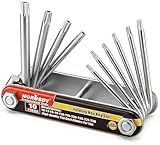
- Tamper Resistant Star Key Set Crafted with premium chrome vanadium steel, and each star tool folds neatly into the handle for quick, easy access.
- Details - The handle is engraved with size for quick identification with drilled tips to allow use.
- Portable - Keys fold compact for easy storage, Drilled tips allow use on tamper resistant security screws.
- Size:Full Size T-6, T-7, T-8, T-9, T-10, T-15 T-20, T-25, T-27 and T-30.
- And with 10 total star sizes able to match nearly all standard tamper resistant security screws on the market.
Check the rule’s operation flags
A rule can apply to read, write, create, delete, or a combination of those operations. A user might be able to open a record but receive “Access Denied” when editing because the rule’s write flag and domain do not permit that row.
Recommended Free Tools
Read the domain instead of guessing
The domain is the filter that determines which rows the rule covers. Look for conditions based on the current user, ownership, company, team, or another relationship. A domain that matches one company or owner can legitimately exclude a record in another company or owned by another employee.
Review all applicable rules together. The effective result depends on the model’s rules, their group assignments, and the operation being attempted. Do not copy a domain from a different model: field names and company relationships vary by model and Odoo version.
Check company context and ownership assumptions
Confirm that the user is allowed to work in the record’s company and that the active company in the session is the one expected by the rule. Multi-company rules commonly filter records by a company field, but the exact field and relationship vary by model. Inspect the rule definition and the record itself rather than assuming every model uses the same field.
Also check ownership and responsible-user fields. If the rule allows only records assigned to the current user or team, changing the assignment may solve a single-record denial without broadening the user’s access to every record.
Do these 3 things before closing this tab:
1Repair Windows errors before they cause bigger problems2Scan for outdated or missing drivers - takes under a minute3Clear out junk files and repair common Windows errorsRank #4

- FIDO2 Certified Passkey Authentication: Officially FIDO2 certified for secure, passwordless login on supported platforms. Use modern passkeys with hardware-backed protection. Please verify your intended service supports FIDO2 hardware keys before purchase.
- Precision Fingerprint Sensor: Built-in high-accuracy biometric fingerprint sensor ensures fast, convenient authentication while preventing unauthorized access. No PIN reuse, no shared secrets—only your fingerprint unlocks the key.
- Strong Hardware 2FA/MFA Security: Enhances account protection with physical-presence and biometric verification, helping defend against phishing, credential theft, and account takeovers.
- USB-C Wired Compatibility (No NFC): Designed for stable USB-C authentication on desktops and laptops, including Windows, macOS, and Linux systems. Ideal for users and enterprises that prefer wired-only security keys.
- Durable Aluminum Shield, Portable Design: Features the same precision aluminum protective shield for long-term durability. Compact, lightweight, battery-free, and network-free-built for everyday carry and professional environments.
Choose the smallest safe change
| Observed failure | Likely control | Smallest candidate change | Main risk |
|---|---|---|---|
| Every record of a model is denied for one user | Role, group, or model access right | Add the required CRUD operation to an appropriate existing group | Granting access to more records or operations than intended |
| Read works but edit, create, or delete fails | Operation-specific model right or record-rule flag | Enable only the failed operation after checking its rule | Allowing destructive changes when only read or write was needed |
| Only one record or subset is denied | Record-rule domain | Correct the record’s company, owner, or assignment, or refine a custom rule | Expanding the domain and exposing unrelated rows |
| Records in another company are denied | Company access or company-based domain | Use the intended company context or adjust allowed companies and the rule together | Cross-company data exposure |
| Several groups appear to conflict | Additive group rights plus multiple rules | Trace inherited groups and each applicable rule before changing one | Fixing one path while another rule still blocks it |
| No administrator understands the model | Unclear security design | Have an Odoo Business Analyst or Support Team review the configuration | Locking out administrators or corrupting data access |
Apply and test the change safely
Odoo documentation warns that access-right changes can have detrimental database effects and recommends testing settings to ensure they apply to the correct users. Use a controlled sequence:
- Document the original group, access-right, and rule values.
- Change one permission or domain at a time. Avoid combining a new administrator role, a new model right, and a rewritten rule in one step.
- Sign in as the affected user, or use an equivalent test account with the same groups and company access.
- Repeat the exact failed operation: open the same record, edit it, create the same type of record, or delete only a test record where deletion is genuinely required.
- Test a record that should remain outside the user’s scope. A fix is unsafe if it solves the error by revealing unrelated companies, customers, or documents.
- Test each relevant operation separately. Read access does not prove write, create, or delete access.
- If the change is wrong, restore the documented values and retest before making another adjustment.
Testing with an administrator is not sufficient because administrators may have broader rights than ordinary users. The affected user, or a test user with the same groups, must perform the verification.
Use Superuser mode only to diagnose the cause
Odoo’s Superuser mode bypasses access rights and record rules. If the record opens in Superuser mode but not for the affected user, the problem is in the security configuration rather than the record’s existence.
Superuser mode is not a permanent fix. Odoo warns that careless changes can leave administrators locked out. Use it briefly to confirm a diagnosis, exit it promptly, and implement a least-privilege group or rule change. Do not perform routine business work in that mode, because it bypasses the controls you are trying to validate.
The Tool Desk
Outbyte PC Repair FREERepair Windows errors before they cause bigger problemsFix Now →Outbyte Driver Updater FREEFix the driver behind crashes, sound loss and screen glitchesFind Drivers →Common denial patterns and what to check
“I can see the app but not the record”
The app menu confirms only that some application permission exists. Check the model access entry for the model behind the screen, then inspect record-rule domains for company, owner, team, or user filters.
Best Value

- FIDO2 & Passkey Ready: Business-ready and FIDO2 L1 certified. This key is supported by major management suites and is ideal for both individual and enterprise deployment. Works seamlessly with Gmail, Facebook, GitHub, Dropbox, Coinbase, and more.
- Universal Connectivity (USB-A ): Features a built-in USB-A connector—simply unfold the key and plug it into your compatible PC or laptop for seamless authentication on the go.
- Dedicated Manager App: Use the Thetis Manager App for the initial hardware PIN setup. Setting the PIN on the device first ensures a smooth registration process. Once the PIN is configured, you can begin registering the key across your favorite FIDO2-compatible online services.
- Ultra-Durable & Portable: Featuring a rotating metal cover, this key is water, crush, and tamper-resistant. It fits easily on a keychain and requires no batteries or network connectivity.
- Check FIDO2 compatibility before purchase - Known limitations: ID Austria is not supported (requires FIDO2 Level 2). Windows Hello login only works with Windows Enterprise editions that support Entra ID, and NFC is NOT supported.
“I can open it but cannot edit it”
Compare the model’s read and write columns. If write access is present, inspect rules whose write operation is enabled and see whether the record satisfies their domains. A rule can permit reading while excluding the same row from updates.
“Creating a record fails, although existing records open”
Check the model’s create operation and the create-related rule domain. Creation can be restricted by required company, owner, or team values that are not set correctly in the form or context.
“Deleting fails while other actions work”
Verify the delete column and any rule that applies to delete. Keep delete disabled unless the user’s role truly requires it; archiving or another controlled workflow may be safer for business data.
PC Slower Than It Used to Be?
A free scan shows the junk files, broken settings and background clutter dragging Windows down - then fixes them in one click.Free scan · Windows 10 & 11Crashes, No Sound, or Screen Glitches?
Random freezes, missing sound and display glitches usually trace back to one bad driver. Find and replace yours safely.Free scan · under a minute“Only one company or customer is blocked”
Compare the record’s company and ownership fields with the active company and the rule domain. Correcting the record’s assignment may be safer than changing a rule for every user.
“Adding a group did not fix it”
Recheck inherited groups and record rules. A new model access right cannot override a record-rule domain that excludes the row, and the failed operation may be different from the operation you enabled.
When to escalate the security change
Escalate before editing rules when you cannot explain which group or domain should govern the record, when several companies share the database, or when the change affects financial, employee, customer, or deletion permissions. Odoo recommends an Odoo Business Analyst or Support Team for users who lack the required domain knowledge. Provide them with the captured user, model, operation, database/company, affected record scope, assigned groups, and the relevant access-right and rule definitions.
Quick Recap
If the Odoo problem is accompanied by separate Windows crashes or system-file issues, Outbyte PC Repair is an optional shortcut that can address some common Windows problems, clean temporary and cache files, check selected settings and potentially unwanted apps, and provide an app-crash log. It complements antivirus software rather than replacing it; results vary, and no tool repairs every crash. It runs on Windows 11, 10, 8, and 7, with a free trial by category for at least two days before a paid subscription.
Product prices and availability are accurate as of the date/time indicated and are subject to change. Any price and availability information displayed on Amazon at the time of purchase will apply.

