First identify which connection path is failing, then test the phone against a different network or accessory. Restart the phone, compare Wi‑Fi with mobile data, and check whether other devices work in the same place. Those comparisons tell you whether to change a phone setting, restart a router, contact a carrier or internet provider, or troubleshoot one Bluetooth accessory.
Start with a five-minute isolation test
A phone can show a connection icon while the underlying service is unavailable. Diagnose mobile data, Wi‑Fi and Bluetooth as separate systems instead of changing several settings at once.
As an Amazon Associate I earn from qualifying purchases.
- Restart the phone. This clears temporary radio and software states without deleting saved networks or pairings.
- Turn Wi‑Fi off and test mobile data. Open a webpage or another service that normally requires an internet connection. Then turn mobile data off and test Wi‑Fi.
- Test a second location or network. Try another Wi‑Fi network, or move to a place where cellular coverage is normally available.
- Test another Bluetooth accessory if possible. If only one headset, speaker or car fails, the accessory branch is more likely than a phone-wide Bluetooth fault.
| What you observe | Most useful next check | Likely support channel if it continues |
|---|---|---|
| Mobile data fails with Wi‑Fi turned off | Check cellular data, airplane mode and signal in another location | Mobile service provider |
| Wi‑Fi joins, but the phone has no internet | Check another device on that network and try another Wi‑Fi network | Internet provider or network host if several devices fail |
| The phone cannot join any Wi‑Fi network | Try a different location and network, then contact the phone maker | Phone manufacturer |
| Only one Bluetooth accessory fails | Make the accessory discoverable and clear its old pairing | Accessory or vehicle manufacturer |
| Several Bluetooth accessories fail | Toggle Bluetooth, restart both devices and retest | Phone manufacturer if every accessory fails |
Menu names vary by manufacturer and operating-system version. Look for similarly named areas such as Network & internet, Connections, Cellular or Mobile data.
Fix mobile data that will not connect
Cellular data problems can come from a disabled setting, a temporary radio state, weak coverage or an issue with the carrier. Work through the checks in order while Wi‑Fi is off, so a Wi‑Fi connection does not hide the cellular failure.
#1 Best Overall

- 📶 𝐁𝐨𝐨𝐬𝐭 𝐒𝐢𝐠𝐧𝐚𝐥 - HiBoost cell phone signal booster for 2000 Sq.ft. Enjoy lag-free cell phone signal, faster internet connections for streaming, faster to download and upload. High power outside antenna, receive longer distance signal. (It requires at least one bar of signal for the cell phone booster to enhance the signal.)
- 📶 𝐖𝐨𝐫𝐤𝐬 𝐎𝐧 𝐀𝐥𝐥 𝐔.𝐒. 𝐂𝐚𝐫𝐫𝐢𝐞𝐫𝐬 - HiBoost cell phone booster for home works on all cellular service providers - Verizon, AT&T, Sprint, T-Mobile, Straight Talk, and U. S. Cellular. Supports bands of 700-750MHz (band 12, 13, 17), 800-850MHz (band 5), 1900MHz (band 2/25) and 1700~2100MHz (band 4).
- 📶 𝟓𝐆 𝐂𝐨𝐦𝐩𝐚𝐭𝐢𝐛𝐥𝐞 - HiBoost cell booster for home compatible with the latest 5G and 4G LTE technology, supports multiple devices simultaneously. The lte cell booster aid to eliminate weak signal areas, continuously provide you with a reliable cellular connection so that no more dropped calls when you at home
- 📶 𝐔.𝐒. 𝐋𝐨𝐜𝐚𝐥 𝐂𝐮𝐬𝐭𝐨𝐦𝐞𝐫 𝐒𝐮𝐩𝐩𝐨𝐫𝐭 - You can easily get help from installation to use. 30-Day Money Back, 3-Year Warranty - within 3 years of receipt of delievery, for any quality issue, simply reach us and we'll solve it. HiBoost cellular service booster meet all FCC guidelines, there is no need to ask the cellular provider for their consent, no monthly subscription fees required
- 📶 𝐋𝐂𝐃 𝐚𝐧𝐝 𝐀𝐏𝐏 𝐌𝐨𝐧𝐢𝐭𝐨𝐫 𝐇𝐞𝐥𝐩 𝐄𝐚𝐬𝐲 𝐈𝐧𝐬𝐭𝐚𝐥𝐥𝐚𝐭𝐢𝐨𝐧 - The color LCD screen on the cellular boosters clearly shows the real-time signal strength, you can cooperate with a partner to locate the best installation point of the outside antenna accurately, or you can achieve the same purpose through the HiBoost Signal Supervisor APP on your own, then place the booster with whip antenna on any desktop you want to get the ideal signal boost
1. Confirm mobile data is enabled
- Open Settings.
- Open the section named Network & internet, Connections, Cellular or Mobile data.
- Make sure mobile or cellular data is on.
- If it is already on, switch it off, wait a moment, switch it on again and retest with Wi‑Fi disabled.
The exact Android path differs among phone makers. On an iPhone, the equivalent control is under Settings > Cellular (the label can vary by region and software version).
2. Refresh the cellular radio with airplane mode
- Turn Airplane mode on from Quick Settings or Control Center.
- Wait about 10 seconds.
- Turn Airplane mode off.
- Wait for the cellular indicator to return, then test mobile data again.
This is a temporary reconnection attempt; it does not erase your saved networks or cellular configuration.
3. Check signal and coverage
Turn Wi‑Fi off and look for a usable cellular signal. If no data indicator appears, move outdoors or to another location where your service normally works. A failure in one building or area can reflect coverage or a local outage rather than a damaged phone.
Recommended Free Tools
If mobile data fails in multiple locations after the setting and airplane-mode checks, contact your mobile service provider. Ask whether the account is active, whether there is an outage in your area and whether the plan has a data restriction. The carrier can also confirm device and network compatibility for your line.
What not to change first
Do not treat APN editing, SIM replacement or a factory reset as universal first-line fixes. Those actions depend on the carrier, phone model and account. Use them only when the carrier or phone maker gives model-specific instructions, and back up important data before any operation that could erase the device.
Rank #2
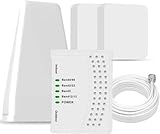
- 5G COMPATIBILITY:Cell phone signal booster is a newly designed signal boosters with intelligent functions, It can enhance indoor signal, such as voice, data in home and office etc, so as to reduce the problem of call interruption, poor signal, can help improve voice quality, faster internet speed and wider coverage, it can cover up to 7000sq.ft coverage, with 70dB Gain, Support all US and Canadian carriers U.S. Cellular, etc. Cover 3G, 4G LTE, and 5G compatible.
- 5G Compatible:Cell phone booster support 5G and deliver amazing speeds; Only 5G that carriers have deployed in large numbers in existing 4G brands through DSS (Dynamic Spectrum Sharing), the FCC has not yet allowed the new mmWave 600MHz cellular enhancers, so if you must use 5G, Make sure your area has 5G services in the existing 4G band before you purchase.
- Advanced Features: Cell signal booster comes with advanced features like Automatic Gain Control, Self-oscillation Elimination to detect the level of an incoming signal and adjusts itself for the best performance. With Good Looking and high quality LED screen, Wireless connects multiple devices, Automatic gain control, this booster has strong anti-interference and low noise characteristic function.
- FCC & IC Certified: :Cell booster complies with all FCC and IC guidelines and meet the requirements of application standards,does not interrupt or compromise any carrier's signal to and from the cell tower.
- If you have any installation or other problems with your item, please contact with us anytime.
Fix Wi‑Fi that will not connect or has no internet
Separate “the phone cannot join Wi‑Fi” from “the phone joined Wi‑Fi but the network has no internet.” The Wi‑Fi icon alone does not prove that web access is working.
1. Confirm the network and distance
- Open Settings > Wi‑Fi (or the similarly named network menu).
- Confirm Wi‑Fi is on and that you selected the intended network name.
- Move closer to the router or access point.
- Enter the password again carefully if the phone rejects the connection.
Public networks may require a browser sign-in page, an acceptance screen or a separate password. A phone can report that it is connected to Wi‑Fi while waiting for that portal login.
The Tool Desk
Outbyte Driver Updater FREEScan for outdated or missing drivers - takes under a minuteDriver Scan →Outbyte PC Repair FREERepair Windows errors before they cause bigger problemsFix Now →2. Compare with another device
Connect another phone or computer to the same network. If the other device also cannot get online, the problem is probably the router, internet service or network host rather than your phone. If other devices work, test your phone on a different Wi‑Fi network.
3. Try another Wi‑Fi network
A phone that works on another network points to the original router, password, sign-in portal or network policy. If the phone cannot join any Wi‑Fi network, Apple recommends contacting Apple for iPhone or iPad support. For Android, use the phone maker’s support channel when the failure follows the device to multiple networks.
4. Restart a home router correctly
- Use the router’s normal power instructions or unplug it.
- Wait about 30 seconds.
- Plug it back in.
- Allow the router time to restart fully, then reconnect the phone.
If several devices remain offline on that network, contact the internet service provider or the person responsible for the network. Do not factory-reset the router unless its administrator has a recovery plan and the account details needed to configure it again.
Rank #3

- 【Boost Your Signal】-- The cell booster can be used without registering with the carrier. Enjoy fewer dropped calls, incredibly fast data speeds, better voice quality and worry-free streaming through ZORIDA signal booster with 72dB max gain. Enhance the signal in rural areas, home, cabin, shop, office, building, warehouse, basement or garage. Higher gain helps save your battery life of phones on standby mode. (Please ensure you have the 1-2 bars signal outside of your home before using)
- 【All US Carriers & 5G Compatible】-- ZORIDA cellular signal booster supports All US carriers from Verizon, AT&T, T-Mobile, US Cellular, and more. Works on various band 12/17, 13, 5, 4, 2/25. Boost 3G & 4G LTE, 5G signal. 5G technology allows you to experience ultra-fast and stable network connectivity at home.(Tips: If you want to use 5G, please make sure your area provides 5G service in the existing 4G frequency band before purchasing)
- 【Affordable & Effective】-- ZORIDA cell phone signal booster enhances cell signal for multiple devices simultaneously up to 2000 sq ft, and it offers an ideal solution for small homes, studios or a single room. No subscriptions or hidden fees. ZORIDA ACE 5S is an affordable yet effective way to solve your connectivity issues. (Note: the coverage range of the booster depends on your outdoor signal strength)
- 【Easy Installation & App Service】-- Cell phone signal booster for home features a compact indoor whip antenna that you can easily attach to the cellular booster, then place it on the wall or directly on the table. By registering ZORIDA APP, we provide online 1v1 technical support to guide installation. You can also find the best installation place of outdoor antenna, view step-by-step videos and instructions, and see your signal data before and after Installation.
- 【US-based Service & FCC IC Certified】-- FCC & IC Certified. ZORIDA cell booster for home promises 30-day money-back and a 3-year warranty. Lifetime US-based tech-support-online app chat, phone and email; Contact with us anytime anywhere when you need.
5. Check VPN or security software on iPhone and iPad
On an iPhone or iPad, VPN or security software can interfere with network access. If such software is installed, follow Apple’s troubleshooting approach: remove it temporarily, restart the device and test Wi‑Fi. If the connection returns, contact the software provider for a compatible configuration. On a work- or school-managed device, follow the organization’s IT process instead of removing managed software yourself.
Quick wins for a faster PC:
Clear out junk files and repair common Windows errorsFree Scan →Fix the driver behind crashes, sound loss and screen glitchesFind Drivers →Fix Bluetooth that will not pair or stay connected
Bluetooth pairing is a two-device process. Both the phone and the accessory must be powered, discoverable and willing to accept the connection. Menus and capabilities differ among headphones, speakers, vehicles and other accessories.
1. Toggle Bluetooth and restart both devices
- Open the phone’s Bluetooth settings and turn Bluetooth off.
- Wait briefly, then turn it on again.
- Restart the phone.
- Power the accessory off and on, or restart it according to its manual.
- Return to the Bluetooth device list and check whether the accessory is shown as connected.
2. Put the accessory into pairing mode
Many accessories are not discoverable merely because they are powered on. Use the accessory’s manual to start pairing or discovery mode, then keep the phone’s Bluetooth screen open while you select the device. Keep the devices close together during the first pairing attempt.
3. Remove stale pairings and pair again
- In the phone’s saved Bluetooth devices, select the old accessory entry.
- Choose Forget, Unpair or the equivalent option.
- For a car, also remove old phone entries from the vehicle’s Bluetooth memory, following the vehicle manual.
- Refresh the phone’s device list.
- Put the accessory back into pairing mode and select it as a new device.
If the accessory has its own list of remembered phones, clear that list only according to its instructions. Some accessories limit the number of stored pairings.
4. Check the Bluetooth function you actually need
For a paired car, open the saved-device settings on the phone and check whether Media audio or Phone audio is enabled, when those options are offered. A car may support calls but not music playback, or may support neither function over Bluetooth. Do not assume that every accessory supports every Bluetooth profile.
PC Slower Than It Used to Be?
A free scan shows the junk files, broken settings and background clutter dragging Windows down - then fixes them in one click.Free scan · Windows 10 & 11Outdated Drivers Are Slowing You Down
One free scan finds every outdated or missing driver and matches the right update for your exact hardware.Free scan · exact hardware matchRank #4

- 【Ready for 5G】- The booster is designed for the largest cell carriers - Verizon and AT&T, boosts 4G LTE and 5G signal for all cellular devices operating on band 12, band 13 and band 17. Note: The booster only supports 5G band that largely deployed in current bands 12, 17 and 13 by Dynamic Spectrum Sharing by carriers. If you need a 5G cell booster, please ensure that you have a 5G phone and your carrier has deployed 5G in the 4G band of 12,13 and 17 before purchase.
- 【Advanced Features & Smart Device】- The booster uses AGC(Automatic Gain Control) function, which can intelligently detect the existing signal strength, and adjust itself for best performance, then reflect its working condition through LED indicator. Buy it once, and boost for life.
- 【Better Data & VoLTE】- Enhances 4G LTE data speed signals and volte, enjoy faster uploads and downloads to stream videos smoothly in your house, office, cottage, cabin, camper, basement etc., get rid of expensive monthly internet fees. Supports multiple users simultaneously.
- 【Powerful Antennas & Large Coverage】-This booster comes with high gain directional antenna, allow you to point it to the nearest signal tower more accurate and get more signals, expanding the indoor coverage up to 4,500sq ft. DIY Installation.
- 【Reliable Service Guarantee】- FCC Certified, 30-day return, 3-month replacement, Up to 3-year manufacturer repair, lifetime professional technical Support.
5. Escalate an accessory-specific failure
If the phone pairs with other accessories but not one headset, speaker or vehicle, follow that product’s manual and contact its manufacturer if a fresh pairing still fails. If every accessory fails after the restart and pairing checks, contact the phone maker.
Use network reset only after simpler fixes
A network reset is a later troubleshooting step because it removes configuration you may need to recreate. Apple states that resetting network settings removes saved Wi‑Fi networks and passwords as well as cellular, VPN and APN settings.
Before using it, make sure you know the passwords for important Wi‑Fi networks and have any work or school instructions needed to reconnect. On a managed device, ask the network administrator first. On Android, the wording and location vary by manufacturer; look under a settings area such as System > Reset options or General management > Reset, then choose the network-reset option rather than a full device or factory reset. On iPhone, the option is typically under Settings > General > Transfer or Reset iPhone > Reset > Reset Network Settings; labels can vary by iOS version.
After the reset, reconnect to Wi‑Fi, re-enter passwords, restore required VPN settings and test mobile data and Bluetooth again. A network reset does not repair an area-wide cellular outage, a failed router or an accessory that is not discoverable.
Read the failure pattern before choosing support
| Failure pattern | What it distinguishes | Next action |
|---|---|---|
| Mobile data fails everywhere, including another location, while Wi‑Fi works | Cellular service or account problem is more likely than a general phone-network failure | Contact the mobile provider after confirming data is enabled and refreshing Airplane mode |
| Mobile data works elsewhere but not in one building or area | Coverage, local interference or an outage at that location | Move to a known coverage area and ask the provider about local service |
| Several devices fail on one Wi‑Fi network | Router, ISP or network-host problem | Restart the router and contact the ISP or network host |
| The phone fails on every Wi‑Fi network | Phone configuration or hardware problem | Contact the phone maker |
| The phone connects to Wi‑Fi but only a public network has no internet | Portal sign-in, terms acceptance or network policy | Open a browser and complete the network’s sign-in process; ask the venue for help |
| One Bluetooth accessory fails while others work | Accessory pairing memory, compatibility or accessory fault | Clear stale pairings and use the accessory or vehicle manual |
| Every Bluetooth accessory fails | Phone Bluetooth state or phone-side fault | Toggle Bluetooth, restart both devices and contact the phone maker if it persists |
Special cases that need extra care
Work or school Wi‑Fi
Managed networks may require certificates, device enrollment or a prescribed VPN. Ask the network administrator before forgetting the network, resetting network settings or removing security software. A reset can erase settings that the administrator must restore.
Best Value
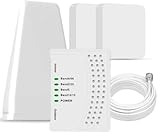
- 5G COMPATIBILITY:Cell phone signal booster is a newly designed signal boosters with intelligent functions, It can enhance indoor signal, such as voice, data in home and office etc, so as to reduce the problem of call interruption, poor signal, can help improve voice quality, faster internet speed and wider coverage, it can cover up to 7000sq.ft coverage, with 70dB Gain, Support all US and Canadian carriers U.S. Cellular, etc. Cover 3G, 4G LTE, and 5G compatible.
- 5G Compatible:Cell phone booster support 5G and deliver amazing speeds; Only 5G that carriers have deployed in large numbers in existing 4G brands through DSS (Dynamic Spectrum Sharing), the FCC has not yet allowed the new mmWave 600MHz cellular enhancers, so if you must use 5G, Make sure your area has 5G services in the existing 4G band before you purchase.
- Advanced Features: Cell signal booster comes with advanced features like Automatic Gain Control, Self-oscillation Elimination to detect the level of an incoming signal and adjusts itself for the best performance. With Good Looking and high quality LED screen, Wireless connects multiple devices, Automatic gain control, this booster has strong anti-interference and low noise characteristic function.
- FCC & IC Certified: :Cell booster complies with all FCC and IC guidelines and meet the requirements of application standards,does not interrupt or compromise any carrier's signal to and from the cell tower.
- If you have any installation or other problems with your item, please contact with us anytime.
Public Wi‑Fi
Public access points commonly require a sign-in page after the phone joins the radio network. Open a browser and look for the network’s login or acceptance screen. If the page never appears, disconnect and reconnect, then ask the venue or network host for assistance.
Calls during Android connection reset
Google’s Android Wi‑Fi guidance warns that resetting a connection while you are on a phone or video call will end the call. Finish or move the call before using a reset option.
What to tell support
Support can diagnose the issue faster when you report the comparison that isolated it. Have these details ready:
Free tools Windows power users keep installed
One-click scans. No signup required.
- Phone model and operating-system version.
- Whether Wi‑Fi, mobile data or Bluetooth is affected.
- Whether the failure occurs with one network or accessory, or with all of them.
- Whether other devices work on the same Wi‑Fi network.
- Whether the phone works on another Wi‑Fi network or in another cellular location.
- The exact error message or whether an icon is missing.
- Which steps you already tried, including a restart, Airplane mode toggle, router restart or forgotten pairing.
For cellular failures, the mobile provider is the right escalation point when the problem follows the phone across locations. For a shared Wi‑Fi failure, contact the ISP or network host. For a phone that cannot connect to any Wi‑Fi network, contact the phone maker. For one failing Bluetooth accessory, use the accessory or vehicle manufacturer’s support.
When a full reset or replacement is not justified
Changing APN values, replacing a SIM, factory-resetting the phone or buying replacement hardware can create new problems when the actual cause is a coverage gap, router outage, sign-in portal or stale Bluetooth pairing. The isolation tests above establish which device or service owns the failure before you take an irreversible step or spend money.
Quick Recap
Final troubleshooting sequence
- Restart the phone.
- Test Wi‑Fi with mobile data off, then test mobile data with Wi‑Fi off.
- Compare another Wi‑Fi network and another cellular location.
- For Wi‑Fi, compare another device and restart the router when appropriate.
- For Bluetooth, restart both devices, use pairing mode and remove stale entries from the phone and, when relevant, the car.
- Use network reset only after these checks and only after recording the Wi‑Fi, VPN and cellular details you will need to restore.
- Escalate to the carrier, ISP/network host, phone maker or accessory maker according to the failure pattern.
Product prices and availability are accurate as of the date/time indicated and are subject to change. Any price and availability information displayed on Amazon at the time of purchase will apply.

