A choppy screen is usually caused by a refresh-rate setting, a power-saving restriction, an incompatible resolution, adaptive behavior, or one poorly optimized app—not a failed display. First confirm that your exact phone model supports 120Hz. Then check its high-refresh setting, temporarily disable power-saving modes, test another resolution where applicable, and compare several apps with system navigation. If the problem remains everywhere after software checks, use the manufacturer’s diagnostics or an authorized repair service.
Menu names and supported combinations vary by model, software version, and region. A 120Hz panel also does not force every app or every animation to render 120 frames per second.
As an Amazon Associate I earn from qualifying purchases.
What “120Hz” actually means
Refresh rate is how often the display panel can update each second. A 120Hz panel can refresh up to 120 times per second, while a 60Hz panel updates up to 60 times per second. Higher refresh can make scrolling and animations look smoother, but it is only the panel’s capability.
Frame rate is different. The processor, graphics system, and app must produce new frames. If an app renders at 60 frames per second, displaying it on a 120Hz panel does not create extra detail. Dropped frames, uneven frame timing, heavy background work, thermal limits, or an app’s own animation design can still make motion look jerky.
#1 Best Overall

- Carrier: This phone is locked to Tracfone, which means this device can only be used on the Tracfone wireless network. Tracfone plan required, activating is easy, just 3 steps.
- DISPLAY: Immersive viewing on a 6.7-inch super-bright 120Hz display with powerful stereo speakers and Bass Boost for cinematic entertainment.
- CAMERA SYSTEM: Advanced 50MP Quad Pixel camera captures sharp, detailed photos and videos in any lighting condition
- PERFORMANCE: Lightning-fast 5G connectivity paired with a powerful processor and RAM Boost for smooth multitasking.
- BATTERY LIFE: Long-lasting 5000mAh battery with TurboPower charging technology delivers hours of power in minutes.
Many current phones use adaptive refresh. Android can change the display rate to suit the content and the device’s power policy. A static page may use a lower rate, then rise while you scroll. That behavior is expected on supported implementations; seeing a reading below 120Hz is not automatically a fault.
1. Confirm that your exact phone supports 120Hz
A missing 120Hz option cannot be enabled by software if the panel was not designed for it. Check the full model name and variant in Settings > About phone, including storage, carrier, and regional versions where those differ. Do not rely on a product family name alone.
Official support pages illustrate why model-level checking matters:
What’s actually slowing this PC down?
Pick the symptom - the matching free tool is one click away.
| Phone example | Documented display capability | How to interpret it |
|---|---|---|
| Selected Samsung Galaxy models, including Galaxy S24 | Up to 120Hz on supported models | Samsung’s list is model-specific; Motion smoothness choices vary by device. |
| Google Pixel 7 and Pixel 7a | Up to 90Hz | These models are not 120Hz phones, so 90Hz is their documented maximum. |
| Google Pixel 7 Pro | Up to 120Hz | Smooth Display can use the higher rate when conditions allow. |
| Google Pixel 8 | 60–120Hz | The display can operate across that range rather than staying at 120Hz constantly. |
| Google Pixel 8 Pro | 1–120Hz | The documented range includes very low rates for suitable static content. |
These are examples from current manufacturer documentation, not a complete catalog. A carrier or regional edition can have different specifications, and later software can change which controls appear. Look up the support page for the exact model before treating a missing option as a defect.
2. Turn on the highest available refresh mode
Samsung Galaxy: Motion smoothness
On supported Galaxy phones, open Settings > Display > Motion smoothness. Samsung commonly presents:
- Standard: a fixed 60Hz mode.
- High: a higher fixed or device-specific rate on models that offer it.
- Adaptive: a variable rate that changes with content and power conditions.
The exact labels and choices differ by Galaxy model. Select the highest mode offered, tap Apply if the phone shows that button, and then test scrolling in Settings. If only Standard appears, continue with the model, power, and resolution checks below rather than trying to force an unsupported setting.
Google Pixel: Smooth Display
On a compatible Pixel, open Settings > Display & touch and turn on Smooth Display. Google describes this as the control for raising the display rate on models that support it. A Pixel 7 or 7a will not become a 120Hz phone because the switch is enabled; those models are documented at up to 90Hz.
Quick wins for a faster PC:
Repair Windows errors before they cause bigger problemsFix Now →Fix the driver behind crashes, sound loss and screen glitchesFind Drivers →Clear out junk files and repair common Windows errorsFree Scan →After changing the setting, lock and unlock the phone, scroll through a long Settings page, and watch an animation such as opening the app drawer. This confirms that the change affects system navigation, not just one app.
Fixed versus adaptive refresh: which behavior should you expect?
| Characteristic | Fixed high mode | Adaptive mode |
|---|---|---|
| Rate behavior | Attempts to hold the selected high rate while conditions permit. | Moves between rates according to content, power policy, and implementation. |
| Static pages | May continue using a high rate and consume more power. | May lower the rate when the screen is still. |
| Battery use | Usually higher than Standard mode; the amount depends on the phone and use. | Can reduce consumption compared with a permanently high rate, but still uses more power than a lower-rate setting in some workloads. |
| App behavior | Does not make an app render more frames than it produces. | Can follow the app’s frame rate when the operating system and app support it. |
Do not judge a variable display solely by a momentary refresh-rate number. Judge it by whether motion is smooth in the situations that matter to you and whether the setting remains available under normal power and resolution conditions.
Rank #2
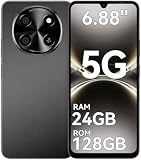
- 【Love at First Sight · Ultra-thin Flagship】 Packing a 6.88" giant screen into an 8.45mm, 209g "supermodel body"—we're 11% thinner and 18% lighter than ordinary smartphones, yet give you a larger viewing area. The aerospace-grade aluminum frame and double-sided hot-bent glass create a mirror-like finish when light shines through. It won't bulge in your jeans pocket. Among phones weighing over 200g, it's the lightest large-screen flagship; among phones with screens over 6.8" in size, it's a compact camera that can be easily swiped with one hand. So lightly you almost forget you're carrying it, so beautiful you can't help but take a second look—that's why you should choose it.
- 6.88-inch 120Hz Scratch-Resistant Screen: This unlocked phone's large 6.88-inch screen with an ultra-high 120Hz refresh rate allows for incredibly smooth video streaming and gaming, making every interaction seamless. The screen automatically adjusts brightness based on your surroundings, and Eye Care mode provides optimal visibility to protect your eyes. These mobile phones feature facial recognition unlocking and a fingerprint unlock button on the right side of the phone, giving you the added convenience of a large screen. This 5G Phone is made of scratch-resistant, durable Panda Glass. It also features dual speakers for excellent sound quality.
- Enjoy Smooth 5G Chipset and Extensive Memory: This android phone unlocked is equipped with 5G technology and features the UMS9620 5G chip, a significant leap in quality and performance. It delivers lightning-fast connection speeds for a smooth browsing and gaming experience. This 5G phone unlocked features 24GB (8+16) RAM and 128GB (expandable up to 2TB) internal storage, along with an octa-core processor, ensuring exceptional speed and efficiency. It easily handles multitasking and stores all your favorite content, meeting all your mobile needs. The smooth performance also allows for quick data transfers, allowing you to experience your new phone as quickly as possible.
- The popular NFC function also works with Google Pay, making everyday payments incredibly convenient. Features like OTG reverse charging, wireless Bluetooth, GPS, dual SIM dual standby, and fast USB transfer ensure you're always connected to the best-in-class functionality.
- AI 16MP+8MP Cameras for Capturing Wonderful Life: The 5G Android phone features a 16MP rear camera and an 8MP front camera, rear camera can zoom in ten times. Whether capturing landscapes or selfies, this unlocked cell phone makes capturing stunning photos a breeze, and it also supports fast face unlock. Furthermore, these Android phones offer a variety of shooting modes, including Portrait, Night, Panorama, and Pro, to suit different shooting scenarios. 1080P video recording transforms everyday moments into captivating videos. Explore more AI photography features as you go, ensuring a unique experience.
3. Disable power-saving restrictions for a controlled test
Power-saving features can deliberately lower the display rate. Samsung documents that Power saving can set the screen to Standard, while Google says Battery Saver disables Smooth Display on Pixel phones.
- Open the quick settings panel and check whether Power saving, Battery Saver, or an equivalent mode is active.
- Turn it off temporarily. If the control is not in quick settings, open Settings > Battery and inspect the relevant power mode.
- Return to the display settings and verify that Motion smoothness or Smooth Display is still enabled.
- Scroll through Settings and two or more apps before deciding whether the change helped.
This is a diagnostic test, not a recommendation to leave power saving off permanently. Higher or adaptive refresh can increase battery use, so you may prefer Standard mode when battery life matters more than animation smoothness.
PC Slower Than It Used to Be?
A free scan shows the junk files, broken settings and background clutter dragging Windows down - then fixes them in one click.Free scan · Windows 10 & 11Outdated Drivers Are Slowing You Down
One free scan finds every outdated or missing driver and matches the right update for your exact hardware.Free scan · exact hardware match4. Check screen resolution on phones that link it to refresh rate
Some Galaxy models automatically switch to Standard when you select WQHD+ resolution. That limitation is model-specific; it does not apply to every phone or every resolution menu.
- Open Settings > Display and look for Screen resolution or a similarly named control.
- Note the current resolution and the Motion smoothness mode.
- If the phone documents an incompatibility between WQHD+ and a high refresh mode, choose a compatible resolution for testing.
- Recheck Motion smoothness, apply the change, and test system scrolling.
Do not lower resolution blindly on a phone that does not document this relationship. If the high-refresh option remains available at your chosen resolution, resolution is unlikely to explain the symptom.
5. Find out whether the stutter is system-wide or app-specific
A problem in one app needs a different response from a problem that affects every animation. Use the same gesture and, if possible, the same type of content in each test.
| Test | What to observe | Likely next step |
|---|---|---|
| Scroll in Settings | Does a long system list move smoothly? | If it stutters here, check display mode, power restrictions, updates, and diagnostics. |
| Open and close the app drawer or recent-apps view | Are system transitions uneven? | System-wide symptoms point away from a single app. |
| Test two unrelated apps | Does only one app drop frames? | Update, restart, and check that app’s support information. |
| Use a camera or recording feature | Does the issue begin during intensive capture? | End the task and retest; power-intensive operations can affect behavior in specific support cases. |
Samsung’s support item for a Galaxy S20 FE describes third-party app optimization and power-intensive camera or recording tasks as possible contributors to stuttering in certain applications. Treat those explanations as specific to that support case, not as a universal diagnosis for every Galaxy or Android phone.
The Tool Desk
Outbyte PC Repair FREERepair Windows errors before they cause bigger problemsFix Now →Outbyte Driver Updater FREEFix the driver behind crashes, sound loss and screen glitchesFind Drivers →If only one app is affected
- Update the app from the device’s app store.
- Force close it, reopen it, and repeat the same scrolling test.
- Restart the phone, then test again before changing several other settings.
- Check the app’s own display, video, or battery settings. Some apps cap animation or video frame rate independently of the phone.
- If the problem remains isolated to that app, contact its developer or consult its support documentation. Replacing the screen will not correct an app-level frame-pacing problem.
6. Restart, update, and use built-in diagnostics
Restart first
A restart clears temporary processes and reloads the display and graphics services. Use the normal power menu, wait for the phone to boot completely, and repeat the system and app tests. A restart is useful for diagnosis because it changes fewer variables than a factory reset.
Install pending updates
- Install the phone’s available system update under its software-update settings.
- Update the affected apps.
- Restart after updates that request it.
Manufacturers can change refresh-rate policies, compatibility, and display drivers through software updates, so menu behavior may not match an older tutorial.
Run the maker’s support checks
Use the support or diagnostics area built into the phone when available. Google’s Pixel guidance includes model-dependent diagnostics and recommends determining whether a downloaded app causes the screen problem. On supported models, safe mode can temporarily prevent downloaded apps from running; if the symptom disappears there, remove or update recently installed apps one at a time and retest. Safe-mode steps and available tests vary by model, so follow the on-screen instructions for your handset.
Rank #3
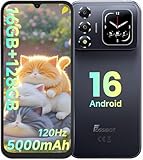
- 📱【6.9" FHD+ 120Hz Display & 1.8" Smart Rear Screen】FOSSiBOT S7 Unlocked Phone features a large 6.9-inch FHD+ display with a smooth 120Hz refresh rate for gaming, streaming, and scrolling. The 1.8-inch smart rear screen provides quick access to notifications, time, music controls, and more, making this smartphone more convenient for daily use.
- 🚀【Android 16 & Octa-Core Processor with 128GB ROM】This Android smartphone runs the latest Android 16 system and a powerful octa-core processor for smooth multitasking. Equipped with up to 16GB RAM (4GB + 12GB virtual RAM), 128GB ROM, and expandable storage up to 2TB via TF card. Dual SIM 4G unlocked mobile phone compatible with T-Mobile. ❌❌Not compatible with AT&T, Cricket, Verizon, or Xfinity Mobile.
- 🔋【5000mAh Battery for All-Day Power】The FOSSiBOT S7 mobile phone is equipped with a 5000mAh battery designed for long-lasting performance. Enjoy up to 670 hours standby time, 28 hours of calling, and up to 22 hours of gaming on a single charge. Perfect for work, travel, entertainment, and everyday communication.
- ✨【Slim 8.5mm Design & Premium Comfortable Grip】Unlike bulky phones, the FOSSiBOT S7 smartphone combines a lightweight 215g body with an ultra-slim 8.5mm profile. The rounded four-corner frame provides a modern appearance and comfortable grip, making it easy to carry in your pocket, backpack, or hand throughout the day.
- 🎁【Fingerprint Unlock, Face ID & Reliable After-Sales Support】This unlocked smartphone supports fingerprint unlocking, face recognition, GPS navigation, and essential daily functions. ❌❌NFC is not supported. Enjoy professional customer support within 24 hours, 30-day hassle-free returns, and a 2-year warranty with replacement service. For details, please refer to the Brand Story section.
Keep a short record of what you tested: model and software version, refresh setting, power mode, resolution, affected apps, and whether the symptom appears in Settings. That information helps support staff distinguish a configuration issue from a hardware fault.
7. Separate visual stutter from touch-response problems
Choppy animation and unresponsive touch are different symptoms. A screen protector, touch-sensitivity option, or dirty surface may matter when taps and swipes fail to register, but those measures do not make a supported panel operate at 120Hz.
If the phone responds late or misses touches, test the surface without accessories only as directed by the manufacturer, clean it appropriately, and use the touch diagnostics in the device’s support guidance. If touch works normally but scrolling looks uneven, return to refresh, frame-rate, app, and power checks instead of changing touch sensitivity.
8. Recognize signs of a physical display fault
Seek manufacturer support or an authorized repair provider when you see persistent flicker, lines, black areas, discoloration, or a failure that occurs across system screens and multiple apps after the relevant settings and software checks. Physical impact, liquid exposure, or a problem that began immediately after a repair also warrants professional inspection.
Do not assume a replacement screen is the answer. A panel swap cannot fix an unsupported refresh rate, Battery Saver behavior, an incompatible resolution combination, or an app that renders unevenly. Conversely, software changes cannot repair a physically damaged panel.
Free tools Windows power users keep installed
One-click scans. No signup required.
A complete troubleshooting sequence
Follow this order so each test has a clear result:
- Record the exact model, variant, and software version.
- Verify the model’s documented maximum refresh rate.
- Enable Motion smoothness, Smooth Display, or the equivalent highest available mode.
- Turn off Power saving or Battery Saver temporarily.
- Check whether the selected resolution is documented as incompatible with high refresh.
- Restart the phone and test Settings, system transitions, and at least two apps.
- If one app is affected, update and restart that app, then consult its support.
- Install pending system and app updates.
- Use the phone maker’s diagnostics or supported safe-mode procedure.
- Escalate persistent system-wide symptoms, visible damage, flicker, or lines to manufacturer support or authorized service.
Change one setting at a time and repeat the same test. If you change refresh mode, resolution, power mode, and several app settings together, you will not know which change affected the result.
When buying another phone is the appropriate fix
If your current model is documented at 60Hz or 90Hz, no setting can turn it into a 120Hz device. A replacement phone with a supported 120Hz display is the relevant hardware path only when the desired rate is a genuine requirement or when an authorized technician confirms a persistent display fault. Samsung lists Galaxy S24 as one example of a model supporting up to 120Hz; that example does not make replacement necessary for a disabled setting, power-saving restriction, resolution conflict, or single-app problem.
There is no single battery-life figure that applies across phone models for high refresh. Panel technology, brightness, network use, chip workload, adaptive policy, and app behavior all change the result. Choose a high-refresh phone for its overall specifications and support policy, not because a generic “120Hz booster” promises to override the operating system.
Common mistakes that waste time
- Assuming every phone is 120Hz: verify the exact model first.
- Confusing refresh rate with frame rate: a 120Hz panel cannot manufacture frames an app does not render.
- Treating adaptive behavior as failure: a supported phone may lower its rate for static content or power saving.
- Testing only one app: compare Settings and multiple apps before blaming the display.
- Leaving Battery Saver enabled during testing: it can intentionally disable or restrict high refresh.
- Ignoring resolution limits: some Galaxy models use Standard at WQHD+.
- Changing touch settings to fix animation: touch response and visual smoothness are separate systems.
- Installing an unverified “optimizer”: no generic utility is established as a way to add unsupported refresh capability.
- Ordering a screen replacement too soon: rule out settings, power, resolution, software, and app causes first.
What the result means
If the phone lacks 120Hz hardware, the behavior is a specification rather than a fault. If high refresh appears after disabling a power mode or changing a documented resolution conflict, the display is working as designed. If only one app stutters, treat it as an app or rendering issue. If every system screen remains choppy, flickers, or shows physical artifacts after the supported settings and software checks, manufacturer diagnostics and authorized service are the appropriate next steps.
Quick Recap
Product prices and availability are accurate as of the date/time indicated and are subject to change. Any price and availability information displayed on Amazon at the time of purchase will apply.

