Recommended Free Tools
You can’t use a PS5 as a screen for a Nintendo Switch by connecting the consoles with an HDMI cable: both consoles send video out to a TV or monitor. Connect a TV or monitor to the Switch dock instead. If the screen problem is actually with the PS5, troubleshoot its separate HDMI connection below.
Why a Switch cannot display on a PS5
The documented setup for both consoles is HDMI OUT from the console or dock to a TV or monitor. The PS5’s HDMI port is an output, not an input for Switch video. Nintendo’s TV connection instructions and PlayStation’s PS5 setup guidance describe those display connections. Use a separate TV or monitor; the ordinary direct-HDMI setup does not make the PS5 a display.
As an Amazon Associate I earn from qualifying purchases.
If your search was really about a Switch showing a blank screen on a TV, follow the Switch checks below. If the PS5 itself has no picture, skip to the PS5 section.
Free tools Windows power users keep installed
One-click scans. No signup required.
Fix a Switch with no picture on a TV or monitor
1. Check which Switch model you have
Nintendo Switch Lite does not support TV mode, so it cannot output to a TV through a dock. For a standard Nintendo Switch or Switch OLED, use a compatible Switch dock. For Switch 2, use Switch 2-compatible dock accessories and power. Nintendo lists the original Switch adapter as HAC-002 and the Switch 2 adapter as NGN-01; the older adapter does not supply enough power for Switch 2 TV mode. See Nintendo’s Switch TV connection and blank-screen guidance and Switch 2 blank-screen guidance.
#1 Best Overall
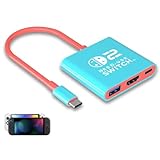
- Switch TV Dock Adapter - Support nintendo switch 1 and oled and steam deck and nintendo switch 2 tv dock mode paly. Compatible with switch 2 the latest firmware 21.0.0 version update.
- 4K HDMI Output Dock - For nintendo switch 2 and steam deck dock mode, the adapter output 4K60HZ high quality video. For old nintendo switch 1,Only supports native 1080P60HZ resolution.
- USB A 3.0 Input Port - The switch tv dock adapter come with one USB-A 3.0 input port, support access wired controller / dance pad / gamecube adapter / charging dock and other usb expansion device.
- Plug and Play on TV - First wake up switch console and then connect power adapter and hdmi cable. and then play happy on tv mode.NOTE:Switch 1 need 15v2.6a / Switch 2 need 20v3a PD charger.
- For More Devices - The switch tv dock adapter support nintendo switch 1 2 and steam deck dock mode well. Also compatible with Rog Ally, Legion Go and new ipad or mac or Samsung dex station.
2. See whether the console works in handheld mode
Remove the console from the dock and check its built-in screen. If the handheld screen is also blank or not working, address the console’s power or display issue first; troubleshooting the TV’s HDMI connection will not resolve that symptom. Nintendo’s blank-screen steps begin with the console undocked.
3. Reset the dock’s power connection
- Disconnect the power adapter from both the wall outlet and the dock for at least 30 seconds.
- Check the adapter and its connectors for visible damage.
- Reconnect the correct, generation-appropriate adapter directly to a wall outlet and the dock.
Use HAC-002 for the original Switch generation and NGN-01 for Switch 2. A Switch adapter may fit but is insufficient for Switch 2 TV mode. Nintendo’s Switch blank-screen guidance and Switch 2 blank-screen guidance cover power and connection checks.
Rank #2

- Steps to Use - The switch tv adapter support nintendo switch 1, switch 2 and switch oled model, doesn't support nintendo switch lite. 1.Power by 15v2.6a/ 20v3a PD wall charger for switch1/2, and plug tv hdmi cable into adapter 2.Change TV signal to correct HDMI port 3.Wake up switch and plug adapter usb-c output to switch console 4.Wait 3-8 seconds tv will light auto.
- Three Ports, Widely Compatible Switch TV Adapter - Switch hdmi adapter with usb 3.0 port, hdmi 2.0 output port and pd charging port, nintendo switch tv docking station designed for youtube play and samsung dex station.
- 1080P@60Hz for Nintendo Switch TV Dock - Switch docking station support 1080p video output, bigger screen for better gaming experience, note that if steam deck needs to be cast to a tv with a resolution of 4k60hz, you need to have a tv that supports 4k60hz and a video cable that supports hdmi 2.0.
- Portable Travel Switch Docking Station - The portable switch dock is light weight and small enough to fit in a backpack, switch travel dock is a versatile extended Type-C hub that supports most HDTVs, monitors, projectors and other devices with hdmi ports, supports hdcp and pd functions, ideal for travelling.
- Replacement for Original Nintendo Switch Dock - With the latest control voltage and current technology safety protection, switch tv adapter, play while charging, you need to plug in the official nintendo switch charger and HDMI cable when playing games on tv.
4. Connect the dock directly to the display
Run an HDMI cable from the dock’s HDMI OUT port straight to the TV or monitor. Turn on the display and select the HDMI input that the cable is plugged into. During troubleshooting, remove a receiver, soundbar, splitter, or video adapter from the path. Make sure the console faces the correct way and is fully seated in its compatible dock. Nintendo’s TV connection instructions show the dock-to-display setup.
5. Test the HDMI connection one change at a time
- Try another HDMI input on the same TV or monitor.
- Try a known-good HDMI cable.
- Connect the dock to another TV or monitor.
Change one item at a time so you can identify whether the issue follows the display input, cable, or screen. These are among Nintendo’s recommended checks in its blank-screen guidance.
Rank #3

- [Compatibility]: The SiWiQU dock only works with Nintendo Switch/Switch OLED. The switch docking station is not work with Nintendo Switch 2 (2025). (NOTE: Only docking station included, no cable or charger.)
- One-touch Display Switching: Press the TV/Tabletop Mode button at the back of the dock, you can choose Tabletop Mode or TV Output Mode.
- Special Design: The guide notch have a spring buffer function, You don't have to worry about damaging the port over time when docking the console in. The switch fits into the dock tight and secure (NOT compatible with protective cases). The anti-skid pad at the bottom prevents it from sliding around or falling over by accident.
- Charge While Playing: The charging stand allows the Switch system to be charging while in TV or tabletop mode. Built in smart original chip, having Short-circuit Protection, Over Power Protection, Recovery Protection and Overheating Protection.
- Portable and Lightweight: This Switch dock with classic red and blue colour match is only 109g(0.24lb), 7.5 in * 2.3 in * 1.3 in size, which is much more portable and lightweight than official dock. Its work capability is the same as official standard.
6. Check the dock only after isolating the display
If you have access to another compatible dock or adapter, cross-test it. A different dock resolving the problem points toward the original dock, but do not assume Switch and Switch 2 docks or power adapters are interchangeable just because their connectors look similar.
7. Contact Nintendo if the picture still will not appear
If the console and compatible dock still fail after these checks, Nintendo directs users to service through its Switch or Switch 2 support guidance.
Rank #4

- High-Quality HDMI to HDMI for Nintendo Switch, Nintendo Swotch OLED And Wii.
- Supports All Resolutions: 480i, 480p, 720i, 720p, 1080i, 1080p,4K@30HZ Compatible Cable
- Color: Black
- Compatible Model: Universal
- Feature: OEM Branded Cable
Fix a PS5 that has no picture on its own display
For a PS5-to-TV problem, connect the PS5’s HDMI OUT port directly to the display’s HDMI input, then select that exact input on the TV or monitor. Bypass receivers, soundbars, and splitters while checking whether the direct connection works. PlayStation’s getting-started guidance explains the basic connection.
The Tool Desk
Outbyte PC Repair FREERepair Windows errors before they cause bigger problemsFix Now →Outbyte Driver Updater FREEScan for outdated or missing drivers - takes under a minuteDriver Scan →If the screen is blank only at a particular resolution or refresh rate
Confirm that the TV or monitor supports the selected video mode, and that the cable and HDMI port support it too. On PS5, check Settings > Screen and Video > Video Output. For 4K at 120 Hz, PlayStation also recommends checking the display’s capability and firmware, using the appropriate HDMI 2.1 port when available, and using the included cable or an Ultra High-Speed HDMI cable for applicable high-bandwidth modes. See PlayStation’s resolution guidance.
Use the power light as a clue, not a diagnosis
A solid white indicator means the PS5 is powered on. If it is on but no picture appears, PlayStation directs users to its picture and sound troubleshooting and PlayStation Repairs. A blinking blue/white indicator can indicate a console error; follow PlayStation’s separate troubleshooting path rather than treating it as an HDMI-input problem. See PlayStation’s power-indicator guide.
Quick Recap
Which troubleshooting path should you use?
| What is failing? | Start here | Escalate when |
|---|---|---|
| Switch does not show on a TV | Confirm TV-mode support, handheld operation, correct dock power, direct HDMI routing, selected input, cable, and display. | A compatible dock and display checks do not restore the picture; contact Nintendo service. |
| PS5 does not show on a TV | Check direct HDMI OUT-to-display connection and input; for mode-specific blanking, check display, cable, port, and PS5 video output settings. | PlayStation’s picture troubleshooting does not resolve it; use PlayStation Repairs. |
Product prices and availability are accurate as of the date/time indicated and are subject to change. Any price and availability information displayed on Amazon at the time of purchase will apply.

