Yes—you can download podcast episodes before you lose service and play them without Wi‑Fi or mobile data. In Apple Podcasts, touch and hold an episode and choose Download. In Spotify, open the episode and tap its Download control. Wait for the completed-download indicator, then test playback with connectivity switched off. Automatic-download rules, video behavior, storage controls and offline requirements differ between the two apps, so use the platform-specific instructions below.
What an offline podcast download actually does
Downloading saves an episode inside the podcast app on your phone or tablet. Playback then reads that local copy instead of streaming from the internet. You still need an internet connection to obtain the file initially, and an incomplete transfer is not reliable when you are underground, on a flight or outside cellular coverage.
As an Amazon Associate I earn from qualifying purchases.
Apple describes the feature plainly: “You can download any podcast episode and listen to it offline.” (Apple Podcasts) Spotify likewise supports podcast downloads on both its free and Premium service tiers; its Premium-only download restriction applies to music, not podcasts. (Spotify Support)
The instructions in this guide are documented for Apple Podcasts on iPhone or iPad and for Spotify. Other podcast applications may use different menus, download locations or retention rules.
#1 Best Overall

- Large Capacity: This mp3 player is designed specifically for music enthusiasts. It has 64GB storage space, which can easily hold thousands of songs, and supports TF card expansion up to 128GB, so you don't need to change songs frequently or worry about insufficient storage space. (TF card is sold separately)
- The latest version of bluetooth : mp3 player Equipped with the latest version of Bluetooth 5.3 MP3 player, which has better compatibility, signal stability, lower power consumption, longer connection distance, and stronger anti-interference ability. (Note: Bluetooth function only supports Bluetooth headset and Bluetooth speaker connection)
- Easy to operate buttons: This reproductor mp3 has several intuitive buttons. Short press “One-Key Sound” can open the music mode, support breakpoint replay function, continue to play from the last exit position; independent volume key can be up and down toggle the precise adjustment of the volume; Short press “Lock Key” can lock the screen, simple and convenient.
- High quality speakers:MP3 player Equipped with high-quality speakers that deliver clear, undistorted sound. No need to wear headphones, you can enjoy music, listen to books or play recording files directly through the speakers. Whether you're relaxing at home, traveling outdoors or sharing music with friends, the speakers will meet your listening needs.
- Upgraded design: MP3 player Length 4.25 inches (10.85 cm), width 1.95 inches (4.96 cm), thickness 0.37 inches (0.95 cm), weight 80.7 grams, equipped with a 2.4-inch color screen to enhance the visual experience and ease of operation; metal alloy shell both durability and comfortable feel, fashionable appearance to adapt to the sports, commuting, travel and other scenarios, carry no burden.
Before you start: a five-minute preparation check
Download planning is easier if you decide exactly what you need before opening the app. Make a short list of episodes, seasons or series for the period when you expect to be offline. A followed show is not the same thing as a fully saved archive: automatic selection may fetch only one or a few episodes, and a visible play button does not prove that a local copy exists.
- Get online first. Use a stable connection before boarding a flight, entering a subway, driving through a coverage gap or leaving home Wi‑Fi.
- Check available storage. Keep enough free space for the episodes you plan to save, especially if any are video. The official documentation does not give one universal episode-size figure because length, quality and video content vary.
- Decide whether video is necessary. In Apple Podcasts, video episodes download audio only by default. Download the video component only when you need to watch it.
- Review automatic-download settings. Automatic saves can use data and storage, while disabling them means you must select episodes yourself.
- Allow time for verification. A large batch can continue in the background. Do not leave coverage until every required episode shows the app’s completed state and at least one episode has played successfully.
These checks prevent the common mistake of assuming that a show, playlist or partially loaded episode will remain available after the connection disappears.
Download an episode in Apple Podcasts on iPhone or iPad
Manual download
- Connect the iPhone or iPad to the internet. Wi‑Fi is preferable if you are saving several episodes or a video podcast.
- Open the Podcasts app and find the show.
- Touch and hold the episode you want to save.
- Tap Download.
- Remain connected until the app shows that the episode is downloaded. Open the downloaded episode once while still online so you can confirm it starts normally.
Apple’s current support instructions cover this touch-and-hold workflow in Download and delete episodes in Apple Podcasts on iPhone and iPad. Menu wording can change with an iOS or iPadOS release; if your screen differs, look for the episode’s overflow menu and the command named Download or Save Download.
Find the saved episode
Downloaded episodes are available from the Podcasts library. If an episode is not visible there, check that you are viewing the same Apple Account and show feed used when you initiated the download. A cloud or progress symbol means the item is not yet a complete local file; do not rely on it for offline listening until that indicator changes to the app’s completed state.
Scroll through the library or the show’s episode list rather than starting playback from a general search result. The library view is where you can confirm that the episode belongs to your saved collection. If the app still shows a progress state, keep the device connected and powered, then check again.
Remove a download without removing the episode
When storage is tight, delete the local copy from the episode’s menu while keeping the show in your library. You can download it again later when connected. This is different from unfollowing a show or deleting the episode from your library entirely. Removing only the download is useful after a trip: it frees space without changing which shows you follow or your ability to find the episode again.
Audio versus video in Apple Podcasts
Apple’s creator documentation says video episodes download audio by default. That choice reduces storage and makes an episode usable when you only need to listen. If you need the picture, enable video downloading in the relevant podcast or download settings and then save the episode again. Treat the audio and video choice as part of your travel plan: video generally needs more storage, and a download that contains only audio will not become a video file when you switch to airplane mode.
Do these 3 things before closing this tab:
1Clear out junk files and repair common Windows errors2Fix the driver behind crashes, sound loss and screen glitches3Repair Windows errors before they cause bigger problemsHow automatic downloads work in Apple Podcasts
Following a show can allow Apple Podcasts to fetch new episodes without a manual tap. Automatic selection depends on the show’s format, and Apple’s creator documentation notes that downloads generally occur in the background when the device is charging and connected to Wi‑Fi. Device settings, available storage and the show’s configuration can change when the transfer occurs. (Apple Podcasts for Creators: Automatic Downloads)
| Show setup | Episodes Apple generally selects | Important qualification |
|---|---|---|
| Episodic show | The latest episode | The selection follows the show’s episodic categorization. |
| Serial show | The first three episodes | Season and complete-series options can change which episodes are selected. |
| Video podcast | Audio only by default | Video downloading must be enabled when you need the picture as well as the sound. |
These are automatic-selection rules, not a promise that every file will appear immediately. A device that is not on Wi‑Fi, is low on storage or is not in the charging/background conditions described by Apple may wait before downloading.
The show category matters. An episodic program is generally treated as a continuing stream in which the latest episode is the useful one. A serial program is generally treated as a sequence, so Apple generally selects the first three episodes; season and complete-series choices can alter that selection. If you need a particular older episode, do not wait for automation—download it manually and verify it.
Turn off automatic downloads for one show
- Open the show in Podcasts.
- Open the show’s options or settings menu.
- Find the automatic-download control and switch it off (or choose the option that prevents future automatic downloads).
This leaves the show followed while stopping new episodes from being saved automatically. You can still download individual episodes manually. This is the most targeted option when one high-volume show is filling the device but you still want other followed shows to update.
Stop automatic downloads across followed shows
Open the Podcasts app settings and change the automatic-download setting for followed shows. The exact path and label depend on your iOS or iPadOS version, so use the Settings search field for “Podcasts” or “automatic downloads” if the menu is not where an older guide shows it. Review the setting after a major system update because Apple can move controls between app and system settings.
Rank #2

- 【64GB BUILT-IN LARGE STORAGE CAPACITY】Different from other large memory MP3 players on the market, the AGPTEK M3 boasts an impressive 64GB of internal storage, can expandable 128GB memory card (total up to 192G). [Other brands have no built-in memory and can only be used with TF card.]【Tip: The file size of a single transfer should not exceed 3GB to ensure the transfer speed and stability.】
- 【Bluetooth 5.3 & Automatic Reconnection】AGPTEK M3 MP3 music player adopts Bluetooth 5.3 technology, more stable connection, better compatibility, and lower consumption. You can pair the Bluetooth MP3 Player with wireless headphones or a Bluetooth speaker, automatically connects to the last Bluetooth device it was connected to, as soon as it is activated.
- 【HiFi Lossless Sound & Sports Partner】 With a professional audio decoding chip and smart noise reduction chip, AGPTEK MP3 player brings you original lossless music. With breakpoint resume function, perfect for doing sports, Yoga, exercise, running, travel, etc. Supports music formats like MP3/APE/FLAC/WMA/WAV/AAC [Note It does not directly support Audible, Apple music and iTunes.]
- 【Multi-function & Long battery life】 M3 MP3 player with Music Play, Video, Recording, Radio, Pictures, e-Books, Pedometer, A-B repeat, etc. Built-in 500mAh battery, it only takes 2.5 hours to fully charge and enjoy long hours of music. Perfect solution to replace mobile phone music, save mobile phone power. (To save power, the player will automatically power off after 5 minute of inactivity. You can turn it off in the settings.)
- 【 2.4'' SCREEN & LINE-IN FUNCTION】Features a 2.4-inch TFT color screen, bringing a clear and beautiful display. Metal middle frame with ABS plastic back shell,the size is approximately 4.4 inches × 2.06 inches × 0.39 inches, Weight: approximately 3.6 oz. And it supports Line-in recording and playback capabilities. Use a LINE IN cable to record from two MP3 players or connect with other devices for recording or play music.
After changing the global setting, inspect episodes that were already saved. Turning automation off prevents future automatic downloads; it does not necessarily remove local copies already on the device. Delete those copies separately if your goal is to reclaim space.
Download podcasts in Spotify
Save an episode
- Open Spotify while connected to the internet.
- Open the podcast and select the episode.
- Tap or click the episode’s Download control.
- Wait for Spotify’s download-status indicator to show completion.
- Play a few seconds before leaving coverage, then enable your device’s airplane mode to verify that the local copy works.
Spotify documents podcast downloads for free listeners and Premium listeners in its offline-listening help. The same page distinguishes podcasts from music: music downloads require Premium, while podcast downloads are available on the free version.
Use the episode’s download command rather than relying on a normal play tap. Streaming can begin immediately while the app is online, but that does not establish that the entire episode has been stored. Wait for the download indicator, especially when the episode is long or the connection is unstable.
Reconnect at least once every 30 days
Spotify says a device must connect to the internet at least once every 30 days for downloaded content to remain available. Plan a brief online connection before that interval expires if you are using saved episodes during a long trip or in a location with intermittent service. This requirement is separate from the initial download; a file that played offline today can become unavailable later if the device is not allowed to reconnect.
Mark the date of your last connection when preparing for an extended outage. Reconnecting does not mean you must redownload every episode; it gives Spotify the online check it documents for retaining downloaded content. After reconnecting, open the download view and confirm that the episodes still show as available before going offline again.
What happens after reinstalling Spotify
Spotify’s help documentation says downloads must be downloaded again after you reinstall the app. Reinstalling therefore should not be part of your travel-preparation plan unless you have enough time and connectivity to rebuild the offline library. If a reinstall is unavoidable, sign in, reconnect, download the required episodes again and test them before leaving service.
Apple Podcasts and Spotify: practical differences
Neither service is established as universally better by the documented instructions. Choose the workflow that matches how you manage shows and how often your device can reconnect.
Crashes, No Sound, or Screen Glitches?
Random freezes, missing sound and display glitches usually trace back to one bad driver. Find and replace yours safely.Free scan · under a minutePC Slower Than It Used to Be?
A free scan shows the junk files, broken settings and background clutter dragging Windows down - then fixes them in one click.Free scan · Windows 10 & 11| Question | Apple Podcasts | Spotify |
|---|---|---|
| Manual action | Touch and hold an episode, then tap Download on iPhone or iPad. | Select an episode and use the Download control. |
| Automatic behavior | Following a show can download new episodes; rules differ for episodic and serial shows. | Spotify’s cited help pages document manual downloading; they do not establish equivalent show-format rules. |
| Podcast access by plan | Availability depends on the Apple Podcasts app and device. | Podcast downloads are available to free and Premium users; music downloads are Premium-only. |
| Reconnection rule | No periodic interval is stated in the cited Apple instructions. | Connect to the internet at least once every 30 days to keep downloads available. |
| Video handling | Video episodes download audio by default; video downloads are configurable. | The cited Spotify pages do not establish a comparable universal audio-only default for video podcasts. |
| Storage and data controls | Apple documents Wi‑Fi-oriented background behavior and device-storage indicators; automatic downloads can be disabled. | Use Spotify’s download indicator and your device’s data and storage settings; exact controls vary by app version. |
The practical choice is therefore less about a universal winner and more about control. Apple offers documented automatic-download behavior by show type and an audio-only default for video. Spotify allows podcast downloads on both plan levels but adds the 30-day reconnection condition. In either app, manual selection is the clearest way to control storage before travel.
Prepare a podcast library before travel or a connectivity blackout
Use this pre-departure checklist
- Make a list of the specific episodes you need rather than assuming a whole show is saved.
- Download while connected, preferably on Wi‑Fi when several episodes or video files are involved.
- Wait for each item’s completed-download indicator.
- Open at least one saved episode and start playback before leaving service.
- Switch on airplane mode briefly and test the same episode; restore connectivity afterward.
- Check free device storage and remove completed episodes you no longer need.
- Review whether Apple Podcasts automatic downloads are enabled or whether Spotify is saving episodes you did not intend to keep.
- On Spotify, record the date of your last online connection and reconnect within 30 days.
- If you use Apple video podcasts, decide whether audio is sufficient. Audio-only is the default described by Apple, while video requires its own download setting.
Batch downloads without losing track
For a long trip, download in small groups instead of selecting everything at once. After each group, check the completed state and storage indicator. This makes it easier to identify one failed transfer and prevents a nearly full device from leaving every episode incomplete. Keep the app open long enough to see progress, and leave the device charging when you expect background downloads to continue under Apple’s documented conditions.
Prevent unexpected mobile-data use
Automatic downloading can consume mobile data when Wi‑Fi is unavailable. Before enabling it, inspect the Podcasts or Spotify settings for cellular-data permissions and your phone’s per-app mobile-data switch. If you have a capped plan, leave automatic downloads disabled and start manual downloads only when the status bar shows Wi‑Fi. The labels differ by operating-system version, but the control is usually found in the app’s settings or the device’s cellular-data settings.
Remember that the initial download and later automatic updates are separate events. You may intentionally save one episode on Wi‑Fi but still allow a followed Apple show to fetch another episode later over a permitted connection. Recheck those permissions after changing plans, traveling internationally or updating the operating system.
Quick wins for a faster PC:
Repair Windows errors before they cause bigger problemsFix Now →Scan for outdated or missing drivers - takes under a minuteDriver Scan →Clear out junk files and repair common Windows errorsFree Scan →Manage storage deliberately
Podcast length, audio quality and video content determine the space used, and the cited documentation does not provide a universal episode-size figure. Video normally requires more storage than audio, which is why Apple’s audio-only default can matter on a nearly full device. Keep only the episodes needed for the journey, then remove local copies after listening. Do not delete the show from your library when you only intend to reclaim downloaded space.
Rank #3
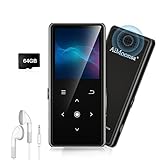
- ★【64GB Large Storage & HIFI Lossless Sound】 Each MP3 Player is equipped with a 64GB large-capacity TF card, which allows you to download thousands of your favorite music. And through the powerful DSP audio decoder chip, the most original sound is presented to you. It can ensure the high sound quality of HIFI.(Supports TF cards up to 256GB.)
- ★【Upgraded Bluetooth 5.2 & Support Multiple Formats】 Latest Version Bluetooth 5.2 means that faster transmission speed, longer connection distance and stronger anti-interference ability.Reduced power consumption for more power savings. And support APE / FLAC / WMA / MP3 / ACELP and other lossless formats.
- ★【Built-in HD Speaker & Easy to Carry】 The MP3 player has built-in HD speakers, which can play music without earphones, and no longer need to feel the pain of wearing earphones. MP3 player length is 3.6", width is 1.7" and thickness is 0.35". The body is made of hard and light zinc alloy and weighs only 70 grams. Lightweight and easy to carry.
- ★【Multifunctional MP3 Player for Many Occasions】 Multiple functions in one, music play, FM radio (need to insert a wired headphones), voice recorder, e-book, Alarm clock. Touch buttons with backlight to solve the problem of button noise. Perfect for Sport, Sleeping, Reading, Leaning, Meeting etc.
- ★【Great Gift】Each package contains an MP3 player, wired earphones, a 64GB TF card, a card reader, and a Type-C data cable. It makes an ideal gift for your children, partner, parents, or family on birthdays, Christmas, Thanksgiving, and other special occasions. If you have any questions, feel free to contact us anytime.
Storage management is easier if you separate “followed” from “downloaded.” Following preserves the relationship with a show; downloading creates the local playback copy. Remove completed episodes after listening, then retain only the few items needed for the next offline period. If automatic downloads are filling the device, change the per-show or global Apple setting before deleting files so the space is not immediately consumed again.
Independent reader supportYour contribution helps us test, update, and keep practical guides available for everyone.Troubleshoot an episode that will not play offline
The episode shows a progress or cloud symbol
The transfer is incomplete or the app has not refreshed its library state. Reconnect to the internet, reopen the episode page and wait for the download indicator to finish. If storage is nearly full, remove other local media and retry. Do not interpret a thumbnail, title or play control as proof that the complete file is present.
It streamed online but fails in airplane mode
Streaming proves only that the service can reach the episode; it does not prove a local copy exists. Return online, use the app’s explicit Download command, wait for completion and test again with connectivity disabled. If the test fails, check storage and repeat the download rather than repeatedly pressing play while offline.
The Tool Desk
Outbyte Driver Updater FREEFix the driver behind crashes, sound loss and screen glitchesFind Drivers →Outbyte PC Repair FREERepair Windows errors before they cause bigger problemsFix Now →Apple downloaded sound but not the picture
Apple Podcasts treats audio-only as the default for video episodes. Open the relevant podcast or download settings and enable video downloads if visual content is required, then download the episode again. Confirm that the device has enough free storage for the larger file. If listening is sufficient, keep the audio-only copy and avoid the additional storage required for video.
Spotify says the download is unavailable after a long offline period
Reconnect the device to the internet. Spotify’s documented 30-day requirement means an extended offline period can invalidate availability even when the episode was previously downloaded. After reconnecting, check the download indicator and save the episode again if necessary. For future trips, schedule a connection before each 30-day interval ends.
Downloads disappeared after reinstalling Spotify
This is expected according to Spotify’s support guidance: reinstalling removes the local copies. Re-download the episodes while online and verify them before going offline. A reinstall should be treated as a reset of the offline library, not as a way to repair a single episode without rebuilding downloads.
Automatic downloads keep filling the device
On Apple Podcasts, disable automatic downloads for the individual show or globally in Podcasts settings. Then remove already-downloaded episodes you do not need. In either app, check mobile-data permissions and storage indicators so that future downloads occur only under the conditions you intend.
What’s actually slowing this PC down?
Pick the symptom - the matching free tool is one click away.
The menu does not match these steps
App interfaces change across operating-system releases, device types and account states. Look for the episode’s options or overflow menu and the command labeled Download, then confirm the resulting status indicator. The documented workflows here are platform-specific; an option in another podcast app may have a different name or retention rule.
Frequently asked questions
Can I download a podcast and listen without Wi‑Fi?
Yes. Download it while connected, wait for the completed state and test playback with airplane mode enabled. Apple explicitly describes downloading episodes for offline listening, and Spotify supports podcast downloads for both free and Premium users.
Do I need Spotify Premium to download podcasts?
No. Spotify says podcast downloads are available on the free version as well as Premium. The Premium-only restriction described in its offline help applies to music downloads.
How many episodes does Apple Podcasts download automatically?
Apple’s documented rules depend on show type. An episodic show generally downloads its latest episode. A serial show generally downloads the first three episodes, with season and complete-series settings able to change the selection. Download a specific older episode manually.
Free tools Windows power users keep installed
One-click scans. No signup required.
Can I stop Apple Podcasts from downloading every new episode?
Yes. Turn off automatic downloads for an individual show, or change the Podcasts setting that stops future automatic downloads across followed shows. Existing local copies may remain until you remove them separately.
Rank #4

- 【32GB Large Storage】The portable MP3 player comes with a 32 GB memory SD card and support up to 128GB(not included). Play music with MP3/Voice record/FM Radio/E-book support TXT format/ photo view / video with AMV format.
- 【Easily to Operate 】Designed with Independent Volume Control, Give you a more user-friendly experience.Can also be used as a memory Card reader or for file storage;Built in high speed Mini USB 2.0 cables,Just drag and drop the music file or folder directly when connecting to computer.
- 【HIFI Lossless Sound Quality】It adopts professional intelligent digital noise reduction chip and superb circuit optimization technology to reduce noise, ensuring high sound sampling rate and providing high quality sound.
- 【Long Battery Life&Portable and Lightweight】MP3 player allows you enjoy real lossless music up to 10 hours. And it fully charged within 1-2 hours. Economy and fashion Noise canceling Voice Recorder; Simple files management.Fashionable and exquisite appearance,Perfect for your entertainment and learning,outdoor and gym fitness.
- 【12 Month Warranty】We have a professional after-sales service team. If you encounter any problems, please feel free to contact us directly and you will get a quick response and a satisfactory response. Your satisfaction is our only pursuit.
Why did Apple save audio instead of video?
Apple Podcasts downloads audio only by default for video episodes. Enable video downloading when you need the visual track, then download the episode again and confirm there is enough storage.
How often must I open Spotify online?
Spotify states that the device must connect to the internet at least once every 30 days for downloaded content to remain available. Reconnect within that interval during extended offline use.
Will Spotify downloads survive an app reinstall?
No. Spotify’s help guidance says downloads must be downloaded again after reinstalling the app. Plan to rebuild and test the offline library while connected.
Recommended Free Tools
Does following a show mean every episode is offline?
No. Following can enable automatic downloading in Apple Podcasts, but the app selects episodes according to show type and settings. In either app, verify each required episode’s download indicator before disconnecting.
A reliable offline-listening routine
- Choose: select the exact episodes, seasons or series needed for the period without service.
- Connect: use a stable internet connection and keep the device powered during a large batch.
- Download: use the app’s explicit download control rather than relying on a play tap.
- Confirm: wait for the completed indicator and locate the episode in the library or downloaded view.
- Test: begin playback with airplane mode enabled.
- Maintain: reconnect Spotify within 30 days and repeat downloads after any Spotify reinstall.
- Clean up: delete local copies after the trip while retaining shows you still follow.
Following these checks prevents the most common failure: mistaking a playable stream or an automatic-download expectation for a verified offline file.
Frequently Asked Questions
Can I download a podcast and listen without Wi‑Fi?
Yes. Download it while connected, wait for the completed indicator and test playback with airplane mode enabled.
Do I need Spotify Premium to download podcasts?
No. Spotify supports podcast downloads on both free and Premium plans; Premium is required for music downloads.
PC Slower Than It Used to Be?
A free scan shows the junk files, broken settings and background clutter dragging Windows down - then fixes them in one click.Free scan · Windows 10 & 11Crashes, No Sound, or Screen Glitches?
Random freezes, missing sound and display glitches usually trace back to one bad driver. Find and replace yours safely.Free scan · under a minuteHow many episodes does Apple Podcasts download automatically?
Apple generally selects the latest episode for an episodic show and the first three for a serial show, with season and complete-series settings able to change the selection.
Why did Apple Podcasts download audio but not video?
Audio-only is Apple’s default for video episodes. Enable video downloads and save the episode again if you need the picture.
How often must Spotify reconnect to the internet?
At least once every 30 days, according to Spotify’s offline-listening guidance.
Will Spotify downloads remain after I reinstall the app?
No. Spotify says you must download the episodes again after reinstalling.
The Bottom Line
Download episodes on a reliable connection, wait for the completed indicator and test them offline before traveling. Apple Podcasts can automate downloads by show type and saves audio-only for video by default; Spotify allows podcast downloads on free and Premium plans but requires an internet connection at least once every 30 days. Control automatic downloads, mobile data and storage so your offline library contains exactly what you need.
Quick Recap
Product prices and availability are accurate as of the date/time indicated and are subject to change. Any price and availability information displayed on Amazon at the time of purchase will apply.

