To use Sony WH-CH720N headphones with two devices at the same time, pair the headset with both devices, connect the device running Sony’s companion app first, turn on Connect to 2 devices simultaneously, and then connect the second device from its Bluetooth settings. The headphones maintain two Bluetooth connections, but play audio from only one source at a time.
If playback stays on the first phone or computer, stop its audio and close its playback app when necessary. Some devices continue sending a silent audio stream, which can prevent the WH-CH720N from switching sources.
As an Amazon Associate I earn from qualifying purchases.
What the WH-CH720N multipoint feature does
Sony calls this feature multipoint. It allows the WH-CH720N to keep two Bluetooth connections active simultaneously—for example, a phone and a laptop, or two phones. You can then answer a call arriving on either connected smartphone without manually disconnecting and pairing again.
Multipoint is not two-channel playback. The headset reproduces music, video, or other audio from one device at a time. Starting playback on the other device normally moves the audio focus, although you may first need to stop the original source.
#1 Best Overall
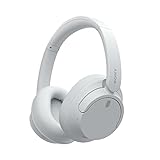
- SONY’S LIGHTEST WIRELESS NOISE CANCELING HEADBAND EVER: Weighing just 192g, our lightest overhead wireless headphones with Noise Canceling yet, for incredible comfort without compromising on technology.
- DUAL NOISE SENSOR TECHNOLOGY: Take noise canceling to the next level with Sony’s Integrated Processor V1, so you can fully immerse yourself in the music.
- ALL DAY COMFORT: Super comfortable and lightweight design.
- SMART FEATURES: Adjustable Ambient Sound mode and Adaptive Sound control features tailors sound to suit the environment around you.
- LONG BATTERY LIFE: Up to 35-hour battery life with quick charging (3 min charge for up to 1 hour of playback).(USB Type-C Cable included)
The headset can remember pairing information for up to eight devices. That stored-pairing limit is separate from the two-device active-connection limit. Pairing a ninth device replaces the oldest stored pairing information; it does not increase the number of devices that can remain connected together.
Connecting a third device also does not create a three-way connection. When another device connects, Sony says the device that most recently played music remains connected and the other active connection is disconnected.
What you need before starting
- The Sony WH-CH720N headphones with sufficient battery charge.
- Two Bluetooth-capable devices, such as an Android phone, iPhone, Windows computer, Mac, or tablet.
- Sony’s current companion app, Sony | Sound Connect, installed on the device you will use to configure the headset. The model-specific help guide may still display the app’s former name, Sony | Headphones Connect.
- Both devices within about 1 m (3.2 ft) of the headphones while pairing.
- Bluetooth enabled on both devices. If either device is already connected to another headset, disconnect that audio accessory temporarily to avoid selecting the wrong output.
The exact names or locations of controls inside Sony | Sound Connect can change as the app is updated. Look for the setting labeled Connect to 2 devices simultaneously rather than relying on a particular tab name.
Do these 3 things before closing this tab:
1Clear out junk files and repair common Windows errors2Fix the driver behind crashes, sound loss and screen glitches3Repair Windows errors before they cause bigger problemsStep-by-step: connect the WH-CH720N to two devices
1. Put the headphones into pairing mode
Turn on the WH-CH720N. For a headset that has already been used with another device, press and hold the power button for about five seconds or longer. Keep holding until the indicator flashes blue twice repeatedly and the voice guidance says “Pairing.”
Pairing mode remains available for about five minutes. If no pairing is completed during that period, the mode cancels and you must hold the power button again.
2. Pair the first device
- Open the first device’s Bluetooth settings.
- Choose the option to add or pair a new Bluetooth device.
- Select WH-CH720N when it appears.
- Wait for the device to report that the headphones are connected.
This first device should be the one on which you will open Sony | Sound Connect, because the multipoint switch is configured while that Bluetooth link is active.
3. Open Sony | Sound Connect on the first device
Launch Sony | Sound Connect after the initial Bluetooth connection is established. If the app asks you to select or register the headphones, choose WH-CH720N and allow it to finish connecting. The older WH-CH720N help guide refers to this app as Sony | Headphones Connect; the current product and support materials use Sony | Sound Connect.
4. Enable “Connect to 2 devices simultaneously”
In the companion app, open the WH-CH720N’s connection or device settings and switch on Connect to 2 devices simultaneously. App versions can place this control in different menus, so use the setting’s exact wording as your guide. Leave the headphones connected to this first device while enabling the option.
Pairing both devices without turning on this option is not enough. Without multipoint enabled, the headset may remember both devices but will normally maintain only one active Bluetooth connection.
5. Connect the second device
- On the second phone, computer, or other Bluetooth audio source, open Bluetooth settings.
- Find the list of available or previously paired devices.
- Select WH-CH720N.
- Wait for the second device to show a connected status.
Sony describes the result as two simultaneous Bluetooth connections. You can now leave both devices connected and start audio on whichever source you want to hear.
6. Test the handoff between sources
Start a short piece of audio on the first device, pause it, and start audio on the second. If the second source is silent, stop the first source completely. If it still holds the connection, close the first device’s music, video, podcast, or communications app and try again.
What’s actually slowing this PC down?
Pick the symptom - the matching free tool is one click away.
Phone-and-computer setup
The procedure is the same whether the second device is another phone or a computer. The extra check on a computer is its selected audio output.
Phone first, computer second
- Pair the WH-CH720N with the phone and connect it to Sony | Sound Connect.
- Enable Connect to 2 devices simultaneously.
- Open the computer’s Bluetooth settings and select the already-paired WH-CH720N.
- Open the computer’s sound controls and choose WH-CH720N as the Bluetooth output device.
- Stop phone audio before starting a computer video or music stream if the computer does not immediately take over.
A computer can show the headphones as connected for calls while still routing music through its speakers. Selecting WH-CH720N as the output separates that operating-system setting from the Bluetooth connection itself.
Two-phone setup
- Pair the first phone and use it to enable multipoint in Sony | Sound Connect.
- From the second phone’s Bluetooth menu, select WH-CH720N.
- Pause media on the first phone before starting media on the second.
Both connected smartphones can wait for incoming calls. During a call, Sony documents call tones from the other connected phone, but multipoint should not be treated as a mixer for two calls or two music streams.
Rank #2

- SONY’S LIGHTEST WIRELESS NOISE CANCELING HEADBAND EVER: Weighing just 192g, our lightest overhead wireless headphones with Noise Canceling yet, for incredible comfort without compromising on technology.
- DUAL NOISE SENSOR TECHNOLOGY: Take noise canceling to the next level with Sony’s Integrated Processor V1, so you can fully immerse yourself in the music.
- ALL DAY COMFORT: Super comfortable and lightweight design.
- SMART FEATURES: Adjustable Ambient Sound mode and Adaptive Sound control features tailors sound to suit the environment around you.
- LONG BATTERY LIFE: Up to 35-hour battery life with quick charging (3 min charge for up to 1 hour of playback).(USB Type-C Cable included
Two useful setup patterns
For a workday setup, use your phone as the first device because it can run Sony | Sound Connect, then add a Windows PC or Mac as the second device. Keep the computer’s output selector open during the first test so you can choose WH-CH720N explicitly. This avoids confusing a successful Bluetooth connection with audio actually routed to the headset.
Recommended Free Tools
For two phones, designate one as the app device and leave the other for calls or media. The order matters only during configuration: the app device must be connected when you enable multipoint. After the switch is on, either phone can be the source you start or resume.
You can also pair a tablet or another Bluetooth audio source instead of a phone or computer. The essential requirements do not change: the source must support Bluetooth audio, it must be paired with WH-CH720N, and it must be selected from that device’s own Bluetooth menu.
How to switch listening from one device to the other
Multipoint keeps the links available; it does not create a manual source selector on the headphones. To change sources:
- Pause or stop the current audio on the device you are hearing.
- If the next device remains silent, close the first device’s playback app rather than leaving it paused in the background.
- Start playback on the second device.
- For a computer, confirm that WH-CH720N is still selected as its Bluetooth output.
Some phones and computers continue transmitting a silent stream after the visible song or video is stopped. The WH-CH720N can interpret that stream as an active source, so closing the app is sometimes required before the other device can play.
Outdated Drivers Are Slowing You Down
One free scan finds every outdated or missing driver and matches the right update for your exact hardware.Free scan · exact hardware matchPC Slower Than It Used to Be?
A free scan shows the junk files, broken settings and background clutter dragging Windows down - then fixes them in one click.Free scan · Windows 10 & 11When switching, allow a moment for the first stream to release before repeatedly pressing play on both devices. Repeatedly starting both sources can make it unclear which device currently owns the audio focus. Stop one source, close its app if necessary, and then start only the desired source.
Pairing, connecting, and remembering are different
| Term | Meaning on the WH-CH720N | What you can expect |
|---|---|---|
| Pairing | Registering a device with the headphones and exchanging Bluetooth information. | The device is saved so it can be selected again later. |
| Connected | An active Bluetooth link between the headphones and a device. | With multipoint enabled, two devices can hold active links at once. |
| Remembered | Pairing information stored in the headphones. | Up to eight devices can be stored, even though only two can be active together. |
| Playing | The source currently sending audible media to the headset. | Only one device supplies normal music or video audio at a time. |
This distinction explains why a device can appear in the headset’s history yet not be connected, and why two devices can show connected while only one produces sound.
What happens when calls arrive
Two connected smartphones can remain available for incoming calls. A call may take priority over music, and Sony’s model guide describes hearing call tones from the other connected phone during an existing call. That behavior does not mean the headset mixes both calls or lets two independent music streams play together.
If a call does not appear to interrupt media, check which phone is actually connected and whether the other phone has retained the WH-CH720N as its active Bluetooth device. Multipoint preserves the links, but phone operating systems still control their own call and media routing.
The Tool Desk
Outbyte PC Repair FREERepair Windows errors before they cause bigger problemsFix Now →Outbyte Driver Updater FREEFix the driver behind crashes, sound loss and screen glitchesFind Drivers →Troubleshooting multipoint problems
The second device cannot find WH-CH720N
- Confirm that the headphones are actually in pairing mode: hold the power button for about five seconds or longer until the blue indicator repeatedly flashes twice and the voice guidance says “Pairing.”
- Keep the second device within about 1 m (3.2 ft) of the headset during pairing.
- Search again for WH-CH720N in Bluetooth settings rather than selecting a similarly named saved device.
- If more than five minutes have passed, pairing mode may have timed out. Turn pairing mode on again and repeat the search.
- If the first device is occupying the headset, temporarily disconnect it from Bluetooth while registering the second device, then reconnect both after multipoint is enabled.
The second device connects but produces no sound
- Open Sony | Sound Connect on the first device and verify that Connect to 2 devices simultaneously is enabled.
- Stop audio on the first device.
- Close the first device’s playback app if stopping leaves a silent stream active.
- Start playback on the second device.
Do not assume that a connected status means the second device has audio priority. Multipoint handles the wireless links, while each device’s playback app decides whether it is actively sending media.
Computer shows connected, but sound comes from its speakers
Open the computer’s sound or audio-output controls and select WH-CH720N. Bluetooth pairing and the operating system’s current output selection are separate settings. After choosing the headset, stop any phone audio that is still active and start the computer stream again.
A third device keeps disconnecting one of the others
Two active connections are the multipoint limit. When a third device connects, one of the existing links is displaced; Sony states that the device that most recently played music remains connected and the other connection is disconnected. Disconnect the extra device, then select WH-CH720N again on the device you want to restore.
Playback switches unreliably after pausing
Some devices keep an audio session open even when the user interface appears paused. Stop the stream, force-close the relevant playback app if needed, and then start audio on the other device. If the problem affects only one app, test with a different audio app to identify whether the silent-stream behavior is coming from that application.
Free tools Windows power users keep installed
One-click scans. No signup required.
Calls interrupt music unexpectedly
Both connected smartphones can remain ready for incoming calls. A call can take priority over music, and Sony documents notification tones from the other connected phone during an ongoing call. The feature is designed to keep two phones available, not to combine two calls or mix independent music streams.
Rank #3
- This Certified Refurbished product is manufacturer refurbished, shows limited or no wear, and includes all original accessories plus a 90-day limited hardware warranty.
- Dual Noise Sensor Technology and an Integrated Processor V1 takes noise cancelling to the next level. Now you can fully immerse yourself in the music.
- Featuring a slimmer, lightweight headband, these headphones have been re-structured to create more space and comfort for the ears.
- Adjustable Ambient Sound mode offers 20 level settings. You’ll be able to listen to your music with incredible sound quality while still hearing sounds like traffic noise, café conversations, and transport announcements.
- Keep your music playing all day with a battery life that delivers up to 35 hours of power.
Managing the eight-device pairing memory
The WH-CH720N can retain pairing information for up to eight devices. You do not need to delete an old pairing merely to use two devices in multipoint mode; the active-connection limit and the stored-pairing limit are independent.
When you add a ninth device, the oldest stored pairing information is overwritten. If a previously used device no longer reconnects automatically after that point, select WH-CH720N from that device’s Bluetooth menu and pair it again. Keep the headset near the device during the new pairing attempt and complete it before the five-minute pairing window closes.
Remembered devices are not all competing for connections. A device that is stored but turned off, out of range, or not selected in Bluetooth settings is simply inactive. The two-device limit applies to active Bluetooth links, not to the number of names shown in a phone’s saved-device list.
Do you need an adapter or cable?
No accessory is required for this two-device setup. The WH-CH720N’s multipoint function uses its Bluetooth connections, so an additional cable, Bluetooth adapter, replacement part, or special app is not a prerequisite. The only software requirement is Sony’s companion app for enabling the setting.
Sony’s U.S. product page lists the WH-CH720N at a $179.99 MSRP on the current page accessed in 2026, although sale prices and promotions can change. That price is for the headset itself and is unrelated to the connection steps.
Quick checklist
- Both devices show WH-CH720N as paired.
- The device running Sony | Sound Connect is connected first.
- Connect to 2 devices simultaneously is enabled in the app.
- The second device is selected from its own Bluetooth settings.
- Only one source is actively playing at a time.
- The previous source is stopped or its playback app is closed when switching fails.
- WH-CH720N is selected as the computer’s audio output when a computer is involved.
- No third device is competing for one of the two active connection slots.
Frequently Asked Questions
Can the Sony WH-CH720N play audio from two devices at once?
No. Multipoint keeps two Bluetooth connections active, but the headphones play normal music, video, or other media from one device at a time. Stop the first source before starting the second if the handoff does not occur.
How do I turn on multipoint for the WH-CH720N?
Connect the headphones to one device, open Sony | Sound Connect (called Sony | Headphones Connect in some older guides), and enable Connect to 2 devices simultaneously. Then select WH-CH720N in the second device’s Bluetooth settings.
Can I connect the WH-CH720N to my phone and laptop?
Yes. Pair both devices, enable multipoint from the phone running Sony | Sound Connect, choose WH-CH720N on the laptop, and select WH-CH720N as the laptop’s audio output.
Why will the second device connect but stay silent?
Stop playback on the first device and close its music, video, podcast, or communications app if necessary. Some devices continue sending a silent stream that keeps the headset attached to the first source.
How many devices can the WH-CH720N remember?
The headset can store pairing information for up to eight devices, but only two can be connected simultaneously with multipoint. Adding a ninth pairing overwrites the oldest stored pairing information.
What happens if I connect a third device?
Multipoint supports two active connections. A third connection displaces one of the existing links; Sony says the device that most recently played music remains connected while the other is disconnected.
Quick wins for a faster PC:
Scan for outdated or missing drivers - takes under a minuteDriver Scan →Clear out junk files and repair common Windows errorsFree Scan →Fix the driver behind crashes, sound loss and screen glitchesFind Drivers →How close should devices be when pairing?
Sony recommends keeping the headphones and the device within about 1 meter (3.2 feet) during pairing. Pairing mode ends after about five minutes if no pairing is completed.
Can both connected phones receive calls?
Both connected smartphones can wait for incoming calls. Sony documents call tones from the other connected phone during a call, but the feature does not mix two calls or two music streams simultaneously.
The Bottom Line
Pair both devices, connect the app device first, enable Connect to 2 devices simultaneously in Sony | Sound Connect, and then connect the second device. The WH-CH720N keeps two links active but plays one source at a time; stop or close the first source when switching does not work.
Quick Recap
Product prices and availability are accurate as of the date/time indicated and are subject to change. Any price and availability information displayed on Amazon at the time of purchase will apply.

