Quick wins for a faster PC:
Scan for outdated or missing drivers - takes under a minuteDriver Scan →Clear out junk files and repair common Windows errorsFree Scan →Google’s Connected Cameras feature lets an eligible Pixel host switch between its own camera and one other Pixel in supported mobile apps. It does not document combining several Pixel video feeds at the same time. For simultaneous angles, you need a separate computer-based production workflow; Google’s built-in feature is a one-external-camera switching system.
What you can connect—and what you cannot
Pixel’s Connected Cameras feature is designed for changing viewpoints during a livestream, not for building a multi-camera video mixer. A host Pixel can use its own camera and connect to one external camera at a time. The Camera Picker then lets you switch the active view. To connect another external camera, you must disconnect the first one.
As an Amazon Associate I earn from qualifying purchases.
Google’s help documentation does not describe a mode that combines two or more Pixel feeds simultaneously inside the phone. In practical terms, a two-phone setup can give you a host angle and one alternate angle, with a countdown before the view changes. It is not the same as showing both angles side by side, placing one in a picture-in-picture window, or cutting between several feeds automatically.
Free tools Windows power users keep installed
One-click scans. No signup required.
For the native route, both devices must meet Google’s model requirements, use the same Google Account, have cross-device services enabled, and be used with a supported app. The documented apps are Facebook, YouTube, Instagram, Snapchat and TikTok.
#1 Best Overall

- [Versatile Design] RISEOFLE 71'' Phone Tripod and Selfie Stick combo is the perfect accessory for all your cell phone photography needs.The high-quality aluminum alloy telescopic pole allows you to extend effortlessly and smoothly, and turns into a tripod with just one pull. Its sturdy yet lightweight design provides stability and reliability, ensuring that your phone or camera stays safe during use. Ideal for Selfies/Live/Video Recording/Travel
- [Extra Tall 71" Adjustable Phone Tripod] This selfie stick tripod features a 7-section adjustable aluminum telescoping pole that adjusts from 12.2 in (31 cm) to 70.86 in (180 cm). Provides exceptional flexibility for shooting a variety of shots. Whether you're taking a selfie, a group photo or shooting a video, the adjustable height ensures you get the best angle every time.
- [Compact & Portable Design] The RISEOFLE phone tripod stand With a folded length of only 31cm (12.2 in) and a weight of 264g (0.58 lb), extremely portable and easy to store, it can be effortlessly placed into your backpack or carry-on luggage, making it the perfect companion for your travels. Wherever you go, it allows you to capture amazing footage with ease.
- [360° Rotation & Wide Compatibility] Featuring a 360° rotating phone holder, this selfie stick tripod allows you to easily switch between portrait and landscape modes for the best viewing angle. The universal holder fits smartphones with widths of 2.6''-3.6'' (4''-7'' screen size) and is compatible with most cameras, action cams, and webcams via the 1/4” screw mount (Note: the remote control function only applies to cell phones, the camera cannot use the remote control function).
- [Perfect for Content Creation] Ideal for selfies, vlogging, and social media content creation, the RISEOFLE Tripod comes with a wireless remote control for hassle-free shooting. Whether you're on Instagram, YouTube, TikTok, or Twitter, this phone stand for filming helps you capture professional-quality photos and videos with ease.
Google’s official instructions are in Connect external cameras to your Pixel device. Read the model caveat below before buying mounts or planning a shoot around this feature.
Choose the right workflow for your livestream
| Workflow | Host device | What it does | Connection requirements | Camera limit or behavior |
|---|---|---|---|---|
| Connected Cameras | Eligible Pixel phone | Switches between the host Pixel and one connected Pixel camera inside a supported mobile app | Same Google Account on both phones, cross-device services enabled, Connected Cameras enabled on the eligible Pixel | One external camera at a time; the active camera supplies the current view and audio |
| Pixel as a USB webcam | Computer with USB Video Class support | Presents a Pixel as a webcam to a computer | USB cable that supports data; select Webcam from the phone’s USB notification | Google documents the phone-to-computer webcam connection, but not a specific multi-Pixel mixing setup |
Use Connected Cameras when you want a quick two-angle presentation and can switch manually. Consider the USB webcam route when a computer is the host and you need to investigate a separate production application that can accept multiple webcam sources. Google’s webcam documentation does not establish that any particular desktop streaming program will combine several Pixel feeds, so test the software and hardware before a live event.
Check Pixel compatibility before setup
Pixel-to-Pixel eligibility
Google lists Pixel 6 and later as supporting Pixel-to-Pixel connections through Connected Cameras, with two stated exclusions: Pixel 10 and Pixel A-series devices are not supported as another Pixel camera through this path. The support page does not provide a complete operating-system build or regional rollout matrix, so an eligible model is necessary but may not be the only condition affecting availability.
Do these 3 things before closing this tab:
1Clear out junk files and repair common Windows errors2Fix the driver behind crashes, sound loss and screen glitches3Repair Windows errors before they cause bigger problemsPixel 10 and A-series phones from Pixel 6a onward are listed for connections to GoPro and USB cameras, but not for using another Pixel as the external camera. Do not assume that a newer A-series phone can act as the second Pixel merely because it is recent.
Rank #2

- FEATURE: the tripod phone mount is adjustable by screw mechanism, 360 degree rotating, vertical(portrait mode) and horizontal(landscape mode) or any angle as you need, not necessary to take your cell phone out of a standard tripod or small tripod.
- EASY TO USE: two options for using tripod phone holder: 1. screw it directly to the tripod or selfie stick with pivoting arm, being able to 360 degrees rotating, 2. remove the phone clamp from pivoting arm and then mount on a tripod or monopod.
- ADJUSTABLE WIDTH: 2.2inch-4.1inch(55mm-105mm), attachable to any regular-size smartphone, tripod, selfie stick, monopod or camera; two standard 1/4 x 20mm female thread interfaces meeting your various needs. Very functional and compact.
- MATERIAL: the black part made of sturdy plastic, the female threads inserted are brass, the male screw is steel and soft non-slipping silica gel pads, which protect your cellphone from scratch and hold the phone securely.
- ATTACHABLE TO: most mobile phones, tripods, unipods, selfie sticks, cameras, camcorders, pico projectors, including iPhone 11/11 Pro/11 Pro Max/X/XS/XR/XS Max/8/7/6/6s Plus/SE/5s/5/5c, Samsung Galaxy S10/10+/S9/S9+/S8/S8+/S7/S6/S6 edge, Note10/10+/9/8 and Android phones.
Account and service checks
- Sign both phones into the same Google Account.
- Enable cross-device services on both phones.
- Confirm that Connected Cameras appears under Settings → Connected devices → Connection preferences on the host Pixel.
- Install and sign in to one of the documented supported apps: Facebook, YouTube, Instagram, Snapchat or TikTok.
If the Connected Cameras menu or a device does not appear, recheck the model exclusion first. Google does not publish a universal guarantee that every region, software build or account state exposes the feature at the same time.
Prepare the physical two-phone shot
The software connection does not position either phone. Put each device where its lens has a clear view, and secure it so a cable, hand movement or vibration cannot change the framing during the broadcast. An adjustable phone tripod mount can help with positioning, but it is optional and does not create the wireless connection or increase the number of cameras.
- Choose which Pixel will host the livestream and which will be the alternate camera.
- Keep both phones charged; camera use and mobile data or Wi-Fi can consume power quickly.
- Frame the alternate angle before opening the Camera Picker so the first switch is predictable.
- Leave enough physical clearance to operate the host phone without bumping its mount.
- Rehearse the countdown and the moment at which the audience sees the new angle.
These are production precautions rather than additional Google requirements. A mount can stabilize a shot, but it cannot make an ineligible Pixel connect.
Crashes, No Sound, or Screen Glitches?
Random freezes, missing sound and display glitches usually trace back to one bad driver. Find and replace yours safely.Free scan · under a minutePC Slower Than It Used to Be?
A free scan shows the junk files, broken settings and background clutter dragging Windows down - then fixes them in one click.Free scan · Windows 10 & 11Connect a second Pixel with Connected Cameras
- Enable the feature on the host. On the Pixel that will run the livestream, open Settings → Connected devices → Connection preferences → Connected Cameras and turn the feature on.
- Open a supported livestream app. Start the camera or live-broadcast flow in Facebook, YouTube, Instagram, Snapchat or TikTok. The documented picker is tied to supported apps; do not assume that every livestream app exposes it.
- Open the Camera Picker. Use the app’s camera-selection control to add an external camera. The exact on-screen placement can vary by app, but the action is the Camera Picker’s add-device flow.
- Select the other Pixel. Choose the eligible Pixel shown in the picker. Both phones must be signed into the same Google Account and have cross-device services enabled.
- Approve the request on the second phone. The external Pixel displays a prompt. Approve it on that device to authorize the connection.
- Switch to the desired view. Select the host camera or the connected Pixel in the picker. Google says a countdown appears before the view changes, so wait for the transition rather than moving the phone immediately.
- Monitor the active camera. The camera currently in use supplies the live picture and the audio source. If you switch views, the audio source changes with the active camera.
The connection is a one-external-camera arrangement. To use a different Pixel, disconnect the current external device first, then add the replacement through the picker.
Rank #3

- 【Upgraded with Height Adjustable Tripod Stand】Unlike standard tracking mounts, our version includes a detachable, adjustable tripod base for extra stability and versatile placement. Perfect for desktop recording, yoga sessions, or family photos.
- 【Smart 360° Face & Body Tracking】 Built-in AI chip enables seamless 360° rotation to follow your movement in real time. Automatically adjusts angles when sitting or standing to keep you centered in every shot.
- 【Hands-Free Gesture Control + Remote】Easily control recording with simple hand gestures: make an OK sign to start, show your palm to pause, and use a V-sign to lock face tracking. Alternatively, use the Bluetooth remote to quickly connect with your phone for taking photos or recording videos without touching the screen.
- 【Rechargeable & Long-Lasting】Enjoy 6–7 hours of continuous use on a full charge. Quickly recharges via Type-C port in just 2 hours, keeping you powered for vlogs, livestreams, or long content sessions at home or on the go.
- 【No App Needed + Multi-Angle Compatibility】Ready to go out of the box — no app installation required. Standard 1/4" screw fits any tripod; phone holder fits all smartphones and supports vertical or horizontal shooting.
How switching works during the broadcast
Host view versus external view
The host Pixel remains the device running the supported app and livestream. The connected Pixel supplies an alternate camera view. You can select either camera when the app presents the picker, but the documented workflow does not provide a simultaneous composite of both feeds.
The countdown matters
Google says a countdown appears before the view changes. Tell anyone on camera that a switch is coming, and rehearse the timing so the countdown does not interrupt a sentence or demonstration. A cut between angles is therefore a deliberate action, not an instantaneous multi-camera effect that happens without warning.
Audio follows the camera in use
Connected Cameras routes audio from the camera currently being used. A switch can therefore change the microphone source as well as the picture. Google cautions that using a Bluetooth audio source may degrade streaming quality. If consistent sound matters, test the exact microphone arrangement and switching sequence before going live rather than assuming the host phone’s audio will remain selected.
The Tool Desk
Outbyte Driver Updater FREEFix the driver behind crashes, sound loss and screen glitchesFind Drivers →Outbyte PC Repair FREEClear out junk files and repair common Windows errorsFree Scan →Use the supported apps—and know the limits
| Supported app named by Google | Native Connected Cameras use |
|---|---|
| Listed as supported for the Camera Picker workflow | |
| YouTube | Listed as supported for the Camera Picker workflow |
| Listed as supported for the Camera Picker workflow | |
| Snapchat | Listed as supported for the Camera Picker workflow |
| TikTok | Listed as supported for the Camera Picker workflow |
The list is not a promise that every version of every livestreaming application supports the picker. It also does not establish support in desktop broadcast software, browser-based services or apps that are not named by Google. If your intended destination is outside this list, treat the native Pixel-to-Pixel method as unconfirmed until you can see the Camera Picker in that app on your own devices.
Rank #4
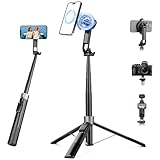
- 【2 IN 1 Powerful Magnetic Phone Tripod】Just snap your phone on and go. Equipped with ultra-strong N52 magnets, Victiv magnetic tripod for iphone locks your smartphone securely in 1 second and enables instant portrait-to-landscape switching. Extra mobile phone holder design provides dual options. Perfect for selfies, live streaming, video calls, gym recordings, filming and content creation
- 【4-axis Flexible Adjustment】With the combination of 270° neck rotation and 180°& 360° head rotation, flexible cellphone tripod stand enables crystal-clear photos and smooth video recording from any angle. Whether it's an overhead shot of a product close-up or full-body portrait photography, adjustable phone stand for recording can handle both with ease
- 【Dual-Camera Setup Design】Phone camera stand has an extra 1/4" screw head for content creators to connect a sport camera, ring light, or other gear for dual camera shooting. Magnetic phone tripod stand is fully compatible for iPhone 17/16/15/14/13/12 Pro Max Series and Mag-Safe Cases. The included magnetic ring extends compatibility for all Android phones and non-magnetic cases
- 【70" Tall Travel Tripod】At just 0.9lb and collapsing to 11.2", this portable tripod for cell phone extends to 70" and transforms instantly between 4 modes: selfie stick, desktop tripod, floor tripod and handheld tripod, satisfying all your photo-taking needs, perfect companion for travel vlogging and adventure photography
- 【Ultra-Stable & Rechargeable Remote】The selfie stick tripod with remote delivers superior stability through its extended legs and integrated metal frame. Its innovative magnetic leg prevent pinching when folding, while the included rechargeable wireless remote can take multiple photos within 10m/33ft
When you need a computer instead
Google documents a separate feature that turns a Pixel into a USB webcam. This is not an extension of Connected Cameras and does not, by itself, create a multi-phone studio.
Requirements for USB webcam mode
- A Pixel that supports Google’s webcam feature.
- A USB cable that supports data, not only charging.
- A host computer with USB Video Class (UVC) support.
- The correct connector arrangement for the phone and computer.
Connect the Pixel to the computer
- Connect the Pixel to the computer with the data-capable USB cable.
- On the phone, open the USB connection notification.
- Select Webcam from the USB options.
- Choose the Pixel as the camera in the computer application that supports UVC webcams.
Google says the phone charges normally while it is in webcam mode. If a video call or another application that requires camera access starts on the phone, the webcam stream pauses and resumes afterward. Plan for that interruption if the phone is also being used for another camera-dependent task.
The USB route is useful when the computer is the production host, but Google’s documentation does not identify a particular desktop streaming application that can combine several Pixel webcam feeds. You would need to confirm that capability, input count, synchronization behavior and audio routing in the software you choose. Do not describe the USB webcam setting as a built-in replacement for a multi-feed mixer.
Two practical setups
Setup A: two Pixel angles with manual switching
- Use an eligible Pixel 6-or-later model that is not Pixel 10 or an A-series device as the host, and verify the second phone is eligible for Pixel-to-Pixel use.
- Sign both phones into the same Google Account and enable cross-device services.
- Enable Connected Cameras on the host through the specified Settings path.
- Open one of Google’s supported apps and add the second Pixel through the Camera Picker.
- Frame both phones, check audio on each, and rehearse a switch.
- During the livestream, select the active camera when you want to change angles, allowing for the countdown.
This arrangement is the closest match to the title’s “multiple phones” wording, but it remains one active external camera plus the host camera. It is appropriate for a presenter who wants a front view and a second position, not for displaying both feeds simultaneously.
Best Value

- Dual Cold Shoe Mounts: This phone tripod mount features 2 rotatable cold shoe mounts for attaching microphones, LED lights, and other accessories. Easily adjust accessory angles for photography, video recording, and vlogging.
- Universal 1/4"-20 Thread: The smartphone tripod adapter features a standard 1/4"-20 threaded mount for compatibility with tripods, selfie sticks, monopods, cameras, stabilizers, and other compatible photography accessories.
- 360° Rotation & 180° Tilt: Adjust your phone angle with 360° rotation and 180° tilt to switch easily between portrait and landscape orientations. The adjustable phone mount allows flexible positioning without an additional ball head.
- Wide Phone Compatibility: This universal cell phone tripod mount fits smartphones measuring 2.16"–3.7" wide (5.5–9.4 cm), including iPhone 18 Pro Max and Samsung Galaxy S26 Ultra. For the best fit, avoid clamping directly over side buttons. With thick cases or protruding buttons, adjust the clamp position slightly higher or lower.
- Secure, Non-Slip Grip: Thick, non-slip silicone pads help hold your smartphone securely and protect it from scratches. The adjustable phone clamp accommodates compatible devices with many types of phone cases for stable mounting during photos and videos.
Setup B: investigating a computer-based multi-camera workflow
- Connect each Pixel intended as a webcam to the computer with a data-capable USB cable.
- On each phone, select Webcam from the USB notification.
- Verify that the computer recognizes each phone as a UVC camera.
- In the desktop production application, check whether multiple camera inputs can be added and whether the application can switch or combine them.
- Choose and test the audio source separately; USB webcam availability does not prove that audio will follow the video input you expect.
- Run a complete rehearsal, including disconnects, phone notifications and any application that might claim camera access.
This is a computer-hosted investigation rather than a capability Google attributes to Connected Cameras. The exact result depends on the computer software and its support for multiple UVC sources.
Troubleshoot a Pixel that will not appear
The second phone is missing from the picker
- Confirm that both phones are signed into the same Google Account.
- Check that cross-device services are enabled on both devices.
- Verify the model: Pixel 10 and Pixel A-series phones are excluded from Pixel-to-Pixel Connected Cameras use.
- Confirm that Connected Cameras is enabled on the host under Settings → Connected devices → Connection preferences.
- Make sure you are testing in one of the apps Google lists as supported.
Google does not publish a complete build-by-region availability table in the cited instructions, so an absent menu may require checking the phone’s software availability or support status rather than changing a production setting.
A different camera is already connected
Connected Cameras permits only one external camera at a time. Disconnect the current external Pixel before attempting to add another. The picker is a switch between the host and the connected external device, not a list of several simultaneously active Pixel feeds.
The view changes but the sound is wrong
Because audio comes from the camera currently in use, check the microphone on both phones and rehearse every planned switch. If Bluetooth audio is involved, test it carefully: Google warns that Bluetooth audio can reduce streaming quality.
The computer does not recognize the Pixel as a webcam
- Replace a charge-only cable with one that supports data.
- Check that the computer supports USB Video Class.
- Open the phone’s USB notification and select Webcam rather than leaving the connection in a charging or file-transfer mode.
- Check whether another phone application has claimed camera access; Google says the webcam stream pauses when a video call or another camera-requiring app starts.
Rehearse the failure points before going live
- Camera identity: Label which phone is host and which is external so the wrong device is not approved during setup.
- Switch timing: Practice the countdown and identify a natural pause in the presentation for each angle change.
- Audio continuity: Speak while each camera is active and verify which microphone the audience receives.
- App compatibility: Confirm that the exact supported app and account can open the Camera Picker before announcing the event.
- Power and mounting: Secure each phone and provide charging without blocking a lens or the USB connection.
- Recovery: Decide which host-camera shot you will use if the external Pixel disconnects; the native workflow does not provide a second external backup at the same time.
A short private or unlisted rehearsal is more informative than checking only whether the phones can see each other. It tests authorization, framing, countdown behavior, audio changes and the app’s actual camera controls in the same order you will use them on air.
Bottom line for a multi-Pixel livestream
For a phone-only broadcast, use Connected Cameras to pair an eligible host Pixel with one other eligible Pixel and switch between the two in Facebook, YouTube, Instagram, Snapchat or TikTok. The feature is not documented as a simultaneous multi-phone mixer, and Pixel 10 and A-series models cannot use another Pixel through this connection path. If you need several feeds available to a computer, connect Pixels individually as USB webcams with data-capable cables and a UVC-capable host, then verify the separate production software’s multi-camera support.
Google’s primary references are Connect external cameras to your Pixel device and Use your Pixel phone as a webcam.
Quick Recap
Product prices and availability are accurate as of the date/time indicated and are subject to change. Any price and availability information displayed on Amazon at the time of purchase will apply.

