Recommended Free Tools
A “Windows 11 phone” is not a separate phone platform. Windows 11 runs on the PC. You have two different ways to use a phone with a monitor, keyboard, and mouse: connect the phone to a Windows 11 PC with Microsoft Phone Link, or connect a compatible Android phone directly to a monitor and run its desktop mode. The second route requires phone-model support for wired video; a USB-C socket alone is not enough.
First, choose the setup that matches your goal
The phrase “connect a Windows 11 phone” usually describes one of two very different arrangements. In the first, the phone remains a phone and Windows 11 shows selected phone functions in a PC window. In the second, the phone itself drives an external monitor and can provide a desktop-style interface. Your choice determines the required hardware and whether the PC is involved at all.
As an Amazon Associate I earn from qualifying purchases.
| What you want to do | Use this route | What actually runs the apps | Main requirements |
|---|---|---|---|
| Read messages, use supported phone apps, or view a phone screen inside Windows 11 | Microsoft Phone Link | The phone; Windows displays and controls supported functions | Windows 10 or 11 PC, supported Android or iPhone connection, and usually the same Wi-Fi network |
| Use a monitor as a larger workspace driven by the phone | Direct external-display mode | The compatible phone, using a desktop experience such as Samsung DeX, Motorola Mobile Desktop, or supported Android desktop windowing | Exact phone-model support for wired video, a compatible cable or adapter, a monitor input, and optional peripherals |
Phone Link is not a cable that turns a phone into a Windows desktop. Conversely, a direct HDMI connection does not put the phone’s apps inside Windows. Decide whether you need the Windows PC as the host or want the phone to be the host before buying an adapter.
The Tool Desk
Outbyte Driver Updater FREEScan for outdated or missing drivers - takes under a minuteDriver Scan →Outbyte PC Repair FREEClear out junk files and repair common Windows errorsFree Scan →What “Windows 11 phone” means in Microsoft’s documentation
Microsoft’s Phone Link requirements and setup documentation describes connecting an Android or iPhone to a Windows 10 or Windows 11 PC. Windows 11 is the computer’s operating system; it is not installed on the phone. Phone Link can expose notifications, messages, photos, calls, supported apps, or a phone-screen view, depending on the phone and feature availability.
#1 Best Overall
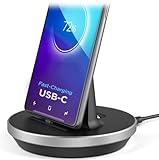
- This low-profile charging cradle makes the perfect desktop & nightstand companion for all USB-C powered smartphones and tablets.
- Fast Charge: supports fast charging for both Android and Apple devices.
- Case compatible design with an adjustable Type C connector that will securely reach the phone through most cases and covers.
- Sync compatible - the dock also allows the phone to sync with your computer without the need for any additional hardware or adapters.
- Experience the Encased difference. Our "Extra Mile" pledge backs every purchase with friendly and knowledgeable support from our dedicated team.
A direct monitor setup is a separate technology. The phone must support wired external video and, if you want windows and a taskbar-like workspace, a compatible desktop experience. Samsung documents DeX for compatible Galaxy devices, Motorola documents Mobile Desktop through Smart Connect on supported phones, and Google’s Android guidance limits desktop windowing on connected displays to supported devices. The exact model, software version, and market therefore matter more than the connector’s shape.
Route A: use phone apps from a Windows 11 PC with Phone Link
Check the requirements first
- The host must be a Windows 10 or Windows 11 PC.
- For the Android connection, Microsoft specifies Android 10 or later.
- Keep the phone and PC on the same Wi-Fi network for the basic setup and operation.
- The phone needs Microsoft’s Link to Windows companion capability. On supported Android 10-or-later models, it may be pre-installed; availability varies by device and market.
- Phone screen and some app features are limited to supported Android devices and select markets. An iPhone can connect to Phone Link for the features Microsoft supports, but the Android phone-screen workflow described below is not an iPhone feature.
Confirm the model and feature availability in Microsoft’s current requirements page before troubleshooting cables. A connection that succeeds for notifications may still lack Phone screen or app streaming.
Set up the phone and PC
- On the Windows 11 PC, open Phone Link from the Start menu. Sign in if the app requests a Microsoft account and choose the Android or iPhone path shown for your device.
- On an Android phone, install or open Link to Windows. If the phone includes a Link to Windows setting, open it from the phone’s settings or quick panel.
- In Phone Link, select the option to pair a new device. The PC normally displays a QR code.
- Use Link to Windows on the phone to scan that QR code, or follow the alternate pairing code shown by Phone Link if scanning is unavailable.
- Accept the requested permissions on the phone. Depending on the features you enable, these can include notifications, contacts, messages, calls, photos, or device access.
- Leave both devices connected to the same Wi-Fi network and finish the on-screen confirmation on the PC and phone.
Permission prompts are functional, not cosmetic. Declining notification or contact access prevents that category from appearing in Phone Link; it does not indicate a cable or Windows failure.
Use the phone from the PC
After pairing, Phone Link presents the features supported by your phone. You can respond to messages, review notifications, and use other listed functions without moving to the handset. On eligible Android devices, Microsoft also provides Phone screen, which opens a live phone-screen view in a PC window. Microsoft’s Use apps from your Android device on your PC page explains the supported app experience.
Rank #2

- COMPATIBILITY:USB-C charging stand is compatible with iphone15/16/17/Pro/Samsung/Andlroid devices and ipad 10/ipad mini6/ipad ar5/ipadoro /4/5/6.Too thick phone case will not be conducive to the use of this product, the thickness of the phone case is recommended not to exceed 2MM thickness
- INNOVATIVE DESIGN:This phone charging dock is not only a mobile phone charging device but also a mobile phone stand, 72° tilt design allows mobile phones to be in a visible and operable state at any time, convenient for timely use. At the same time, you can also watch videos, read, etc. while charging, no need to hold, more relaxed and comfortable.
- STABLE AND NOT HOT:Mobile phone charging using the traditional plug-in charging method compared to the magnetic suction method has the advantage of not heating and not easy to slip off, to ensure the stability and safety of charging
- MULTI-PURPOSE:The Charging Holder is made of extremely tough silicone, durable, smooth and reliable,which helps to keep the Charging Dock Holder brand new and free from wear and tear,guarding your device from possible damage. It is extremely convenient to use, especially suitable for your home,nightstand,bedroom,office and easy to pack up for travelling.
- LED POWER DISPLAY: you can observe the change of charging power value while charging, feel the ultimate experience brought by fast charging, and keep track of the charging progress bar at any time.
When Phone screen or supported app streaming is available, the PC keyboard and mouse can interact with the displayed phone interface. Microsoft cautions that some apps and games do not respond correctly to keyboard or mouse input. Touch gestures, hardware-specific controls, digital-rights restrictions, or an app’s own design can limit what works. The apps remain installed and running on the phone; the PC is displaying and relaying control rather than replacing the phone’s operating system.
For the detailed Phone screen flow, see Microsoft’s Setting up and using phone screen in Phone Link. That page also identifies supported-device and market limitations that can change as Microsoft adds or removes compatibility.
Phone Link problems and fixes
- The QR code will not pair: verify that both devices are on the same Wi-Fi network, update Phone Link and Link to Windows where updates are offered, and retry the pairing flow from a fresh session.
- Notifications or messages are missing: return to the phone’s Link to Windows permissions and enable the specific access that was declined. Check that the phone is not restricting the companion app in the background.
- Phone screen is absent: ordinary Phone Link pairing does not guarantee Phone screen. Check Microsoft’s supported Android and market requirements; if the exact model is not eligible, use the available Phone Link features rather than expecting a mirrored screen.
- The screen appears but a game or app ignores the mouse: this is a documented limitation for some apps and games. Use touch on the phone or the app’s supported input method.
- You expected a monitor connection: Phone Link displays content in a Windows window. It does not send the phone’s video signal to a separate monitor; use the direct-display route for that.
Route B: connect a compatible phone directly to a monitor
Verify wired video support for the exact model
Start with the phone manufacturer’s documentation for the complete model number, not just the product family. Google’s Android guidance on desktop windowing and connected displays explicitly limits the feature to supported devices. A USB-C port may handle charging and data while lacking DisplayPort video output. No passive USB-C-to-HDMI cable can add video capability that the phone does not provide.
Free tools Windows power users keep installed
One-click scans. No signup required.
Look for two separate confirmations:
- Wired external video: the phone can send a display signal through its USB-C port.
- Desktop experience: the phone offers movable windows or another monitor-oriented interface rather than only a duplicated handset screen.
If the manufacturer lists only wireless casting, a USB-C cable is not a supported substitute. If the documentation lists external display but not a desktop interface, expect simple mirroring or a limited display mode rather than a full desktop.
Rank #3

- ⚠️ Before purchasing, please verify that your USB-C device supports DisplayPort Alt Mode (DP Alt Mode). Without DP Alt Mode, this product cannot output video. Only charging and data transfer are supported. USB-C is for video input; HDMI is the video output.
- 【Desktop Experiences】 Connect your smartphones to a monitor, keyboard, and mouse for a desktop experience powered by your phone. So you can turn any place into a workplace.
- 【7-In-1 Docking Station】Thise multiport USB hu hash a 4K HDMI port, a Type-C PD charging port, a hidden Type-C extended cable, a USB 3.0 Port, two USB 2.0 Ports, and an SD/TF card reader.
- 【Fast Charging & Data Transmission】3.0 USB ports support transmission speed rates of up to 5 Gbps and connect to your smartphone, tablet, and hard drive for effortless data transfer, and the Type-C port supports PD power charging. Note: The charging power is up to 15W, you need a fast charging cable and adapter to make it work.
- 【4K Quality】Bring your entertainment to life with the docking station's HDMI port. Connect your device to an HDTV, monitor, or projector using an HDMI cable and enjoy up to 4K@30Hz high-definition video for a clear and immersive viewing experience.
Match the cable, adapter, and monitor input
The monitor must have an input that matches the signal path. Common wired combinations include USB-C-to-HDMI cables, a USB-C-to-HDMI adapter followed by an HDMI cable, or a USB-C hub with HDMI. The accessory must support video, not merely USB data or charging.
Samsung’s DeX support instructions list a DeX cable, USB-C-to-HDMI cable, or USB-C-to-HDMI adapter for compatible Galaxy phones. Motorola’s Smart Connect instructions call for a video-capable USB 3.1 USB-C cable or a USB-C-to-HDMI cable on supported phones. These requirements are model-specific examples, not a guarantee that every Galaxy or Motorola phone supports the feature.
Before connecting, identify the monitor’s physical input (for example, HDMI or USB-C), select a cable or hub rated for that signal, and make sure the monitor can be switched to that input. If you plan to attach USB peripherals through the same port, choose a multiport adapter that provides HDMI plus USB ports and, when needed, a way to keep the phone powered.
Quick wins for a faster PC:
Repair Windows errors before they cause bigger problemsFix Now →Fix the driver behind crashes, sound loss and screen glitchesFind Drivers →Connect the display
- Turn on the monitor and note the input you will use.
- Connect the video-capable cable or adapter to the phone. If you are using a hub, connect the hub to the phone first and the monitor cable to the hub’s video port.
- Connect the other end to the monitor’s matching input.
- Switch the monitor to that input.
- Watch the phone for a prompt to start DeX, Mobile Desktop, Smart Connect, or another supported external-display mode. Select or allow the desktop option when offered.
- If no prompt appears, open the manufacturer’s display or connected-device control on the phone and follow the model’s current instructions. Do not assume that a blank screen means the monitor is defective until the phone’s video support is confirmed.
Samsung’s DeX instructions and Motorola’s Smart Connect instructions use different labels and supported accessories, so follow the documentation for your exact phone rather than a guide for a similar-looking model.
Rank #4
![Yeebline Type C Charger Dock, [Aluminum Alloy] USB Type-C Charger Stand Cradle Charging Station Compatible with iPhone 15 Series, Nexus 6P/5X, OnePlus 3T/3/2 and Other USB-C Devices (Silver Aluminum)](https://m.media-amazon.com/images/I/31LP5NvKwYL._SL160_.jpg)
- This Yeebline charger dock specially designed for Type-C Devices. The dock is made from preminum aircraft aluminum material, radiating, durable, not easily deformed, anti-fire and anti-fall. Advanced technology ensure high-speed signal transmission.
- 3-in-1 type c dock with charge, dock and sync function. No matter use as dock or charge with Type C to USB cable or connect the dock to your laptop or desktop computer via a USB port to enable file syncing for all your music, videos and photos, it is very convenient.
- Built-in protection circuitry to prevent over charge, over discharge. High temperature molecular fireproof materials, safe and reliable, stable performance.
- Bottom adopt anti-slip design, the bottom of the dock sticked anti-slip silicone pad, increasing friction with the desktop, prevent slipping effectively. Stable and reliable, safe to use.
- Small size and compact style, easily carry to everywhere, make your phone charging become more convenient and convenient for travelers and business users.
Add a keyboard and mouse
Wired peripherals through a hub
A multiport USB-C adapter is the simplest wired arrangement when the phone supports both external video and USB peripherals. Connect the hub to the phone, connect the monitor to the hub’s HDMI or other video output, then plug the keyboard and mouse into the hub’s USB ports. The phone’s desktop mode should detect the input devices; if it does not, disconnect and reconnect one device at a time and confirm that the hub is a data-capable model.
Hub compatibility is still subject to the phone’s USB implementation. A phone that can output video may not support every hub, storage device, or power-delivery combination. Use the accessories listed by the phone maker when the manufacturer provides them, and avoid treating a charging-only adapter as a peripheral hub.
Bluetooth keyboard and mouse
Bluetooth avoids occupying the phone’s USB port. Put the keyboard and mouse into pairing mode, open the phone’s Bluetooth settings, select each device, and complete pairing. With DeX, Samsung documents pairing a keyboard and mouse as an alternative to connecting them through a hub. Motorola likewise describes using an external display with peripheral input in its Smart Connect documentation.
What’s actually slowing this PC down?
Pick the symptom - the matching free tool is one click away.
Pair the peripherals with the phone—not the Windows PC—when the phone is driving the monitor. If the keyboard works in Windows but not on the phone’s desktop, it is probably paired to the wrong host. Remove the old pairing or switch the accessory to its phone profile, then pair again.
Best Value

- 1. Charge While Viewing - USB C charging dock stand keeps your phone upright while powering up, so you can easily watch videos, join meetings, check messages, use FaceTime, or follow recipes hands-free. A practical phone charging stand for desk, bedside, kitchen counter, and office.
- Case-Friendly Type C Connector - Designed with an extended Type C charging dock connector, this USB C phone dock works with most standard phone cases, reducing the need to remove your case every time you charge. Convenient for everyday home and office use.
- Built-In Cable, Cleaner Setup - This charging dock station includes a built-in cable for a neater, more organized space. No messy wires on your desk or nightstand. A compact charging cradle solution for dorm rooms, workstations, travel setups, and bedside tables.
- Stable Stand for Daily Charging - Made of durable ABS material, this USB C charging stand helps hold your phone securely in an upright position while charging. Great for daily charging, video calls, alarms, streaming, and work-from-home setups.
- For Type-C phones: Compatible with iPhone 15 Pro Max Plus, Samsung Galaxy A3 / A5 / C5 Pro / S8, Oneplus two 2, Oneplus 3, Google Nexus 5X, Google Nexus 6P, Microsoft Lumia 950/950XL, Xiaomi 4c,LG G5, Huawei P9, HTC 10, HP Elite X3, Huawei honor 8, LG V20, and More Type C phone. Also compatible with Switch/Switch Lite.
Arrange the working space
Place the monitor on the input used by the phone and keep the phone accessible for prompts, fingerprint authentication, calls, or apps that do not support desktop input. A wired setup normally leaves Bluetooth available for other devices, while a Bluetooth keyboard and mouse leave the USB-C port free for video. Choose the arrangement based on your port count and whether you need a hub.
How the major direct-display experiences differ
| Experience | What the documentation establishes | What you must verify |
|---|---|---|
| Samsung DeX | Compatible Galaxy phones can use a DeX cable, USB-C-to-HDMI cable, or USB-C-to-HDMI adapter; Samsung also documents keyboard and mouse pairing. | Exact Galaxy model, current software support, monitor input, and whether your chosen cable or hub is listed. |
| Motorola Mobile Desktop / Smart Connect | Supported phones can use a video-capable USB 3.1 USB-C cable or USB-C-to-HDMI cable and accept external-display peripheral input. | Exact Motorola model, Smart Connect availability, cable video capability, and monitor input. |
| Android desktop windowing | Google describes connected-display desktop windowing only for supported Android devices. | Whether the specific phone and software build are enabled; Android branding alone does not establish support. |
These are phone-native experiences. They do not require Phone Link or a Windows 11 PC. You can still use the same monitor with a PC later, but the phone’s desktop session and the Windows session are separate inputs.
Troubleshoot a blank screen, missing input, or wrong mode
Nothing appears on the monitor
- Recheck the exact phone model’s wired-video support.
- Confirm that the cable or adapter is explicitly video-capable; charging and data labels are not sufficient.
- Set the monitor to the input where the cable is connected.
- Test the simplest path supported by the phone maker, such as a direct USB-C-to-HDMI cable, before adding a hub.
- Reconnect the cable, then look for the phone’s external-display prompt.
If the phone never recognizes the display after these checks, stop substituting adapters. The model may support charging and USB data but not wired video, or its desktop feature may not be enabled in the current software.
Outdated Drivers Are Slowing You Down
One free scan finds every outdated or missing driver and matches the right update for your exact hardware.Free scan · exact hardware matchPC Slower Than It Used to Be?
A free scan shows the junk files, broken settings and background clutter dragging Windows down - then fixes them in one click.Free scan · Windows 10 & 11The monitor works, but the interface is only mirrored
Video output and desktop mode are separate capabilities. A phone can duplicate its handset screen without offering movable desktop windows. Check whether the manufacturer documents DeX, Mobile Desktop, or another desktop experience for that exact model. If only mirroring is supported, a keyboard and mouse may still operate some phone functions, but you should not expect a full desktop workspace.
The keyboard or mouse is not detected
- For wired devices, verify that the hub has USB data ports and that the phone recognizes the hub.
- For Bluetooth devices, confirm they are paired to the phone and not still connected to a PC or tablet.
- Connect one input device at a time to identify a faulty cable, port, or hub.
- Check the desktop-mode documentation for the phone model; supported peripheral behavior can differ between phones.
Phone Link and direct display are being mixed up
Phone Link depends on the Windows PC and Wi-Fi, while direct display depends on the phone’s wired-video hardware and monitor connection. A successful Phone Link pairing does not prove that the phone can output HDMI. A working DeX, Mobile Desktop, or Android desktop session does not make the phone visible as a Windows Phone Link app source. Treat them as two independent setups.
A practical decision checklist
- Need phone notifications or selected apps inside Windows 11? Start with Phone Link.
- Need the phone to drive a monitor without a PC? Confirm wired external video and desktop-mode support for the exact model.
- Have only a USB-C charging port with no video specification? Do not buy an HDMI adapter until the manufacturer confirms output support.
- Need several wired accessories? Use a compatible video-capable multiport adapter and verify that its USB ports carry data.
- Want fewer cables? Pair the keyboard and mouse over Bluetooth, but pair them with the phone that is driving the display.
- Need a full desktop interface rather than a duplicate phone image? Look specifically for DeX, Mobile Desktop, or supported Android desktop windowing.
The decisive fact is always the phone model’s documented capability. Once that is established, the remaining choices—Phone Link versus direct display, HDMI cable versus hub, and wired versus Bluetooth input—are straightforward equipment and workflow decisions.
Quick Recap
Product prices and availability are accurate as of the date/time indicated and are subject to change. Any price and availability information displayed on Amazon at the time of purchase will apply.

