Usually, you cannot connect a standalone Blu-ray player to a laptop with an HDMI cable and use the laptop screen as its display. Most laptop HDMI ports send video out; they do not accept video from another device. To watch a Blu-ray disc on your laptop, use a computer-compatible external Blu-ray drive and playback software that supports Blu-ray. If you want to use the standalone player, connect it to a TV or monitor with an HDMI input instead.
First, decide what you want to connect
There are two different setups people often mean by “connect a Blu-ray player to a laptop”: showing a standalone player’s video on the laptop screen, or playing the disc using the laptop itself. The right solution depends on which one you want.
As an Amazon Associate I earn from qualifying purchases.
| Goal | What to use | Main limitation |
|---|---|---|
| Play a Blu-ray disc on the laptop | A computer-compatible external USB Blu-ray drive and compatible playback software | The drive alone does not ensure movie playback; software, operating-system and protected-disc support matter. |
| Watch a standalone player on a separate display | Connect the player’s HDMI output to a TV or monitor’s HDMI input | This displays the player on the TV or monitor, not on the laptop screen. LG’s connection guidance describes this output-to-display setup. |
| Bring a standalone player’s video into a computer | An HDMI capture device and computer software | This is a specialized capture workflow, not a dependable way to view protected commercial Blu-ray movies. Compatibility is not established by the sources cited here. |
Why a direct HDMI connection usually does not work
A standalone Blu-ray player sends video from its HDMI output. A laptop HDMI port is commonly designed to send video to an external display, rather than accept a signal as an input. Connecting the two with an ordinary HDMI cable therefore usually connects two outputs, not a player to a screen.
Quick wins for a faster PC:
Scan for outdated or missing drivers - takes under a minuteDriver Scan →Clear out junk files and repair common Windows errorsFree Scan →Check the specifications or manual for your exact laptop model before assuming its HDMI port supports input. LG says standalone Blu-ray players do not support HDMI pass-through; its guidance covers connecting the player to a display, not using a laptop as one. LG: Connecting External Devices – Blu-ray
#1 Best Overall
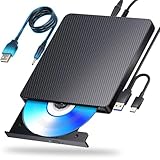
- 【Powerful function】: This external bluray drive has powerful storage capacity and fast reading speed Turbocharge workflows with USB 3.0’s 5Gbps bandwidth—6X faster than USB 2.0. Effortlessly manage BD(100GB). CDs (700MB), DVDs (4.7GB), and dual-layer DVDs (8.5GB). has strong error correction capability, impact resistance, low noise, and low power consumption.(Note: Incompatible with TVs, Tablets, PS4, iPads, Chromebooks, Projectors, or Vehicles.)
- 【Dual USB Power Design for Stable Operation】:Compared with standard external Blu-ray drives, this drive includes an additional USB power cable, ensuring stable power supply for smooth disc reading and writing. Reduces playback interruption and burning failure caused by insufficient power.
- 【Easy to carry】: external blu ray player combines two different USB cables into one. external blu ray drive for laptop。easy carrying and storage of USB3.0 and Type-C interfaces, and it can be easily connected to Type-C or USB 3.0 interface computer。
- [Strong Compatibility]: blu ray drive external Software Required: This blu ray player for pc a wide range of devices, including laptops, PCs, working seamlessly with Windows, macOS, and Linux. However, Bluray playback and writing require specific software, such as PowerDVD, Leawo Blu-ray Player, AnyDVD,or VLC Media Player. iDeer Blu-ray Player Simply install your preferred Bluray software to get started.(Note: This product does not come with the playback software, please purchase it separately.)
- 【Easy to Use】: The usb blu ray drive external is very easy to use, it can compatible read and write CD, DVD and compatible with BD. Designed for convenience, this Blu-ray drive is compact and lightweight, making it easy to carry during business trips or vacations.
Play the disc on your laptop with an external Blu-ray drive
If your goal is to watch a disc on the laptop, connect a computer-compatible external Blu-ray drive to the laptop and use playback software that explicitly supports Blu-ray on your operating system. Microsoft’s codecs FAQ says Windows Media Player does not include the codecs required for Blu-ray Disc files, so having a drive—or opening the disc in that player—does not by itself provide Blu-ray movie playback. Microsoft: Codecs FAQ
Check compatibility before you buy or connect a drive
- Drive type: Confirm that it reads Blu-ray discs; a DVD-only drive is not enough.
- Computer support: Check the drive’s requirements for your laptop’s operating system and USB connection.
- Disc formats: Confirm that the drive supports the kind of Blu-ray disc you want to use.
- Playback software: Verify that the software supports Blu-ray playback on your operating system. The drive and the software are separate requirements.
- Protected commercial discs: Check the software vendor’s current requirements for protected playback. Compatibility can involve HDCP and DRM, and should not be assumed from the drive’s specifications alone.
Connect a standalone player to a TV or monitor
To use the home Blu-ray player, connect its HDMI output to an HDMI input on a TV or monitor, then select the matching input on the display. LG’s support instructions describe connecting the player’s HDMI OUT to the display’s HDMI IN, powering on both devices and choosing the correct display input. LG: Connecting External Devices – Blu-ray
Rank #2

- 【Premium External Blu-ray Drive】 Enjoy seamless playback with this Portable Blu-ray Player, supporting BD reading up to 6X, DVD at 8X, and CD at 24X. Effortlessly burn CDs/DVDs with low noise and energy efficiency. (Note: Can read but cannot burn Blu-ray discs)
- 【Plug & Play CD DVD Burner】 This External Blu-ray Drive works instantly for CD/DVD playback and burning—just connect via USB 3.0 or Type-C. (Blu-ray playback requires third-party software like PowerDVD or Leawo)
- 【Ultra-Fast USB 3.0 & Type-C】 Experience rapid 5Gbps transfers with high-speed USB 3.0 and dual USB-A/C connectors. Perfect for laptops and desktops (Not compatible with Chromebook, TV,Tablet, iPad, Truck and Car)
- 【Sleek & Portable Blu-ray Player】 Featuring a brushed texture shell and embedded data cable, this lightweight drive is ideal for travel, work, or home entertainment
- 【Reliable Support Guaranteed】 Need help with setup or Blu-ray playback? Contact us via your Amazon order for quick assistance!
If there is no picture, confirm that the cable is in the player’s HDMI OUT and the display’s HDMI IN, then check that the display is set to that input. If the connection still fails, consult the player manual for supported output resolutions and display compatibility.
Sony advises selecting “Auto” for “Output Video Resolution” on the models covered by its guidance; that instruction is model-specific, not a universal setting for every Blu-ray player. Sony also lists HDMI 1 output up to 4K at 24p or 60p for applicable models. Check the article’s model list before applying those details to a particular player. Sony: HDMI connection specifications for Blu-ray Disc players
Rank #3

- Support 100G Disc Read&Write: This external blu ray drive allows you to burn high-capacity 100GB discs, perfect for large file storage, backups, or creating high-definition content. Enjoy hassle-free burning for all your media needs. It reads Blu-ray discs at up to 6x, DVDs at up to 8x, and CDs at up to 24x.
- Multifunction Blu Ray Drive:This 7 in 1 blu ray player external offers versatile features, plug and play. It can read & burn BD/DVD/CD discs and has 1 SD card slot, 1 TF card slot, 2 USB ports, and 2 type-c ports for data transfer or charging purposes. You can easily transfer music, blu ray uhd movies, and data files from SD cards, TF cards, or through the USB/Type-C ports to your computer. Additionally, you can transfer files from a external blu ray drive to an SD card, USB hard drive, or USB flash drive. Please note that you can only use either the SD card or the TF card at a time. However, both can function simultaneously with the 2 USB 3.0 ports.
- Portable Blu Ray Player: The unique design of our blu ray player for laptop combines both the drive and two different USB cables in one, and the usb bluray player features two concealed wire grooves that are specifically designed to store and carry both USB3.0 and Type-C interfaces. This feature helps users to easily store and transport the external usb blu ray drive without taking up too much space or risk losing one or both cables. The design is both stylish and functional, allowing for hassle-free connectivity and setup. With its innovative design and practical features, our Blu ray drive is an great choice for users seeking a reliable and versatile external optical drive.
- Wide Compatibility: The Wbacon blu ray dvd drive external is fully compatible with a wide range of operating systems, including Windows 7, 8, 10, Vista, ME, SE, XP, and 2000, as well as Linux and all versions of MAC OS 10 or below. However, that it is not compatible with BD recorders, tablet iPads, Surface tablets, TVs, projectors, smartphones, or cars.
- Note: (1) Check whether your computer is compatible with the blu ray rw drive external to play by downloading the software 'Cyberlink BD & 3D Advisor’. (2) Make sure you have the appropriate software installed before playing a CD/DVD on your laptop with this BD player. When playing BDs, it is recommended to use the professional BD player 'PowerDVD10-19' (For Mac OS, Macgo Blu ray Player is recommended). (3) Note that including the initial setting, the region code can only be changed 5 times.
When capture hardware is—and is not—a solution
An HDMI capture device is intended to bring an external video signal into a computer, but it should not be treated as a guaranteed method for watching protected commercial Blu-ray output. Microsoft documented HDCP/DRM-related playback errors and black screens in some apps under specified Windows update conditions, with fixes for the cases described. That documentation does not certify a capture-card and software combination for commercial Blu-ray playback. Microsoft: Windows 11 update KB5065789 preview
An HDMI-to-USB cable is not necessarily a capture device. If you need to capture video, confirm that the device is actual video capture hardware with compatible computer software. Neither that hardware nor an ordinary cable should be assumed to bypass content protection or make every commercial disc display.
Quick Recap
Rank #4

- 【Wide Compatibility—Disc Formats】 This 8-in-1 all-in-one external Blu-ray drive supports reading and burning BD, DVD, and CD discs. Compatible with BD (read support for BD-ROM, BD-R/RE (25GB/50GB), and BD-XL (100GB, read-only); maximum burning support up to 50GB (BD-R DL)), DVD±R/RW (including DL 9.6GB), CD-R/RW, and M-Disc, and supports writing to SD/TF cards. Performance: BD read speed 6x / DVD 8x / CD 24x; write speed BD-R 6x, DVD±R 8x, CD-R 24x. Supports 3D Blu-ray playback. Third-party software ((such as PowerDVD, Leawo, AnyDVD, etc.)) is required to play Blu-ray discs.️⚠️Note: The maximum Blu-ray recording capacity is 50GB (dual-layer); 4K playback is not supported.
- 【 Widely Compatible】 Fully compatible with Windows 11/10/8.1/7/XP/ME/2000 and macOS 10.6 and later. Works seamlessly with laptops, desktops, all-in-one PCs, mini PCs, MacBook Pro/Air, Dell, Lenovo, HP, and other mainstream laptops and desktops, delivering truly hassle-free cross-platform use. Note: Not compatible with TVs, tablets, smartphones, or in-car devices.
- 【8-in-1 Multi-Function Blu-ray Burner + USB Hub】 This External blueray/dvd drive for pc supports burning and reading BD, CD/DVD discs, features 3D playback, and can be used as a USB hub for laptops. Equipped with 2 USB-C ports, 1 USB 3.0 port, 1 USB 2.0 port, and 1 TF/SD card slot, it is compatible with USB wired/wireless mice, keyboards, computer coolers, and other peripherals. Through this card slot, you can quickly transfer photos and videos from camera or phone memory cards to your computer, meeting the need to connect multiple devices simultaneously. This enhances expandability and makes usage more convenient. Note: TF and SD cards cannot be read simultaneously.
- 【Dual-Port All-in-One, High-Speed Reading]】This Bluray burner external has USB-A & USB-C 3.0 for . Even laptops without USB-A can connect via USB-C. Slim and portable, fits in a laptop bag; ideal for home, office, travel. Supports backup, software, media playback, and CD/DVD/Blu-ray for HD. Built-in cable stores in base. Includes USB power cable: if underpowered, connect to PC or 5V/2A adapter (⚠️no data transfer) to improve reading stability. Enjoy your discs anywhere, including Blu-ray.
- 【Ultra-slim and portable, comes with 1 carrying case + 4 CD sleeves】 This Blu ray drive— Lightweight and reliable, ensuring your data stays safe wherever you go Weighing just 300 grams, this external Blu-ray burner features an ultra-slim design (5.5 x 5.5 x 0.35 inches) that fits easily into a backpack or suitcase, making your travels hassle-free. It comes with a portable carrying case and 4 CD sleeves to effectively prevent scratches, avoid cable tangles, and keep your belongings organized and safe.
Troubleshoot Blu-ray playback on a laptop
- The drive is not recognized: Confirm that it is a computer-compatible Blu-ray drive, that its USB connection meets the drive’s requirements, and that the operating system supports it.
- The disc is visible but will not play: Check that the installed playback software explicitly supports Blu-ray and your operating system. Windows Media Player’s included codecs do not cover Blu-ray Disc files, according to Microsoft’s codecs FAQ.
- A commercial disc gives an error or shows a black screen: Check for current operating-system and app updates, then review the playback software vendor’s HDCP/DRM requirements. Microsoft’s cited update notice concerns specific apps and Windows update conditions; it does not establish that every playback failure has the same cause.
- The standalone player has no image on a TV or monitor: Recheck the HDMI OUT-to-HDMI IN connection and selected display input, then consult the player manual for resolution settings. Sony’s “Auto” guidance applies only to models covered by its article.
Product prices and availability are accurate as of the date/time indicated and are subject to change. Any price and availability information displayed on Amazon at the time of purchase will apply.
Do these 3 things before closing this tab:
1Clear out junk files and repair common Windows errors2Fix the driver behind crashes, sound loss and screen glitches3Repair Windows errors before they cause bigger problems
