What’s actually slowing this PC down?
Pick the symptom - the matching free tool is one click away.
A Thunderbolt add-in card will work only when its manufacturer supports your exact motherboard model and revision, and the board provides the required PCIe slot, Thunderbolt header, firmware support, and any needed display or power connections. Start with the motherboard—not with the card or an apparently open PCIe slot.
Will a Thunderbolt add-in card work with your motherboard?
Possibly, but a free PCIe slot alone does not establish compatibility. The card must be designed and documented for your specific board. Check the card maker’s current motherboard compatibility list, then verify its requirements against the manual for your motherboard. For example, GIGABYTE’s GC-MAPLE RIDGE Rev. 1.0 support page lists supported boards and cautions that support may vary with motherboard specifications.
As an Amazon Associate I earn from qualifying purchases.
Record the full motherboard model name and hardware revision before searching. Similar model names or different revisions may not share the same slot, header, firmware settings, or listed support. Confirm the exact add-in card model and revision as well.
What to check before choosing a card
- Match the board to the card’s official compatibility list. Do not infer support from a matching brand, chipset, or connector. If the exact motherboard model and revision are absent or unclear, ask the card or motherboard maker before buying.
- Check the required PCIe slot. Slot shape is not the whole requirement: follow the documented slot position and lane requirements for your board and card. ASUS says the recommended slot for ThunderboltEX 4 varies by motherboard model, while GIGABYTE’s GC-MAPLE RIDGE manual specifies an available PCIEX4 slot. ASUS also instructs users to seat ThunderboltEX 4 in a PCIe 3.0 slot; consult the exact board guidance alongside the card instructions.
- Confirm the Thunderbolt header and cable. The board must have the header specified for the card, and the bundled cable must match the documented connection. ASUS ThunderboltEX 4 uses a bundled 14-1 pin cable to the motherboard’s TB_HEADER. GIGABYTE’s GC-MAPLE RIDGE uses a 5-pin Thunderbolt header cable; its manual notes that the cable has two connectors and instructs users to choose the correct one for the header. These examples are not interchangeable standards.
- Look for model-specific BIOS or firmware guidance. Read the card and motherboard documentation for required settings, firmware, or update steps. There is no single BIOS recipe that applies to every board and card, so do not rely on instructions for a different model.
- Check auxiliary power and display connections. Confirm any power connector or other internal connection required by the specific card. If you expect to connect a monitor through the card, check how its display input and output are routed and what cables are needed.
- Verify operating-system and driver support. Check the maker’s current support information for your operating system version and obtain drivers or firmware only from the relevant vendor. Requirements can change, so verify them near purchase and installation.
Does the card need a DisplayPort connection from your graphics card?
It may, if you want display output through the Thunderbolt card. GIGABYTE says GC-MAPLE RIDGE display support depends on a DisplayPort signal input from a discrete graphics card. Follow that card’s manual to identify the required input, cable, and output path; having Thunderbolt ports does not by itself confirm that the desired monitor connection will work.
#1 Best Overall
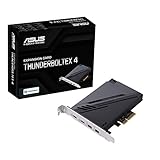
- 1. Intel Thunderbolt 4 JHL 8540 controller
- 2. Ultrafast connectivity: Two Type-C ports with USB 4 support, up to 40Gb/s bi-directional bandwidth, per port allows you to connect up to five Thunderbolt-enabled devices in a daisy-chain configuration using Thunderbolt cables.
- DisplayPort 1.4: support up to 8K resolution monitors
- Quick charge solution: up to 100W quick charge
Check the display limits for the exact card and system combination as well as the input requirement. GIGABYTE lists support for two 4K displays at 60 FPS for GC-MAPLE RIDGE, subject to DisplayPort signal input from a discrete graphics card. Treat that as the manufacturer’s stated capability, not a guarantee for every GPU, cable, monitor, or workload.
Compare only cards documented for your board
Once you have confirmed compatibility, compare the features that matter for your devices. Manufacturer specifications describe the card; they do not guarantee that every connected device or system will achieve the listed maximum.
Rank #2

- Intel certified Thunderbolt 5 add-on card
- Dual USB Type-C ports support up to 130 watts total of fast charging, and up to 96W for one device
- Up to five Thunderbolt devices can be daisy-chained
- Up to 120 Gbps of bandwidth for superfast data transfers and video output
- DisplayPort 2.1 port supports up to three 8K 60 Hz displays with DSC
| Card | Documented compatibility and installation details | Stated features | What to verify |
|---|---|---|---|
| ASUS ThunderboltEX 4 | Use ASUS’s current compatible-model list. ASUS specifies a PCIe 3.0 slot, with the recommended slot varying by motherboard, and a bundled 14-1 pin cable to TB_HEADER. | ASUS describes Thunderbolt 4, 40 Gbps bidirectional bandwidth, USB4 device compatibility, and DisplayPort 1.4 support. | Confirm your exact board is listed, the correct slot and header are available, and the board-specific setup guidance and display routing suit your peripherals. |
| GIGABYTE GC-MAPLE RIDGE (Rev. 1.0) | GIGABYTE publishes a supported-motherboard list and specifies an available PCIEX4 slot plus a 5-pin Thunderbolt add-in-card header connection. | GIGABYTE lists two Thunderbolt 4 USB-C ports and up to 40 Gb/s maximum bandwidth. Its page describes two 4K displays at 60 FPS when a DisplayPort signal is input from a discrete graphics card. | Check the exact board against GIGABYTE’s list, select the correct cable connector for the header, and verify current operating-system and driver support. The product page lists Windows 10 64-bit 20H2 or later support; check GIGABYTE for current support details. |
| ASRock Thunderbolt 4 AIC | ASRock says its card is compatible with PCIe slots from the CPU. | Not stated in the cited compatibility guidance. | Treat the slot guidance as ASRock-specific. Consult the exact card and motherboard instructions for compatibility, header, firmware, and other requirements. |
Does your motherboard have a Thunderbolt header?
Check the motherboard manual’s board layout and connector descriptions for the header required by the card. The label and pin arrangement matter: ASUS documents a TB_HEADER connection for ThunderboltEX 4, while GIGABYTE describes a Thunderbolt add-in-card header and a 5-pin cable for GC-MAPLE RIDGE. A connector that looks similar or has a related label is not proof that it supports the card.
Free tools Windows power users keep installed
One-click scans. No signup required.
Quick Recap
Best Value
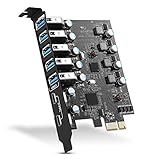
- Maximum extension,Most USB interfaces: Update your Computer to 7 ports USB3.0--2 Port Type C and 5 ports Type A, You can connect keyboard, mouse, external hard drives, CD/DVD drives, webcams,usb printers, scanners, game controllers,USB VR, digital cameras, etc
- Increasing Efficiency: Supports transfer rates of up to 5Gbps copying HD videos, music, photos,data files between USB devices and the computer at blazing fast speeds.Note:The actual transmission speed is limited by the setting of the device connected
- Widely compatibility: USB 3.0 Backwards compatible with USB 2.0 and 1.1 devices; Comply with PCI-e 3.0 PCIe 2.0 motherboards, Fits PCI Express x1, x4, x8 or x16 socket .Operating System Supports Windows XP/Vista/2008 Server/7/8/10,and Mac 0s (10.8.2 above) . Note: Windows XP,/Vista/7, Server,requires driver installation, Windows 10 and Mac OS 10.8.2 above don't need drivers
- Easy to install: Shut down the PC, unplug the power supply,remove the PC case,push the card in pcie socket and tighten the screws,and Close the PC case cover, turn on the PC and install the driver. quick and easy installation, a simple solution for connecting to and using USB 3.0 devices on your standard desktop PC. Packing list:1x PCIE USB expansion card, 1x CD driver, 2 x installation screws and 1x user manual
- Considerate Service: This card is the best choice for standard tower case and motherboard upgrade USB ports. We offer 2 years of-Product-Care for USB PCIE card. In addition, rest assured that we provide 24/7 support for our products and customers
Rank #4

- Ports: 2 x Thunderbolt 3 (USB Type-C)
- PCIe and Lanes: PCIe Gen3 x 4
- Bracket: Low-profile pre-installed; full-height
- Form factor: Low-profile
Rank #3

- 1. By inserting a USB PCIe card into the PCI Express X1 slot, you can upgrade your host computer to multiple major USB ports (USB C and USB-A),to facilitate the connection of your external USB devices to your computer system.In addition,The card's internal 19-pin connector and USB Type-E port can be flexibly extended to the front panel of your computer depending on your needs
- 2. With ultra-fast data transfer speeds of up to 5Gbps,you can transfer HD movies or large files in just a few seconds,10x faster than USB 2.0 version (480Mbps).Helps you provide higher efficiency. (Note: Actual transfer speed may be limited by the connected device.)
- 3. Compatible with PCIe 3.0 and PCIe 2.0 motherboards,Suitable for PCI Express x1,x4,x8,x16 slots. PCIe USB card supports a variety of mainstream Windows 11/10/8/7/XP and Linux operating systems. Note: Win 11/10/8 and Linux doesn't need any driver, Windows 7/XP needs to install the driver, you can find the driver on the CD provided by us
- 4. The Fresco Logic 1100 USB stable host controller chip is used. In addition,the Internal circuitry has four power supply modules, and no additional power adapter is required for installation. PCIe card can draw power directly from the PCI-E slot inside the motherboard
- 5. What Can You Get: : 1x USB PCIe expansion card, 1x CD drive. You can get 180 days-product-care and friendly customer service. If you have any problem, we will help you solve the problem until you are satisfied
Final pre-purchase checklist
- Write down the motherboard’s full model name and revision.
- Identify the exact add-in card model and revision, then confirm the motherboard on its manufacturer’s current compatibility list.
- Check the required PCIe slot, header type, cable, and any auxiliary power connections in both manuals.
- Find any board-specific BIOS or firmware instructions.
- If you need monitor output, confirm the display input, routing, cable, and stated limits.
- Verify current operating-system and driver support for your setup.
- If any requirement is missing or ambiguous, ask the manufacturer before buying rather than assuming a generic slot or header will work.
Product prices and availability are accurate as of the date/time indicated and are subject to change. Any price and availability information displayed on Amazon at the time of purchase will apply.

