The Tool Desk
Outbyte PC Repair FREEClear out junk files and repair common Windows errorsFree Scan →Outbyte Driver Updater FREEFix the driver behind crashes, sound loss and screen glitchesFind Drivers →Choose the Galaxy phone around the widgets you actually want to use. For ordinary Home-screen widgets such as clocks, calendars, weather and app shortcuts, Samsung’s current guidance covers Galaxy S, Z and A families; an expensive flagship is not established as necessary. The deciding factors are the app’s widget support, your phone’s software and carrier configuration, and whether you need widgets on a conventional Home screen, a Lock screen or a foldable cover display. Choose a Galaxy Z Flip model when viewing or editing widgets while the phone is folded is central to your routine; otherwise, select the Galaxy S or A model whose size, camera, battery and price fit you, then verify widget support before buying.
What determines widget customization on a Galaxy phone?
A widget is a live view or control supplied by an app, not a feature that Samsung can add to every app. Your experience is the result of four layers working together:
As an Amazon Associate I earn from qualifying purchases.
- The app: The developer must provide a widget. An app without one cannot be added to your Home or Lock screen.
- The widget design: An app may offer a single fixed layout or several sizes and styles. Resize, color, transparency and other controls are available only when that particular widget exposes them.
- The Galaxy software: Samsung’s One UI features and the phone’s installed version determine which screens, stacks and editing controls are available.
- Device and policy restrictions: Model, carrier software, region and a managed work profile can change what appears in the widget picker.
Samsung specifically warns that customization is not supported for every app, that some widgets may be unsupported, and that work-profile policies can restrict availability. Read its troubleshooting guidance before assuming that a missing widget means your phone is defective: Samsung’s Galaxy widget troubleshooting page.
Quick wins for a faster PC:
Clear out junk files and repair common Windows errorsFree Scan →Scan for outdated or missing drivers - takes under a minuteDriver Scan →Samsung’s One UI 7 documentation says, “You can add widgets to your phone’s Home and Lock screens, as well as combine widgets into stacks.” That describes the software capability, not a promise that every Galaxy model or every app offers all of those controls. See the One UI 7 support page for the feature overview.
#1 Best Overall

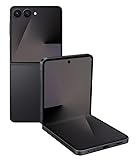
- FLEXIBLE COMPACT DESIGN: Galaxy Z Flip7 features an innovative foldable design that fits easily in pockets and small bags while opening into a full-size smartphone experience. Enjoy compact portability without sacrificing screen size, performance, or usability
- ENHANCED FLEXWINDOW EXPERIENCE: Use the redesigned edge-to-edge cover screen to access apps, widgets, music controls, notifications, and quick updates without opening your phone. Customize your FlexWindow for faster everyday access and convenience
- ADVANCED AI FEATURES: Access Google Gemini and Galaxy AI tools directly from the FlexWindow for hands-free assistance, smart suggestions, quick replies, and personalized updates designed to simplify daily tasks
- HANDS-FREE FLEXCAM PHOTOGRAPHY: Capture high-quality selfies, videos, and group shots using FlexCam with Auto Zoom functionality. The advanced 50MP camera system delivers sharp, vibrant photos and improved low-light performance for everyday photography
- DURABLE HIGH-PERFORMANCE BUILD: Built with Armor Aluminum construction and IP48 water resistance, Galaxy Z Flip7 combines durability with powerful everyday performance, long-lasting battery life, and spacious 256GB storage in a lightweight foldable design
Start with where you want to see the widget
The right Galaxy family depends first on the screen you want to use. Decide this before comparing model names.
Home-screen widgets
Home-screen widgets remain the broadest and least demanding use case. You can place a clock, calendar, weather panel, music control, notes panel or an app’s information view beside your icons. Samsung’s general setup instructions apply across Galaxy S, Z and A families, including the S24, S25 and S26 lines and Z Fold, Z Flip and A-series devices. Menus can differ by model, One UI version and carrier, so treat the path below as the standard starting point rather than an unchanging promise: Samsung’s Home-screen widget instructions.
If this is all you need, there is no evidence that buying an S-series flagship gives you better general widget customization than an A-series Galaxy. Confirm the apps you care about and the software version instead of paying for a flagship solely for a clock or weather tile.
What’s actually slowing this PC down?
Pick the symptom - the matching free tool is one click away.
Lock-screen widgets
One UI supports widgets on the Lock screen as well as the Home screen, but the available locations and controls depend on the phone, software build and widget. A Lock-screen widget may expose a quick glance without unlocking, while a Home-screen version may provide more space or interaction. Check the exact device in a store or Samsung’s support pages if Lock-screen placement is a deciding requirement.
Widget stacks
One UI 7 describes combining widgets into stacks. Stacking can reduce Home-screen clutter by letting compatible widgets share an area that you swipe through. The stack feature does not make unsupported widgets compatible: each item still has to be offered by its app and supported by the device’s software.
Foldable cover-screen widgets
A cover display is a different use case from an ordinary Home screen. On a Galaxy Z Flip, you can glance at selected information while the phone is closed. Samsung documents widgets for the Galaxy Z Flip7 FlexWindow and describes editing them directly from the cover screen in a software update notice dated October 6, 2026. That update is tied to a particular device variant and rollout; verify that your region and carrier have released the same software before treating the feature as guaranteed. The model-specific feature guide is at Samsung’s Galaxy Z Flip7 FlexWindow support page, and the dated update notice is at Samsung Mobile’s Z Flip7 software update page.
Do not assume that every third-party app can run as a cover-screen widget. Samsung’s general warning about app-level support still applies, and the cited FlexWindow documentation does not establish universal compatibility.
Compare Galaxy families by the widget use case
| What you want | Best starting point | What to verify | What the evidence does not establish |
|---|---|---|---|
| Clock, weather, calendar or app widgets on a normal Home screen | Any current Galaxy S, Z or A family that runs the required software | The app offers a widget; the phone supports the required One UI features; your carrier has not removed or delayed them | That an S-series flagship provides superior baseline widget customization |
| Widgets on both Home and Lock screens | A model with the relevant One UI version | The exact Lock-screen controls and layouts for that model and region | That every widget can appear on both screens |
| Several widgets in one swipeable area | A Galaxy with One UI 7 features and compatible widgets | Whether the installed software offers stacks and whether each widget can join one | That stacks make unsupported apps available |
| Glanceable information while the phone is folded | Galaxy Z Flip, particularly the Z Flip7 FlexWindow | Cover-screen widget support, app compatibility and the October 6, 2026 update’s availability for your variant | That every Galaxy Z Flip model or every carrier has the same direct-edit feature |
| General customization at the lowest purchase tier | A suitable Galaxy A model, if its software and your apps meet the requirement | Screen size, memory, update status and the exact widget list | That A-series phones support every feature found on every S or Z model |
Samsung’s current product information includes the Galaxy S26 family, while the Z Flip7 is the clearly documented choice for the FlexWindow scenario. Availability changes by market, so use Samsung’s regional product pages and your carrier’s inventory when you are ready to buy. Samsung’s S26 announcement is available in its official Newsroom release, and the Galaxy Z Flip7 product page describes its hardware and display configuration.
Use this decision process before buying
1. Make a widget list
Write down the exact widgets you want, not just the app names. “Calendar” could mean a month view, an agenda list, a task shortcut or a meeting countdown, each with different support. Include the screen where each should appear and whether you need resizing, transparency, color choices or interaction without opening the app.
2. Check the app’s widget offering
On a Galaxy you already own, touch and hold an empty Home-screen area, tap Widgets, then search for each app. If you are shopping for a new phone, check the app developer’s current Android listing or documentation and test the app on the same One UI generation in a retail demo. A phone cannot create a widget that the app does not supply.
3. Decide whether the cover display is essential
If you only want information after opening the phone, compare conventional Galaxy models on the factors that matter to you. If you want to read or edit selected widgets while the phone remains closed, put the Z Flip family at the top of your shortlist and verify the exact FlexWindow behavior. This requirement is strong enough to change the form factor; ordinary Home-screen customization is not.
Free tools Windows power users keep installed
One-click scans. No signup required.
4. Confirm the software and update path
Record the model number, regional variant and carrier before comparing screenshots or instructions. Samsung states that menus and features vary with model and software version. A feature shown on an unlocked device may arrive later, use a different menu or be unavailable on a carrier edition. Ask the seller which One UI version is installed and whether the phone is eligible for the update you need.
Rank #3

- GET THE SHOT FROM ANY SPOT: FlexMode is your shortcut to capturing the moment. Just flip open Galaxy Z Flip7 FE, pick your angle and shoot completely hands free – no awkward grips or balancing acts required.
- OPEN LESS. DO MORE: With Gemini Live and your favorite apps on FlexWindow, Galaxy Z Flip7 FE does more before you even open it.¹
- 50MP CAMERA. 10/10 PICS: Take amazing photos you’ll flip for with Galaxy Z Flip7 FE. Capture stunning details in your photos and hands-free selfies that stand out with an impressive 50MP camera.
- COMPACT AND PACKED WITH POWER: Galaxy Z Flip7 FE packs tons of big phone energy into a small, stylish frame. Smoothly handle content creation, daily tasks, video calls and more — the long-lasting battery of Z Flip7 FE is designed to keep up with you.
- SMALL, BUT POWERS THROUGH IT ALL: With a long-lasting battery and a powerful processor, Galaxy Z Flip7 FE is the small phone that can power through it all.
5. Check managed-work restrictions
If the phone has a work profile, your organization may block widgets or restrict data displayed outside the work container. Test with the managed account enabled, not only with a personal account, before concluding that a model lacks the feature.
6. Compare the phone as a phone
Once widget requirements are satisfied, choose among the remaining models by display size, battery, cameras, durability, storage, ergonomics and budget. Those factors affect daily satisfaction far more than a small difference in a widget picker. Do not let a marketing label substitute for checking the app and software requirements.
How to add, place and style a Galaxy widget
- Open the widget picker: Touch and hold an empty area of the Home screen, then tap Widgets.
- Choose the app: Scroll or search for the app, then select the widget type. An app may list several sizes or views.
- Place it: Touch and hold the widget preview and drag it to an open area, or tap the add option shown by your software.
- Move it later: Touch and hold the widget, then drag it to another Home-screen panel or position.
- Resize when supported: Touch and hold the widget and drag the handles or outlined edges. Some widgets have a fixed size, so no handles will appear.
- Open widget settings: Touch and hold it and choose the settings or edit control. Depending on the widget, you may be able to select an account, content view, color, transparency or other options.
- Configure stacks where available: Use the stack control offered by your One UI version to combine compatible widgets, then swipe through the stack to confirm each one loads.
These controls are conditional. A missing resize handle, style menu or stack option usually means that the widget or software does not support it; it is not proof that a more expensive Galaxy would unlock the control.
Do these 3 things before closing this tab:
1Fix the driver behind crashes, sound loss and screen glitches2Repair Windows errors before they cause bigger problems3Scan for outdated or missing drivers - takes under a minuteChoosing between a Galaxy S, A and Z Flip for specific people
Choose a Galaxy S when you want a conventional premium phone
A current Galaxy S model is a sensible choice if you want Samsung’s conventional flagship form factor and also use widgets on the Home or Lock screen. The S26 family is current in Samsung’s catalog, but the available evidence does not show that it has uniquely better general widget customization. Buy it for its broader phone specification, support horizon or preferred design, then verify the widget list separately.
Choose a Galaxy A when widgets are important but not the reason for a flagship
An A-series model can meet a straightforward widget routine: a clock, weather, calendar, music or notes panel on the Home screen. Confirm the exact One UI version, display layout and update policy for the model you are considering. If a specific app’s widget is essential, demonstrate that widget on the phone rather than inferring support from the A-series name.
Choose a Galaxy Z Flip when folded access changes your routine
The Z Flip family is the meaningful choice when the cover display itself is part of the requirement. The Z Flip7’s FlexWindow documentation and dated update notice establish a cover-screen widget workflow, including direct editing without opening the phone for the covered update scenario. That convenience is distinct from having more Home-screen widgets after the phone is open. Confirm the update for your country, carrier and model code, and check whether your desired apps are among the supported cover widgets.
Choose a Galaxy Z Fold only for its larger foldable form factor
A Z Fold can use the general Galaxy Home-screen widget workflow, but the supplied documentation does not establish a special widget advantage over S or A phones. Consider it for its larger inner display and multitasking behavior, not on the assumption that its widget picker is inherently more customizable.
Common widget problems and precise fixes
The app is missing from the widget list
- Update the app from the Galaxy Store or Google Play, then restart the phone.
- Confirm that the app actually supplies an Android widget; some apps provide notifications or shortcuts only.
- Check whether you are viewing a personal profile or a managed work profile.
- Install pending phone software updates and recheck the picker.
- Look for regional or carrier differences if the widget appears in documentation but not on your device.
Samsung’s troubleshooting page covers widgets that disappear or do not work and should be your next reference: Samsung support for missing or malfunctioning Galaxy widgets.
The widget was added but shows no data
Open the widget’s settings and select the correct account, calendar or location. Check the app’s permissions, battery restrictions and sign-in state. A work profile may intentionally prevent personal and work data from appearing together. If the app itself cannot load data, changing Galaxy models will not solve the underlying account or permission problem.
The widget vanished after an update
Restart the phone, check the widget picker again and inspect the app’s update notes. A software update can change a layout or remove an app’s widget. Re-add it if it remains available; if it is gone, contact the app developer or review Samsung’s model-specific support information rather than assuming the phone needs replacement.
The cover-screen widget cannot be edited
Confirm that the phone is the supported Z Flip variant, install the latest available software for your region and carrier, and try the edit flow from the closed cover display. Samsung’s October 6, 2026 notice is a dated rollout record, not evidence that every Z Flip7 received the feature simultaneously. If the update is unavailable for your variant, the conventional open-phone widget controls may still work while the direct cover edit does not.
Buying checklist
- List each required app widget and the exact information or action it must provide.
- Mark each destination: Home screen, Lock screen, stack or Z Flip cover screen.
- Verify the app offers that widget and note its fixed or adjustable sizes.
- Check the phone’s model number, regional version, carrier and installed One UI release.
- Confirm that a work profile will not block the widget or its data.
- For a Z Flip, verify FlexWindow support and the relevant update’s availability before purchase.
- Test adding, moving and resizing the widget on a demo or returnable device.
- Only after those checks, compare battery, cameras, display, durability, storage and price.
Bottom line: buy for the screen and software, not the badge
For normal Home- and Lock-screen widgets, Samsung’s documented workflow spans Galaxy S, Z and A families, and the evidence does not justify paying for an S-series flagship solely for customization. The app’s own widget support and your exact One UI build matter more. A Galaxy Z Flip becomes the specialist choice when you need widgets visible or editable while the phone is folded; confirm the model-specific software rollout and app compatibility first. Once your required widgets are proven on the exact variant, choose the Galaxy whose overall form factor and phone features suit you best.
Quick Recap
Product prices and availability are accurate as of the date/time indicated and are subject to change. Any price and availability information displayed on Amazon at the time of purchase will apply.

