Do these 3 things before closing this tab:
1Fix the driver behind crashes, sound loss and screen glitches2Clear out junk files and repair common Windows errors3Scan for outdated or missing drivers - takes under a minuteStart with a live USB of Linux Mint Cinnamon. It uses a conventional panel, application menu and window-list workflow, and Linux Mint’s own installation guide recommends Cinnamon when you are unsure which edition to choose. If you want to redesign panels, widgets and desktop behavior, also try KDE Plasma. Neither is a Windows clone: applications, settings, updates and hardware support work differently, so test your actual computer before installing.
First, separate the Linux distribution from the desktop
Two choices are involved when people ask for a “Windows-like Linux.” A distribution is the complete operating system: it bundles the Linux kernel, installers, hardware drivers, software repositories, update tools and a desktop. A desktop environment is the graphical workspace you use after signing in: its panel, application launcher, window controls, file manager, settings tools and widgets.
As an Amazon Associate I earn from qualifying purchases.
Linux Mint is a distribution. Cinnamon, MATE and Xfce are desktop environments provided as different Linux Mint editions. KDE Plasma is a desktop environment used by several distributions, not a single distribution by itself. Choosing a desktop without considering the distribution can leave you with a familiar layout but an unsuitable support policy, installer or hardware experience.
Crashes, No Sound, or Screen Glitches?
Random freezes, missing sound and display glitches usually trace back to one bad driver. Find and replace yours safely.Free scan · under a minuteWindows Errors? Fix Them Before They Spread
Repair common Windows errors and clear accumulated junk for a smoother, more stable PC - no reinstall needed.Free scan · no reinstallLinux Mint’s official edition guide explains that its editions differ in menus, panels and configuration tools, and says the right choice is the one in which you feel at home. Read the current guide before downloading: Linux Mint’s “Choose the right edition” guide.
#1 Best Overall

- WHY CHOOSE G3 ULTRA MINI PC PENTIUM GOLD 7505 - Choose the Intel Pentium Gold 7505 for snappier everyday responsiveness: It delivers up to 30% faster single-core performance than the Ryzen 5 3500U, making office apps and web browsing feel noticeably quicker, while its Intel UHD Graphics (48 EUs) provides 2.4x the GPU performance of the N100 & N150's 24-EU graphics, ensuring smoother 4K streaming and light photo editing.
- 16GB RAM MEMORY & 512GB STORAGE - GMKtec Nucbox G3 Ultra mini computer is prebuilt with 16GB LPDDR4 RAM at 3200 MT/s, you will enjoy a speedier experience with Built-in 512GB M.2 SATA Hard Drive. Our mini desktop pc boots up in seconds, work on multiple browser tabs, software applications and quickly transfers files. There is a primary slot and secondary expansion storage. Primary slot is M.2 2280 PCIE and secondary slot is M.2 2280 SATA.
- RICH INTERFACE - Nucbox pentium mini computer is equipped with 3* USB 3.2 Gen2 ports, up to 10Gbps/S, 1*USB 2.0, HDMI(4K@60Hz)*2, 3.5mm Audio Jack. Supports WiFi 6, and Gigabit Ethernet RJ45 2.5GbE network connectivity, Bluetooth 5.2. This Mini PC supports multiple device connection and can be used with servers, monitoring equipment, office equipment, displays, projectors, televisions, etc.
- 4K DUAL SCREEN DISPLAY - Mini desktop computer is equipped with upgraded Intel Graphics(max 1000MHz), supports 4K video playback and AV1 decoding, connect the pc with a projector as a home theatre, enjoy a variety of entertainments. Two HDMI 2.0 ports allows you to multi-task efficiently on two 4K@60Hz displays.
- UPGRADED COOLING FAN - The G3 Ultra has upgraded the cooling fan to reduce fan noise and thermals. We are using an upgraded thermal paste as well to help reduce heat on the CPU.
The short list for a Windows user
| Desktop and example distribution | What the publisher says | Best starting point | Important qualification |
|---|---|---|---|
| Cinnamon on Linux Mint | Linux Mint calls Cinnamon its most popular, modern, innovative and full-featured edition. | Someone who wants a conventional panel-and-menu workflow with the least decision-making. | It is familiar in structure, not a one-to-one Windows copy. The official material does not provide a controlled “familiarity” score. |
| MATE on Linux Mint | Mint describes MATE as more traditional and faster than Cinnamon, using fewer resources. | An older or modest computer, or a user who prefers a traditional desktop. | “Faster” and “uses fewer resources” are Mint’s qualitative descriptions, not independent benchmark results. Menus and tools differ from Cinnamon. |
| Xfce on Linux Mint | Mint calls Xfce its lightest desktop, extremely stable and very light on resource use, with fewer features. | A lower-resource computer where a live test confirms acceptable graphics and device support. | No numerical performance claim is established. Fewer features may mean more manual configuration. |
| KDE Plasma | KDE documents a launcher, system tray, Discover software management and centralized System Settings, plus extensive panel and widget controls. | A user who wants to shape the panel, launcher, widgets and desktop behavior extensively. | Plasma’s default appearance depends on the distribution. More flexibility also means more settings to learn. |
Why Linux Mint Cinnamon is the safest first experiment
If you have no strong preference, download the current Linux Mint Cinnamon edition and try it from a live USB. Mint itself recommends Cinnamon for readers who are unsure. Its conventional desktop arrangement gives you recognizable starting points: an application menu, a panel or taskbar, a list of open windows, a notification area and file navigation.
That recommendation is about reducing the first few minutes of friction, not proving that Cinnamon is identical to Windows. You will encounter different application names, settings organization, update behavior and hardware-driver decisions. A familiar panel helps you find your way around; it does not make Linux applications or administration identical to Microsoft Windows.
What to inspect in Cinnamon
- Open the application menu and locate the programs you expect to use every day.
- Pin, remove and launch applications from the panel so you can judge whether the workflow feels natural.
- Open the file manager, browse your existing files and check how removable drives appear.
- Try display settings, sound controls, network selection and printer setup rather than judging the desktop from a screenshot.
- Check whether your preferred keyboard shortcuts and window arrangement are practical.
When MATE or Xfce is a better fit
Choose MATE for a traditional, lighter Mint desktop
Linux Mint describes MATE as more traditional and faster than Cinnamon and says it uses fewer resources. That can make it worth testing on an older computer, especially when Cinnamon feels sluggish in the live session. Treat those statements as the Mint project’s descriptions, not as a guarantee for your particular processor, graphics hardware or workload.
What’s actually slowing this PC down?
Pick the symptom - the matching free tool is one click away.
MATE is not Cinnamon with a performance switch. Mint says the editions have different menus, panels and configuration tools. If a specific arrangement matters to you, boot the MATE image and perform the same tasks you performed in Cinnamon before deciding.
Choose Xfce when low overhead matters most
Mint calls Xfce its most lightweight edition and says it is extremely stable and very light on resource use, while offering fewer features than Cinnamon or MATE. That makes Xfce a candidate for a low-resource system, but “lightweight” does not by itself establish how well your wireless chipset, graphics adapter, printer or multi-monitor setup will work.
Rank #2

- This Certified Refurbished product is tested and certified to look and work like new. The refurbishing process includes functionality testing, basic cleaning, inspection, and repackaging. The product ships with all relevant accessories, a minimum 90-day warranty, and may arrive in a generic box. Only select sellers who maintain a high performance bar may offer Certified Refurbished products on Amazon.com
- Intel Quad-core i5-6500T up to 3.1G,16G DDR4 memory(2 slots,supports up to 32GB),240G SSD
- Includes USB Keyboard(English Keyboard & Mouse Included)
- I/O ports:Front:2 USB 3.0 ,microphone,headphone ,USB Type-C port Rear:4USB 3.0 ,VGA DP port,RJ-45
- Operating System:Win10Pro64bit
Use a live session on the target computer. If the essentials work and you do not miss the features present in the other editions, Xfce may be the more comfortable long-term choice. If you need extensive built-in customization or a richer default toolset, Cinnamon may require fewer adjustments.
Choose KDE Plasma when customization is the point
KDE describes Plasma as easy to use while exposing unusually broad control over the workspace. Its documented features include a launcher, system tray, application management through Discover and centralized System Settings. You can move and resize panels, change widget placement and add community widgets.
That flexibility lets you build a panel-and-launcher workflow that resembles the way you work on Windows, or design something completely different. It also creates more choices: panel location, widget behavior, shortcuts, themes and settings can all become decisions you must make. Plasma’s feature set is consistent as a desktop environment, but its initial layout, bundled applications and defaults are chosen by the distribution that supplies it. Read KDE’s overview at the KDE Plasma desktop page.
Do not confuse Plasma with KDE Linux
KDE Plasma and KDE Linux are different things. Plasma is the desktop; KDE Linux is a distribution project. As of the KDE installation-page check on October 13, 2026, KDE says the available KDE Linux edition is Testing, with frequent changes and regressions expected. KDE also says editions for the general public are in progress and lists installation constraints.
That status can change. Recheck KDE’s current KDE Linux installation instructions before treating KDE Linux as a first production operating system. For a first Linux installation, you can evaluate Plasma through a more established distribution while using KDE’s own live-session guidance to check hardware.
Rank #3

- 12th Intel Alder Lake N95 Processor – The GMKtec G3 S Mini PC is powered by the 12th Gen Intel N95 processor with 4 cores, 4 threads, 6MB cache and a burst frequency up to 3.4GHz. Compared with N100/N5105/N5100/N5095, the N95 delivers up to 36% overall performance improvement. Perfect for routine tasks, office work, and home entertainment, this compact mini desktop is more convenient than traditional bulky PCs.
- 8GB RAM & 256GB SSD Storage – Pre-installed with 8GB DDR4 memory and a fast 256GB M.2 2242 SSD, the G3 S mini desktop offers quicker startup, smoother multitasking, and faster file transfers. Enjoy seamless performance whether you’re working on multiple applications, browsing, or streaming content.
- Rich Interfaces & Connectivity – The G3 S mini computer comes equipped with USB 3.2 (up to 10Gbps), dual HDMI 2.0 (4K@60Hz), and a 3.5mm audio jack. With support for WiFi 5, Bluetooth 5.0, and Gigabit Ethernet (RJ45 1000MbE), it connects easily with monitors, projectors, printers, office equipment, and other peripherals, making it versatile for both home and business use.
- Dual 4K Display Support – Featuring upgraded Intel UHD Graphics (up to 1000MHz), the G3 S supports 4K video playback and AV1 decoding for a smooth viewing experience. With dual HDMI outputs, you can connect two 4K@60Hz displays simultaneously, enabling efficient multitasking for work and entertainment.
- GMKTEC WARRANTY - GMKtec offers a 3-year limited warranty (1 year replacement + 2 years parts replacement) for each mini PC, starting from the date of the purchase effective on all sales starting Oct. 2026. All defects due to design and workmanship are covered. With a professional after sales team always ready to attend to your needs, you can simply relax and enjoy your mini PC
Compare the choices by workflow, not by screenshots
| Question | What to look for in the live session | Why it matters |
|---|---|---|
| Where is the launcher? | Open the application menu, search for a program and browse categories. | You will use it repeatedly; a visually similar icon is less important than fast, reliable access. |
| How are open windows shown? | Launch several applications, switch between them and close one from the panel or task list. | Window-list behavior is central to a desktop workflow and differs between editions. |
| What is in the tray? | Connect Wi-Fi, adjust volume, inspect battery status and open notifications. | Network, audio and power controls reveal whether everyday hardware is integrated. |
| How configurable is the panel? | Try moving or resizing it, changing launcher placement and adding or removing items. | Cinnamon and the other Mint editions provide distinct tools; Plasma documents especially broad panel and widget controls. |
| How does file navigation work? | Open folders, attach a removable drive, copy a test file and eject the drive. | File handling is part of your real work, not a cosmetic detail. |
| Does the default look remain usable? | Work for 20–30 minutes without immediately changing themes or icons. | A desktop that requires extensive tweaking before basic work may not be the lowest-friction choice for you. |
Check hardware requirements and support before installing
Linux Mint publishes 2 GB of RAM and 20 GB of disk space as minimum requirements. It recommends 4 GB of RAM and 100 GB of disk space for comfortable use, and specifies a minimum display resolution of 1024×768. These are Mint’s published requirements, not a benchmark and not a promise that every workload will be smooth. A modern browser with many tabs, video editing, games or virtual machines can need substantially more.
Quick wins for a faster PC:
Fix the driver behind crashes, sound loss and screen glitchesFind Drivers →Repair Windows errors before they cause bigger problemsFix Now →Check the edition’s current requirements and release details at the Linux Mint FAQ before installation. Mint says its long-term-support releases receive five years of support. Confirm which release is currently offered and its actual end date rather than relying on a generic five-year assumption.
Hardware to test explicitly
- Internal keyboard, trackpad or mouse, including special keys and scrolling.
- Wi-Fi and wired networking, including reconnecting after suspend.
- Screen resolution, scaling, brightness and any second display.
- Speakers, headphone output, microphone and Bluetooth audio.
- Printer and scanner functions if they are essential to your work.
- Webcam, card reader, external storage and any specialized peripheral.
- Sleep, wake and battery behavior on a laptop.
Do this on the actual computer you intend to install. A desktop that works on one model does not establish compatibility on another, particularly where graphics, wireless and printers are concerned.
Use a live USB before changing the disk
A live session runs the distribution from removable media without immediately replacing the operating system on your internal drive. It is the safest practical way to evaluate a desktop and its hardware, although it may feel slower than an installed system.
- Back up important files. Copy documents, photos, browser data and any other irreplaceable material to storage you can access independently. Do this before changing partitions or installing another operating system.
- Choose the distribution and edition. For an uncertain first choice, begin with Linux Mint Cinnamon. Download the image from the distribution’s official site and follow its current instructions for verifying and writing the image.
- Prepare an erasable USB flash drive. Writing the installer normally erases the drive. The available guidance establishes the need for a USB drive but does not establish a required capacity, speed or brand.
- Boot from the USB. Use your computer’s documented boot-menu key or firmware settings. If the machine starts Windows instead, shut down and retry using the manufacturer’s boot instructions.
- Run the desktop without installing. Open the menu, panel, file manager and settings. Connect to Wi-Fi, play sound and attach the devices you depend on.
- Repeat your real workflow. Open the documents, websites and locally installed or web-based services you use every day. Appearance alone is not a compatibility test.
- Record failures. Note missing Wi-Fi, incorrect scaling, silent audio, printer problems, suspend failures or applications that cannot do required work. Try the other edition only if the change could address that specific problem.
- Install only after the test passes. Use the distribution’s current installation documentation. If you choose dual booting, understand that partitioning and boot-loader mistakes can make data inaccessible; keep the backup available.
KDE’s installation documentation likewise recommends creating and booting a live USB, exploring the live session and trying commonly used devices. See the KDE installation page for its current process and constraints.
Rank #4
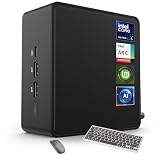
- 🚀 Next-Gen Performance with Open-Source Freedom: The ASUS NUC 14 Pro Linux Mint mini PC features Intel Core Ultra 5 125H with 14 cores, 18 threads, up to 4.5GHz turbo. Preloaded with Linux Mint, it offers a stable, secure, lightweight OS optimized for AI processing, programming, and multitasking. Intel Arc GPU ensures smooth AI, graphics, and multi-display performance. Ideal for developers, data scientists, and open-source enthusiasts.
- ❄ Silent Cooling for Continuous AI & Dev Workloads: Engineered for reliability, this Linux mini PC uses an advanced thermal design with an aluminum fin heatsink, dual copper pipes, and a high-efficiency turbo fan. Combined with Linux Mint’s resource-efficient system, it ensures whisper-quiet and cool operation for 24/7 uptime, even when compiling large projects, training AI models, or running virtual machines. Perfect for coding environments and heavy multitasking with zero noise distractions.
- ⚡ Developer-Ready Memory & Flexible Storage: The ASUS NUC Linux Mint edition supports 16GB to 64GB DDR5 RAM (expandable up to 96GB) and blazing-fast 512GB to 2TB PCIe Gen4 SSD for superior read/write speeds. Additional 2.5-inch SATA slots allow easy storage expansion for large datasets, containers, or NAS setups. With its modular, tool-free design, upgrading RAM or storage is quick—making it the ultimate choice for developers, AI researchers, and Linux power users.
- 🔗 Full Connectivity & Multi-Monitor Productivity: This mini PC includes 2x Thunderbolt 4, 2x HDMI 2.1, 1x USB 3.2 Gen2 Type-C x2, 3x USB 3.2 Gen2 Type-A, 1x USB 2.0, and 2.5G Ethernet. Linux Mint’s driver support and open-source flexibility enable up to 8K or 4x4K HDR displays for coding, virtualization, and AI dashboards. WiFi 6E and Bluetooth 5.3 provide robust wireless performance for remote work and collaboration.
- 🛡 Secure, Open-Source & Space-Saving Design: Preloaded with Linux Mint, this compact mini PC offers a secure, privacy-focused environment with firewall and full-disk encryption. Ideal for developers, AI researchers, and businesses seeking open-source performance. VESA mount-ready for a clean workspace in offices, studios, or embedded setups. Experience powerful AI computing and Linux efficiency. Includes $99 wireless keyboard and mouse bundle.
Check applications as carefully as the desktop
A familiar desktop does not make Windows applications automatically available. Linux distributions package different programs, use different settings systems and deliver updates through their own tools. Make an inventory before switching:
- Which applications are essential rather than merely preferred?
- Can each task be completed with a Linux-native program, a web service or an approved alternative?
- Do you need a particular file format, plug-in, macro, font or hardware integration?
- Will colleagues, school or clients require a specific application or workflow?
- Do your backup, password-manager, VPN, cloud-storage and synchronization tools support the chosen distribution?
Test the answer in the live session where possible. If an application cannot run in that environment, do not assume an installation will solve it. Document the exact requirement and investigate it before you repartition the computer.
A practical decision framework
Pick Cinnamon first when:
- You are unsure which Linux desktop to choose.
- You want a conventional panel, menu and task-list arrangement.
- You prefer a full-featured default Mint edition and are willing to learn Linux-specific tools.
Try MATE when:
- The computer is older or constrained and Cinnamon is not comfortable in a live test.
- You prefer Mint’s more traditional desktop approach.
- You accept that menus, panels and configuration tools differ from Cinnamon.
Try Xfce when:
- Lower resource use is more important than a large feature set.
- The live session confirms that graphics, displays and peripherals work.
- You are comfortable with a lighter desktop that Mint says provides fewer features.
Try Plasma when:
- You want to move and resize panels, rearrange widgets and tune desktop behavior.
- You enjoy exploring centralized settings and choosing your own layout.
- You understand that the distribution’s defaults may not match screenshots of another Plasma system.
Common mistakes that make a “Windows-like” switch frustrating
Choosing from a screenshot
Two desktops can show a similar taskbar while differing in search, notifications, settings and file handling. Test tasks, not pixels.
Assuming the lightest desktop is automatically best
Lower resource use can matter on older hardware, but it does not guarantee support for your graphics adapter, printer or external display. Confirm each device in the live session.
Free tools Windows power users keep installed
One-click scans. No signup required.
Installing before backing up
Partitioning and boot-loader changes carry data-loss risk. A live test is reversible; an installation is not unless you have a verified backup and a recovery plan.
Best Value

- Model: Dell OptiPlex 7050 Small Form Factor (SFF)
- Processor: Intel Core i7-7700 3.60 GHz
- Memory: 32GB DDR4 Ram
- Storage: 1TB Solid State Drive (SSD) Fast Boot + Storage
- Operating System: Windows 11 Pro (64-bit)
Treating Plasma defaults as universal
Plasma’s controls are extensive, but each distribution chooses its own initial theme, panel arrangement and bundled software. Judge the specific distribution image you intend to install.
Confusing a test release with a stable recommendation
KDE’s page currently labels KDE Linux Testing and warns of frequent changes and regressions. Recheck that status before using it as a primary system.
What to do after choosing
- Keep the installation USB and your backup until the new system has passed several days of normal work.
- Write down the release name, desktop edition and support end date shown in the distribution’s current documentation.
- Install updates through the distribution’s documented tools and restart when required.
- Configure backups before importing your entire data collection.
- Change one desktop setting at a time so you can undo a change that makes the workflow worse.
- Keep a recovery route for your previous operating system if you used dual booting.
The bottom line for a Windows newcomer
Linux Mint Cinnamon is the sensible first desktop to try because Mint recommends it for undecided users and it presents a conventional menu-and-panel workflow. MATE and Xfce are alternatives when the Mint edition’s stated resource and feature trade-offs better match your computer. KDE Plasma is the better experiment for someone who wants to construct a highly customized workspace, but its default look depends on the distribution and its many controls require more decisions.
Whichever route you choose, use a live USB, test the target computer’s hardware and repeat your real application workflow before installation. Familiarity should lower the learning curve, not replace compatibility testing.
Quick Recap
Product prices and availability are accurate as of the date/time indicated and are subject to change. Any price and availability information displayed on Amazon at the time of purchase will apply.

