What’s actually slowing this PC down?
Pick the symptom - the matching free tool is one click away.
To verify PCIe 6.0 SSD support, identify the server’s complete model and configuration, then confirm the specific storage slot, root port, riser, or backplane is documented for PCIe 6.0 (64.0 GT/s). Match the SSD’s lane width, form factor, connector, firmware, and boot requirements. A PCIe 6.0 drive can interoperate with earlier PCIe generations, but backward compatibility does not make an older server a Gen6 platform or deliver Gen6 speed.
What “PCIe 6.0 SSD support” actually means
Support is more specific than whether a drive can be inserted or detected. A server supports a PCIe 6.0 SSD at Gen6 speed only when the complete link—from the processor or controller root port through any riser and backplane to the drive bay or connector—implements PCIe 6.0 and the server firmware permits that configuration.
As an Amazon Associate I earn from qualifying purchases.
PCI-SIG defines PCIe 6.0 at 64.0 GT/s, with up to 256.0 GB/s over an x16 link. Those are capabilities of the standard, not a performance promise for a particular server or SSD. The actual link can use fewer lanes, negotiate an older generation, or be limited by the server’s storage controller and backplane.
PCIe 6.0 uses PAM4 signaling, lightweight Forward Error Correction (FEC), CRC, and Flit-based encoding. Both ends of the link and the intervening platform hardware must support the required implementation. A specification that merely says “PCIe compatible” is therefore not proof of Gen6 operation.
#1 Best Overall
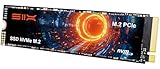
- Unleash Upgraded power - Employing PCIe Gen4x4 High Speed Interface, SIX X7400 nvme m.2 ssd confer it UP to 5000MB/s read speeds. With faster transfer speeds and high-performance bandwidth and throughput.
- Work and Play - Whether you pursue science or culture, X7400 m.2 ssd 512GB accentuates ferocious performance for heavy computing and immersive gameplay. Get up to 30% fast performance for heavy-duty applications in data analytics, content creation, gaming and more.
- Match ur Next-level M.2 SSD - Compatibility ready for laptop, desktop or PS5 storage expansion, X7400 internal 512GB ssd is easy to install to extend lifecycle and storage. Speed up your bootups, file transfers, and game loads for tech-savvy users or hardcore gamer.
- Purpose Built - SIX X7400 m.2 nvme ssd ps5 is built for achieving immersive gameplay, experiencing uninterrupted gameplay and incredibly short load times. Breathe in. Focus. Breathe out, X7400 lightning-fast loading are ready for your final boss.
- 5 Years Limited Warranty & What u Get - Your X7400 nvme m.2 ssd is safeguarded for 5 years by SIX Limited Warranty Service. To improve your installation experience, X7400 provide all you need for installation(such as screw, screwdrivers, heatsink and so on).
1. Identify the exact server configuration
Begin with the complete machine identity, not a product-family name. A single server family can contain several generations, processor choices, riser layouts, storage controllers, and backplanes.
- Record the manufacturer’s full model number and generation.
- Record the chassis or platform configuration, including processor option, riser assembly, storage controller, and backplane.
- Use the chassis label, asset inventory, or the server’s management interface to confirm the identity.
- Note the exact slot, bay, or connector where the SSD will be installed.
Keep this information together with the SSD model and capacity. A vendor cannot reliably confirm compatibility from a family name alone. Two otherwise similar systems can expose different PCIe generations when they use different processors, riser cards, cable assemblies, or drive cages.
2. Use the server’s official documentation
Find the current product specification and the platform or service manual for that exact configuration. The product page may summarize expansion capability, while the service manual often identifies individual risers, slots, backplanes, and lane assignments.
Search the documents for these terms:
PCIe 6.0,Gen6, or64 GT/sroot port,NVMe, and the relevant riser or backplane identifierM.2,U.2, orEDSFFboot support,qualified drives, and firmware or BIOS prerequisites
An explicit statement that the relevant storage path supports PCIe 6.0 is strong evidence. If the documents do not mention Gen6, treat support as unverified rather than assuming that the omission proves incompatibility. Ask the manufacturer or system integrator for a written confirmation.
Read the tables and footnotes, not just the headline specification. A chassis page might list PCIe 6.0 expansion generally, while a footnote limits a particular storage bay to a different generation or lane width. The service manual may also distinguish an optional riser from the standard riser shipped in your machine.
3. Trace the complete storage path
Do not stop after finding a Gen6-capable expansion slot. The SSD’s path may pass through several components, and the slowest or oldest component determines the negotiated link.
Check the root port
Confirm that the CPU or storage controller root port connected to the intended slot is specified for PCIe 6.0. The server may have different generations on different ports, especially when optional processors or risers are installed.
Check the riser and backplane
Verify that the installed riser, cable, and drive backplane carry the same generation and lane width. A Gen6 root port connected to a Gen5 backplane cannot provide a Gen6 storage link.
Check lane width
Record whether the path is x4, x8, x16, or another published width. PCIe 6.0’s up-to-256.0-GB/s figure applies to x16; an x4 or x8 connection has a proportionally smaller theoretical link capacity. Lane width is independent of the generation label, so both values must match the SSD’s requirements.
Check the intended bay or slot
Server diagrams can show several bays that look identical but are wired differently. Use the manual’s slot or bay number and its stated connection, rather than assuming every front drive bay has the same PCIe capability.
Make a simple path record while reading the manual: processor or controller, root-port identifier, riser, cable, backplane, bay number, generation, and lane width. If any link in that chain is missing from the documentation, mark the result as unverified instead of filling the gap with an assumption.
4. Match the SSD’s physical interface
PCIe generation alone does not determine whether the drive can be installed. The server must provide the correct physical format, connector, and backplane.
Rank #2
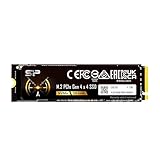
- PCIe Gen 4x4 interface with read speeds up to 7,000MB/s and write speeds up to 6,000MB/s
- NVMe 1.4 support allows for higher performance, lower latency, and lower power consumption
- Available in massive storage capacity options ranging from 1TB to 4TB
- TBW: 300
- Backed by a 5-year limited warranty or up to 300 TBW, whichever comes first. Please note that the warranty covers standard consumer/business use and is voided if the drive’s total written data exceeds its rated TBW limit.
| Item to compare | What to verify |
|---|---|
| Form factor | Whether the server bay accepts the SSD’s M.2, U.2, or EDSFF format |
| Connector and backplane | Whether the installed connector and backplane are designed for that drive interface |
| Lane width | Whether the slot’s published x4, x8, or x16 connection meets the SSD specification |
| Cabling or adapter | Whether the documented cable or adapter supports the required signaling and is approved for the platform |
An M.2 drive does not automatically fit a U.2 or EDSFF bay. A passive adapter can solve a mechanical mismatch in some systems, but it does not guarantee signal integrity, lane availability, firmware recognition, hot-swap behavior, or vendor support.
Also check whether the physical installation is intended for a serviceable, hot-swappable bay or for an internal slot. A connector that accepts the SSD mechanically may not provide the backplane functions or platform approval expected for a production drive. The server documentation, rather than the adapter seller’s description, is the authority for that configuration.
5. Verify firmware, BIOS, and boot requirements
Check the server’s firmware notes and compatibility list before installing the drive. Some platforms require a minimum system BIOS, controller firmware, or backplane firmware for newer devices.
Free tools Windows power users keep installed
One-click scans. No signup required.
- Look for a minimum BIOS or platform-firmware version in the server documentation.
- Check whether the SSD must appear on a qualified-drive list.
- Confirm that the server supports the SSD as a boot device if that is your intended use.
- Verify whether the storage controller, rather than the general-purpose expansion slots, manages the drive.
- Record any vendor requirement to update firmware before adding the SSD.
Boot support is a separate question from electrical link support. A drive may establish a PCIe link and be usable as secondary storage while still lacking platform support for booting.
Capture the versions you find before making the purchase or scheduling maintenance. If the vendor requires an update, determine whether the BIOS, controller, and backplane must be updated together and whether the update changes the qualified-drive list. Do not infer boot support merely because the operating system can detect an NVMe device.
6. Compare the SSD specification with the server documentation
Obtain the SSD’s own technical specification and compare it line by line with the server’s documented path.
| SSD detail | Server detail to match |
|---|---|
| PCIe generation | Generation supported by the specific root port, riser, and backplane |
| Lane requirement | Lane width provided by the intended slot or bay |
| Form factor | Supported M.2, U.2, or EDSFF bay and connector |
| Firmware or boot requirement | Server BIOS, controller, and qualified-drive provisions |
Do not select a drive solely because its generation number is higher. Capacity, endurance, thermal design, power delivery, and vendor qualification can matter just as much to a server deployment, but those values must come from the specific SSD and platform documentation.
Quick wins for a faster PC:
Scan for outdated or missing drivers - takes under a minuteDriver Scan →Clear out junk files and repair common Windows errorsFree Scan →Fix the driver behind crashes, sound loss and screen glitchesFind Drivers →When comparing two drives, first eliminate any option whose form factor, lane requirement, or qualification status does not match the server. Only then compare capacity and performance needs. A nominally faster drive can be a poorer choice if the platform runs it at a lower generation, cannot cool it adequately, or does not support it for boot.
7. Understand backward compatibility correctly
PCI-SIG states that PCIe 6.0 products interoperate with previous PCIe generations. This means a Gen6 device may negotiate a link with an older supported platform. The negotiation uses the highest generation and lane width that both ends and the platform path can sustain.
Backward compatibility does not upgrade the server. If the root port or backplane is Gen4 or Gen5, a PCIe 6.0 SSD will operate at the supported lower generation, assuming the server recognizes the device and the physical interface is correct. Compatibility also does not override a vendor’s qualified-drive policy or boot restrictions.
| Evidence found | What it establishes |
|---|---|
| Server documentation explicitly lists PCIe 6.0 or 64 GT/s for the relevant storage path | Strong evidence of Gen6 capability for that documented path |
| Server documentation lists only an earlier generation | A Gen6 SSD may be interoperable at the earlier generation; Gen6 speed is not established |
| Documentation says only “PCIe compatible” | Interoperability may be intended, but the supported generation and lane width remain unverified |
| A Gen6-capable root port is documented, but the backplane or riser is not | The complete storage path is unverified |
| The SSD fits through an adapter | Mechanical fit only; signaling, firmware, boot, and warranty support still require confirmation |
8. Ask the vendor the right question when documents are unclear
Contact the server OEM, system integrator, or platform support team with a complete configuration rather than a general question about the product family.
Do these 3 things before closing this tab:
1Clear out junk files and repair common Windows errors2Fix the driver behind crashes, sound loss and screen glitches3Repair Windows errors before they cause bigger problemsInclude:
- Full server model, generation, and configuration
- Processor and installed riser or backplane identifiers
- Exact slot or drive-bay number
- SSD manufacturer, model, interface, form factor, and capacity
- Current BIOS, controller, and backplane firmware versions
Ask the support representative to confirm, in writing:
Rank #3

- SPEED UP PROJECTS. Launch creator applications fast with uncompromising PCIe 4.0 read speeds up to 7,100MB/s,[2] (1TB and 2TB[1] models) and write speeds up to 6,700MB/s[2] (1TB[1]-4TB[1] models).
- CREATE AND STORE MORE. Make more room for your 4K videos and high-resolution images with capacities from 500GB[1] up to 4TB[1] on M.2 2280 built with our trusted 8th generation SANDISK BiCS QLC 3D CBA NAND.
- IT GOES WHERE YOU GO. With an all-new power efficient design, your drive delivers high performance with low power, giving you more time to be productive while on the go.
- UNCOMPROMISED RELIABILITY. With up to 1,200 TBW[3] (4TB[1] model) endurance rating, your drive is designed for creators.
- KEEP YOUR DRIVE UPDATED. Monitor your SSD’s performance and check for updates with the downloadable SANDISK Dashboard application.[5]
- Whether the specified slot or bay implements PCIe 6.0 (64 GT/s).
- The supported lane width for that path.
- Whether the SSD’s form factor and connector are approved.
- Whether the SSD is supported as a boot device, if required.
- Any minimum firmware versions or qualified-drive restrictions.
- Whether installing the drive affects warranty or support coverage.
A written answer tied to the exact configuration is more useful than a generic statement that the server “supports NVMe” or “supports PCIe.” Include the vendor’s response in the deployment record so another administrator can distinguish a confirmed configuration from a theoretical one.
What to do when no Gen6 claim appears
Absence of “PCIe 6.0” in a document is not proof that the machine cannot support it, especially if the document is old or describes only the base chassis. It is, however, a reason to stop treating support as confirmed. Check the platform or service manual, optional-riser documentation, backplane part number, and current firmware notes before drawing a conclusion.
Do not substitute a generic diagnostic utility, a slot label, or an adapter listing for model-specific documentation. Those may reveal that a device is present or connected, but they do not establish that the complete path is qualified for Gen6 operation, booting, hot swap, or vendor support. Escalate the complete configuration to the OEM or integrator when one component remains undocumented.
PC Slower Than It Used to Be?
A free scan shows the junk files, broken settings and background clutter dragging Windows down - then fixes them in one click.Free scan · Windows 10 & 11Crashes, No Sound, or Screen Glitches?
Random freezes, missing sound and display glitches usually trace back to one bad driver. Find and replace yours safely.Free scan · under a minuteHow to compare two server configurations
When choosing between configurations, compare the actual storage path rather than the headline expansion specification.
- Generation: PCIe 6.0 on the intended storage root port, not merely elsewhere in the chassis.
- Lane width: The x4, x8, or x16 width provided to the bay or slot.
- Physical integration: Supported M.2, U.2, or EDSFF format, connector, cable, and backplane.
- Firmware and boot: Required BIOS, controller, and drive qualification status.
- Support terms: Whether the server vendor will support that SSD in the selected configuration.
A configuration with a lower-generation but fully qualified backplane can be a safer deployment than one advertising a newer root port with an unverified storage path. Compare the complete bill of materials, because an optional riser or drive cage can change the answer without changing the server’s family name.
Common mistakes and how to avoid them
Assuming the server family name is enough
Different revisions and riser options can change the available PCIe generation. Always use the full model and installed configuration.
Reading the slot label but not the backplane
A slot marked for PCIe expansion may not be connected to the drive bays. Trace the path through the riser, cable, controller, and backplane.
The Tool Desk
Outbyte PC Repair FREEClear out junk files and repair common Windows errorsFree Scan →Outbyte Driver Updater FREEFix the driver behind crashes, sound loss and screen glitchesFind Drivers →Confusing GT/s with usable SSD throughput
64.0 GT/s is the PCIe 6.0 raw data rate. It is not a guaranteed SSD read or write result, and the standard’s up-to-256.0-GB/s figure is specifically for an x16 link under standard-level conditions.
Treating backward compatibility as Gen6 support
Compatibility allows a Gen6 device to work with an earlier supported generation; it does not change the older platform’s maximum link speed.
Using a passive adapter as proof
An adapter addresses physical connection only. It cannot establish that the server firmware, signal path, hot-swap functions, or vendor support are valid.
Ignoring boot qualification
Secondary-storage operation and boot-device support can have different requirements. Confirm both separately.
Recommended Free Tools
Assuming every bay shares one link specification
Front bays can be wired through different backplanes or controllers. Verify the numbered bay and its lane assignment instead of generalizing from a neighboring drive.
Rank #4

- Unleash Upgraded power - Employing PCIe Gen4x4 High Speed Interface, SIX X7400 nvme m.2 ssd confer it UP to 7350MB/s read speeds. With faster transfer speeds and high-performance bandwidth and throughput.
- Work and Play - Whether you pursue science or culture, X7400 m.2 ssd 1TB accentuates ferocious performance for heavy computing and immersive gameplay. Get up to 40% fast performance for heavy-duty applications in data analytics, content creation, gaming and more.
- Match ur Next-level M.2 SSD - Compatibility ready for laptop, desktop or PS5 storage expansion, X7400 internal 1TB ssd is easy to install to extend lifecycle and storage. Speed up your bootups, file transfers, and game loads for tech-savvy users or hardcore gamer.
- Purpose Built - SIX X7400 m.2 nvme ssd ps5 is built for achieving immersive gameplay, experiencing uninterrupted gameplay and incredibly short load times. Breathe in. Focus. Breathe out, X7400 lightning-fast loading are ready for your final boss.
- 5 Years Limited Warranty & What u Get - Your X7400 nvme m.2 ssd is safeguarded for 5 years by SIX Limited Warranty Service. To improve your installation experience, X7400 provide all you need for installation(such as screw, screwdrivers, heatsink and so on).
Using a standards revision as a server promise
PCI-SIG approved Base Specification Revisions 7.1 and 6.5 on 2026-09-17. That date describes the standards program; it does not prove that a particular server or SSD implements either revision or PCIe 6.0.
Independent reader supportYour contribution helps us test, update, and keep practical guides available for everyone.What PCIe 6.0 standards information can—and cannot—tell you
| PCIe 6.0 standard fact | Practical interpretation |
|---|---|
| 64.0 GT/s raw data rate | The maximum signaling rate defined for the generation, not a guaranteed server or SSD result |
| Up to 256.0 GB/s over x16 | A standard-level aggregate figure; a narrower link provides less theoretical capacity |
| Backward compatibility with previous PCIe generations | A Gen6 product can interoperate with an earlier supported generation, normally at that lower generation |
| PAM4, FEC, CRC, and Flit-based encoding | Gen6 signaling and protocol features that must be implemented by the link; they do not identify a compatible server model |
| PCI-SIG Base Specification Revisions 7.1 and 6.5 approved on 2026-09-17 | The standards continue to evolve; approval of a revision does not show that a particular server or SSD implements it |
PCI-SIG defines the technology. The server manufacturer’s model-specific documents determine whether that technology is present in your machine.
A practical evidence worksheet
Before ordering hardware, create one row for each link component and fill it from an official document:
| Path component | Record |
|---|---|
| Server | Full model, generation, processor, and configuration identifier |
| Root port or controller | PCIe generation and lane width assigned to the intended storage path |
| Riser and cable | Part number, supported generation, and lane count |
| Backplane and bay | Backplane identifier, bay number, connector, and supported drive format |
| SSD | Model, PCIe generation, lane requirement, form factor, and capacity |
| Firmware and support | BIOS, controller, and backplane prerequisites; boot and qualification status |
A completed row should contain a quotation or page reference from the relevant manual. Rows marked “not stated” are unresolved questions to send to the vendor, not reasons to assume compatibility. This worksheet also makes it easier to compare two server configurations without overlooking a riser or backplane change.
A concise decision checklist
- Write down the complete server model, generation, processor, riser, controller, and backplane configuration.
- Identify the exact bay, slot, or connector intended for the SSD.
- Find an official statement for that storage path showing PCIe 6.0, Gen6, or 64 GT/s.
- Record the documented lane width.
- Match the SSD’s PCIe generation, lane width, form factor, and connector.
- Check BIOS, controller, backplane, boot, and qualified-drive requirements.
- Treat an unmentioned generation as unverified, not as confirmed support.
- Request written confirmation from the vendor or integrator when any part of the path is unclear.
If every item is documented, you have a defensible compatibility decision. If one is missing, the responsible conclusion is that PCIe 6.0 support for that particular SSD path has not yet been established.
Frequently Asked Questions
Will a PCIe 6.0 SSD work in an older server?
Possibly. PCI-SIG says PCIe 6.0 products interoperate with previous PCIe generations, so the drive may run at the highest older generation supported by both ends and the platform path. That does not give the server Gen6 speed, and the drive still must fit the connector, be recognized by firmware, and comply with the vendor’s qualification and boot rules.
How do I tell what PCIe generation my server’s SSD slot supports?
Use the exact server model and configuration, then consult its product specification and platform or service manual. Search for PCIe 6.0, Gen6, 64 GT/s, root port, NVMe, the riser identifier, and the backplane or bay number. Confirm the generation and lane width for the particular storage path, not just for an unrelated expansion slot.
What’s actually slowing this PC down?
Pick the symptom - the matching free tool is one click away.
Does a 64 GT/s specification mean my SSD will transfer data at 64 GB/s?
No. GT/s is the raw signaling rate defined for PCIe 6.0. PCI-SIG lists up to 256.0 GB/s over an x16 link as a standard-level aggregate figure. A narrower x4 or x8 path provides less theoretical capacity, and real SSD performance also depends on the drive, controller, thermals, firmware, and workload.
Can an adapter make an M.2 PCIe 6.0 SSD work in a U.2 or EDSFF bay?
An adapter may address a mechanical mismatch, but it does not prove signal integrity, lane availability, firmware recognition, hot-swap behavior, boot support, or vendor approval. Verify the adapter, cable, backplane, and complete server configuration in the platform documentation or obtain written confirmation from the OEM or integrator.
Is a Gen6-capable root port enough to confirm Gen6 SSD support?
No. The link also passes through the installed riser, cable, controller, and backplane. Any component limited to an earlier generation prevents a Gen6 storage link. Verify the numbered bay or slot and every component between it and the root port, including lane width.
Can the SSD be used for storage if it is not approved as a boot drive?
Possibly, but those are separate support questions. A drive can establish a PCIe link and serve as secondary storage while the platform lacks firmware support for booting from it. Check the qualified-drive list, BIOS requirements, controller support, and explicit boot documentation for the intended use.
What if the server documentation only says “PCIe compatible”?
Treat the generation and lane width as unverified. That wording may indicate interoperability, but it does not establish PCIe 6.0 capability for the storage path. Check the service manual and current firmware notes, then ask the vendor to confirm the exact server, bay, riser, backplane, and SSD model in writing.
Does approval of a newer PCIe specification revision prove that my server supports PCIe 6.0?
No. PCI-SIG approved Base Specification Revisions 7.1 and 6.5 on 2026-09-17, but a standards revision describes the specification, not the bill of materials in a particular server. Only the server manufacturer’s model-specific documentation can establish whether Gen6 hardware is implemented.
The Bottom Line
Confirm PCIe 6.0 support from the server outward: exact model and configuration, root port, riser, cable, backplane, bay, lane width, connector, firmware, and boot qualification. PCI-SIG’s 64.0 GT/s and backward-compatibility statements explain the standard, but they do not certify an individual machine. If the complete path is not explicitly documented, obtain written confirmation from the OEM or integrator before purchasing or deploying the SSD.
Quick Recap
Product prices and availability are accurate as of the date/time indicated and are subject to change. Any price and availability information displayed on Amazon at the time of purchase will apply.
The Tool Desk
Outbyte Driver Updater FREEFix the driver behind crashes, sound loss and screen glitchesFind Drivers →Outbyte PC Repair FREEClear out junk files and repair common Windows errorsFree Scan →
