The Tool Desk
Outbyte Driver Updater FREEScan for outdated or missing drivers - takes under a minuteDriver Scan →Outbyte PC Repair FREEClear out junk files and repair common Windows errorsFree Scan →Proxmox VE normally presents each virtual machine with the conservative kvm64 CPU model. In the VM’s processor settings, changing the CPU type to host exposes the physical host’s model and feature flags instead. That can make otherwise hidden instruction sets available to the guest, but it can also prevent live migration to a node whose CPU lacks one of those features.
Use host when every node that may run the VM has the same CPU model. Use a generic x86-64-v<X> model when the cluster contains different CPUs or may gain different hardware. The right choice is therefore a compatibility decision, not a universal performance switch.
![AMD EPYC 9004 [4th Gen] 9124 Hexadeca-core [16 Core] 3 GHz Processor](https://m.media-amazon.com/images/I/316ISTIk-UL._SL160_.jpg)
As an Amazon Associate I earn from qualifying purchases.
What the CPU-type dropdown actually changes
A Proxmox VM does not automatically see every capability of the server’s processor. QEMU presents the guest with a defined virtual CPU model. The guest operating system and its applications detect that model and enable only the instruction sets and features it advertises.
The documented default is kvm64. It is a deliberately reduced, compatibility-oriented model intended to work across a broad range of x86 hosts. Saying that a VM is “pretending to run on an older CPU” describes this guest-visible model; the physical processor in the server has not been downgraded, and Proxmox is not changing the host’s hardware.
#1 Best Overall

- Media streaming
- Medium capacity data managementSpecifications
- No of CPU Cores: 32
- Base Clock: 2.4GHz
- Max Boost Clock: Up to 3.3GHz
Changing the model changes the CPU feature contract between the VM and the hypervisor. A guest may then recognize capabilities that were hidden by kvm64. Whether that helps depends on the workload: software must be able to use those instructions, and the VM must remain runnable on every node to which you expect to move it.
The three choices that matter
| CPU type | What the guest sees | When it fits | Main risk or limitation |
|---|---|---|---|
kvm64 |
A reduced, generic virtual CPU model | Clusters where broad compatibility and migration flexibility are more important than exposing newer host features | Newer capabilities on the physical CPU may remain invisible to the guest |
host |
The host CPU model and its feature flags | Nodes that use identical CPU models and are managed as a homogeneous cluster | A VM can fail to migrate to a destination that does not provide every exposed feature |
Generic x86-64-v<X> |
A selected, standardized CPU generation or feature level | Mixed-CPU, expanding, or replacement-prone clusters | You must select a level supported by every node that may run the VM; a level that is too old hides capabilities, while one that is too new reduces placement options |
There is no single generic model that is best for every Proxmox installation. The meaningful questions are which features the guest needs and which CPUs exist on all possible migration destinations.
Why host can be useful without guaranteeing a speedup
With host, Proxmox passes through the host’s CPU model and feature flags rather than presenting the reduced kvm64 profile. Guest software that checks for specific instruction sets can therefore see capabilities that were previously masked. This is the reason to consider host, not a promise of a measurable performance increase.
Quick wins for a faster PC:
Clear out junk files and repair common Windows errorsFree Scan →Fix the driver behind crashes, sound loss and screen glitchesFind Drivers →The official Proxmox material reviewed for this topic does not provide a benchmark or a quantified uplift for switching from kvm64 to host. A workload that never uses the newly visible instructions may show no practical change. Another workload may require a particular feature and benefit from having it available. Treat the setting as feature exposure and compatibility policy; measure an application separately if performance is important.
Decide before touching the VM
Write down the CPUs on every node that can run the VM, including nodes you expect to add or use as replacements. Then classify the cluster:
Rank #2
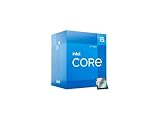
- Intel Core i5 2.50 GHz processor offers hyper-threading architecture that delivers high performance for demanding applications with improved onboard graphics and turbo boost
- The processor features Socket LGA-1700 socket for installation on the PCB
- Its 18 MB of L3 cache is good enough to carry routine data and process them in a flash giving you fast and smooth performance
- Built-in Intel UHD Graphics 730 controller for improved graphics and visual quality. Supports up to 4 monitors.
- Identical CPU models: Proxmox guidance supports
hostwhen the nodes have the exact same CPU model. - Different or potentially different CPU models: Proxmox guidance favors a generic
x86-64-v<X>model selected at a level every destination supports. - Uncertain inventory: Keep the conservative model until you have verified the destination CPUs. A setting that works on the current node can still create a migration problem later.
Also identify whether the VM is expected to use live migration, scheduled failover, or evacuation during maintenance. If it must move between unlike nodes, portability should carry more weight than exposing every feature on one server.
How to change the model in the Proxmox interface
Proxmox release and interface labels can change. The documentation establishes the CPU model setting but does not fix one version-independent click path or screenshot. In current releases, look for the VM’s processor or CPU configuration in its hardware or options editor; the exact label can differ by release.
- Record the current setting. Select the VM and open its processor configuration. Note whether the type is
kvm64,host, or a generic model, along with any separately configured CPU flags. - Check placement requirements. Confirm that every node intended to run the VM supports the model you are about to choose. For
host, “supports” means the nodes use the same CPU model, not merely processors from a similar marketing family. - Shut down when the interface requires it. CPU topology and model changes may require the VM to be stopped. Use the normal guest shutdown procedure and wait until Proxmox reports the VM as stopped rather than forcing a power-off unless recovery requires it.
- Edit the CPU type. Open the processor setting, choose the desired model, and apply the change. Select
hostonly for a homogeneous destination set. Otherwise choose the appropriate genericx86-64-v<X>level that all destinations support. - Start and verify the guest. Boot the VM, check that the operating system starts normally, and confirm inside the guest that the expected CPU feature set is visible. The guest’s own diagnostic tools are the authority for what it detects.
- Test the operational path. If migration is part of your design, perform a planned migration to a supported destination during a maintenance window. Do not infer portability merely from a successful boot on the original host.
If your release uses different labels, use the CPU model documentation for that release rather than assuming that a menu name from an older guide is unchanged. Proxmox’s VE 6.4 administration guide (published May 28, 2021) describes kvm64 as the default, and the versioned VE 9.0.6 cpu-models.conf(5) reference (published July 31, 2025) also lists kvm64 as the default. Model availability and interface wording can still evolve between releases.
Should you choose host or x86-64-v2?
x86-64-v2 is an example of a generic CPU level, not an automatic recommendation. The useful comparison is between a host-specific profile and a cluster-wide baseline:
- Choose
hostwhen the VM is confined to nodes with the exact same CPU model, you want the guest to see that processor’s feature flags, and you accept that moving to a different CPU may be impossible without changing the VM configuration first. - Choose a generic level such as
x86-64-v2only after confirming that every possible destination advertises the required level. This gives the guest a predictable baseline that is less tied to one physical host. - Stay with
kvm64when the priority is the widest compatibility and you do not have a demonstrated need for newer guest-visible features.
The “right” generic level is the highest one that all intended destinations support, not necessarily the newest level shown in the menu. If you later add an older node, that node becomes part of the compatibility calculation if the VM may be placed there.
Rank #3
How CPU choice affects live migration
Live migration depends on the destination CPU being able to provide the features that the guest was promised. With host, the promise is derived from the source host’s model and flags. If the destination lacks a required flag, QEMU may be unable to start the migrated process, and the migration can stop instead of completing.
A generic model makes that promise explicit and repeatable across nodes. It does not make migration automatic: the selected level still has to be supported everywhere, and other VM or cluster constraints can independently affect placement.
Plan CPU policy together with cluster changes. Replacing a server, introducing a different processor generation, or creating a second node for failover can turn a previously safe host configuration into a placement constraint. If you need to move such a VM to a less capable node, change it to a compatible generic model before the move, accepting that the guest may then see fewer features.
Symptoms after selecting the wrong model
The VM boots but an application reports a missing instruction set
The selected model may not expose the feature that application expects. Compare the guest-visible features with the application’s documented requirements. If all intended hosts support the required capability, choose a model that exposes it; if they do not, the application and placement requirements are incompatible and you must use a broader-compatible model or restrict the VM to suitable nodes.
Migration is rejected or QEMU cannot start on the destination
Check the destination CPU against the features exposed by the VM’s current model. A host profile from one node is the first suspect when the nodes are not identical. Stop the VM if necessary, select a model supported by both source and destination, and test again during a controlled window.
Rank #4
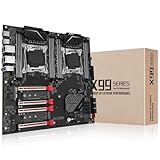
- Intel dual CPU sockets: This C612 server chip motherboard is designed with dual CPU sockets, which can support Intel Core i7 5th/6th generation processors and Xeon E5 V3/V4 series processors on LGA 2011-3 socket. (Note: If only one CPU is installed, please install it in the right slot, and the graphics card needs to be installed in the bottom two slots.)
- DDR4 4-channel memory slot: The memory slot of the LGA 2011-3 motherboard is designed with four channels, which can install 8 memory. It supports effective frequencies of 2133/2400MHz, and the maximum capacity is 256GB. (Non-ECC memory is not compatible when using E5 V4 series processors)
- PCIe 3.0 protocol standard: Equipped with 4 PCIe 3.0 X16 graphics card slots (with steel case). The transfer rate can reach 15.754 GB/s using one graphics card, and the performance can be improved by at least 50% by using two graphics cards. Equipped with dual M.2 hard disk slots, it can achieve fast reading even if multiple programs are running
- Stable power supply: use 24+8+8pin standard power supply interface (need to use a dedicated power supply for dual server motherboards), 12 (CPU) + 4 (memory) + 1 (C612 chip) phase power supply. Precise modularization provides good heat dissipation and makes the program run more stably
- Strong expandability: The X99 motherboard is equipped with multiple expansion interfaces to ensure that the motherboard has more room for improvement. These include 4*USB 3.0 ports, 4*USB 2.0 ports, 10*SATA 3.0 ports, 4*3pin sys fan, 2*4pin CPU fan. Besides, dual network ports allow your computer to do more things
The menu does not show the model you expected
Model lists are release-specific. Confirm the Proxmox VE version and consult that version’s CPU-model reference. Do not substitute a similarly named model without checking its feature baseline and destination support.
Changing the type appears to do nothing
A CPU model change only alters what the guest is allowed to detect. It does not guarantee that an application will use every available instruction, and it does not replace application-level benchmarking. Verify the feature flags inside the guest and test the workload that motivated the change.
Rollback and maintenance planning
- Keep a record of the previous CPU model before editing.
- If the guest fails to start or an application becomes incompatible, power the VM off cleanly where possible.
- Restore the previous model, or select a generic level known to be supported by the destination set.
- Boot the guest and verify its services before attempting migration again.
- Document the chosen baseline alongside the cluster’s CPU inventory so a future node replacement does not silently invalidate it.
Changing back to kvm64 restores the conservative compatibility profile, but it may also hide features that software had been using after the switch. For that reason, test the guest and its applications after either direction of change.
A practical decision checklist
- What CPU model is installed in each node that may host the VM?
- Are those CPU models exactly the same, or merely from a related generation?
- Must this VM live-migrate during maintenance or failover?
- Does the guest or a specific application require a feature absent from
kvm64? - Would a future node addition change the lowest common CPU baseline?
- Have you recorded the current setting and planned a rollback?
- Have you tested both boot and migration rather than checking only the dropdown?
The bottom line for a Proxmox cluster
The dropdown does not “upgrade” a VM’s processor. It changes the CPU model that Proxmox presents to the guest. kvm64 is the conservative default documented in both the older VE 6.4 guide and the VE 9.0.6 reference. host exposes the physical host’s model and features and is intended for clusters whose nodes have identical CPUs. A generic x86-64-v<X> model is the safer policy for mixed, changing, or migration-focused clusters.
What’s actually slowing this PC down?
Pick the symptom - the matching free tool is one click away.
Choose the highest feature level that your placement policy can support everywhere, and treat any performance benefit as workload-dependent rather than guaranteed.
Quick Recap
Product prices and availability are accurate as of the date/time indicated and are subject to change. Any price and availability information displayed on Amazon at the time of purchase will apply.

