Use Puppeteer’s page.screenshot() method inside an awaited loop. The example below takes one screenshot, waits 10 seconds, then takes the next; because capture time is added to the wait, the actual start-to-start interval is at least 10 seconds, not an exact real-time schedule.
Capture a screenshot every 10 seconds with Puppeteer
Install Puppeteer in a JavaScript project, create the output directory, then run a script like this. It opens the page once and reuses that page for each capture.
import puppeteer from 'puppeteer';
import { mkdir } from 'node:fs/promises';

const url = 'https://example.com';
const intervalMs = 10_000;
const outputDir = 'screenshots';

await mkdir(outputDir, { recursive: true });
const browser = await puppeteer.launch();

try {
  const page = await browser.newPage();
  await page.setViewport({ width: 1280, height: 800 });
  await page.goto(url, { waitUntil: 'networkidle2' });

  let sequence = 0;
  while (true) {
    const timestamp = new Date().toISOString().replaceAll(':', '-');
    const path = `${outputDir}/capture-${timestamp}-${sequence++}.png`;
    await page.screenshot({ path, fullPage: true });
    console.log(`Saved ${path}`);
    await new Promise(resolve => setTimeout(resolve, intervalMs));
  }
} finally {
  await browser.close();
}
Puppeteer’s screenshot guide uses Page.screenshot() to save an image by providing a path; this example uses PNG files and fullPage: true to include the page beyond the viewport. Remove fullPage or set it to false for a viewport-only capture. The API returns a Uint8Array by default; choosing base64 encoding returns a string instead. See the official screenshot guide and Page.screenshot() API.
Stop the loop cleanly
The infinite loop is suitable only for a process you intend to keep running. In production, add a stop condition or respond to an abort signal so the loop can end. The finally block closes Chromium if the loop exits normally or throws an error; ensure your shutdown path reaches it rather than terminating the process abruptly.
Recommended Free Tools
#1 Best Overall

- Compact interval timer times one or two intervals between two seconds and 99 minutes.
- Built-in Stopwatch and Clock feature. Secure and Removable Belt-clip included.
- Auto mode keeps repeating through intervals, up to 99 repeats. Chime and vibration interval notification; alarm duration can be set for one, two, five, or nine seconds.
- Size of a small pager. Powered by one AAA battery (not included); measures 2.25 by 1.75 by 0.5 inches (55mm X 44mm X 14mm). Sweat and impact resistant.
- For use with: HIIT, Cross Fit, Cardio, Weightlifting, Strength Training, Kettlebells, Body for Life, Running, Learn-to-Run, MMA, Tabata, Boxing, Martial Arts and more.
What “every 10 seconds” means
The sample waits 10 seconds after each screenshot has finished. If capture and file writing take 700 milliseconds, consecutive screenshot starts will be roughly 10.7 seconds apart. That serial behavior is deliberate: awaiting each capture prevents a second screenshot call from starting before the previous one resolves and keeps filenames and output ordering straightforward.
For a fixed start-to-start schedule
If your requirement is to begin captures on clock deadlines—such as at 00, 10, 20, and 30 seconds—measure elapsed time and schedule against the next deadline rather than sleeping a full interval after each capture. Decide what to do when a capture runs past its slot: skip missed slots, or take the next capture immediately. Avoid starting overlapping screenshot calls unless your application explicitly handles concurrency, ordering, and file naming. Puppeteer provides the browser capture operation; this scheduling policy belongs to your script.
Wait for the right page state
The sample navigates once with waitUntil: 'networkidle2'. That is a reasonable starting point for pages that settle after loading, but it is not a universal readiness test. Sites with polling, streaming connections, animations, or delayed content may never become network-idle—or may reach that state before the content you need is ready.
Use a page-specific readiness condition
When a particular element signals that the page is ready, wait for its selector after navigation:
Rank #2
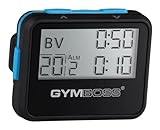
- Compact interval timer times one or two intervals between two seconds and 99 minutes.
- Built-in Stopwatch and Clock feature. Secure and Removable Belt-clip included.
- Auto mode keeps repeating through intervals, up to 99 repeats. Chime and vibration interval notification; alarm duration can be set for one, two, five, or nine seconds.
- Size of a small pager. Powered by one AAA battery (not included); measures 2.25 by 0.5 x 1.75 inches. Sweat and impact resistant.
- For use with: HIIT, Cross Fit, Cardio, Weightlifting, Strength Training, Kettlebells, Body for Life, Running, Learn-to-Run, MMA, Tabata, Boxing, Martial Arts and more.
await page.goto(url, { waitUntil: 'domcontentloaded' });
await page.waitForSelector('[data-testid="report-ready"]');
Replace the selector with one meaningful to the target page. Puppeteer also supports navigation waits and waits for functions or locators. A selector is often more robust than adding an arbitrary delay because it ties capture to the content you actually need. Consult the waitForSelector API and page interaction guide for the available waiting patterns.
Capture updates without reloading
The main example leaves the page open and captures its current state repeatedly. That works for dashboards or pages that update themselves. If the page only changes after a reload, put a navigation or reload step inside the loop, then wait for the appropriate readiness condition before taking each screenshot. Reloading every cycle can add network load and change page state, so use it only when the target requires it.
Choose viewport, scope, and browser mode
Set a stable viewport
Set the viewport before navigation when layout consistency matters. The example uses 1280 × 800 CSS pixels; change those values to match the screen size you need. A viewport affects responsive layout, so the same URL can produce different screenshots at different dimensions.
Capture a page or one element
Use page.screenshot() for the page. If you only need one component, locate it and use the element’s screenshot method instead:
Do these 3 things before closing this tab:
1Clear out junk files and repair common Windows errors2Scan for outdated or missing drivers - takes under a minute3Repair Windows errors before they cause bigger problemsRank #3

- Compact interval timer times one or two intervals between two seconds and 99 minutes.
- Built-in Stopwatch and Clock feature. Secure and Removable Belt-clip included.
- Auto mode keeps repeating through intervals, up to 99 repeats. Chime and vibration interval notification; alarm duration can be set for one, two, five, or nine seconds.
- Size of a small pager. Powered by one AAA battery (not included); measures 2.25 by 1.75 by 0.5 inches (55mm X 44mm X 14mm). Sweat and impact resistant.
- For use with: HIIT, Cross Fit, Cardio, Weightlifting, Strength Training, Kettlebells, Body for Life, Running, Learn-to-Run, MMA, Tabata, Boxing, Martial Arts and more.
const chart = await page.$('#chart');
if (!chart) throw new Error('Chart element was not found');
await chart.screenshot({ path: 'screenshots/chart.png' });
Element captures can avoid saving irrelevant page content. The official screenshot guide documents ElementHandle.screenshot().
Headless and visible Chrome
Puppeteer launches headless by default. For visual debugging, launch with headless: false so you can watch the browser, or use slowMo to slow operations down. Current Puppeteer documentation also describes headless: 'shell', which uses Chrome Headless Shell. The documentation says the shell can be more performant for some automation uses, but does not completely match regular Chrome behavior. Choose based on whether compatibility with ordinary Chrome rendering or a particular automation behavior matters more.
Puppeteer guarantees compatibility with its bundled browser. If you point it at a different executable, you do so at your own risk. See the headless modes guide, launch options, and debugging guide.
Make recurring captures reliable
- Use unique filenames. A timestamp plus a sequence number avoids overwriting a prior image, including when multiple captures happen in the same second.
- Create the destination directory. The runnable sample does this with
mkdir; without that step, file output can fail if the directory does not exist. - Keep work serial by default. Await the screenshot and any required page readiness before starting the next cycle.
- Handle shutdown. Stop the loop gracefully and close the browser so Chromium processes do not remain after the job ends.
- Plan storage. A ten-second cadence produces 360 captures per hour, or 8,640 per day if it runs continuously. Estimate disk use from a representative image and set a retention or rotation policy appropriate to your workload.
- Watch long-running browser health. If captures become slower or the page accumulates state, consider whether periodic reloads or browser restarts are appropriate for the target. Those choices can alter page behavior, so validate the capture result rather than assuming a restart is harmless.
Troubleshooting common problems
The script saves only one image
Check that the loop is actually running and that the process is not exiting after the first iteration. An uncaught error in navigation or screenshot capture will break out to finally, close the browser, and stop the job. Log errors around each cycle if you want a long-running worker to recover from a single failure.
What’s actually slowing this PC down?
Pick the symptom - the matching free tool is one click away.
Rank #4

- Compact interval timer times one or two intervals between two seconds and 99 minutes.
- Built-in Stopwatch and Clock feature. Secure and Removable Belt-clip included.
- Auto mode keeps repeating through intervals, up to 99 repeats. Chime and vibration interval notification; alarm duration can be set for one, two, five, or nine seconds.
- Size of a small pager. Powered by one AAA battery (not included); measures 2.25 by 1.75 by 0.5 inches (55mm X 44mm X 14mm). Sweat and impact resistant.
- For use with: HIIT, Cross Fit, Cardio, Weightlifting, Strength Training, Kettlebells, Body for Life, Running, Learn-to-Run, MMA, Tabata, Boxing, Martial Arts and more.
Screenshots are blank or missing content
The page may not be ready when capture runs. Replace a generic network-idle condition with a selector or function that identifies the content you need. Also confirm that the selected viewport and capture scope include the element, and that the page has not changed its responsive layout.
The interval drifts past 10 seconds
The sample measures ten seconds after capture completion, so capture duration is added to the delay. For deadline-based timing, schedule against an absolute next-start time and explicitly choose whether to skip a missed deadline or catch up. Do not compensate by launching concurrent captures unless overlapping work is intentional.
The script fails to write the image
Verify the output directory exists and that the process can write to it. Use a distinct path for each capture; a fixed path intentionally overwrites the previous image. If you change output format, use a matching extension and configure screenshot options accordingly.
The visible browser differs from headless output
Confirm which headless mode and browser executable you are using. Puppeteer’s shell mode is not fully equivalent to regular Chrome, and compatibility with a non-bundled executable is not guaranteed. Reproduce the issue with headless: false when visual inspection will help isolate it.
Best Value

- ❗❗❗NOTE: The remote is built into the back of the timer.
- 𝐏𝐨𝐫𝐭𝐚𝐛𝐥𝐞 𝐆𝐲𝐦 𝐓𝐢𝐦𝐞𝐫 𝐂𝐥𝐨𝐜𝐤: Versatile timer: preset interval timing, custom interval timing, powerful battery, strong magnet, remote control, 12/24H clock time. Designed for personal workouts, the size is 6.89*2.28in, portable to carry with your gym bag.
- 𝐌𝐮𝐥𝐭𝐢𝐩𝐥𝐞 𝐌𝐨𝐝𝐞𝐬 𝐅𝐨𝐫 𝐄𝐱𝐞𝐫𝐜𝐢𝐬𝐞: Combined with preset modes and cumstomizable modes: Tabata, FGB, Countdown, Count-up, EMOM(loop countdown), Stopwatch, and 3 custom interval timing modes(P1-P3). Fit your crossfit and different training needs.
- 𝐑𝐞𝐦𝐨𝐭𝐞 𝐂𝐨𝐧𝐭𝐫𝐨𝐥 & 𝐒𝐭𝐫𝐨𝐧𝐠 𝐌𝐚𝐠𝐧𝐞𝐭: Built-in remote for ready-to use, and you don't have to worry about finding/losing the remote anymore. Made for count up, countdown, EMOM, custom intervals setting, and you can set the interval workout time/rest time/round with ease. Plus, the built-in magnet spine makes it possible to mount to any metal gym equipment.
- 𝐄𝐧𝐝𝐮𝐫𝐚𝐛𝐥𝐞 𝐁𝐚𝐭𝐭𝐞𝐫𝐲: The built-in battery can power up to 40 hours at a full charge, making it possible to take and use anywhere. Also, there's a low battery icon on the screen to remind you that it's time to charge.
Or skip the browser setup
If you want a screenshot endpoint instead of maintaining a Puppeteer process, ScreenshotNeo takes a screenshot or PDF with one GET request. Its clean-shot options accept cookie or consent banners and remove more than 60 known consent platforms, newsletter popups, and chat widgets before capture; each step can be turned off. Bot checks and CAPTCHAs, blank pages, timeouts, failed loads, and cache hits are not billed, with response headers indicating the page verdict and billing status. An MCP server provides take_screenshot, get_page_info, and capture_pdf tools for Claude, Cursor, and other MCP clients.
For a one-off capture, make this request (replace the URL and API key):
curl -G "https://api.screenshotneo.com/v1/shot" -d access_key=YOUR_API_KEY --data-urlencode url=https://example.com -o shot.webpSee the ScreenshotNeo API documentation for setup and request options. The free plan includes 1,000 screenshots per month with no card; paid plans start at $5 for 3,000 shots. Sign up for 1,000 free screenshots a month, with no card required.
Frequently asked questions
Does Puppeteer take screenshots on a built-in 10-second timer?
No. Your script supplies the timer; Puppeteer supplies the browser and screenshot operation.
Free tools Windows power users keep installed
One-click scans. No signup required.
Can I use this method to monitor a page indefinitely?
Yes, but the process, browser, output storage, shutdown behavior, and recovery from errors are your responsibility. Add operational controls before treating an endless loop as a service.
Quick Recap
Product prices and availability are accurate as of the date/time indicated and are subject to change. Any price and availability information displayed on Amazon at the time of purchase will apply.




