What’s actually slowing this PC down?
Pick the symptom - the matching free tool is one click away.
You can add an eligible U.S. driver’s license or state ID to Apple Wallet only if the issuing state or territory participates and your iPhone, Apple Account, and operating system meet Apple’s requirements. Check Apple’s live ID in Wallet list first, then start the request in the Wallet app. You will scan both sides of the card, complete an identity check, and authenticate the submission. The issuing authority—not Apple—decides whether the digital ID is approved.
Wallet ID is useful at participating locations and eligible TSA checkpoints, but it does not replace your physical license. Keep the physical card with you, especially when driving or dealing with law enforcement.
As an Amazon Associate I earn from qualifying purchases.
Check whether your state or territory supports ID in Apple Wallet
Participation is controlled by the state or territory that issued your license. It is not enough for your iPhone to be new enough, and changing your phone’s region cannot make an unsupported jurisdiction eligible. Open Apple’s ID in Wallet page immediately before setup because the participation list can change.
At the time of writing, Apple’s list names these 17 jurisdictions:
#1 Best Overall

- Designed with both style and function in mind, the new iPhone FineWoven Wallet with MagSafe is the perfect way to keep your ID and credit cards close at hand.
- It supports Find My, so you can be notified of your wallet’s last known location if it gets separated from your phone.
- Made from durable microtwill, the material has a smooth and seamless feel.
- The FineWoven material in this accessory is made from 100 percent post-consumer recycled content and significantly reduces carbon emissions compared to leather.
- The wallet features strong built-in magnets that allow it to effortlessly snap into place on the back of your iPhone. You can even stack it on top of a case with MagSafe to create a look that’s unique to you. The FineWoven wallet supports up to three cards and is shielded so it’s safe for credit cards.
| States and territory currently listed by Apple | What this means |
|---|---|
| Arizona | Residents with an eligible license or ID can begin the Wallet enrollment flow, subject to that jurisdiction’s requirements and approval. |
| Arkansas | |
| California | |
| Colorado | |
| Georgia | |
| Hawaii | |
| Illinois | |
| Iowa | |
| Maryland | |
| Montana | |
| New Mexico | |
| North Dakota | |
| Ohio | |
| Oklahoma | |
| Puerto Rico | |
| Virginia | |
| West Virginia |
If your state or territory is not shown, Wallet will not provide a supported enrollment option for that issuing authority. Do not use a different state in the menu or assume that a digital ID from another state will be accepted. Recheck the live list later if your jurisdiction is not currently included.
Confirm the device, account, and software requirements
Apple’s general baseline is an iPhone 8 or later, or an Apple Watch Series 4 or later, running the latest operating system version compatible with that device. The device must support Face ID or Touch ID, and the Apple Account signed in to it must have two-factor authentication enabled. Apple also requires the device region to be set to the United States.
| Requirement | What to verify | Why it matters |
|---|---|---|
| Eligible hardware | iPhone 8 or later, or Apple Watch Series 4 or later | Older hardware cannot enroll a driver’s license or state ID through the supported Wallet flow. |
| Current software | Install the latest operating system available for your device | Wallet ID support depends on software and can include jurisdiction-specific minimum versions. |
| Biometric authentication | Face ID or Touch ID configured and working | Wallet uses device authentication when you submit and present identity information. |
| Apple Account security | Two-factor authentication turned on | Apple requires the account to have this additional sign-in protection. |
| Device region | Settings > General > Language & Region > Region: United States | The enrollment service is limited to the U.S. device region. |
| Optional watch | An Apple Watch paired to the iPhone, if you want the ID on both devices | The watch is optional; you can enroll on the iPhone alone. |
Apple lists additional state-specific exceptions. Arkansas, California, and Puerto Rico have higher or otherwise different device and operating-system requirements than the general baseline. Read the footnote and jurisdiction details on Apple’s support page before assuming that an otherwise compatible phone qualifies.
Outdated Drivers Are Slowing You Down
One free scan finds every outdated or missing driver and matches the right update for your exact hardware.Free scan · exact hardware matchPC Slower Than It Used to Be?
A free scan shows the junk files, broken settings and background clutter dragging Windows down - then fixes them in one click.Free scan · Windows 10 & 11Prepare before opening Wallet
- Have the physical license available and make sure it is not damaged, expired, or obscured.
- Use a place with bright, even lighting and a plain, uncluttered background.
- Know the Apple Account password in case the device requests it during setup.
- Remove sunglasses, masks, hats, and other accessories before the identity check.
- If adding the ID to an Apple Watch, pair and finish setting up the watch first.
How to add your driver’s license to Apple Wallet
The enrollment request starts on the iPhone even when you also choose a paired Apple Watch. The labels below are Apple’s current Wallet labels; wording can vary slightly by operating-system version or jurisdiction.
Rank #2
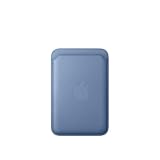
- Designed with both style and function in mind, the new iPhone FineWoven Wallet with MagSafe is the perfect way to keep your ID and credit cards close at hand.
- It supports Find My, so you can be notified of your wallet’s last known location if it gets separated from your phone.
- Made from durable microtwill, the material has a smooth and seamless feel.
- The FineWoven material in this accessory is made from 100 percent post-consumer recycled content and significantly reduces carbon emissions compared to leather.
- The wallet features strong built-in magnets that allow it to effortlessly snap into place on the back of your iPhone. You can even stack it on top of a case with MagSafe to create a look that’s unique to you. The FineWoven wallet supports up to three cards and is shielded so it’s safe for credit cards.
- Open Wallet. Launch the Wallet app on your iPhone and tap the Add Card button.
- Choose the ID option. Tap Driver’s License or ID Cards. If this option is missing, stop and check the participation list, device requirements, Apple Account security, and region settings rather than selecting an unrelated card type.
- Select the issuing jurisdiction. Choose your state or territory from the list. Select the jurisdiction that issued your physical license or ID; the issuing authority must be able to verify the record.
- Choose where to store it. Select iPhone for an iPhone-only ID, or choose iPhone and Apple Watch if you want it on the already paired watch. Adding the watch is optional.
- Scan the front. Follow the on-screen camera frame to capture the front of the license. Keep the card flat, use good lighting, and avoid glare, shadows, fingers covering text, or a busy background.
- Scan the back. Turn the card over and capture the reverse side when prompted. The image should be clear and in focus, with every required barcode, number, and line visible.
- Complete the identity confirmation. Apple may request a Live Photo or selfie and may prompt you to move your head or face in particular ways. Follow the animation exactly. Hold the iPhone steady, use even lighting, and keep your face unobstructed against a plain background.
- Authenticate and submit. Confirm with Face ID or Touch ID when prompted. This sends the enrollment request to the issuing authority for review; it is not an automatic approval.
Do not close the process while a scan or identity capture is in progress. If a capture is rejected, repeat that individual step instead of repeatedly submitting incomplete requests.
Make the identity check more likely to succeed
The license scan and the selfie or Live Photo serve different purposes. The scan supplies card data, while the identity check helps the issuing authority compare you with its records. A sharp card image cannot compensate for a poorly lit or obstructed face capture.
For the license images
- Place the card on a nonreflective, neutral surface.
- Use diffuse light from in front of the card instead of a strong lamp directly above it.
- Keep the entire card inside the frame and hold the phone parallel to its surface.
- Wipe the camera lens if text or barcodes look soft.
- Do not crop, edit, or digitally alter the card image.
For the Live Photo or selfie
- Face the camera directly with a neutral expression unless the prompt says otherwise.
- Use even light on both sides of your face and avoid a bright window behind you.
- Remove sunglasses, masks, hats, and anything else that hides facial features.
- Keep the phone at the distance shown on screen and move only when prompted.
- Use a plain background so the camera can distinguish your face clearly.
Apple’s prompts can differ by jurisdiction. Complete every movement or additional question shown rather than assuming that a previous enrollment experience will be identical.
Who approves the request, and how long does it take?
The issuing authority reviews the information and decides whether to approve or deny enrollment. Apple Support states: “The issuing authority, not Apple, makes the decision to approve or deny your request to add your license or ID to Apple Wallet.” Apple provides no universal approval time, so do not rely on a promised number of minutes or hours.
Rank #3

- Designed with both style and function in mind, the new iPhone FineWoven Wallet with MagSafe is the perfect way to keep your ID and credit cards close at hand.
- It supports Find My, so you can be notified of your wallet’s last known location if it gets separated from your phone.
- Made from durable micro-twill, the material has a smooth and seamless feel.
- The FineWoven material in this accessory is made from 100 per cent post-consumer recycled content and significantly reduces carbon emissions compared to leather.
- The wallet features strong built-in magnets that allow it to effortlessly snap into place on the back of your iPhone.
A state authority may request additional information or another action after you submit the Wallet request. Watch for instructions on the iPhone and use the contact or support route provided by your issuing authority if the request remains pending or is denied. Apple cannot override that decision.
Where you can use the Wallet ID
A digital license in Wallet is accepted only by participating businesses, organizations, apps, websites, and eligible TSA checkpoints. Acceptance is not automatic merely because a location accepts Apple Pay or has a card reader.
| Presentation context | What to expect | What to do before relying on it |
|---|---|---|
| Airport security | Eligible TSA checkpoints may accept an ID in Wallet. | Check the airport’s checkpoint signage and confirm that your specific checkpoint supports digital IDs. Carry the physical license in case it does not. |
| In-person businesses or organizations | Only selected locations with compatible readers or procedures can request Wallet ID data. | Ask the business or organization whether it accepts IDs in Wallet before presenting it. |
| Apps and websites | Some services can request identity attributes digitally. | Look for an explicit ID-in-Wallet option in the service’s sign-in or verification flow. |
| Driving and law-enforcement interactions | Wallet ID is not a universal substitute for the physical credential. | Keep the physical license with you and follow your jurisdiction’s requirements. |
When a participating reader requests information, the iPhone shows what data is being requested before you authorize sharing. Review the request rather than approving it automatically.
Free tools Windows power users keep installed
One-click scans. No signup required.
Why you may be unable to add your ID
Your state is not listed
This is the most fundamental limitation. Apple Wallet ID is issued in cooperation with participating jurisdictions. If your state or territory does not appear on Apple’s live list, there is no supported setup path to force-enable it. Check the list again in the future instead of changing unrelated phone settings.
Rank #4

- Designed with both style and function in mind, the new iPhone FineWoven Wallet with MagSafe is the perfect way to keep your ID and credit cards close at hand.
- It supports Find My, so you can be notified of your wallet’s last known location if it gets separated from your phone.
- Made from durable microtwill, the material has a smooth and seamless feel.
- The FineWoven material in this accessory is made from 100 percent post-consumer recycled content and significantly reduces carbon emissions compared to leather.
- The wallet features strong built-in magnets that allow it to effortlessly snap into place on the back of your iPhone. You can even stack it on top of a case with MagSafe to create a look that’s unique to you. The FineWoven wallet supports up to three cards and is shielded so it’s safe for credit cards.
The Driver’s License or ID Cards option is missing
Verify that you are using a compatible iPhone, have updated to the latest compatible operating system, have Face ID or Touch ID configured, and have two-factor authentication enabled on the Apple Account. Confirm the device region is United States. Also check the state-specific requirements for Arkansas, California, or Puerto Rico if applicable.
The card scan will not complete
Move to brighter, even lighting, reduce glare, clean the camera lens, and place the card on a plain surface. Keep all edges visible and hold the phone still. If the card is physically damaged or the printed information cannot be read, the authority may be unable to verify it.
The selfie or Live Photo is rejected
Remove sunglasses, masks, hats, and other face coverings. Use a plain background and front-facing light, keep your head within the on-screen outline, and perform only the movements requested. Retry the specific identity step rather than changing card details.
The Tool Desk
Outbyte Driver Updater FREEScan for outdated or missing drivers - takes under a minuteDriver Scan →Outbyte PC Repair FREERepair Windows errors before they cause bigger problemsFix Now →The request is denied or asks for more information
The issuing authority—not Apple—controls this outcome. Follow the authority’s additional instructions and provide only the information requested through its official process. If you believe the record is wrong, contact the issuing authority; Apple cannot approve the credential on its behalf.
Best Value

- Designed with both style and function in mind, the new iPhone FineWoven Wallet with MagSafe is the perfect way to keep your ID and credit cards close at hand.
- It supports Find My, so you can be notified of your wallet’s last known location if it gets separated from your phone.
- Made from durable micro-twill, the material has a smooth and seamless feel.
- The FineWoven material in this accessory is made from 100 per cent post-consumer recycled content and significantly reduces carbon emissions compared to leather.
- The wallet features strong built-in magnets that allow it to effortlessly snap into place on the back of your iPhone.
The service is temporarily unavailable
Apple recommends trying again later or contacting the issuing authority. A temporary outage is different from an unsupported state or a failed identity check, so record the exact message shown before retrying.
Using the ID after approval
Once approved, the license appears in Wallet and can be presented at supported readers or digital prompts. Authenticate as requested by the iPhone or Apple Watch and inspect the data request before authorizing it. The exact presentation gesture and authentication prompt can vary by device and by the organization requesting the information.
A license can be added to one iPhone and one paired Apple Watch per Apple Account at a time. If you replace the iPhone, Apple’s support guidance describes transferring the ID through Setup Assistant while setting up the new device. Do not assume that restoring a general backup alone transfers every identity credential; follow the Wallet or Setup Assistant instructions shown during the move.
Quick wins for a faster PC:
Fix the driver behind crashes, sound loss and screen glitchesFind Drivers →Repair Windows errors before they cause bigger problemsFix Now →Scan for outdated or missing drivers - takes under a minuteDriver Scan →Privacy and security considerations
Apple says the ID data is encrypted. Apple’s ID in Wallet page also states: “Neither Apple nor your state issuing authority can see when or where you share your information.” Before each presentation, you can see which information the requester wants, and you authorize the release using the device’s authentication method.
Those protections do not make the digital credential universally accepted or eliminate the need to protect the iPhone and Apple Account. Use a strong device passcode, keep two-factor authentication enabled, install current security updates, and use Lost Mode promptly if the iPhone or watch is lost. A physical license remains necessary in situations that do not support Wallet ID.
A practical eligibility and setup checklist
- Your issuing state or territory appears on Apple’s current participation list.
- Your iPhone is an iPhone 8 or later, or your optional watch is a Series 4 or later.
- The latest compatible operating system is installed.
- Face ID or Touch ID works, and two-factor authentication is enabled for the Apple Account.
- The device region is set to United States.
- You checked any special requirements for Arkansas, California, or Puerto Rico.
- The physical license is available for front-and-back scanning.
- You can provide a clear Live Photo or selfie in good lighting.
- You know that the issuing authority makes the approval decision.
- You will carry the physical license because Wallet ID has limited acceptance.
If every item is satisfied, open Wallet, select Add Card, choose Driver’s License or ID Cards, select your jurisdiction, and follow the scan and identity prompts. For the latest requirements and participating locations, consult Apple’s Add your driver’s license to Apple Wallet support article and the live participation list.
Quick Recap
Product prices and availability are accurate as of the date/time indicated and are subject to change. Any price and availability information displayed on Amazon at the time of purchase will apply.

