Do these 3 things before closing this tab:
1Repair Windows errors before they cause bigger problems2Fix the driver behind crashes, sound loss and screen glitches3Clear out junk files and repair common Windows errorsAdding an iCloud Calendar to Outlook can be straightforward, but the exact method depends on whether you’re using Outlook for Mac, Outlook on an iPhone or iPad, or simply trying to view a shared iCloud calendar. Some setups support two-way syncing, while others only let you subscribe to a read-only calendar feed.
Apple ID security, app-specific passwords, Outlook account support, and iCloud sharing settings all affect what you can connect and how reliably events update. Understanding these limits upfront helps you choose the right setup, avoid duplicate calendars, and fix common issues when iCloud events do not appear or refresh in Outlook.
As an Amazon Associate I earn from qualifying purchases.
What to Know Before Connecting iCloud Calendar to Outlook
Before you try to add an iCloud calendar to Outlook, it helps to separate two different goals: viewing your iCloud events in Outlook and fully syncing iCloud Calendar with Outlook. On Mac and iPhone, Outlook can usually display iCloud calendars only when the iCloud account is available to the operating system or when you add a shared calendar subscription. Native, two-way iCloud Calendar sync inside Outlook is more limited than syncing Microsoft 365, Outlook.com, Google, or Exchange calendars.
If you use Outlook for Mac, adding your Apple ID as a normal mail account does not automatically mean your iCloud calendars will appear in Outlook. iCloud Mail uses IMAP for email, while iCloud Calendar uses CalDAV. Outlook for Mac does not provide the same direct iCloud calendar integration that Apple Calendar does. In many cases, the most reliable option on a Mac is to add iCloud to the built-in Apple Calendar app, then use Outlook separately for Microsoft calendars, or subscribe to a published iCloud calendar in Outlook if read-only access is acceptable.
#1 Best Overall

- Convenient Charging Hub: This Huanuo dual monitor stand features a built-in 3-in-1 power strip with 2 AC outlets, 2 USB 3.0 ports, and a 59″ power cord. Connect your printer, shredder, scanner, headphones, tablets, and other devices all in one place for convenient power and charging.
- Customize Your Stand: The dual monitor stand riser can support a single 35″ monitor or up to three 24″ monitors with a weight capacity of up to 48.5 lbs. Strong support brackets and metal pivot joints make angle adjustments easy and provide reliable stability for your workspace.
- Multi-Purpose Slots: The monitor stand with USB ports has integrated storage slots to hold your tablet and smartphone with holes to pass cables through for a neat look. You can also store pens, clips, and other supplies in the slots to keep your workspace better organized.
- More Storage Underneath: Maximize your desk area by storing more items under the platforms of the monitor stand riser. Easily fit a keyboard, laptop, books, and more in the space beneath each monitor riser, making more room on your desktop for real productivity.
- Ergonomic Viewing Angle: Elevate your monitor by 3.9 inches with this ergonomic monitor stand riser. By raising the screen closer to eye level, you can maintain more comfort for your neck, back, and shoulders. Enjoy more productivity and less body strain with our dual monitor riser.
On iPhone and iPad, the situation is slightly different. If iCloud Calendar is enabled in iOS settings, Apple Calendar can sync it automatically, but Outlook for iOS does not simply mirror every calendar account configured on the device in the same way. Outlook mainly syncs calendars from accounts added directly to the Outlook app, such as Microsoft 365, Outlook.com, Gmail, and Exchange. For iCloud events, you may need to use Apple Calendar alongside Outlook, add a shared calendar link, or move events into a calendar service that Outlook supports more completely.
Account and security requirements
If you are connecting any iCloud service to a non-Apple app, your Apple ID security settings matter. Apple IDs with two-factor authentication require an app-specific password for many third-party clients. This password is generated at appleid.apple.com and is different from your regular Apple ID password. It is commonly used for iCloud Mail in Outlook, but it does not guarantee full iCloud Calendar sync in every Outlook app because calendar support depends on the Outlook platform and connection method.
- Apple ID: You need access to the Apple ID that owns the iCloud calendar.
- Two-factor authentication: Required for generating app-specific passwords.
- App-specific password: Often needed when adding iCloud Mail to Outlook or other non-Apple apps.
- Published calendar link: Needed if you plan to subscribe to an iCloud calendar in Outlook as a read-only calendar.
- Correct default calendar: New events may be saved to Outlook, iCloud, or another account depending on your device settings.
Two-way sync versus read-only subscriptions
The biggest limitation to understand is the difference between a synced calendar and a subscribed calendar. A synced calendar can usually add, edit, delete, and update events both ways. A subscribed iCloud calendar is typically read-only in Outlook: you can view events, but changes must be made in iCloud Calendar or Apple Calendar. Subscriptions may also refresh slowly, so edits made in iCloud can take time to appear in Outlook.
Recommended Free Tools
| Method | Works on | Editing in Outlook | Best for |
|---|---|---|---|
| iCloud account in Apple Calendar | Mac, iPhone, iPad | No, not through Outlook | Full iCloud sync in Apple apps |
| iCloud Mail added to Outlook | Mac, iOS | Usually email only | Reading and sending iCloud email |
| Published iCloud calendar subscription | Outlook apps that support calendar URLs | No, read-only | Viewing iCloud events in Outlook |
| Microsoft 365 or Outlook.com calendar | Mac, iOS, web | Yes | Reliable Outlook-based calendar sync |
For the smoothest experience, decide where your calendar should “live” before setting anything up. If you want to manage events primarily in Outlook, a Microsoft 365 or Outlook.com calendar is usually the better home calendar. If you want iCloud to remain the source of truth, expect to use Apple Calendar for editing and Outlook mainly for viewing through a subscription or for managing separate work calendars.
How to Add iCloud Calendar to Outlook on Mac
On a Mac, the most practical method is to add your iCloud account directly inside Outlook for Mac. This works best with the current Outlook for Mac app from Microsoft 365 or the Mac App Store. If your Outlook version supports iCloud calendar sync, your iCloud calendars should appear in the calendar list after the account finishes syncing. If only iCloud Mail appears, your version or account type may not support full iCloud calendar sync in Outlook on macOS.
1. Create an app-specific password for Outlook
If your Apple ID uses two-factor authentication, Outlook usually cannot sign in with your normal Apple ID password. You need an app-specific password from Apple. Go to account.apple.com, sign in, open Sign-In and Security, then choose App-Specific Passwords. Generate a new password and label it something clear, such as Outlook Mac. Copy the generated password before closing the page, because Apple will not show it again.
2. Add the iCloud account in Outlook for Mac
- Open Outlook on your Mac.
- Select Outlook in the menu bar, then choose Settings or Preferences, depending on your version.
- Open Accounts.
- Click the + button or Add Account.
- Enter your iCloud email address, such as [email protected], [email protected], or [email protected].
- When prompted for a password, paste the app-specific password you created, not your regular Apple ID password.
- Finish setup and allow Outlook several minutes to sync.
After setup, switch to the Calendar view in Outlook and check the calendar list in the left sidebar. Look for an iCloud section or calendars named after the calendars you use in Apple Calendar, such as Home, Work, or Family. Make sure the checkbox beside each calendar is selected. If the calendar name is present but events are missing, leave Outlook open for a while, then quit and reopen it.
What’s actually slowing this PC down?
Pick the symptom - the matching free tool is one click away.
Rank #2
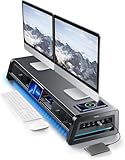
- 13-in-1 Dual Monitor Stand Riser: Vaydeer multifunctional stand featuring a dual monitor riser, wireless charging pad, 8 USB ports (4 fast charging, 4 data transfer), LED light strip, and storage drawers. Made from durable metal, it supports up to 50kg, helping you stay organized while reducing eye and neck strain for a more efficient workspace,1000mm (L) x 283mm (W) x 140mm (H)
- Fast Charging & Seamless Connectivity: The Dual Monitor Stand features 8 USB ports (4 for fast charging, 4 for data transfer) and a 15W wireless charging pad, keeping your devices powered and connected. Effortlessly charge smartphones, USB drives, iPads, Kindles, and more—right within reach to boost your productivity.
- Two-Tier Storage with 2 Drawers: The metal monitor stand riser features 2 pull-out drawers and dual-tier storage, offering a neat solution for office essentials like USB drives, pens, notebooks, and smartphones. Keep everything organized and within reach for a clutter-free, more efficient workspace.
- Built in LED Light Strip: It features a built-in soft LED light strip that gently illuminates your workspace, reducing eye strain and enhancing visual comfort. Create a more inviting, stylish office environment that boosts focus and productivity.
- The Decent Healthy Christmas gift: Vaydeer dual monitor stand improves posture, protects vision and prevents spinal problems. It is ideal for home, office, school or gaming setups to improve productivity at work, study or play. It makes a thoughtful and practical gift for family, friends, colleagues or students, combining health and productivity for a lasting impact.
If the iCloud calendar does not appear
First, confirm that the calendar exists in iCloud by opening calendar.icloud.com in a browser. If the events are not visible there, they are likely stored only locally on your Mac or under another account such as Gmail, Exchange, or Outlook.com. In Apple Calendar, check the calendar’s account location in the sidebar; calendars listed under On My Mac do not sync to iCloud until you move or recreate them under iCloud.
If Outlook adds your iCloud email but not the calendar, use one of the alternatives: keep viewing and editing the calendar in Apple Calendar, add the iCloud calendar to Outlook on iPhone or iPad if supported there, or publish the iCloud calendar and subscribe to it in Outlook as a read-only calendar. A subscription is useful for viewing events, but it will not let you create, edit, or delete iCloud events from Outlook.
How to Add iCloud Calendar to Outlook on iPhone or iPad
On iPhone and iPad, the Outlook app does not directly sign in to iCloud Calendar in the same way it signs in to Microsoft 365, Outlook.com, Gmail, or Yahoo accounts. Adding your Apple ID as an email account in Outlook may let you access iCloud Mail if you use an app-specific password, but it usually will not add full two-way iCloud Calendar syncing inside the Outlook app. The most reliable native method is to add iCloud Calendar to the Apple Calendar app, then decide whether you need to view those events in Outlook or simply keep both apps available.
First, make sure iCloud Calendar is enabled on the device. Open Settings, tap your name, choose iCloud, then tap Show All if needed and turn on iCloud Calendar. Open the Apple Calendar app and confirm that your iCloud calendars appear under Calendars. This confirms the device is syncing with iCloud correctly. If your goal is to use Outlook for email but keep iCloud events accurate, this setup is often the cleanest option: use Outlook for mail and Microsoft calendars, and Apple Calendar for iCloud calendars.
Adding iCloud Mail to Outlook on iOS
If you also want iCloud Mail in Outlook, you can add it as an IMAP account. Because Apple requires two-factor authentication for app-specific passwords, go to account.apple.com, sign in, and create an app-specific password for Outlook. Then open the Outlook app, tap your profile icon, go to Settings, choose Add Email Account, and enter your iCloud email address. When prompted for a password, use the app-specific password, not your normal Apple ID password. This can add iCloud email, but it should not be relied on as a full iCloud Calendar connection.
Viewing iCloud events in Outlook on iPhone or iPad
If you need iCloud calendar events to appear in Outlook on iOS, the practical workaround is to use a published iCloud calendar subscription. In iCloud Calendar, you can share a calendar publicly and copy its subscription URL, then add that URL to Outlook on the web or another supported Outlook calendar interface. Once added to your Microsoft account as an internet calendar, it may appear in the Outlook mobile app after sync completes. This method is generally view-only: edits made in Outlook will not write back to iCloud.
- Best for two-way iCloud editing: Use the Apple Calendar app on iPhone or iPad.
- Best for viewing iCloud events in Outlook: Add a published iCloud calendar as an internet calendar subscription.
- Best for iCloud email in Outlook: Add iCloud Mail with an Apple app-specific password.
- Not supported reliably: Full native iCloud Calendar editing directly inside the Outlook iOS app.
After adding any account or subscription, give Outlook several minutes to refresh, then force-close and reopen the app if the calendar does not appear. In Outlook, tap the calendar icon and check the calendar list to make sure the subscribed calendar is selected. Also confirm that Low Power Mode, background app restrictions, or poor network connectivity are not delaying updates. If events still do not show, verify the iCloud calendar is shared correctly, remove the subscription, and add it again from a fresh URL.
Rank #3

- All-in-One Power Socket:This dual monitor stand features a built-in 3-in-1 power strip with 2 AC outlets,2 USB 3.0 ports.Connect your printer,stereo,desk lamps,headphones,tablets and other devices all in one place for convenient power and charging.
- Unlock Storage Space:When the desk monitor stand is raised,it is equipped with 1 drawer and 2 storage compartments,allowing you to easily organize your desk accessories and office supplies,keeping your workspace clear and tidy for easier access.
- Dual Monitor Stand :This computer stand features a unique and original design and a sturdy structure,providing excellent support performance.Support accommodate 2 monitors,turning your desk into a hub of productivity without the clutter.
- Adjustable Length and Angle:Freely adjust the angle as you need. The length can be adjusted from the minimum 30.31 inch to the maximum 42.13inch. This dual monitor riser could help you to form a comfortable sitting position and gain a better viewing experience.
- No Assembly Required:Say goodbye to complicated assembly.Experience instant organization and a cleaner look from the moment you open the box and aesthetically pleasing workspace starts here.
Using iCloud Calendar Subscriptions in Outlook
An iCloud calendar subscription is a practical option when you only need to view an iCloud calendar in Outlook, especially if normal account-based syncing is not available on your Mac, iPhone, or iPad. Instead of adding your full iCloud account to Outlook, you publish an iCloud calendar and add its subscription link to Outlook as an internet calendar. This works well for shared family calendars, team schedules, travel plans, school calendars, or any calendar that does not need editing from Outlook.
The Tool Desk
Outbyte Driver Updater FREEFix the driver behind crashes, sound loss and screen glitchesFind Drivers →Outbyte PC Repair FREERepair Windows errors before they cause bigger problemsFix Now →To create the subscription link, open iCloud Calendar in a browser at iCloud.com, select the calendar you want to share, and enable public sharing for that calendar. iCloud will generate a webcal:// URL. Copy that link, then add it in Outlook as a calendar subscription. In many Outlook versions, this is found under calendar settings as an option such as Add calendar, Subscribe from web, or Internet calendar. If Outlook does not accept the link, try changing the beginning of the address from webcal:// to https:// before adding it.
What calendar subscriptions can and cannot do
| Feature | iCloud calendar subscription in Outlook |
|---|---|
| View iCloud events | Supported |
| Edit iCloud events from Outlook | Not supported |
| Create new events on the iCloud calendar | Not supported |
| Receive automatic refreshes | Supported, but timing depends on Outlook |
| Keep the calendar private | Not fully; the calendar must be published to generate a link |
The main limitation is that subscriptions are usually read-only. If you add an iCloud calendar this way, Outlook can display the events, but changes must be made in Apple Calendar, iCloud.com, or another app connected directly to iCloud. Outlook will then refresh the subscribed calendar after a delay. That delay can range from a few minutes to several hours, depending on the Outlook app, Microsoft account type, device power settings, and server refresh behavior.
Use a subscription when you want a low-maintenance way to see iCloud events alongside Outlook calendars without entering an iCloud password or app-specific password. Avoid this method for calendars that contain sensitive details, since publishing creates a link that can be accessed by anyone who has it. For private two-way calendar management, adding the iCloud account directly to the device calendar system is usually a better fit where supported. If subscribed events do not appear, confirm the iCloud calendar is still shared, re-copy the URL, test the link in a browser, and remove then re-add the subscription in Outlook.
Common Sync Limitations Between iCloud and Outlook
iCloud Calendar and Outlook can work together, but the experience is not identical across Mac, iPhone, iPad, Outlook.com, and Microsoft 365 accounts. The most reliable setup is usually viewing and editing iCloud events inside Apple Calendar, or adding the iCloud account directly to the Outlook mobile app where supported. On Mac, Outlook does not provide the same native iCloud calendar integration that Apple Calendar does, so users often depend on subscribed calendars, account-level sync through macOS, or a separate workflow for managing events.
The biggest limitation is the difference between a true two-way calendar account and a read-only subscription. If you subscribe to a public iCloud calendar URL in Outlook, you can usually view events, but you cannot edit them from Outlook. New events, deleted events, invitee changes, reminders, and location edits must be made in iCloud Calendar or Apple Calendar. Subscription refresh timing is also controlled by Outlook and Microsoft’s calendar service, so changes may not appear immediately.
| Connection method | Can view events | Can edit events in Outlook | Typical limitation |
|---|---|---|---|
| iCloud account in Outlook for iOS or iPadOS | Yes, when supported | Often yes for calendar items | May require an app-specific password and enabled iCloud Calendar |
| Public iCloud calendar subscription | Yes | No | Read-only and may refresh slowly |
| macOS Internet Accounts with Apple Calendar | Yes in Apple Calendar | Yes in Apple Calendar | Does not necessarily expose iCloud calendars inside Outlook for Mac |
| Outlook.com calendar import or subscription | Yes | No for subscribed iCloud calendars | Sync intervals can be delayed |
Shared calendars can add another complication. An iCloud calendar shared privately with your Apple ID may appear correctly in Apple Calendar but not in Outlook, especially if Outlook is only using a public subscription link. Permission levels from iCloud, such as view-only or edit access, do not always translate cleanly into Outlook. If you need another person to edit the same calendar reliably, managing that shared calendar in Apple Calendar is usually more dependable than relying on Outlook as the editing client.
Rank #4

- 【ERGONOMIC 7" HEIGHT + MESH COOLING】Raises screens to eye level (7"). Helps reduce neck, back, and shoulder strain. Metal mesh vents allow airflow to help prevent device overheating during extended use
- 【2-TIER STORAGE – FITS KEYBOARDS, XBOX & PRINTERS】30.5"W x 10"D bottom tier accommodates large gaming keyboards, Xbox consoles, cable boxes, and printers. Non-slip suction cups help keep the stand stable during use
- 【BUILT-IN USB CHARGING PORT】Features a USB 2.0 port for charging phones, tablets, or compatible accessories directly from the stand. Offers convenient access to power without reaching for wall outlets
- 【2 DRAWERS + REUSABLE CABLE TIES】Includes smooth-gliding drawers for storing pens, notes, and small supplies. Reusable cable ties help organize and manage cords to reduce tangles
- 【32"W x 10"D x 7"H – COMPATIBLE WITH MOST SETUPS】Fits dual monitors, laptops, printers, and TVs. Sturdy metal construction for daily use.
Event details may also appear differently after syncing. Alerts, travel time, attachments, custom recurrence rules, invitee responses, color labels, and availability settings can be limited or changed depending on the path used to connect the calendar. For example, an iCloud event with mulle alerts may show only one reminder in Outlook, and a complex repeating event may display correctly but be difficult to modify outside Apple Calendar. Calendar colors are also app-specific, so matching colors between iCloud and Outlook should not be expected.
- Edits may not sync both ways: subscriptions are usually for viewing only.
- Updates may be delayed: subscribed calendars can take minutes or hours to refresh.
- Some event data may be simplified: reminders, attachments, recurrence, and invitee details can vary.
- Shared calendars may be inconsistent: private iCloud sharing works best in Apple’s own apps.
- Account security can block setup: Apple ID two-factor authentication often requires an app-specific password for third-party apps.
To avoid sync problems, decide which app is the primary place for creating and editing events. If iCloud is the source of truth, make changes in iCloud Calendar or Apple Calendar, then use Outlook mainly for viewing where needed. If Outlook or Microsoft 365 is your main calendar, consider creating meetings there and only subscribing to iCloud calendars for reference. Mixing edits across mulle apps and connection methods is the most common cause of duplicate events, missing updates, and confusing calendar behavior.
Troubleshooting iCloud Calendar Not Showing or Updating
If your iCloud calendar does not appear in Outlook, first confirm which connection method you are using. An iCloud account added to Apple Calendar on macOS will not automatically make the same calendars editable inside Outlook for Mac. Outlook for iOS can show iCloud calendars when the iCloud account is enabled in the iPhone or iPad calendar settings, but Outlook for Mac has more limited native support. If you used a public calendar subscription link, expect it to be read-only and sometimes slower to refresh.
Check iCloud and device calendar settings
Start by verifying that the calendar exists and is syncing correctly with iCloud before blaming Outlook. Open iCloud.com/calendar in a browser and sign in with the same Apple ID. If the event is missing there, the issue is between the original device and iCloud, not Outlook. On an iPhone or iPad, go to Settings > [your name] > iCloud > Show All and make sure Calendars is turned on. On a Mac, open System Settings > [your name] > iCloud and confirm that iCloud Calendar is enabled.
- Make sure you are signed in with the same Apple ID on every device.
- Check that the calendar is not hidden in the Calendar app or Outlook calendar list.
- Confirm the event was added to an iCloud calendar, not “On My Mac,” “On My iPhone,” Gmail, or Exchange.
- Restart Outlook after changing account or calendar visibility settings.
Refresh Outlook and check account authentication
In Outlook for iPhone or iPad, open the calendar view, tap your profile or calendar icon, and confirm the iCloud calendar is selected. If it is listed but not updating, pull down to refresh, then fully quit and reopen the app. If Outlook is showing stale data from the iOS calendar database, remove and re-add the affected account in iOS settings rather than only toggling it inside Outlook. For iCloud email accounts added directly to Outlook, use an Apple app-specific password if two-factor authentication is enabled. Your normal Apple ID password may fail or stop syncing after a security change.
| Problem | What to check | Common fix |
|---|---|---|
| Calendar does not appear | Calendar visibility and Apple ID | Enable iCloud Calendars and select the calendar in Outlook |
| Events are missing | Which calendar the event was saved to | Move the event to an iCloud calendar |
| Subscription is outdated | Public calendar URL and refresh interval | Re-subscribe or wait for Outlook to refresh |
| Password prompt repeats | Apple ID security settings | Create a new app-specific password |
Fix subscription and sharing issues
If you subscribed to an iCloud calendar using a webcal:// or converted https:// link, test the link in a browser or another calendar app. A private iCloud sharing invitation is not the same as a public subscription link, and Outlook may not accept it as an editable calendar. In iCloud Calendar, open the calendar sharing settings and confirm that Public Calendar is enabled if you intend to use a subscription. If the link was regenerated, remove the old calendar from Outlook and subscribe again using the new URL.
Free tools Windows power users keep installed
One-click scans. No signup required.
Clear stale sync data carefully
When the setup looks correct but events still do not update, remove the calendar connection and add it back. On iOS, toggle iCloud Calendars off, choose whether to keep or delete local copies as appropriate, then turn it back on and allow time for resyncing. In Outlook, remove the subscribed calendar and re-add it instead of editing the old URL. Avoid creating duplicate calendars while testing; duplicates often cause users to add events to the wrong calendar and think sync is broken. If you use both Apple Calendar and Outlook, create a test event named clearly, such as iCloud sync test, then check iCloud.com, Apple Calendar, and Outlook in that order to identify where the update stops.
Best Value
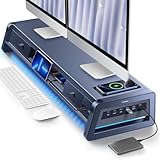
- 13-in-1 Dual Monitor Stand Riser: Vaydeer multifunctional stand featuring a dual monitor riser, wireless charging pad, 8 USB ports (4 fast charging, 4 data transfer), LED light strip, and storage drawers. Made from durable metal, it supports up to 50kg, helping you stay organized while reducing eye and neck strain for a more efficient workspace,1000mm (L) x 283mm (W) x 140mm (H).
- Fast Charging & Seamless Connectivity: The Dual Monitor Stand features 8 USB ports (4 for fast charging, 4 for data transfer) and a 15W wireless charging pad, keeping your devices powered and connected. Effortlessly charge smartphones, USB drives, iPads, Kindles, and more—right within reach to boost your productivity.
- Two-Tier Storage with 2 Drawers: The metal monitor stand riser features 2 pull-out drawers and dual-tier storage, offering a neat solution for office essentials like USB drives, pens, notebooks, and smartphones. Keep everything organized and within reach for a clutter-free, more efficient workspace.
- Built in LED Light Strip: It features a built-in soft LED light strip that gently illuminates your workspace, reducing eye strain and enhancing visual comfort. Create a more inviting, stylish office environment that boosts focus and productivity.
- The Decent Healthy Christmas gift: Vaydeer dual monitor stand improves posture, protects vision and prevents spinal problems. It is ideal for home, office, school or gaming setups to improve productivity at work, study or play. It makes a thoughtful and practical gift for family, friends, colleagues or students, combining health and productivity for a lasting impact.
Frequently Asked Questions
Can I fully sync iCloud Calendar with Outlook on Mac?
Outlook for Mac does not offer the same full iCloud calendar integration that Apple Calendar does. You can add your iCloud account for email in some cases, but iCloud calendars may not appear or sync as editable calendars in Outlook. For reliable two-way iCloud calendar editing on a Mac, Apple Calendar is usually the better option.
Do I need an app-specific password to add iCloud to Outlook?
Yes, if your Apple ID uses two-factor authentication, you usually need an app-specific password when adding iCloud mail or related account services to Outlook. You can create one from your Apple ID account page under sign-in and security settings. Use that password in Outlook instead of your normal Apple ID password.
Can I add an iCloud Calendar to Outlook on iPhone or iPad?
You can view iCloud calendars on iPhone or iPad through the built-in iOS Calendar app, but Outlook for iOS does not provide full native iCloud Calendar sync in the same way. If the iCloud account is added to iOS settings, Outlook may still not show those calendars as editable Outlook calendars. A published iCloud calendar subscription may work for viewing, but it is generally read-only.
Quick wins for a faster PC:
Fix the driver behind crashes, sound loss and screen glitchesFind Drivers →Clear out junk files and repair common Windows errorsFree Scan →What is the difference between syncing an iCloud Calendar and subscribing to one in Outlook?
Syncing means changes can move between both services, while subscribing usually means Outlook only reads a shared calendar feed. An iCloud calendar subscription can let you view events in Outlook, but you typically cannot edit those events from Outlook. Updates may also be delayed because subscribed calendars refresh on Outlook’s schedule.
Why is my iCloud Calendar not showing or updating in Outlook?
Check that the calendar is enabled in iCloud settings and that you are signed in with the correct Apple ID. If you are using a shared or public calendar link, confirm the link is still active and was added as an internet calendar subscription. Also try restarting Outlook, removing and re-adding the calendar, and checking whether Outlook is set to the “New Outlook” mode, since calendar support can differ between versions.
Bottom Line
Adding an iCloud Calendar to Outlook depends on the device and the level of sync you need. On iOS, adding the iCloud account to Outlook or the Apple Calendar app is usually the simplest route, while on Mac, you may need to rely on subscriptions, account settings, or Apple Calendar alongside Outlook because full native iCloud calendar sync can be limited.
If events are not appearing correctly, check iCloud Calendar permissions, app-specific passwords, account refresh settings, and whether you are using a read-only subscription link versus a true synced account. Start with the method that matches your device, then test by creating a sample event to confirm whether two-way syncing works before relying on it for your schedule.
Quick Recap
Product prices and availability are accurate as of the date/time indicated and are subject to change. Any price and availability information displayed on Amazon at the time of purchase will apply.

