The right way to add an event date depends on what you have: enter one event manually, subscribe to a calendar URL for continuing updates, or import a downloaded .ics file. On a Mac, you can use natural-language quick entry, drag an .ics file into Calendar, or create a subscription from File > New Calendar Subscription. On an iPhone, use Add Calendar > Add Subscription Calendar for a published calendar, or add a subscription through Calendar settings.
These methods are not interchangeable. A subscription remains controlled by its publisher and is generally read-only, while an imported file places a one-time copy of its events into a calendar you choose. The steps below help you choose the correct method, place it in the right account, and avoid duplicate or incorrectly timed events.


As an Amazon Associate I earn from qualifying purchases.
Choose the method that matches your source
Start by identifying how the dates were published. Your choice determines whether events continue updating, whether you can edit them, and where they appear on your devices.
| What you have | Use this method | Ongoing updates | Can you edit the published events? |
|---|---|---|---|
| A date, time, and event details | Create an individual event in Calendar | Not applicable; you maintain it | Yes |
A calendar web address or .ics subscription link |
Subscribe to the calendar | Yes, when the provider publishes changes | No; the provider controls subscription events |
A downloaded .ics calendar file |
Import the file on Mac | No; it is a one-time import | The imported copy can be managed in your destination calendar |
If you want a schedule such as conference dates, sports fixtures, or a publisher’s event calendar to stay current, subscribe rather than importing a file. If you only need the dates as they existed when the file was downloaded, import it. A URL and a downloaded file may contain similar data, but the URL creates a continuing relationship while the file does not.
#1 Best Overall
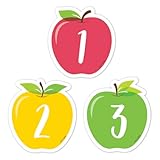
- A FULL MONTH, EVERY MONTH - 31 numbered pieces plus 23/30 and 24/31 combined, so the pocket chart fills whatever the month is without you cutting anything down.
- TWO BLANKS FOR THE THINGS THAT MATTER - Write in a birthday, a field trip or a holiday and the calendar carries the class's own events, not just the date.
- SIZED FOR A POCKET CHART - Each piece is approximately 2 5/8 x 2 5/8 in, which is the size CTP calendar charts are built around, so nothing overhangs.
- APPLE CLASSROOM DECORATIONS THAT TEACH - Red, yellow and green apple shapes make the calendar centre look like the season, which is most of what apple day classroom routines are for.
- NOT JUST FOR CALENDARS - Teachers use the numbers as cubby tags, folder labels, table group markers and counters for patterning and sorting lessons.
Add one event on a Mac
Use this workflow when you know the event’s date and details but do not have a published calendar feed or file.
Create an event with quick entry
- Open the Calendar app.
- Use Calendar’s quick-event control and type the event in ordinary language, including its date and time. Apple’s examples include
Party 6 FebandFootball Game on Saturday from 11 am – 1 pm. - Review the parsed date and time before saving. Natural-language interpretation can vary with your language, region, and software version, so confirm that “Saturday,” month names, and time ranges landed on the intended values.
- Save the event, then open it again if you need to add a location, notes, invitees, alerts, or a repeat pattern.
Include the year when a date could be ambiguous, especially for an event far in the future. Also check whether the time is morning or evening and whether the event crosses midnight. Calendar’s quick entry is designed to save typing, not to remove the need for a final review.
Quick entry is convenient for a single date, but it is not a way to follow future changes. If the organizer later changes the schedule, you must edit your manually created event yourself.
What’s actually slowing this PC down?
Pick the symptom - the matching free tool is one click away.
Create an event from a calendar view
- Switch Calendar to Day, Week, or Month view.
- Select the date and time where the event belongs, then enter its title and details in the event editor.
- Save the event and open it once to verify the calendar account, time zone, and alert settings.
Choosing the calendar account matters when you use more than one calendar. An event saved to a local or account-specific calendar will not necessarily be visible on every device; choose an iCloud calendar if you want that event to follow the same Apple Account across devices.
Use the view that makes the date easiest to confirm: Month view is useful for a full event program, while Day or Week view makes start and end times easier to check. If you selected the wrong day, open the saved event and change its date rather than creating a second copy.
Use Spotlight to start an event
Apple also documents creating Calendar events from Spotlight. Search for the event action, enter the title and date information, and then check the resulting event in Calendar. Spotlight is another entry point for a single event; it does not create a provider-maintained subscription.
Change an event you already saved
Open the event in Calendar, change its date or time, and save. You can adjust other editable fields in the same editor. This works for events you created or imported. It does not turn a subscribed provider event into an editable event; subscription content remains governed by the publisher.
Subscribe to a published calendar on iPhone
Use an external calendar’s .ics URL when you want the provider’s schedule to remain available in Calendar and update when the provider changes it. You need the complete web address, not merely the organizer’s home page.
Rank #2
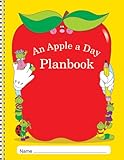
- CLASS LISTS
- SPECIAL PEOPLE, GROUPS, AND ACTIVITIES PAGES
- SPECIAL DATES, AND BIRTHDAYS PAGE
- SUBSTITUTE INFORMATION PAGES
Subscribe from the Calendar app
- Open Calendar and display the calendar list.
- Tap Add Calendar.
- Choose Add Subscription Calendar.
- Enter the external calendar’s
.icsweb address, then follow the on-screen prompts. - Give the subscription a recognizable name and confirm the account or location if iPhone asks where to place it.
You can also subscribe by tapping an .ics calendar link in a webpage, message, or email. iPhone opens the subscription flow so you can confirm it instead of manually copying the address. Review the publisher name and the account destination before accepting.
Understand what a subscription does on iPhone
An external subscription is read-only from your side: you follow the provider’s events rather than editing the provider’s calendar. If the organizer changes a date, the change can appear when the subscription refreshes. If you need a personal note or a different reminder, create a separate event in one of your own calendars instead of trying to alter the subscribed item.
Calendar supports event alerts for calendars you create or subscribe to. After subscribing, open the calendar’s settings and check whether alerts are enabled and appropriate for the number of events it publishes. A large feed can generate more notifications than you expect, so disable alerts for that calendar if you only want to view dates.
The Tool Desk
Outbyte Driver Updater FREEScan for outdated or missing drivers - takes under a minuteDriver Scan →Outbyte PC Repair FREERepair Windows errors before they cause bigger problemsFix Now →Subscribe to a calendar on Mac
The Mac workflow is useful when an organizer gives you a calendar URL and you want it available in Calendar without downloading and repeatedly replacing files.
- Open Calendar.
- Choose File > New Calendar Subscription.
- Enter the calendar’s web address, including its
.icsURL, and continue. - Enter a name that identifies the publisher or schedule.
- Choose the subscription’s location or account, then confirm.
The subscription appears as its own calendar. The provider controls the events shown in it, so you cannot edit those events on Mac. To add your own information, create a separate event in a calendar you control. Keeping the feed separate also makes it easier to hide, unsubscribe from, or replace without disturbing your personal appointments.
When a subscription is better than a downloaded file
Choose a subscription for schedules that can change: event programs, class timetables, release calendars, or any feed whose publisher may correct a time. A subscription preserves the publisher’s calendar relationship. An imported file is more appropriate when you need a snapshot, when the publisher offers only a download, or when you must place the events into a calendar you manage.
Do not subscribe and import the same schedule unless you deliberately want two copies. The subscription and the imported events are separate, so both can appear in Calendar and create confusing duplicates.
Import an .ics file on Mac
An .ics file is a calendar data file. Importing copies its events into a calendar you select; it does not create an ongoing connection to the original publisher. This is the appropriate route when a file was downloaded or attached to a message and no live subscription address was provided.
Drag the file into Calendar
- Open Calendar and locate the downloaded
.icsfile in Finder. - Drag the file into the Calendar window.
- When Calendar asks where to put the events, select the destination calendar.
- Confirm the import and inspect the resulting dates.
Use the Import command
- Open Calendar and choose File > Import.
- Select the
.icsfile. - Choose the calendar that should receive the events.
- Confirm the import.
Apple notes that importing a calendar file removes the event’s previous custom color. The events take on the appearance associated with the destination calendar, so color is not a reliable way to preserve how the source file looked.
What happens after an import
The imported events are now in the calendar you selected. If the source organizer later changes a date, Calendar will not automatically replace your imported copy. You would need a new file and another import, and you should check for duplicates before doing so. If you import an updated file, consider removing the old set first or selecting a clearly labeled destination calendar so old and new copies are easy to distinguish.
Put a subscription in iCloud for access on your devices
Choosing iCloud as the subscription location can make the subscribed calendar available on devices signed in to the same Apple Account. This is useful when you subscribe on a Mac but also want to view the feed on an iPhone or iPad.
Do these 3 things before closing this tab:
1Clear out junk files and repair common Windows errors2Scan for outdated or missing drivers - takes under a minute3Repair Windows errors before they cause bigger problemsChoose iCloud during subscription setup
On Mac, select iCloud as the subscription location when you create the subscription. On iPhone or iPad, Apple documents different labels by system generation:
- iOS or iPadOS 26 and later: the subscription flow uses an Account choice; select the iCloud account you want to use.
- iOS or iPadOS 18 and earlier: use the earlier account menu presented in the subscription flow.
Apple’s documentation does not provide one universal label for every intervening software release. If your device is between those documented ranges, look for the account or location selector in the subscription dialog and choose iCloud when it is offered. Menu names can change after a software update, but the important decision remains the same: select iCloud rather than a local-only location when you need cross-device visibility.
Check cross-device availability
- Make sure each device is signed in to the same Apple Account.
- Verify that Calendar is enabled for that account on each device.
- Open Calendar and its calendar list on the second device, then look for the subscribed calendar under the iCloud account.
Placing the subscription in iCloud does not make its events editable. It changes where the subscription is stored and surfaced; the provider still controls the event content. Your personal notes and alternate reminders should therefore remain in a separate editable calendar.
Trust and remove subscriptions
Only subscribe to a calendar source you trust. A calendar feed can publish many events and alerts, so confirm that its address belongs to the organizer you intended to follow. When you no longer need the feed, unsubscribe from the calendar’s settings rather than leaving an obsolete subscription enabled. Removing a subscription removes the provider’s view from your calendars; it does not convert those events into personal events.
Free tools Windows power users keep installed
One-click scans. No signup required.
Other iPhone routes for an .ics calendar
Add a subscribed calendar through Settings
If you prefer account settings or the Calendar app does not expose the option where you expect it, Apple documents this path:
- Open Settings.
- Tap Apps > Calendar > Calendar Accounts.
- Tap Add Account > Other.
- Choose Add Subscribed Calendar.
- Enter the
.icsURL and complete the account prompts.
This adds a subscription, not a one-time file import. The resulting events remain controlled by the calendar provider. If you only have a downloaded file, use the file’s import flow instead of entering it as a URL.
Import a file received in Mail
When an .ics file arrives as a Mail attachment, tap the attachment and follow iPhone’s calendar import prompts. Review which calendar will receive the events before confirming. Because this is a file import, later changes made by the sender will not automatically update the events you added.
Decide where each calendar should live
The account or location you choose affects visibility and management. Use the following decision rules:
Quick wins for a faster PC:
Scan for outdated or missing drivers - takes under a minuteDriver Scan →Clear out junk files and repair common Windows errorsFree Scan →Fix the driver behind crashes, sound loss and screen glitchesFind Drivers →- Use iCloud when you want a subscription or event available on devices using the same Apple Account.
- Use another account’s calendar when the schedule belongs with that service or organization and you normally manage it there.
- Use a local Mac calendar only when the events are intended to remain on that Mac and do not need account synchronization.
- Use a separate personal calendar for notes when the source is read-only and you need private reminders, travel time, or preparation tasks.
Before saving or importing, look at the calendar name shown in the event editor or import dialog. Selecting the wrong account is a common reason an event appears to be missing on another device. Moving an event later may require recreating it in the intended calendar, so choosing correctly at the start is simpler.
Independent reader supportYour contribution helps us test, update, and keep practical guides available for everyone.Troubleshoot missing or incorrect dates
The calendar URL is rejected
- Check that you copied the complete web address and that it points to a calendar feed, normally ending in or serving an
.icsfile. - Try opening the link from the original organizer’s page again instead of retyping it.
- Confirm that the source is still published and that your device has an internet connection.
The subscription appears on one device but not another
- Check that both devices use the same Apple Account.
- Confirm that the subscription was placed in iCloud rather than a local or different account calendar.
- Check Calendar’s account settings and calendar list on the device where it is missing.
- Allow time for the subscription to refresh, then reopen Calendar.
The imported events are in the wrong place
Delete the mistaken import if necessary, then import the file again and select the intended destination calendar at the prompt. Keep in mind that importing again can create duplicates if the first set was not removed. If you are unsure which copy is current, compare the event details with the original file before deleting anything.
The time looks wrong
Open the event and inspect its time zone and date. For manually entered events, verify the interpretation of natural-language text. For subscriptions and imports, the publisher’s event data and time-zone information determine how Calendar displays the time; compare it with the organizer’s stated local time before changing anything. Do not “correct” a subscribed event by editing a personal copy unless you are comfortable maintaining that correction yourself.
You cannot edit a subscribed event
That is expected behavior for provider-controlled subscription events. Add a separate event in a calendar you own if you need a personal adjustment, note, or alert.
Alerts are too frequent
Open the subscribed calendar’s settings and review its alert option. A provider may publish many events, and alerts apply to calendars you create or subscribe to. Turn off alerts for the feed if you only need it as a reference, then add individual alerts to the personal events that require them.
A practical workflow for published event dates
- Ask whether the source is a single announcement, a live calendar URL, or a downloaded file.
- For one date, create an event directly and verify the parsed date and time.
- For a URL or subscription link, subscribe and choose iCloud if the calendar should appear across your Apple devices.
- For a downloaded
.icsfile, import it on Mac or use the attachment’s import flow on iPhone. - Review the destination account, time zone, alerts, and duplicate events.
- Keep provider calendars separate from your personal events so read-only schedules remain intact and your own notes stay editable.
This approach also makes later changes easier: subscriptions refresh through the provider, imported files remain snapshots, and manually entered events stay under your control.
Frequently Asked Questions
Should I subscribe to an Apple event calendar or import its .ics file?
Subscribe when the publisher may change dates or details and provides a calendar URL. Import the .ics file when you only need a one-time snapshot or the publisher offers no live feed. A subscription remains provider-controlled; an import does not update automatically.
Can I edit an event from a subscribed calendar?
No. The provider controls events in a subscription. Create a separate event in a calendar you own for personal notes, alternate reminders, or travel time.
PC Slower Than It Used to Be?
A free scan shows the junk files, broken settings and background clutter dragging Windows down - then fixes them in one click.Free scan · Windows 10 & 11Outdated Drivers Are Slowing You Down
One free scan finds every outdated or missing driver and matches the right update for your exact hardware.Free scan · exact hardware matchHow do I make a subscribed calendar appear on both my Mac and iPhone?
Choose iCloud as the subscription location, make sure both devices use the same Apple Account, and verify that Calendar is enabled for that account. Then look for the subscription in the iCloud calendar list.
Why did importing my .ics file change the event colors?
Apple says importing a calendar file removes the source event’s previous custom color. The imported events use the appearance associated with the destination calendar.
Can I subscribe by tapping an .ics link in an email or webpage?
Yes. Tapping an .ics calendar link can open the iPhone subscription flow. Review the source and destination account before confirming.
What if I received an .ics file as a Mail attachment on iPhone?
Tap the attachment and follow the calendar import prompts. Select the destination calendar carefully; the imported events will not automatically update if the sender later changes the schedule.
Recommended Free Tools
Why are my event times wrong after adding a calendar?
Check the event’s date and time zone. Manually entered natural-language dates need review, while imported and subscribed events use the publisher’s calendar data and time-zone information. Compare the displayed time with the organizer’s stated local time.
How do I stop alerts from a subscribed calendar?
Open that calendar’s settings and review its event-alert option. Disable alerts for the feed if you want to view its dates without receiving notifications, and add alerts only to the personal events that need them.
The Bottom Line
Use direct entry for one event, subscribe to a trusted .ics URL for a schedule that can change, and import a downloaded .ics file for a one-time copy. Choose iCloud when the calendar should appear on devices using the same Apple Account, and keep provider-controlled subscriptions separate from editable personal events.
Quick Recap
Product prices and availability are accurate as of the date/time indicated and are subject to change. Any price and availability information displayed on Amazon at the time of purchase will apply.
Quick wins for a faster PC:
Repair Windows errors before they cause bigger problemsFix Now →Fix the driver behind crashes, sound loss and screen glitchesFind Drivers →Clear out junk files and repair common Windows errorsFree Scan →
