Recommended Free Tools
There is no reliable fixed number of years that 8 GB of RAM will last. RAM does not expire on a calendar: the capacity may remain adequate for basic browsing, documents, and streaming, yet feel restrictive sooner when you run demanding games, editing software, or many applications at once. The useful question is how your normal workload performs—and whether your exact device can be upgraded.
What “lasting” means for RAM
RAM is short-term working memory. It holds app and file data the computer needs quick access to, so having more can help a device handle more tasks at once with fewer slowdowns. The physical memory does not have a set service life that predicts when 8 GB will stop working; what changes is whether that capacity feels sufficient as your software and habits change.
As an Amazon Associate I earn from qualifying purchases.
Operating-system minimums are not comfort ratings. Microsoft lists 4 GB or greater as the minimum memory requirement for Windows 11, but meeting that requirement does not mean every workload will run comfortably. Microsoft’s Windows 11 requirements distinguish the minimum for installation from the capacity a person may want for everyday use.
The Tool Desk
Outbyte PC Repair FREERepair Windows errors before they cause bigger problemsFix Now →Outbyte Driver Updater FREEScan for outdated or missing drivers - takes under a minuteDriver Scan →When 8 GB may be enough—and when it may feel tight
Microsoft’s general guidance says at least 4 GB can handle basic browsing, documents, or streaming, recommends 8 GB to keep a device running long term, and suggests 16 GB or more for some photo and video editing or high-performance projects. These are broad recommendations, not guarantees for every application version or user. Microsoft’s memory guidance is a starting point; your workload is the better test.
#1 Best Overall

- Compatible with select DDR4 Laptop, Notebook computers + Easy to install at home, no expertise required
- Maximize your system's performance, boost loading speeds and multitask with ease
- Backed by A-Tech's Lifetime Warranty + Friendly tech support team available to help before and after your purchase
- Single 8GB RAM Module | DDR4 SO-DIMM 260-Pin | Speeds up to 2400MHz, PC4-19200 / PC4-2400T
- NON-ECC Unbuffered | 1Rx8 or 2Rx8 - Single or Dual Rank | JEDEC DDR4 standard 1.2V
- Often reasonable at 8 GB: basic web browsing, documents, and video streaming, especially when you do not keep many demanding apps open together.
- More likely to feel constrained: heavy multitasking, photo or video editing, demanding games, and specialized applications that need more working memory.
- Worth considering more capacity: workflows that repeatedly slow down under your usual load, particularly when applications compete for memory.
Capacity alone cannot predict a calendar lifespan. Software versions, device configuration, and how many applications you run together all affect the experience.
How to tell whether memory is the bottleneck
On a Mac
- Open Activity Monitor and select the Memory tab.
- Use the computer as you normally do, with the apps and workload that tend to cause trouble, and watch the Memory Pressure graph.
- Read the graph alongside the swapping information. Apple describes green as efficient memory use, yellow as a sign that more RAM might eventually be needed, and red as a sign that the computer needs more RAM. The pane also reports swapping between RAM and the startup disk. Apple’s Activity Monitor guide explains these indicators.
Do not treat a small amount of free memory by itself as proof of a problem. Apple notes that unused memory does not necessarily improve performance; the pressure graph is intended to show whether memory is being used efficiently.
Rank #2

- A-Tech 8GB RAM Module, DDR4 SO-DIMM 260-Pin, 3200MHz PC4-25600 (PC4-3200AA)
- Non-ECC Unbuffered, JEDEC DDR4 Standard 1.2V Operating Voltage
- Compatible with select Laptop, Notebook, Mini PC, and All-in-One (AIO) systems. Please verify your system's memory type, form factor, and maximum supported capacity before purchasing
- Not compatible with desktop DIMM, non DDR4 memory, or ECC memory types such as RDIMM, LRDIMM, and ECC UDIMM
- Increases available memory capacity to enhance system responsiveness, application performance, and multitasking capabilities.
On Windows
Start with the applications and workload that are slow, rather than assuming RAM is responsible. Windows 11’s 4 GB minimum is an installation requirement, not a promise of smooth performance for every task. A single 8 GB desktop test reported about 6.6 GB in use with ten Edge tabs and video streaming, rising to 7.2 GB after adding GIMP, Spotify, and Word; the reporter did not notice slowdown in that setup. The June 2026 test used an older desktop with single-channel DDR4-2666 and did not cover heavy gaming or specialized apps, so it is an illustration—not a forecast for other computers. Windows Central’s test details describe its conditions.
Check whether your device can be upgraded
Before shopping for memory, identify the exact computer model and confirm whether its RAM is replaceable or expandable. Upgradeability varies by model; many modern thin laptops use soldered memory. HP recommends consulting the model’s maintenance documentation, and its 2026 RAM guide offers manufacturer guidance rather than an independent standard. HP’s guide discusses capacity and upgradeability.
Rank #3

- Genuine Samsung DDR4 Memory RAM | Product may be M471A1G44CB0-CWE, M471A1G44AB0-CWE, M471A1G44BB0-CWE or an equivalent Samsung part number identical in specifications and performance
- Single 8GB RAM Module; DDR4 SO-DIMM 260 Pin; Speeds up to 3200MHz PC4-25600 (PC4-3200AA)
- NON-ECC Unbuffered; 1Rx16 - Single Rank x16; JEDEC DDR4 standard 1.2V
- Compatible for select select DDR4 Laptop, Notebook, and All-in-One (AIO) computer systems
- Expands your system's available memory resource improving performance, reducing bottlenecks, and increasing workload capacity
On a Mac, check System Information and its Memory section for upgradeable memory. Apple says that if the Memory Slots pane is absent, upgradeable memory is unavailable for that Mac. Verify the exact model before buying any module; there is no universal 8 GB upgrade that fits every computer. Apple’s guide covers the check.
Independent reader supportYour contribution helps us test, update, and keep practical guides available for everyone.Choosing what to do next
- Keep using the device: if your normal tasks remain responsive and your observed memory pressure is not persistently high, there is no calendar-based reason to replace it.
- Consider an upgrade: if memory pressure or swapping accompanies slowdowns in your real workload, and the model supports a compatible upgrade.
- Consider a different device: if the memory is not upgradeable and the capacity is regularly limiting the work you need to do. Compare your actual software and multitasking needs, not just an operating-system minimum.
For additional perspective, Crucial describes 8 GB as suitable for casual computer users and recommends at least 32 GB for the high-performance workloads it lists. That is vendor guidance, not an independent standard or a universal requirement. Crucial’s capacity guide gives its recommendations.
Quick Recap
Rank #4
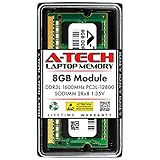
- A-Tech Memory RAM upgrade compatible for select Laptop, Notebook, and All-in-One (AIO) computers
- Single 8 GB Module; DDR3/DDR3L SO-DIMM 204-Pin; Speeds up to 1600 MHz, PC3L-12800/PC3L-12800S (PC3-12800/PC3-12800S)
- NON-ECC Unbuffered; 2Rx8 (Dual Rank); JEDEC DDR3L standard 1.35V (Dual voltage, can operate at 1.35V or 1.5V)
- Expands your system's available Memory RAM resource, improving performance, speed and allowing you to take on more while maintaining a smooth experience
- Quick and easy to install, no expertise required (Please refer to your system's manual for seating and channel guidelines)
Product prices and availability are accurate as of the date/time indicated and are subject to change. Any price and availability information displayed on Amazon at the time of purchase will apply.
Do these 3 things before closing this tab:
1Clear out junk files and repair common Windows errors2Fix the driver behind crashes, sound loss and screen glitches3Repair Windows errors before they cause bigger problems
