Crashes, No Sound, or Screen Glitches?
Random freezes, missing sound and display glitches usually trace back to one bad driver. Find and replace yours safely.Free scan · under a minuteWindows Errors? Fix Them Before They Spread
Repair common Windows errors and clear accumulated junk for a smoother, more stable PC - no reinstall needed.Free scan · no reinstallThere is no single “Google Books privacy” switch. Before using Google Books while signed in, review two separate areas: the Personal results setting that affects book recommendations, and the activity controls in your Google Account that govern what signed-in activity is saved. Google is also changing the names and coverage of some Search controls, so the labels on your account may differ from screenshots or older instructions.
This guide explains what Google says recommendations can use, how to inspect and delete account activity, what the newer Search Services History controls do—and do not do—and which privacy questions remain account- or region-specific.
As an Amazon Associate I earn from qualifying purchases.
What Google Books can use for recommendations
Google’s book-search help describes several possible recommendation inputs. Some are general signals that can appear whether or not a person has enabled personalized results; others apply when a signed-in account has personal results turned on.
General recommendation signals
Google says book recommendations may reflect what is popular or trending in Google products, mentions of books across the web, and new material. Those signals describe the recommendation context, not a promise that every book search is stored in a dedicated Google Books history.
#1 Best Overall

- Light and compact - With adjustable brightness, high contrast ratio, and fast page turns.
- Effortless reading in any light - Read comfortably with a 6“ glare-free display, adjustable front light—now 25% brighter at max setting—and dark mode.
- Escape into your books - Tune out messages, emails, and social media with a distraction-free reading experience.
- Read for a while - Get up to 6 weeks of battery life on a single charge.
- Take your library with you – 16 GB storage holds thousands of books.
Additional signals when personal results are enabled
For a signed-in account with personal results turned on, Google says recommendations may additionally use:
- Past searches and browsing history.
- Books you have saved or marked as read.
- Book preferences, including upvotes and downvotes.
These are recommendation inputs described by Google’s Books help. They should not be read as a complete inventory of every piece of data Google may process, nor as proof that every item is held in a Books-only database. Turning off personal results addresses personalized recommendations; it does not automatically switch off every form of activity saving in your Google Account.
Recommendation personalization and activity saving are different controls
| Question | Control to review | What it addresses | What it does not establish |
|---|---|---|---|
| Can recommendations use my account-related preferences? | Personal results for Google Search and related experiences | Whether recommendations can be personalized using the signals Google lists for signed-in users, such as saved books, read status, votes, searches and browsing history. | It is not a complete off switch for all Google Account activity collection. |
| What activity is saved to my account? | Google Account → Data & privacy → History settings | Whether activity covered by each history control is saved, and whether it can contribute to account experiences across signed-in devices. | It does not create a Books-only inventory or guarantee that every other data location is covered. |
| What activity is visible and removable? | My Activity | Reviewing and deleting activity that appears in the account’s activity view. | Deletion is a process, not a promise of instant, universal erasure from every system. |
| What does the newer Search Services History switch cover? | Search Services History, where available | The named Search services in Google’s newer control arrangement. | Google’s current list does not name Google Books, so do not treat it as a dedicated Books history toggle. |
Google’s own wording summarizes the purpose of the broader controls: You can use your activity settings to choose what kinds of activity are saved in your Google Account.
That statement appears in Google Account Help’s “Control what activity gets saved to your account” documentation.
Do these 3 things before closing this tab:
1Repair Windows errors before they cause bigger problems2Scan for outdated or missing drivers - takes under a minute3Clear out junk files and repair common Windows errorsStep 1: Check the Personal results setting before using Books
If your priority is preventing personalized book suggestions, start with the personal-results control rather than with deletion tools.
- Open Google Search or Google Books while signed in to the account you intend to use.
- Look for the Personal results setting in the Search or recommendation controls shown for that account. Google’s labels and placement can change as settings are updated.
- Turn personal results off if you do not want the recommendation system to use the signed-in signals described in Google’s Books help.
- Return to the Books experience and check whether the recommendations now appear as general or non-personalized suggestions. The exact presentation can vary by account and interface version.
Turning personal results off is a targeted choice about personalization. It does not erase books you previously saved, votes you made, searches, browsing history or other activity that may already be stored under separate account controls. Review those controls in the next step if you want to inspect or delete saved activity.
Rank #2

- Our fastest Kindle Paperwhite ever – The next-generation 7“ Paperwhite display has a higher contrast ratio and 25% faster page turns.
- Ready for travel – The ultra-thin design has a larger glare-free screen so pages stay sharp no matter where you are.
- Escape into your books – Your Kindle doesn’t have social media, notifications, or other distracting apps.
- Battery life for your longest novel – A single charge via USB-C lasts up to 12 weeks.
- Read in any light – Adjust the display from white to amber to read in bright sunlight or in the dark.
Step 2: Review Google Account history settings
Google’s activity-controls documentation directs users to Google Account → Data & privacy → History settings. The controls shown there determine what categories of activity are saved to the account. Google says those settings apply across devices where you are signed in to that account.
Use the account interface you actually see
- Open your Google Account.
- Select Data & privacy.
- Scroll to History settings.
- Open each relevant history control and read its current description before switching it on or off.
- Check the account name or profile image first if more than one Google account is open in the same browser.
When multiple accounts are signed in at once, Google says activity might be saved in the default account. Confirming the active account prevents you from changing one profile while assuming you changed another.
The Tool Desk
Outbyte PC Repair FREEClear out junk files and repair common Windows errorsFree Scan →Outbyte Driver Updater FREEScan for outdated or missing drivers - takes under a minuteDriver Scan →Inspect activity in My Activity
Use My Activity from the History settings area to see activity Google makes available for review. Search or filter the entries shown, open an item for its details when available, and use the displayed delete controls if you decide it should be removed. The activity view is account-specific, so repeat the check for any other account you use with Books.
My Activity is a review and deletion surface, not a guarantee that it lists every Books-related record or every copy held in every Google system. Google’s help pages do not publish a complete, universal Books-only data inventory.
Step 3: Understand Google’s changing Search controls
Google says it is gradually updating Search settings. Some accounts may show a newer arrangement with separate controls for Search Services History and Personalized Recommendations; others may still show older or different labels.
Rank #3

- Light and compact - With adjustable brightness, high contrast ratio, and fast page turns.
- Effortless reading in any light - Read comfortably with a 6“ glare-free display, adjustable front light—now 25% brighter at max setting—and dark mode.
- Escape into your books - Tune out messages, emails, and social media with a distraction-free reading experience.
- Read for a while - Get up to 6 weeks of battery life on a single charge.
- Take your library with you - 16 GB storage holds thousands of books.
Services named in the newer Search Services History help
Google’s current Search Services History and Personalized Recommendations help page names these Search services:
Recommended Free Tools
- Search
- Maps
- Shopping
- Flights
- Hotels
- Translate
- News
Google Books is not included in that published list. Therefore, do not describe Search Services History as a Google Books-specific history switch. The same help page says other products and features—including Chrome, Gemini Apps, Google Assistant and YouTube—use other history settings, and that Web & App Activity continues to govern activity collection and personalization for some other services.
Why two people may see different names
The rollout is gradual. Your account may show Web & App Activity controls, the newer Search Services History arrangement, or a combination of labels during the transition. Follow the explanation displayed in your account rather than relying on an old screenshot or assuming that a control covers Books simply because it contains the word “Search.”
Step 4: Know what deleting activity actually does
Google describes manual and automatic deletion as a removal process. The activity is first intended to disappear from the product view and may no longer be used to personalize the Google experience; a subsequent process begins deleting it from storage systems.
Deletion is not necessarily immediate or absolute
Google says some activity may be retained for limited business or legal purposes. Consequently, do not promise that pressing Delete instantly removes every copy from every system. The timing and any retained records depend on the type of activity and the applicable account or legal requirements.
Rank #4

- 3.7" Pocket eBook Reader, Only Approx. 58g: Take your library anywhere with the XTEINK X3, a compact 3.7-inch lightweight eReader designed for everyday portability. Weighing approximately 58g and measuring just 5.1mm thin, it easily slips into your pocket or bag, making it ideal for reading during commutes, while traveling, or during quick breaks.
- Paper-feel E-Ink Reading, Made for Focus: Enjoy a clean, paper-feel E-Ink reading experience that feels gentle on the eyes and helps you stay focused. No constant notifications, no social media distractions—just a simple mini eReader built for books, manga, notes, and quiet reading time.
- Gyroscope Page-Turn + Physical Buttons: Read comfortably with one hand using gyroscope page-turn control and responsive physical buttons. Whether you are standing, commuting, or relaxing, XTEINK X3 makes page turning smoother, easier, and more intuitive than traditional touch-only reading devices.
- Personalized Features & Long-Lasting Battery:Switch between reading, photos, clock, and more for a customizable experience beyond traditional eReaders. Designed for everyday portability, XTEINK X3 delivers up to 10 hours of reading time, supporting about a week of casual reading on a single charge. For safe charging, use a locally certified charger and keep conductive objects away from the charging pin contacts during charging to help prevent short circuits.
- Magnetic-Ready Design with Pogo-Pin Charging: XTEINK X3 includes an Adhesive Metal Ring to enable magnetic attachment on compatible non-magnetic phone cases or surfaces, expanding compatibility for everyday use. The magnetic pogo-pin charging design maintains a clean, minimalist appearance while supporting convenient daily charging.
Deleting one location may leave another
Google’s account guidance gives location as an example of separate data locations: pausing Timeline or deleting Timeline data does not necessarily remove location data saved through other Google services under Search Services History or Web & App Activity. The same principle matters for Books-related privacy reviews. Browser history, cookies and other product-specific controls are managed separately; clearing one does not automatically clear the others.
Step 5: Decide whether to pause, delete, or leave a control on
| Your goal | First action | Important limitation |
|---|---|---|
| Keep using Books but avoid personalized suggestions | Turn off Personal results. | This targets recommendation personalization; it does not erase existing account activity. |
| Stop a category of future activity from being saved | Open Data & privacy → History settings and switch off the relevant control. | The control applies to the category described there, not automatically to every Google service or browser record. |
| Remove activity already visible in the account | Review My Activity and use its delete options. | Removal can take time and limited retention may apply. |
| Understand what data you can obtain | Use Google’s account download tools, including Takeout when the service is offered. | The services and data categories available for export depend on what your account presents; Google does not promise a fixed Books-only export payload. |
| Review overall account exposure | Check signed-in devices, connected third-party apps, account data and product-deletion options. | These are broader account safeguards, not Google Books-specific settings. |
Use Takeout and account privacy tools for a broader review
Google’s Privacy Help Center describes account review and download tools, including Google Takeout. Takeout lets you select from the services and data categories that Google makes available in the tool at that time. The available selection can vary by account and service, so inspect the list rather than assuming that a particular Books history file will be included.
For an account-wide check, Google’s “Find, control & delete the info in your Google Account” guidance points to several additional areas:
- Recently signed-in devices and sessions.
- Apps and services connected to the account.
- Data-download options.
- Controls for deleting individual Google products or the entire account.
These checks are useful if you are lending a device, changing accounts, or reviewing access after using Books on a shared computer. They do not replace the Personal results and History settings checks above.
Common assumptions that lead to an incomplete privacy review
“Turning off Personal results stops all Google Books data collection.”
No. Google’s Books help connects Personal results to recommendation personalization. Separate Google Account history controls govern what activity is saved, and other locations such as browser history and cookies have their own controls.
Best Value
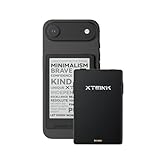
- 3.7" Pocket eBook Reader, Only Approx. 58g: Take your library anywhere with XTEINK X3, a compact 3.7-inch pocket eReader designed for true everyday portability. At only approx. 58g and 5.1mm thin, it slips easily into your pocket, bag, or daily carry setup for reading during commutes, travel, and quick breaks.
- Paper-feel E-Ink Reading, Made for Focus: Enjoy a clean, paper-feel E-Ink reading experience that feels gentle on the eyes and helps you stay focused. No constant notifications, no social media distractions—just a simple mini eReader built for books, manga, notes, and quiet reading time.
- Gyroscope Page-Turn + Physical Buttons: Read comfortably with one hand using gyroscope page-turn control and responsive physical buttons. Whether you are standing, commuting, or relaxing, XTEINK X3 makes page turning smoother, easier, and more intuitive than traditional touch-only reading devices.
- Personalized Features & Long-Lasting Battery:Switch between reading, photos, clock, and more for a customizable experience beyond traditional eReaders. Designed for everyday portability, XTEINK X3 delivers up to 10 hours of reading time, supporting about a week of casual reading on a single charge. For safe charging, use a locally certified charger and keep conductive objects away from the charging pin contacts during charging to help prevent short circuits.
- Magnetic-Ready Design with Pogo-Pin Charging: XTEINK X3 includes an Adhesive Metal Ring to enable magnetic attachment on compatible non-magnetic phone cases or surfaces, expanding compatibility for everyday use. The magnetic pogo-pin charging design maintains a clean, minimalist appearance while supporting convenient daily charging.
“Search Services History is the Books history switch.”
Not according to Google’s current published service list. The page names Search, Maps, Shopping, Flights, Hotels, Translate and News, but not Google Books. Treat the control as part of Google’s changing Search settings, not as proof of a dedicated Books toggle.
“Deleting an entry means it is instantly gone everywhere.”
Google describes deletion as a staged process and notes that limited business or legal retention can apply. The visible entry may disappear before storage-system deletion is complete.
“My Activity is a complete Books-only ledger.”
Google’s help explains the general account activity view but does not publish a complete Books-only inventory for every account, region or account type. An absent entry is not evidence that no related processing occurred elsewhere.
“A Takeout download guarantees a complete Books export.”
Takeout shows the services and categories available to your account at the time you use it. Google does not specify a universal Google Books export payload in the cited guidance.
A practical pre-use checklist
Run through this list before signing in to Google Books, especially on a shared or managed device:
- Confirm which Google account is active and which account is the browser’s default.
- Read the Books recommendation explanation so you understand the difference between general trends and personalized signals.
- Review the Personal results control and turn it off if you do not want personalized recommendations.
- Open Google Account → Data & privacy → History settings.
- Check the descriptions and status of the history controls relevant to your use.
- Open My Activity to inspect existing entries and delete items you no longer want visible there.
- Look for Search Services History only as an additional, changing Search control; do not assume it includes Books.
- Clear browser history or cookies separately if that is part of your goal.
- Review signed-in devices and connected third-party apps if you are conducting a broader account-security check.
- Use Takeout only after checking which services and categories your account offers for download.
What Google’s published help does not settle
The official pages explain recommendation inputs and general account controls, but they do not provide a complete Google Books-only catalogue of every collected data type, every processing purpose, or a universal retention schedule across countries and account types. They also do not specify exactly which Books records appear in each person’s Takeout export.
That uncertainty is why a careful review should use the controls currently displayed in your own account. Treat the Books recommendation setting, account history controls, My Activity, browser controls and other service-specific locations as separate surfaces unless Google’s current explanation explicitly connects them.
What’s actually slowing this PC down?
Pick the symptom - the matching free tool is one click away.
Bottom line for using Google Books while signed in
Start with Personal results if your concern is recommendation personalization. Then review Data & privacy → History settings and My Activity for saved account activity, taking into account that controls apply across signed-in devices and that multiple accounts can change where activity is stored. Do not rely on the newer Search Services History label as a Books-specific switch, and do not equate a visible deletion with immediate, universal erasure. Google’s interface is in transition, so the safest interpretation is the one shown in your current account’s own control descriptions.
Quick Recap
Product prices and availability are accurate as of the date/time indicated and are subject to change. Any price and availability information displayed on Amazon at the time of purchase will apply.

