For a desktop GeForce RTX 3080, NVIDIA lists Game Ready Driver 591.86 (WHQL), released January 27, 2026, as the current package for 64-bit Windows 10 and Windows 11. Windows 7 is limited to NVIDIA’s legacy Security Update Driver 475.14 (July 9, 2024), while NVIDIA’s currently documented pages do not establish a current Windows 8 RTX 3080 driver. Confirm your Windows edition, 64-bit architecture, and whether you have a desktop card or an RTX 3080 Laptop GPU before downloading.
RTX 3080 driver latest download: the correct package by Windows version
The right download depends on both the operating system and the exact RTX 3080 model. NVIDIA’s current GeForce Game Ready Driver listing identifies version 591.86, WHQL, dated January 27, 2026, for Windows 10 64-bit and Windows 11. The supported-products list includes the desktop GeForce RTX 3080. NVIDIA describes this branch as the path for support for major new game releases and day-one game updates.


As an Amazon Associate I earn from qualifying purchases.
| Windows system | NVIDIA branch | Version and date documented | What that means |
|---|---|---|---|
| Windows 10 64-bit | Game Ready Driver | 591.86 WHQL, January 27, 2026 | Current feature, game-support and bug-fix path listed for the desktop RTX 3080 |
| Windows 11 | Game Ready Driver | 591.86 WHQL, January 27, 2026 | Current listed path for the desktop RTX 3080 |
| Windows 7 | GeForce Security Update Driver | 475.14, July 9, 2024 | Legacy security-maintenance path; not a current feature-driver branch |
| Windows 8 or 8.1 | Current branch not established in NVIDIA’s documented pages | Not stated | Do not label an old package as the latest Windows 8 RTX 3080 driver |
Driver releases change, so treat 591.86 as the version documented on January 27, 2026, rather than a permanent number. Recheck NVIDIA’s driver-selection page immediately before installing and verify that the detected product says desktop GeForce RTX 3080.
Do these 3 things before closing this tab:
1Fix the driver behind crashes, sound loss and screen glitches2Clear out junk files and repair common Windows errors3Scan for outdated or missing drivers - takes under a minuteIdentify the exact RTX 3080 and Windows installation first
Desktop card or RTX 3080 Laptop GPU?
A desktop RTX 3080 and an RTX 3080 Laptop GPU are different products. A notebook normally needs the package certified by its laptop manufacturer, even when the GPU name appears similar. Use the notebook maker’s support page for its tested graphics package when the manufacturer specifies one; do not force a desktop package onto a laptop.
#1 Best Overall
To check the installed name, right-click Start, choose Device Manager, expand Display adapters, and read the complete entry. You can also press Win+R, enter dxdiag, open the Display tab, and note the adapter name. If Windows shows only “Microsoft Basic Display Adapter,” the NVIDIA driver may be missing or the card may not be detected correctly.
Confirm the Windows edition and architecture
Press Win+R, type winver, and record the edition and build. In Settings > System > About, check System type. The current Game Ready result is for 64-bit Windows 10 and Windows 11. NVIDIA’s RTX 3080 User Guide recommends Microsoft Windows 10 64-bit, build 2004, as its baseline Windows 10 environment.
- Use the Windows 10/11 Game Ready result only when the system is 64-bit and the card is the desktop RTX 3080.
- Use the Windows 7 security-update result only on Windows 7.
- Stop and reassess if the computer is running Windows 8 or 8.1; the current NVIDIA pages reviewed do not document a current RTX 3080 package for that operating system.
How to install the GeForce RTX 3080 driver on Windows 10
1. Prepare the computer
- Save open work and create a restore point from Control Panel > System > System protection if System Protection is enabled.
- Disconnect from a VPN or metered connection if it interferes with downloads, and close games, monitoring tools and GPU-accelerated applications.
- Temporarily note custom settings such as display resolution, refresh rate and multi-monitor layout. A clean installation can return these settings to defaults.
2. Select the official package
- Open NVIDIA’s official driver-selection page rather than a third-party download site.
- Choose GeForce, the RTX 30 Series family, and GeForce RTX 3080. Select the correct Windows 10 64-bit or Windows 11 operating system and the Game Ready Driver option.
- Check that the result is version 591.86, marked WHQL, with the January 27, 2026 release date. Read the release notes and bug-fix information before proceeding.
- On a notebook, leave the NVIDIA page and use the laptop manufacturer’s certified package when its support guidance requires that route.
3. Run the installer
- Right-click the downloaded installer and choose Run as administrator if Windows asks for permission.
- Allow the package to unpack, accept the license terms, and choose Custom (Advanced) when you are troubleshooting remnants of an older driver.
- Select Perform a clean installation. This resets NVIDIA driver profiles and replaces older components; it can also remove custom display settings.
- Continue through the prompts without launching a game or powering off the computer. The display may flicker or go blank briefly while the driver switches.
- Restart Windows when the installer requests it, even if the desktop appears usable without a restart.
If you are updating a healthy installation and need to preserve NVIDIA profile settings, the normal installation option may be sufficient. Clean installation is the targeted choice when an update failed, a previous package was corrupted, or games began crashing after a driver change.
How to install the RTX 3080 driver for Windows 7
Windows 7 is no longer on NVIDIA’s feature-driver path. NVIDIA’s Windows 7 page lists GeForce Security Update Driver 475.14, dated July 9, 2024, and includes the RTX 3080 among supported products. NVIDIA states: “Effective October 2021, Game Ready Driver upgrades, including performance enhancements, new features, and bug fixes, are exclusively available for systems utilizing Windows 10 and Window 11 as their operating system.” NVIDIA also states that critical security updates for Windows 7 were available through September 2024.
- Verify that the machine is actually running Windows 7 and that the RTX 3080 is the desktop model shown in Device Manager.
- Use NVIDIA’s official Windows 7 driver page and select the listed GeForce Security Update Driver 475.14 package. Do not substitute the newer Windows 10/11 Game Ready installer.
- Close applications, run the installer, and select the clean-install option if an older NVIDIA package is producing errors or display problems.
- Restart, then verify the driver version in NVIDIA’s control application or Device Manager.
The older Windows 7 Game Ready release 472.12, dated September 20, 2021, also lists the RTX 3080, but it is historical context rather than the current Windows 7 feature-driver route. Windows 7 users should expect compatibility and game-support limitations because newer performance enhancements, features and bug fixes are not delivered through that branch.
What to do about Windows 8 or 8.1
The title phrase “RTX 3080 driver for Windows 8” can be misleading. The NVIDIA pages documented for this guide provide a current Game Ready path for Windows 10/11 and a security-update path for Windows 7; they do not establish a current Windows 8 or Windows 8.1 RTX 3080 driver. An old installer found on an archive or download mirror should therefore not be presented as the latest package.
Rank #3

- Item Package Quantity - 1
- Product Type - VIDEO CARD
- This pre-owned product has been professionally inspected, tested and cleaned by Amazon qualified vendors.
- Accessories may not be original, but will be compatible and fully functional. Product may come in generic box.
- Check the exact edition in
winver; some systems identified as “Windows 8” are actually Windows 8.1. - Check NVIDIA’s driver selector for your exact operating system. If no RTX 3080 result is offered, do not force a package for another Windows version.
- For supported gaming and security updates, plan a move to a currently supported 64-bit Windows release that NVIDIA lists for the card.
- If you must keep Windows 8 temporarily, retain a known-working driver and create a restore point before experimenting. Unsupported installation attempts can leave the system with a basic display driver or an unusable graphics stack.
Verify the installation and driver version
Using NVIDIA’s application
Open the installed NVIDIA application or NVIDIA Control Panel and locate the driver information page. Confirm that the product is GeForce RTX 3080 and that the displayed version matches the package you installed. The exact menu wording can vary between NVIDIA application releases.
Quick wins for a faster PC:
Repair Windows errors before they cause bigger problemsFix Now →Scan for outdated or missing drivers - takes under a minuteDriver Scan →Using Device Manager
- Right-click Start and open Device Manager.
- Expand Display adapters, right-click the RTX 3080, and choose Properties.
- Open the Driver tab and check Driver Version and Driver Date.
A yellow warning icon, error code, or “Microsoft Basic Display Adapter” entry means Windows is not using the intended NVIDIA driver. Record the exact message before attempting another installation; it can distinguish a package mismatch from a hardware-detection problem.
Independent reader supportYour contribution helps us test, update, and keep practical guides available for everyone.Troubleshoot a failed or unstable installation
The installer says the package is incompatible
Recheck three items: Windows architecture, GPU identity and notebook status. A desktop RTX 3080 package can be rejected on an RTX 3080 Laptop GPU, and a Windows 10/11 package is not the Windows 7 security-update package. Download the result generated for the exact combination rather than repeatedly running the same installer.
Rank #4
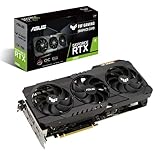
- NVIDIA Ampere Streaming Multiprocessors: The building blocks for the world’s fastest, most efficient GPU, the all-new Ampere SM brings 2X the FP32 throughput and improved power efficiency.
- 2nd Generation RT Cores: Experience 2X the throughput of 1st gen RT Cores, plus concurrent RT and shading for a whole new level of ray tracing performance.
- 3rd Generation Tensor Cores: Get up to 2X the throughput with structural sparsity and advanced AI algorithms such as DLSS. Now with support for up to 8K resolution, these cores deliver a massive boost in game performance and all-new AI capabilities.
- This GeForce RTX 3080 graphics card with LHR (lite hash rate) delivers 43 MH/s ETH hash rate (est.).
- OC edition: Boost clock 1815 MHz (OC mode)/1785 MHz (Gaming mode)
The installer completes but the display remains unstable
- Restart once more and test the desktop before launching a game.
- Open Device Manager and confirm that the RTX 3080 has no warning icon.
- Run the NVIDIA installer again with Custom (Advanced) > Perform a clean installation.
- If the problem began immediately after an update, open the adapter’s Properties > Driver tab and use Roll Back Driver when Windows makes that option available.
The card is not detected at all
A driver cannot install correctly if the hardware is absent from Device Manager. Shut down safely, check that the card is fully seated and that its required power connectors are attached, then check the monitor cable and selected display input. If the card still does not appear, treat the issue as hardware, firmware or power troubleshooting rather than a simple driver-download problem.
Windows keeps replacing the package
Disconnect from the internet during a clean reinstall if Windows Update immediately supplies a different driver, then reconnect after verification. Keep the downloaded NVIDIA installer until the version is confirmed so you can repeat the same procedure if necessary.
Free tools Windows power users keep installed
One-click scans. No signup required.
Quick Recap
Safety checklist for an RTX 3080 driver download
- Use NVIDIA’s official driver-selection page or, for a notebook, the computer manufacturer’s certified support page.
- Match the operating system exactly: Windows 10 64-bit/Windows 11 Game Ready, or Windows 7 Security Update.
- Confirm the product name before downloading; “RTX 3080 Laptop GPU” is not the same selection as desktop RTX 3080.
- Check the version, WHQL label and release date on the result page.
- Do not disable Windows security protections to run a driver installer, and avoid repackaged installers from download mirrors.
- Keep a restore point and record your current driver version before a clean installation.
If you want an optional shortcut after checking the operating system and GPU model manually, Outbyte Driver Updater can scan more than 100 devices for outdated, corrupted or missing drivers, install official drivers, show current and recommended versions, and provide backup, restore and scheduled scans. It runs on Windows 11, 10, 8 and 7 and offers a 2-day free trial with no credit card before subscription; results vary, and no utility repairs every driver problem.
Product prices and availability are accurate as of the date/time indicated and are subject to change. Any price and availability information displayed on Amazon at the time of purchase will apply.

