There is no single Fire TV Cube setting that guarantees better picture and sound: the result depends on the Cube generation, the content, and every device in the HDMI chain. Start with Amazon’s Cube help hub and device identification guide to confirm your model, then check the settings that apply to it.
Check picture formats across the HDMI chain
If HDR, Dolby Vision, or 4K is not working, verify what the Cube detects before changing output settings. On supported devices, open Settings > Display & Sounds > Audio/Video Diagnostics. Amazon says this tool checks HDMI-connected equipment—including a television, soundbar, or AV receiver—for resolution, refresh rate, HDR, Dolby Vision, and surround formats. The option is not available on every Fire TV device. See Amazon’s troubleshooting steps for Dolby Vision, HDR, and 4K.
As an Amazon Associate I earn from qualifying purchases.
- Check that the television accepts the format on the HDMI input the Cube uses, and that the television’s input and picture settings allow it.
- If the Cube passes through a soundbar or receiver, that device and its HDMI connection must also support and pass through the format.
- Confirm that the particular movie, show, app, and subscription offer the format. A device’s capability alone does not make every title HDR or Dolby Vision.
Amazon lists the Fire TV Cube (3rd Generation) as supporting up to 4K Ultra HD and HDR formats including HDR10, HDR10+, HLG, and Dolby Vision. It also lists Dolby Atmos audio support. Those are device specifications, not a promise that a given title or connected setup will use those formats. Check the Amazon device identification guide for model-specific capabilities.
The Tool Desk
Outbyte Driver Updater FREEFix the driver behind crashes, sound loss and screen glitchesFind Drivers →Outbyte PC Repair FREERepair Windows errors before they cause bigger problemsFix Now →Understand the 4K 30 Hz Dolby Vision compatibility choice
Amazon documents an edge case in which Fire TV may stream at 1080p 60 Hz with a 4K 30 Hz Dolby Vision television, to provide smoother playback. If you want to change the behavior, Amazon points to the 4K 60 Hz resolution choice under Settings > Display & Sounds. Treat this as a compatibility choice, not a guaranteed upgrade: the TV and every device in the connection path need to support the selected mode.
#1 Best Overall

- Our fastest-ever streaming media player - Brings lightning-fast app starts with an octa-core processor and is 2X as powerful as Fire TV Stick 4K Max.
- The newest Fire TV experience (2026) – Our biggest update to Fire TV has a new, modern design that gets you to your entertainment fast. Browse dedicated content categories, pin more of your favorite apps, and get personalized recommendations from Alexa+. Spend less time scrolling, and more time watching.
- Smarter picks with Alexa+ – Getting to what you love has never been easier. Press the voice remote button and talk naturally to find what to watch across your apps, manage your smart home, or dive into virtually any topic.
- Hands-free Alexa with built-in mic and speakers - Control your compatible TV, soundbar, and receivers with your voice, even from across the room.
- Seamlessly navigate between your entertainment - Connect compatible devices and easily go from streaming to your cable box, game console, or webcam.
Decide whether to use Super Resolution
On Fire TV Cube (3rd Generation), Amazon says Super Resolution is enabled by default. It sharpens video below 4K on a 4K-or-higher television; Amazon says it makes no difference to 4K-or-higher content. To compare the processing on or off, open Settings > Display & Audio > Display > Super Resolution. If the option is present, compare lower-resolution material you watch often and keep the setting that suits your preference. The menu and feature may differ on other generations or software versions. Details are in Amazon’s Super Resolution guide.
Diagnose sound before lowering the format
On supported Fire TV devices, go to Settings > Display & Sounds > Audio/Video Diagnostics and check the detected audio formats. Amazon says that if the format you want is not detected, the current equipment setup cannot play it. Confirm support in the content and app as well as in the Cube, TV, soundbar, or receiver. Amazon’s surround sound and Dolby Atmos troubleshooting notes that some AV receivers require height speakers for Atmos.
Rank #2

- This bundle contains Fire TV Cube (3rd Gen) and Alexa Voice Remote Pro.
- The newest Fire TV experience (2026) – Our biggest update to Fire TV has a new, modern design that gets you to your entertainment fast. Browse dedicated content categories, pin more of your favorite apps, and get personalized recommendations from Alexa+. Spend less time scrolling, and more time watching.
- Smarter picks with Alexa+ – Getting to what you love has never been easier. Press the voice remote button and talk naturally to find what to watch across your apps, manage your smart home, or dive into virtually any topic.
- Our fastest-ever streaming media player - Brings lightning-fast app starts with an octa-core processor and is 2X as powerful as Fire TV Stick 4K Max.
- Hands-free Alexa with built-in mic and speakers - Control your compatible TV, soundbar, and receivers with your voice, even from across the room.
- Check the HDMI path and the receiver or soundbar’s ability to pass through the desired format.
- Amazon recommends a high-speed HDMI cable for surround troubleshooting and says optical cables do not fully support surround sound.
- If the preferred format still does not work, Amazon suggests lowering the audio format and checking whether sound plays reliably.
These are Cube connection checks, not Fire TV Smart TV speaker or ARC/optical menu instructions. Amazon’s setup guide specifies a high-speed HDMI cable; check the cable and existing connection before buying anything. See Amazon’s Fire TV Cube setup guide.
What’s actually slowing this PC down?
Pick the symptom - the matching free tool is one click away.
Choose privacy controls by the data category
The Fire TV privacy controls do different jobs. On the Cube, Amazon gives the path Settings > Preferences > Privacy Settings. The settings are device-specific, and Amazon says turning them off does not stop every kind of data processing or personalization. Its Privacy Settings FAQs for Fire TV Products, Fire Tablets and Kindle E-readers explain the distinctions:
Rank #3
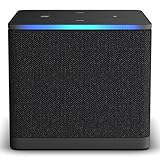
- Like-New Fire TV Cube is refurbished, tested, and certified to look and work like new and comes with the same limited warranty as a new device. Like-New Amazon devices may be packaged in generic Amazon-branded boxes.
- Our fastest-ever streaming media player - Brings lightning-fast app starts with an octa-core processor and is 2X as powerful as Fire TV Stick 4K Max.
- Hands-free Alexa with built-in mic and speakers - Control your compatible TV, soundbar, and receivers with your voice, even from across the room.
- Smarter searching starts here with Alexa – Find movies by actor, plot, and even iconic quotes. Try saying, "Alexa show me action movies with car chases."
- Seamlessly navigate between your entertainment - Connect compatible devices and easily go from streaming to your cable box, game console, or webcam.
| Setting | What turning it off does | What it does not do |
|---|---|---|
| Device Usage Data | Opts out of processing operating-system-collected personal data for product-improvement and customized-marketing purposes. | Does not disable features such as Parental Controls or Recents, prevent marketing offers, control other data used for interest-based ads, or cover processing related to Amazon services such as Prime Video. |
| Collect App Usage Data | Opts out of Amazon collecting third-party app open, close, and usage-duration data. | Does not set privacy practices for third-party apps themselves. |
| Interest-based Ads | Asks apps using the device advertising ID not to use that ID to build advertising profiles or target interest-based ads on the device. | Does not turn off all advertising or every form of data processing. |
Amazon describes the identifier this way: “The advertising ID is a resettable identifier we make available to apps on certain Amazon devices for advertising and analytics purposes.” Third-party apps and Amazon services have their own privacy settings and notices, so review those separately if you want to manage their data practices.
Independent reader supportYour contribution helps us test, update, and keep practical guides available for everyone.Mute the Cube’s microphones when you want a hardware control
Press the physical Mute button on top of the Cube to deactivate its microphones; Amazon says the indicator light turns red. This controls microphone access for Alexa voice input, not the privacy settings above. Amazon says most Alexa feature settings are managed in the Alexa app. Its Cube setup guide also explains how to hear and delete voice recordings in the Alexa app, or ask Alexa to delete the latest recording or all recordings.
Quick Recap
Best Value

- Advanced 4K streaming - Elevate your entertainment with the next generation of our best-selling 4K stick, with improved streaming performance optimized for 4K TVs.
- The newest Fire TV experience (2026) – Our biggest update to Fire TV has a new, modern design that gets you to your entertainment fast. Browse dedicated content categories, pin more of your favorite apps, and get personalized recommendations from Alexa+. Spend less time scrolling, and more time watching.
- Cloud gaming, no console required – Stream Call of Duty: Black Ops 7, Hogwarts Legacy, Outer Worlds 2, Ninja Gaiden 4, and hundreds of games on your Fire TV Stick 4K Select with Xbox Game Pass and Luna via cloud gaming. Xbox Game Pass subscription and compatible controller required. Each sold separately.
- Smarter picks with Alexa+ – Getting to what you love has never been easier. Press the voice remote button and talk naturally to find what to watch across your apps, manage your smart home, or dive into virtually any topic.
- Wi-Fi 6 support - Enjoy smooth 4K streaming, even when other devices are connected to your router.
Rank #4

- Ultra-speedy streaming: Roku Ultra is 30% faster than any other Roku player, delivering a lightning-fast interface and apps that launch in a snap.
- Cinematic streaming: This TV streaming device brings the movie theater to your living room with spectacular 4K, HDR10+, and Dolby Vision picture alongside immersive Dolby Atmos audio.
- The ultimate Roku remote: The rechargeable Roku Voice Remote Pro offers backlit buttons, hands-free voice controls, and a lost remote finder.
- No more fumbling in the dark: See what you’re pressing with backlit buttons.
- Say goodbye to batteries: Keep your remote powered for months on a single charge.
Product prices and availability are accurate as of the date/time indicated and are subject to change. Any price and availability information displayed on Amazon at the time of purchase will apply.
Quick wins for a faster PC:
Scan for outdated or missing drivers - takes under a minuteDriver Scan →Clear out junk files and repair common Windows errorsFree Scan →Fix the driver behind crashes, sound loss and screen glitchesFind Drivers →
