Free tools Windows power users keep installed
One-click scans. No signup required.
When people say they want the official Galaxy S9 and S9+ sounds, they usually mean the built-in Samsung stock ringtones and notification/alarm tones that shipped with the phone. Those tones are part of the device software, so the most reliable way to get them is to extract them from official firmware for your exact model/region.
This guide walks you through getting the audio files safely and correctly—without guessing—then installing them on your Galaxy S9 or S9+ using Samsung’s own sound settings.
As an Amazon Associate I earn from qualifying purchases.
Important: You should download firmware only from trusted sources and respect copyright. The steps below help you retrieve your own device’s stock assets, not redistribute premium or protected media.
What you can (and can’t) download as official S9 sounds
There isn’t a single universal, always-correct “official Samsung Galaxy S9 ringtone zip” link that matches every carrier and every region. Samsung ships different builds (CSC/region, firmware version, Android/One UI generation), and those builds can contain different tone sets.
#1 Best Overall

- Tested for battery health and guaranteed to have a minimum battery capacity of 80%.
- Successfully passed a full diagnostic test which ensures like-new functionality and removal of any prior-user personal information.
- Inspected and guaranteed to have minimal cosmetic damage, which is not noticeable when the device is held at arm's length.
- The device does not come with headphones or a SIM card. It does include a charger and charging cable that may be generic.
- Fully Unlocked: Fully unlocked and compatible with any carrier of choice (e.g. AT&T, T-Mobile, Sprint, Verizon, US-Cellular, Cricket, Metro, etc.), both domestically and internationally.
So “official” in practice means: stock audio files extracted from the official firmware package for your Galaxy S9 (SM-G960) or S9+ (SM-G965).
Prerequisites
- Phone models: Galaxy S9 (SM-G960) or Galaxy S9+ (SM-G965)
- Windows PC: recommended for extraction tools
- Storage: at least 5–10 GB free for firmware downloads and extraction work
- Tools: Frija or SamFirm (to download firmware), 7-Zip (or similar), and a partition image extractor compatible with Samsung firmware artifacts
- Cable or USB access: to move audio files to the phone
If you’re not comfortable with firmware files, Method 3 (Samsung apps and curated packs) is safer, but it won’t always give you a guaranteed “exact stock” match.
Method 1: Extract ringtones and sounds from official firmware (recommended)
This method produces the closest thing to an “official download”: the exact tone assets stored inside Samsung’s firmware images.
Recommended Free Tools
Step 1: Download the correct Galaxy S9/S9+ firmware
You need the build that matches your model and region. The model number is on the device (or Settings → About phone). Region/CSC affects sound packs.
- Find your model: Settings → About phone → Model number.
- Find your current firmware/CSC (if available): Settings → About phone → Software information.
- Use a firmware downloader (commonly Frija or SamFirm) with your model and region details.
- Download the package for the closest software version to your device (for many S9/S9+ builds, you’ll see Android 8/9/One UI-era packages).
Why it matters: even the same SM-G965 can have multiple CSC variants (carrier branding, region packages), and tone libraries can differ.
Step 2: Extract the firmware image files
Firmware packages often come in a format that contains multiple image files (BL, AP, CP, CSC). You usually only need the part that includes system audio (often AP, and sometimes CSC).
- Right-click the downloaded firmware archive and extract it with 7-Zip.
- Identify files by name—look for large image files (common naming includes AP_…, BL_…, CP_…, CSC_…).
- Extract the AP and CSC packages further if they’re nested archives.
If you see “.tar.md5” style containers, extract them to get the underlying “.img” or similar image artifacts.
Rank #2

- Network Support: AT&T
- Storage Capacity: 64 GB
- Color: Midnight Black
- Cosmetic Condition: Grade B: Very Good
- 60 Day Return Guarantee
Step 3: Pull the stock audio files from the right partitions
On Android devices, ringtones and notifications usually live under system media directories in system partitions. You’ll look for audio folders that contain common subfolders like ringtones, notifications, and alarms.
- Locate system image artifacts (often something like system.img or product/system style paths inside the extracted firmware).
- Mount or extract the system image contents using an appropriate image extraction tool.
- Navigate to the directories listed in the next section (“Where the stock sounds are stored”).
- Copy the audio files to a working folder on your PC (keep the folder structure where possible).
Goal: get the audio files into your PC folder, so you can move them to the phone with the correct placement.
Step 4: Identify ringtone vs notification vs alarm files
Stock tone assets usually follow folder conventions:
- Ringtones: often in a
ringtones/directory - Notifications: often in
notifications/orui/variants - Alarms: often in
alarms/ - UI sounds: sometimes in
ui/or other system sound folders
File names can be cryptic (sometimes “ogg” samples with numeric prefixes). Don’t rely on names—preview once installed.
What’s actually slowing this PC down?
Pick the symptom - the matching free tool is one click away.
Step 5: Copy to your phone and import in Samsung settings
Once extracted, you can move files to a folder Samsung’s apps can see. The most consistent approach is to place them under the device’s internal storage music/audio directories used by sound pickers.
- Connect your Galaxy S9/S9+ to your PC via USB and allow file transfer.
- Create folders on internal storage such as:
Ringtones(for ring tones)NotificationsAlarms
- Copy the extracted .ogg or .mp3 files into the matching category folder.
- Safely eject the device.
- On the phone, open sound settings and pick the new tone (see the “Install guide” section).
If your files don’t appear, it’s almost always a format or folder-placement mismatch (covered in troubleshooting).
Method 2: Use Odin/firmware tools only to pull audio (no flashing)
You don’t have to flash anything to extract sounds. You can use firmware downloads and tools to unpack image contents, then copy only the audio assets you want.
Rank #3
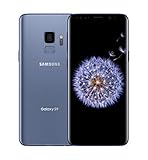
- Super Speed Dual Pixel Camera
- Wifi connectivity is 802.11 a/b/g/n/ac 2.4g plus 5ghz, vht80 mu mimo,1024 qam
- Infinity Display: edge to edge immersive screen, enhancing your entertainment experience. IP68 rating: withstands splashes, spills, and rain so it can take a dip, worry free
- Internal Memory 64 GB. Expandable Storage up to 400GB. Battery, Talk Time : Talk Time (3G WCDMA) (Hours) Up to 31. Battery Type and Size : 3,000 mAh; Music Play Time: AOD off: Up to 90 hours AOD on: Up to 51 hours
- Fast Wireless Charging: Avoid the wires and power up quickly by placing your phone on a Fast Wireless Charger.4K video recording at 30 fps or 60fps
How to extract the AP/CSC package contents safely
Odin packages are designed for flashing, but the archive contents are still useful.
Quick wins for a faster PC:
Repair Windows errors before they cause bigger problemsFix Now →Fix the driver behind crashes, sound loss and screen glitchesFind Drivers →- Download the official firmware tar package for your specific SM-G960 or SM-G965 build.
- Extract the tar using 7-Zip to reveal the internal components (AP/CSC/BL/CP).
- Work only with AP/CSC images to find the system media audio directories.
- Do not install firmware just to obtain ringtones—extraction is enough.
Where the sound assets usually live
In most Samsung firmware eras, the system media directories include separate folders for ringtones, notifications, and alarms. The exact path name can vary based on Android version and build layout, but the directories listed below are the ones you’ll be hunting for.
Method 3: Source sound packs via Samsung apps and community mirrors (use carefully)
If you only care about having the tones on your phone (not extracting the exact stock files), Samsung’s own customization ecosystem is a practical option. The downside: it’s not guaranteed to be the full, original factory tone set.
Samsung Theme Store and Galaxy Store
Look for “sound” or “ringtones” themes. These are often packaged audio sets you can apply directly. The quality and “officialness” vary, but many packs are compatible with Samsung’s sound picker.
Samsung Members posts
Some community contributors share tone files or links. If you go this route, validate the files (format, extension, and source trust). Avoid anything that requests unusual permissions or tries to bundle installers.
Third-party mirrors—what to check before downloading
- File type: should be audio files (usually
.oggon Samsung) or a safe archive you can inspect. - No executables: avoid downloads that include
.exe, scripts, or “installer” tools unless you fully trust the source. - Model/firmware mention: best cases mention SM-G960/SM-G965 and a firmware/build reference.
- Consistency: ringtones should match the folder placement your phone expects.
File formats and naming you’ll see on Galaxy S9/S9+
On S9/S9+, Samsung stock tones are commonly OGG audio files (often .ogg), and sometimes MP3 is accepted depending on app behavior. When you extract firmware, you’ll usually keep the original format.
If you convert files, use conversions that keep the audio clean—garbage-in usually means chopped audio or silence after import.
Rank #4

- YOUR CONTENT, SUPER SMOOTH: The ultra-clear 6.7" FHD+ Super AMOLED display of Galaxy A17 5G helps bring your content to life, whether you're scrolling through recipes or video chatting with loved ones.¹
- LIVE FAST. CHARGE FASTER: Focus more on the moment and less on your battery percentage with Galaxy A17 5G. Super Fast Charging powers up your battery so you can get back to life sooner.²
- MEMORIES MADE PICTURE PERFECT: Capture every angle in stunning clarity, from wide family photos to close-ups of friends, with the triple-lens camera on Galaxy A17 5G.
- NEED MORE STORAGE? WE HAVE YOU COVERED: With an improved 2TB of expandable storage, Galaxy A17 5G makes it easy to keep cherished photos, videos and important files readily accessible whenever you need them.³
- BUILT TO LAST: With an improved IP54 rating, Galaxy A17 5G is even more durable than before.⁴ It’s built to resist splashes and dust and comes with a stronger yet slimmer Gorilla Glass Victus front and Glass Fiber Reinforced Polymer back.
Where the stock sounds are stored (paths you can rely on)
The most dependable approach is to locate directories by name once you extract the system image. The following table lists common folders you’ll find inside Samsung firmware builds.
| Category | Common firmware path | What you’ll copy |
|---|---|---|
| Ringtones | /system/media/audio/ringtones/ |
.ogg tone files for incoming calls |
| Notifications | /system/media/audio/notifications/ |
.ogg tone files for messages and alerts |
| Alarms | /system/media/audio/alarms/ |
.ogg alarm tones |
| UI / system sounds | /system/media/audio/ui/ |
Touch, charging, and other UI cue sounds |
| DTMF / dial tones (sometimes) | /system/media/audio/dtmf/ |
Dial pad beep tones |
Depending on Android build layout, you may see the same directories under different roots, but the folder names (ringtones, notifications, alarms, ui) are the landmarks.
Install guide on Galaxy S9 / S9+ (One UI / Android 9 and similar)
Samsung’s sound picker can be picky about location and file types. If you’re using firmware-extracted audio, keep the original .ogg format and put them where the picker expects them.
Set a ringtone
- Open Settings.
- Tap Sounds and vibration.
- Tap Ringtone.
- Choose My sounds (or a similar option that lists custom tones).
- Select your tone and tap Apply.
Set notification sounds
- Open Settings → Sounds and vibration.
- Tap Notification sounds.
- Pick your custom file from My sounds or the notification list.
Set alarm and system sounds
- For alarms: open the Clock app → Alarm → edit an alarm → select Sound.
- For system/ui sounds: go back to Sounds and vibration and look for categories like System sounds or specific toggles.
Assign tones per contact
- Open the Contacts app.
- Select a contact.
- Tap Edit.
- Look for Ringtone or Notification tone (wording varies).
- Pick your custom sound and save.
Troubleshooting
If your tones don’t show up or behave wrong, don’t assume the extraction failed. The issue is usually format acceptance, naming, or folder placement.
The files won’t show up in the ringtone picker
- Check the format: Samsung often reads
.oggreliably. If you converted to MP3 and it still won’t appear, revert to the original OGG from firmware. - Re-check folder placement: keep separate “Ringtones” vs “Notifications” vs “Alarms” folders if the picker uses category-based browsing.
- Try rescanning: after copying files, reboot the phone once, then re-open Settings or the Clock app.
Sound is silent or distorted
- Verify playback on PC: preview the audio file with a media player before copying.
- Don’t re-encode twice: conversion can introduce clipping or unsupported encoding settings.
- Keep sample rates reasonable: if you convert, stick close to typical values (don’t do aggressive resampling).
Wrong sound type (alarm sounds behave like notifications, etc.)
Samsung sometimes filters sound files by category and/or expected naming. Put the tone in the matching category folder (or select it directly in the category picker like Clock for alarms).
Extraction fails or you can’t find the audio partitions
- Confirm you’re using the AP/CSC components: system audio is usually inside AP and sometimes tied with CSC.
- Look for folder names, not device paths: search for
ringtonesornotificationsinside the extracted system image. - Try a different build: if a specific firmware variant is incompatible with your extraction tool, use another official build for the same model/region.
Region mismatch: “same model” but sounds look different
If you extracted from the wrong CSC build, you may still get valid sounds—but not the ones you remember. Check your current firmware build in Software information and download the closest matching official package.
Common mistakes to avoid
- Mixing SM-G960 and SM-G965: S9 and S9+ can differ in firmware packages and content.
- Assuming one firmware equals one tone pack: carrier/region variants change assets.
- Renaming files randomly: Samsung usually doesn’t need exact names, but avoid breaking extensions (e.g.,
.oggbecomes.ogx). - Downloading “official” packs from random mirrors: verify file content and scan archives when possible.
Alternatives
Use Galaxy Themes ringtone packs (if you just want the vibe)
If your priority is quick results, you can apply ready-made sound themes. This avoids firmware extraction entirely, but you may not get the full “exact stock” library.
Best Value
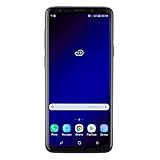
- Super Speed Dual Pixel Camera with Rear Dual Camera
- Infinity Display: edge to edge immersive screen, enhancing your entertainment experience**. Battery - Battery, Standby AOD off Up to 342 hours (14.2 days). Battery, Talk Time Up to 35 hours. Video Play Time - Up to 20
- IP68 rating: withstands splashes, spills, and rain so it can take a dip, worry free. Wi Fi : 802.11 a/b/g/n/ac 2.4G+5GHz, VHT80 MU MIMO,1024 QAM
- Internal Memory 64 GB. Expandable Storage up to 400GB****
- Fast Wireless Charging: Avoid the wires and power up quickly by placing your phone on a Fast Wireless Charger *****
Convert files to compatible formats (only when necessary)
If the tone picker rejects your extracted file, conversion can help—but the cleanest path is still keeping Samsung’s original OGG audio from the firmware.
If you must convert, convert from your source audio to OGG (preferred) rather than MP3-only, then re-copy to the appropriate folder.
Bottom Line
For true “official Samsung Galaxy S9 & S9+ sounds and ringtones,” the most dependable route is firmware extraction from your exact model and region. It’s a little work up front, but it gives you the stock tone assets as they ship inside Samsung’s software.
The Tool Desk
Outbyte PC Repair FREERepair Windows errors before they cause bigger problemsFix Now →Outbyte Driver Updater FREEFix the driver behind crashes, sound loss and screen glitchesFind Drivers →Once extracted, install them through Settings → Sounds and vibration and the Clock app for alarms. If you hit display issues, focus on keeping .ogg files and matching the folder/category expectations.
FAQs
Where can I download official Galaxy S9/S9+ ringtone files?
The most “official” source is the official firmware package for SM-G960 (S9) or SM-G965 (S9+). Extract the audio files from the system media directories, then import them into your phone’s sound settings.
Do I need to root my Galaxy S9 to extract ringtones?
Not necessarily. You can extract tones on a PC by unpacking official firmware images, then copy the audio files to your phone.
What file format works best on the Galaxy S9 for stock ringtones?
.ogg is the most reliable choice because Samsung stock tones in firmware are commonly OGG. MP3 may work for some custom tones, but it’s less consistent.
Do these 3 things before closing this tab:
1Fix the driver behind crashes, sound loss and screen glitches2Repair Windows errors before they cause bigger problems3Scan for outdated or missing drivers - takes under a minuteWhy do the tones I extracted not match the ones on my phone?
Region/carrier firmware differences (CSC) can change the tone library. Match your device’s model and the closest firmware/CSC build to get an identical tone set.
Can I install custom notification sounds for all apps?
Samsung’s notification tone affects system-level notifications. Individual apps may use their own notification sound settings, so you might need to set tones separately in the app’s notification settings.
Quick Recap
Product prices and availability are accurate as of the date/time indicated and are subject to change. Any price and availability information displayed on Amazon at the time of purchase will apply.

