What’s actually slowing this PC down?
Pick the symptom - the matching free tool is one click away.
For most ordinary Linux home services on one small host, start with Docker containers. They package an application and its dependencies while sharing the host kernel, so you can run several services without installing a complete operating system for each one. Choose a full virtual machine (VM) when a service needs another operating system, its own kernel, a whole-system environment, or a stronger separation boundary.
The choice is not permanent or exclusive. A VM can host Docker, giving you a separate guest operating system and hypervisor boundary while retaining container-based application deployment inside it. The right design depends on workload compatibility, isolation, host capacity, and whether you can restore the service and its data after a failure.
As an Amazon Associate I earn from qualifying purchases.
The short answer: which should you use?
Use Docker on a Linux host when your applications have suitable container images, can share the host kernel, and benefit from simple packaging and updates. Use a VM when the service requires Windows or another guest operating system, needs kernel-level separation, or must be treated as an independent machine. Use both when you want a hypervisor boundary around a group of Dockerized services.
Do not interpret “container” as a single technology. Docker application containers and Proxmox LXC system containers solve different problems. Docker is primarily an application packaging and process-isolation model. LXC provides a system-container environment that looks more like a lightweight operating-system instance. Running Docker directly on a Proxmox host is not the recommended arrangement; Proxmox advises a QEMU VM for Docker cases that need orchestration or live migration.
#1 Best Overall

- 12th Intel Alder Lake N95 Processor – The GMKtec G3 S Mini PC is powered by the 12th Gen Intel N95 processor with 4 cores, 4 threads, 6MB cache and a burst frequency up to 3.4GHz. Compared with N100/N5105/N5100/N5095, the N95 delivers up to 36% overall performance improvement. Perfect for routine tasks, office work, and home entertainment, this compact mini desktop is more convenient than traditional bulky PCs.
- 8GB RAM & 256GB SSD Storage – Pre-installed with 8GB DDR4 memory and a fast 256GB M.2 2242 SSD, the G3 S mini desktop offers quicker startup, smoother multitasking, and faster file transfers. Enjoy seamless performance whether you’re working on multiple applications, browsing, or streaming content.
- Rich Interfaces & Connectivity – The G3 S mini computer comes equipped with USB 3.2 (up to 10Gbps), dual HDMI 2.0 (4K@60Hz), and a 3.5mm audio jack. With support for WiFi 5, Bluetooth 5.0, and Gigabit Ethernet (RJ45 1000MbE), it connects easily with monitors, projectors, printers, office equipment, and other peripherals, making it versatile for both home and business use.
- Dual 4K Display Support – Featuring upgraded Intel UHD Graphics (up to 1000MHz), the G3 S supports 4K video playback and AV1 decoding for a smooth viewing experience. With dual HDMI outputs, you can connect two 4K@60Hz displays simultaneously, enabling efficient multitasking for work and entertainment.
- GMKTEC WARRANTY - GMKtec offers a 3-year limited warranty (1 year replacement + 2 years parts replacement) for each mini PC, starting from the date of the purchase effective on all sales starting Oct. 2026. All defects due to design and workmanship are covered. With a professional after sales team always ready to attend to your needs, you can simply relax and enjoy your mini PC
There is no official, universal home-server number for how much faster, cheaper, or more efficient one approach is. Docker and Proxmox document qualitative advantages from sharing a kernel and avoiding a complete guest OS per application, but the actual result depends on the host, storage, networking, guest OS, and workload.
What Docker and a VM actually virtualize
Docker virtualizes the application environment
A Docker container is an isolated process with the files it needs to run. The image contains application code, libraries, and configuration defaults; the running container uses the host kernel. You can isolate process IDs, networking, and filesystem views, then connect containers on private networks or publish selected ports to the home network.
Because there is no separate kernel and no complete operating system for every application, containers are generally a practical fit for web dashboards, media tools, databases, automation servers, DNS services, and similar Linux workloads. Docker Compose can describe a multi-container application—such as a front end, database, and background worker—in one configuration that can be recreated on another host.
The Tool Desk
Outbyte Driver Updater FREEFix the driver behind crashes, sound loss and screen glitchesFind Drivers →Outbyte PC Repair FREEClear out junk files and repair common Windows errorsFree Scan →A VM virtualizes hardware and runs a guest OS
A VM presents virtual CPUs, memory, storage, and network devices to a guest operating system. The guest has its own kernel and system services, and applications inside it behave as if they were installed on a separate computer. A hypervisor such as the one used by Proxmox can run Linux and Windows guests on supported x86 hardware.
The separate kernel gives a VM a stronger boundary from the host and from other VMs than an ordinary container has. It also lets you run software that expects a different OS or kernel configuration. The trade-off is that each VM includes the operational work of a full guest system: installation, patching, users, services, disks, and backups.
Why “lighter” does not mean a fixed saving
Sharing the host kernel usually means less per-application overhead than starting a complete guest OS, but the official documentation used for this comparison does not establish a representative home-services benchmark. Do not rely on a promised RAM amount, startup time, power saving, or percentage improvement. Measure your own host if capacity is tight, and leave room for the guest OS, databases, caches, and peak activity whichever architecture you choose.
Docker and VM comparison
| Decision axis | Docker application container | Full virtual machine |
|---|---|---|
| Kernel and OS | Shares the host kernel and packages the application environment. | Runs a guest OS with its own kernel on virtualized hardware. |
| Resource overhead | Usually lower for application-only workloads because a full OS is not needed per application; no universal home benchmark is established. | Requires resources for the guest OS as well as its applications; actual overhead varies by host and workload. |
| Isolation | Process, network, and storage isolation are configurable, but the host kernel is shared. Daemon privileges and mounts need careful control. | Provides a separate guest kernel and virtual devices, creating a stronger boundary. |
| Operating-system choice | Constrained by host-kernel and image compatibility. | Can run a broad range of guest operating systems supported by the hypervisor. |
| Best packaging unit | An individual application or a Compose-defined application stack. | A complete system, OS, or service group that needs its own environment. |
| Data handling | Persistent volumes or bind mounts must be designed explicitly; deleting a container removes state that was not stored persistently. | VM backup tools can capture the virtual machine, but you must verify that application-consistent data and off-host copies are included. |
| Operations | Image pulls, Compose files, container logs, and host-level updates are central tasks. | Guest OS patching, virtual disks, snapshots or backups, and VM console access are central tasks. |
When Docker is the better fit
Your service is available as a compatible image
Docker is most straightforward when the application publisher supplies a maintained image for your host architecture and documents its volumes, ports, environment variables, and upgrade process. Check that the image supports the Linux kernel features and CPU architecture available on your machine. If the application requires a kernel module, a special device, or an operating system that differs from the host, a VM may be simpler.
Windows Errors? Fix Them Before They Spread
Repair common Windows errors and clear accumulated junk for a smoother, more stable PC - no reinstall needed.Free scan · no reinstallCrashes, No Sound, or Screen Glitches?
Random freezes, missing sound and display glitches usually trace back to one bad driver. Find and replace yours safely.Free scan · under a minuteYou want application-level packaging
Containers keep an application’s files and dependencies together without turning every service into a separately administered server. A Compose file can record the image, networks, ports, restart policy, secrets references, and persistent storage. That configuration becomes a repeatable description rather than a list of manual changes made over time.
You are running several small Linux services
For a home host running many modest services, avoiding a separate full OS per service can reduce administrative duplication. You still need to account for the applications’ real memory, CPU, storage, and I/O demands; “container” does not make an intensive database or media transcode free.
Rank #2
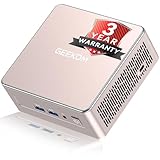
- [15W Ryzen 7 Agentic PC for Everyday Workflows] Powered by the AMD Ryzen 7 7730U processor (8 Cores, 16 Threads), the GEEKOM A5 is built for sustained productivity. It doubles as your cloud-native Agentic AI assistant, seamlessly hosting cloud AI tasks, automating office workflows, and handling intelligent document summarization without complex local deployment. Smoothly manage Microsoft Office, dozens of browser tabs, heavy Excel spreadsheets, and remote learning throughout your workday.
- [Smart Value Now, Expandable for Tomorrow] Equipped with 16GB RAM and a fast 256GB PCIe NVMe SSD for snappy daily performance, the A5 offers incredible value. Need more space later? It features dual-slot DDR4 RAM (upgradable to 64GB) and supports an M.2 SSD up to 4TB. With an extra M.2 2242 slot and 2.5" HDD bay for up to 10TB total storage, you get the flexibility to scale your storage seamlessly as your needs grow, beating soldered LPDDR solutions.
- [Multi-Display Connectivity for Maximum Productivity] Create a complete workstation with support for up to four displays through Dual HDMI and Dual USB-C ports, including up to 8K output via USB-C. Stay connected with Wi-Fi 6, Bluetooth 5.4, a 2.5GbE LAN port, SD card reader, and multiple USB ports for fast networking, efficient multitasking, and seamless connectivity across all your devices.
- [Built to Stay Cool, Quiet & Reliable] More than fast, the GEEKOM A5 is built to last. A reinforced one-piece all-metal internal frame enhances structural strength, while the upgraded IceBlast 3.0 cooling system improves cooling efficiency by up to 42% with up to 35% greater airflow for quieter operation. Backed by 339 reliability tests and a 72-hour full-load aging test, it's engineered for dependable long-term performance.
- 🏢[Business-Ready, Compact & Efficient] Pre-installed OS, the GEEKOM A5 supports Wake-on-LAN, Scheduled Power On, and Group Policy, making deployment and remote management simple for businesses. Its ultra-compact 0.6L design fits neatly behind monitors or into space-limited workstations while delivering excellent power efficiency for home offices, front desks, and commercial environments.
You accept a shared-kernel boundary
Docker is appropriate only when the consequences of a host-kernel problem or a container escape are acceptable for the services on that host. Treat privileged containers, host networking, device passthrough, and broad host mounts as exceptions that require a specific reason.
When a VM is the better fit
The service needs another operating system
A VM is the normal answer when the application requires Windows, a particular Linux distribution, or a kernel feature unavailable on the host. The guest OS can be patched and configured independently, and its system services do not have to match the host.
Do these 3 things before closing this tab:
1Clear out junk files and repair common Windows errors2Fix the driver behind crashes, sound loss and screen glitches3Repair Windows errors before they cause bigger problemsYou need a stronger isolation boundary
Microsoft Learn describes VMs as completely isolated from the host operating system and other VMs in the virtualization model it documents. That does not make a VM invulnerable, but a separate guest kernel and virtual hardware create a more substantial boundary than a process sharing the host kernel.
The workload is a whole system, not one application
Some services are tightly coupled to operating-system packages, background daemons, custom firewall rules, or system-level agents. Installing that complete environment in a VM can be clearer than reproducing it through multiple containers and host integrations.
You want to contain Docker itself
A VM can provide a separate guest OS boundary for Docker. This is useful when a hypervisor is already responsible for system separation, VM-level backups, or migration, while the applications inside the guest benefit from Compose and image-based deployment.
Docker containers, Proxmox LXC, and QEMU VMs are not interchangeable
In Proxmox terminology, an LXC container is a system container. It shares the host kernel but presents a more complete Linux userland, including an init system and operating-system packages. Docker containers are application containers designed around isolated processes and image layers. An LXC container can host Docker, but that adds another layer of nesting and its own security and operational considerations.
Quick wins for a faster PC:
Clear out junk files and repair common Windows errorsFree Scan →Fix the driver behind crashes, sound loss and screen glitchesFind Drivers →Proxmox supports both LXC and KVM-based VMs on one platform. Its FAQ recommends running Docker in a QEMU VM when Docker orchestration or live migration is required, and it does not recommend installing Docker directly on the Proxmox host. Follow that separation so the hypervisor remains dedicated to managing guests and the Docker daemon remains inside a guest operating system.
A practical Proxmox layout
- Simple Linux home server: install Docker on the Linux host if you do not need a hypervisor boundary and the host is intended to run those services.
- Hypervisor-first host: create a Linux QEMU VM, install Docker inside it, and keep application data on storage that the guest can use and back up.
- System-container use case: use LXC for a service that benefits from a lightweight Linux system container and does not require Docker’s application packaging model.
- Mixed environment: run independent VMs for different trust or OS requirements, then use Docker inside the VM that hosts a compatible application stack.
A decision checklist for a home service
Answer these questions for each service rather than choosing one architecture for everything:
- What operating system does it require? If it needs a guest OS different from the host, choose a VM or place Docker inside a VM running that OS.
- Does it require kernel modules, special devices, or host-level networking? The more host integration it needs, the less attractive a generic container becomes.
- Is a trustworthy image available? If not, compare the work of building and maintaining an image with installing the service in a VM.
- What must be isolated? Separate tenants, untrusted code, and high-impact administrative services favor a VM boundary.
- What is the failure boundary? Decide which other services may be affected if the host kernel, Docker daemon, guest OS, or virtual disk fails.
- Where will persistent data live? Identify databases, uploads, keys, configuration, and generated files before deployment.
- How will you restore it? A design is incomplete until you know which backup contains the service and how to rebuild or recover it.
Deploying a Docker-based home-service stack
1. Prepare the host
Use a supported Linux installation, apply security updates, configure a stable hostname and network address, and reserve enough storage for images, logs, databases, and backups. Keep the host’s administrative access separate from application credentials. If the machine is also your hypervisor, place Docker in a dedicated Linux VM rather than on the hypervisor host.
Rank #3

- 【AMD Ryzen 3 5300U CPU: Outperforms N150 & 3500U】 BOSGAME E5 mini PC is powered by the TSMC 7nm FinFET architecture AMD Ryzen 3 5300U processor (4 Cores, 8 Threads, up to 3.8GHz boost, 6MB total cache). Compared to low-end Intel N150 or 3500U chips which only have 4 single threads and throttle under load, the 5300U delivers over 30% faster multi-core speed. Run 30+ browser tabs, large Excel sheets, and Zoom meetings simultaneously without system lag.
- 【8GB DDR4 RAM & 256GB NVMe SSD Storage】 Installed with high-speed 8GB DDR4 dual-channel memory and a fast 256GB M.2 2280 SSD, eliminating slow boot times and application loading delays. To accommodate growing data requirements, the upgradeable hardware design features dual SODIMM slots that allow you to expand memory up to 64GB RAM, ensuring smooth operation during heavy multitasking.
- 【High-Capacity Dual M.2 SSD Storage Expansion】 Never worry about running out of space for your business files. In addition to the pre-installed 256GB system drive, the motherboard houses an extra empty internal M.2 2280 NVMe PCIe 3.0 slot. This allows you to easily add a second solid-state drive for up to an additional 2TB of storage capacity (upgrades not included) without needing to remove or reinstall the original operating system.
- 【Radeon 6-Core Graphics & Triple 4K Displays】 Integrated with official AMD Radeon Graphics (6 Graphics Cores, 1500 MHz frequency) for casual gaming, photo editing, and crisp 4K media decoding. Featuring 1x HDMI 2.0 port, 1x DisplayPort, and 1x Full-Function Type-C port, the E5 outputs true 4K@60Hz resolution to three monitors at once. This multi-screen setup eliminates constant window-switching for traders, programmers, and office workers.
- 【Dual 2.5GbE LAN Ports for Advanced Networking】 Experience fast wired network transmission speeds up to 2500Mbps without lagging or buffering. The integration of dual 2.5 Gigabit Ethernet ports (powered by Realtek RTL8125 controller) makes this compact computer an exceptional hardware choice for tech enthusiasts. Easily configure it into software routers, hardware firewalls (pfSense, OpnSense), home NAS servers, or local homelabs.
2. Separate disposable definitions from persistent data
Store Compose files, environment templates, service documentation, and backup scripts in an administrator-controlled directory. Store application data in named volumes or deliberate bind-mount paths outside the container’s writable layer. A container can be replaced from its image; your database and uploads must not depend on that replaceable layer.
Recommended Free Tools
3. Define the stack
Record each service’s image, exposed ports, networks, restart behavior, secrets references, health checks, and storage mounts in Compose. Use fixed image tags or a documented update policy so an unexpected image change does not silently alter production behavior. Keep secrets out of files that are copied to public repositories or shared broadly.
4. Start and verify
- From the directory containing the Compose file, run
docker compose configto catch malformed YAML and unresolved variables. - Start the stack with
docker compose up -d. - Inspect service status with
docker compose psand review logs withdocker compose logs --tail=200. - Test the service from the intended network, including login, file creation, background jobs, and any reverse-proxy path.
- Record the ports, volumes, image versions, and administrator credentials location in your service notes.
5. Update deliberately
Read the image’s release notes, back up persistent data, pull the new image, recreate the service, and verify migrations and health checks. Keep the previous image reference and a tested rollback procedure. Reverting an image does not automatically revert a database schema, so database backups and migration instructions matter.
Deploying a VM-based service
1. Create the guest
In your hypervisor, create a VM, select the required installation ISO, assign virtual CPUs and memory appropriate to the workload, create a virtual disk, and attach a virtual network interface. Do not copy generic resource numbers from another person’s server; size the guest from the application’s documented needs and observe actual usage.
2. Install and harden the guest OS
Install the operating system, apply updates, create a non-administrative service account where supported, enable a firewall, and restrict management access to your trusted network. Install only the packages the service needs. Treat the guest as a real computer that requires patching, time synchronization, logs, and account maintenance.
3. Install the service using its native procedure
Follow the application’s guest-OS instructions, keep configuration in a documented location, and place data on a disk or mount that is included in backups. If the service is itself containerized, install Docker inside this VM and manage the stack there; do not install the Docker engine on the hypervisor just to avoid creating the guest.
4. Validate console and network recovery
Confirm that you can reach the VM through the hypervisor console if networking fails. Test a reboot, verify that the service starts in the intended order, and document the virtual disk, network, and firmware settings needed to recreate the guest.
Independent reader supportYour contribution helps us test, update, and keep practical guides available for everyone.Storage, backups, and restore boundaries
Docker data disappears unless you persist it
Docker documents that state not stored persistently disappears when a container is removed. The writable container layer is therefore not a backup location. Put databases, media, uploads, certificates, and application configuration in named volumes or host directories that are included in a backup plan.
Back up the Compose files and environment templates as well as the data. A data archive without the service definition may leave you guessing about image versions, mount paths, permissions, and networks. Conversely, a Compose file without the database or user uploads cannot restore the service’s actual state.
Free tools Windows power users keep installed
One-click scans. No signup required.
Rank #4

- This Certified Refurbished product is tested and certified to look and work like new. The refurbishing process includes functionality testing, basic cleaning, inspection, and repackaging. The product ships with all relevant accessories, a minimum 90-day warranty, and may arrive in a generic box. Only select sellers who maintain a high-performance bar may offer Certified Refurbished products on Amazon.com.
- Dell OptiPlex 7050 Micro Computer, Intel Quad Core i5-6500T up to 3.1GHz, 16G DDR4, 256G SSD.
- Includes: USB Keyboard & Mouse, Microsoft office 30 days free trail.
- Ports: 1 x RJ-45, 1 x HDMI, 1 x DP, 6 x USB 3.0.
- 4K Support: Support 4K (3840x2160) Dual display, makes it easy to connect two monitors at the same time, and you can expand working Windows, mirror content, or expand a single window across multiple monitors.
VM backups are not automatically application-consistent
Platforms such as Proxmox provide VM backup and individual-file restore capabilities. Verify what the selected backup mode captures, whether the guest is quiesced, where the backup is stored, and whether databases are consistent at the point of capture. A snapshot or VM image is not proof that every application can be restored cleanly.
Keep an off-host copy and test restoration
Protect against disk failure, accidental deletion, ransomware, and a damaged host by keeping at least one backup copy on separate storage. Perform a restore into an isolated location and confirm that the application starts, data is readable, accounts work, and scheduled jobs resume. Only call a service recoverable after this procedure succeeds; neither containerization nor virtualization substitutes for a tested restore.
Security differences that affect home deployments
Control the Docker daemon
Docker’s daemon normally requires root privileges. Anyone who can control that daemon may gain powerful capabilities, including mounting host directories into a container. Give daemon access only to trusted administrators, review membership in the Docker control group, and avoid exposing the daemon socket or a remote HTTP API casually.
Protect any remote API
If you must administer Docker remotely, secure the API with authentication and encryption and restrict it to a trusted network or VPN. Do not bind an unauthenticated management endpoint to a broad home or internet-facing interface. A reverse proxy that protects an application does not automatically protect the Docker daemon.
Minimize mounts and privileges
Mount only the directories a service needs, prefer read-only mounts where practical, and avoid privileged mode unless a documented feature requires it. Review host networking, device passthrough, Linux capabilities, and access to the container runtime. These settings can reduce the practical separation between an application and the host.
Understand what a VM does and does not guarantee
A VM supplies a stronger kernel boundary, but guest accounts, exposed services, shared folders, management consoles, and hypervisor vulnerabilities still matter. Patch the guest and hypervisor, restrict management access, and treat every network connection between guests as a trust decision.
Common failure scenarios and the right response
| Symptom | Likely architectural issue | First response |
|---|---|---|
| A container starts, but its settings or data are gone after recreation. | State was written to the disposable container layer. | Define a named volume or bind mount, restore the data from backup, and document the path. |
| An image expects a kernel feature the host does not provide. | The application’s requirements exceed ordinary container isolation. | Check host compatibility; move the service to a suitable Linux VM or use a VM with the required guest OS. |
| Several services fail after a host reboot. | They share a host, daemon, kernel, storage device, or network dependency. | Inspect host and daemon logs, then decide whether high-impact services need separate VMs or independent hosts. |
| A Docker update breaks a database-backed application. | The image or schema changed without a tested rollback. | Use the backup and documented previous image, follow the application’s migration guidance, and verify data consistency before reopening access. |
| A VM restore completes but the application will not start. | The backup may not have captured application-consistent data or required external files. | Review the guest’s service logs, restore the application’s own data backup, and update the recovery runbook. |
| A container can read or alter unexpected host files. | A broad or writable host mount, privileged setting, or daemon access was granted. | Remove unnecessary mounts and privileges, rotate affected credentials, and audit the host for changes. |
Capacity and hardware planning
Both approaches require a physical host or another machine that supplies CPU, memory, storage, and network connectivity. A mini PC home server can be a suitable substrate, but the available documentation does not establish a minimum specification or endorse a particular model. Size the host for the combined peak demand of the host OS, hypervisor, guests, containers, databases, and storage services, with headroom for updates and recovery tasks.
Storage layout matters as much as CPU. Separate operating-system and application data when that makes backups and replacement easier, monitor disk health, and reserve space for temporary image layers, logs, database maintenance, and backup staging. If the host has a single disk, recognize that virtualization does not remove that single point of failure.
A practical architecture decision
Choose Docker directly on Linux when
- Every service is compatible with the host kernel and available as a maintained image.
- You prefer application-level deployment and can manage volumes, Compose files, and image updates.
- A shared host-kernel boundary is acceptable for the services involved.
- You have a clear plan for daemon access, host mounts, backups, and restores.
Choose separate VMs when
- A service requires another operating system or kernel.
- You need stronger separation between trust zones or service groups.
- The workload is a complete system with substantial OS-level integration.
- You want VM-level backup and recovery boundaries and can support guest patching.
Choose a VM running Docker when
- You want hypervisor-level separation but still want image-based application deployment.
- You use Proxmox features such as orchestration or live migration that favor Docker inside a QEMU VM.
- You want to move the application stack between guest hosts without making the hypervisor itself a Docker host.
Whichever path you select, write down the failure boundary before installing the first service: what breaks together, where the persistent data lives, which credentials can administer it, and exactly how you will rebuild it on replacement hardware. That design work is more important than choosing containers or VMs by reputation.
Quick Recap
Product prices and availability are accurate as of the date/time indicated and are subject to change. Any price and availability information displayed on Amazon at the time of purchase will apply.

