Some home projectors have built-in speakers, while others have none. Audio features are model-specific: a projector may play HDMI sound through an internal speaker, pair with Bluetooth audio, feed a powered speaker through Audio Out, send sound over HDMI ARC or optical, or leave the source device responsible for audio.
Before buying a soundbar, speaker or cable, identify the exact projector model, read its manual and inspect the port labels. The projector and the device supplying video must both support the audio path you plan to use.
As an Amazon Associate I earn from qualifying purchases.
What a projector’s speaker specification actually tells you
A projector can include a small internal speaker, provide only audio pass-through ports, or offer no direct speaker connection at all. “Has speakers” and “can handle audio” are therefore different claims. A projector might accept HDMI audio but require an external sound system for useful room coverage; another might have no speaker and no Audio Out, leaving the laptop, streaming stick, game console or AV receiver to produce the sound.
Recommended Free Tools
Epson’s Home Cinema 2200 and 2250 setup guide, for example, says those models have a built-in speaker that can play audio from an HDMI-connected video source such as a DVD player or streaming device. Epson’s CO-W01 support documentation gives the opposite answer for that model: it has no direct speaker connection, although sound can be routed from the connected video equipment or computer. These model-specific examples are why a projector category or product photograph is not enough to determine the audio setup.
#1 Best Overall

- A Roku account and internet connection are required for activation (Creating an account is free). Note: Power Supply: 100-240V AC, 50/60Hz.
- America's #1 TV Streaming Platform, All Top Apps: With Roku as your entertainment guide, exploring popular apps like NetfIix, Prime Video, Hulu, YouTube, Roku Channel—plus free movies, shows, and live TV—is as easy as it is fun. No dongles or extra remotes. Enjoy 500+ TV channels with live news and weather, sports coverage, and more—totally free.
- A Simple and Fast Home Screen: Enjoy a simple projector interface with intuitive navigation, quick search, and personalized recommendations. No-nonsense remote keep it effortless, while the Roku mobile app lets you control with your phone, type easily, or use voice commands.
- 1080P Full HD Resolution: Enjoy your favorite movies and TV shows in stunning high-definition picture quality for enhanced clarity and detail. This projector is perfect for creating a massive 60 to 150-inch screen for your home theater and outdoor movie nights.
- Auto Focus & Keystone Zero-Fuss: Advanced auto focus and auto keystone correction instantly adjust for a sharp, aligned screen-just place, power on, and enjoy a big screen without manual setup.
Audio routes you may have
The practical choice depends on the projector’s ports, the source device’s outputs and whether you want the projector’s internal speaker to keep playing. The table shows the common routes and their constraints.
| Audio route | What must be supported | Separate cable or device | Internal-speaker behavior | Where volume is usually controlled |
|---|---|---|---|---|
| Built-in speaker | Projector with an internal speaker and audio support for the selected source | No extra hardware for HDMI playback | Remains available unless an external route disables it | Projector remote or source, depending on the model |
| Bluetooth speaker or soundbar | Bluetooth audio on the projector or on the connected streaming device | Bluetooth pairing; no audio cable | May be replaced or disabled when an external device is selected | Bluetooth speaker, projector or source controls |
| Powered speaker through Audio Out | Projector with Audio Out and a speaker or amplifier with a matching input | Appropriate analog audio cable | Some models disable the internal speaker | Projector, speaker or source, according to the model |
| HDMI ARC soundbar or AV receiver | ARC-compatible HDMI port on both the projector and audio system, with ARC enabled | HDMI cable | Can be disabled when ARC is active | Usually the audio system or TV-style HDMI control |
| Optical output | Projector with optical output and audio equipment with optical input | Optical audio cable | Model-dependent | External audio device on some models |
| Source-device or AV-system output | Laptop, player, streaming device, console or receiver with its own audio output | Whatever cable or wireless link that source supports | Projector speaker may be unused | Source or external audio system |
Built-in speakers: the simplest option, with clear limits
If your projector has an internal speaker, connect the source over HDMI and select the projector as the sound output if the model offers that choice. Epson documents HDMI playback through the built-in speaker on the Home Cinema 2200/2250. This is convenient for a temporary movie, presentation or children’s room, because no additional speaker or amplifier is required.
Do not assume every internal speaker has the same loudness, bass response or dialogue clarity. There is no universal projector-speaker specification, and the available evidence does not provide a cross-model listening test. Treat the built-in unit as a convenience feature unless the manufacturer gives detailed audio specifications that meet your needs.
The Tool Desk
Outbyte Driver Updater FREEFix the driver behind crashes, sound loss and screen glitchesFind Drivers →Outbyte PC Repair FREERepair Windows errors before they cause bigger problemsFix Now →Also check what happens when you connect another output. Epson states that connecting an external speaker disables the internal speaker on the Home Cinema 2200/2250. That behavior is documented for those named models, not for every projector.
How to connect each external audio option
Bluetooth speaker or soundbar
Bluetooth works only when the projector or the connected source device supports Bluetooth audio. Some projectors pair directly; others rely on a streaming device that can send sound to a Bluetooth speaker while sending video to the projector. Epson lists a streaming-device Bluetooth speaker or soundbar as an option when a projector has no Audio Out, and its Home Cinema 2200/2250 documentation also describes pairing a Bluetooth device directly.
Rank #2

- 【The Latest WIFI 6 Technology And Bluetooth 5.3】This projector with Wi-Fi and Bluetooth is equipped with the latest Wi-Fi 6 technology, compatible with Wi-Fi 6, 5G and 2.4G, offering faster connection speed and stronger stability, eliminating buffering and disconnection issues, and ensuring smoother online content playback. Additionally, it is fitted with the latest Bluetooth 5.3 chip, allowing for easy connection to Bluetooth speakers, headphones or other Bluetooth audio devices, providing a more efficient and stable transmission channel, and enabling users to enjoy higher audio quality with ease
- 【Built-in Streaming Media APP】Without any additional equipment,The YGSKK Wi-Fi projector supports streaming apps such as Prime Video, YouTube, and Hulu.The built-in applications allow you to easily enjoy a wide variety of movies, popular TV series and millions of other contents. Moreover, it also has an app store where you can download more applications. Whether it's a shared movie night or personal entertainment, this smart projector is very suitable
- 【Native 1080P High Definition,Compatible 4K】The native 1080P resolution presents you with clear and sharp full HD picture quality, with a brightness of up to 300 ANSI lumens, offering you images that are 50% brighter than those of similar projectors on the market. Whether you are watching movies, TV series, playing games or browsing photos, it will bring you astonishing clarity. Moreover, this movie projector is compatible with 4K, allowing you to enjoy the perfect experience of 4K picture quality. Note: Please ensure to connect 4K devices (such as TV sticks or USB drives) via HDMI to play 4K videos
- 【Wirelessly Connect to a Smart Phone, 50-200‘’ Large Screens】This is an amazing projector for iPhone. It is equipped with the "J-Share" setting, which enables wireless connection with smartphones. Both the phone and the projector need to be in the same network environment. Android phones need to download a program to connect, while iPhones do not need to download any applications (connect through the iPhone's screen mirroring function). In addition, this portable projector can project a large screen of 50 to 200 inches. You can adjust the screen size according to your personal preference to better enjoy the perfect experience of a large screen
- 【Strong Compatibility And Built-in Speakers】YGSKK projector for bedroom is equipped with three interfaces: HDMI, USB and audio (with an HDMI cable included). It is compatible with TV sticks, TV boxes, DVD players, laptops, USB flash drives, Switch/PS5, PC and other devices. The projector is built with high-fidelity stereo speakers, providing excellent and clear audio quality for an outstanding audio experience. It is also an excellent mini projector suitable for both indoor and outdoor activities
- Open the projector or streaming device’s Bluetooth audio settings.
- Put the speaker or soundbar into pairing mode.
- Select the speaker from the discovered-device list and confirm the connection.
- Choose the Bluetooth device as the active sound output, then play a short clip to check for delay or dropouts.
Pairing menus and supported profiles differ, so follow the exact manual for your model. If the projector cannot transmit Bluetooth audio, pair the speaker with the HDMI streaming stick, laptop or other source instead.
Powered speaker through Audio Out
Audio Out is a wired connection intended for powered speakers, an amplifier or another device with a compatible analog input. Epson documents Audio Out on the Home Cinema 2200/2250. Match the connector and signal type at both ends; a passive speaker cannot be driven directly without an amplifier.
- Confirm that the projector’s rear panel or manual labels a port “Audio Out.”
- Connect that port to the powered speaker or amplifier input with the matching cable.
- Select the appropriate audio output in the projector menu if a choice is provided.
- Set the external device to a low level, start playback and raise the volume gradually.
On some projectors, inserting the cable or selecting Audio Out turns off the internal speaker. If you need both, verify that the manual explicitly supports simultaneous output rather than assuming it does.
HDMI ARC soundbar or AV receiver
HDMI ARC (Audio Return Channel) sends audio from a compatible projector to a compatible soundbar or receiver over an HDMI cable. Both devices need an ARC-labeled HDMI port, and the relevant ARC or HDMI-control settings must be enabled. Epson’s EF12 guidance specifically uses its HDMI2 (ARC) port and notes that enabling ARC disables that model’s internal speakers.
- Locate the projector HDMI port marked “ARC”; an ordinary HDMI input is not automatically an ARC output.
- Connect it to the soundbar or receiver’s HDMI ARC/eARC port.
- Enable ARC and any required HDMI-control or CEC setting on both devices.
- Select ARC or external audio as the projector’s sound output.
- Choose the soundbar or receiver input that corresponds to the ARC connection and test playback.
ARC does not make a non-ARC HDMI port transmit return audio. If the connection shows video but remains silent, recheck the port labels and settings before replacing the cable.
Rank #3
![[Built-in Apps/4K Support] Smart Outdoor Projector with WiFi and Bluetooth, Movie Projector, DoIby Audio with Dual Speaker, Auto Focus w/ YouTube&PrimeVideo Proyector, Upgrad P62 Pro](https://m.media-amazon.com/images/I/51H3v1q5xyL._SL160_.jpg)
- [Upgraded Classic – P62 Pro Movie Projector] Building on the reliability and low return rate of the classic P62, the P62 Pro compatible with Prime Video, YouTube, and other popular smart apps built in. Unlike some other projectors that may use refurbished parts, we insist on using brand-new DDR components. This commitment ensures stable performance and long-lasting reliability you can count on.
- [Smart OS & Built-In Apps – Seamless Streaming Anytime] Seamlessly browse online videos through the APP STORE, OPEN BROWSER, or My App without an external device. Switch effortlessly between your favorite shows and films—whether it's catching those unforgettable finale moments when hidden powers awaken or simply enjoying a lighthearted family movie night. Regular OTA updates keep features current, apps secure, and streaming stable.
- [All-in-One Connectivity – Dual HDMI & USB, Wi-Fi 6] Equipped with 2×HDMI (HDMI 1 supporting CEC, HDMI 2 supporting ARC and CEC), 2×USB, top control buttons, 3.5mm audio output, and Wi-Fi 6 for AirPlay (iOS) and Miracast (Android & Windows), the P62 Pro offers more versatile connectivity than most projectors, which often have only one HDMI and one USB port. Easily connect gaming consoles, laptops, hard drives, TV sticks, or mobile devices, and share your screen effortlessly.
- [Cinematic 4K Support & 600ANSI & HDR10 – Vivid, Immersive Visuals] Native 1080P with 4K support, HDR10 and real 600ANSI ensures every frame pops with rich colors, deep shadows, and brilliant highlights. Choose High mode for slightly lit rooms or Standard mode to save power while maintaining a clean picture. Whether it’s a family movie marathon or an evening of gaming with friends, the P62 Pro home projector brings everyone together with stunning, lifelike visuals.(Note: Videos labeled as 4K will display at a native resolution of 1080P, often termed '4K supported.')
- [Dolby Hi-Fi Audio – Rich, Surround Sound] Dual 10W Hi-Fi speakers with Dolby audio and AI sound balancing provide rich, distortion-free sound. Two-way Bluetooth 5.2 lets you use the projector as a standalone Bluetooth speaker or connect to external Bluetooth speakers or headphones for full surround sound. HDMI ARC simplifies integration with soundbars or AV receivers-—perfect for enjoying live concerts, K-pop performances, or your favorite shows with immersive clarity.
Optical output
Some projectors provide a digital optical output. Epson lists HDMI, HDMI ARC, Bluetooth and optical routes for the LS650. Optical requires an optical input on the soundbar, receiver or powered speaker system and a matching optical cable. On that model, Epson says digital-audio-output volume is adjusted on the external audio device rather than with the projector remote, so your projector’s volume buttons may appear to do nothing.
- Confirm that the projector has an optical output and the audio system has an optical input.
- Remove the protective caps from the cable ends, connect them firmly and select optical on the audio system.
- Set the projector’s digital-audio format to one the receiver accepts; PCM is a useful compatibility choice when a format error occurs.
- Control volume on the external audio device if the projector manual assigns volume there.
Audio from the source device
When the projector has no Audio Out or direct speaker support, send sound from the device that supplies the picture. A laptop may use its headphone jack or Bluetooth; a streaming stick may pair with a Bluetooth speaker; a disc player or game console may connect to an AV receiver. Epson’s CO-W01 support answer recommends connecting speakers directly to the video equipment or computer, and Epson’s general guidance describes routing audio through a source device or AV system.
This arrangement can be the most reliable because the source handles audio while the projector handles video. Check that the source can send video to the projector and audio independently; some devices disable one output when another is selected.
A setup checklist before you buy anything
- Write down the exact model. Similar-looking projectors can have different audio hardware and ports.
- Read the connection section of the manual. Look specifically for built-in speaker, Audio Out, Bluetooth audio, HDMI ARC and optical output.
- Inspect the physical labels. “Audio Out,” “HDMI ARC” and “Optical Out” are more useful than a generic HDMI label.
- Identify the source. Note whether video comes from built-in apps, a streaming stick, laptop, console, disc player or another device.
- Map both ends of the connection. A projector output is useful only if the speaker, soundbar or receiver accepts that signal.
- Plan volume control. Some optical and wired setups put volume on the external device; Bluetooth systems may use the speaker or source controls.
- Check speaker-disable behavior. Determine whether selecting Audio Out or ARC turns off the projector speaker.
Why HDMI video can work while audio is silent
A working picture proves only that the video portion of the HDMI link is functioning. Audio can still be muted, routed to another output or encoded in a format the projector does not accept.
Set the source to PCM
Epson’s Home Cinema 2200/2250 guide recommends setting the connected device’s HDMI audio output to PCM when HDMI audio is missing. PCM is a widely supported format and is a useful first compatibility test. Change the setting on the streaming device, player, console or computer, then restart playback.
Do these 3 things before closing this tab:
1Scan for outdated or missing drivers - takes under a minute2Repair Windows errors before they cause bigger problems3Fix the driver behind crashes, sound loss and screen glitchesRank #4
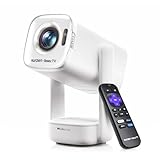
- A Roku account and internet connection are required for activation (Creating an account is free)
- Portable Roku TV Smart Projector: Meet the World's 1st Portable Roku TV Smart Projector with Roku TV built in. Just power on, connect to WiFi, and start streaming-no dongles, no switching inputs, no extra TV stick, and no extra remote needed. Enjoy top apps like Netflix, Prime Video, Hulu, YouTube, Roku Channel, and Apple TV. Enjoy 500+ TV channels with live news and weather, sports coverage, and more-totally free for bedroom viewing, living room movie nights, game day, soccer match nights, and backyard entertainment, home cinema, casual gaming, family gatherings, and party entertainment
- USB-C PD Power for Flexible Indoor and Outdoor Use: This portable projector supports 65W+ USB-C PD power input, so it can work with a compatible wall charger, laptop charger, power bank, or the Aurzen PowerBase Stand sold separately. Move it from the bedroom to the living room, use it as an outdoor projector for backyard movie nights, camping, and road trips, football match nights without being tied to one wall outlet. Note: Requires a 65W+ USB-C PD power source with 20V/3.25A output and a 5A E-Marker USB-C to USB-C cable
- Portable Gimbal Design, No Cable Interference: This small projector is built for real room-to-room use, with a smooth-damping gimbal stand that rotates fluidly and stays steady without sinking. Unlike side- or rear-powered projectors, D1R air uses a bottom power design that keeps cables out of the rotation path, reducing pulling, blocking, and setup hassle, so it's easier to place, adjust, and start watching in the bedroom, or project onto the ceiling or wall. Compact at 5.35 x 4.33 x 10.12 in and weighing only 1.18 kg (2.60 lb), it is easy to carry between rooms or take on the go.
- Independent Base Speakers, Dolby Audio & Useful Ports: Built-in dual 5W speakers are placed in the independent audio base instead of the projector body, creating a larger sound chamber for fuller sound, clearer dialogue, and reduced vibration. With Dolby Audio, dual-band WiFi (2.4G/5G), Bluetooth 5.2, and useful ports including HDMI, USB, Audio Out, and USB-C, this projector with WiFi and Bluetooth connects easily to laptops, game consoles, TV sticks, headphones, soundbars, and USB drives, making it a flexible projector for bedroom viewing, living room movies, sports streaming, and outdoor entertainment. Warm Tip: Fan noise at 1 m ranges from 29-35 dB by mode; steady fan sound is normal.
Verify the selected output
Open the projector’s sound menu and confirm that the intended output—internal speaker, Bluetooth, Audio Out, ARC or optical—is selected. On the source device, make sure audio is not still directed to headphones, a paired speaker in another room or an AV receiver input that is turned off.
Recheck ARC configuration
For an ARC system, confirm that both ends use ARC-labeled ports, ARC is enabled, HDMI control is enabled when required, and the soundbar is on the ARC input. Epson’s EF12 instructions show that ARC operation depends on the correct HDMI2 (ARC) connection and setting.
Test one change at a time
Disconnect Bluetooth and external cables temporarily and test the projector’s internal speaker, if it has one. Then test the source with headphones or another known-good speaker. This isolates whether the fault is in the source, projector output, cable or external audio device.
Independent reader supportYour contribution helps us test, update, and keep practical guides available for everyone.What to do when there is no Audio Out
No Audio Out does not automatically mean you cannot use external speakers. First check for Bluetooth, HDMI ARC or optical output. If none is available, use the source device’s own audio output or place an AV receiver or other compatible audio system between the source and projector.
Free tools Windows power users keep installed
One-click scans. No signup required.
The exact wiring depends on the source. For example, a laptop can send video over HDMI while using Bluetooth or a headphone output for sound; a streaming device may pair directly with a Bluetooth speaker; a console may route audio through a receiver. Ensure the source supports simultaneous video and audio routing in the combination you choose.
Best Value

- [Roku Entertainment Built-in - America’s #1 Streaming Platform] - All the top apps are in one place, so you can always stream your favorite shows, movies, and more — no dongles, extra sticks, or input switching required. Main hot apps are supported like, NetfIix, Prime Video, Hulu, YouTube, Roku Channel, and Apple TV. The Roku Channel offers 500+ TV channels with live news and weather, sports coverage, and more—totally free.
- [Dolby Audio + Stereo Speakers Built-in] - Dual stereo speakers come with Dolby Audio and deliver rich, balanced sound for movies, TV shows, sports and music without needing external speakers.
- [Mini Size, Big-Screen Entertainment Anywhere] - Small and light-weight enough to fit into a backpack or suitcase, making it the perfect portable projector for bedrooms, dorm rooms, backyard, hotels, RV trips and family vacations.
- [Simple Setup. Instant Streaming.] - Just power up our smart projector, connect to the internet, and dive into a world of streaming.
- [Turn Any Wall into a Theater] - Enjoy a massive screen experience -much bigger than a TV. Perfect for movie nights, sports events, gaming and family entertainment.
Choosing the right accessory category
- Bluetooth speaker for a projector: Choose this only when the projector or source device supports Bluetooth audio and offers a pairing mode.
- Powered speaker with a 3.5 mm audio input: Suitable when the projector’s Audio Out uses a compatible analog connection.
- HDMI ARC soundbar: Appropriate when both projector and soundbar have ARC-labeled HDMI ports and the required settings.
- Optical audio cable: Needed only when the projector has optical output and the audio equipment has optical input.
- HDMI cable: Required for HDMI source connections and for ARC setups; verify the ports before buying a replacement.
No single accessory works with every home projector. Match the accessory to the confirmed ports and settings on both the projector and source.
Model-specific examples that show why checking matters
Epson’s Home Cinema 2200/2250 guide says: “The projector has a built-in speaker that can play audio from a video source (DVD player, streaming device, etc.) connected by an HDMI cable.” The same guide says: “Connecting an external speaker disables the projector’s internal speaker.” Those statements establish the behavior of those models only.
For the CO-W01, Epson states that there is no direct speaker connection and suggests connecting speakers to the video equipment or computer instead. The EF12 documentation describes HDMI2 ARC and the resulting internal-speaker disable behavior. The LS650 support information lists optical output and places digital-output volume control on the external audio device. Together, these examples demonstrate feature variation rather than a universal rule for all projectors.
What’s actually slowing this PC down?
Pick the symptom - the matching free tool is one click away.
Bottom line for buyers
Some home projectors have speakers; some do not. The dependable way to answer the question for a particular unit is to check its manual and port labels, then trace audio from the source device to the speaker system. Built-in audio is convenient for basic playback, while Bluetooth, Audio Out, HDMI ARC, optical and source-device outputs provide alternatives when you need louder or more flexible sound. Confirm compatibility, output selection and speaker-disable behavior before purchasing cables or accessories.
Quick Recap
Product prices and availability are accurate as of the date/time indicated and are subject to change. Any price and availability information displayed on Amazon at the time of purchase will apply.

