The right Dell XPS 13 depends on the exact model number, display, ports and factory configuration—not just the “XPS 13” name. Start by confirming whether the listing is for the XPS 13 9350 or 9345, then check the panel (FHD+, QHD+ or OLED), the two USB-C ports against your peripherals, and the memory and SSD options in the cart. Treat advertised battery life as a vendor test result rather than a promise of typical all-day use.
This guide explains the differences that can change your decision, using Dell’s current US listings and an older 9310 service manual. Country, SKU, price, stock, warranty and return terms must be confirmed on the page where you actually order.
As an Amazon Associate I earn from qualifying purchases.
1. Confirm the exact XPS 13 generation
Dell uses the XPS 13 name across multiple generations. A specification that is correct for one model can be wrong for another, especially for ports, card readers, display choices and weight. Dell’s current US store lists the XPS 13 9350 and separately lists the XPS 13 9345. Dell also maintains a broader XPS laptop family page. Older documentation, such as the XPS 13 9310 ports and connectors manual, describes a different design.
Do these 3 things before closing this tab:
1Fix the driver behind crashes, sound loss and screen glitches2Clear out junk files and repair common Windows errors3Scan for outdated or missing drivers - takes under a minuteWhat the model numbers tell you
| Model | Evidence from Dell’s pages | What to verify before ordering |
|---|---|---|
| XPS 13 9350 | Current US product listing with FHD+, QHD+ and optional OLED configurations; two Thunderbolt 4 USB-C ports with Power Delivery and DisplayPort. | Exact display, touch option, memory, SSD, weight and final SKU in your cart. |
| XPS 13 9345 | Separate current US listing; two USB4 USB-C ports and configuration choices for integrated memory and SSD capacity. | Display configuration, factory memory and storage, port requirements and the battery test configuration quoted on the listing. |
| XPS 13 9310 | Older Dell documentation includes a microSD slot, illustrating that earlier generations can have a different port layout. | Do not assume a 9310’s card-reader or other connector arrangement applies to a 9350 or 9345. |
How to verify a listing
- Read the full model number in the page title and configuration selector, not just the “XPS 13” family label.
- Open the technical specifications for that model and check that the processor, display and port descriptions all refer to the same number.
- Save or screenshot the final configuration before payment. Retailer feeds can shorten names and occasionally combine photos with a different generation.
- If you are buying outside the United States, switch to the local Dell site or seller page. Availability and SKU names can differ by country.
2. Choose the display before comparing prices
The 9350 listing offers FHD+, QHD+ and optional OLED configurations. These are not interchangeable upgrades: resolution, panel technology, touch capability, power use and price can all change with the selected screen. The 9345 page also presents different display configurations, including 2K and 3K OLED options in its battery claims.
#1 Best Overall

- PREMIUM ULTRA-PORTABLE DESIGN – The Dell XPS 13 9350 designed for users who value performance, mobility, and premium craftsmanship. With its ultra-slim, lightweight design and refined finish, it delivers a high-end portable experience for work and daily use. Built for all-day productivity, up to 26 hours battery life keeps you powered without interruption
- INTUITIVE CONTROL & PREMIUM INTERACTION – Engineered for modern workflows, it features a precision haptic glass touchpad with smooth, responsive feedback and a streamlined touch function row for effortless control between media and function keys. Combined with its minimalist design, it delivers a clean, premium, and distraction-free experience for everyday productivity. Backlit keyboard ensures comfortable typing in low-light environments
- POWERFUL PERFORMANCE - Powered by Intel Ultra 7 256V Processor (8 cores, up to 4.8 GHz) and Intel Arc Graphics, this PC delivers efficient performance for multitasking, data analysis, and content creation. Equipped with 16GB DDR5 and 1TB PCIe SSD, it ensures swift application loading and ample storage for professional workloads
- IMMERSIVE DISPLAY - Features a 13.4-inch WUXGA (1920x1200) display with narrow borders, 500-nit brightness, and 120Hz refresh rate for smooth visuals and reduced eye strain. Supports up to 2 external displays via Thunderbolt 4, with up to 4K@60Hz output. The FHD RGB camera with dual-array microphones delivers clear video calls
- ADVANCED CONNECTIVITY - With 2x Thunderbolt 4, you can easily connect external displays, storage devices and essential peripherals. Stay fast and reliable on the go with Wi-Fi 7 and Bluetooth 5.4, perfect for video calls, cloud work, and wireless devices without lag
FHD+
FHD+ is the sensible starting point when you want the lowest listed resolution, a conventional productivity setup and the lightest configuration Dell identifies for the 9350 family. Confirm whether the specific FHD+ SKU is touch or non-touch; do not infer that from a product photograph or from another configuration.
QHD+
QHD+ gives you a higher-resolution workspace than FHD+. It can be useful for detailed documents, large spreadsheets and crisp text, but check the selected panel’s touch status and its effect on weight and battery claims. The 9350 listing assigns a different starting weight to QHD+ than to OLED, so compare the actual SKU rather than a family headline.
OLED
OLED is an optional 9350 configuration and is also offered as a 3K option on the 9345 listing. Choose it for the viewing characteristics you specifically want, not because “OLED” automatically means the best value. Dell’s own battery figures are different for OLED and non-OLED test systems, so a higher-resolution OLED panel should be evaluated alongside your expected battery needs.
Rank #2

- ULTIMATE AI MOBILITY - Meet the first XPS CoPilot+ PC - the Snapdragon-powered XPS 13 with revolutionary on-device AI for lightning-fast performance. Enjoy desktop-class power without needing a charger, thanks to its industry-leading 27-hour battery life. Our thinnest, lightest XPS yet delivers instant AI acceleration, making professional-grade content creation possible anywhere
- POWERFUL PERFORMANCE - Powered by a Snapdragon X Elite (12 Core Dual-Core Boost up to 4GHz, NPU up to 45 TOPS) X1E-80-100 Processor for superior efficiency and speed, 32GB of 8448MT/s DDR5 RAM for seamless multitasking, and a 1TB PCIe NVMe M.2 SSD for fast storage and reduced load times, ensuring smooth and responsive performance for all your tasks
- CRISP DISPLAY & PRIVACY - Features a FHD IR webcam for crystal-clear video calls and enhanced security, while the 13.4" 3K (2880 x 1800) OLED 400nits Anti-reflective touchscreen display with Qualcomm Adreno graphics delivers crisp visuals, supported by the ability to connect 2 external monitors via Type-C ports at 4K (3840x2160) @60Hz (without docking station)
- VERSATILE CONNECTIVITY - Features a backlit keyboard and fingerprint reader for enhanced productivity. Equipped with 2 x USB4 40Gbps USB Type-C with DisplayPort and Power Delivery for versatile connectivity. Includes Wi-Fi 7 and Bluetooth 5.4 for fast, reliable wireless performance
- OPERATING SYSTEM - Preinstalled with Windows 11 Pro 64-bit and AI-powered Copilot, including enterprise features such as BitLocker encryption, Remote Desktop, Hyper-V virtualization, and Group Policy management. It enhances productivity with intelligent assistance for tasks such as document creation, data analysis, email drafting, and virtual meetings
Display checklist
- Record the exact resolution shown in the cart: FHD+, QHD+, 2K or 3K OLED.
- Check whether touch is included on that SKU and whether you actually need pen or finger input.
- Compare the listed weight for the selected panel, not the lightest weight shown in a general advertisement.
- Look at the battery figure for the same display configuration. A number measured on FHD+ cannot be treated as the expected result for OLED.
- For color-sensitive work, obtain the panel’s current specification from the exact regional listing; the pages cited here do not establish a universal gamut or calibration result.
3. Audit every port against your equipment
The XPS 13 is compact, so port planning is essential. The current 9350 listing specifies two Thunderbolt 4 USB-C ports with Power Delivery and DisplayPort. The 9345 listing specifies two USB4 USB-C ports. That is enough for many modern setups, but two connectors can be consumed quickly by charging, a monitor and a storage or input device.
Port differences by generation
| Model | Ports established by the cited Dell material | Planning implication |
|---|---|---|
| XPS 13 9350 | Two Thunderbolt 4 USB-C ports with Power Delivery and DisplayPort. | Both ports can participate in charging, display output or USB-C peripherals; verify the dock or adapter you plan to use. |
| XPS 13 9345 | Two USB4 USB-C ports. | Confirm the exact USB4 capabilities and your display/charging requirements on the 9345 specification page before purchase. |
| XPS 13 9310 | Older manual documents a microSD slot. | Do not assume a card reader—or any other connector from the 9310—exists on newer models. |
Map your accessories
Write down every device you expect to connect at the same time:
- USB-C charger and its required wattage.
- One or more monitors, including resolution and refresh rate.
- USB-A accessories such as a keyboard, mouse, security key or flash drive.
- Ethernet, SD or microSD cards, audio equipment and external storage.
If the list exceeds the laptop’s available connectors, budget for a USB-C dock for the XPS 13 or a USB-C to HDMI adapter. Match the accessory to the exact generation, monitor resolution and refresh rate, charging pass-through requirement and number of peripherals. The Dell pages establish the laptop’s ports; they do not guarantee compatibility with a particular third-party dock.
Rank #3
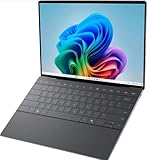
- 13.4 inch FHD+ (1920 x 1200) Anti-Glare 30-120Hz 500-nits InfinityEdge Eye Safe Non-Touch Display
- Snapdragon X Elite, X1E-80-100 (12 cores up to 3.4 GHz Dual-Core Boost up to 4.0 GHz, NPU Upto 45 TOPS)
- 16GB RAM | 512GB SSD
- Qualcomm Adreno GPU | Two USB4 40 Gbps USB Type-C ports with DisplayPort and Power Delivery
- Windows 11 PRO | Fingerprint Reader
Common port mistakes
- Assuming USB-C means every USB-C accessory will provide the same display, data or charging behavior.
- Buying a dock with one video output when your desk needs two independent displays.
- Forgetting that a dock can occupy one of only two laptop ports, leaving no convenient connector for a charger or second device.
- Expecting a built-in card reader because an older XPS 13 review or manual showed one.
4. Select memory and storage at checkout
Dell’s 9345 listing shows integrated memory choices and multiple SSD capacity options. Treat those as purchase-time decisions. The material available here does not establish that memory is upgradeable after purchase, and you should not assume that a later upgrade will be possible for every XPS 13 generation.
Match capacity to the workload
- Web, office and study: choose the memory and SSD capacity that leave room for your browser tabs, documents, updates and locally stored files rather than selecting the smallest option solely to reduce the headline price.
- Development and technical work: account for local source trees, virtual machines, containers and build caches. Storage that looks generous for documents can fill quickly when development tools are installed.
- Photo, video and large project files: prioritize the capacity you can afford at checkout and plan an external storage workflow if your active library will exceed the internal SSD.
Verify the final SKU
- Open the memory selector and record the exact integrated-memory option.
- Open the SSD selector and record the capacity, not merely the drive type.
- Check that changing the display or processor has not silently changed memory or storage.
- Keep the configuration summary with your order records so support can identify the exact machine later.
Do not infer upgradeability, replacement difficulty or long-term repair cost from the product name. Those questions require model-specific service documentation that is not established by the listings cited here.
5. Compare portability using the chosen configuration
Weight and dimensions vary by configuration. Dell’s current US 9350 listing gives these starting weights:
Rank #4

- ULTIMATE AI MOBILITY - Meet the first XPS CoPilot+ PC - the Snapdragon-powered XPS 13 with revolutionary on-device AI for lightning-fast performance. Enjoy desktop-class power without needing a charger, thanks to its industry-leading 27-hour battery life. Our thinnest, lightest XPS yet delivers instant AI acceleration, making professional-grade content creation possible anywhere
- POWERFUL PERFORMANCE - Powered by a Snapdragon X Elite (12 Core Dual-Core Boost up to 4GHz, NPU up to 45 TOPS) X1E-80-100 Processor for superior efficiency and speed, 32GB of 8448MT/s LPDDR5x RAM for seamless multitasking, and a 1TB PCIe NVMe M.2 SSD for fast storage and reduced load times, ensuring smooth and responsive performance for all your tasks
- CRISP DISPLAY & PRIVACY - Features a FHD RGB webcam for crystal-clear video calls, while the 13.4" FHD+ (1920x1200) 500nits Anti-reflective display with Qualcomm Adreno graphics delivers crisp visuals, supported by the ability to connect 2 external monitors via Type-C ports at 4K (3840x2160) @60Hz (without docking station)
- VERSATILE CONNECTIVITY - Features a backlit keyboard and fingerprint reader for enhanced productivity. Equipped with 2 x USB4 40Gbps USB Type-C with DisplayPort and Power Delivery for versatile connectivity. Includes Wi-Fi 7(802.11be) and Bluetooth 5.4 for fast, reliable wireless performance
- COPILOT+ PC AI POWERHOUSE - The dedicated NPU delivers 45 TOPS for local AI processing without relying on the cloud. Enables Recall (instant content retrieval), Cocreate (AI image tools), Windows Studio Effects (auto-framing/background blur for video calls), and Live Captions (real-time translation). Redefines productivity and creativity with seamless, offline AI acceleration
| 9350 display configuration | Dell-listed starting weight | How to use the figure |
|---|---|---|
| OLED | About 2.60 lb | Use this as the starting point for the OLED configuration, not as the weight of every 9350. |
| QHD+ | About 2.70 lb | Compare with the exact QHD+ SKU and any other options selected. |
| FHD+ | About 2.70 lb | Confirm the final configuration; the family page’s lightest figure may not apply. |
These are vendor-listed starting weights for the US product page accessed in 2026. Accessories, packaging and regional configurations add to what you carry. Dell’s listing also provides dimensions that vary by configuration, so measure your bag or sleeve against the dimensions shown for the exact SKU. If you buy an XPS 13 sleeve, check its internal dimensions and the generation it was designed for instead of relying on a generic “13-inch” label.
Independent reader supportYour contribution helps us test, update, and keep practical guides available for everyone.6. Read battery claims as test results, not promises
Dell’s advertised runtimes are tied to particular displays and test setups. They are useful for comparing claims made under the same conditions, but they are not independent benchmarks or guarantees of your daily runtime.
Crashes, No Sound, or Screen Glitches?
Random freezes, missing sound and display glitches usually trace back to one bad driver. Find and replace yours safely.Free scan · under a minuteWindows Errors? Fix Them Before They Spread
Repair common Windows errors and clear accumulated junk for a smoother, more stable PC - no reinstall needed.Free scan · no reinstall| Model and test configuration | Advertised maximum | Qualification |
|---|---|---|
| XPS 13 9350, specified FHD+ streaming test configuration | Up to 26 hours | Dell’s figure from its current US listing; actual life can be significantly lower and varies with configuration and use. |
| XPS 13 9345, specified 2K display test configuration | Up to 27 hours | Dell vendor claim for the stated setup; test methods and conditions must be checked before comparing it with another model. |
| XPS 13 9345, specified 3K OLED test configuration | Up to 16 hours | Dell vendor claim for the stated OLED setup, not a general runtime for every 9345. |
Dell warns that “Actual battery life may be significantly less than the test results” and depends on product configuration and use, software, usage, operating conditions, power-management settings and other factors. Streaming video at controlled settings is not the same as compiling code, running a virtual machine, exporting video or driving an external monitor.
Best Value

- STUNNING 3K OLED TOUCH DISPLAY – Experience incredible detail and vibrant color on the 13.4-inch 3K (2880 x 1800) OLED InfinityEdge touchscreen. With deep blacks, sharp contrast, and touch functionality, it's ideal for productivity, streaming, and creative work.
- SNAPDRAGON X ELITE X1E-80-100 PROCESSOR – Features a 12-core Qualcomm Oryon CPU with boost speeds up to 4.0GHz, 42MB total cache, integrated Qualcomm Adreno graphics, and a dedicated 45 TOPS NPU for accelerated AI workloads, multitasking, content creation, and everyday productivity.
- COPILOT+ AI PC EXPERIENCE – Built with a dedicated NPU capable of up to 45 TOPS, enabling advanced AI-powered features, faster on-device processing, enhanced video conferencing effects, and next-generation Windows Copilot+ experiences.
- FAST MEMORY & STORAGE – Equipped with 16GB LPDDR5X memory for seamless multitasking and a 512GB PCIe NVMe SSD that provides fast boot times, quick application launches, and ample room for files, photos, and software.
- PREMIUM ULTRAPORTABLE DESIGN – Crafted from premium materials in Graphite, the XPS 13 combines a compact, lightweight form factor with modern connectivity, including Wi-Fi 7 and Bluetooth, making it an excellent companion for work, travel, and everyday use.
Use battery claims correctly
- Compare FHD+ with FHD+ and OLED with OLED only when the test setup and method match.
- Expect brightness, wireless activity, background software, peripherals and workload to change runtime.
- Choose the display you need first, then use the matching battery figure as a qualified reference.
- Carry a charger or USB-C power source for long days away from an outlet; the two-port design makes charging logistics part of your desk and travel plan.
7. Decide between the 9350 and 9345
Choose the 9350 when its port and display combination fits
The 9350 is the straightforward choice when you specifically need the Thunderbolt 4 USB-C features Dell lists, including Power Delivery and DisplayPort, or when one of its FHD+, QHD+ or OLED configurations matches your priorities. Select the exact panel and factory options rather than buying the model number alone.
Choose the 9345 when its available configuration meets your needs
The 9345 can make sense when the exact USB4-port arrangement, integrated-memory choice, SSD capacity and display configuration on its current listing suit your work. Its advertised battery figures differ by display, so compare the 2K and 3K OLED claims only after confirming the test details and your selected panel.
Do not decide on a single headline number
There is no evidence here to call either model universally “best.” The practical winner is the SKU that simultaneously satisfies your display preference, port map, memory and storage needs, portability target and purchase terms in your country.
8. Check the transaction, not just the hardware
Price, stock, shipping, warranty coverage, support tier and return terms depend on the current order and region. The cited product pages do not establish a universal entitlement or a fixed price that applies to every buyer.
Before payment
- Confirm the seller, country site and currency.
- Read the warranty and support description attached to the exact configuration.
- Check the return window, restocking conditions and who pays return shipping.
- Verify estimated dispatch or delivery dates and whether the listed configuration is actually in stock.
- Make sure the invoice identifies the correct model number, display, memory and SSD capacity.
At delivery
- Compare the model number on the carton and system information with your order.
- Inspect the display and chassis before removing protective materials or discarding packaging.
- Test both USB-C ports, charging and any required display adapter during the return period.
- Confirm that the installed memory and SSD match the configuration you paid for.
9. A practical XPS 13 buying checklist
- Model: write down 9350, 9345 or another exact generation; reject listings that only say “XPS 13.”
- Region: use the local product page and review country-specific stock, support and returns.
- Display: select FHD+, QHD+, 2K or 3K OLED deliberately and verify touch status.
- Ports: compare the two USB-C ports with your charger, monitors, USB-A devices, Ethernet, card and audio needs.
- Accessories: price a compatible dock or adapter before ordering if your equipment exceeds the built-in ports.
- Memory: choose the integrated-memory option required by your workload; do not rely on a future upgrade.
- Storage: select enough SSD capacity for applications and active files, then plan external storage if necessary.
- Weight and fit: use the selected configuration’s weight and dimensions when choosing a bag or sleeve.
- Battery: read the test configuration and Dell’s qualification instead of treating “up to” hours as typical use.
- Terms: save the final SKU, price, warranty, support and return details from the checkout page.
10. Bottom line: buy the configuration, not the name
An XPS 13 purchase is best approached as a configuration audit. Confirm the generation, choose the display for how you work, map every accessory to the available USB-C ports, and buy sufficient memory and storage at checkout. Use Dell’s battery figures only within their stated test conditions, and verify price, stock, warranty and returns for your country. If those checks leave you with a specific 9350 or 9345 SKU that meets your needs, you have a defensible buying decision; if they do not, the model name alone is not enough reason to order.
Quick Recap
Product prices and availability are accurate as of the date/time indicated and are subject to change. Any price and availability information displayed on Amazon at the time of purchase will apply.

