Free tools Windows power users keep installed
One-click scans. No signup required.
For a dark or intermittent Dell UltraSharp U2720Q, begin with the monitor’s cable-disconnected self-test. It quickly shows whether the panel can create an image, separating a monitor fault from a computer, graphics output, input-selection, or cable problem. Then select the input that matches your HDMI, DisplayPort, or USB Type-C connection. USB-C video requires DisplayPort Alternate Mode; a notebook can charge without sending video, and a notebook that needs more than 90 W may not charge through the monitor.
What the symptom usually means
The U2720Q reports the active input when it cannot detect a signal. A message such as No HDMI Cable, No DP Cable, or No USB Type-C Cable means the monitor is not receiving video on that selected path; it does not by itself prove that the panel is defective. A completely unlit power LED points first to power, while a lit LED with a self-test dialog points away from the panel and toward the source, cable, or input configuration.

As an Amazon Associate I earn from qualifying purchases.
| Symptom | Most useful first check | What the result tells you |
|---|---|---|
| Screen black, power LED on | Run the cable-disconnected self-test | A self-test dialog proves the monitor can generate an image; investigate the computer path. |
| USB-C charges the notebook but shows no picture | Confirm DisplayPort Alternate Mode and the selected USB Type-C input | Charging and video are separate USB-C capabilities. |
| Flicker or brief blackouts | Use a direct connection and a known-good cable | If the symptom follows the cable or host, the monitor is less likely to be the cause. |
| Picture works but USB accessories do not | Check the monitor’s upstream USB connection | The video link can work while the USB hub path is disconnected or disabled. |
1. Run the U2720Q built-in self-test
Dell’s service instructions use a cable-disconnected test to isolate the display from the computer. Follow the sequence exactly:
Recommended Free Tools
- Turn off the computer and the monitor.
- Unplug every video cable from the computer. Disconnect HDMI, DisplayPort, and USB Type-C video leads at the computer end; leave the monitor connected to power.
- Turn on the monitor without a video source.
- Look for a floating No HDMI Cable, No DP Cable, or No USB Type-C Cable dialog and a white power LED.
- If the dialog appears, turn the monitor off, reconnect one video cable, and test the computer or its video controller. The monitor has demonstrated that it can create its own on-screen image, so concentrate on the source, cable, or selected input.
If no self-test dialog appears, verify the AC connection and power switch, try a different wall outlet, and observe the LED. A monitor that remains unable to display its own disconnected-cable message may have a power or hardware problem and should be escalated for service rather than repeatedly changing Windows settings.
#1 Best Overall
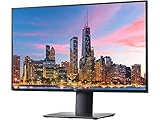
- 3840 x 2160
- 350 cd/m2 (typical)
- 1300 to 1 (typical)
- USB 3.0
- 5 ms gray to gray in Fast mode 8 ms gray to gray in Normal mode
2. Select the input that matches the cable
The U2720Q does not automatically show a signal from a different connector if its input is manually set elsewhere. Open the monitor’s on-screen display, choose Input Source, and select the connector you are actually using:
- HDMI: choose HDMI when the computer’s HDMI output is connected to the monitor’s HDMI input.
- DisplayPort: choose DP when the computer or dock is connected to the monitor’s DisplayPort input.
- USB Type-C: choose USB Type-C when a USB-C cable is carrying the display connection.
Wake the computer after changing the input. Reseat both ends of the cable, making sure the plug is fully inserted and not being pulled sideways by a dock or laptop stand. If the same no-signal message remains, substitute a known-good cable and, where available, another output on the computer. Test one variable at a time so you know whether the fault follows the cable, output, or monitor input.
3. Fix a black screen or no signal over USB-C
Check for DisplayPort Alternate Mode
A USB-C connector describes the shape of the port, not the functions it supports. For the U2720Q to receive video, the computer’s USB-C port must support DisplayPort Alternate Mode. A port intended only for USB data or charging can power accessories and may even charge the notebook while sending no picture. Consult the computer’s specifications or port symbols, then test a USB-C port explicitly documented for display output.
Windows Errors? Fix Them Before They Spread
Repair common Windows errors and clear accumulated junk for a smoother, more stable PC - no reinstall needed.Free scan · no reinstallOutdated Drivers Are Slowing You Down
One free scan finds every outdated or missing driver and matches the right update for your exact hardware.Free scan · exact hardware matchRank #2
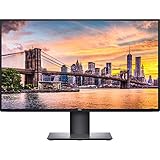
- Create an efficient workspace with the Dell UltraSharp U2720Q 27 inch 4K UHD (3840 x 2160) LED Backlit LCD IPS USB-C Monitor (7GZ651)
- Sleek design - 27 inch diagonal 4K UHD IPS screen with vibrant 3840 x 2160 resolution and thin profile that supports virtually seamless multi-display setups
- Exceptional visuals - see consistent, vibrant colors across a wide viewing angle enabled by In-Plane Switching (IPS) technology
- Experience simple, convenient connectivity - work with your most frequently-used devices with DisplayPort, HDMI, USB ports, and Audio Line out
- Display Features: Tilt, Swivel, Pivot, Vesa Mount Compatible, Anti-glare, USB Hub, LED Backlights, In Plane Switching, Security Lock Slot, Energy Star Certified, 99% sRGB color gamut
Set a Windows projection mode
With the cable connected and the monitor set to USB Type-C, press Windows+P and choose Duplicate or Extend. If the laptop screen is closed or invisible, use the keyboard shortcut and arrow keys to select a mode, then press Enter. In Windows, you can also open Settings > System > Display, select Detect, and confirm that the U2720Q appears. The exact labels can vary slightly between Windows editions.
Use a cable built for video, power, and data
Replace a suspect lead with a USB-C cable rated for DisplayPort Alt Mode video and the power/data capability your setup needs. Connector shape alone is not enough. Cables intended only for charging or basic USB data can fit perfectly and still produce the U2720Q’s no-signal message. Avoid routing the cable through an unpowered adapter while diagnosing; connect the computer directly to the monitor first.
Separate charging from display output
The monitor can offer USB-C charging profiles of 5 V, 9 V, 15 V, and 20 V, but the notebook must accept the profile and power available. Dell warns that a notebook requiring more than 90 W may not charge through the monitor. That limitation does not necessarily prevent video: connect the notebook’s Dell-approved or supplied power adapter while you continue testing the display link. If the image works only when the notebook’s own adapter is connected, the issue is power demand rather than the video signal.
Rank #3

- Improved ComfortView Plus: Reduces harmful blue light emissions to ≤35%, for all-day comfort without sacrificing color accuracy.
- Refresh rate: A smooth, tear-free experience with AMD FreeSync Premium (refresh rate up to 120Hz) and an ultra-low 0.03ms response time create a captivating experience for work and play.
- Vivid colors: Immerse yourself in breathtaking 4K visuals with in-plane switching technology. Enjoy vibrant colors with 99% sRGB. The 1500:1 contrast ratio and HDR readiness deliver excellent depth and detail.
- Re-engineered sound quality: Enjoy more detailed sound with spacious audio featuring greater output power, deeper frequency response and more decibel range than the previous generation.
- Ultra-thin bezel: Designed with a sleek, modern aesthetic and an ash white finish, this display features ultra-thin bezels for a refined, minimalist design.
4. Troubleshoot HDMI and DisplayPort connections
After the self-test has passed, connect only one video path. Disconnect USB-C, HDMI, DisplayPort, docks, and adapters that are not part of the test. Select the matching input, then perform these checks in order:
- Shut down the computer and monitor.
- Connect the monitor directly to the computer with a known-good HDMI or DisplayPort cable.
- Turn on the monitor, select the corresponding input, and then start or wake the computer.
- Try another output on the computer or graphics adapter if one exists.
- Try the same monitor cable and input with another known-good computer. A picture from the second computer shifts suspicion to the original computer, graphics driver, or output.
Do not assume that an adapter is transparent. A USB-C-to-HDMI or USB-C-to-DisplayPort adapter still requires the computer’s USB-C port to provide a compatible display signal, and the adapter itself can fail. Establish a direct, single-cable connection before adding a dock or converter back into the setup.
5. Stop U2720Q flicker and intermittent blackouts
Flicker has several possible origins: a damaged or marginal cable, a computer graphics path, display software, monitor firmware, or monitor hardware. Without reproducing the symptom, it is not possible to assign one cause. Narrow it down systematically:
- Use the correct manually selected input and a direct connection to the computer.
- Substitute a known-good cable of the same connection type.
- Remove docks, KVM switches, converters, and extension leads temporarily.
- Test another computer or graphics output. Note whether flicker appears before Windows loads; that distinction helps separate firmware or hardware behavior from an operating-system driver.
- Install current graphics drivers for the computer and check Dell’s U2720Q support resources for monitor firmware and display-driver guidance.
- Run the monitor’s cable-disconnected self-test. If the self-test itself is stable but the connected image flickers, continue investigating the source and cable. If the monitor’s own test image flickers, treat the monitor as the likely fault and arrange service.
Record when the flicker occurs—only at a particular resolution, after sleep, when a USB device is active, or whenever the cable moves. That information helps a technician reproduce an intermittent fault.
6. Restore USB hub and downstream-port operation
The U2720Q can display a picture while its USB peripherals remain unavailable because video and USB data use separate paths. Check the hub as follows:
- Confirm that the computer-to-monitor upstream USB connection is plugged in firmly. If video uses HDMI or DisplayPort, the hub still needs its upstream USB connection to the computer.
- Use the monitor’s on-screen controls to confirm that the USB path is enabled, if an enable/disable option is present.
- Disconnect all downstream devices, connect one simple keyboard or mouse, and test each downstream port individually.
- Try another upstream cable and another USB port on the computer. Avoid an unpowered hub while diagnosing.
- Test the monitor with a second computer. If every known-good host and cable fails in the same way, the monitor’s hub hardware may need service even though its video input works.
For a USB-C connection, verify that the single cable is designed to carry data as well as video and power. A video-only or charge-only cable cannot provide the monitor’s downstream USB functionality.
Best Value

- 4K UHD IPS Black Display with Factory Calibration: 3840 x 2160 resolution and 99% DCI-P3 color coverage calibrated to Delta E less than 1.5 for professional color accuracy.
- 120Hz Refresh Rate and 5ms Response Time: Smooth, fluid motion with reduced blur for fast-paced workflows and seamless multitasking across multiple applications.
- Thunderbolt 4 Single Cable Solution: Transmits video, data, and up to 140W power simultaneously, with daisy chain support for up to two additional 4K monitors.
- ComfortView Plus and Ambient Light Sensor: Reduces harmful blue light for less eye strain during long sessions; auto brightness adjustment keeps the screen comfortable all day.
- Full Ergonomic Adjustability and Rich Port Selection: Height, tilt, swivel, and pivot adjustments plus HDMI 2.1, USB-C, USB-A, and Ethernet ports for a versatile, personalized setup.
7. Check Windows display and driver state
Once the physical connection is proven, use Windows to rule out a disabled or stale display path:
- Press Windows+P and select Duplicate or Extend, not PC screen only.
- Open Settings > System > Display, select Detect, and check whether the monitor is listed.
- Restart the computer after installing a graphics-driver update. If a problem began immediately after an update, use the graphics device’s driver properties to roll back where Windows provides that option.
- Install monitor firmware only by following Dell’s instructions for the U2720Q and keep the monitor connected directly during the update. Do not interrupt power or the video cable while firmware is being written.
If the monitor works in the computer’s firmware screen or on another host but not in Windows, focus on the graphics driver, projection mode, or a dock utility. If it fails before Windows starts and also fails the monitor self-test, software is unlikely to be the primary cause.
8. Choose the right replacement cable
| Connection | Video requirement | Power and data considerations | Best diagnostic use |
|---|---|---|---|
| HDMI | HDMI output on the computer and HDMI input selected on the monitor | Not the monitor’s USB-C notebook-charging path; USB hub data requires its own upstream connection | Simple direct test when HDMI is available on the computer |
| DisplayPort | DisplayPort output and DP input selected | Does not establish USB-C charging; USB hub data still needs an upstream USB connection | Direct test that avoids USB-C Alt Mode and charging variables |
| USB Type-C | Computer port must support DisplayPort Alternate Mode | Cable must support video Alt Mode plus the required power and data functions; notebooks needing more than 90 W may not charge from the monitor | One-cable video, charging, and USB-data setup when all requirements are met |
When buying a replacement USB-C cable, check its stated support for DisplayPort Alt Mode and its power/data rating rather than relying on the USB-C plug’s appearance. For HDMI or DisplayPort, choose a cable appropriate to the computer and monitor connection, then keep the original cable available for cross-testing.
The Tool Desk
Outbyte Driver Updater FREEFix the driver behind crashes, sound loss and screen glitchesFind Drivers →Outbyte PC Repair FREEClear out junk files and repair common Windows errorsFree Scan →9. Decide when the monitor needs service
Escalate after you have completed the self-test and tested a known-good cable and a second host. Service is the sensible next step when the U2720Q cannot display its own disconnected-cable dialog, its self-test image flickers, or the same failure persists across multiple known-good computers, cables, and correctly selected inputs. Do not open the monitor enclosure. Note the exact on-screen message, LED behavior, cable type, computer model, and whether the fault appears during self-test; those details make a support case more actionable.
Quick Recap
Connection decision checklist
- No self-test dialog: check power and arrange monitor service if the panel still cannot generate its test message.
- Self-test works, no computer image: match the input, reseat or replace the cable, test another computer output, and verify Windows projection.
- USB-C charges but no picture: verify DisplayPort Alternate Mode, use a video-capable cable, select USB Type-C, and provide the notebook’s own charger if it needs more than 90 W.
- Flicker: isolate cable, direct connection, host, driver, and firmware before blaming the panel.
- Picture but no USB peripherals: restore the upstream USB connection, enable the USB path, and test another cable and host.
If the manual checks point to a Windows driver problem, Outbyte Driver Updater is an optional shortcut. It scans more than 100 devices for outdated, corrupted, or missing drivers, installs only official drivers, shows current and recommended versions, and offers driver backup, restore, and scheduled scans. It runs on Windows 11, 10, 8, and 7; the 2-day free trial requires no credit card and is followed by a subscription. Results vary, and no tool repairs every monitor problem.
Product prices and availability are accurate as of the date/time indicated and are subject to change. Any price and availability information displayed on Amazon at the time of purchase will apply.

