Free tools Windows power users keep installed
One-click scans. No signup required.
The Crucial T500 is a high-performance PCIe 4.0 NVMe M.2 SSD available in several capacities and in both heatsink and non-heatsink versions. Its strongest case is fast peak performance for gaming, desktop work and content applications; its main qualification is that Tom’s Hardware observed inconsistent sustained-write behavior on a 2TB sample after its write cache was exhausted during a very large drive-fill test. Whether it is worth buying depends on your exact capacity, host cooling, workload and the drive’s five-year-or-TBW-limited warranty.
What the Crucial T500 is
The T500 is an M.2 solid-state drive using the PCIe 4.0 NVMe interface. It is designed for systems with a compatible M.2 slot, including desktops, laptops and workstations. Crucial also sells a version with an integrated heatsink for platforms such as the PlayStation 5. The non-heatsink model is intended for systems that already have suitable M.2 cooling or have limited physical clearance.
As an Amazon Associate I earn from qualifying purchases.
Crucial’s published figures are maximum sequential ratings for individual capacities, not a promise that every T500 model performs identically. The company’s 2024 product flyer lists up to 7,400 MB/s sequential read and 7,000 MB/s sequential write for the 2TB model. Those figures were measured with CrystalDiskMark, write caching enabled and a fresh-out-of-box drive; Crucial warns that system configuration and other conditions affect results.
What’s actually slowing this PC down?
Pick the symptom - the matching free tool is one click away.
That distinction matters. Sequential numbers describe large, orderly transfers under a benchmark setup. Operating-system startup, application launches and game loading also depend on random I/O, queue depth, CPU overhead, thermals and the rest of the platform. A T500 can be a very fast Gen4 drive without sustaining its headline number during every real-world task.
#1 Best Overall
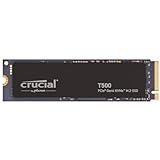
- PCIe 4.0 Performance: Up to 7,400MB/s read and 7,000MB/s write with up to 1.18M/1.44M IOPS for faster loads and multitasking
- Spacious 2TB Capacity: Store creative projects, games, and apps with Gen4 NVMe speed in a compact M.2 form factor
- Broad Compatibility: Installs easily in desktops, laptops, and workstations with PCIe Gen4 M.2 slots
- Ultimate Gaming & Content Creation: Load games up to 16% faster with Microsoft DirectStorage and boost creative apps by up to 42% for faster rendering and multitasking
- Trusted Micron Quality: Engineered for content creators and everyday gamers, with one month of free Adobe Creative Cloud access
Capacity, speed and endurance options
Capacity changes more than available space. Crucial publishes different performance ratings and endurance limits for the 500GB, 1TB and 2TB versions. A newer Crucial product listing also identifies a 4TB option, but the supplied material does not establish its complete performance or TBW specification. Check the exact model number and capacity before ordering.
| Capacity | Published endurance | Published maximum sequential speed | What is established |
|---|---|---|---|
| 500GB | 300 TBW | Not stated in the supplied specifications | Separate capacity with its own performance rating |
| 1TB | 600 TBW | Not stated in the supplied specifications | Separate capacity with its own performance rating |
| 2TB | 1,200 TBW | Up to 7,400 MB/s read and 7,000 MB/s write | Maximum figures measured under Crucial’s stated benchmark conditions |
| 4TB | Not stated | Not stated | Listed in newer Crucial product material; verify the exact SKU |
TBW means terabytes written, the endurance amount used in the warranty limit. It is not a prediction that the drive will fail immediately at that number; it is the published boundary for the limited warranty. The 2TB model’s 1,200 TBW rating gives it four times the stated endurance allowance of the 500GB model, while the 1TB model is rated at 600 TBW.
How fast is the Crucial T500?
For the 2TB SKU, Crucial’s maximum sequential ratings are 7,400 MB/s reads and 7,000 MB/s writes. These are among the performance figures expected from a high-end PCIe 4.0 drive, but they should be read as peak, capacity-specific results rather than sustained throughput guarantees.
What the benchmark conditions mean
The flyer specifies CrystalDiskMark, enabled write cache and a fresh-out-of-box drive. A nearly empty SSD can show higher results than one containing a large amount of data, and a different motherboard, processor, operating-system driver, power plan or cooling arrangement can produce different measurements. Thermal throttling can also reduce speed after extended activity.
What you may notice in normal use
Fast storage can reduce game and application loading, improve large-file transfers and make heavy desktop workflows feel more responsive. Micron separately claimed up to 16% faster game loading in internal comparisons of named games. That is a vendor result from specified tests, not a universal improvement for every game, system or T500 capacity.
Rank #2
- PCIe 4.0 Performance: Up to 7,300MB/s read and 6,800MB/s write with up to 1.15M/1.44M IOPS for faster loads and multitasking
- Spacious 1TB Capacity: Store creative projects, games, and apps with Gen4 NVMe speed in a compact M.2 form factor
- Broad Compatibility: Installs easily in desktops, laptops, and workstations with PCIe Gen4 M.2 slots
- Ultimate Gaming & Content Creation: Load games up to 16% faster with Microsoft DirectStorage and boost creative apps by up to 42% for faster rendering and multitasking
- Trusted Micron Quality: Engineered for content creators and everyday gamers, with one month of free Adobe Creative Cloud access
For ordinary browsing, office work and light photo management, a slower NVMe SSD may feel similar because those tasks rarely use the drive’s maximum sequential bandwidth. The T500’s extra performance is easier to justify when you regularly move large files, compile substantial projects, edit high-bitrate media or want a high-end gaming drive.
The main documented drawback: sustained writes after cache exhaustion
The most important caution comes from Tom’s Hardware’s review of a 2TB T500. In a fill-drive workload, the reviewer observed inconsistent sustained-write performance and a substantial slowdown after the drive’s write cache was exhausted. This is a workload-specific observation from one tested sample and should not be presented as proof that every T500 behaves identically.
Do these 3 things before closing this tab:
1Fix the driver behind crashes, sound loss and screen glitches2Repair Windows errors before they cause bigger problems3Scan for outdated or missing drivers - takes under a minuteModern SSDs commonly use a faster cache area to absorb bursts. Once that area fills, incoming data must be written through the drive’s slower sustained path. A short game installation or a few video files may finish before the cache is exhausted. Continuously writing hundreds of gigabytes, cloning a nearly full drive or repeatedly filling and emptying the SSD is more likely to expose the behavior described in the review.
Who should care most
- Large-transfer users: Video editors, virtualization users, backup operators and anyone routinely writing very large datasets should investigate sustained-write results, not only peak benchmarks.
- Typical gamers: Game installs, updates and loading screens are usually bursty rather than one uninterrupted drive-fill operation, so the review caveat may have less practical impact.
- General desktop users: Web, office and everyday application workloads are unlikely to keep the drive in a long cache-exhaustion state.
No current firmware fix for the reported behavior is established here. If sustained writes are central to your work, compare independent tests performed at the same capacity and under similar fill conditions before buying.
Heatsink or non-heatsink T500?
Crucial sells separate heatsink and non-heatsink SKUs. The heatsink version is aimed at devices such as the PS5 and at desktops that do not provide adequate M.2 cooling. The bare drive is more flexible for laptops and for motherboards that include their own M.2 cover or heatsink.
Rank #3

- PCIe 4.0 Performance: Delivers up to 7,100 MB/s read and 6,000 MB/s write speeds for quicker game load times, bootups, and smooth multitasking
- Spacious 1TB SSD: Provides space for AAA games, apps, and media with standard Gen4 NVMe performance for casual gamers and home users
- Broad Compatibility: Works seamlessly with laptops, desktops, and select gaming consoles including ROG Ally X, Lenovo Legion Go, and AYANEO Kun. Also backward compatible with PCIe Gen3 systems for flexible upgrades
- Better Productivity: Up to 2x faster than previous Gen3 generation. Improve performance for real world tasks like booting Windows, starting applications like Adobe Photoshop and Illustrator, and working in applications like Microsoft Excel and PowerPoint
- Trusted Micron Quality: Built with advanced G8 NAND and thermal control for reliable Gen4 performance trusted by gamers and home users
Choose the non-heatsink model when
- Your laptop has a tight M.2 bay where an attached heatsink could prevent the bottom cover from closing.
- Your desktop motherboard already includes an M.2 heatsink with a thermal pad.
- Your workstation has a custom cooling solution and you need the drive to fit under an existing cover.
Choose the heatsink model when
- The host explicitly supports a heatsink-equipped M.2 drive and has enough vertical clearance.
- The system has no built-in M.2 cooling and your workload includes long transfers or sustained application activity.
- You are installing it in a PS5 and the selected SKU fits the console’s expansion bay and cover.
Do not stack an integrated heatsink under a motherboard heatsink unless the host maker explicitly allows it. Extra thickness can prevent the cover from closing or create uneven pressure. Crucial notes that a motherboard heatsink may make a separate drive heatsink unnecessary, so inspect the host’s cooling arrangement before purchasing.
Is the T500 good for PS5?
Crucial positions the heatsink T500 for PS5 use, making it the relevant version to investigate for that console. The decision is still a fit-and-specification check, not simply a capacity choice.
- Confirm that the selected T500 is the heatsink SKU intended for the console installation.
- Check the console’s expansion-bay clearance against the heatsink’s physical height and cover requirements.
- Verify that the capacity and interface meet the console’s current compatibility requirements.
- Follow the console’s installation and formatting process, then test the drive before moving a large game library.
If you are installing the non-heatsink drive in another system, use the host’s supplied thermal solution where available. A separate compatible heatsink is only relevant when the system lacks adequate cooling and has room for one.
Installation and setup checklist
The exact screw, cover and operating-system steps vary by computer, but the physical process follows the same sequence. Consult the host manual for the slot location and any manufacturer-specific restrictions.
- Check compatibility first. Confirm an M.2 slot that supports NVMe over PCIe 4.0, the required physical length and sufficient clearance for either T500 SKU.
- Back up important data. Installing or initializing a drive should not be treated as a substitute for a backup.
- Shut down and disconnect power. On a laptop, follow the manufacturer’s battery and service guidance before opening the chassis.
- Remove the M.2 cover if present. Retain the screw and note the thermal-pad position. Do not leave protective film on a thermal pad that is meant to contact the drive.
- Insert the T500 at an angle. Align the connector notch, slide the module fully into the slot and press it down flat.
- Secure the drive. Use the host’s retaining screw or latch. Do not force the module or overtighten the fastener.
- Install cooling correctly. Use the integrated heatsink as supplied, or reinstall the motherboard cover over a non-heatsink drive when the thermal pad is designed for that location.
- Initialize and format only when appropriate. A new secondary drive may appear in the operating system’s disk-management utility as unallocated space. Select the correct disk before creating a partition; formatting erases existing data.
- Check recognition and temperature. Confirm the model and capacity in firmware or the operating system, then monitor temperatures during a long transfer to catch inadequate cooling.
Warranty and endurance: what the five years really means
Crucial states that the limited warranty lasts five years from the original purchase date or until the published maximum TBW has been written, whichever occurs first. Calling it an unconditional five-year warranty would be inaccurate.
Outdated Drivers Are Slowing You Down
One free scan finds every outdated or missing driver and matches the right update for your exact hardware.Free scan · exact hardware matchPC Slower Than It Used to Be?
A free scan shows the junk files, broken settings and background clutter dragging Windows down - then fixes them in one click.Free scan · Windows 10 & 11Rank #4

- PCIe 5.0 Performance: Delivers up to 11,000MB/s read and 9,500MB/s write speeds for quicker game load times, bootups, and smooth multitasking
- Spacious 2TB Capacity: Provides space for AAA games, apps, and media with compact Gen5 NVMe performance for casual gamers and home users
- Broad Compatibility: Seamlessly works with desktops, and laptops. Also supports backward compatibility with Gen4 systems, making upgrades simple
- Affordable Upgrade: Exceptional balance of Gen5 performance and price, making it an ideal choice for the savvy buyer seeking superior functionality
- Trusted Micron Quality: Built with advanced G8 NAND and thermal control for reliable Gen5 performance trusted by gamers and home users
The published limits are 300 TBW for 500GB, 600 TBW for 1TB and 1,200 TBW for 2TB. A normal gaming or office machine may write far less than those amounts over five years, while a workstation that continuously records, renders or processes datasets can consume the allowance sooner. Keep the purchase documentation and monitor write volume if the drive is used for unusually heavy workloads.
Crucial T500 pros and cons
Pros
- High advertised PCIe 4.0 sequential performance, reaching 7,400 MB/s read and 7,000 MB/s write on the 2TB model under Crucial’s stated test conditions.
- Capacity choices that include 500GB, 1TB and 2TB in the supplied specification, with a 4TB option identified in newer product material.
- Heatsink and non-heatsink versions for different laptop, desktop, workstation and console layouts.
- Clearly published TBW figures by capacity and a warranty term tied to both time and endurance.
- Tom’s Hardware described its reviewed drive as a solid all-around Gen4 SSD, highlighting DRAM-powered performance and efficiency.
Cons and qualifications
- Peak benchmark numbers apply to specific capacities and test conditions; they are not guaranteed sustained speeds for every system.
- Tom’s Hardware observed inconsistent sustained-write behavior and a major slowdown after cache exhaustion in a large 2TB fill-drive test.
- Choosing the heatsink version requires checking physical clearance and whether the motherboard or device already supplies cooling.
- Current prices, availability and a same-capacity value comparison have not been established, so the T500 cannot be declared the best-value option without checking your market.
How to decide if the T500 is worth it
Start with the workload rather than the interface label. A gamer seeking fast installs and loading should prioritize the capacity that holds the library and select the heatsink configuration that fits the host. A laptop owner should usually favor the non-heatsink model if the chassis has limited clearance. A content creator or backup operator who writes hundreds of gigabytes at a time should give sustained-write tests and thermal behavior equal weight to the headline sequential rating.
Then compare the exact capacity against alternatives available in your region. Use the same capacity and examine six items: host compatibility, cooling fit, sequential and random performance under comparable tests, behavior after cache exhaustion, TBW and warranty limits, and current price per usable capacity. Comparing a 2TB T500 with a smaller competing drive can make the specifications look better than the actual value.
The T500 is therefore a strong candidate for a fast PCIe 4.0 upgrade when its capacity, cooling design and price fit your system. It is a less certain choice for workflows dominated by uninterrupted, very large writes unless independent testing of the exact capacity meets your requirements.
Quick wins for a faster PC:
Fix the driver behind crashes, sound loss and screen glitchesFind Drivers →Clear out junk files and repair common Windows errorsFree Scan →Quick Recap
Product prices and availability are accurate as of the date/time indicated and are subject to change. Any price and availability information displayed on Amazon at the time of purchase will apply.

