The best VPS for Ollama depends on the model, context window, response-time target, and concurrency you need. A CPU-only VPS can be economical for experiments, low-volume inference, and background jobs. A supported GPU instance is usually the better fit for interactive responses, larger models, long contexts, or several simultaneous users. Choose the model and context first, then select a server with enough memory, compatible drivers, persistent storage, and a security plan.
Start with the model and context window
Provider labels such as “AI VPS” or “GPU server” do not tell you whether a machine can run your workload. Begin by selecting the exact Ollama model variant, recording its download size, setting the context window you actually need, and estimating how many requests may overlap. The model weights are only one part of the memory budget: the operating system, runtime, KV cache, context, web interface, reverse proxy, and concurrent requests also consume RAM or VRAM.
As an Amazon Associate I earn from qualifying purchases.
Ollama’s documented context defaults
Ollama’s current context documentation, accessed October 13, 2026, lists these defaults:
| Available GPU VRAM | Default context | What it means for sizing |
|---|---|---|
| Below 24 GiB | 4K tokens | Suitable for shorter prompts unless you deliberately allocate more memory. |
| 24–48 GiB | 32K tokens | More room for documents, tools, and conversation history. |
| 48 GiB or more | 256K tokens | Designed for very large contexts, but the model, cache, and workload still have to fit. |
Ollama recommends at least 64,000 tokens for tasks such as agents, coding tools, and web search. A larger context requires more memory even when the model weights do not change. If your workload needs a 64K context, do not size a VPS from the model’s download size alone.
#1 Best Overall

- Professional AI & Creator Workstation: AMD Radeon AI PRO R9700 GPU with 32GB GDDR6 is engineered for AI development, professional content creation, and compute-intensive workloads.
- Massive 32GB Memory Capacity: 32GB of GDDR6 memory on a 256-bit bus provides ample bandwidth for large AI models, 8K video editing, and complex 3D rendering.
- Advanced RDNA 4 with AI Accelerators: 64 Compute Units with 3rd Gen Ray Tracing and dedicated 2nd Gen AI Accelerators for groundbreaking AI performance and visual computing.
- Professional Blower Cooling: Efficient single blower design exhausts heat directly out of the chassis, ideal for multi-GPU workstation and server configurations.
- Enterprise-Grade Thermal Solution: Vapor chamber heatsink with industrial Honeywell PTM7950 thermal interface material ensures reliable cooling under sustained professional loads.
A practical memory budget
- Model weights: Use the downloaded size of the exact quantization or variant you will run.
- Context and KV cache: Budget extra memory for the target context, especially for long documents or tool calls.
- Runtime and operating system: Leave headroom for Linux, Ollama, monitoring, updates, and a proxy or user interface.
- Concurrency: Multiple active requests can multiply cache usage. A machine that handles one request may fail or slow sharply when several arrive together.
- Disk: Reserve space for model files, temporary data, logs, snapshots, and future model versions.
After loading a model, run ollama ps. Its PROCESSOR column shows whether Ollama placed the workload on the CPU, GPU, or a split of both. That observation is more useful than assuming a deployment used the accelerator advertised by a plan.
Do you need a GPU VPS?
When a CPU-only VPS is reasonable
CPU inference can work for testing, personal automation, low request volumes, and asynchronous jobs where a response does not need to appear immediately. It is often the simplest and least expensive way to validate a model, API integration, or prompt workflow. Performance varies with CPU generation, available cores, model architecture, quantization, context length, and simultaneous requests, so there is no responsible universal tokens-per-second promise.
Free tools Windows power users keep installed
One-click scans. No signup required.
A CPU plan becomes a poor fit when users are waiting on every response, prompts are large, the model is demanding, or several requests must complete at once. In those cases, compare a supported GPU instance rather than simply adding more shared CPU cores.
When a GPU is worth paying for
- Interactive chat or coding assistance where response latency affects usability.
- Models or context windows that exceed practical CPU memory or speed limits.
- Long-context agents, retrieval workflows, and web-search tasks.
- Several concurrent users or applications.
- Predictable acceleration is more important than the lowest monthly compute price.
A GPU does not automatically solve sizing problems. The card must have enough VRAM for the model and context, the host must expose it correctly, and the driver/runtime stack must be compatible with Ollama.
Rank #2

- NVIDIA Volta GV100 Architecture — 4,608 CUDA Cores, 640 1st-Gen Tensor Cores delivering 14 TFLOPS FP32 and 112 TFLOPS deep learning performance for AI training, inference, HPC, and scientific computing workloads
- 32GB HBM2 ECC Memory — 900 GB/s Bandwidth — High-bandwidth memory on a 4096-bit bus with ECC error correction provides the memory capacity and throughput required for the largest AI models, simulations, and datasets
- PCIe 3.0 x16 Interface — 250W TDP — Standard PCIe Gen3 connectivity with passive cooling designed for enterprise rack server deployment in HPE ProLiant, Dell PowerEdge, and Supermicro platforms with adequate chassis airflow
- NVLink — Scale to 96GB Unified Memory — Connect two V100 GPUs via NVLink at 300 GB/s bi-directional bandwidth to scale GPU memory from 32GB to 96GB for larger AI training and HPC workloads
- Multi-Precision Computing — Supports FP64 (7 TFLOPS), FP32 (14 TFLOPS), FP16 (112 TFLOPS) and INT8 precision modes for flexible deployment across training, inference, and scientific simulation workloads
Check GPU compatibility before provisioning
Ollama’s GPU support is a software-and-hardware stack, not merely a product label. Its current documentation lists the following requirements:
| GPU family | Documented requirement | Provisioning check |
|---|---|---|
| NVIDIA | Compute capability 5.0 or newer with driver 550 or newer. | Cards with compute capability 5.0–6.2 require driver 570 or newer; verify the exact card and installed driver in the live documentation and provider image. |
| AMD on Linux | ROCm v7 support. | Confirm that the provider exposes a supported card and that its image includes, or permits installation of, the required ROCm stack. |
Ask the provider for the exact GPU model, VRAM, driver version, operating-system image, persistence behavior, and whether root access is available. Inventory can change by region. A plan that says “NVIDIA GPU” without naming the card is not enough information to calculate a context budget.
The Tool Desk
Outbyte Driver Updater FREEScan for outdated or missing drivers - takes under a minuteDriver Scan →Outbyte PC Repair FREERepair Windows errors before they cause bigger problemsFix Now →How to compare VPS and GPU providers
Use the following criteria instead of a single “best provider” ranking. The comparison pages available for 2026 describe different products and pricing structures, not a controlled provider-neutral benchmark.
| Decision factor | Questions to answer | Why it matters |
|---|---|---|
| Model and context fit | How much usable RAM or VRAM remains after weights, cache, Linux, and your target concurrency? | Insufficient memory causes loading failures, swapping, CPU fallback, or unstable performance. |
| Performance | Is the workload interactive, scheduled, or background? Is the GPU model and driver known? | CPU generation speed can be acceptable for jobs but frustrating for live users. |
| Total price | What are compute, persistent disk, snapshots, bandwidth, public IPv4, taxes, and hourly minimums? | The advertised accelerator rate may not be the monthly bill. |
| Persistence and control | Does storage survive a stop or host replacement? Can you take snapshots? Do you have root access? | Model downloads and configuration are expensive to recreate on ephemeral instances. |
| Region and administration | Is the GPU available near users? Can you install drivers, patch Linux, and use SSH? | Latency, inventory, and operational access affect real-world reliability. |
| Security | Can the API remain private? Are firewall rules, TLS, authentication, and network isolation available? | An exposed unauthenticated inference endpoint can disclose prompts and consume your budget. |
What the 2026 comparison notes actually establish
iTechGuides describes RunPod as a documented GPU deployment starting point, Vast.ai as a marketplace-oriented budget option with host, interruption, and storage-cost caveats, and Paperspace as a conventional virtual-machine candidate. Those descriptions can help you shortlist deployment styles, but they are not a reproducible speed test or a guarantee of current inventory.
Rank #3

- [Local AI Inference & 70B Model Ready] Equipped with the AMD Ryzen 7 PRO 8845HS processor, NEXUS is engineered for heavy local AI workloads. With a full-size GPU bay, it runs 70B LLMs natively without an internet connection. Ideal for AI developers and tech enthusiasts who need private environment for coding and model testing.
- [132TB Mass Storage with ZFS Integrity] Features a hybrid storage architecture (3×NVMe + 4×3.5" HDD) supporting up to 132TB. Utilizing the enterprise-grade ZFS file system and ECC memory, it prevents data corruption and bit rot—a must-have for professional photographers and video editors safeguarding 4K/8K RAW footage.
- [OpenClaw-Driven Automation Workflow] The built-in OpenClaw execution layer allows complex automated tasks to be processed locally. Even when offline, your backup schedules and AI file organization continue seamlessly. Say goodbye to monthly cloud subscriptions and high latency.
- [Dual 10GbE & USB4 Ultra-Connectivity] Experience server-class speeds with dual 10GbE ports and a 40Gbps USB4 interface. It enables multi-user real-time collaboration on large project files directly from the NAS, ensuring zero-lag editing for creative studios and production teams.
- [Open-Source ZimaOS for Total Privacy] Running on the fully open-source ZimaOS, NEXUS ensures your data stays physically on-premise with no backdoors. It acts as a "Digital Fortress" for privacy-conscious families and small businesses who demand absolute data sovereignty.
A VPSchart comparison updated September 3, 2026 lists a Hetzner CX43 example with 8 shared vCPU, 16 GB RAM, and 160 GB storage at $18.49 per month. The article states that the figure reflected a June 15, 2026 effective date, Germany/Finland conditions, and pricing that excluded VAT and IPv4. Treat it as a dated historical example, not a live quote or proof that the plan is suitable for every model.
Before ordering, check the provider console for the exact region, billing term, taxes, storage type, bandwidth allowance, IPv4 charge, GPU availability, and interruption policy. Marketplace instances can have different hosts and persistence rules from conventional VMs.
Recommended Free Tools
Calculate the real monthly cost
- Powered-on compute: Compare hourly and monthly rates, including minimum billing periods and whether a stopped machine continues charging for storage.
- Persistent storage: Include the disk holding models, logs, snapshots, and backups. GPU marketplaces often price storage separately.
- Network: Check included transfer, egress rates, private-network charges, and public IPv4 fees.
- Taxes and currency: A displayed regional price may exclude VAT or vary by billing country.
- Availability risk: Interruptible or host-marketplace capacity can lower cost while increasing the chance of migration or downtime.
- Administration: Include your time for patching, driver maintenance, monitoring, backups, and recovery.
If the model is used only a few hours per week, an hourly GPU with durable storage may cost less than a permanently powered-on machine. If users need it continuously, compare the full monthly total and the provider’s replacement and snapshot procedures.
Linux VPS setup for Ollama
The following sequence is a general Linux deployment outline. It assumes SSH access and a supported distribution. No deployment should be treated as tested merely because these commands are standard; verify the current official installation and GPU documentation for your distribution and hardware.
Rank #4
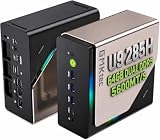
- EVOLUTION CORE ULTRA 9 285H MINI PC - GMKtec EVO-T1 is the next evolution in AI mini PC Ultra 9 series. The Core Ultra 9 285H offers 16 cores (six P-cores + eight E-cores + two LPE-cores) and 16 threads with a turbo clock of 5.4 GHz. It is currently one of the best value for performance AI mini PC computers.
- AI NPU - The 285H features an Intel AI Boost NPU, capable of up to 13 TOPS (Tera Operations per Second) for INT8 calculations, which is designed to accelerate AI tasks.
- INTEL ARC 140T GAMING PC - The Arc 140T GPU includes 8 Xe cores and supports features like DirectX 12, OpenGL 4.5, and OpenCL 3, making it capable of handling modern games and creative applications. It also supports Quick Sync Video for efficient video encoding and decoding, as well as AV1 encoding and decoding.
- 64GB DDR5 RAM + 1TB SSD - The EVO-T1 is equipped with Dual 32GB (Total 64GB) SO-DIMM DDR5 5600MHz memory sticks. 2TB PCIE 4.0 SSD Drive with 3x M.2 2280 Expansion slots. Each slot capable of reading up to 4TB. (12TB MAX)
- QUAD SCREEN 8K DISPLAY SUPPORT - EVO-T1 AI Mini PC support 4-screen 4K/8K output via HDMI 2.1 (8K@60Hz), DisplayPort 1.4 (4K@60Hz), and USB Type-C Transfer speed (supporting PD3.0/DP1.4/DATA). Ideal for gaming, video editing, and multitasking, it provides expansive and crisp multi-display support.
1. Provision the server
- Choose a Linux image with root or sudo access.
- Record the exact CPU, RAM, disk, GPU model, VRAM, region, and driver version.
- Ensure the disk can hold the selected model plus future versions, logs, and snapshots.
- For GPU inference, confirm the card and driver meet Ollama’s current NVIDIA or AMD requirements before paying for the instance.
- Restrict inbound traffic in the provider firewall. Allow SSH only from your administration network where practical.
2. Install Ollama
The official Linux installation command is:
curl -fsSL https://ollama.com/install.sh | shThis command downloads and executes a remote script. Read the current official instructions, understand what the script changes, and use the manual, architecture-specific package procedure when your change-control or security policy requires a reviewable installation. Keep the host patched and avoid running an unreviewed script as an administrative user without understanding its contents.
3. Enable and inspect the system service
On distributions using systemd, use the service guidance supplied by Ollama and then verify the result:
sudo systemctl enable --now ollama
sudo systemctl status ollama
The status output should show an active service. If it fails, inspect the journal, confirm the binary path and permissions, and check whether another process already occupies the configured port.
4. Install GPU drivers when required
Use the provider’s supported image or the current Ollama GPU instructions for NVIDIA CUDA or AMD ROCm. Do not mix an arbitrary host driver with a container or image that expects a different runtime. Reboot if the driver procedure requires it, then verify that Linux can see the card before troubleshooting Ollama.
Best Value

- [ Maximum AI Compute Power ] Dominate complex workloads with the ASUS ESC8000A-E13. This 4U rack server is a powerhouse engineered for mass-scale AI, machine learning, and deep training. Featuring support for dual AMD EPYC 9005/9004 processors and up to eight dual-slot GPUs, it delivers the raw computational muscle required to train LLMs and run complex simulations effortlessly. Accelerate your data science pipeline and transform raw data into actionable intelligence faster than ever.
- [ Advanced Thermal Efficiency ] High performance demands elite cooling. The ESC8000A-E13 features a cutting-edge aerodynamic design with independent CPU and GPU airflow tunnels. Equipped with redundant hot-swap fans and optimized for liquid cooling integrations, this 4U server ensures maximum uptime under heavy, sustained workloads. Keep your data center running cool, quiet, and highly efficient while preventing thermal throttling during mission-critical enterprise operations.
- [ Scale with Flexible Storage ] Future-proof your infrastructure with unmatched storage and expansion flexibility. This offers comprehensive front-panel drive bays supporting Gen5 NVMe, SAS, or SATA drives alongside multiple PCIe 5.0 slots. Designed as a high-density 4U server capable of housing eight dual-slot GPUs: NVD H200, RTX PRO 6000 Blackwell, RTX PRO 4500 Blackwell or AMD Instinct MI350P PCIe Card, each supporting up to 600 watts.
- [ Enterprise-Grade Reliability ] Minimize downtime and secure your ecosystem with server-grade redundancy. The ESC8000A-E13 is built for 24/7 continuous operation, boasting 2+2 redundant (3200W total) 80 PLUS Titanium power supplies and integrated ASUS ASMB11-iKVM for comprehensive out-of-band management. Ideal for cloud service providers, rendering farms, and large enterprise infrastructure, it combines robust physical hardware with smart remote monitoring to safeguard your digital assets.
- [Reliability Guaranteed] Shop with total peace of mind knowing that every new computer component we sell is backed by our EPC 3-year warranty. Whether you are investing in high-speed DDR5 RAM or a powerhouse GPU, we protect your build against defects and performance failures. We stand firmly behind the quality of our hardware, ensuring that your setup remains fast, stable, and secure for years to come.
5. Pull a model and run a first request
Replace the placeholder with the exact model name and variant you selected:
Do these 3 things before closing this tab:
1Scan for outdated or missing drivers - takes under a minute2Clear out junk files and repair common Windows errors3Fix the driver behind crashes, sound loss and screen glitchesollama pull <model-name>
ollama run <model-name>Send a short prompt first, then test a representative prompt at the intended context length. A tiny test can succeed while the real workload exhausts memory, so include long documents, tool calls, and overlapping requests in acceptance testing.
6. Verify placement and resource pressure
ollama psRead the PROCESSOR column. It should reveal CPU execution, GPU execution, or a split. If the model is unexpectedly on the CPU, check driver compatibility, available VRAM, service logs, and whether the requested context leaves enough memory. If it is split, measure the actual latency and decide whether a larger GPU or smaller context is preferable.
Keep the Ollama API private
Ollama’s FAQ states that the default listener is 127.0.0.1:11434. That local binding is the safer starting point. The FAQ also says, “Ollama runs locally. We don’t see your prompts or data when you run locally.” This describes Ollama’s local-versus-cloud behavior; it does not mean a rented-server operator or an administrator with access to the VPS cannot inspect the host, files, logs, or network.
If remote clients must connect, put a private network or a properly secured proxy in front of Ollama:
- Require authentication and use TLS for traffic that leaves the host.
- Allow only known source networks in the provider firewall and host firewall.
- Do not publish port 11434 directly to the internet without access controls.
- Use least-privilege accounts and restrict permissions on downloaded model files and logs.
- Patch Linux, Ollama, drivers, and the proxy on a defined schedule.
- Monitor requests, disk growth, memory pressure, and unexpected outbound traffic.
Cloud-hosted model services process prompts and responses through their service. A self-managed VPS changes where the software runs, but it does not remove the need to trust and secure the infrastructure provider.
Troubleshooting by symptom
The model will not load
- Check free RAM and VRAM, not just installed capacity.
- Reduce the context window or choose a smaller model variant.
- Stop unused models and services, then inspect
ollama ps. - Leave headroom for the operating system and concurrent requests; swapping is not a substitute for adequate memory.
The GPU is present but Ollama uses the CPU
- Confirm the exact GPU model and compute capability.
- Check that the NVIDIA driver meets the documented version requirement, including the newer requirement for compute capability 5.0–6.2.
- For AMD, verify the ROCm v7 stack and Linux support.
- Review service logs after driver installation and reboot when required.
- Run
ollama psagain after loading the model.
Responses are too slow
- Establish whether the model is CPU-only, GPU-only, or split.
- Measure with the real context length rather than a short prompt.
- Reduce unnecessary context and simultaneous requests.
- Compare a faster CPU or supported GPU instead of assuming additional shared vCPUs will solve latency.
- Check whether the provider is oversubscribed or the instance is interruptible.
The server becomes unstable under load
- Track RAM, VRAM, swap, disk, and concurrent requests.
- Set application-side queues or concurrency limits.
- Move logs and model storage to persistent disks with sufficient capacity.
- Use a larger instance only after identifying whether memory, compute, storage, or network is the bottleneck.
Remote access fails
- Confirm Ollama is still bound to the intended local interface.
- Test locally on the VPS before changing firewall rules.
- Check private-network routes, proxy authentication, TLS certificates, and host/provider firewall policies.
- Never “fix” connectivity by exposing an unauthenticated port to the whole internet.
A workload-first decision guide
| Your workload | Starting point | Upgrade trigger |
|---|---|---|
| Learning, prompt experiments, occasional personal requests | CPU VPS with enough RAM and disk for one selected model. | Move to a GPU when response time, context, or model size becomes frustrating. |
| Scheduled extraction, classification, or batch jobs | CPU VPS if jobs can queue and finish asynchronously. | Use a GPU when the queue or deadline justifies its cost. |
| Interactive single-user assistant | CPU for a proof of concept; supported GPU for a consistently responsive service. | Increase VRAM or reduce context when loading or latency is the constraint. |
| Long-context agents, coding tools, or web search | Plan around at least 64K tokens and the resulting memory requirement; a high-VRAM GPU may be appropriate. | Add VRAM, reduce context, or redesign the workflow if cache pressure dominates. |
| Several concurrent users | Size for aggregate cache and request concurrency, with monitoring and queue limits. | Scale GPU capacity or separate workloads when one instance cannot maintain latency. |
What to verify before you commit
- The exact model variant, download size, context target, and expected concurrency.
- Usable RAM or VRAM after Linux, Ollama, cache, proxy, and monitoring overhead.
- GPU model, VRAM, driver version, and ROCm or CUDA compatibility.
- Persistent storage lifetime, snapshots, backup destination, and restore process.
- Region, latency, bandwidth, IPv4, taxes, billing term, and interruption policy.
- SSH/root access and your ability to patch drivers and the operating system.
- Private API binding, firewall rules, TLS, authentication, and log permissions.
- A test plan that includes the real context length, representative prompts, and expected concurrency.
Provider pricing and GPU inventory change frequently. The dated figures above are useful for understanding cost structure, not for forecasting a current bill. Recheck the live provider console and Ollama’s current compatibility documentation immediately before provisioning.
Quick Recap
Product prices and availability are accurate as of the date/time indicated and are subject to change. Any price and availability information displayed on Amazon at the time of purchase will apply.

