Recommended Free Tools
A free Wi-Fi scan can show nearby networks and the channels they report using, which may reveal a likely source of congestion. It cannot prove that neighbors are causing your slow connection. To find out whether channel congestion matters in your home, compare performance before and after a supported router setting change using the same device, test location, and conditions.
Why is my Wi-Fi so slow?
Nearby networks can contribute to interference, but they are only one possible cause. Google Nest Help notes that Wi-Fi traffic, other radio sources, distance, obstacles, device capabilities, internet service, and competition among household devices can all affect performance. It puts the last point plainly: “Whenever a device connects to your Wi-Fi network, it competes with other devices for bandwidth (internet speed).” Google’s slow-internet troubleshooting guide discusses these factors.
As an Amazon Associate I earn from qualifying purchases.
A scan is a snapshot of networks your device can detect at a particular place and time. It can show reported channels and signal strength, but it does not measure every source of radio interference or how much airtime each network is using. Seeing several networks on one channel is a clue to investigate, not proof that they caused the slowdown.
Do these 3 things before closing this tab:
1Fix the driver behind crashes, sound loss and screen glitches2Clear out junk files and repair common Windows errors3Scan for outdated or missing drivers - takes under a minuteUse where and how the slowdown occurs as clues
- If one room is slow but performance improves near the router, distance or walls may be limiting the signal.
- If only one device has trouble, that device’s Wi-Fi capability or condition may be involved.
- If several devices are slow, household demand, the router, or the internet service may be contributing.
- If a wired connection is also slow, Wi-Fi channel congestion is less likely to be the only explanation; check the service and upstream equipment as well.
These patterns help narrow the possibilities, but none is a diagnosis by itself. Google also notes that interference can come from sources beyond neighboring Wi-Fi networks, such as microwaves or baby monitors.
#1 Best Overall

- 【Boost Your WiFi Instantly】This powerful WiFi analyzer scans 2.4G/5G networks in seconds, helping you switch to the clearest channel. Experience smoother streaming, downloads, and lag-free gaming by optimizing your signal effortlessly.
- 【Smart Dual-Band Analysis】Unlike basic scanners, our premium WiFi signal analyzer detects both 2.4GHz and 5GHz frequencies simultaneously. The advanced TFT color screen clearly displays real-time data, so you can make smart adjustments with just a glance.
- 【Long-Lasting & Portable】Built in 600mAh lithium battery, with a working current of around 160mA, the network analyzer has a standby time of about 4 hours. Take it anywhere—no more hunting for outlets during critical signal checks.
- 【User-Friendly Precision】The 2.4-inch color screen delivers sharp visuals, while the intuitive Type-C charging (5V) shows charging status lights (red=charging, green=full). Perfect for home offices, apartments, or troubleshooting ISP issues.
- 【Main Function】With this WIFI analyzer, you can easily view the frequency points, adjust your own WiFi, switch to a relatively empty frequency point, and improve the WIFI signal quality.
Can I scan nearby Wi-Fi networks for free?
Usually, you can check nearby network information without paying: look first in your router’s network or wireless settings, or use a reputable Wi-Fi scanner supported by your device. The exact controls and information depend on the router, device, software, and operating system. A scan may list network names, bands, channels, and signal strength; it may not expose every detail on every device.
For a useful comparison, record the location and time of the scan and note which networks appear strongest and which channels they report. Results reflect only what the scanning device can detect from that location at that moment. A network that is not visible in the scan may still affect radio conditions, and a visible network is not necessarily consuming enough airtime to slow yours.
How do I check what Wi-Fi channel my neighbors are using?
- Record the baseline. Note the device, the room, and what “slow” means for you—for example, buffering or a low speed-test result.
- Test in two places. Run a connection or speed test near the router, then repeat it where the problem occurs. Keep the same device and test method.
- Scan nearby networks. Use the router’s network information or a reputable scanner to see the networks, bands, channels, and signal strengths it reports.
- Check your own router settings. Find its current band, channel, and channel width. Router interfaces differ; some models choose channels automatically or do not offer manual controls.
- Compare results after any adjustment. Repeat the original test with the same device and position, under approximately similar conditions. A router speed-test guide from TP-Link likewise recommends consistent test positioning and configuration when comparing performance.
A speed test measures the connection under its test conditions; it does not isolate Wi-Fi radio performance on its own. If possible, compare with a wired connection or check the speed delivered by your internet provider to help distinguish a wireless issue from a broader service problem.
Rank #2
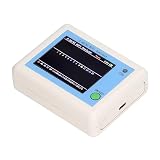
- TFT COLOR SCREEN: This analyzer adopts a 2.4 inch TFT color display screen, allowing you to clearly see data.
- MAIN FUNCTION: With this analyzer, you can easily view the frequency points, adjust your own , switch to a relatively empty frequency point, and improve the quality.
- BATTERY DISPLAY: There is battery power display in the upper right corner of the screen, making it easier for you to the analyzer in a timely manner.
- LIGHT INDICATION: TYPE C interface, convenient for charging, with a charging voltage of 5V, the red light indicates charging, and the green light indicates fully charged.
- LONG STANDBY: Built in 600mAh lithium battery, with a working current of around 160mA, the network analyzer has a standby time of about 4 hours.
Which Wi-Fi channel should I use?
Choose from channels your router and devices support in your country, and consider what the scan shows at your location. Avoid simply copying a neighbor’s channel: the best option depends on local channel availability, network density, signal conditions, and equipment.
For 2.4 GHz, account for overlapping channels
The 2.4 GHz band has substantial channel overlap. TP-Link explains that the band spans about 83.5 MHz, while channels 1–13 are spaced 5 MHz apart and channel width is 22 MHz. Permitted channels vary by jurisdiction. In the United States, channels 1, 6, and 11 are a common non-overlapping arrangement at 20 MHz; that recommendation is not universal. See TP-Link’s channel and channel-width explanation for its regional context.
For 5 GHz and 6 GHz, check local and device support
5 GHz offers more non-overlapping channel options than 2.4 GHz, but the channels available to you depend on local rules and router support. TP-Link gives channels 36–48 as an example for some router settings, not a universal prescription. The 6 GHz band provides additional spectrum where local regulation and equipment allow it. Your devices must support the band to use it.
Rank #3

- [Durable and Portable Design] Crafted from aluminum alloy, this wifi analyzer is both lightweight and robust. its compact size and durable construction make it perfect and tech enthusiasts who need a reliable tool for optimizing home or office networks.
- [Real-time Wifi Signal Analysis] This advanced wifi analyzer allows you to monitor and analyze both 2.4g and 5g wifi signals in real time. identify crowded frequency points and switch to less congested channels to significantly improve your wifi communication quality and reduce interference for a smoother online experience.
- [Fast and Efficient Charging] Featuring a built-in lithium battery charging management circuit, this wifi signal scanner recharges in just about 1.5 hours. the modern type c charging interface ensures quick and convenient with a red light indicating charging and a green light signaling a full charge.
- [Long-lasting Battery Life] The built-in 750mah lithium battery offers impressive performance with a working current of approximately 160ma. enjoy up to 4 hours of continuous usage on a single charge, making it ideal for extended network troubleshooting sessions or on-the-go diagnostics.
- [Crystal Clear Color Display] Equipped with a vibrant 2.4-inch tft color display, this wifi signal usage analyzer provides easy-to-read visual data. the screen clearly shows signal strength, frequency usage, and battery level in the upper right corner, ensuring you always have the information you need at a glance.
In general, 5 GHz can offer faster throughput but has shorter range and is more sensitive to obstacles than 2.4 GHz. A device near the router may benefit from 5 GHz, while a more distant device behind walls may get a stronger connection on 2.4 GHz. Actual results depend on the router, client device, environment, and service.
Balance channel width against congestion
Wider channel widths can raise potential data rates, but they also use more spectrum and are more susceptible to interference. Twenty megahertz is a common balance; a narrower width may be worth testing in a crowded environment, though it can reduce peak data rate. Router options vary, and some devices manage channel selection automatically. TP-Link describes these tradeoffs in its channel guidance and Deco channel-width instructions.
Independent reader supportYour contribution helps us test, update, and keep practical guides available for everyone.Does changing my Wi-Fi channel make my internet faster?
It can help if channel congestion is contributing to the problem, but no speed increase is guaranteed. The useful test is a controlled before-and-after comparison, not the scan by itself.
Rank #4

- Validate 2.4, 5, and 6 GHz Wireless Networks - Bring every predictive Wi-Fi network to life with validation and visualization designed for any dual or tri-band network.
- Unrivaled Speed and Accuracy - Capture the clearest picture of your Wi-Fi performance with 4 tri-band radios and a spectrum analyzer that scans at 50 sweeps/second.
- Get it Right the First Time - Save time and money by getting AP placement right the first time and address Wi-Fi issues before they lead to costly outages.
- Record performance on the same device, at the same location, using the same test.
- If your router allows it, change one setting at a time: select a supported, less crowded channel or try a narrower channel width where congestion is high.
- Repeat the test under roughly similar conditions. Compare the results and whether the original problem—such as buffering in a particular room—has changed.
- If there is no meaningful improvement, restore the previous setting and investigate coverage, obstacles, device limits, household demand, and internet service.
TP-Link recommends choosing channels with little interference and keeping test setup consistent when comparing router performance; its instructions vary by product. Consult the manual or support page for your router rather than assuming every model has the same menu or controls. Its speed-test guidance explains the comparison principle.
When is the problem coverage rather than channel congestion?
If performance drops mainly with distance or through walls, improve the router’s placement and retest before buying equipment. TP-Link’s Wi-Fi signal and range guide covers placement and other ways to improve coverage.
A mesh system or range extender may address a coverage gap if testing points to weak signal in part of the home; it is not a direct fix for neighboring routers using the same channel. The evidence does not establish that a router replacement is necessary just because a scan shows nearby networks. First check whether the router you already have provides the relevant band, channel, or width settings, then test any change.
Quick Recap
Product prices and availability are accurate as of the date/time indicated and are subject to change. Any price and availability information displayed on Amazon at the time of purchase will apply.

