What’s actually slowing this PC down?
Pick the symptom - the matching free tool is one click away.
Native Dolphin is the better default for Wii performance. It offers a mature native runtime, documented CPU and graphics settings, shader-cache controls, controller configuration, diagnostics, and per-game profiles. Browser-based Wii emulators can be convenient and, in a carefully controlled scene, can approach the target emulated speed. However, they add WebAssembly, browser scheduling, graphics-API, memory, and input constraints, and current public evidence does not show a universal performance advantage over Dolphin.
The short answer
If your priority is steady game speed, frame pacing, audio reliability, graphics accuracy, and predictable controller response, install and configure the native Dolphin emulator. Browser emulation is most attractive when zero-install access, a local-file workflow, or portability matters more than consistent performance.
As an Amazon Associate I earn from qualifying purchases.
That conclusion is evidence-qualified rather than a claim that every Dolphin installation is faster in every scene. Wii emulation is highly title-specific. A demanding game, an old laptop, an inefficient graphics driver, or a poorly configured Dolphin profile can perform badly. Conversely, an experimental WebAssembly build can run a light scene close to full emulated speed. The difference is that Dolphin gives you more mature controls and more predictable ways to diagnose and correct problems.
Recommended Free Tools
The Dolphin Emulator Project’s 2024 progress report described the work needed for a usable web version as substantial: a new just-in-time compiler targeting WebAssembly and WebGL support in the OpenGL video backend would be required. That context matters when a browser build appears to work in a short demonstration but lacks the optimization, compatibility testing, and tooling of the native application.
#1 Best Overall

- [Compatibility]: The Wii remote controller is compatible with Nintendo Wii and Wii U, supports all Wii games. Please note that the Wii console is not included. Batteries not included.
- [Built-in Motion Plus]: The built-in motion plus, more sensitive than the original Wii remote controller, can track movement more accurately, bringing you a more realistic game experience.
- Th wii nunchuck controller boasts a 3-axis motion sensor, akin to the Wii Remote. Its ergonomic design ensures a comfortable grip, promoting agility during gameplay.
- EASY SYNC STEPS -- Push the small button on the controller (where the batteries go) then push the red button on the Wii console (under the little door), then you’re able to synchronize with Nintendo Wii.
- LED indicators -- LED lights will indicate which player you're.
What “better performance” should mean
Performance is not one number. Wii emulation has several separate outcomes, and a browser canvas can make them look deceptively similar.
- Emulated game speed: how close the emulated console is running to real-time execution. A result near 100% generally means the emulation thread is keeping up with the target clock.
- Presented or unique visual FPS: how many distinct rendered frames reach the display. Repainting the same frame at a high browser refresh rate does not create new game frames.
- Frame pacing: whether frames arrive at regular intervals. Uneven delivery is visible as judder even when an average FPS counter looks acceptable.
- Input-to-photon latency: the delay between a button or motion event and the corresponding image on screen. A browser benchmark that does not send input cannot establish this value.
- Audio stability: whether sound remains synchronized without crackling, underruns, or periodic pauses.
- Accuracy and compatibility: whether graphics effects, timing-sensitive logic, peripherals, saves, networking, and individual game revisions behave correctly.
For a meaningful comparison, report game speed and unique visual FPS separately. Do not treat a browser’s canvas refresh rate as proof that the emulator is generating an equivalent number of game frames.
What the available browser evidence shows
A wasm-dolphin performance audit published on July 9, 2026 tested a fixed Kirby-versus-Link battle with just-in-time compilation disabled. The figures are useful as a controlled example, not as a universal result for all browsers, GPUs, or Wii titles.
| Browser-build setting | Reported game speed | Reported unique visual FPS | How to interpret it |
|---|---|---|---|
fastsw=1 |
95.36–96.64% | 10.68–10.72 | Near-target emulated speed in this scene, but only about eleven distinct images per second were observed. |
fastsw=2 |
63.60–66.08% | 17.32–20.64 | More distinct visual frames than the first setting, while emulated speed fell substantially below real time. |
The same audit sampled approximately 0.18–0.21 milliseconds of WebGPU presenter JavaScript work. It explicitly says asynchronous browser/GPU completion was not timed, so that sample is not a complete measure of presentation cost or end-to-end latency.
The audit also sent no gameplay input. It therefore cannot establish input-to-photon latency, motion-control responsiveness, or whether a particular browser event path loses or coalesces Wii Remote signals.
Rank #2

- Nintendo Wii Remote Plus
A hardware WebGPU classifier run produced command statistics but zero presentation FPS, zero unique visual FPS, no real XFB content, and no audio for the tested route. That was a classifier run, not a valid game benchmark. It should not be used to claim that WebGPU hardware acceleration, by itself, guarantees playable Wii performance.
These results illustrate why a browser build may report close to target game speed while presenting far fewer distinct visual frames. The emulation loop, JavaScript or WebAssembly scheduling, command submission, browser compositor, and display timing are separate stages.
The Tool Desk
Outbyte Driver Updater FREEScan for outdated or missing drivers - takes under a minuteDriver Scan →Outbyte PC Repair FREEClear out junk files and repair common Windows errorsFree Scan →Why native Dolphin is usually more predictable
A mature native execution path
Dolphin is a native GameCube and Wii emulator with broad compatibility across the majority of titles. Its FAQ explains that speed depends on factors including dual-core execution, processor clockspeed, and the number of available cores. Native code can use operating-system threads, direct memory access patterns, and graphics-driver features without the additional sandbox and scheduling layers imposed by a browser.
Documented graphics and shader controls
Dolphin’s performance guidance covers graphics backends, internal resolution, shader compilation, shader caching, and configuration trade-offs. First-run shader compilation can cause stutter; allowing a cache to build and then reusing it generally produces steadier subsequent play. Driver quality and backend choice still matter, so a poor native configuration is not automatically fast.
Per-game profiles and compatibility information
Dolphin maintains a per-title compatibility list and supports game-specific configuration. That is important because one Wii title may be limited by CPU timing, another by a graphics effect, and another by a motion-control or video-output quirk. A browser build may expose only global options or an incomplete subset of these workarounds.
Rank #3

- 【Precise Motion-Sensing】The remote controller offer optimal precision and accuracy, it senses your every action and makes you feel less like a player but more like you’re part of the game.
- 【Upgraded Version】With upgraded functions of pointer, speaker and shock vibration, the controller provide real-time feedback for a more authentic gaming experience.
- 【Easy Connection】① Insert 2pcs AA batteries (not included). ② Press the "SYNC" button on the controller and console separately. ③ If the connection fails, press the "SYNC" button on the console for 15 seconds to clear all connected controllers. ④ Then press the "SYNC" button on the controller and console again separately.
- 【Better Protection】The controller included a protective silicone case which make it easier to grip & hold, also protects the controller against everyday dust and scratches.
- 【What you get】2 * Remote controller (no motion plus) , 2 * Silicone case, 2 * Wrist strap
Better diagnostics and recovery
When native Dolphin slows down, you can inspect backend selection, shader behavior, dual-core mode, resolution, and controller mapping independently. Browser implementations differ widely in what they expose. A browser tab can also be throttled when backgrounded, compete with extensions, lose an audio context, or be affected by browser updates that change WebAssembly or WebGPU behavior.
PC Slower Than It Used to Be?
A free scan shows the junk files, broken settings and background clutter dragging Windows down - then fixes them in one click.Free scan · Windows 10 & 11Outdated Drivers Are Slowing You Down
One free scan finds every outdated or missing driver and matches the right update for your exact hardware.Free scan · exact hardware matchBrowser versus native Dolphin: practical comparison
| Measure | Native Dolphin | Browser-based Wii emulation |
|---|---|---|
| Sustained game speed | Usually the stronger and more consistent option when hardware and settings are adequate. | Can approach target speed in a controlled scene, but results vary by build, browser, GPU, and compiler flags. |
| Distinct visual FPS | Typically easier to keep aligned with the title’s target cadence using native rendering and frame pacing. | May diverge sharply from reported game speed, as the 2026 audit demonstrates. |
| Frame pacing | Native timing and configurable backends provide more control. | Affected by browser scheduling, compositor timing, tab visibility, and graphics API behavior. |
| Shader stutter | Documented shader compilation and caching options; per-game tuning is available. | Depends on the implementation’s shader pipeline and browser cache behavior; controls may be limited. |
| Input latency | Controller and Wiimote paths are documented and can be tested in the application. | Not established by the cited audit; browser event handling and permission models add variables. |
| Audio | Native audio scheduling and established game compatibility make failures easier to diagnose. | Audio-context startup, browser policies, and unmeasured asynchronous work can affect stability. |
| Graphics accuracy | Long-developed backends and title-specific settings support a wider range of effects. | Depends on the WebGL/WebGPU route and the individual port’s completeness. |
| Controller support | Gamepads, Wii Remotes, and profiles are documented in Dolphin’s guides. | Support is implementation-specific; motion and pointer features may be incomplete. |
| Setup friction | Requires installing an application and configuring legally dumped games. | Can offer zero-install access when a compatible build is available. |
| Browser/GPU compatibility | Primarily tied to the native operating system, drivers, and selected backend. | Depends on browser version, WebAssembly, WebGL or WebGPU support, permissions, memory limits, and GPU routing. |
| Per-game compatibility | Established compatibility list and title-specific settings. | Varies by port and may not cover the same breadth of titles or revisions. |
How to evaluate a browser build fairly
A browser demonstration is not comparable with a Dolphin run unless the test conditions are matched. Use the following procedure when you want a meaningful result.
- Select the same title and revision. Record the exact Wii game, region, revision, and whether a particular mode or stage is being tested. Different revisions can exercise different code paths.
- Use the same hardware. Keep the processor, GPU, memory, operating system, display, and power mode constant. A laptop switching between integrated and discrete graphics can invalidate the comparison.
- Match emulator settings. Hold internal resolution, graphics effects, audio settings, frame limit, dual-core or equivalent CPU mode, and shader mode constant wherever both implementations expose comparable options.
- Record software versions. Note the Dolphin build, browser name and version, browser-build revision, graphics driver, and operating-system version. Browser updates can change WebAssembly or WebGPU behavior.
- Use the same scene and duration. A fixed repeatable battle or level is more useful than a menu or an easy opening sequence. Capture a sustained run long enough to include shader compilation and ordinary gameplay.
- Measure separate metrics. Log emulated game speed, presented FPS, unique visual FPS, frame-time variance, audio behavior, and any visible stutter. If input latency was not measured with a controlled device, label it unknown.
- Repeat after warm-up. Record both the first run and later runs after shader caches or browser caches have been populated. Do not combine cold-start stutter with steady-state averages without labeling the difference.
- Report failures, not only averages. A title that reaches a high average but has audio loss, broken effects, or periodic stalls is not equivalent to a stable session.
This method prevents a browser canvas counter, a short menu sequence, or a classifier output from being mistaken for a complete performance result.
Setting up native Dolphin for a Wii title
Dolphin’s official guides cover legally dumping games, performance settings, controller and Wiimote configuration, Wii networking, and virtual SD or NAND use. The following order minimizes avoidable troubleshooting.
- Install a current Dolphin build for your operating system. Use the project’s normal release or development channel and keep a note of the build number used for testing.
- Use a legally dumped game. Point Dolphin at the directory containing your dump, then verify that the title appears with the expected region and revision.
- Start with conservative graphics settings. Test the native internal resolution and a supported graphics backend before adding enhancements. If performance is poor, reduce resolution and expensive effects first.
- Enable dual-core execution when the title supports it. Dolphin’s documentation identifies dual-core execution, processor clockspeed, and available cores as important performance factors. Some exceptional titles may require a compatibility-specific adjustment.
- Allow shader compilation and caching. Expect the first traversal of new effects to stutter while shaders compile. Repeat the same scene after the cache is populated before judging sustained performance.
- Configure the controller before testing. Map a standard gamepad for titles that permit it; select a real Wii Remote or compatible device for motion-controlled games. Save a per-title profile when settings differ.
- Measure the game, not just the menu. Check speed, frame pacing, audio, and graphics in an actual gameplay scene. Keep the same settings when comparing with a browser build.
Browser setup and controller considerations
A browser build can be useful when installing software is not possible, but its setup is less standardized. Open the implementation’s own instructions, confirm the required browser APIs, and use a desktop browser with the tab in the foreground during testing.
Rank #4

- Classic Motion Control: Captures basic hand movements and gestures for responsive, interactive gameplay—perfect for sports, party, and classic Wii titles.
- Compatible with Wii and Wii U Systems: Works seamlessly with both Wii and Wii U consoles. Also functions well for PC gaming via Dolphin emulator passthrough.
- Excellent Condition: Enjoy full functionality, excellent cosmetic quality, and high-performance gameplay in a professionally restored controller.
- Easy to Pair and Use: Quick and hassle-free syncing with your console. Ideal for new players or as a replacement for lost or damaged remotes.
- Trusted by Gamers: Known for responsive controls, dependable gameplay, and great value. A reliable choice for anyone looking to revisit classic titles or enjoy family fun.
- Check API support first. Confirm whether the build expects WebAssembly, WebGL, WebGPU, SharedArrayBuffer, or a particular browser permission. A browser may expose an API while the GPU driver path remains unsupported.
- Keep the tab active. Background tabs can be throttled, and power-saving features can alter timing. Disable unnecessary extensions for a controlled test.
- Watch memory use. Large Wii assets and shader data can hit browser memory limits sooner than a native process. Close other heavy tabs and applications.
- Confirm audio activation. Many browsers require a user gesture before an audio context starts. If the game is silent, click or press a key in the emulator window and check its audio controls before changing performance settings.
- Test gamepad mapping. Standard buttons may work through the browser Gamepad API, while pointer, IR, tilt, shake, and speaker features depend on the specific implementation.
- Use a Wii Remote Plus or compatible Wiimote when required. A physical motion controller is relevant for motion-control titles, but it does not increase FPS. Verify that the browser build supports the device, pairing method, and required sensors.
Because browser input support is implementation-specific, a title that boots successfully may still be unsuitable if its essential motion or pointer controls are missing.
Independent reader supportYour contribution helps us test, update, and keep practical guides available for everyone.Why a browser Wii emulator may feel slow
High game speed, low unique FPS
The audit’s fastsw=1 result is the clearest example: roughly 95.36–96.64% game speed accompanied only 10.68–10.72 unique visual FPS. The emulation loop was close to real time, but the display received relatively few distinct frames. Check both counters before concluding that the browser is fast.
Browser scheduling and compositor timing
WebAssembly execution shares a scheduling environment with the browser, page scripts, extensions, and the compositor. Even when presenter JavaScript work appears small, asynchronous GPU completion and display submission may not have been measured. A tab can therefore show uneven delivery without an obvious single slow function.
Graphics backend limitations
WebGL and WebGPU expose different capabilities and synchronization behavior. A build may fall back to a slower path, lack an effect needed by a particular title, or classify hardware successfully without producing valid frames or audio. Select the implementation’s supported backend rather than assuming that the newest API is automatically faster.
Shader and cache effects
First-run shader work can create bursts of stutter. Repeat the same scene after caches are populated, and distinguish cold-start behavior from steady-state playback. If stutter returns after clearing browser data, the cache lifecycle is part of the explanation.
Best Value
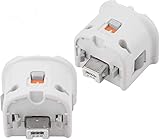
- Brand new and high quality.
- Connect Wii MotionPlus to your Wii Remote controller to increase accuracy and enhance play control on compatible games.
- Contains additional sensors that respond to your wrist's slightest motion for greater results with more economical movement.
- Compatible with a variety of Wii games.Perfect motion plus adapter for your Wii Remote controller.
- Allow it to more accurately capture complex motion and It tracks the player's movements in finer detail and with greater accuracy.
CPU, power, and background load
Wii emulation is sensitive to sustained CPU clocks and available cores. Plug in a laptop, select a performance power profile, close heavy applications, and retest. A driver or background-load diagnostic utility can help identify an overloaded system, but it cannot make an under-optimized emulator equivalent to native Dolphin.
How to troubleshoot Dolphin slowdowns
- Verify the backend and driver. Test the supported graphics backends available in Dolphin and keep the graphics driver current. Record which backend produced the result.
- Lower internal resolution first. High resolution increases GPU work. Return to the native target resolution to determine whether the bottleneck is rendering rather than emulation.
- Check shader compilation. If pauses occur only when new effects appear, let the shader cache build and retest the same route.
- Confirm dual-core and CPU settings. Ensure the processor is not being restricted by a power plan or thermal limit. Use title-specific guidance when a game has known timing requirements.
- Separate audio and frame problems. Crackling with stable frame delivery suggests an audio or scheduling issue; visual judder with clean audio points toward rendering or presentation timing.
- Use a per-game profile. Avoid weakening settings globally for every title when only one game needs a compatibility adjustment.
Which option fits your situation?
Choose native Dolphin when performance is the priority
Use Dolphin if you want the highest likelihood of sustained speed, regular frame pacing, stable audio, broad controller support, and documented per-game fixes. It is also the better choice for a library of demanding titles, long sessions, or games that rely on Wii Remote motion, pointer input, networking, or virtual Wii storage.
Choose a browser build for convenience and portability
A browser build makes sense for a quick experiment, a managed computer where you cannot install software, or a local-file workflow that benefits from zero installation. Treat it as an implementation-specific experiment: verify the title, browser, GPU path, controller features, and actual unique visual FPS before relying on it.
Quick wins for a faster PC:
Repair Windows errors before they cause bigger problemsFix Now →Scan for outdated or missing drivers - takes under a minuteDriver Scan →Clear out junk files and repair common Windows errorsFree Scan →Use both for different jobs
You can use a browser build for rapid compatibility checks and native Dolphin for regular play. Keep test settings and measurements separate, because success in one environment does not prove equivalent performance in the other.
Final verdict
Native Dolphin currently offers the more mature and predictable Wii-emulation performance path. Browser-based emulation is technically viable and improving, but its results vary with the project, browser, graphics API, hardware, and build configuration. The strongest available browser evidence shows that near-target emulated speed can coexist with far fewer distinct visual frames, and it does not establish input latency or complete GPU presentation timing. Compare identical titles and settings, report game speed separately from visual FPS, and choose the browser route for convenience only after it passes those checks.
Quick Recap
Product prices and availability are accurate as of the date/time indicated and are subject to change. Any price and availability information displayed on Amazon at the time of purchase will apply.

