For an unattended public display, browser-based digital signage in a managed kiosk is usually the better fit. It starts the content on the screen’s own computer, can be locked to one full-screen experience, and can be managed and recovered without a person standing beside it. Casting is easier for a presentation, class or event where someone remains at a sender computer, but ordinary tab casting stops when that computer sleeps, disconnects or shuts down.
That conclusion is an inference from the documented capabilities of kiosk browsers and casting systems, not a measured uptime comparison. The right choice depends on whether the display must run continuously, who controls it, how much public access must be blocked, and whether the content needs a sender device.
As an Amazon Associate I earn from qualifying purchases.
What is the difference?
The two approaches put the content in different places. With browser-based signage, a browser or signage player runs directly on the device connected to the display. That endpoint may be a PC, mini PC, Mac, Linux computer, Chromebook, iPad or smart TV with a usable browser. A web page, dashboard or signage service opens there and remains on screen.
With casting, a sender such as a laptop or phone tells a receiver connected to the display what to show. The sender may mirror its screen, project a browser tab or control playback in a Cast-enabled site. The receiver and sender are separate devices, and the network path between them becomes part of the system.
#1 Best Overall

- 【Supports Linux and Win11】Micro PC win 11 equipped with Celeron J4105 (2GHz to 2.7GHz) processor, supports Win 11 Pro OS, supports Linux, Ubuntu as well. This portable and powerful fanless mini computer is a great helper for your business, office, entertainment, classroom, conference room, industrial IOT applications, home and more
- 【Low-noise fanless design and PC material】Mini PC fanless has a special cooling system and outer texture design (efficient heat dissipation) to simulate overheating, no fan no noise. Provides a quiet and stable computer environment when using, portable PC supports 7/24 hours operation
- 【USB-C and multiple interfaces】Desktop mini PC stick Win 11 Pro equipped with 1 x USB-C (wider compatibility), 2 x USB 3.0 ports, TF card reader, 1 x HDMI 2.0 ports, 1 x Gigabit LAN port, 1 x 3.5 mm audio jack, you can connect to multiple devices such as projector, NAS, monitor, keyboard mouse, etc., mini desktop supports USB PD 3.0 Charge 0 Charge 024 W)
- 【Dual band Wi-Fi & 4K @ 60Hz】Portable mini pc stick server built in 2.4/5GHz I/O ports, WiFi and Bluetooth 5.0, our fanless mini PC equipped with HDMI port together with the UHD 600 graphics, supports HDMI 4K UHD graphics output, which can improve your video images to be more vivid
- 【Storage and storage】Mini PC stick HDMI equipped with 8GB LPDDR4, 128GB eMMC, fully functional to perform Win11 and HD video, micro computer can be easily connected to other devices, so you can easily deal with multiple tasks and projects at the same time
Google describes ChromeOS kiosk mode as a specialized mode that focuses on “just one application at a time.” In practice, a kiosk can launch a web app full-screen without a normal user login. Microsoft Edge has a separate “Digital/Interactive signage” kiosk option that displays a specific site full-screen, distinct from its limited public-browsing mode. See the ChromeOS kiosk documentation and Microsoft Edge kiosk documentation for the exact policies available on each platform.
These are not interchangeable labels. A browser opened on a general-purpose desktop is not automatically reliable signage, and a receiver that supports casting is not automatically a self-running signage player.
Which works better for a public display?
Choose a managed browser kiosk or signage player when the screen must run without supervision: menus, lobby information, wayfinding, room schedules, retail messages, public dashboards or an always-on notice board. Configure the endpoint to launch the content after boot, suppress sleep and notifications, reconnect to the network, and provide a way to monitor or restart it remotely.
Do these 3 things before closing this tab:
1Scan for outdated or missing drivers - takes under a minute2Clear out junk files and repair common Windows errors3Fix the driver behind crashes, sound loss and screen glitchesChoose casting when a presenter, teacher, host or operator is expected to control the screen from a nearby device. It is quick for a meeting or one-off event because the sender decides what appears. It is a weaker default for an unattended display because ordinary tab projection depends on the sender computer remaining awake and connected.
There is an important exception: a Cast-enabled site can send playback to a compatible receiver, allowing the receiver to obtain the media using its own internet connection. Google’s explanation of Cast-enabled sites versus tab casting says the sender can close its lid or shut down for the former, while tab casting requires the computer to stay on.
Decision matrix
| Decision axis | Browser signage in kiosk or managed mode | Casting a screen or tab |
|---|---|---|
| Unattended operation | Designed to launch a full-screen app or site and recover when configured correctly. Startup, power, browser and network settings still require deliberate setup. | Ordinary tab casting requires the sender to remain on and connected. Cast-enabled site playback may continue independently on the receiver. |
| Remote management | Managed ChromeOS devices can receive policies and apps; administrators can capture screenshots and monitor device status. A signage service may add playlists, scheduling and alerts. | Usually controlled from the sender. A managed moderator deployment needs configured senders, receivers and network routes. |
| Public access control | Kiosk mode can restrict the endpoint to one full-screen app or site. Policies must be set; Edge notes that common open and save dialogs are not automatically locked down. | The receiver is built to accept sender interaction. Network permissions and who may cast must be controlled for the venue. |
| Network dependence | The endpoint needs access to the page or service. An app can cache selected content for offline use if it is built to do so. | Sender and receiver must communicate. Receiver internet access may also be required, depending on whether content is mirrored or played by the receiver. |
| Setup effort | More preparation for power recovery, browser lockdown, automatic launch and monitoring; suitable for a repeatable installation. | Fast for a staffed meeting or event; less suitable when nobody can watch the session. |
| Image quality | Depends on the browser, endpoint hardware, display and signage software. | Google documents up to 1080p for Cast-enabled sites and a maximum of 720p for tab casting under the described supported conditions. These are documented capability limits, not a general performance test. |
How browser-based signage works
The display endpoint owns playback
The browser loads the page on the computer behind the screen. If the page contains a playlist, schedule or dashboard, that code runs locally in the browser. The sender device is not involved after the endpoint starts, so closing an administrator’s laptop does not stop the display.
Rank #2

- 【Fanless Design for Uninterrupted Stability】Perfect for noise-sensitive environments and 24/7 operation. This mini PC delivers completely silent performance with an efficient cooling system that prevents overheating. It reliably runs office software and HD video without slowdowns, making it ideal for focused offices, home theaters, and demanding industrial IoT applications
- 【Ultra-Portable & Ready for Any Screen】Extremely compact and lightweight, this is a full Windows 10/Ubuntu computer that fits in your pocket. It's the ultimate plug-and-play solution for business presentations on a projector, digital signage in classrooms, or entertainment on your home TV. Achieve true "work from anywhere" flexibility with one device for all scenarios
- 【Stunning UHD 600 Graphics】Experience vibrant, fluid visuals with 4K @ 60Hz output. Powered by Intel UHD 600 Graphics, this mini PC is your perfect home entertainment center for streaming movies, attending online classes, or hosting video conferences. It turns any display into a sharp, high-definition visual experience
- 【Versatile Ports for Easy Expansion】Tackle multiple tasks with ease using our comprehensive selection of ports. Connect storage, keyboards, monitors, and more simultaneously with 2x USB 3.0 ports, a Gigabit LAN port, and a TF card reader. With convenient USB-C charging, it becomes the effortless control center for your office or home setup
- 【Pre-Installed & Ready to Go】Get started immediately with the genuine Windows 10 Pro operating system pre-installed. Paired with 4GB LPDDR4 RAM and 64GB eMMC storage, it's fully equipped for everyday office tasks and HD content right out of the box. This hassle-free setup is perfect for businesses, schools, and users who want a simple, ready-to-run computer
The endpoint still needs power, a working browser and access to the content service. If the page is entirely online, an internet outage can leave a blank or stale screen. A web app implemented with service workers and storage APIs can cache assets and preserve state offline; ChromeOS documents this capability for kiosk web apps. Caching is an application feature, not a promise that every signage page will continue working offline.
Kiosk mode removes ordinary desktop access
ChromeOS kiosk mode runs one application at a time, full-screen and without the normal user login flow. Edge’s digital/interactive signage mode similarly opens a specified site full-screen. Depending on the platform, administrators can restrict URLs, downloads, keyboard shortcuts and other escape routes. Edge runs kiosk signage in an InPrivate session.
Do not assume that selecting “kiosk” solves every public-access problem. Microsoft warns that common open and save dialogs are not automatically locked down. Test keyboard combinations, context menus, browser error pages, dialogs, USB devices and any administrative shortcut available on the chosen operating system.
Management is a separate layer
A kiosk browser only controls the local session. A managed device platform can push policies and application updates, report status and, for managed ChromeOS devices, let administrators capture screenshots. A signage service can add playlists, schedules and monitoring, but its exact features vary. Confirm browser support, offline behavior, alerting and remote restart before standardizing on a service.
How to build a browser-signage installation
- Define the operating pattern. Decide whether the display runs continuously, on a schedule or only during opening hours. List the pages, media formats, transitions and accessibility requirements before choosing hardware.
- Choose the endpoint. Reuse a current PC, Mac, Linux computer, Chromebook, iPad or compatible smart TV when it can run the required browser reliably. A dedicated mini PC for digital signage is a practical search term when you need a small endpoint behind the screen; check browser version, video decoding, mounting, cooling and remote-restart options rather than buying on size alone.
- Install and test the content. Open the exact URL or signage player on the endpoint. Check font rendering, video playback, aspect ratio, audio behavior, animations and what appears when the network is slow or unavailable.
- Configure kiosk launch. Use the operating system’s managed kiosk or signage mode, set the approved URL or app, and enable automatic launch after boot. On ChromeOS, follow the documented kiosk-app deployment model; on Edge, select the digital/interactive signage mode and configure allowed and blocked URLs.
- Remove interruptions. Disable sleep, screensavers, lock screens, automatic updates during display hours, desktop notifications and unwanted browser prompts. Configure the display’s own energy-saving settings as well as the computer’s settings.
- Plan power recovery. Enable automatic power-on after an outage if the hardware supports it. Test a real power interruption, not just a browser refresh, and verify that the screen returns to the intended page without a keyboard or mouse.
- Secure the enclosure and account. Keep the computer physically inaccessible, use a separate administrative account, remove unnecessary software and restrict USB or boot-menu access where the platform allows it. Store recovery credentials away from the public area.
- Provide monitoring and recovery. Decide how staff will know that a screen is blank, frozen or showing an error. Use device status, screenshots, heartbeat checks or a signage service when available. Keep a documented remote-restart procedure and an on-site fallback for network, power or hardware failures.
- Run a soak test. Leave the complete setup running through a representative operating period, including overnight if it is meant to be continuous. Check for memory growth, video loops, stale data, notification pop-ups, thermal problems and behavior after router or power restarts.
Screenly’s browser-signage documentation highlights the operational issues that a general-purpose computer can introduce: sleep, screensavers, notifications and failure to resume after a power cut. Those are deployment problems to solve, not reasons to assume that every browser endpoint is unsuitable. See its browser platform guidance for the documented caveats.
What’s actually slowing this PC down?
Pick the symptom - the matching free tool is one click away.
How casting works in practice
Tab projection
Tab casting captures a browser tab on the sender and sends it to the receiver. The sender must keep the browser and computer active for the session. Closing the lid, losing the network, entering sleep or changing the tab can interrupt the display. The sender also performs more of the work, which can affect a complex page or high-motion video.
Rank #3

- 1. Geniatech Android tv box is designed for the most demanding customers and environnements. Features 2GB RAM and 8GB ROM, with HDMI (4K HEVC), ethernet, dual band WiFi.
- 2. The Mini PC is a upgrade version, comes with Amlogic S905X4 64 bit quad core ARM cortex-A55 processor and it has strong decoding ability, its shell is composed of a metal bottom shell and a plastic top shell with good heat dissipation performancecomes.
- 3. 4K2K Ultra HD playback / real time decoding, enjoy the incredible crispness and dramatic detail 4K2K Ultra HD and 1080p resolution, The device features various connectors, including HDMI, USB Host and the industrial widely used connector RS232. With RS232, can easily communicate with industrial machines and network equipment.
- 4. Wildly used in advertising sreen display, hotel intelligent interactive TV,IPTV DVB OTT integration,remote intelligent control (MDM), Network Video Calling,etc. Remote Device Management System (MDM), Support remote control of online devices, support remote management of content distribution, application deployment and service push.
- 5. Small yet very powerful and stable thanks to Android OS. It’s a reliable and affordable media playing device to run your Digital Signage. Videos and images still run smoothly on this version.
Screen mirroring
Screen mirroring sends the sender’s visible desktop rather than one tab. It is useful when a presenter must switch among applications, slides and live demonstrations. It also exposes desktop notifications, accidental windows and private information unless the sender is carefully prepared.
Cast-enabled site playback
A Cast-enabled site offers a different path: the sender selects playback, then the receiver obtains and renders the content. Google’s Cast user-experience guidance explains the sender/receiver model at developers.google.com/cast/docs/ux_guidelines. Because the receiver can continue playback, this mode is closer to a player than to a mirrored desktop, but it still depends on compatible site support, receiver software and network policy.
Google states that Cast-enabled sites can offer up to 1080p, while tab casting is limited to a maximum of 720p when the computer supports the described conditions. Treat those numbers as Google’s documented behavior for its Cast system, not as a promise for every receiver, browser or video.
Outdated Drivers Are Slowing You Down
One free scan finds every outdated or missing driver and matches the right update for your exact hardware.Free scan · exact hardware matchPC Slower Than It Used to Be?
A free scan shows the junk files, broken settings and background clutter dragging Windows down - then fixes them in one click.Free scan · Windows 10 & 11Reliability: what fails and why
Browser signage failure modes
- Sleep or screensaver: the operating system hides or pauses the page. Set explicit power policies and verify them after updates.
- Notifications and dialogs: chat alerts, permission prompts, certificate warnings or file dialogs cover the content. Use a dedicated account, suppress notifications and test error paths.
- Power loss: the computer may remain off or stop at a login screen. Test automatic power-on and kiosk auto-launch after an outage.
- Network interruption: an online page may freeze or show an error. Use application-level caching where supported and provide a designed offline state.
- Browser or page updates: a changed layout, expired session or incompatible browser version can break a dashboard. Stage updates and monitor the rendered result, not just device availability.
- Thermal or hardware faults: a fanless or enclosed endpoint may throttle or reboot. Match cooling and video requirements to the workload.
Casting failure modes
- Sender sleep or shutdown: ordinary tab projection ends when the sender is no longer active.
- Sender leaves the network: Wi-Fi roaming, VPN changes or a different VLAN can stop discovery or control.
- Receiver discovery problems: client isolation, firewall rules or multicast filtering can prevent the sender from finding the receiver.
- Accidental exposure: screen mirroring can show notifications, passwords or unrelated windows.
- Session ownership: another authorized device may take control if venue permissions are too broad.
Neither architecture has a documented universal uptime percentage in the cited material. Reliability comes from the complete installation—power, operating-system policy, network, content design, monitoring and recovery—not from the word “browser” or “casting.”
Independent reader supportYour contribution helps us test, update, and keep practical guides available for everyone.Security and network design
Lock down a public browser
Use a managed kiosk rather than leaving a normal desktop session visible. Restrict the endpoint to the required application or URL, block downloads and unnecessary navigation, disable shortcuts that open system tools, and keep administrative credentials off the device. Edge’s policy set includes allowed and blocked URLs, downloads and keyboard shortcuts, but its documentation specifically cautions that open/save dialogs need additional attention.
Review the content itself. A third-party dashboard may contain links, login-expiry prompts or embedded content that escapes the intended experience. Use a display-only account with the minimum permissions needed, and avoid placing personal or customer data on a public screen.
Rank #4
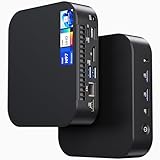
- 【Powerful Foundation for Every Task】The ASUS NUC 14 Essential, equipped with the Intel Processor N97, 8GB RAM, 256GB SSD, Windows 11 Pro and Intel UHD Graphics, delivers reliable performance. Whether for office work, digital signage or embedded solutions, it handles multitasking smoothly and serves as a solid alternative to previous NUC models.
- 【Fast and Stable Connections】Featuring Intel Wi-Fi 6E AX211 (Gig+), Bluetooth 5.3 and a 2.5G Gigabit Ethernet port (Realtek RTL8125BG - CG), the ASUS NUC 14 Essential offers maximum connectivity. It is ideal for POS systems, interactive media or home office setups that rely on fast and secure network connections.
- 【Versatile Interfaces & Display Capabilities】Boasting USB - C/USB - A ports, a 3.5mm audio jack, HDMI 2.1, DisplayPort 1.4 and RJ45, the ASUS NUC supports diverse connection options. It adapts flexibly to connect monitors, printers or external storage, making it perfect for retail use, schools or edge computing scenarios.
- 【Easy Upgradability & Low Operating Costs】The ASUS NUC 14 Essential allows easy access to RAM and SSD. It supports DDR5 up to 16GB and M.2 2280/2242 PCIe Gen3x4, compatible with 128GB–2TB NVMe or SATA SSD. Components can be upgraded in no time, reducing downtime and lowering maintenance costs, which is ideal for enterprises and IT departments.
- 【Compact Design – Usable Anywhere】With dimensions of just 135 × 115 × 36 mm and a weight of 470g, the ASUS NUC 14 Essential can be conveniently placed anywhere. Whether in a small office, retail booth or classroom, it saves space while providing more interfaces and better performance than traditional NUC mini - PCs.
Segment casting networks
A casting receiver should not automatically sit on the same unrestricted network as staff laptops or sensitive systems. Google’s Cast moderator network guidance describes separate receiver networks or VLANs and routable sender-to-receiver paths as possible deployment approaches. Apply the principle to the specific products and policies in your venue, and verify how discovery traffic crosses the segments.
The Tool Desk
Outbyte PC Repair FREEClear out junk files and repair common Windows errorsFree Scan →Outbyte Driver Updater FREEFix the driver behind crashes, sound loss and screen glitchesFind Drivers →For the documented Cast moderator setup using Chromecast with Google TV HD and 4K receivers, Google says the receivers are designed for WPA2-PSK Wi-Fi and do not support WPA2-Enterprise/802.1X authentication. Scope that limitation to those receiver models and deployment instructions; it is not a statement about every casting product. Google also says those models are no longer available through the Google Store, so confirm current availability and support before designing around them.
Google documents an Ethernet adapter for Chromecast with Google TV. That is a compatibility-dependent accessory, not a universal recommendation; confirm that the adapter, receiver firmware and network equipment support the intended installation.
Hardware choices and content requirements
Browser endpoint
Choose hardware based on the actual page. A static information page may run on modest equipment, while several simultaneous videos, WebGL graphics, high-resolution imagery or live dashboards need more CPU, memory and graphics capability. Check:
- Support for the required browser and operating-system kiosk mode.
- Hardware video decoding for the codecs and resolution you will display.
- Reliable wired Ethernet or stable Wi-Fi at the installation point.
- Automatic power-on and remote restart capability.
- Cooling, ventilation, mounting and access for maintenance.
- Whether the display’s smart-TV browser can run the page and remain supported for its expected service life.
Casting receiver and sender
Casting needs a compatible receiver attached to the display and a sender that can discover and control it. Confirm supported operating systems, browser versions, resolution, audio routing, authentication and network requirements. A receiver’s advertised resolution does not guarantee that mirrored tabs will reach that resolution; Google’s documented 1080p versus 720p distinction illustrates why the playback mode matters.
Display and physical installation
Set the display to the correct input, disable consumer sleep prompts, and lock the remote control away from visitors. For portrait signage, verify that the endpoint, browser layout and content all support the orientation. Label the power and network connections so a technician can restore service without guessing.
Choose by scenario
| Scenario | Recommended approach | Reason |
|---|---|---|
| Lobby information running all day | Managed browser kiosk or signage player | The endpoint can start itself, remain full-screen and be monitored without a presenter. |
| Boardroom presentation | Screen or tab casting | A person is present to control the sender and correct interruptions. |
| Classroom demonstration | Casting, with a prepared backup | The instructor needs to switch among applications; a second content path limits disruption if discovery fails. |
| Retail or restaurant menu | Managed browser signage | Scheduled content, restricted access and unattended recovery matter more than quick ad-hoc control. |
| Temporary event screen | Casting if the event has an operator; kiosk signage if it must run unattended | The staffing plan determines whether sender dependence is acceptable. |
| Interactive public terminal | Purpose-built kiosk configuration, not ordinary mirroring | Visitors need a controlled interface, while screen casting exposes the sender’s entire session. |
Troubleshooting checklist
The browser display is blank after a reboot
- Confirm the display is on the correct input and the endpoint has power.
- Check whether the endpoint stopped at a login, update or recovery screen.
- Verify automatic kiosk launch and the exact URL.
- Test DNS, internet access and certificate validity.
- Open the page with administrative access only long enough to read the error, then return to the locked account.
- If the page requires internet access, provide a designed offline message rather than an unstyled browser error.
The page is covered by prompts or desktop elements
- Record the exact prompt, notification or dialog and which account generated it.
- Disable the responsible notification or permission where policy allows.
- Restrict downloads, shortcuts and navigation in kiosk policy.
- Retest after browser updates and after a full power cycle.
The sender cannot find the receiver
- Confirm both devices are on the intended network and that the receiver is powered.
- Check VLAN, firewall, client-isolation and discovery settings.
- Verify that the sender and receiver support the selected casting mode.
- Try a Cast-enabled site separately from tab projection; they use different playback paths.
- Keep a wired or local presentation fallback for events where network changes cannot be made quickly.
The cast stops mid-session
- Prevent the sender from sleeping and keep its browser open for tab casting.
- Check Wi-Fi signal, VPN changes and battery state.
- Remove high-load tabs or applications from the sender.
- If the content supports receiver-side playback, use that mode instead of mirroring.
Bottom-line selection rule
Ask one question first: must the display continue when no operator is present? If yes, install the content on the display endpoint in a managed kiosk or signage setup, then engineer power recovery, network behavior, browser lockdown and monitoring. If no, and a presenter is available, casting is usually the fastest way to put a laptop or phone on the screen.
Do not mistake a successful five-minute demonstration for a production deployment. Test the exact endpoint, browser, receiver, network and content through reboot, sleep prevention, power loss, network loss and unattended operation before opening the display to the public.
Quick Recap
Product prices and availability are accurate as of the date/time indicated and are subject to change. Any price and availability information displayed on Amazon at the time of purchase will apply.

