What’s actually slowing this PC down?
Pick the symptom - the matching free tool is one click away.
For a specific PS2 disc, original PS2 hardware is the most direct choice. For a computer-based setup with configurable presentation, PCSX2 is the practical route—provided you have an original-PS2 BIOS dump, your own game media, and a computer that meets the current requirements. A PS5 is only a PS2 option when the exact game has a separate digital Classics release in your country; a PS5 does not generally play PS2 discs.
The right answer therefore depends first on the title you want to play and the equipment you already own, not on a universal ranking. Use the comparison and checks below to avoid buying hardware for a game that is unavailable on your chosen platform.
As an Amazon Associate I earn from qualifying purchases.
The three routes at a glance
These options solve different problems. A PS5 offers the least setup only when Sony has released that particular PS2-era title digitally for your region. An original PlayStation 2 accepts compatible original discs and preserves the console-first experience. PCSX2 runs PS2 software on Windows, macOS, or Linux, but it is an emulation project that requires a BIOS dump from an original PS2 and title-by-title compatibility checking.
Free tools Windows power users keep installed
One-click scans. No signup required.
| Route | What it supports | Main limitation | Best fit |
|---|---|---|---|
| PS5 Classics or another digital PS2 release | A title that appears as a separately released game in your regional PlayStation Store or other currently available catalog | No general PS2-disc backward compatibility; availability, region and subscription terms vary by title | Someone who wants a convenient console experience and has verified the exact release |
| Original PS2 hardware | Compatible original PS2 discs on a working PlayStation 2 | Requires functioning used hardware and physical media; condition and region compatibility must be checked | Someone who prioritizes discs and original console behavior |
| PC emulation with PCSX2 | PS2 games on a Windows, macOS or Linux computer using properly prepared BIOS and game media | Requires setup, an original-PS2 BIOS dump, adequate computer hardware and per-game compatibility checks | Someone comfortable configuring a computer and wanting flexibility |
What PS5 can—and cannot—do with PS2 games
General backward compatibility excludes PS2 discs
Sony’s PS5: The Ultimate FAQ, published November 9, 2020, answers the question “Can I play original PlayStation, PS2, or PS3 games on PS5?” with: "No, PS5 will play PS5 games and more than 99% of PS4 games, including PlayStation VR games, only." The “more than 99%” figure refers to the PS4 library and should not be read as a PS2 compatibility figure.
#1 Best Overall
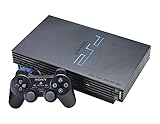
- The Playstation 2 system lets you play original PS1 games as well as the huge selection of PS2 games
- Includes: Playstation 2 System, 1 Dual Shock 2 Controller, AC Cable, AV Cable
- Color: Black
- PlayStation2 is equipped with a 128-bit Emotion Engine processor that enables lightning-fast gameplay and impressive graphics power
That statement describes the console’s general backward-compatibility scope. It does not mean that Sony can never sell a separate digital release of a PS2-era game. A Classics release is a new platform product, not a PS2 disc being recognized by the PS5.
A disc-drive PS5’s DVD function is unrelated
A PS5 model with an optical drive can play DVD video. Optical playback is a media feature, not support for PS2 game discs. Inserting a PS2 game disc will not turn the console into a general PS2 player. The Digital Edition has no optical-disc support at all, so it cannot read a physical game disc or a DVD.
Verify the exact digital release before choosing PS5
There is no single, permanent PS2 Classics catalog that can be assumed for every country. Availability, edition, language options, purchase method and any subscription requirement can change by title and region. Search your local PlayStation Store for the exact game name, then inspect the product page before relying on PS5 as your route.
- Open the PlayStation Store on the web or on your PS5 while signed in to the account and country you will use.
- Search the complete title, including subtitles or a regional name when applicable.
- Confirm that the product is a PS5-playable digital release rather than a PS4 listing, soundtrack, add-on or unrelated remake.
- Read the current product page for edition, language, price, purchase ownership and any subscription condition.
- Check that the listing is available to your account’s country; a result seen in another region is not evidence that you can buy it.
If the exact title is not listed, treat the PS5 route as unavailable rather than assuming a disc will work. Do not substitute a similarly named remake or a different regional version without checking that it is the game you intend to play.
Rank #2

- DualShock Controller
- DVD playback
- Digital surround sound
- 2 memory card slots
Original PS2 hardware: the disc-first option
What you need
The original-hardware path requires a working PlayStation 2, a compatible controller, the necessary video and power cables, and the game disc. If you already own discs, this is the only option in this comparison that uses them in the original console without creating a computer-based image.
Used consoles and games vary substantially in condition. Before buying, verify the exact console model, included controller and cables, disc condition, region compatibility between console and game, and the seller’s return terms. Current marketplace prices, stock and reliability of any particular listing are volatile and are not a reason to treat one revision or seller as universally best.
Why choose the original console
- Physical-media priority: your original discs remain the central part of the setup.
- Minimal software configuration: there is no emulator installation, BIOS configuration or computer troubleshooting.
- Console-era behavior: the game runs on the hardware for which it was designed, with its original controller assumptions and display output.
- Clear ownership boundary: you need the console and disc, rather than a digital listing that may vary by region or store policy.
Where original hardware is less convenient
You must find a functioning console and compatible physical media. Used-condition variables can affect whether the system reads a disc, whether the included controller works and whether the required cables are present. The hardware route also gives you fewer opportunities to change presentation than a computer emulator. If your goal is to play several titles without sourcing discs, or to use a modern computer display and controller setup, PCSX2 may be more practical after its initial preparation.
Outdated Drivers Are Slowing You Down
One free scan finds every outdated or missing driver and matches the right update for your exact hardware.Free scan · exact hardware matchPC Slower Than It Used to Be?
A free scan shows the junk files, broken settings and background clutter dragging Windows down - then fixes them in one click.Free scan · Windows 10 & 11PC emulation with PCSX2
What PCSX2 is
PCSX2 is a computer emulator project intended to run PlayStation 2 games on Windows, macOS and Linux. It is not a source of commercial game files, and it does not supply a PlayStation 2 BIOS. Its official setup guidance requires a BIOS dump made from an original PS2 before first-time configuration. The same documentation describes using original games directly from disc or user-created disc images.
Rank #3
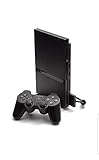
- Power Cords & adapters included
- DualShock Controller
- DVD playback
- Digital surround sound
The BIOS and game-media requirements are separate. Owning an emulator does not remove the need to obtain the BIOS from your own console and to prepare or use game media you are entitled to use. PCSX2’s technical documentation is not legal advice for every jurisdiction, so follow the rules that apply where you live.
Check the computer before installing
PCSX2 publishes minimum, moderate and heavy system tiers for Windows, macOS and Linux. The project can change those values as builds and operating systems evolve, and a minimum tier is not a promise that every game will perform well. Consult the current requirements table for your operating system and the performance level you want before deciding that an existing computer is suitable.
| Check | What to verify | Why it matters |
|---|---|---|
| Operating system | Your version of Windows, macOS or Linux appears in the current PCSX2 support information | Requirements and supported builds differ by operating system |
| Processor and graphics | Your CPU and GPU meet the project’s stated tier for the desired workload | Different games and presentation settings place different demands on the computer |
| BIOS source | You can make a BIOS dump from an original PS2 that you own or lawfully control | PCSX2 requires this file and does not provide it |
| Game media | You have an original disc or a user-created image made from your own media | The emulator is not a game download service |
| Title compatibility | The exact game appears in the project’s current compatibility information | “Tested” does not mean flawless, and results vary by title |
PCSX2 setup, step by step
- Identify the exact game. Record the title, region and edition you intend to use. Different regional releases can have different compatibility notes.
- Review the live requirements. Compare your computer with PCSX2’s current minimum, moderate and heavy tiers for Windows, macOS or Linux. If your machine falls below the relevant tier, choose original hardware or a different computer instead of assuming settings will compensate.
- Prepare the BIOS from an original PS2. Follow PCSX2’s official BIOS-dump instructions and complete this before first-time setup. Do not download a BIOS from an unverified site or expect the emulator installer to include one.
- Prepare your game media. Use the original disc in a compatible computer drive when supported by your setup, or create a user-made disc image from your own disc according to local law and the project’s instructions. Keep the original media available for verification.
- Install PCSX2 from the project’s current distribution. Use the build appropriate for your operating system, then launch it and point the first-run configuration to the BIOS dump you created.
- Configure input. Connect the controller you plan to use and map its buttons in PCSX2’s input settings. Test every important button, including analog controls, before starting a long session.
- Add the game source. Select the optical drive or the folder containing your user-created disc images, then let PCSX2 identify the title. Keep files organized by region and game so that you can match them to compatibility notes.
- Check the compatibility entry. Search the project’s public compatibility list for the exact title and region. PCSX2’s README reports more than 2,500 titles tested as of October 13, 2026; that project-reported count can change and is not a claim that every title works perfectly.
- Run a short test. Confirm that the game boots, reaches gameplay and responds correctly to your controller before investing time in configuration. Record any reproducible issue and compare it with the current compatibility notes.
- Adjust presentation cautiously. PCSX2 gives computer users configurable rendering and presentation options. Change one setting at a time, keep a known-good configuration, and return to it if a visual or timing problem appears.
What “tested” means in practice
The project’s tested-title count is useful evidence that a large number of games have been checked, but it is not a quality guarantee. Compatibility entries can describe problems such as a boot failure, a graphical defect, a progression block or a region-specific issue. Read the current entry for your title rather than inferring behavior from another game, a different region or a generic “compatible” label.
Direct comparison for the decision you actually face
| Decision factor | PS5 digital release | Original PS2 | PCSX2 on PC |
|---|---|---|---|
| Is the exact game available? | Only if a current digital release appears in your regional store | Yes, when you have a compatible disc and working console | Usually depends on your own media and the title’s compatibility status |
| Required hardware | PS5; a disc drive does not add PS2 game compatibility | Working PS2, controller, cables and compatible disc | Computer meeting the current project tier, plus an original PS2 for the BIOS dump |
| Disc use | PS2 discs are not a general supported format | Original PS2 discs are the intended media | Original discs or user-created images, subject to local law and setup support |
| Setup effort | Lowest after the exact product is purchased or included | Connect the console and display; physical setup is the main task | BIOS dump, software installation, input configuration, media preparation and testing |
| Performance predictability | Determined by the specific official release | Consistent with the original console when the hardware and disc work | Depends on computer capability, emulator build, settings and game-specific compatibility |
| Presentation flexibility | Limited to what the digital release provides | Original console output and accessories | Most configurable of the three, but changes can introduce new problems |
| Ownership and availability risk | Store region, delisting and subscription terms can change | Used hardware and disc condition are the main variables | Project requirements and compatibility notes evolve; your BIOS and media remain essential |
Choose by your starting point
You already own the PS2 disc and no suitable computer
Buy or use a working PS2 and verify that the console and disc regions match. This avoids paying for a computer upgrade and avoids the BIOS-dump and emulator configuration required by PCSX2. Check the console’s included accessories and the seller’s return policy if the hardware is used.
Rank #4

- PS2 SLIM Console in Black
- Power Adapter
- A/V Composite Cables for connecting to your TV
- 2 New Wireless Aftermarket Controllers
- 2 New Controller Receiver Dongles
You already own a PS5 but not the disc
Search the local PlayStation Store for the exact title first. If a current PS5-playable digital release exists and its purchase or subscription terms suit you, it is the simplest console route. If no exact listing appears, the PS5 does not become a PS2 player through its DVD drive; consider original hardware or PCSX2 instead.
You have a capable computer and want several games
PCSX2 can consolidate a computer-based library, but begin with the game you care about rather than assuming the whole PS2 catalog behaves the same way. Confirm the current requirements, make your own BIOS dump, prepare your own media and inspect each title’s compatibility entry. This route rewards careful setup and gives you the most room to change presentation, while also creating the most opportunities for configuration problems.
You want the fewest variables
Use the platform for which the exact game has an official release and a clear setup path. That may be a verified PS5 digital edition, or an original PS2 when you already have the disc. Avoid choosing a route solely because it is newer: a modern console without the title, or a computer without the required BIOS and performance headroom, is not a shortcut.
Troubleshooting by symptom
The PS5 does not recognize the PS2 disc
This is expected behavior, not a defective disc. PS5’s general compatibility statement excludes original PS2 games. Check the store for a separate digital release of the exact title; otherwise use an original PS2 or PCSX2.
Best Value

- Original PS2 Console in Black
- Power Cable
- A/V Composite Cables for connecting to your TV
- 2 New Wireless Aftermarket Controllers
- 2 New Controller Receiver Dongles
The PS5 store search finds a similarly named game
Open the product page and verify platform, edition, publisher, region and description. A remake, remaster, soundtrack or add-on is not evidence that the original PS2 release is available. If the page does not clearly identify the game you want, do not treat it as a match.
The original PS2 will not read a disc
Check the disc for damage, confirm that the disc and console regions are compatible, and verify that the console, controller and cables are the items described by the seller. If you bought used hardware, use the return terms rather than assuming every read failure can be fixed by software.
PCSX2 starts but asks for a BIOS
PCSX2 requires a BIOS dump from an original PS2. Recheck that you completed the project’s BIOS-dump process and selected the resulting file in first-run configuration. Do not substitute a download from an unknown source, and do not expect the emulator package to contain the BIOS.
The Tool Desk
Outbyte Driver Updater FREEScan for outdated or missing drivers - takes under a minuteDriver Scan →Outbyte PC Repair FREEClear out junk files and repair common Windows errorsFree Scan →A game boots but has a serious problem
Search the current PCSX2 compatibility list for the exact title and region. Note whether the report describes the same symptom, then test with a known-good configuration before changing multiple settings. If the entry identifies a title-specific limitation, switching computers or displays may not remove it; an official release or original console may be the more predictable route.
Controls do not work correctly
Open PCSX2’s input configuration, select the controller you intend to use and test every mapped button and analog axis. Save a working mapping before experimenting with alternative layouts. If the game expects a particular controller feature, verify that your chosen device and mapping provide it.
A verification checklist before you commit
- Have you confirmed the exact game title, region and edition?
- If choosing PS5, does the product appear in your own country’s current PlayStation Store?
- If choosing original hardware, have you checked console condition, accessories, disc condition, region compatibility and return terms?
- If choosing PCSX2, does your computer meet the current operating-system and performance-tier requirements?
- Can you create a BIOS dump from an original PS2?
- Do you have original game media or a user-created image made from that media?
- Have you read the current PCSX2 compatibility entry for the exact title?
- Are you treating project-reported testing as evidence to inspect, not as a promise of perfect operation?
Bottom line by priority
Choose original PS2 hardware when your priority is playing your discs with the least software setup. Choose PCSX2 when you have an original PS2 for the BIOS dump, suitable computer hardware and the patience to verify and configure each game. Choose PS5 only after the exact title is confirmed as a current digital release in your regional store; PS5’s general backward compatibility does not include PS2 discs.
Quick Recap
Product prices and availability are accurate as of the date/time indicated and are subject to change. Any price and availability information displayed on Amazon at the time of purchase will apply.
Do these 3 things before closing this tab:
1Scan for outdated or missing drivers - takes under a minute2Repair Windows errors before they cause bigger problems3Fix the driver behind crashes, sound loss and screen glitches
